Trying to set up a school enrollment form on WordPress?
If you have any type of educational institution, creating a dedicated school enrollment form can have benefits for both your organization and your students/parents:
- Students/parents – It offers a more structured way for them to provide important enrollment information, make tuition payments, etc.
- Schools – It helps you make sure you’re collecting all the information that you need, along with letting you collect tuition payments (optionally). You can also integrate your enrollment form with other services that you’re using and even set up entire automation workflows to streamline your student enrollment process.
With the Gravity Forms plugin and its school enrollment form template, you can easily set up a fully customizable enrollment form for your institution.
In addition to letting you customize the form itself, Gravity Forms also makes it easy for you to build automation workflows to help you process school enrollments and integrate with the other services that your organization relies on.
The school enrollment form template can work well for any type of educational institution, including:
- Preschools and kindergartens
- Primary schools
- Colleges and universities
- Academies
- Vocational institutes
In this post, we’ll show you step-by-step how to set it up.
Let’s dig in…
Key features of the school enrollment form template
You can interact with a live version of the school enrollment form template here.
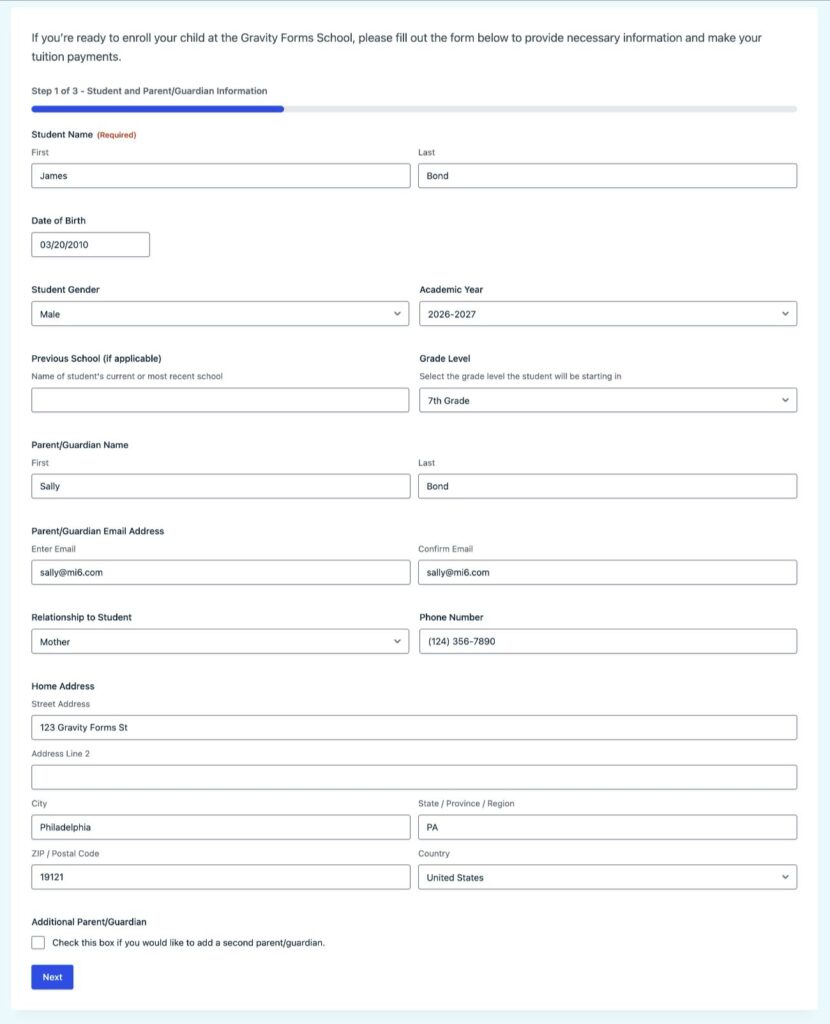
Before we get into the full step-by-step tutorial, let’s quickly run over some key features of the template:
- Full control over all form fields – While the template comes with all of the essential fields that you need in a school enrollment form, you’re free to fully edit everything using the drag-and-drop editor. This includes adding, editing, and/or deleting fields as needed.
- Multi-page design – To create a more user-friendly experience, you can divide the enrollment form into multiple pages. You can also add or remove pages if needed.
- Conditional logic – You can use conditional rules to show/hide certain parts of the form depending on how enrollees answer. You can also add conditional rules to other parts of the form, such as the email notifications that you send to enrollees. This helps you keep your form as short as possible, while still collecting all of the information that you need.
- Consent field – This lets you add a legal agreement to the form. Whenever someone submits the form, you can store a full copy of the legal agreement as it appeared when the person submitted the form, which is very useful for recordkeeping.
- Collect real signatures – You can also collect real digital signatures from students or parents.
- Accept payments directly via the form – You have the option to collect school enrollment fees and/or tuition payments as part of the form. You can accept one-time payments or let enrollees set up a payment plan, which might be useful for tuition payments. For example, you could let them make three payments of $X on a specific schedule.
You can choose to make use of all of these features. Or, you can skip certain functionality if you don’t need it.
For example, if you’d prefer to process payments for school enrollment fees or tuition via other methods, you can easily remove the payment functionality from the template.
You can also make use of all the other features and integrations for Gravity Forms, which opens up some additional use cases. Here are a few examples, though this is not the complete list:
- Save enrollees’ information to your customer relationship management (CRM) platform.
- Subscribe parents/students to your school’s email newsletter to keep them updated about everything that’s happening.
- Create workflow automations with Gravity Flow, which can be helpful for automating tasks related to school enrollment.
We’ll touch on some of these optional enhancements in the tutorial.
How to set up a school enrollment form on WordPress
Now, let’s get into the full guide on how to set up your own WordPress school enrollment form using Gravity Forms and its pre-made template.
Install Gravity Forms and any necessary add-ons
To get started, you’ll need to install and activate the core Gravity Forms plugin on your site, if you haven’t done so already.
In addition to the core plugin, you’ll also want to install some of the add-ons that the template makes use of. By default, the template relies on the following add-ons:
- Square Add-On – If you want to accept payments directly as part of the enrollment form, this add-on lets you process payments using Square. You could also swap it out for one of the other payment add-ons that Gravity Forms offers.
- Signature Add-On – This lets you collect real signatures as part of the enrollment form, including letting enrollees sign using their mouse or a touch screen device.
The Square Add-On (and most other payment add-ons) is available on the Pro license, while the Signature Add-On requires the Elite or Nonprofit license. As such:
- If you want to accept real signatures as part of the enrollment form, you need the Elite or Nonprofit license.
- If you want to accept payments but you do not need to collect real signatures, you can use the Pro license.
- If you don’t need to accept payments or real signatures, you can use the rest of the template’s functionality with any license, including the Basic license.
If you’re not holding the relevant license yet, you can purchase a new license here.
Once you’ve installed the core Gravity Forms plugin and added your license key, here’s how to install add-ons:
- Go to Forms → Add-ons in your WordPress dashboard.
- Find the relevant add-on in the list. To use all of the template’s default functionality, you would need the Square Add-On and Signature Add-On.
- Click Install for the relevant add-on(s).
- Once the installation finishes, make sure to activate the add-on(s) on your site.
Connect Gravity Forms to Square or other payment processor (if accepting payments)
If you want to accept payments as part of your school enrollment form, you’ll need to connect Gravity Forms to your chosen payment processor before setting up the template.
Again, the template uses Square by default, but you can easily switch to another payment add-on if you prefer. Here’s a full breakdown of the different payment add-ons that Gravity Forms offers.
Here are the basic instructions for how to set up the Square connection – we’ll link you to more detailed tutorials below:
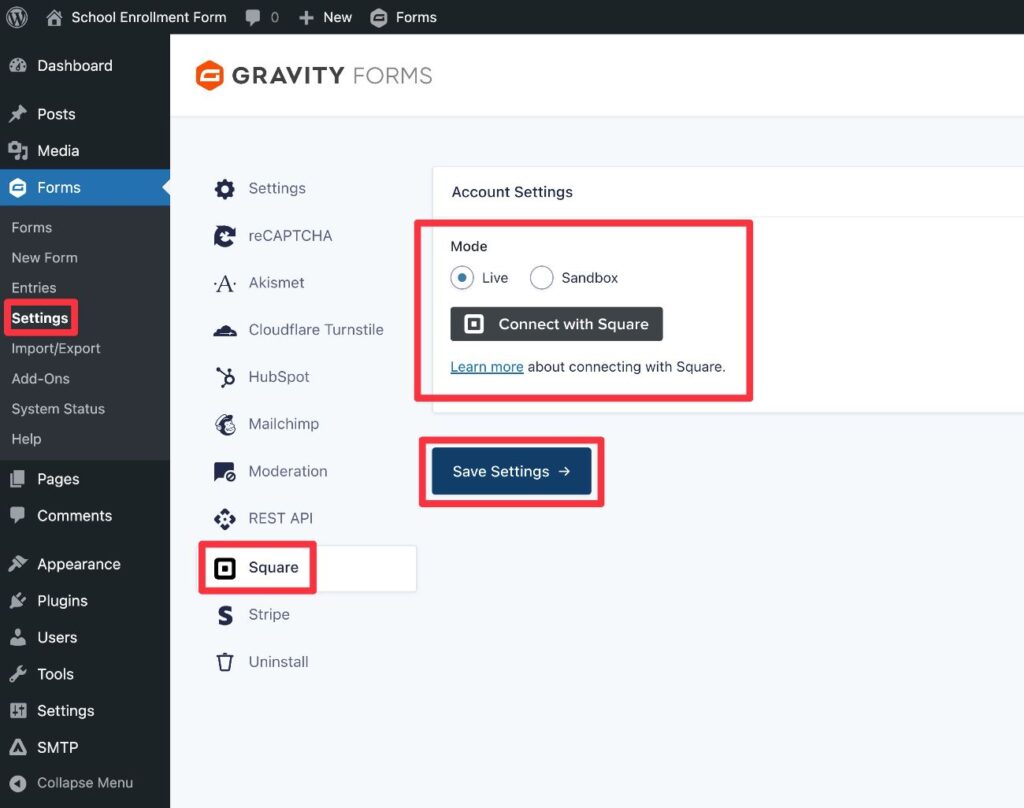
- Go to Forms → Settings in your WordPress dashboard.
- Select the Square tab in the Gravity Forms settings.
- Follow the prompts to connect your site to Square. We recommend connecting in Test mode to start, as it will let you test your school enrollment form with dummy payments. When you’re ready to accept real payments, you just need to come back here and set up Live mode.
For full instructions on the connection process, you can read our ultimate guide to Gravity Forms and Square or the Square Add-On documentation.
Create a new form using the school enrollment form template
Next, you can create a new form using the school enrollment form template to get started:
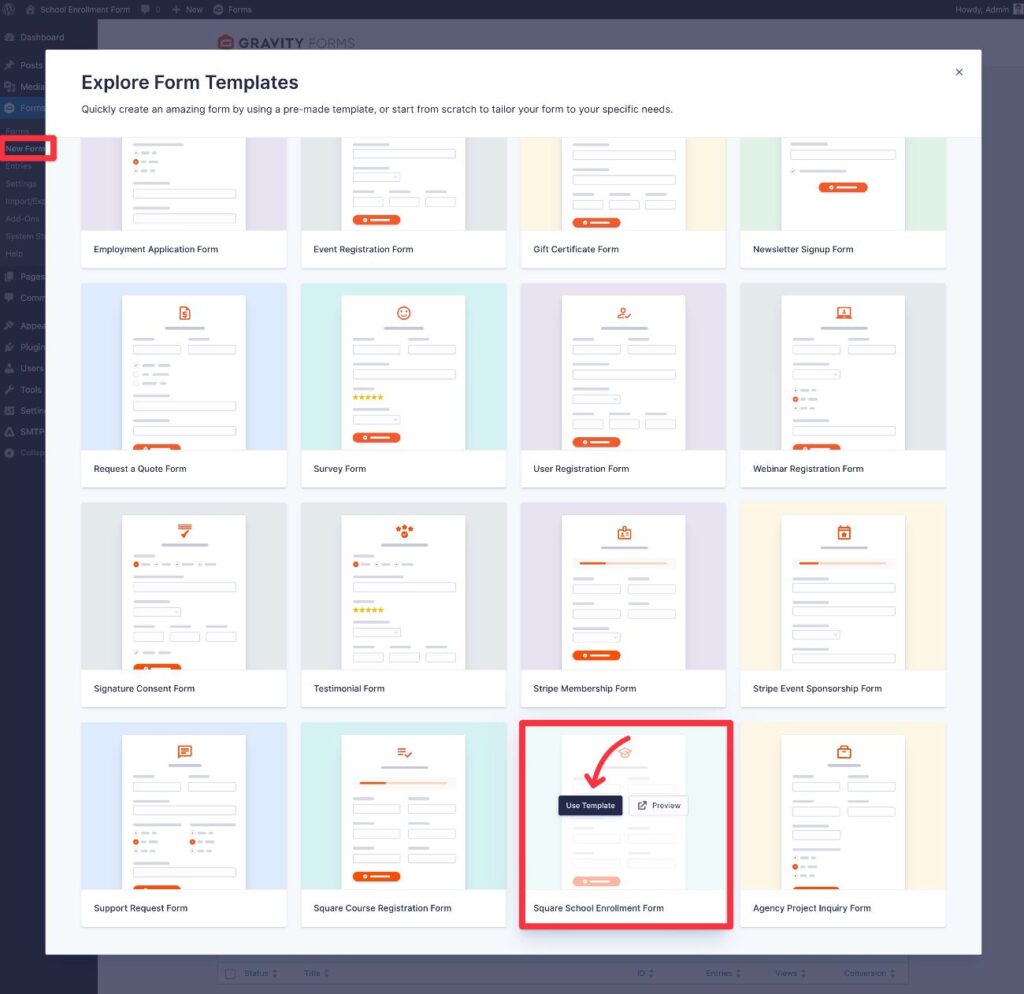
- Go to Forms → New Form in your WordPress dashboard.
- Find the “Square School Enrollment Form” template in the list of available templates.
- Hover over the template and click the Use Template button.
- On the next screen that appears, give your form a name and an optional description. Then, click Use Template again to launch the form editor.
Customize your enrollment form
Once you create a new form using the school enrollment form template, you’ll be taken to the drag-and-drop form builder interface.
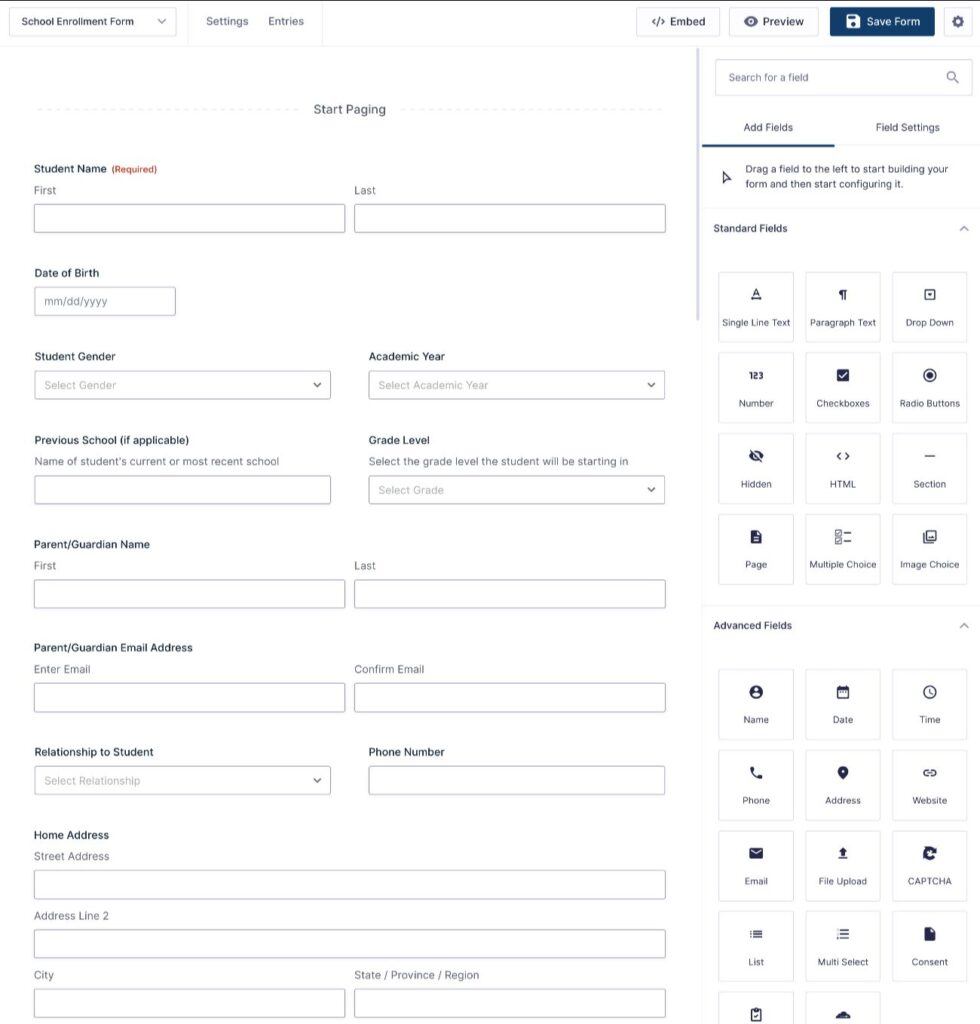
Here, you’re free to fully customize the template to your needs. You can…
- Edit all of the fields that are included in the template.
- Add new fields to collect additional information from students/families.
- Delete any of the fields in the template that don’t apply to your use case.
We recommend looking over all of the fields in the form, but there are a couple of fields that you’ll want to pay extra attention to because of how important they are:
- Consent field (Enrollment Contract) – Make sure to update the legal agreement to match your school’s agreement. Gravity Forms will store a copy of the agreement that each enrollee agreed to when submitting the form.
- Product field (“Payment Plan”) – If you want to accept payments directly from the enrollment form, this field lets you control the amount(s). Make sure to update the prices and payment options to reflect your school’s enrollment fees and/or tuition. If you don’t need to accept payments via your form, you can delete the Product, Total, and Square fields.
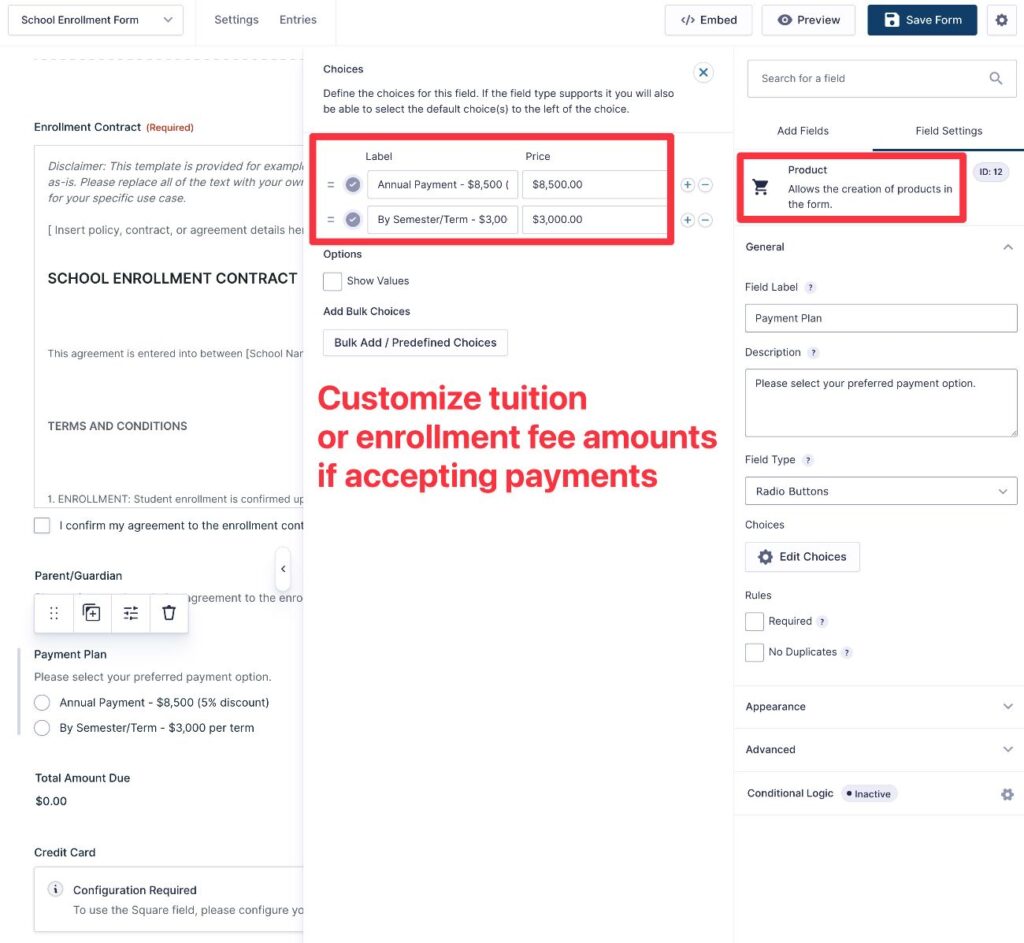
The template uses a multi-page layout by default. You can add or remove page breaks using the Page field.
Once you’re happy with everything, make sure to click Save Form in the top-right corner.
Customize email notifications and confirmations
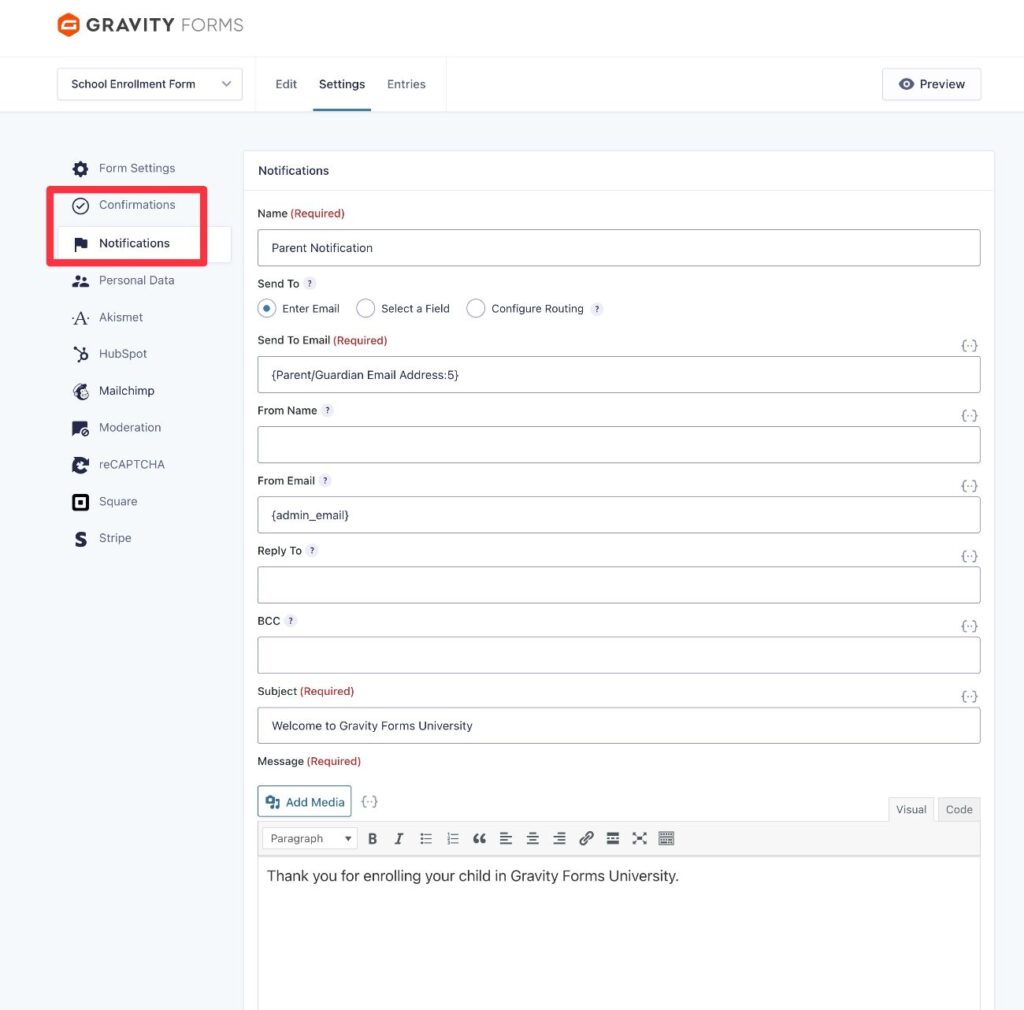
Now, you can customize a few important backend settings of your enrollment form, including notifications and confirmations:
- Notifications – Notifications let you send one or more emails when someone submits the form. You can send them to the student, the parents (if applicable), yourself, other administrators, etc. For forms with tuition payments, you can also send emails based on other triggers, such as when the tuition payment is successfully processed.
- Confirmations – Confirmations let you display a message to enrollees after they submit the form, or redirect them to a different page (such as a page with more information).
You can also use conditional logic for both notifications and confirmations, which lets you adjust their behavior based on how someone filled out the enrollment form (if needed).
You can set these up by going to Settings → Notifications and Settings → Confirmations in the form editor.
Set up a payment feed (if accepting tuition payments)
If you’re not accepting payments as part of your enrollment form, you can skip this.
However, if you are accepting tuition payments or enrollment fees, you need to create a payment feed to control how to process those payments.
We’ll show you how to set up a Square feed, but the same basic steps will apply to other payment processors.
To begin, go to Settings → Square in the form editor. Then, click Add New.
Now, you can configure your feed – here are the docs for creating a Square feed and our full Square tutorial also covers the process in detail.
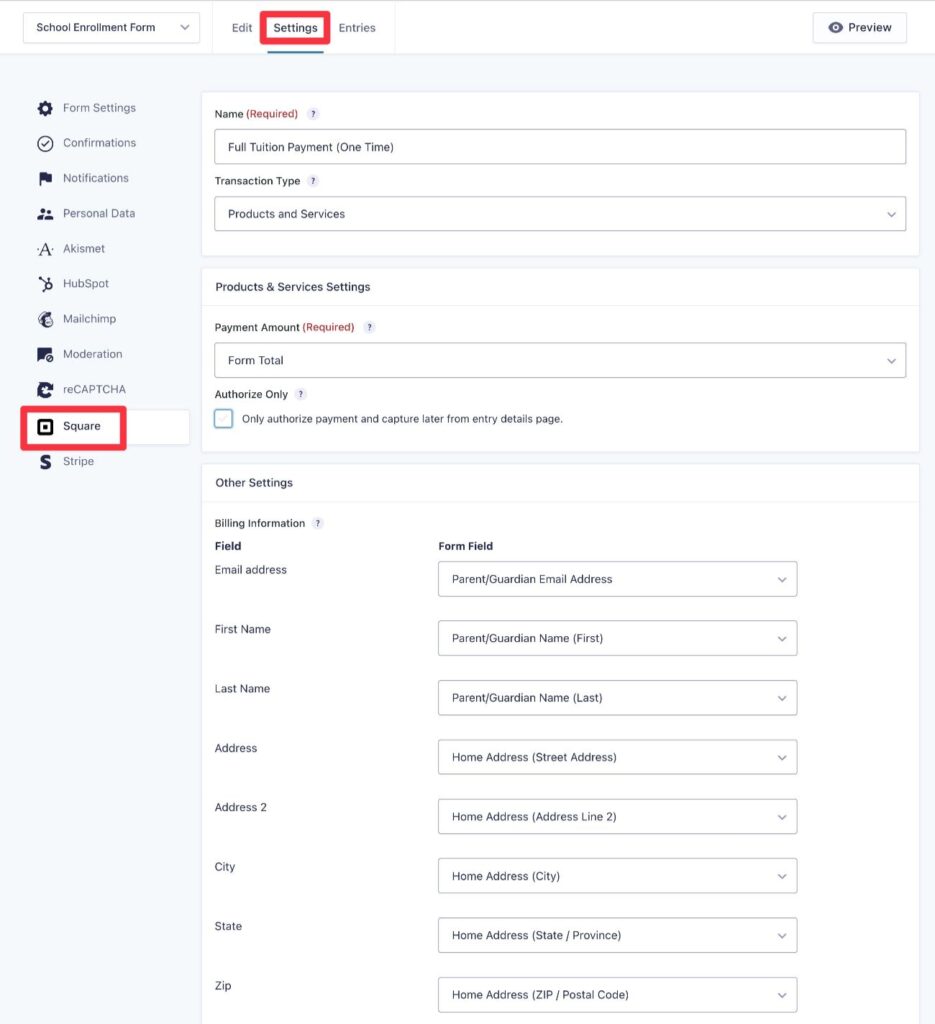
If you want to offer multiple payment options, you might need to create multiple payment feeds and use conditional logic rules to control when to execute each.
For example, if you want to give enrollees the option between making the entire tuition payment upfront or setting up a payment plan, you would need to create two payment feeds:
- Full tuition payment – Create a one-time payment feed (“Products and Services”) and add a conditional logic rule to only execute this feed if the enrollee chooses to make a full tuition payment.
- Payment plan – Create a subscription payment feed (“Subscription”). When configuring the subscription, you can choose the billing interval that matches your plan. With Square, you can also automatically cancel the subscription after a certain number of payments, which is great for payment plans (some processors, like Stripe, don’t support this functionality). Then, add a conditional logic rule to only execute this feed if the enrollee chooses the payment plan option.
Set up other Gravity Forms add-ons for CRM, email newsletter, etc. (optional)
This step is optional.
However, another advantage of using Gravity Forms for your school enrollment form is that you can also take advantage of all the other official and community add-ons that are available for Gravity Forms:
Here are a few ideas of some useful options to consider for a school enrollment form:
- Add students/parents to your CRM – You could automatically sync the student and/or parent(s) as a contact in your CRM, if your organization uses one.
- Subscribe people to your email newsletter -You could give people an option to subscribe to your school’s email newsletter as part of the enrollment form.
- Send text/SMS notifications – You could send your admin team and/or the enrollee an SMS/text message to confirm their enrollment. This also gives you a way to contact parents or students via phone in addition to email.
You can also use the Gravity Forms Zapier Add-On to integrate your school enrollment form with any of the thousands of apps that Zapier supports. For example, you could sync your enrollment form with Google Sheets, if that’s part of your organization’s enrollment workflow.
Use Gravity Flow to automate enrollment processing (optional)
This step is also optional.
However, another advantage of using Gravity Forms for your WordPress school enrollment form is that you can use the Gravity Flow plugin to automate after-submission processing.
Gravity Flow is a Gravity Forms add-on that comes from the same team behind Gravity Forms and lets you build workflow automations based on 40+ different actions.
Some of the available actions include:
- Approvals – for example, you could assign a student’s enrollment to a member of your admin team. Once they finish their tasks, they could approve the enrollment or advance to the next step in the automation.
- PDF generation – you can generate PDFs with a student’s enrollment information.
- Email notifications – you can send email notifications that are triggered later in the process (not immediately upon form submission). For example, notifying the student or their parents when their enrollment has been processed.
- Payments – you can also accept payments later in the process, rather than accepting them as part of the initial form submission. For example, only processing enrollment fees after the enrollment has been approved.
These are just a few examples of the types of workflow automations that you can set up with Gravity Flow.
To learn more, you can head to the Gravity Flow website or read our Gravity Flow review.
Embed your school enrollment form
To make your form public, you can embed it anywhere on your school’s website using the Gravity Forms block, shortcode, or PHP function.
If you use the Form block, you’ll also be able to style your enrollment form directly from the editor.
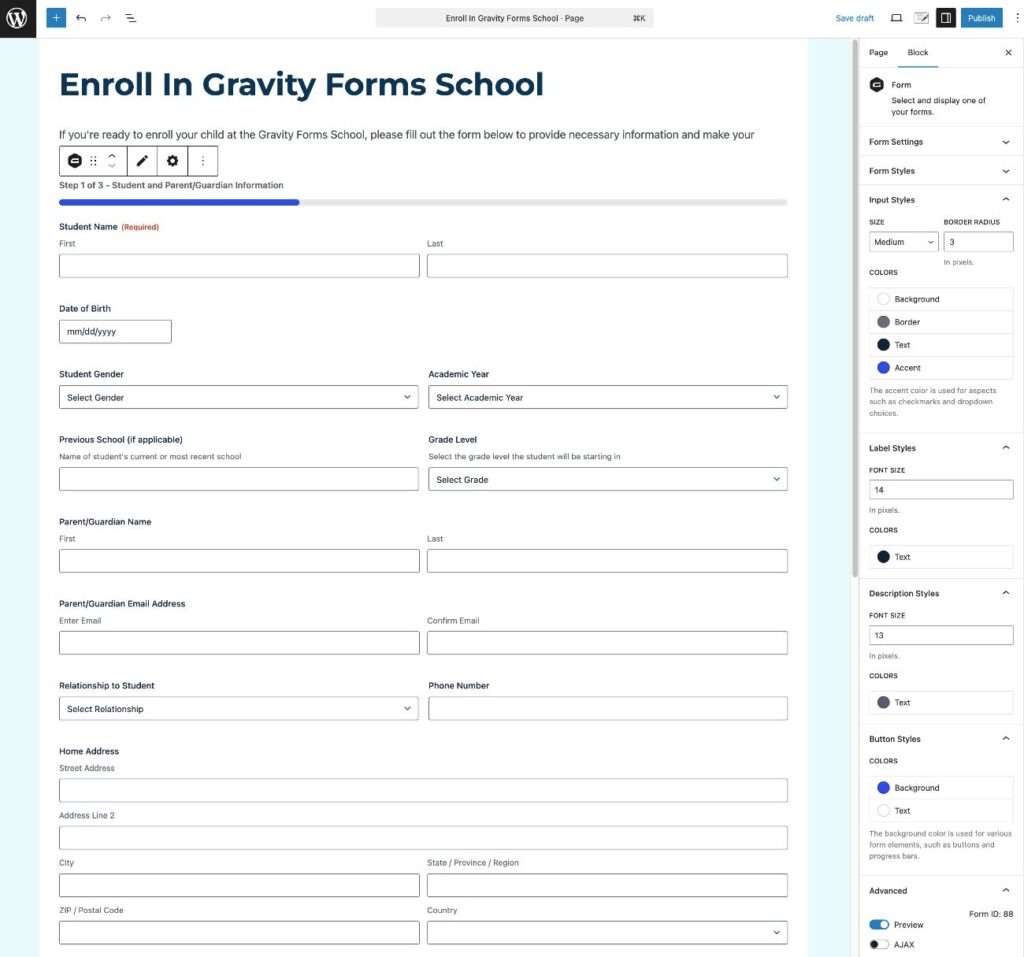
Once you publish your form, we recommend testing it to make sure that everything is working as you intend it to.
If you’re accepting tuition payments and you are connected to Square in Test mode, you can submit a test payment to make sure everything is working using Square’s test card numbers.
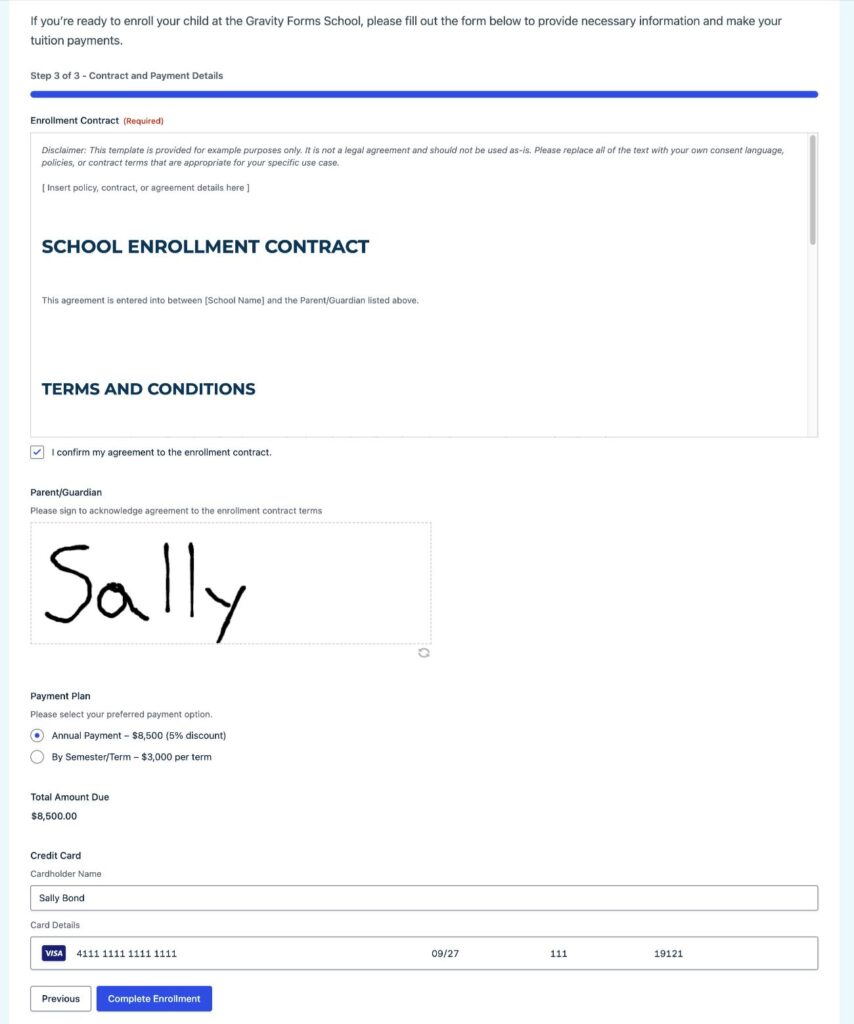
Note – when you’re ready to accept live payments, you need to go back to the payment add-on’s settings and enable Live mode. Here’s how it works for Square:
- Go to Forms → Settings in your WordPress dashboard.
- Select the Square tab in the settings area.
- Choose Live under Mode.
- Follow the same steps to connect your site to the live version of Square.
How to view new student enrollments
Once students start enrolling, you’ll be able to view new enrollees from the Gravity Forms entries area:
- Go to Forms → Entries in your WordPress dashboard.
- Select your school enrollment form from the drop-down.
- View a full list of all enrollments. You can also use filters to find specific entries.
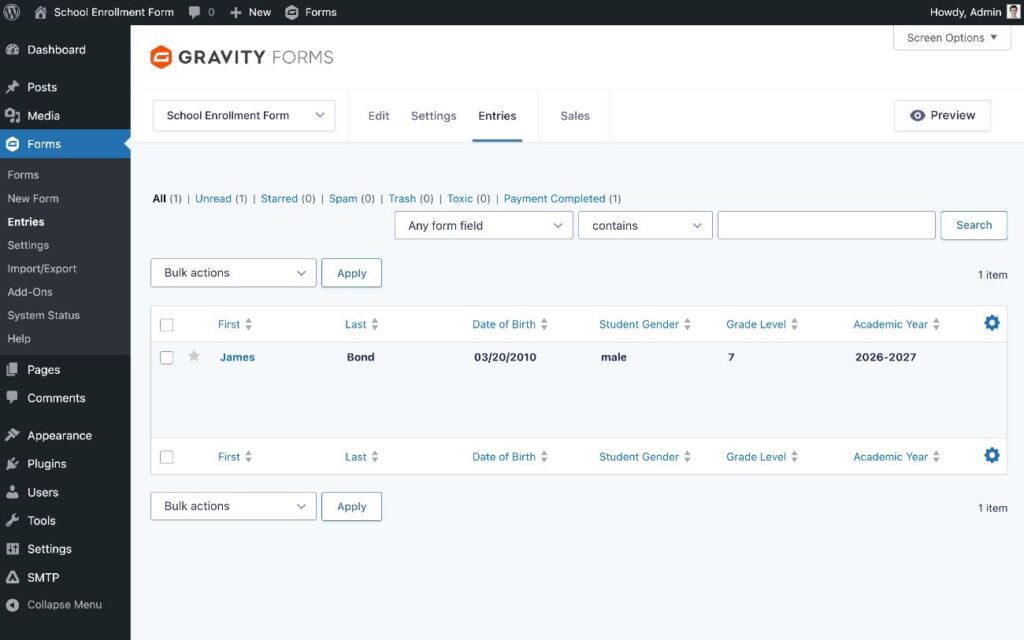
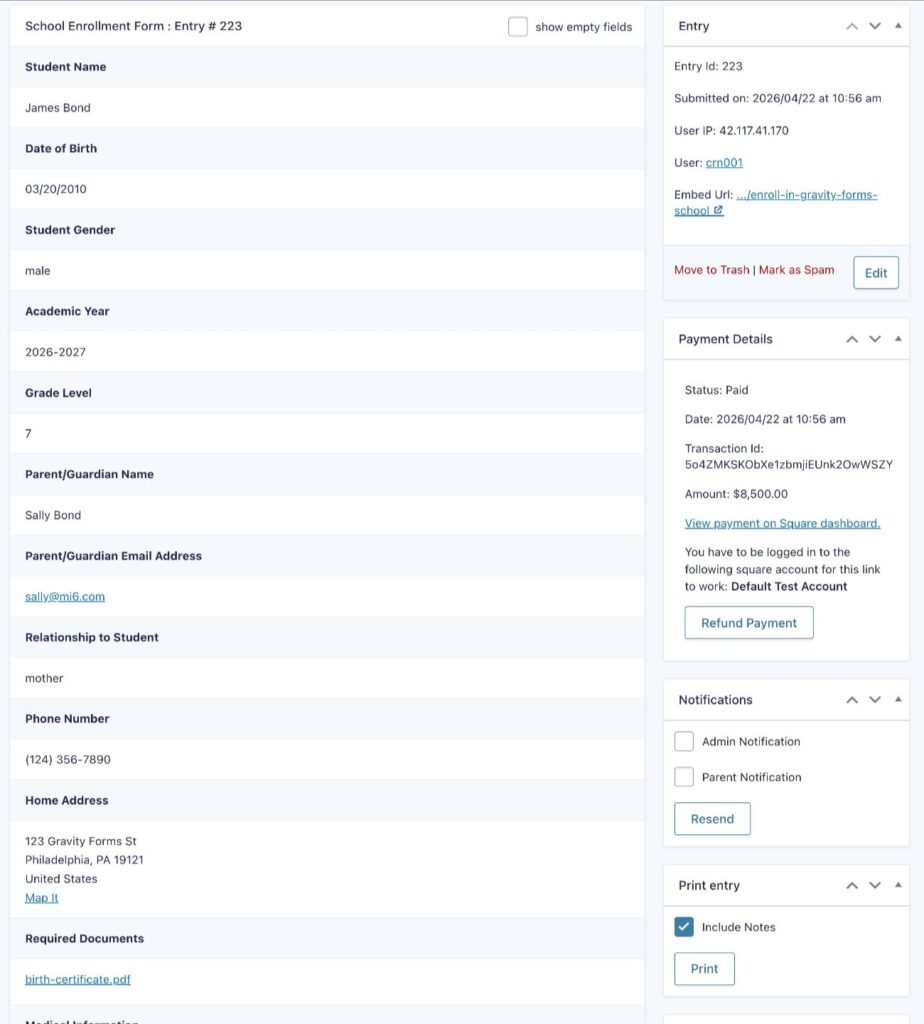
To view all of the information about a specific enrollment, you can hover over it and click View.
The detailed entry page will show all of the details from the form, along with information for payments, signatures, and any other add-ons that you’re using.
As we mentioned earlier, you also have options for more directly integrating new enrollments into your organization’s administrative processes:
- If you’re looking for a new solution for managing enrollments, you can use Gravity Flow to build full enrollment workflows, as we discussed above.
- If you’re already using third-party services to help you manage enrollments, you could use existing add-ons or the Zapier Add-On to connect to those services.
Create your WordPress school enrollment form today
With Gravity Forms and its school enrollment form template, you can easily create a WordPress-powered enrollment form for your school, academy, university, training center, etc.
You can fully customize the template using a drag-and-drop editor, accept tuition payments directly from the form (including payment plans), and collect real signatures and log enrollment agreements.
Plus, you’re free to use all of the other functionality in Gravity Forms, which can help you connect your enrollment form to other useful tools such as a CRM, email newsletter, Google Sheets, Zapier, and more.
The Gravity Flow plugin can also help you build automated processes for your entire student enrollment workflows, all powered by your enrollment form.
If you’re already using Gravity Forms, try the template today to get started.
If you’re not holding a Gravity Forms license today, purchase your license here to get started.
Or, if you’d like to try the school enrollment template before you buy, you can also create a free demo site by clicking here.
Square Promotion – Free Processing
Gravity Forms and Square have teamed up to offer an exclusive promotion for new Square customers — enjoy free processing fees for up to 180 days!
Here’s how it works:
- Free Payment Processing – Get $5,000 in credit card transactions processed for free within your first 180 days. After that, standard Square fees apply.
- $20 Off Square Hardware – Receive a $20 discount on Square hardware once you sign up.
To take advantage of this promotion, simply sign up for a Square account using this link and start processing payments with no extra fees.

Newsletter
If you want to keep up-to-date with what’s happening on the blog sign up for the Gravity Forms newsletter!
"*" indicates required fields