Searching for a WPForms alternative?
With the WPForms to Gravity Forms Migrator, you can easily move your WordPress forms to Gravity Forms without needing to rebuild them from scratch.
All you need to do is:
- Install the WPForms to Gravity Forms Migrator Add-On.
- Scan the forms that you’ve created with WPForms and choose which forms to migrate.
- Preview what the migrated forms will look like in Gravity Forms.
- Finalize the migration to get started with Gravity Forms.
In addition to migrating form fields, the add-on will also help you migrate other key form settings, including supported notifications, confirmations, and smart tag content.
Below, we’ll dig into some of the reasons to make the switch and how the add-on works. Then, we’ll show you step-by-step how to migrate your forms to Gravity Forms.
Note: The WPForms to Gravity Forms Migrator Add-On is part of Gravity Labs — our home for experimental add-ons. It’s free with your Gravity Forms license, but it’s experimental and outside our official support. Labs is also how we learn what our community wants to see in the product, so if you try it, let us know what you think.
Why make the switch from WPForms to Gravity Forms?
While Gravity Forms and WPForms share a lot of the same basic functionality, there are also some notable differences that can make moving to Gravity Forms worth the switch:
- Larger extension marketplace – Gravity Forms has a much larger marketplace of official and third-party extensions, which gives you more flexibility for adding features and integrations to your forms.
- Multi-step workflow automation – The Gravity Flow add-on (from the same team behind Gravity Forms) makes it easy to set up multi-step business process workflow automations, which isn’t something that WPForms currently supports.
- Developer flexibility – Gravity Forms offers a REST API and other developer-friendly features for more flexible customization.
- More affordable pricing – Gravity Forms is generally more affordable than WPForms for similar functionality.
- No renewal price increase – WPForms’s prices essentially double if you want to renew after the first year. With Gravity Forms, there’s no price increase or other surprises.
To learn more about the reasons to make the switch, you can read our full WPForms vs Gravity Forms comparison.
What does the WPForms to Gravity Forms Migrator Add-On do?
The WPForms to Gravity Forms Migrator Add-On lets you migrate some or all of your forms to Gravity Forms with just a few clicks.
When you run the migration process, you can choose to migrate one specific form or you can migrate all of your forms at the same time.
The add-on will try to preserve your forms on as one-to-one a basis as possible. The migration process includes:
- Form field conversion – The add-on will automatically convert WPForms field types to the equivalent field type in Gravity Forms.
- Notifications – The add-on will migrate any email notifications that you’ve set up in WPForms.
- Confirmations – The add-on will also migrate after-submit messages from WPForms.
When you migrate your forms, Gravity Forms will not do anything to affect your existing forms in WPForms. Gravity Forms will also not replace any of your existing form embeds.
After the migration, you can review and preview the migrated version of the form. Then, when you’re ready to go live with the Gravity Forms versions, you can replace your WPForms embeds with Gravity Forms.
While the add-on will handle automatically migrating most of your WPForms content, it’s also important to note some of the limitations:
- Entries – The free version of WPForms doesn’t let you store form submissions/entries, but the premium version does. If you’re using this feature, it’s important to note that the add-on will not migrate your existing WPForms entries to Gravity Forms. We recommend backing up your WPForms entries if it’s important for you to maintain records of past form submissions.
- Conditional logic – The add-on does not currently migrate any conditional logic rules that you’ve added in WPForms (which is also a premium feature in WPForms). If you’re using conditional logic, you will need to manually recreate those rules after migrating the form(s).
- Integrations/third-party WPForms plugins – If you’re integrating with third-party services or using third-party add-ons, you will usually need to manually recreate those connections in Gravity Forms.
How to migrate WPForms to Gravity Forms
Now, let’s go through the full step-by-step guide on how to migrate WPForms to Gravity Forms automatically.
As we mentioned above, this method will work for the actual forms and form fields, along with key backend settings such as confirmation messages and email notifications.
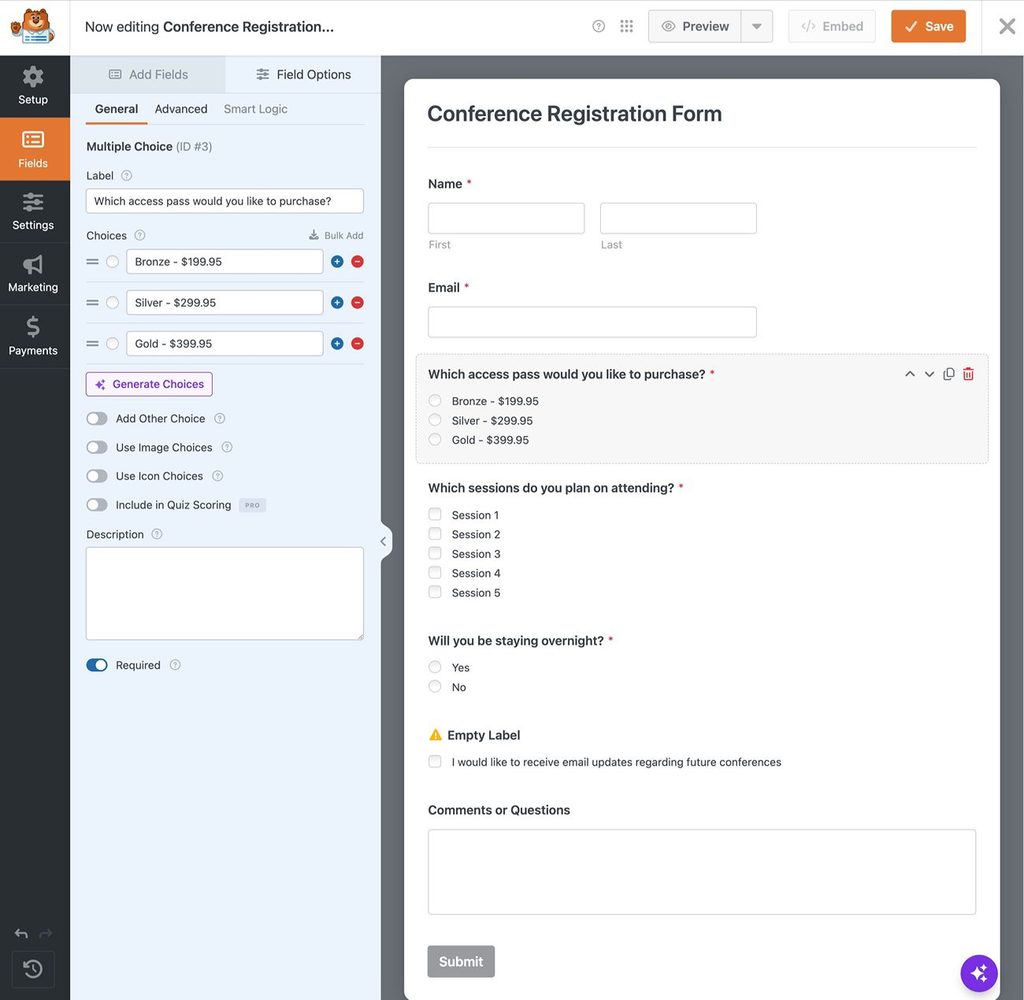
For this example, we created a few different WPForms forms using some of the pre-made templates. We’ll focus on migrating a single form, but you can also migrate in bulk and creating multiple forms will let you see how Gravity Forms is able to detect everything.
Here’s an example of the specific form that we’ll focus on:
Now, let’s migrate the form from WPForms to Gravity Forms.
1. Install the WPForms to Gravity Forms Migrator Add-On
To get started, you need to install both the core Gravity Forms plugin on your site (if you haven’t done so already), as well as the WPForms to Gravity Forms Migrator Add-On.
As we mentioned above, the WPForms to Gravity Forms Migrator Add-On is currently part of Gravity Labs. While these add-ons are free with any Gravity Forms license, they sit outside the normal suite of Gravity Forms add-ons.
Once you’ve installed the core Gravity Forms plugin, here’s how to install the add-on:
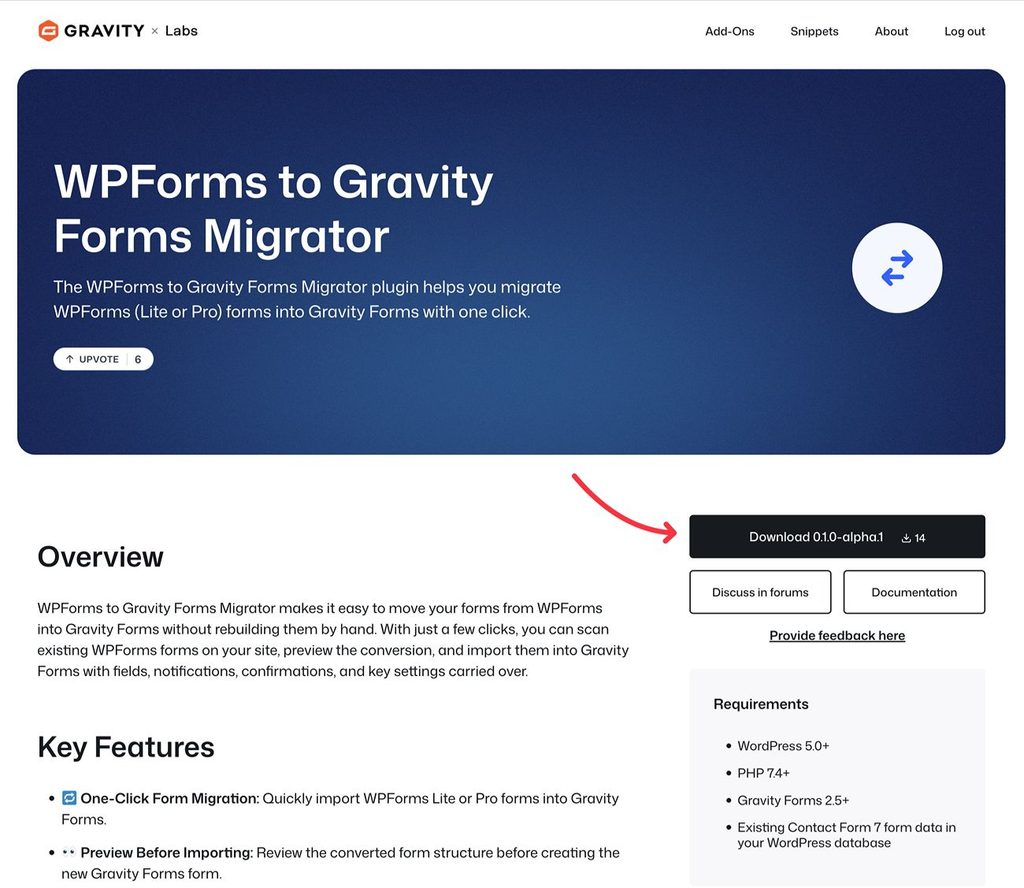
- Go to the WPForms to Gravity Forms Migrator Add-On page at Gravity Labs.
- Log in to your existing Gravity Forms account on Gravity Labs, if you haven’t done so already.
- Click Download.
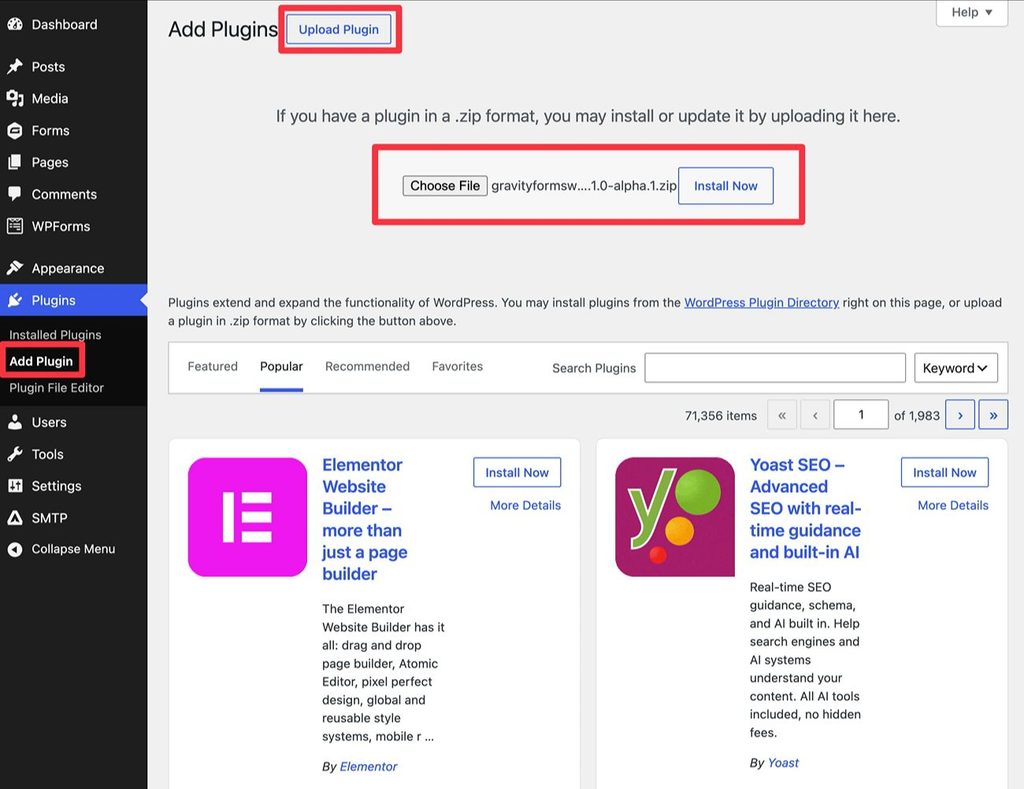
After you’ve downloaded the add-on’s ZIP file to your computer, you can upload and install it like any other WordPress plugin:
- Go to Plugins → Add Plugin in your WordPress dashboard.
- Click Upload Plugin.
- Select the ZIP file and click Install Now.
- On the next screen, make sure to activate the plugin.
2. Choose which WPForms forms to migrate
Once you activate the migration add-on, you can start migrating some or all of your WPForms forms right away.
To get started, go to Forms → WPForms Importer in your WordPress dashboard sidebar.
You should then see a list of all of the forms that Gravity Forms detected, which should be all of the forms that you created with WPForms.
You then have two options:
- Import all forms – This lets you import all of the forms that you created with WPForms with one action.
- Import individual forms – If you just want to migrate a single form (or if you’d prefer to migrate one by one), you can also click Import to Gravity Forms next to an individual form to migrate just that form. If you’re not sure which form is which just by looking at the form title, you can click the Preview button to see a summary of the form’s fields and other relevant settings.
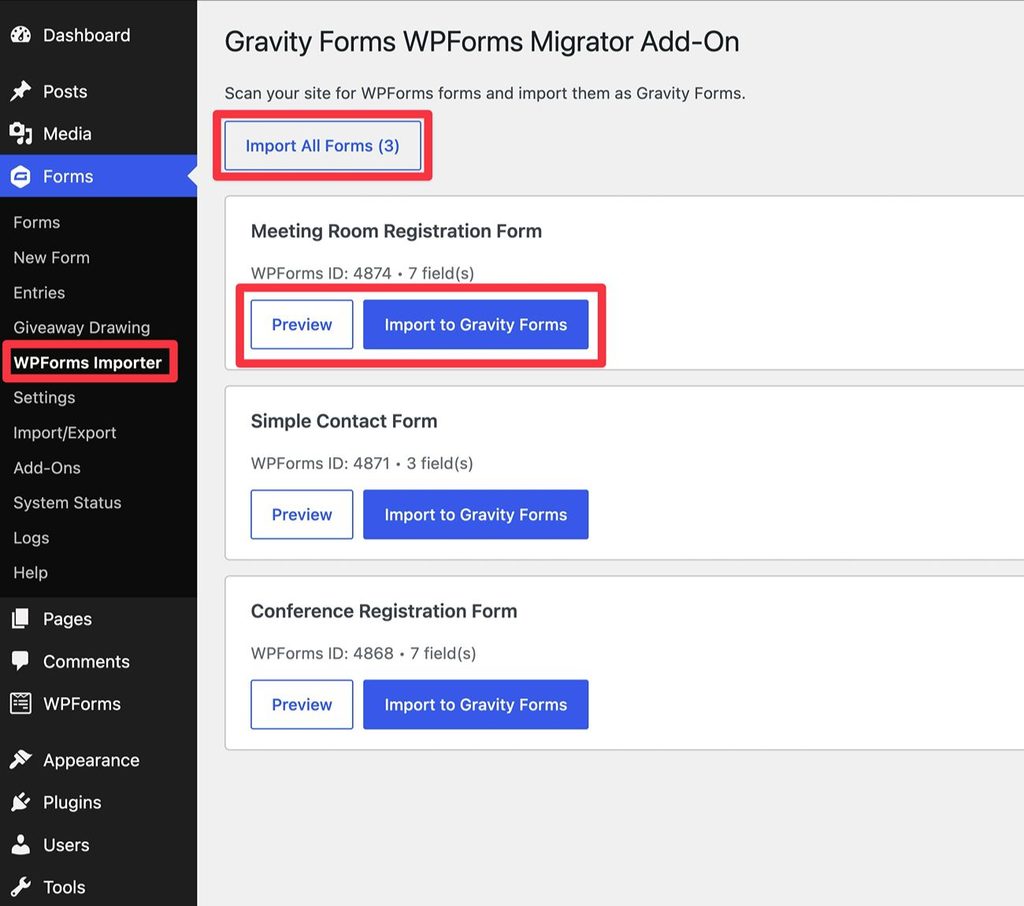
For this example, we’re just going to migrate the “Conference Registration Form” instead of migrating all forms at once.
After clicking the Import to Gravity Forms button, you should see a success message and a link to open the migrated form in the Gravity Forms form editor interface.
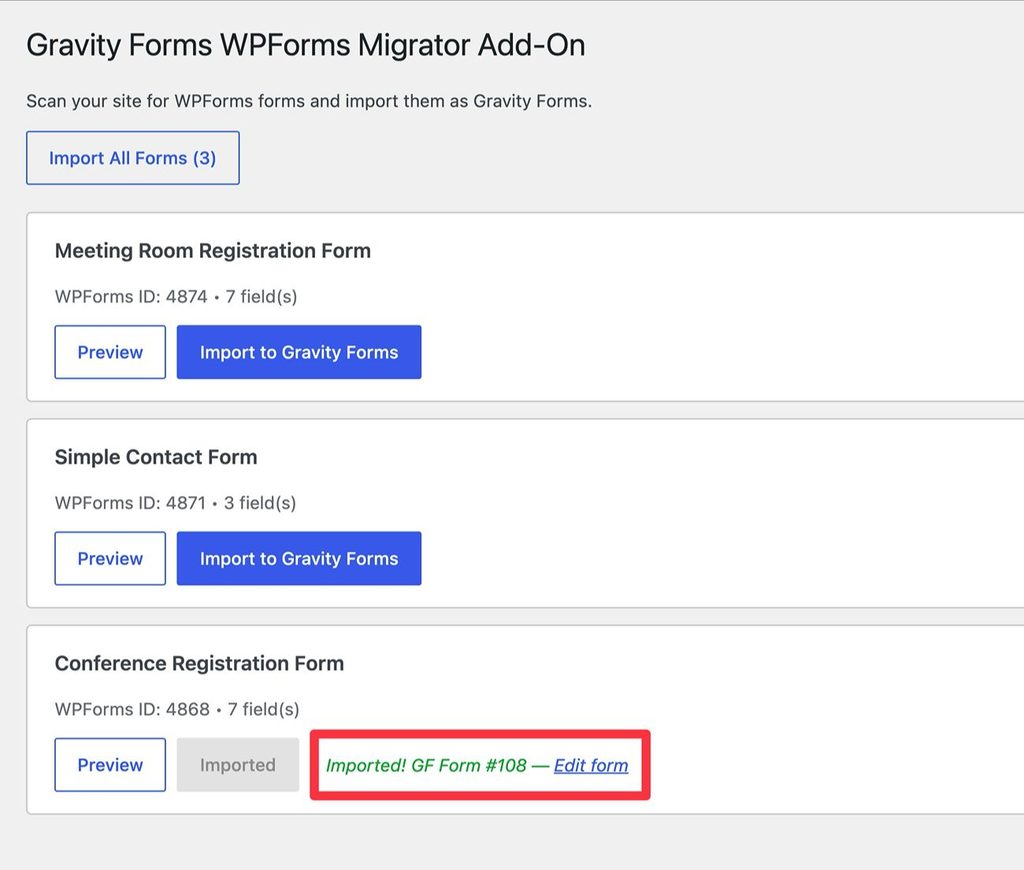
3. Check the imported form(s) and edit if needed
When you click the link to open the form editor, you should see all of the same fields from the WPForms version of your form.
We recommend that you check through everything and verify key details such as labels, whether a field is required, formats (e.g. telephone number formats), etc.
Additionally, if you used any conditional logic rules in WPForms, you’ll need to set up those rules again in Gravity Forms as the add-on isn’t able to automatically migrate those rules. Our full guide to Gravity Forms conditional logic covers how it works in detail.
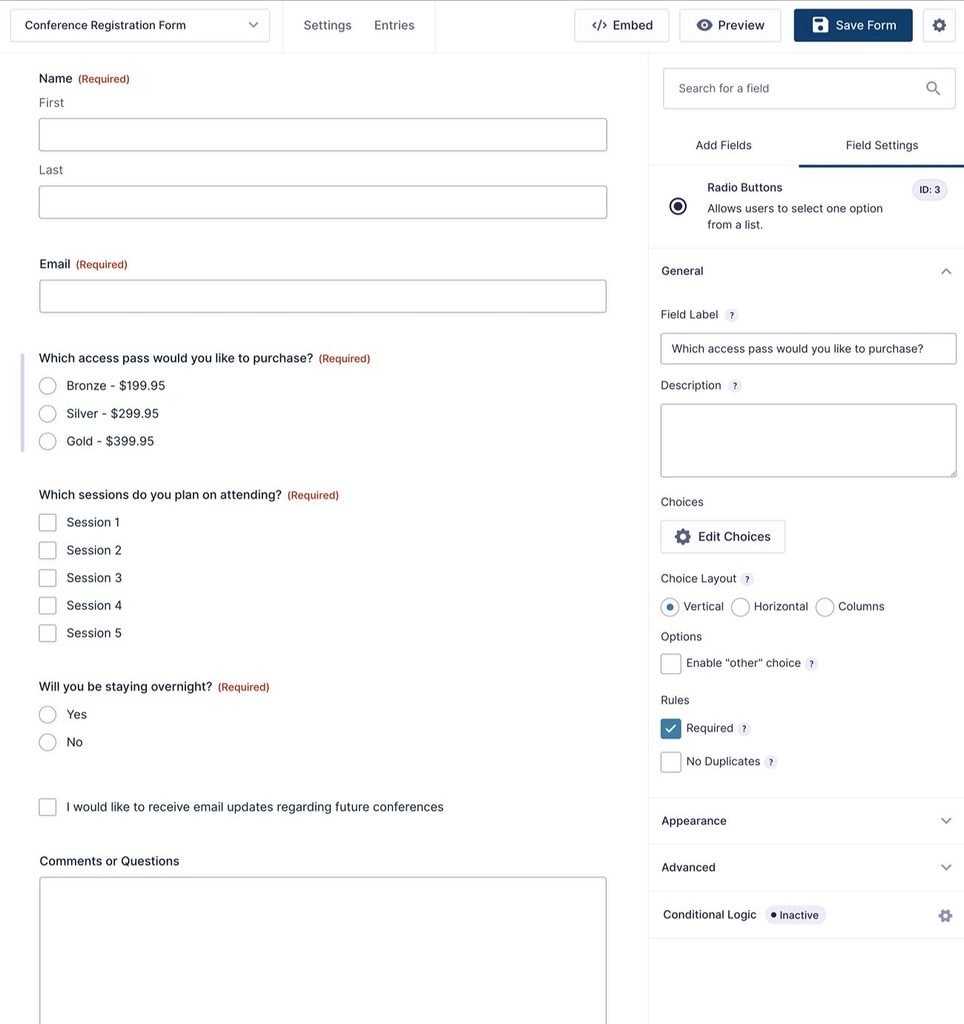
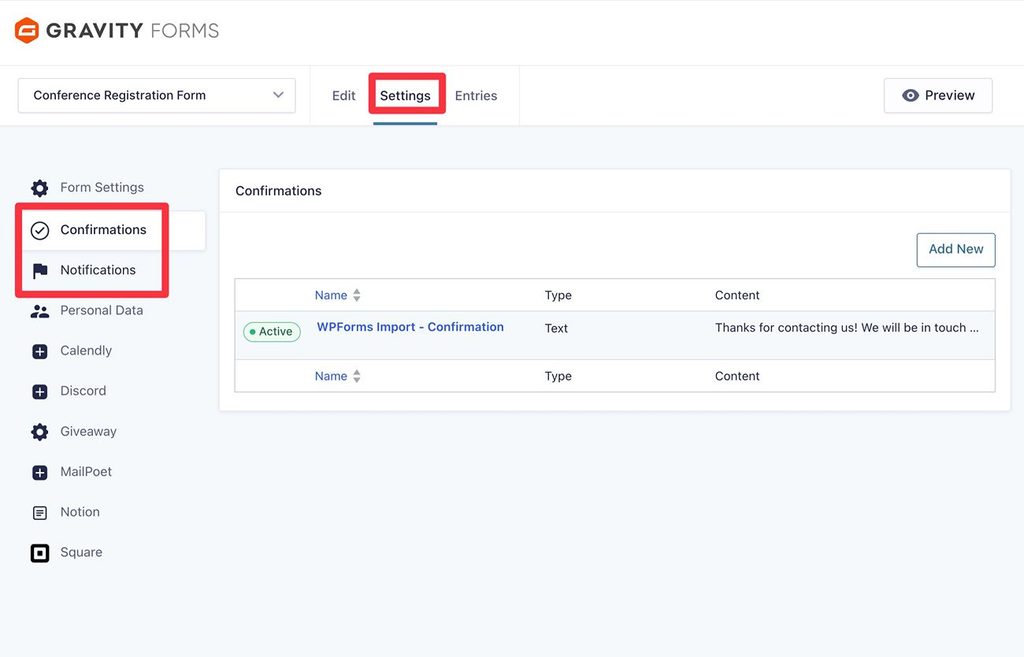
Once you’ve verified the form fields, you can also check some of the behind-the-scenes details that the add-on migrates, such as form confirmation messages and email notifications.
You can find these by going to Settings → Confirmations and Settings → Notifications in the form editor interface.
If your forms have any third-party integrations, such as with email marketing services, CRMs, payment processors, and so on, you’ll also need to recreate those integrations by adding feeds to your forms.
Here are some blog posts that can help you get started if you need these types of integrations:
- Email marketing integrations in Gravity Forms
- CRM integrations in Gravity Forms
- Payments in Gravity Forms
4. Change your WPForms embed to Gravity Forms
As we mentioned earlier, the add-on does not delete your forms in WPForms after the migration. It also does not do anything to the WPForms forms that you’ve embedded on your site.
This ensures a seamless transition and that you control when to switch to the new Gravity Forms versions of your forms.
When you’re ready to go live with Gravity Forms, you need to replace the WPForms version of your form with the Gravity Forms version.
You can do this using the Gravity Forms block, shortcode, or PHP function. If you use the Gravity Forms block, you’ll also be able to style your form directly from the editor.
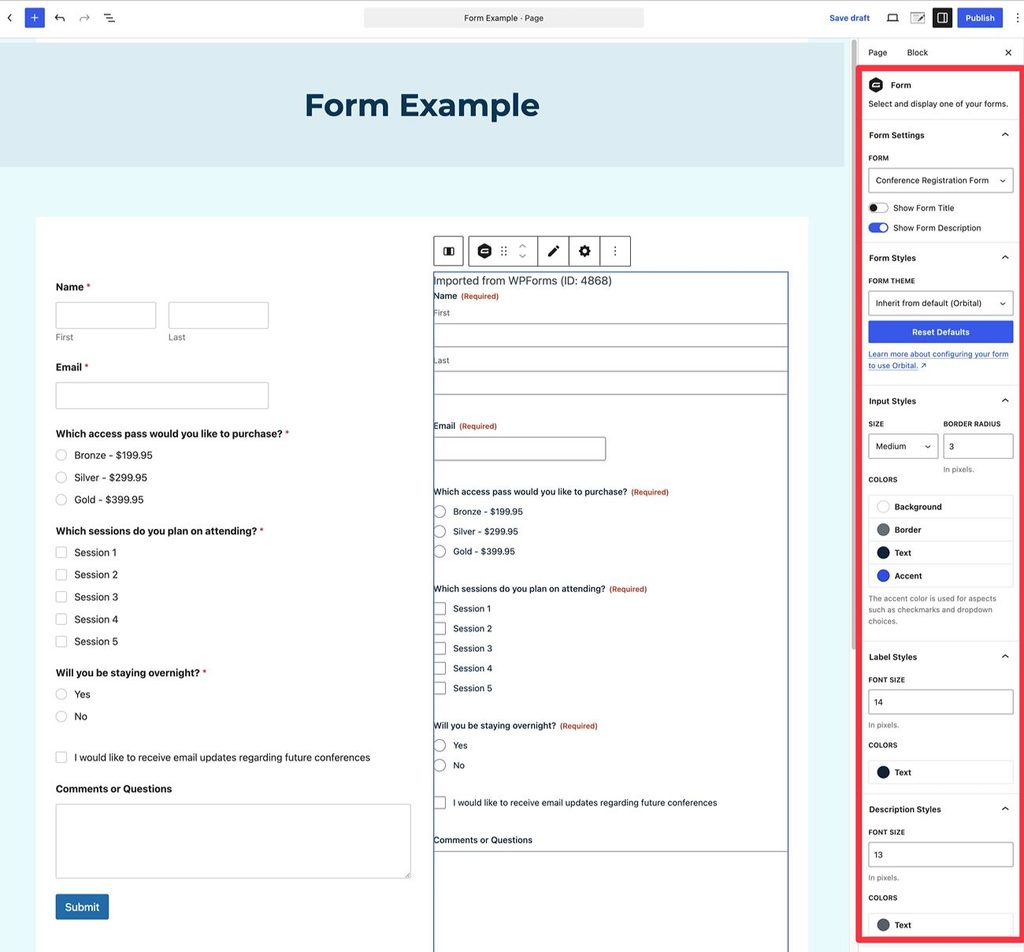
Once you replace the WPForms embed(s) with Gravity Forms, you’re all finished!
Unless you need to preserve in-dashboard access to old WPForms entries, you can safely deactivate the WPForms plugin.
Set up your WPForms alternative today
If you want to switch to a WPForms alternative, Gravity Forms is a great option. With the WPForms to Gravity Forms Migrator Add-On, you avoid the need to manually recreate your forms when making the switch, which helps you get up and running faster.
The WPForms to Gravity Forms Migrator Add-On is available now in Gravity Labs. It’s free with any Gravity Forms license. As a Labs add-on, it’s experimental and sits outside our standard support — and your feedback helps shape what we build next. If you give it a try, we’d love to hear how it works for you.

Newsletter
If you want to keep up-to-date with what’s happening on the blog sign up for the Gravity Forms newsletter!
"*" indicates required fields