We’re pleased to announce the release of Stripe Add-On 7.0.
If you’re using the Stripe Payment Element, you’ll find several updates to the way form entries, feeds, and notifications are handled, giving you more visibility into failed payments and more control over what happens after a payment.
These changes bring the Payment Element in line with the payment workflow already in place for the Stripe Card Element, so your forms behave consistently whichever payment method they use.
This release also adds support for Stripe Sandboxes, introduces automatic webhook configuration, and includes a new notification event for payments that are taking an unusually long time to process.
Let’s take a closer look at what’s new in Stripe 7.0…
Track failed payments with the Payment Element
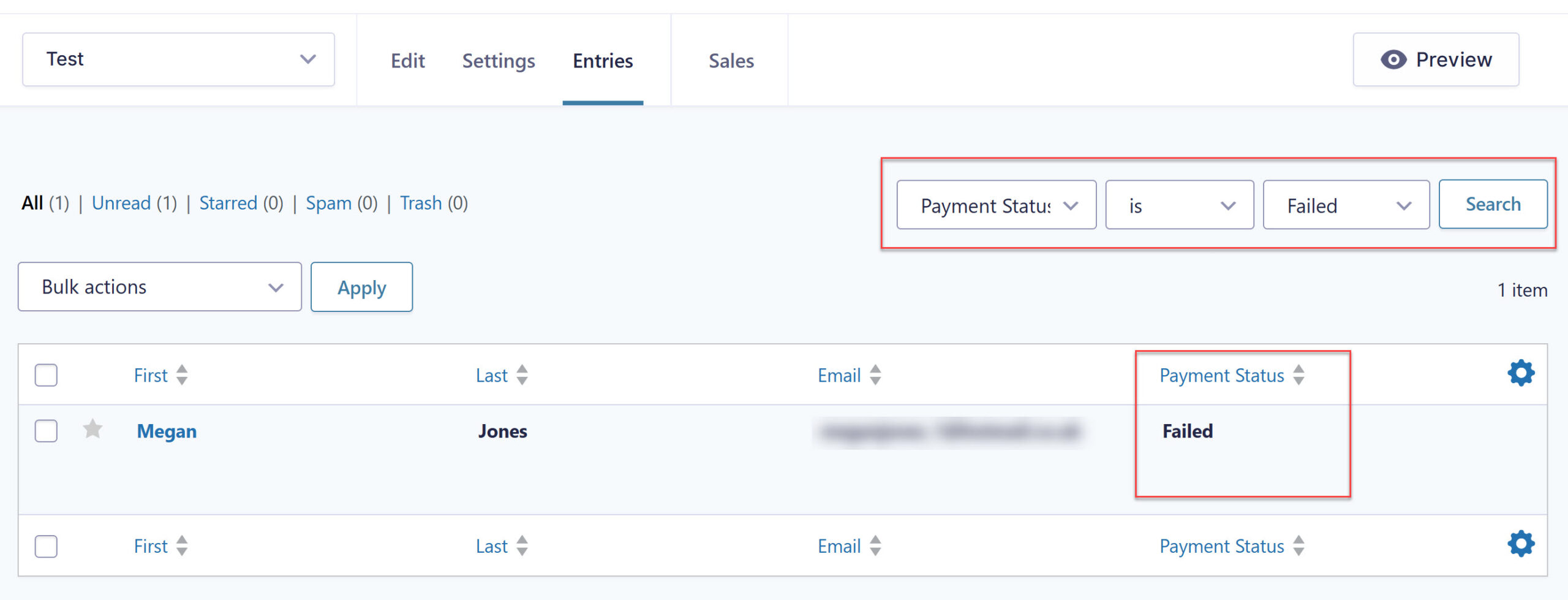
Up until now, if your forms have been using the Stripe Payment Element, an entry has only been created when Stripe successfully processed the payment. Failed payment attempts have left no trace in your entries list, resulting in mismatches between your WordPress dashboard and your Stripe records and no way to follow up with a customer whose payment didn’t go through.
With Stripe 7.0, an entry is created for both successful and failed payments, and the result is recorded in the Payment Status field of the entry, so every submission is now visible in your WordPress dashboard.
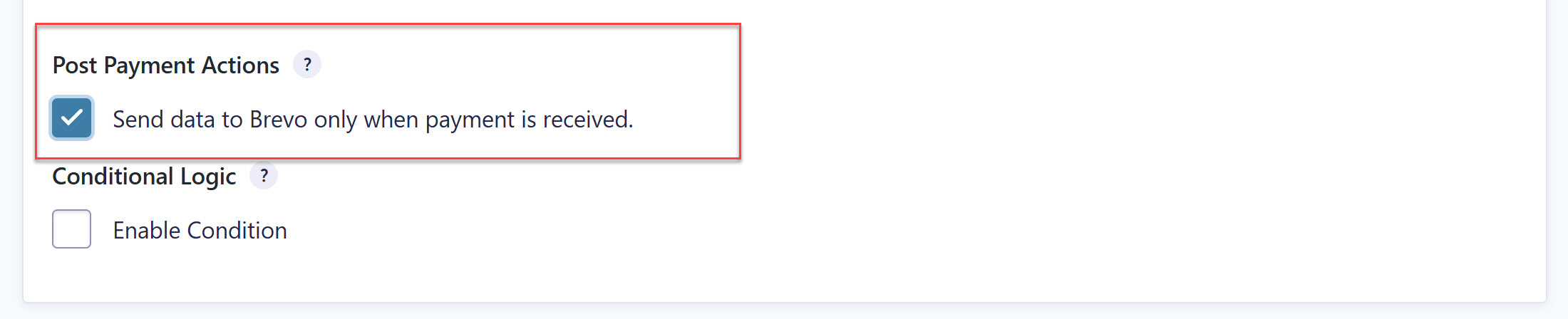
The Post Payment Actions feed setting
The Payment Element now supports Post Payment Actions in feed setting. Because feeds trigger on entry creation, and entries are now created for failed payments too, this setting ensures your connected add-on feeds (membership signups, mailing list additions, file access, and so on) only run after a successful payment.
Notifications for every payment outcome
As every submission is now visible in your WordPress dashboard, notifications can now be built around the full range of payment outcomes, including reaching out to a customer when their payment fails.
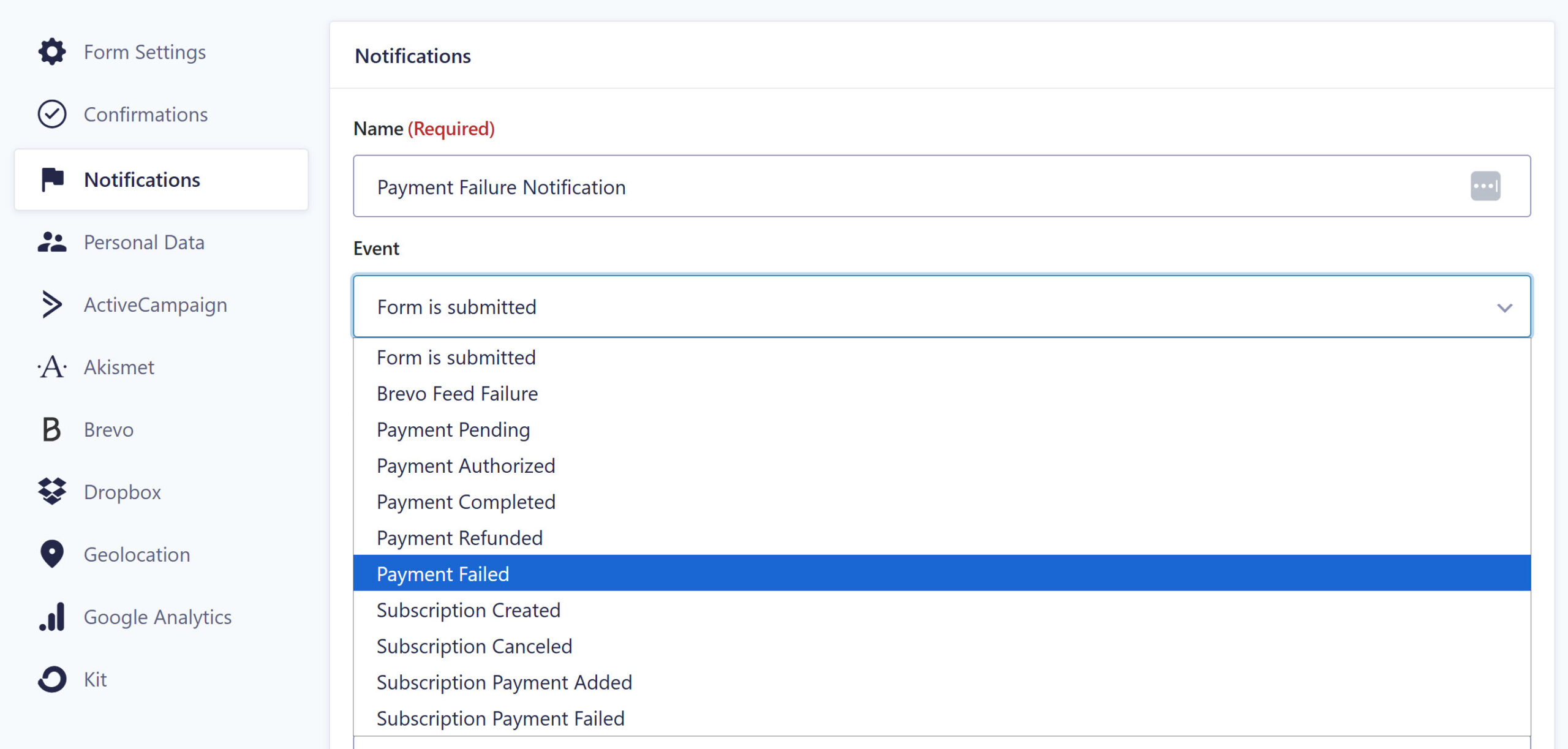
One thing to check after updating: Any notifications set to trigger on the Form is submitted event will now send on every payment attempt, whether the payment succeeds or fails. If a notification should only go out on success, switch its trigger to a more specific event, such as Payment completed.
Conditional confirmations
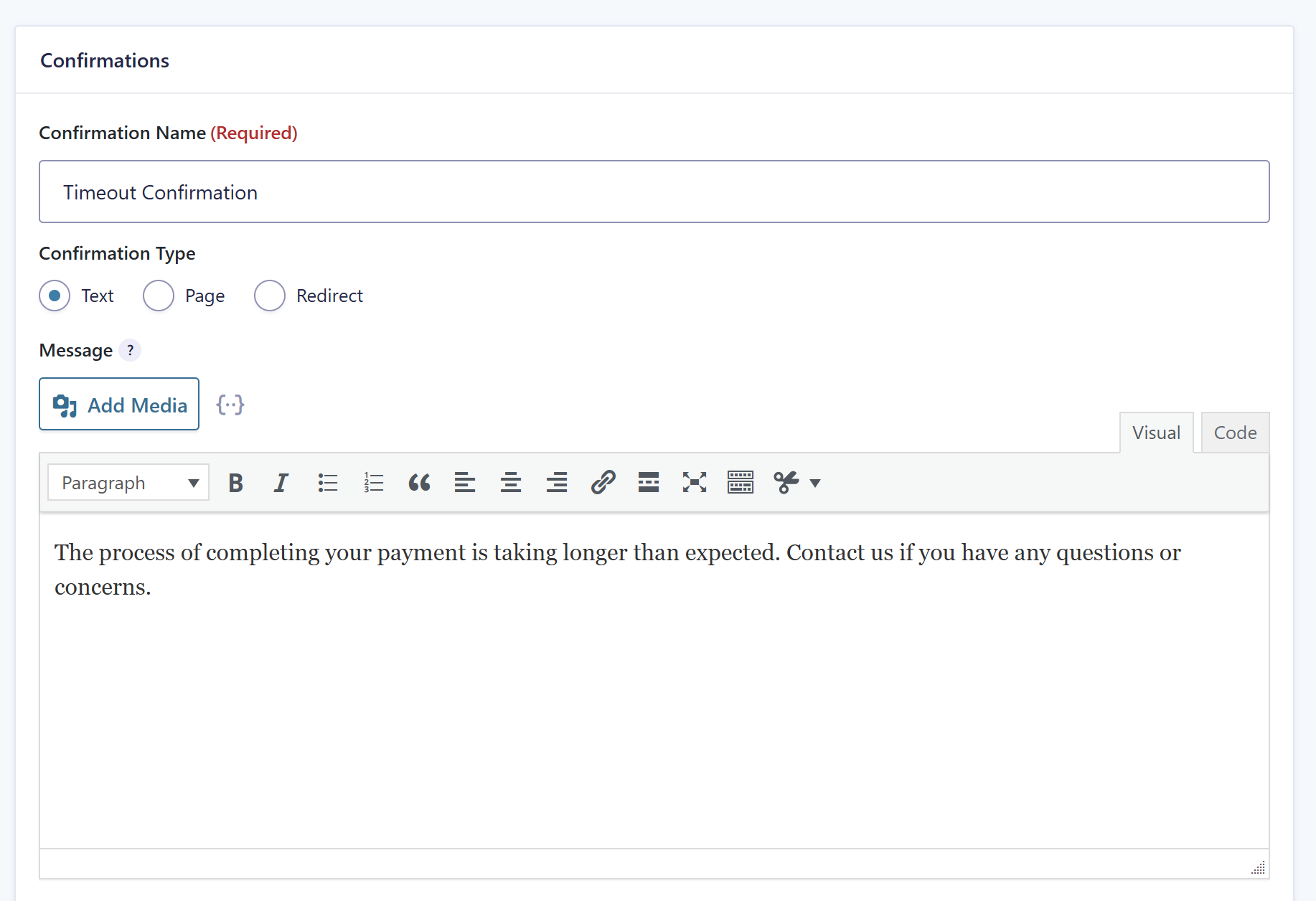
Confirmations also gain payment status support. When a Stripe feed is added to your form, a Timeout confirmation is created automatically, letting customers know if their payment is taking longer than expected (the default message can be edited like any other confirmation).
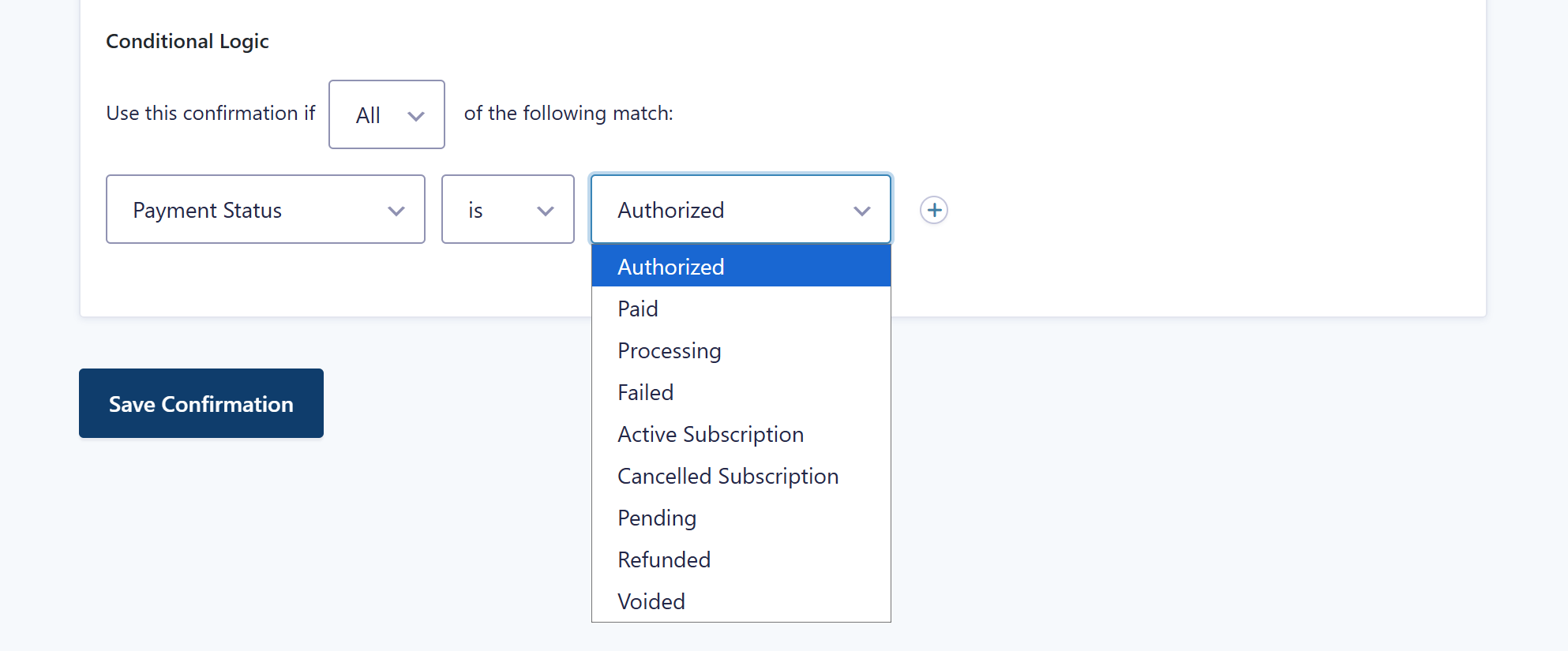
And when building your own confirmations, you’ll find a range of payment statuses available in the conditional logic settings, so you can show different messages depending on the payment outcome.
A clearer payment processing message
Finally, the Payment Element now displays a Payment Processing message on the submit button while Stripe completes the transaction. This gives customers clear feedback that their submission is underway, discouraging repeat submissions while the payment is being processed.
For more information on all of the above updates, check out the Post Payment Actions Stripe documentation.
Automatic webhook configuration
Until now, setting up Stripe webhooks has been a manual job. You had to create and configure the webhooks in the Stripe dashboard, then copy the endpoint URL back into your feed settings, with plenty of room for a missed step along the way.
Stripe 7.0 handles this setup for you. The updated Webhook settings configure the webhooks automatically and validate that everything is working as expected, so you can be confident that payment events are reaching your forms.
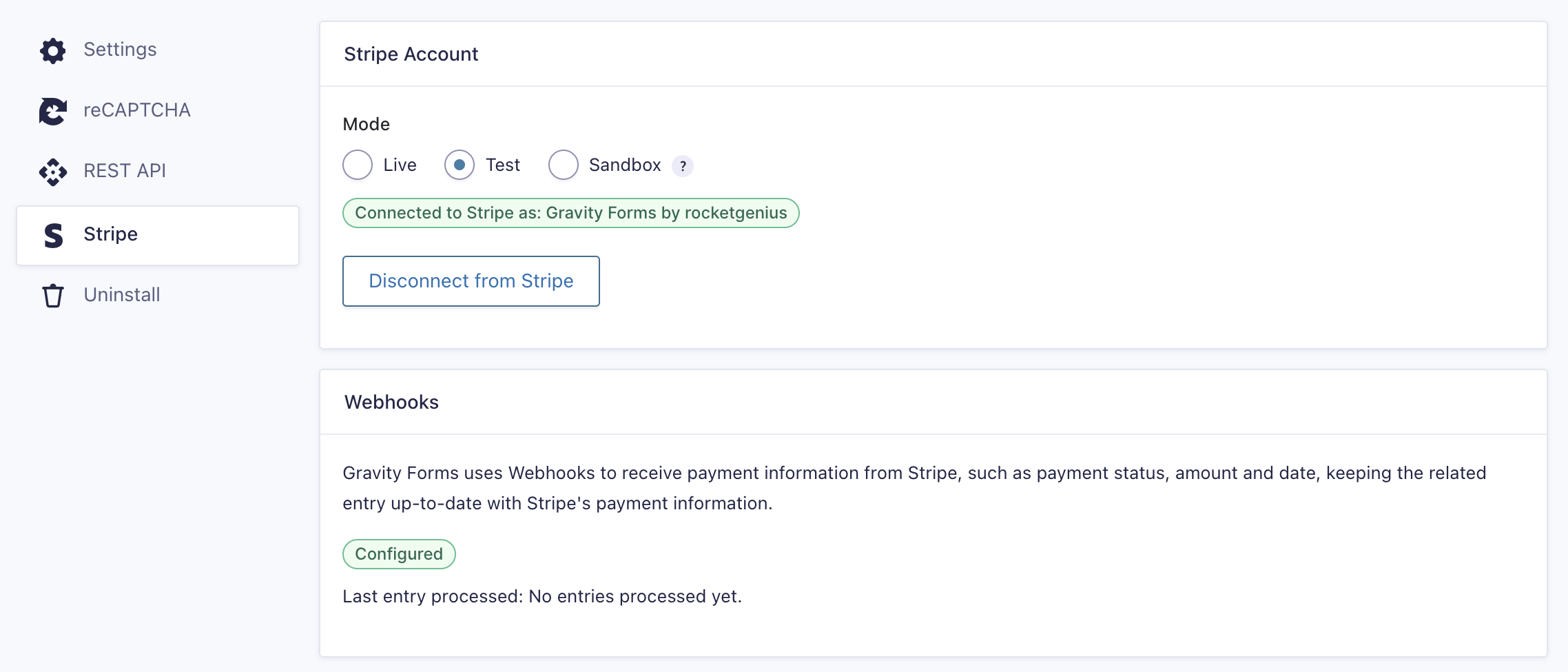
Note: Webhook configuration is required now for all payment methods using Stripe Card Element and Payment Element.
For more information, check out the Stripe setup documentation.
Stripe Sandbox support
Stripe 7.0 adds support for authenticating using Stripe Sandboxes. A sandbox gives you an isolated environment for testing your payment integration, separate from your live account, so you can verify feeds, webhooks, and payment flows without touching real transactions or customer data.
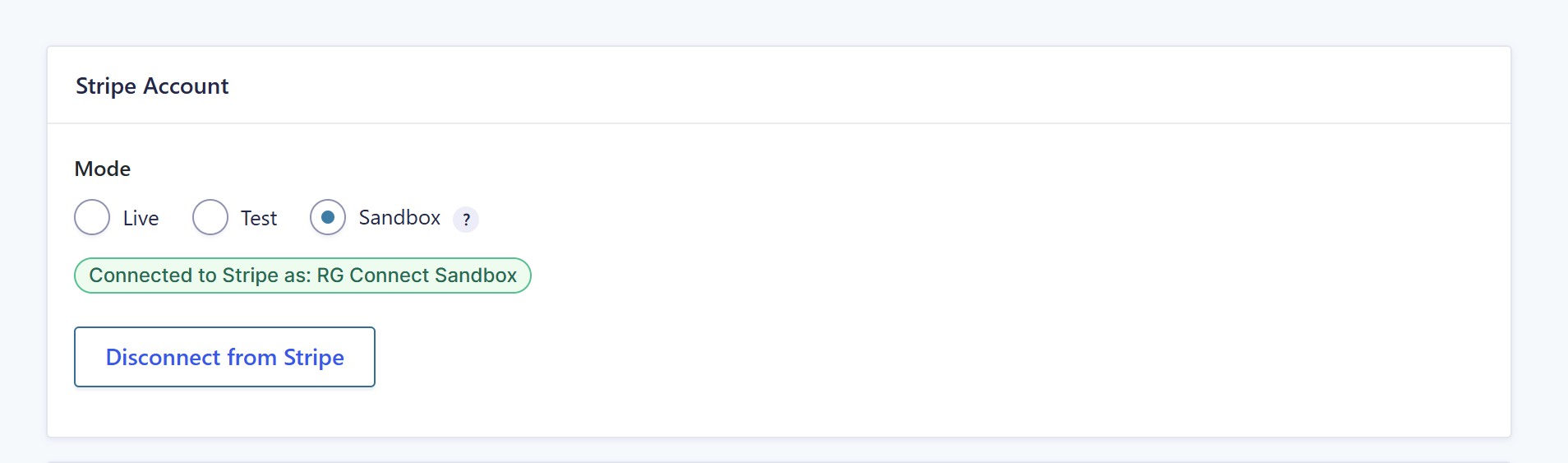
For more information, check out the Stripe Sandbox documentation.
New Payment Processing (stale) notification event
Sometimes a payment takes longer to process than it should. Previously, there was no way to keep your customers informed while their payment sat in limbo.
Stripe 7.0 adds the Payment Processing (stale) notification event, allowing a notification to be sent when a payment is taking an unusually long time to process, so you can keep customers in the loop rather than leaving them wondering.
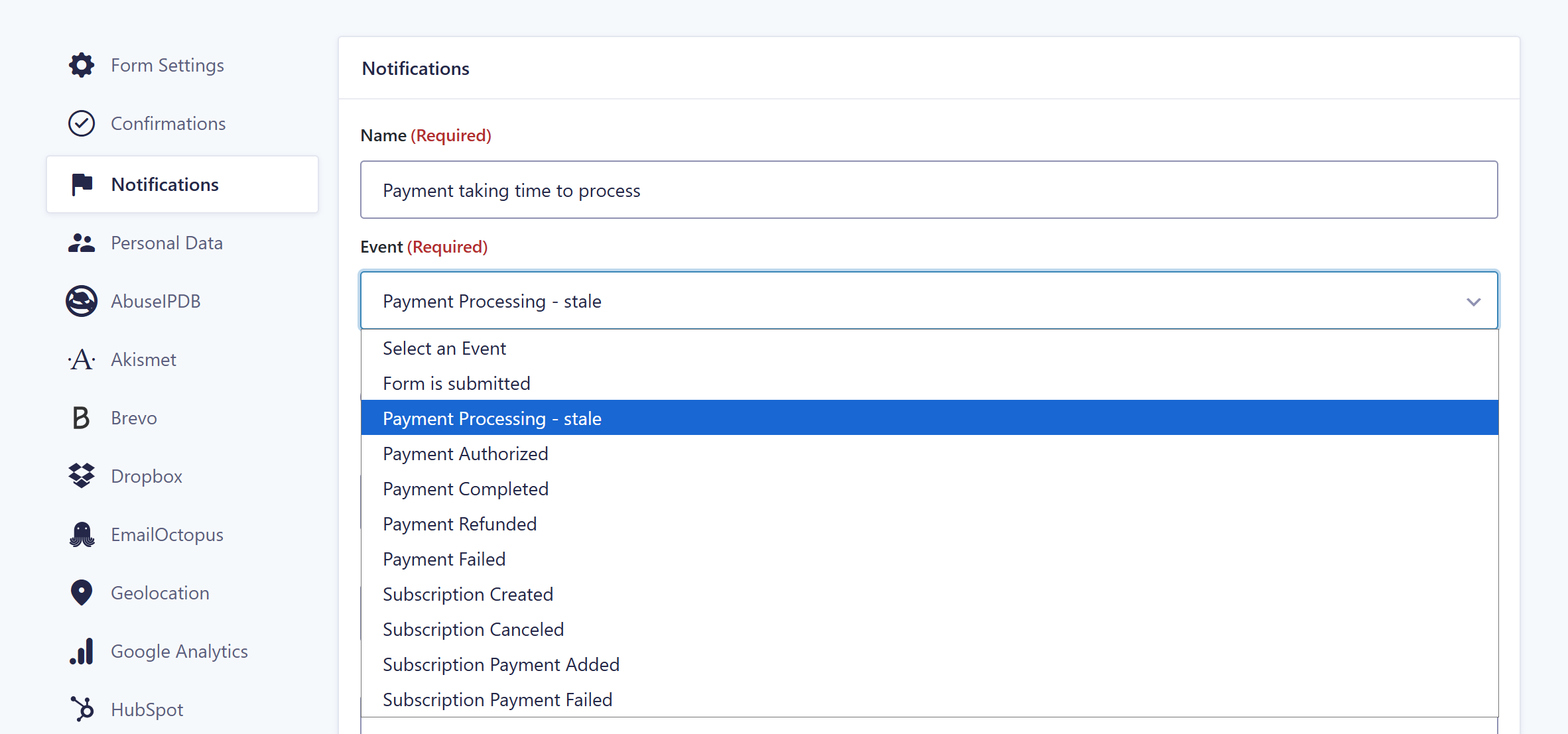
For more information, check out the payment notification events documentation.
Customer Information for Card Element feeds
The Customer Information section has been added to Card Element product feeds.
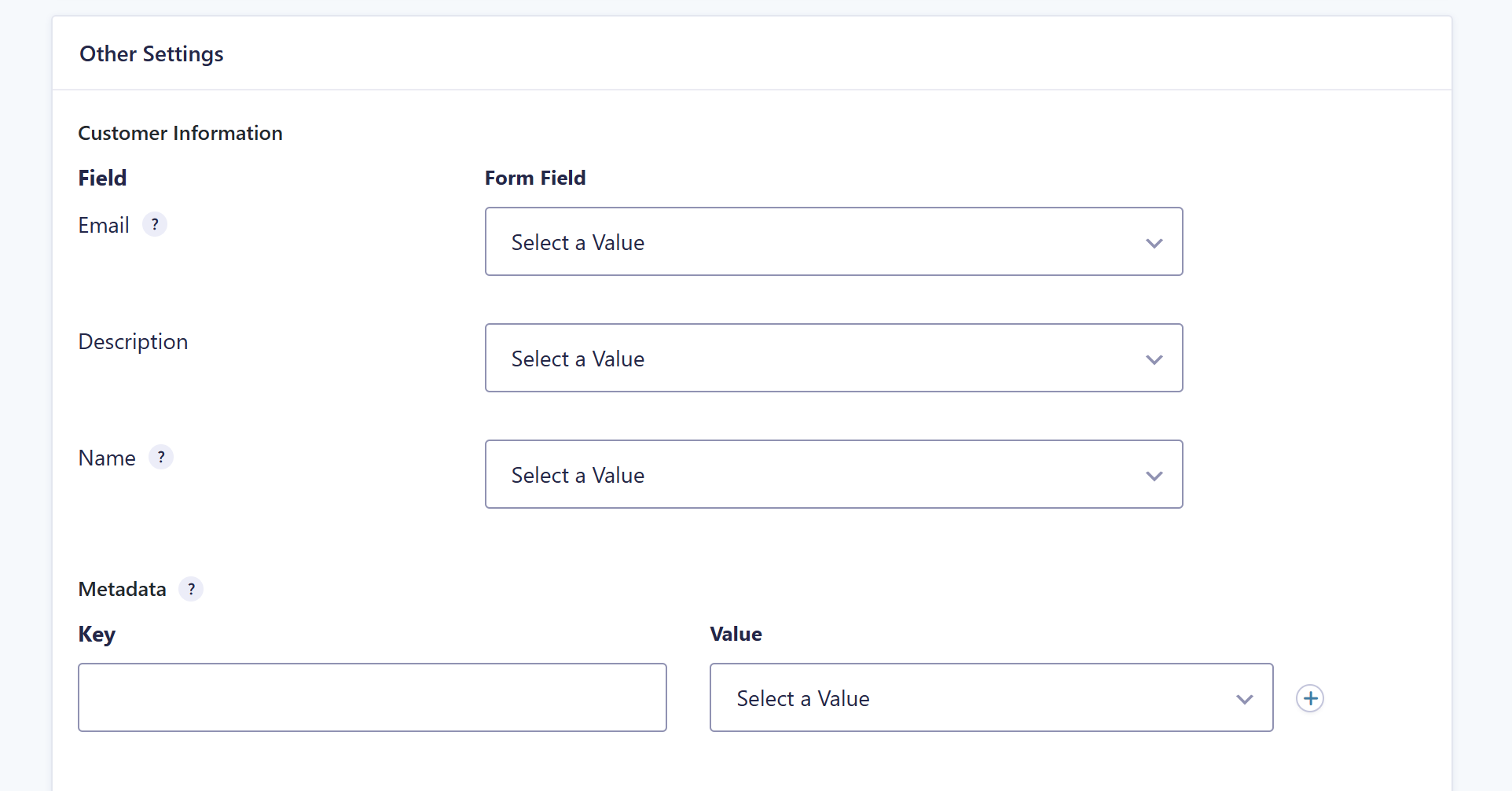
Customers can now be created on Stripe when using the Stripe Card Element field for payment collection, bringing product feeds in line with the customer handling already available elsewhere in the integration.
Filter updates
Stripe 7.0 also brings two filter updates for developers:
- New JavaScript filter: The gform/stripe/elements/config/ filter enables you to modify the configuration used when initializing Stripe elements.
- Deprecated filter: If you’re using the gform_stripe_charge_pre_create filter in your customizations, it has been deprecated in Stripe 7.0, and you should switch to the gform_stripe_payment_intent_pre_create filter instead.
Still using the legacy credit card field?
The Gravity Forms legacy credit card field has been deprecated and is no longer supported. Forms using subscriptions with this field may show an error on submission even when the payment succeeds, which can lead customers to submit again and be charged more than once.
If you’re still using it, we recommend switching to one of Stripe’s current payment collection options as soon as possible. Check out the documentation for more details.
Best practices for updating to Stripe 7.0
This update changes how your forms handle payments, so we recommend following the best practices set out below to protect your live site.
- Update Stripe 7.0 on staging first: Testing on a staging site will allow you to test without impacting your live forms and make sure the update will work as intended with your theme and other plugins.
- Test fully before updating production: Stripe 7.0 changes how entries, feeds, and notifications behave, so use your staging site to get familiar with the updates and how they may impact your payment processing workflows before you update production.
- Use Test or Sandbox mode for payment testing: Running test payments through live payment processing is frowned on by many processors, and for some it breaks the terms of your agreement. Stripe 7.0’s new Sandbox support makes this easier.
- Set up daily backups: Back up both files and database daily. If your host allows it, schedule a daily copy of your live site to staging so you always have a fresh version to test against.
- Found a problem on staging? Don’t update to your live site. Reach out to our Support team so we can look at the issue on your staging site first.
It’s important to note that Gravity Forms add-ons do not auto-update for major releases. Navigate to the Plugins page within your WordPress Admin, to update or download the latest version from within your Gravity Forms Account.
Additionally, after updating your production site, clear your site’s cache to ensure you’re running the latest version. We recommend excluding pages that include Gravity Forms from caching and script optimization, as cached form pages can interfere with dynamic population, field validation, the honeypot, and add-ons that rely on time-sensitive tokens.
Read our FAQ on Cache and Script Optimizer Issues for details and exclusion steps by host/plugin.
FAQs when updating to the latest version of a Gravity Forms Add-On
What is a staging environment and how to get started with one?
A staging environment is a private copy of your live website, usually on a separate address behind a password so the public can’t see it. You can update plugins and test changes there without affecting your live site. Most hosting companies can set one up for you, and many include staging tools in their control panel.
Isn’t it safe to just update Gravity Forms directly?
We test Gravity Forms and our add-ons together on a standard WordPress install, but we can’t test every combination of third-party plugins, themes, and custom code that might be running on your site. Testing on staging first means you catch any conflict before it reaches your live site. If you hit an issue, Support can help you troubleshoot on staging while your live site keeps processing submissions.
Can I update on my live site directly? It’s always in use and I can’t afford downtime.
That’s exactly why we recommend staging first. If your forms take payments or run constantly, an untested update is a risk you don’t want on production. Test on a staging environment, confirm everything works, then make a full backup of your live site (files and database) and update. Your host can help with both the staging environment and the backup.
Can I roll back if something goes wrong?
Yes. Restore from the full backup you took before updating, or keep your pre-update staging environment on hand. It’s one more reason to back up both files and database before you update production.
Get Stripe 7.0 today
Stripe Add-On 7.0 is available now to all customers with an active license – it requires Gravity Forms 2.9.31 or later. As mentioned, Gravity Forms add-ons do not auto-update for major releases. Follow the above best practice recommendations above to get started.
New to Gravity Forms? Head over to our pricing page to get started, or test drive Gravity Forms with our free demo to see it in action.
Any questions about the new features or how to update? Our Support team is happy to help.
Stripe Add-On 7.0 changelog
- Version 6.X → 7.X is a major version upgrade and may include breaking changes that affect existing functionality. Sandbox testing is recommended before upgrading to major versions.
- [BREAKING CHANGE] Updated the Stripe Payment Element field to track failed payments by creating an entry even when a payment fails.
- [BREAKING CHANGE] Updated minimum Gravity Forms version to 3.0.0.
- [BREAKING CHANGE] Added automatic webhook configuration and validation. Webhook configuration is required now for all payment methods using Stripe Card Element and Payment Element.
- Added support for authenticating using Stripe Sandboxes.
- Added a new JS Filter
gform/stripe/elements/config/to modify the configurations used when initializing Stripe elements. - Added a new notification event (Payment Processing – stale) that allows notifications to be sent when payments are taking an unusually long time to process.
- Added the Customer Information section to Card Element product feeds, allowing customers to be created on Stripe when using the Card Element field for payment collection.
- Added security enhancements.
- Updated the Stripe Card Element field to use the new AJAX submission and improve the reliability of form submissions.
- Updated the Stripe Payment Element field to add a “Payment Processing” message to the submit button while payment is being processed.
- Updated the Stripe Payment Element field to add support for post payment actions, allowing add-on feeds to be fired only when payment succeeds.
- Updated the Stripe Payment Element so that it is properly displayed on the block editor pages.
- Updated
\Gravity_forms\Gravity_Forms_Stripe\Elements\Field_Stripe::get_value_entry_detail()for compatibility with the change toGF_Field::get_value_entry_detail()in Gravity Forms 2.9.29. - Updated Stripe field so that it can’t be placed in a repeater or duplicated in the form editor.
- Fixed an issue where capturing an authorized payment sent the Payment Completed notification twice.
- Fixed an issue where payment method details other than cards are not stored on the Stripe field.
- Fixed an issue where feed metadata is not sent when using Stripe Checkout with a different connected Stripe account configured at the feed level.
- Fixed an issue where Apple Pay and Google Pay payments can fail due to a timing issue.
- Fixed an issue with the Payment Element where subscription payment amounts are not being calculated correctly in some situations.
- Fixed an issue where Payment Authorized notifications are not being sent out when using the Card Element field.
- Fixed an issue where the failed payment notification is incorrectly triggered when using the US Bank Account payment method.
- Fixed an issue where the Card Details sub-label in the form editor does not update instantly when toggling the Cardholder Name setting.
- Fixed PHP deprecation notices when processing Stripe payments and subscriptions.
- Fixed PHP deprecation notices when hydrating PaymentIntent objects that include newer Stripe properties.
- Fixed an issue where ACH transactions processed using a Stripe account set at the feed level are stuck in processing.
- Fixed an issue where the Stripe Credit Card field is disabled when using Firefox on a Windows device.
- Fixed a conflict with reCaptcha v3 when Apple Pay is used in the Payment Element.
- Fixed an issue where a payment failure entry note can be created when a subscription payment triggered 3DS validation, even when the payment passes 3DS validation.
- Fixed an issue where uploaded files are lost when retrying a Stripe payment after a failed attempt.
- Fixed an issue where the form submission spinner disappears when using Gravity Forms 3.0 or later.
- Fixed bug that prevents the default payment method being applied to customers during subscriptions.
- API: Added missing filters for backwards compatibility: gform_stripe_customer_id and gform_stripe_charge_pre_create.

Newsletter
If you want to keep up-to-date with what’s happening on the blog sign up for the Gravity Forms newsletter!
"*" indicates required fields