We’re excited to announce a significant update to our Stripe Add-On.
If you’re using the Stripe Card Element, you’ll find a new payment workflow, which includes several updates to the way form entries, feeds, confirmations, and notifications are handled.
Read on to find out more about the changes in Stripe 6.0, how to know if you’re using Stripe Card Element, and recommendations on upgrading if you’re still using the Gravity Forms legacy credit card field.
Stripe Add-On v6.0: The fundamentals
Stripe 6.0 improves the payment flow for the Stripe Card Element and supports changes to how payment outcomes are handled.
There are some fundamental updates to the payment flow that are important to be aware of:
- Expanded Entry States – All valid submissions will create entries in a new processing state. These update to failed or successful once the payment result is confirmed (previously, failed payments did not create entries).
- Feed Status Triggers – Stripe 6.0 enhances your other add-on feeds by adding the capability to activate a feed based on the payment status. So now you can conditionally trigger an add-on feed with a payment failure as well as a payment success.
- Conditional Confirmations and Notifications – With the expanded entry states, you now have more control over the logic used to show your confirmations and trigger notifications, including sending notifications on payment failure.
- AJAX submission – The card element now forces the last page of the form to submit via our new AJAX submission method.
Let’s look at how these updates work in practice…
Note: The changes in Stripe 6.0 are only available for the Stripe Card Element payment method and when the Stripe Payment Element is not enabled. (See below to check if you’re using Stripe Card Element).
Form entry creation for failed payments

Up until now, a form entry was only created when Stripe successfully processed a payment.
This could lead to confusion in scenarios where the payment attempt failed or the communication from Stripe was delayed. Merchants also experienced mismatches between Gravity Forms entries and Stripe records, and there was no way to set up notifications on failure to reach out to a customer whose payment had failed.
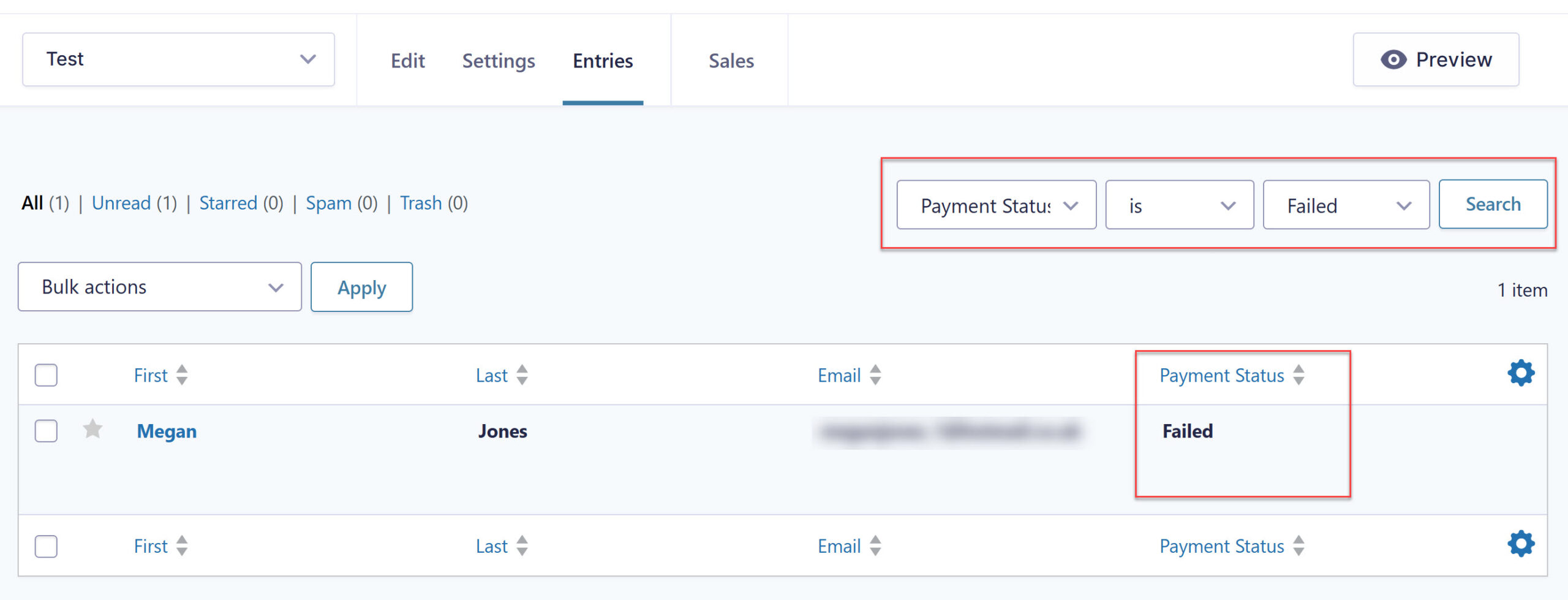
With Stripe 6.0, entry states have been expanded, and an entry will now be created for both successful and failed Stripe payments. This will allow you to view all form submissions within your WordPress dashboard, as well as provide additional options for working with failed entries.
Feed activation based on payment status
Stripe payment feeds often include important actions that presume success, such as membership signups, access to files or downloads, or sending communications that a successful payment was received.
Because feeds trigger on entry creation, the changes in Stripe 6.0 mean that an active Stripe feed may now be triggered on either successful or failed payment.
To counter this, with Stripe 6.0, you’ll find a new Post Payment Actions feed setting, ensuring Stripe-related feeds will only be processed after a successful payment.
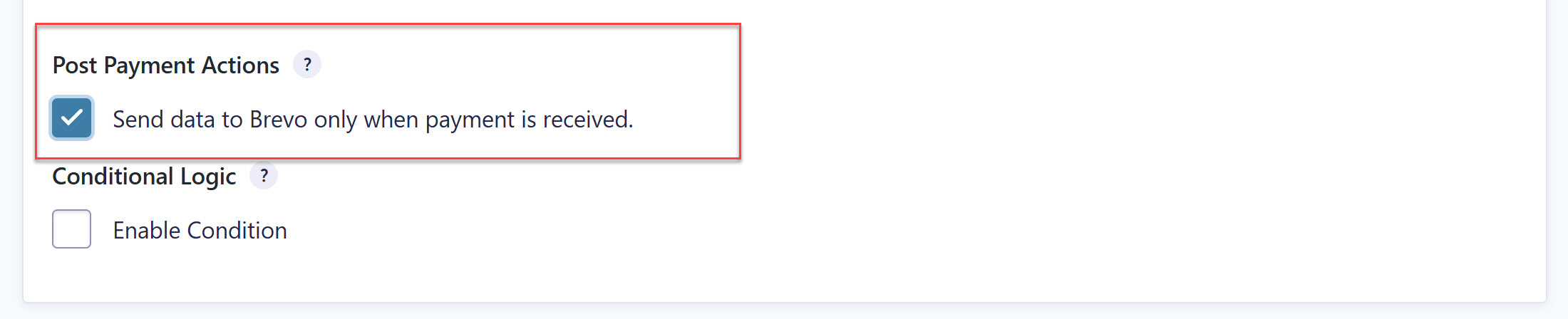
This new Post Payment Actions feed setting can be found in the Stripe feed settings. It will contain checkboxes for any official Gravity Forms add-ons that have a connected feed on that payment form.
These checkboxes are automatically enabled for all existing Stripe Card Element feeds during the Stripe 6.0 upgrade process – no action required – and will be enabled by default on all future forms.
For more information on the updates in version 6.0 of the Stripe Add-On, check out this documentation.
Conditional confirmation messages
In Gravity Forms 2.9.1, we introduced payment status support to the confirmation conditional logic. Stripe 6.0 supports that feature, giving you Payment Status options for any form with a Stripe feed associated with it.
For the confirmation conditional logic, Stripe 6.0 supports Active, Paid, and Processing payment statuses.
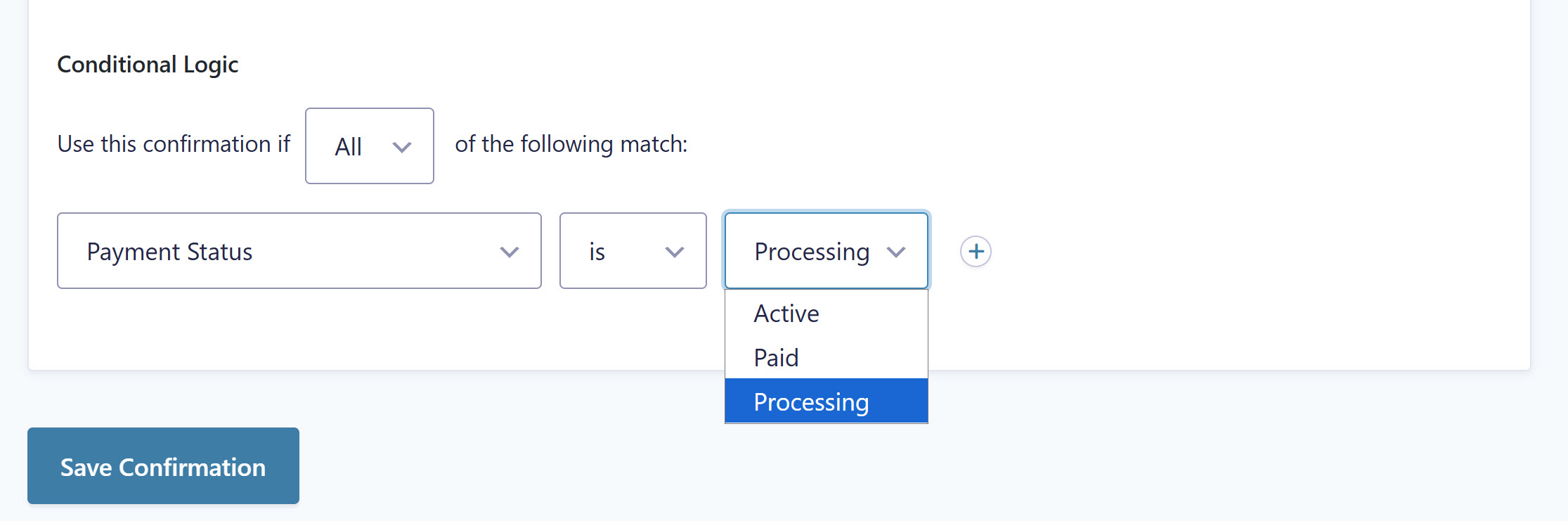
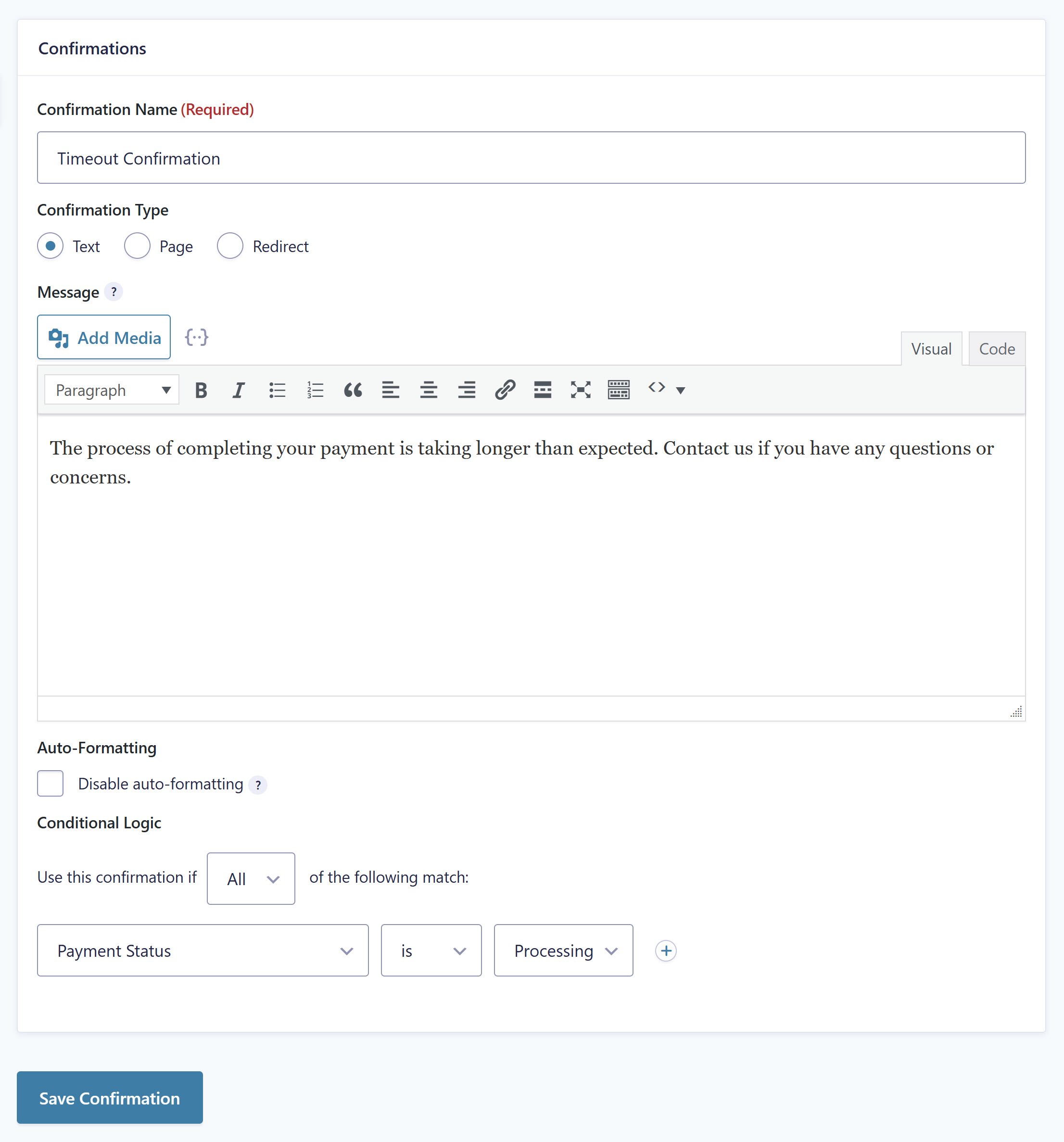
You’ll also find a new additional Timeout confirmation, which notifies customers of a delay in processing their payment.
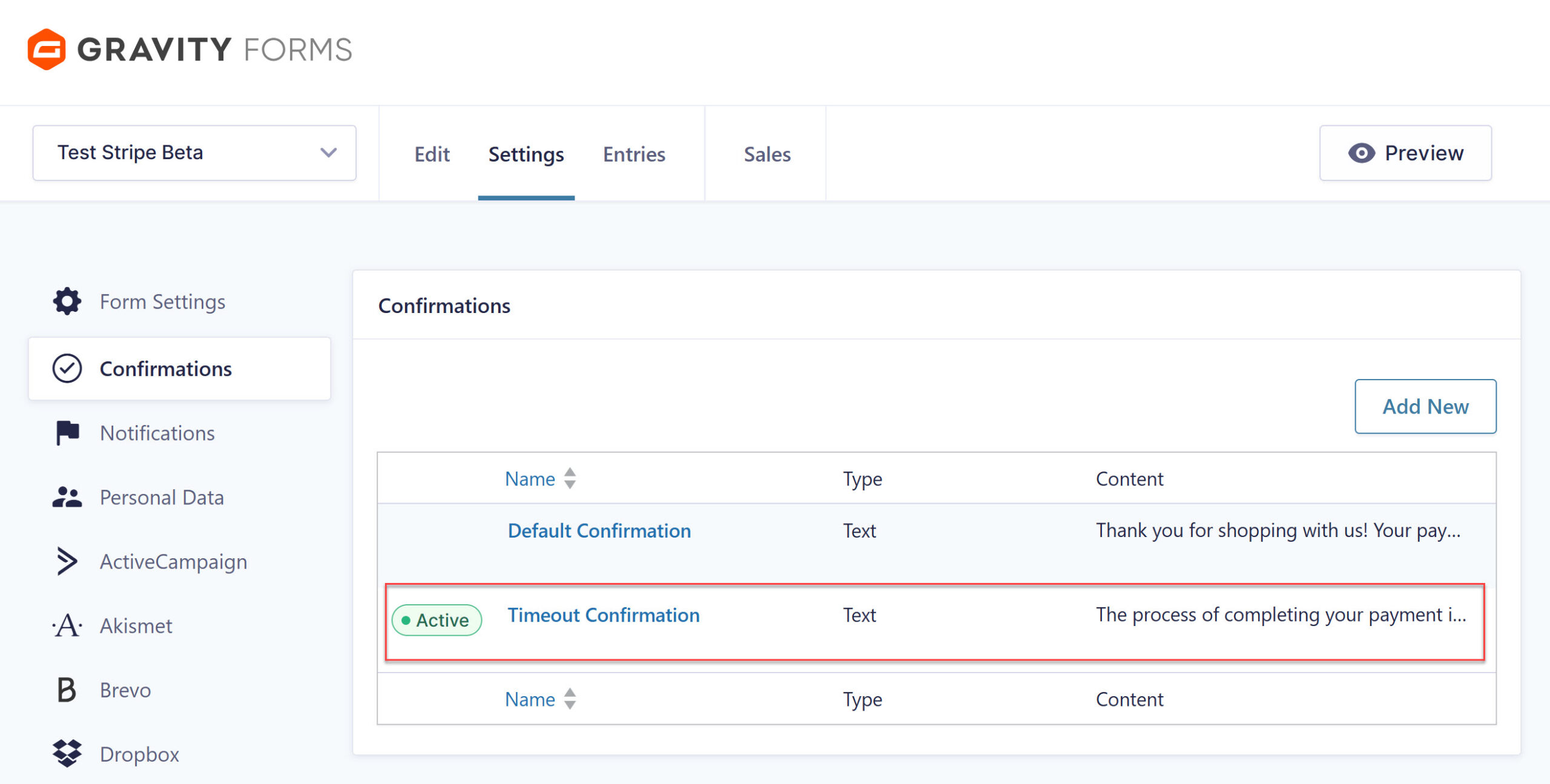
Here’s how the confirmation flow works with Stripe 6.0 when a customer submits a payment:
- Successful payment – The default confirmation will be displayed to the user, or a confirmation with conditional logic with the Active or Paid statuses can be set up and displayed.
- Failed payment – Stripe displays a form validation error, so users will have a chance to fix the payment method and try again.
- Stripe response is not received – If Gravity Forms doesn’t receive an answer from Stripe in 20 seconds, the form submission will time out, and the new Timeout confirmation will be displayed. This does not mean the payment will fail, it just means Stripe is having issues and their webhook is delayed.
It’s important to note that the new default Timeout confirmation is created automatically when a Stripe feed is added to a form using the Stripe Card Element. It comes with a generic message, but this can be updated in the usual way when configuring a confirmation message.
Conditional notification emails
In a similar way to confirmation messages, with the new Stripe 6.0 payment workflow, you’ll also find improved support for notification emails.
As mentioned, prior to Stripe 6.0, there was no way to contact a customer whose payment had failed, as it wasn’t possible to set up a notification on failure.
Moving forward, notifications can be conditionally triggered based on payment status, allowing you to send a notification specifically when a payment fails.
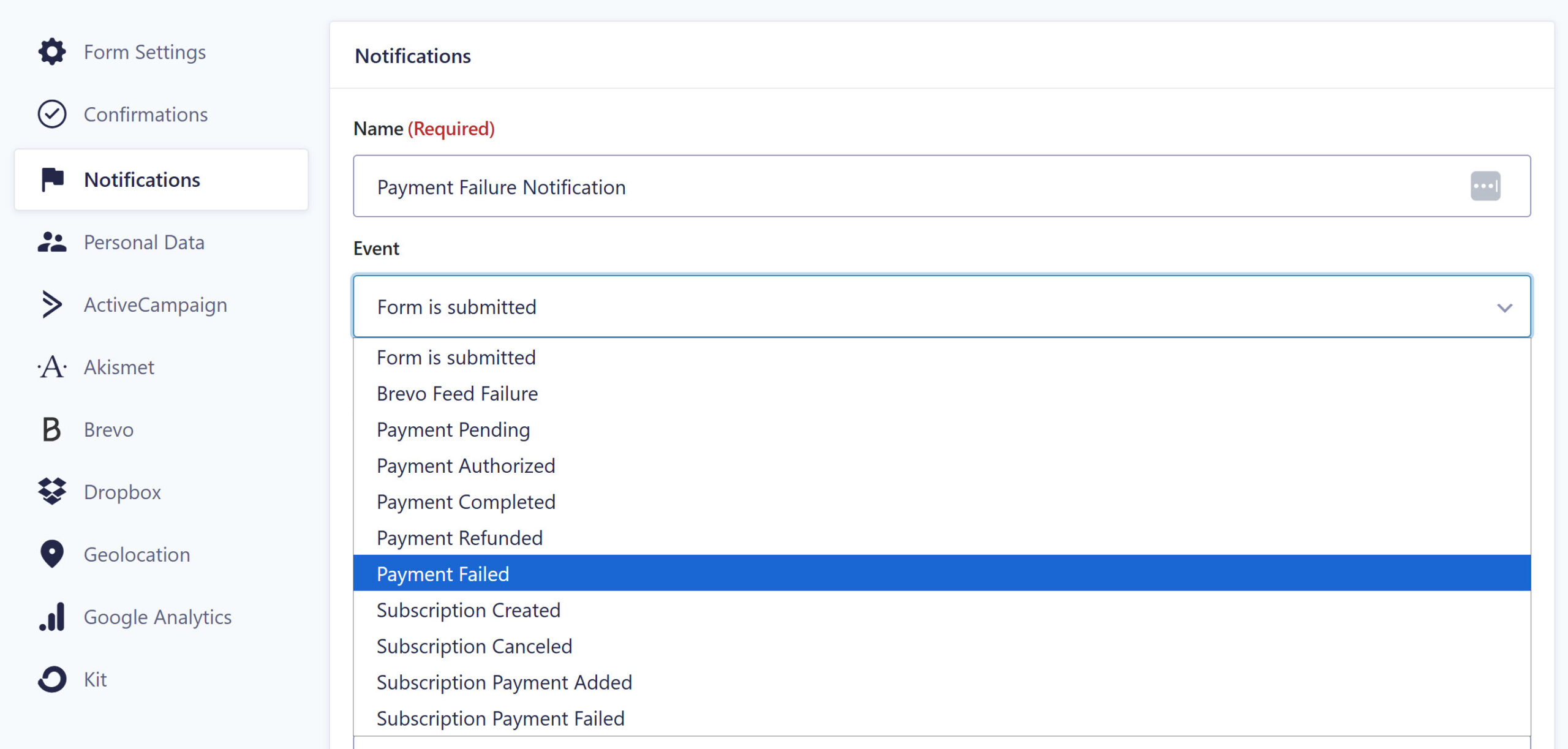
Check out this article for more information on payment notifications.
Timeout Filter
Stripe 6.0 also introduces a new filter for enhanced customization of Stripe payment form behavior.
The gform_stripe_submission_timeout_seconds filter enables users to change the time (in seconds) that the form submission will wait for the Stripe webhook before displaying the Timeout confirmation. Currently, the default timeout is 20 seconds.
For more information on any of the new features added to Stripe 6.0, check out the documentation.
Am I using Stripe Card Element?
As mentioned, Stripe 6.0’s changes are currently only available for the Stripe Card Element payment method. However, we plan to bring these updates to the Payment Element in a future Stripe release.
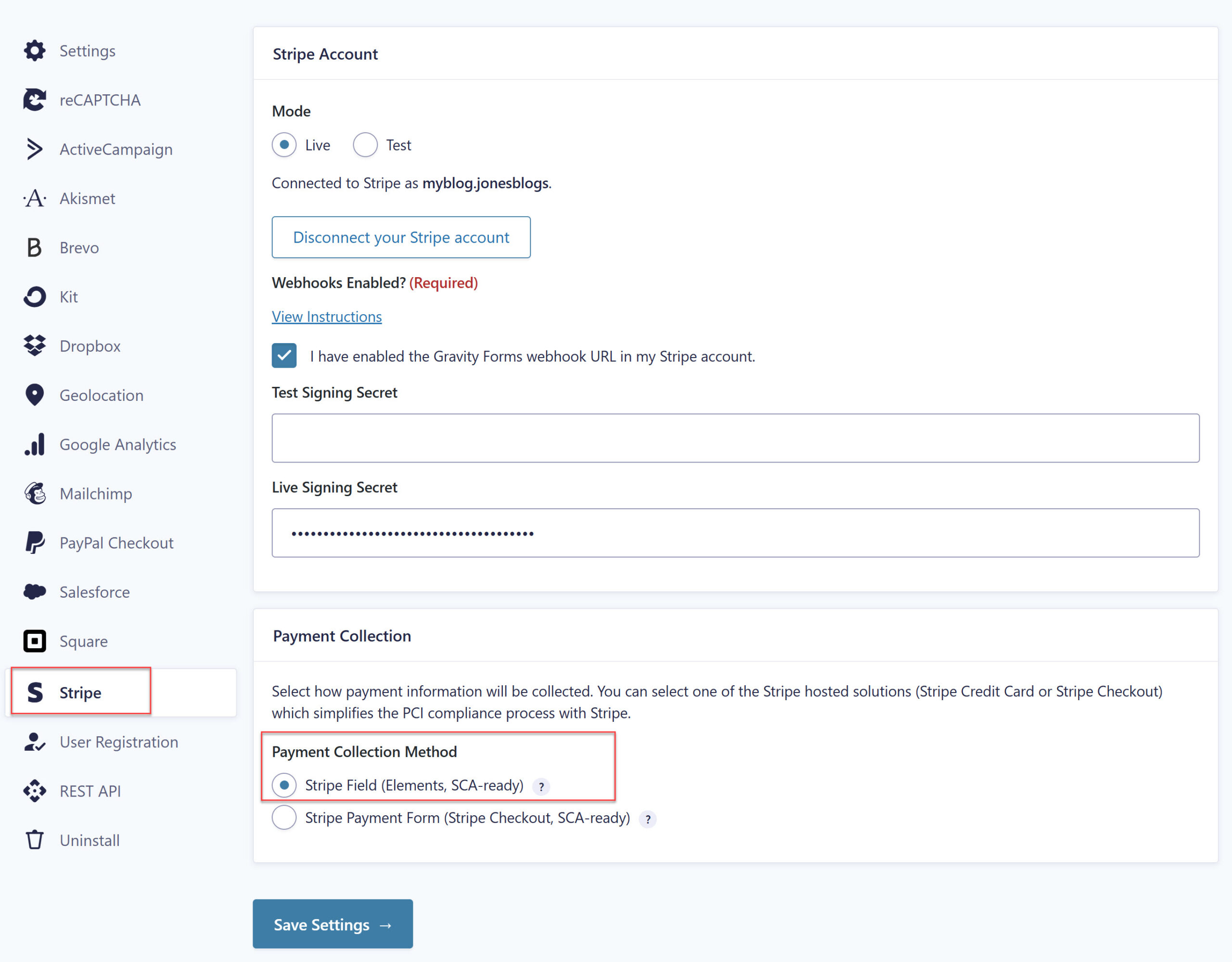
If you’re not sure if you’re using the Stripe Card Element, follow the instructions below to check:
1. Under Gravity Forms > Settings > Stripe, scroll down to Payment Collection Method. If you’re using the Stripe Card Element, the Stripe Field will be connected.
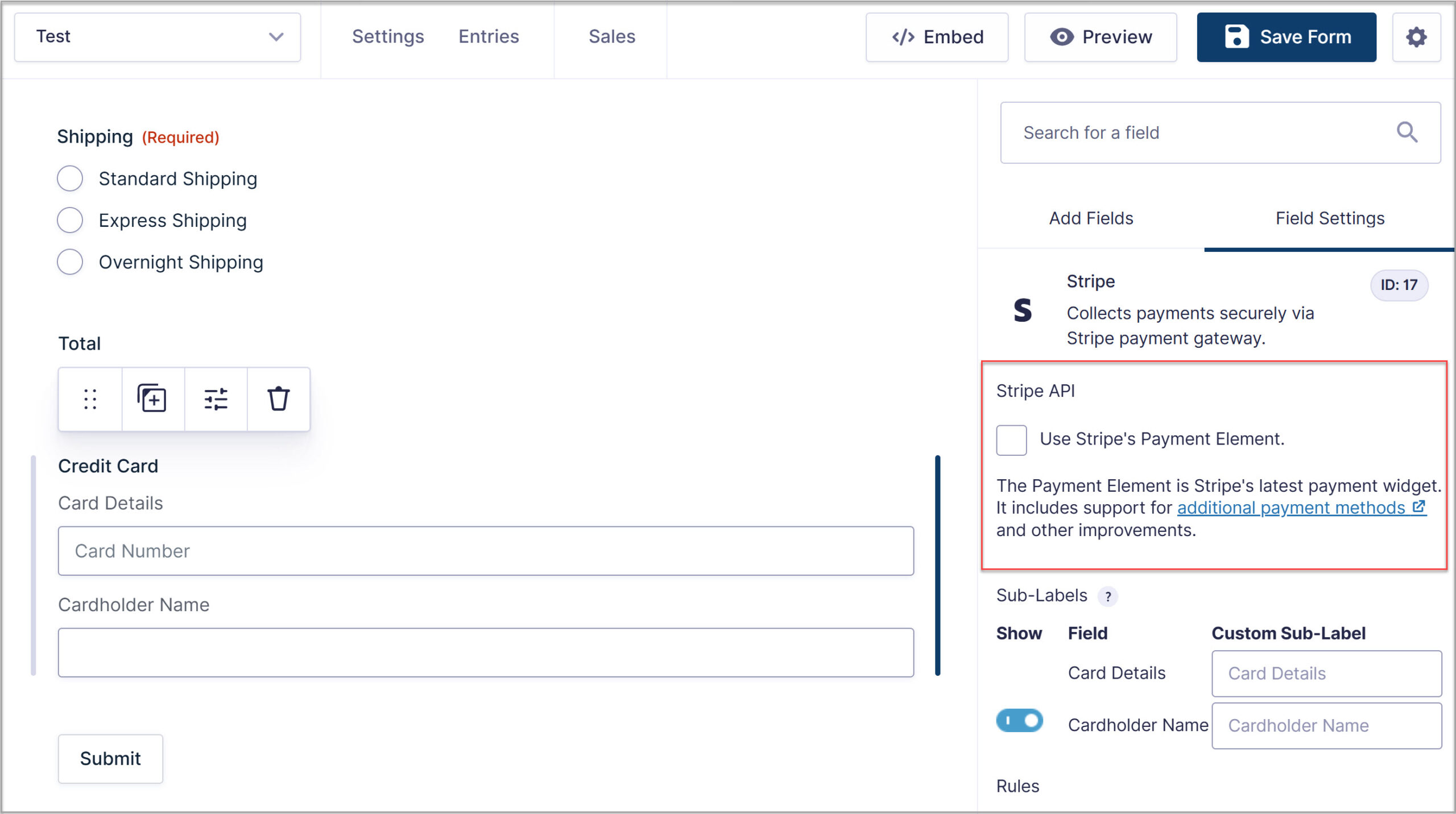
2. Additionally, you’ll also need to check within your Stripe payment form – if the Stripe Payment Element is not enabled, then you are using Stripe Card Element (note that this setting was previously labeled ‘Enable additional payment methods’).
It is important to note that if you are still using the Gravity Forms legacy credit card field, this field has been deprecated and is no longer supported. We recommend that you update to one of Stripe’s more recent payment collection options as soon as possible.
Any questions about the Stripe Add-On and the changes discussed in this article? Our Support team is standing by, ready to help!
Stripe Add-On 6.0 changelog
- Added a confirmation to be displayed if the form submission times out while waiting for a Stripe Webhook to be received.
- Updated the post payment action settings so that they are enabled by default when creating a Stripe feed.
- Updated the Stripe Card Element field to use the new AJAX submission and improve the reliability of form submissions.
- Updated the Stripe Card Element field to add a “Payment Processing” message to the submit button while payment is being processed.
- Updated the Stripe Card Element field to track failed payments by creating an entry even when a payment fails.
- Updated the Stripe Card Element field to add support for post payment actions, allowing add-on feeds to be fired only when payment succeeds.
- Updated the Stripe Card Element so that it is properly displayed on the block editor pages.
- Updated the Stripe Payment Element setting label and description to avoid confusion.
- Updated Stripe to use the updated form Theme Framework implementation to focus state for accessibility from being box-shadow based to outline based.
- Updated “Connected to Stripe as: account” UI to use the component library to ensure consistency with other add-ons.
- Updated the webhooks instructions to reflect recent changes in Stripe’s dashboard.
- Updated the Payment Element field for ACH payments so that it does not allow bank details to be manually entered.
- Fixed an issue with mapped subscription coupons that are incorrectly validated when using the Payment Element.
- Fixed an issue that causes the Copy URL button to shift based on the length of the Endpoint URL in the settings page.
- Fixed a PHP fatal error that can occur on submission of a multi-page form when using the Payment Element with GF 2.9.18+ and there is a single File Upload field with an uploaded file on an earlier page.
- Fixed an issue with subscription coupons that causes the coupon to be applied twice when using the Card Element and mapping to a Coupon field.
- Fixed an issue preventing subscription payments from being properly processed on Stripe’s latest webhook API.
- Fixed an issue for the Gravity Theme where credit card inputs are not getting a focus state outline for accessibility.
- Fixed an issue where the subscription frequency isn’t displayed correctly when using the customer billing portal shortcode.
- Fixed an issue that could prevent users from updating an entry if the Stripe Add-On is active.
- Removed ending space from the translatable string “Connected to Stripe as:” to improve translation.
Not yet a Gravity Forms customer? Check out our free demo, where you can test drive the plugin, access all the built-in features, and install our extensive collection of add-ons, including Stripe!