Trying to decide between Pipedrive vs HubSpot as the CRM for your business?
Pipedrive and HubSpot are both quality CRMs, but they have slightly different focuses. Pipedrive is primarily a sales CRM for small businesses, while HubSpot serves businesses of all sizes with tools for marketing, sales, customer service, and more.
In this post, we’ll try to help you choose the best option for your specific situation by comparing Pipedrive and HubSpot in the following areas:
- Target audiences
- Functionality and scope of features
- Ease of use
- Customizability
- Pricing
If your business’s website uses WordPress, we’ll also cover how you can use the Gravity Forms plugin to integrate your WordPress website’s forms with both Pipedrive and HubSpot.
Target audiences: Who uses Pipedrive and HubSpot?
Let’s kick things off by talking about the types of businesses that use Pipedrive and HubSpot, as this information might already help you narrow down your search:
- Pipedrive is a sales CRM that’s primarily designed to be used by small businesses. According to Pipedrive’s FAQ, it’s “a sales pipeline CRM designed to help small businesses manage leads, track sales activities and close more deals.”
- HubSpot is a CRM with sales, marketing, and customer service features. It targets businesses of all sizes, including small, medium, and enterprise businesses.
Right away, you can see that HubSpot has a much broader focus than Pipedrive, which could be either a positive or a negative depending on your specific needs.
Functionality and scope of features: What can you do with each tool?
Now, let’s take a look at the scope of functionality in both Pipedrive and HubSpot, along with some of the key features that each tool offers.
Pipedrive
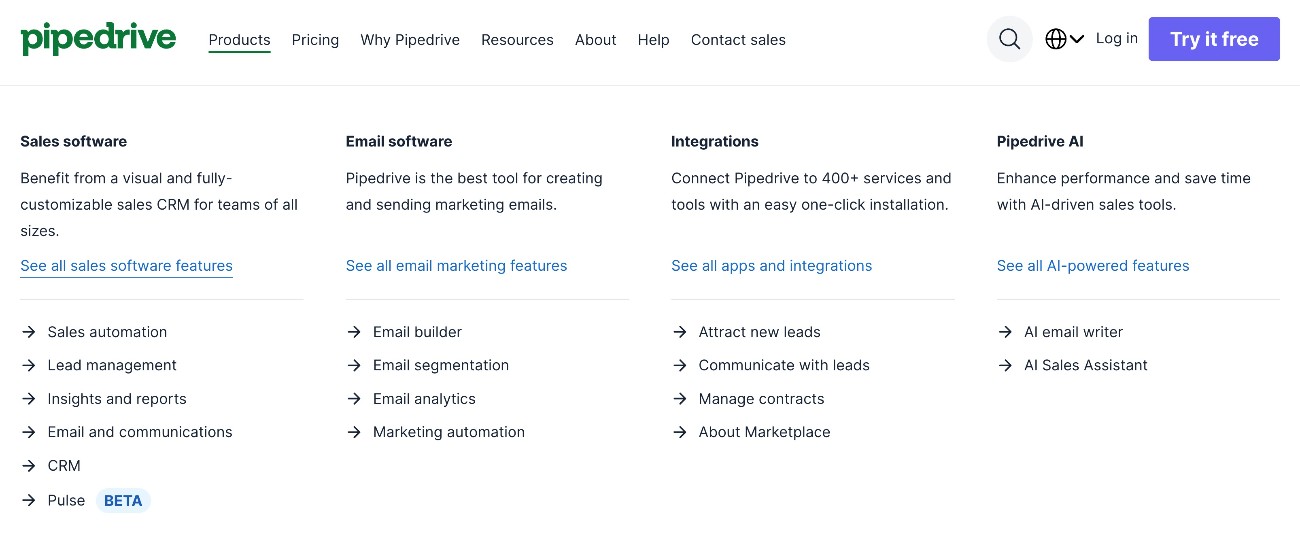
Whereas HubSpot has a broader focus, Pipedrive is primarily a sales CRM focused on helping small-to-medium-sized businesses manage their entire sales cycle.
As part of that feature set, Pipedrive offers the following core features:
- Contact management in the CRM
- Deal management
- Sales pipeline management, including a visual Kanban interface (along with other view options)
- Task and activity tracking
- Sales workflow automations to save time
- Reporting dashboards
- Email templates and tracking for sales emails, including integrations with Gmail and Outlook
While its main focus is on sales, Pipedrive does offer some optional add-ons that extend into other areas:
- Email marketing and campaigns – you can use this add-on to send marketing emails and set up basic automations (though it’s not as powerful as HubSpot’s marketing automation tools).
- Project management – a Kanban interface that you can use to manage projects, all integrated into your CRM.
- Website visitor analytics – you can track how/when organizations are engaging with your business’s website and store that activity in your CRM.
- Document management – you can more easily keep track of all of the documents that are part of your sales processes. It includes features like autofill, e-signatures, document open tracking, and more.
HubSpot
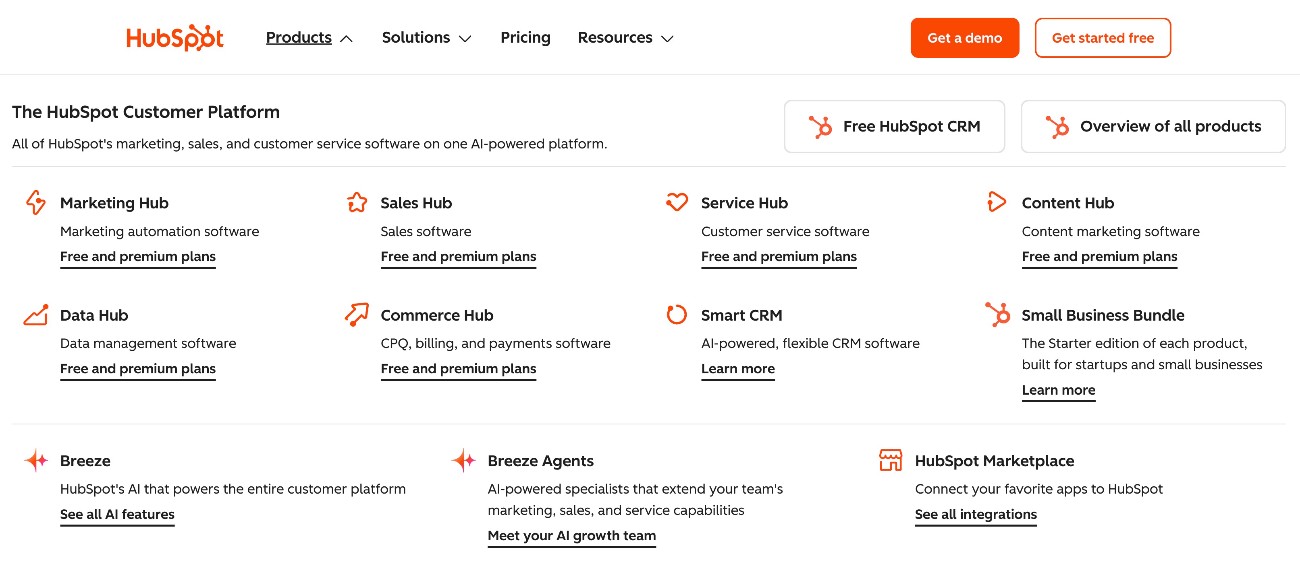
HubSpot’s core offering is its CRM, which it calls the Smart CRM.
To extend the core CRM, HubSpot also offers different product lines, which it calls “hubs”. You can choose to only use specific hubs, or there are also plans that bundle functionality from multiple hubs into one product, which HubSpot calls its “Customer Platform.”
Currently, HubSpot offers six different hubs to extend the core Smart CRM:
- Marketing Hub – tools to help with all aspects of marketing, including marketing automation.
- Sales Hub – tools to help individuals and teams manage the entire sales cycle. This hub has the most overlap with what Pipedrive offers.
- Service Hub – tools to offer support via multiple channels, with the ability to offer both human and/or AI agent support.
- Content Hub/CMS Hub – tools to help businesses create a website with built-in content personalization. For WordPress users, these are probably not needed, but they can be helpful for businesses that don’t already have a website.
- Data Hub – formerly known as Operations Hub, this offers tools to manage multiple data sources and discover actionable insights.
- Commerce Hub – while this hub is not a full e-commerce solution, it does offer tools to accept payments, such as invoices and payment links.
Ease of use: Which tool is easier to use?
Ease of use is an important consideration when choosing a CRM, especially if you or your team aren’t very technical users.
Thankfully, both Pipedrive and HubSpot do a good job of making things simple and easy to use, especially when compared to other alternatives with a higher learning curve (such as Salesforce).
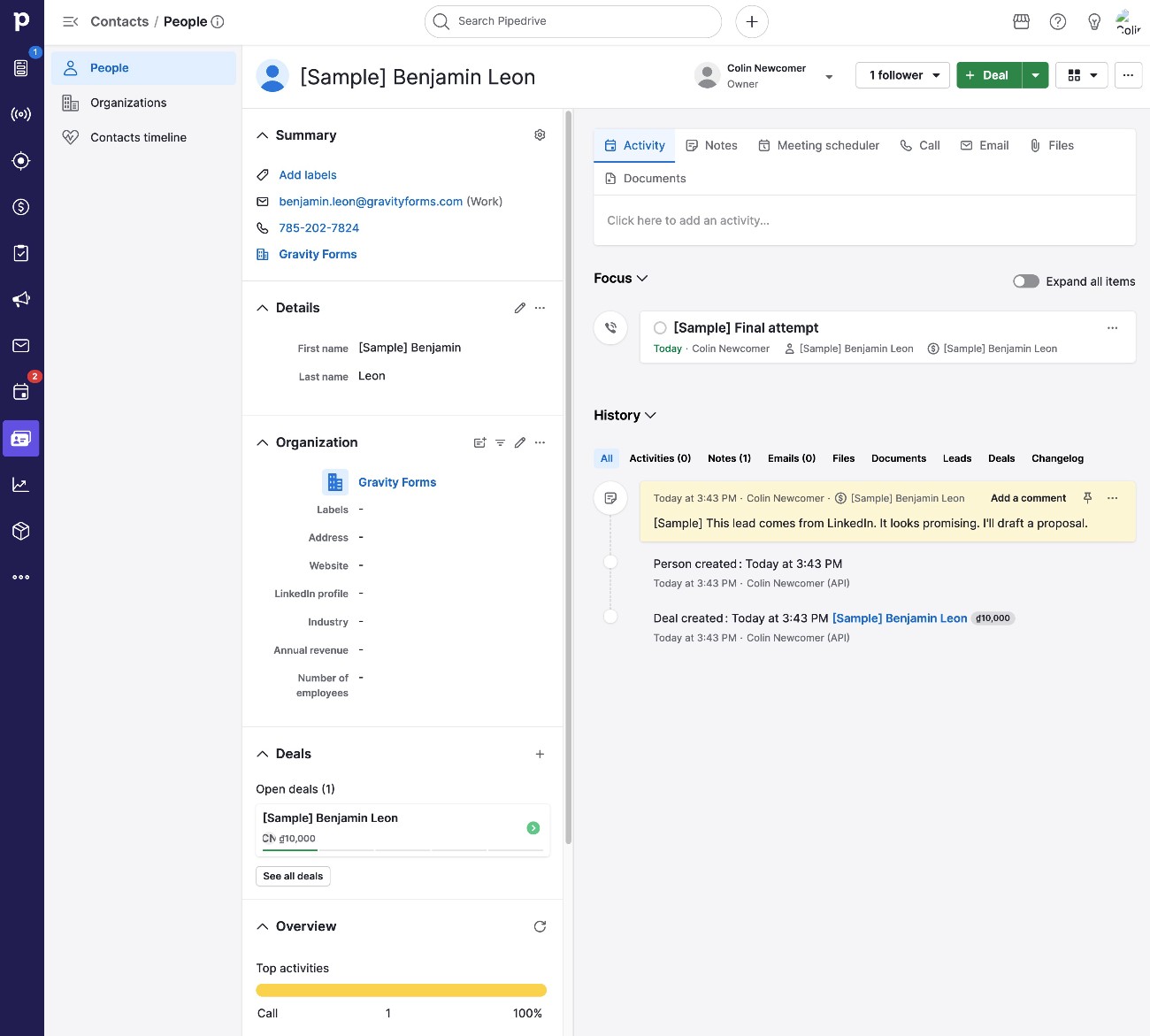
Because of its small business focus, Pipedrive does an especially good job of keeping its interfaces and functionality easy to use.
Pipedrive uses clear terminology instead of abstract terms and keeps its interface pretty simple.
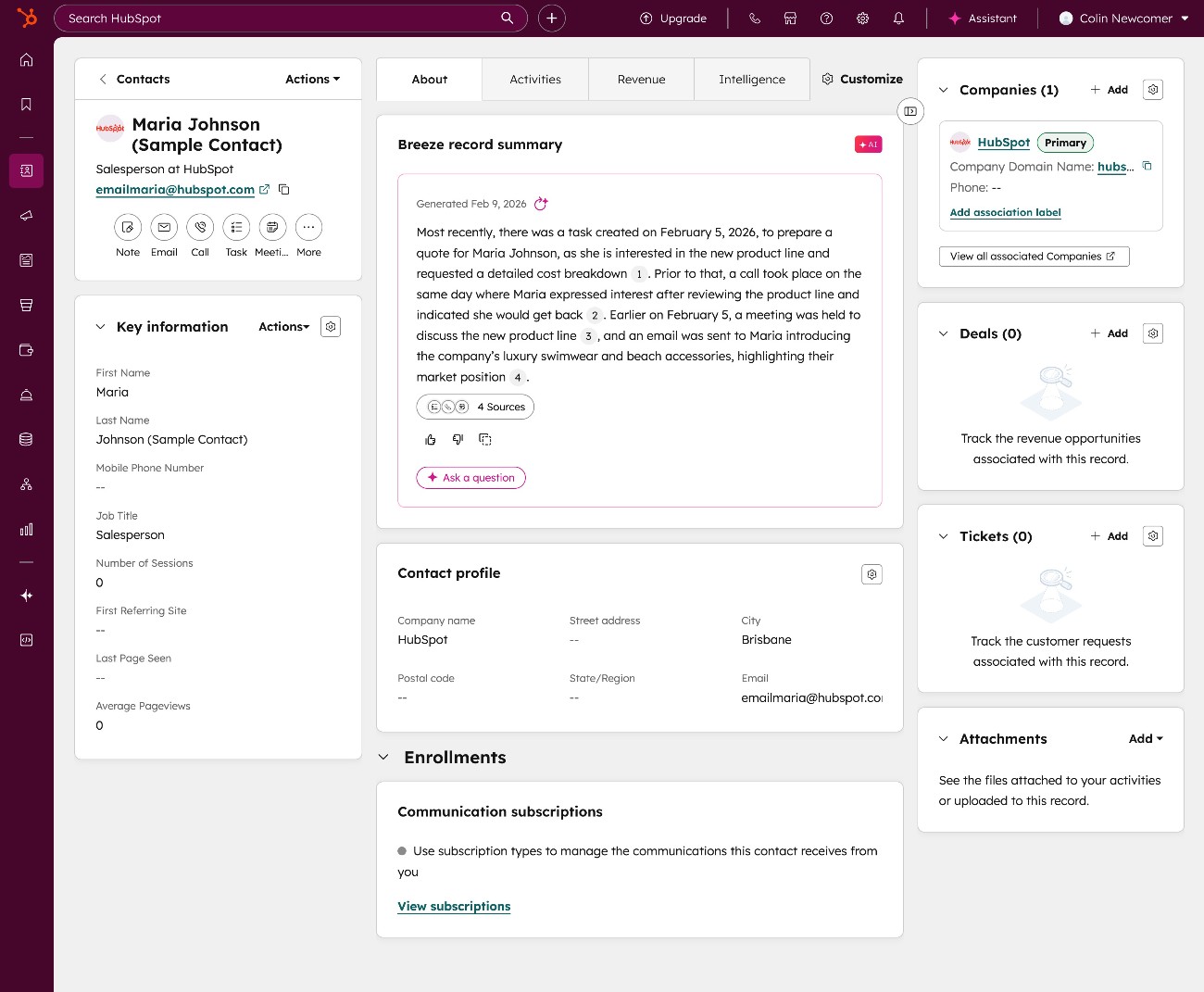
HubSpot also handles ease of use well, doing a good job of keeping the initial interfaces easy to use while still giving you access to more complex functionality if you want it.
While HubSpot might have “more” going on, the interfaces still feel well-designed and not overwhelming.
All in all, you and your team should feel confident that you can quickly get up and running with both Pipedrive and HubSpot.
Customizability: Which tool gives you more options for customization?
For some businesses, the out-of-the-box versions of Pipedrive and HubSpot might be enough.
However, depending on your use case, you might want to customize things to meet the unique needs of your business.
If that’s the case, HubSpot is the stronger option if you want more robust options for customization.
With that being said, Pipedrive can handle basic customizations just fine. Some of its key customization features include the following:
- Support for custom fields to store unique information about contacts – you can choose from 16 different field types.
- Sales pipeline customization.
- Integrations with 500+ other tools.
- A visual automation builder to create custom sales workflow automations.
HubSpot can also handle those types of automations, but it also gives you a lot more. Some of the areas where HubSpot offers deeper customization include the following:
- An app marketplace with 2,000+ apps, which offers off-the-shelf solutions for adding functionality and integrations.
- A JavaScript framework for building custom elements.
- Programmable automations (in addition to a visual automation builder for non-technical users).
- Support for custom objects, which lets you create and store custom data structures in a deeper way than Pipedrive’s basic custom fields can.
For small businesses that don’t need a ton of customization, both Pipedrive and HubSpot can probably get the job done.
However, as you get into more unique needs that require deeper customization (especially those of larger organizations), HubSpot is probably the stronger option of the two.
Pricing: What will you pay for Pipedrive vs HubSpot?
Comparing Pipedrive vs HubSpot pricing can be a bit tricky because they use different approaches:
- Pipedrive only offers all-in-one plans (for the most part*), which it divides into four tiers. *There are a few extra add-ons, but nothing like HubSpot’s hubs.
- HubSpot offers both all-in-one-type plans and individual hubs.
Like most SaaS CRMs, both Pipedrive and HubSpot bill you based on the number of seats that you need. So, the number of employees that you need to give access to your CRM will affect the price that you pay.
In general, Pipedrive can be more affordable than HubSpot, especially as you get into the higher-tier plans (where the differences can be quite large). However, it’s also possible for HubSpot to be cheaper in some situations, so we encourage you to do the math on your specific situation and the features that you need access to.
Below, we’ll try to compare the pricing on a one-to-one basis as possible.
Free plans
HubSpot offers a free plan for the core HubSpot CRM and some basic functionality, while Pipedrive only offers a 14-day free trial.
While most organizations will probably want to upgrade to one of HubSpot’s paid plans to access additional functionality, being able to permanently access the core HubSpot CRM for free is an advantage over Pipedrive.
Pipedrive paid plans
As we mentioned above, Pipedrive’s paid plans are generally more affordable than HubSpot, especially on the higher-tier options.
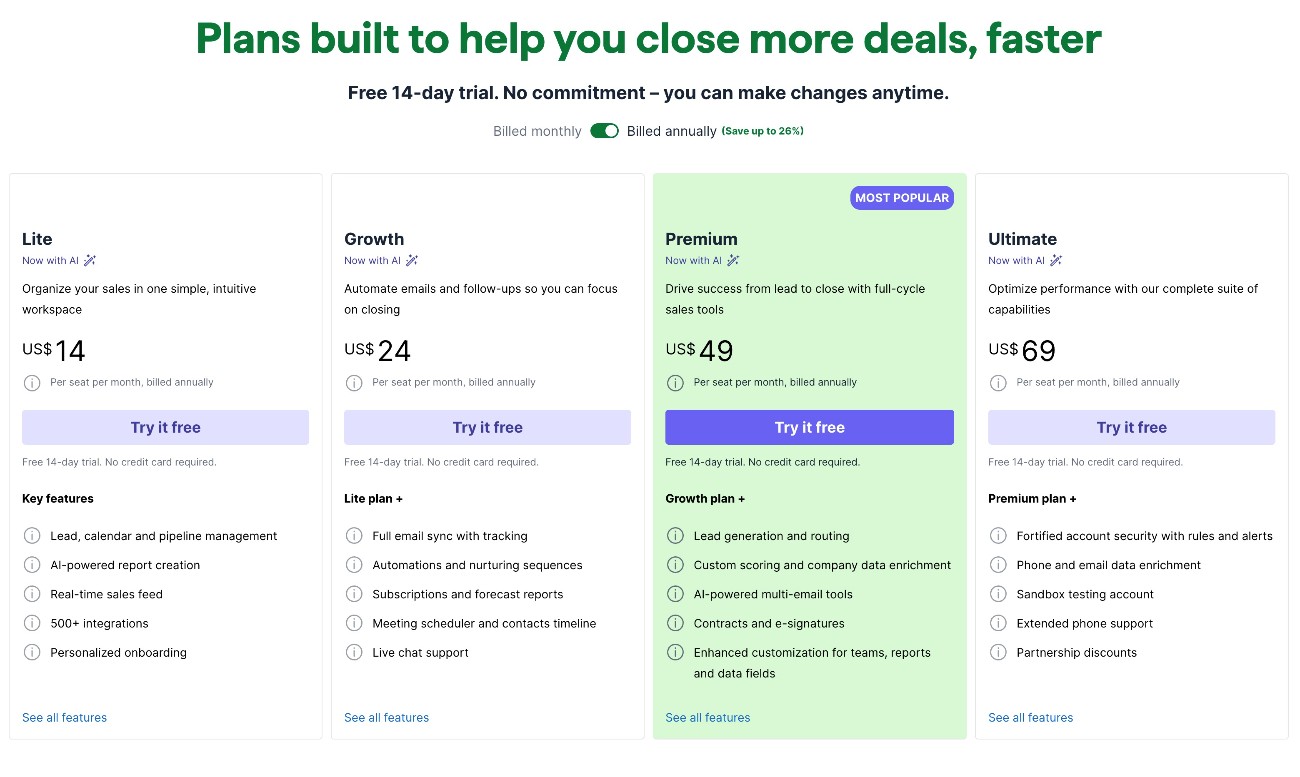
Pipedrive also offers most of its functionality in unified plans, which it divides into four tiers. Prices range from $14 per month per seat for the Lite plan to $69 per month per seat for the Ultimate plan.
You can click the Compare plans button on the Pipedrive pricing page to see the feature differences between each plan.
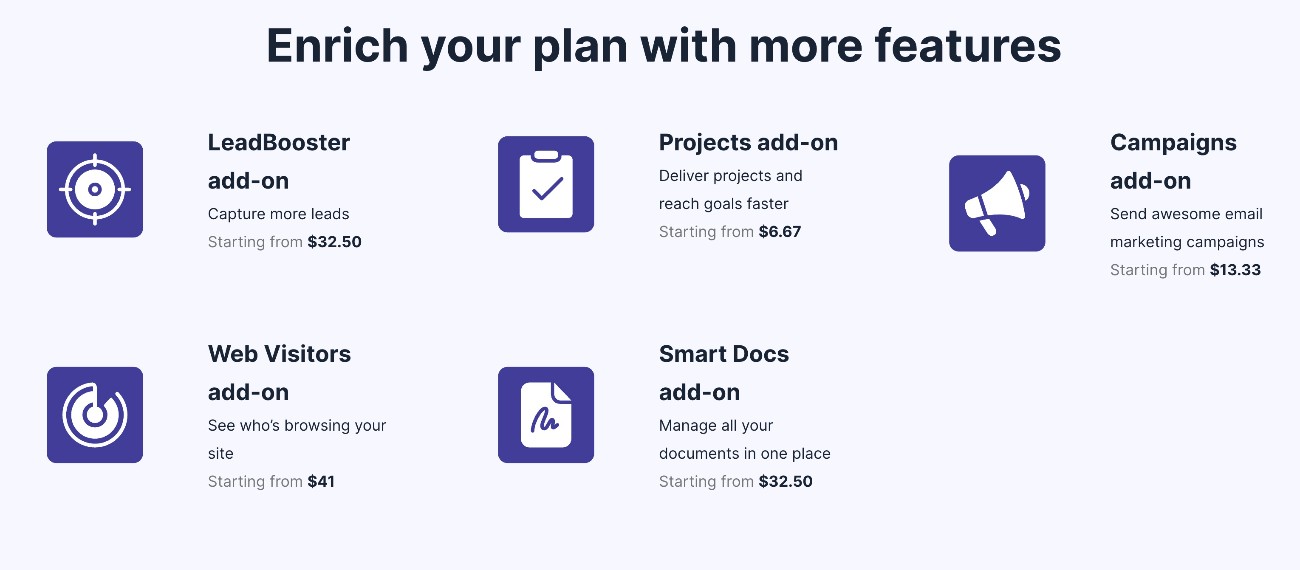
In addition to the four tiers above, Pipedrive also offers a few optional add-ons that you can use to add specific features:
- LeadBooster add-on – “Capture more leads” – from $32.50 per month.
- Projects add-on – “Deliver projects and reach goals faster” – from $6.67 per month.
- Campaigns add-on – “Send awesome email marketing campaigns” – from $13.33 per month.
- Web Visitors add-on – “See who’s browsing your site” – from $41 per month.
- Smart Docs add-on – “Manage all of your documents in one place” – from $32.50 per month.
HubSpot paid plans
In terms of paid plans, HubSpot offers a number of different options.
If you want tools for marketing, sales, and customer service, the cheapest way to get access is to use HubSpot’s Customer Platform plans. Here are the prices for the premium Customer Platform plans:
- Starter – from $9 per month per seat, with annual billing.
- Professional – from $1,300 per month, with annual billing. The base price includes six seats and you can add more seats from $45/month/seat.
- Enterprise – from $4,300 per month, with annual billing. The base price includes eight seats and you can add more seats from $75/month/seat.
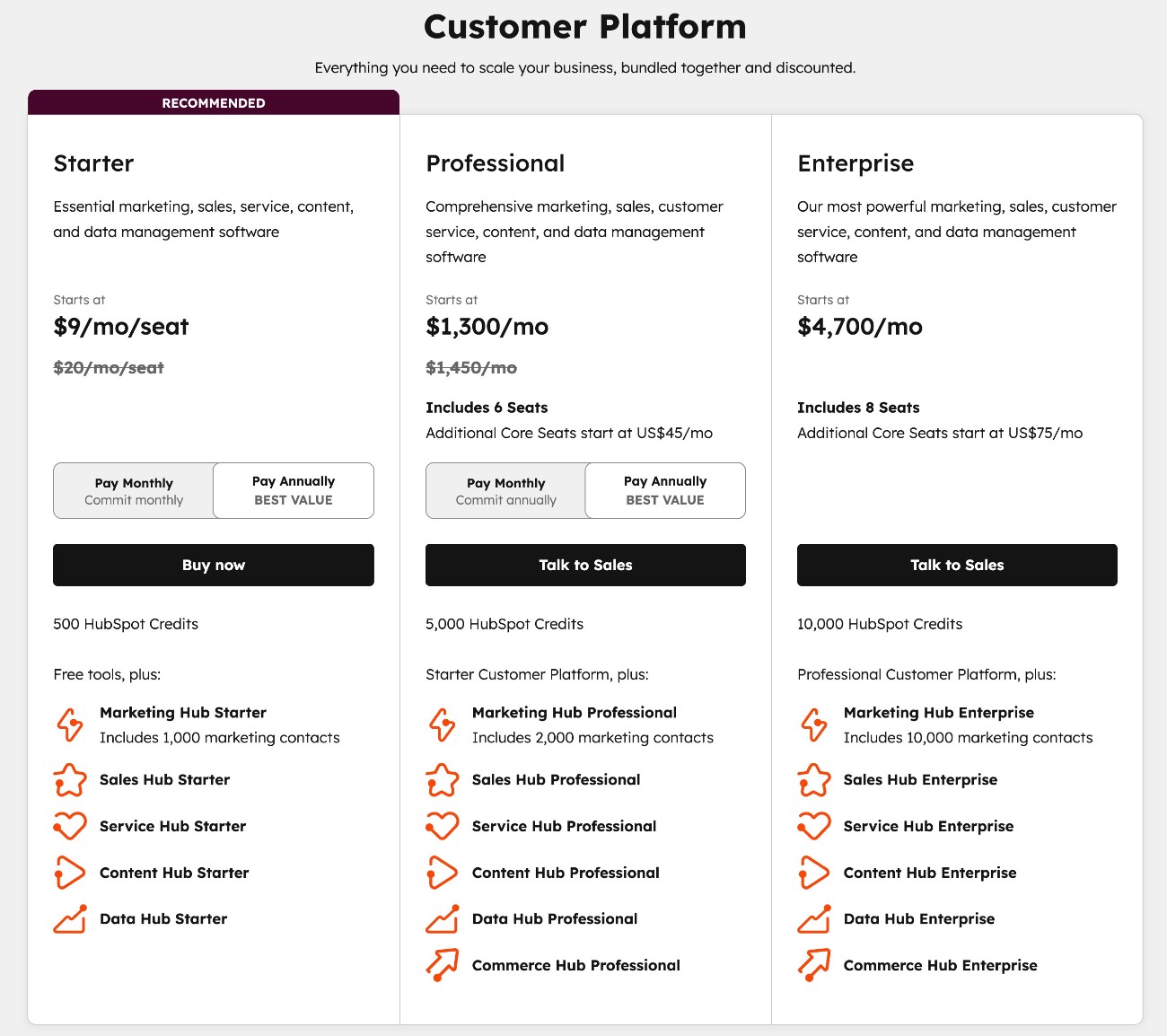
As you can see, HubSpot Customer Platform can be similar to Pipedrive on the Starter plan, but it gets significantly more expensive as you get into the Professional and Enterprise options.
In addition to the Customer Platform plans, there are also plans focused on specific areas. Here are some of the most notable prices, though this is not a complete list of every option.
Marketing Hub:
- Starter – from $9 per month per seat, with annual billing.
- Professional – from $800 per month, with annual billing. The base price includes three seats and you can add more seats from $45/month/seat.
- Enterprise – from $3,600 per month, with annual billing. The base price includes five seats and you can add more seats from $75/month/seat.
Sales Hub:
- Starter – from $9 per month per seat, with annual billing.
- Professional – from $90 per month per seat, with annual billing.
- Enterprise – from $150 per month per seat, with annual billing.
Service Hub:
- Starter – from $9 per month per seat, with annual billing.
- Professional – from $90 per month per seat, with annual billing.
- Enterprise – from $150 per month per seat, with annual billing.
WordPress connections with Pipedrive and HubSpot
If you built your website using WordPress, the Gravity Forms plugin can help you connect your WordPress forms to both Pipedrive and HubSpot.
You can use Gravity Forms to create dedicated lead generation forms. Or, you can also add a CRM integration to forms with other purposes, such as automatically adding contacts to your CRM after they make a purchase via a payment form or create a WordPress user account via a registration form.
Here’s a quick summary of how the Gravity Forms plugin can help you integrate your website with Pipedrive and HubSpot – we’re going to start with HubSpot here because it has the tightest integration with Gravity Forms.
Gravity Forms HubSpot Add-On
Gravity Forms offers a dedicated HubSpot Add-On that lets you easily connect all of your forms to HubSpot.
You can access the Gravity Forms HubSpot Add-On on all Gravity Forms licenses, including the Basic license.
You can connect Gravity Forms to HubSpot using the HubSpot authorization flow, which just requires a few clicks. Then, you can create a HubSpot feed for any/all of your forms to sync form submissions to HubSpot with the following functionality:
- Control lead status, stage, and owner – when syncing a contact to HubSpot, you can customize its contact owner, lead status, and lifecycle stage. You can also add your own conditional logic rules to handle these details differently depending on how a person fills out the form, such as conditionally assigning a different contact owner.
- Map form fields to HubSpot fields – you can map all of the fields from your form to fields in HubSpot, including mapping form fields to custom fields in HubSpot.
- Add conditional logic rules – in addition to the conditional logic rules that we mentioned above, you can also add conditional rules to only sync a contact to HubSpot if certain conditions are met.
If you want to see the HubSpot Add-On in more detail, you can read our guide on how to create a HubSpot contact form in WordPress.
Gravity Forms Pipedrive integration
Gravity Forms does not currently offer a dedicated Pipedrive add-on like it does for HubSpot, but you still have multiple options for connecting your forms to Pipedrive using official or community add-ons.
One option is to use Zapier as an intermediary. You can easily connect your forms to Zapier using the Gravity Forms Zapier Add-On. Then, you can use Zapier’s Pipedrive integration to sync all of your form data to Pipedrive, including mapping data to custom fields. You can access the Zapier Add-On on the Gravity Forms Pro, Elite, and Nonprofit licenses.
If you’re ok with a slightly more technical setup process, you can also pass form data directly to Pipedrive using webhooks, which you can set up with the Gravity Forms Webhooks Add-On. This add-on is available on the Elite and Nonprofit licenses.
Finally, you can also connect Gravity Forms directly to Pipedrive using community add-ons for Gravity Forms. These add-ons come from third-party developers and have not been verified by the Gravity Forms team, so we recommend doing your own due diligence before installing them.
There are multiple third-party Pipedrive add-ons in the Gravity Forms Community Add-Ons directory – here are a few examples:
- Pipedrive For Gravity Forms by WeConnectCode
- Pipedrive for Gravity Forms by CRM Perks
- Gravity Forms to Pipedrive CRM by Help for WP
Final thoughts
In the end, choosing between Pipedrive and HubSpot should really come down to the unique circumstances of your business, including your feature needs and budget.
Pipedrive can be a great option for small-to-medium-sized businesses that are primarily looking for a sales CRM. While Pipedrive does offer a Campaigns add-on for basic email marketing, marketing is not its main focus.
In comparison, HubSpot offers a much broader feature set, with tools for marketing, sales, customer service, and more. If you want that more well-rounded feature set, that could be a reason to consider HubSpot. Beyond that, HubSpot also just generally offers more options for customization.
Of course, the trade-off is that HubSpot can cost significantly more than Pipedrive if you need to go beyond HubSpot’s entry-level Starter plans.
Regardless of whether you choose Pipedrive or HubSpot, the Gravity Forms plugin can help you connect your WordPress website to your CRM.
For HubSpot, the dedicated Gravity Forms HubSpot Add-On is available on all plans and lets you connect your site directly to HubSpot.
For Pipedrive, there’s no dedicated integration add-on that comes directly from the Gravity Forms team. However, you can use the Gravity Forms Zapier Add-On to connect using Zapier as an intermediary. Or, you can use one of the third-party community add-ons that integrate directly with Pipedrive.
If you want to get started, purchase your Gravity Forms license today.

Newsletter
If you want to keep up-to-date with what’s happening on the blog sign up for the Gravity Forms newsletter!
"*" indicates required fields