Looking to set up WordPress Mailtrap transactional emails on your site?
Mailtrap is a developer-friendly email delivery platform that can work well for your own WordPress websites, as well as client websites (if you’re building WordPress sites for others).
With the Gravity SMTP plugin, you can connect your WordPress site directly to the Mailtrap email API, while also accessing other optional features to monitor and optimize your site’s transactional emails.
In this post, we’ll briefly introduce you to Mailtrap and Gravity SMTP, along with how they work together.
Then, we’ll show you step-by-step how to connect WordPress to Mailtrap to start sending transactional emails.
Let’s get into it…
Why use Mailtrap for WordPress transactional emails?

Mailtrap offers an easy-to-use API for transactional emails, with an extra emphasis on being developer-friendly (though you don’t need any special technical knowledge to use the service).
Mailtrap also offers a built-in email sandbox tool that makes it easy to test and debug your site’s transactional emails without sending real emails to live addresses. You can use this to test on your live website or your staging/development site.
The latter is an advantage over some other services that only offer live email sending, especially if you find yourself working with emails a lot on staging or development sites.
Beyond that, it also offers several other useful features:
- Suppression lists (though you can also use the suppression feature in Gravity SMTP).
- Webhooks to receive notifications for events such as bounces, unsubscribes, deliveries, opens, clicks, spam complaints, and more.
- Support for marketing emails in addition to transactional emails.
- Organization management, which can be useful if you’re managing multiple projects/clients.
Mailtrap pricing
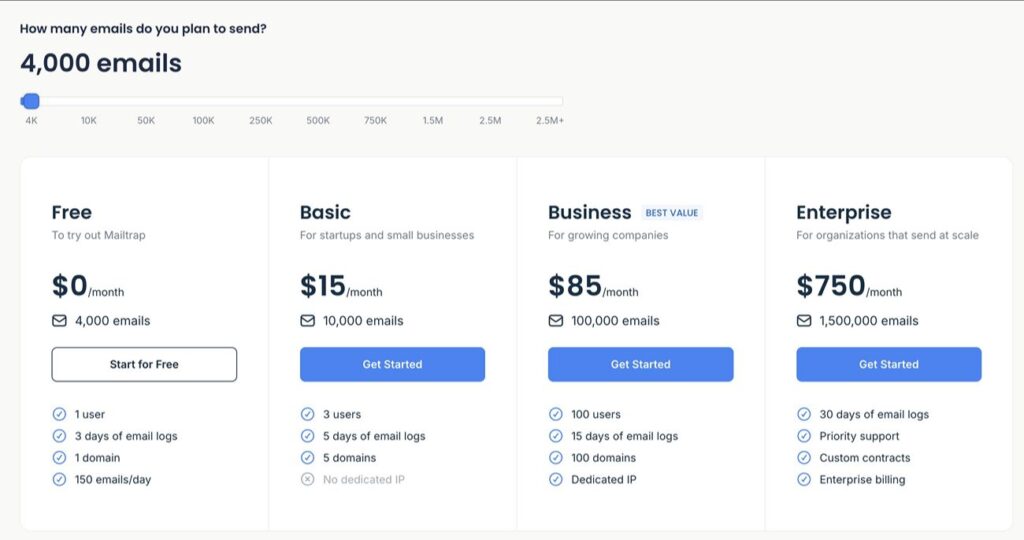
Mailtrap offers a free plan for its email API that lets you send up to 4,000 emails per month, with a cap of 150 emails in any single day.
If you want to increase that limit and/or access more functionality (such as more user access accounts or a dedicated IP address), you can choose from three different paid plans.
Here are the starting prices for each plan at the time of this writing. The price goes up if you need to exceed the included sending limit on any plan:
- Basic – From $15 per month for up to 10,000 emails.
- Business – From $85 per month for up to 100,000 emails.
- Enterprise – From $750 per month for up to 1,500,000 emails.
How Gravity SMTP helps you use Mailtrap on WordPress
Gravity SMTP offers an easy way to send your WordPress site’s transactional emails directly using Mailtrap’s API, which is the most reliable way to send your site’s emails.
You can send live emails using the API. Or, Gravity SMTP also lets you connect to Mailtrap’s email sandbox feature for email testing.
Beyond the direct API integration, Gravity SMTP also offers lots of other useful features to help you manage your site’s transactional emails:
- Email reports – See helpful reports about your site’s emails, including top sending sources, top recipients, and more.
- Email logging – Log each individual email that your site sends. You can view technical details, content, design, and attachments for each email. You can also disable some/all of the logging, such as turning off attachment logging if the attachments contain sensitive information.
- Backup email sending methods – Connect to a backup email sending service that Gravity SMTP will automatically resend emails with if Mailtrap ever fails for any reason.
- Email resends – Manually resend an email with just a few clicks.
- In-dashboard suppressions – Manage suppression lists from your WordPress dashboard, instead of needing to use Mailtrap’s interface.
- Dedicated support – Get direct, one-on-one support from the friendly Gravity Forms team if you ever need assistance.
Gravity SMTP is available at no extra cost to anyone holding the Gravity Forms Elite, Nonprofit, or Developer licenses.
It’s a standalone plugin and you do not need to have Gravity Forms installed to use it, though Gravity SMTP does work well for sending form notification emails using a transactional email service.
How to set up WordPress Mailtrap sending with Gravity SMTP
Now, let’s get into the full step-by-step guide on how to set up WordPress Mailtrap email sending using Gravity SMTP.
Once you connect to the API, Gravity SMTP will work for core WordPress emails, Gravity Forms notifications, and any other plugin that uses wp_mail.
In addition to letting you connect to the API to send live emails, Gravity SMTP also lets you use Mailtrap’s email sandbox tools to test your emails, either on your live site or a staging site.
1. Install the Gravity SMTP plugin
To get started, make sure to install and activate the Gravity SMTP plugin on the site where you want to set up Mailtrap.
Gravity SMTP is currently available for free to anyone holding the Gravity Forms Elite or Nonprofit licenses (or the legacy Developer license). You can download it from your Gravity Forms account area.
2. Register for your Mailtrap account
Next, you’ll need to register for your Mailtrap account, if you don’t already have one.
As we mentioned earlier, Mailtrap lets you send up to 4,000 emails per month for free, so you can follow this tutorial and set up everything using just a free account.
You can visit this link to register for your free account – no credit card needed.
As part of the onboarding process, Mailtrap will ask you what domain you will use for sending emails. You can skip this for now, as we’ll cover the full process of adding your domain name in the next step.
3. Authenticate your domain name with Mailtrap
Before you can start sending emails, you first need to add your domain name to Mailtrap and then authenticate it by adding some DNS records to your domain name.
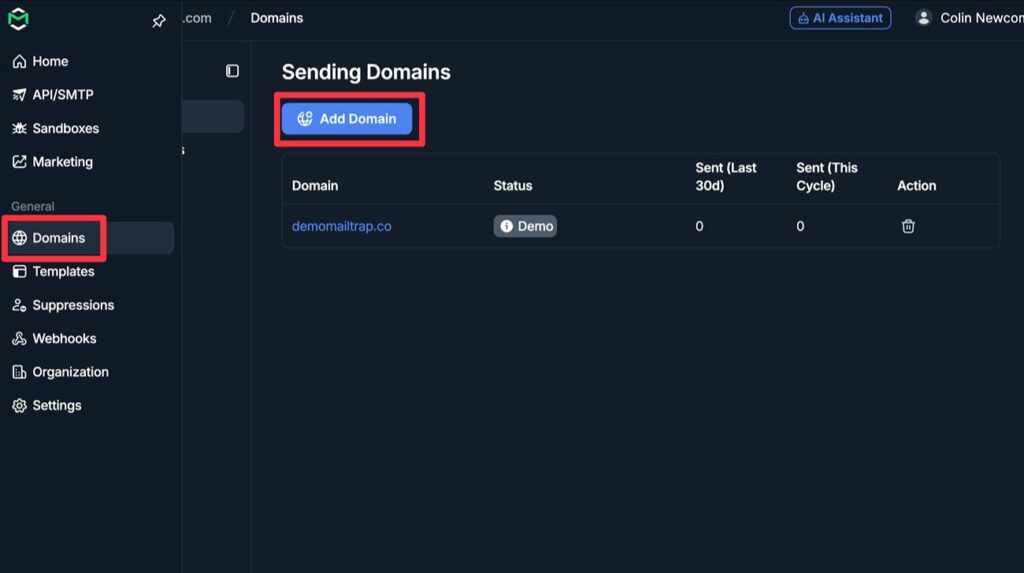
To get started, select the Domains tab in the Mailtrap dashboard sidebar. Then, click Add Domain to advance.
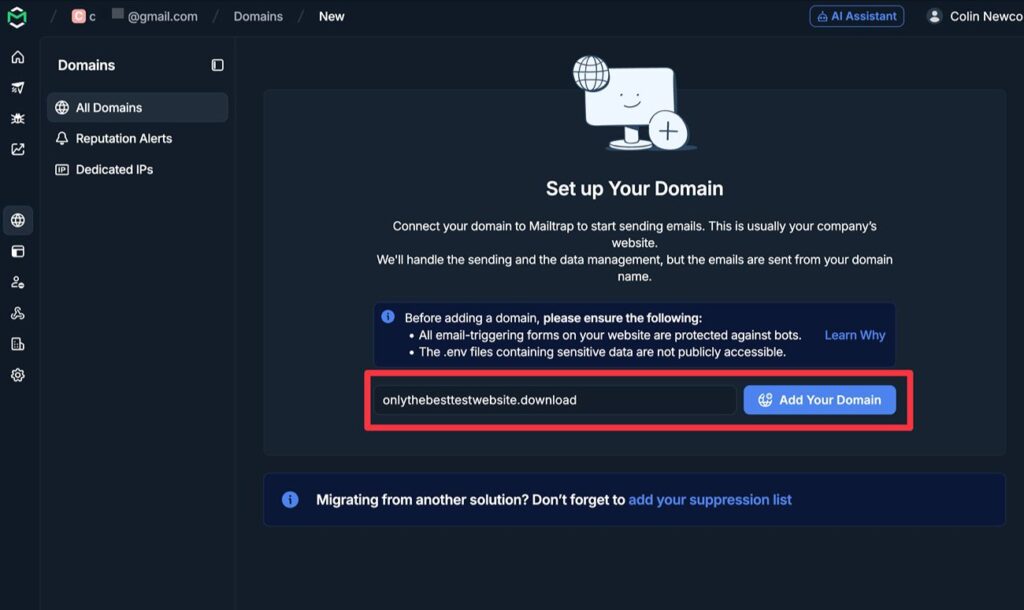
On the next screen, add your WordPress site’s domain name to the box and then click Add Your Domain.
Mailtrap will then provide you with five DNS records that you need to add to your domain name.
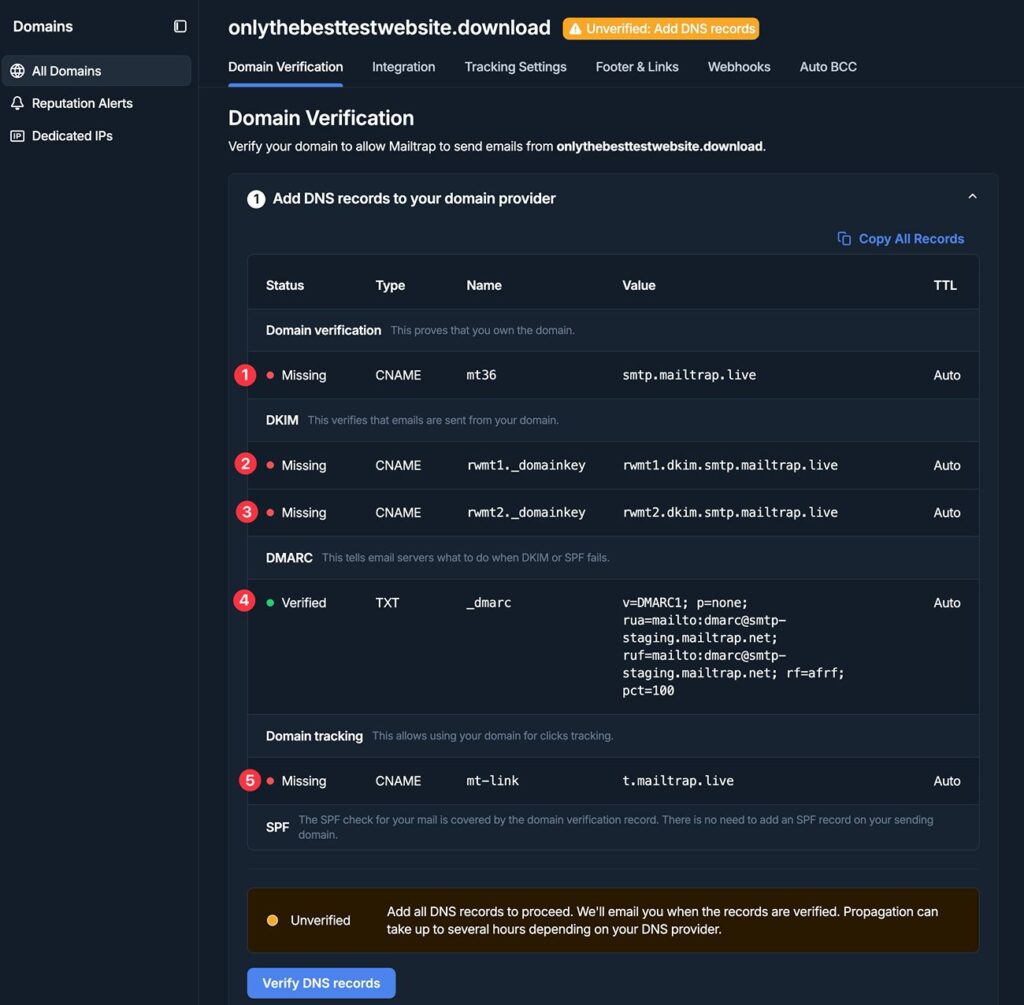
You’ll need to add these records wherever you manage your domain’s DNS. Depending on how you’ve set things up, that could be:
- Your domain registrar
- Your hosting account
- A reverse proxy service like Cloudflare
Our test site is using Cloudflare’s nameservers, so we set up the DNS records via the Cloudflare dashboard.
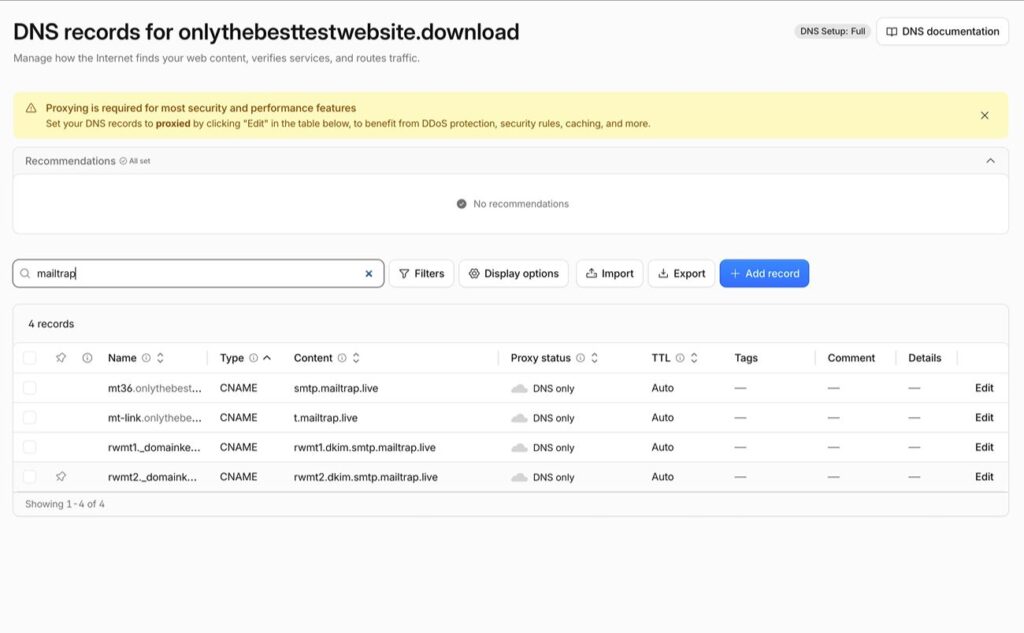
Once you’ve added all of the records, click the Verify DNS records button at the bottom of the screen.
You should then see green Verified statuses for each record. If you don’t, wait a few minutes and then try again, as it sometimes takes a little while for DNS records to fully propagate.
Once all the records are verified, you’ll next be prompted to fill in sender information, which you can do by clicking the Fill in Sender Information button.
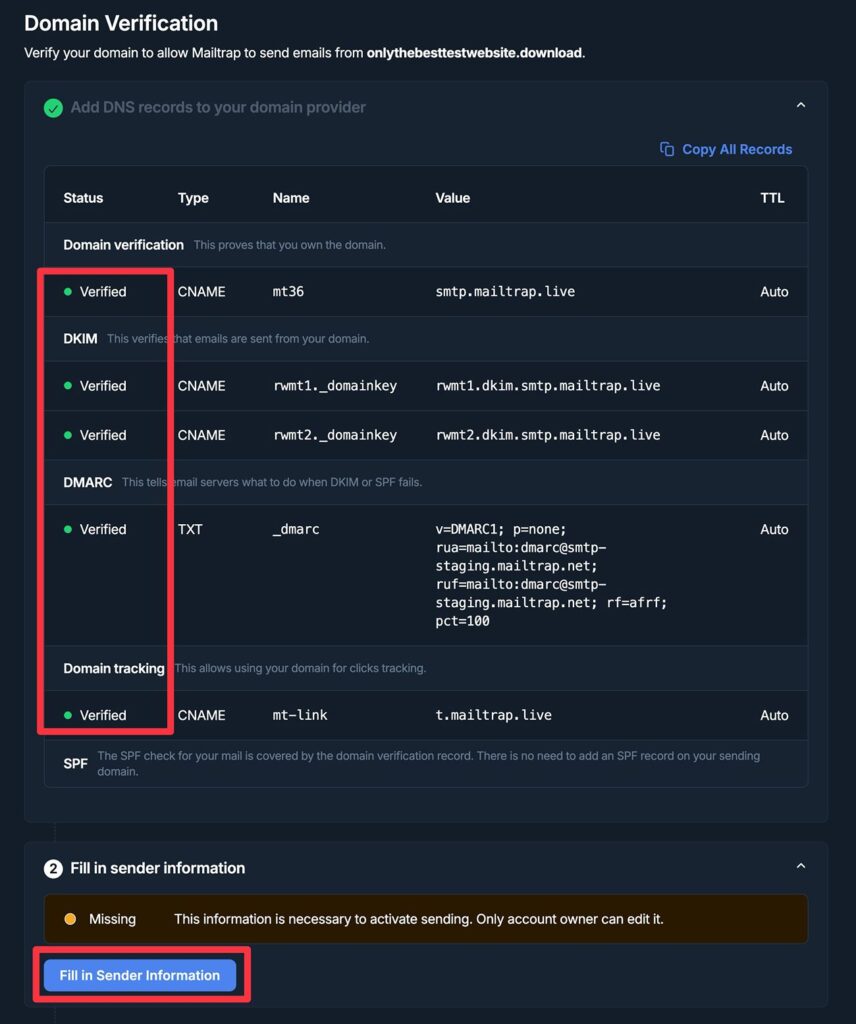
This will launch a popup where you’ll need to fill in some basic details, depending on whether you’re sending emails as a business or as an individual.
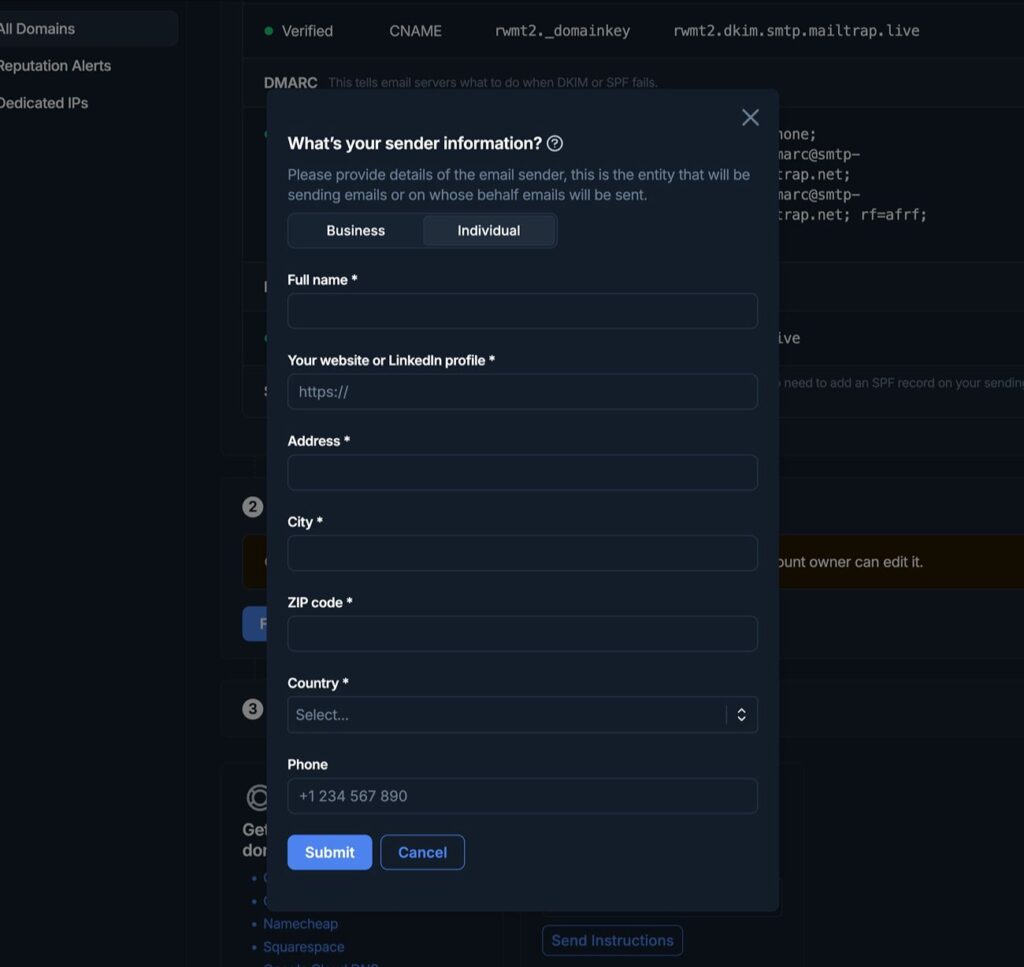
Mailtrap will then perform a quick automatic compliance review, which can take up to two minutes. Depending on its findings, you might need to provide some additional information. However, this is on a case-by-case basis.
4. Create your Mailtrap API token
Once you’ve added and authenticated your domain name in Mailtrap, you next need to create an API token. This is what Gravity SMTP will use to connect WordPress to Mailtrap and send your site’s emails.
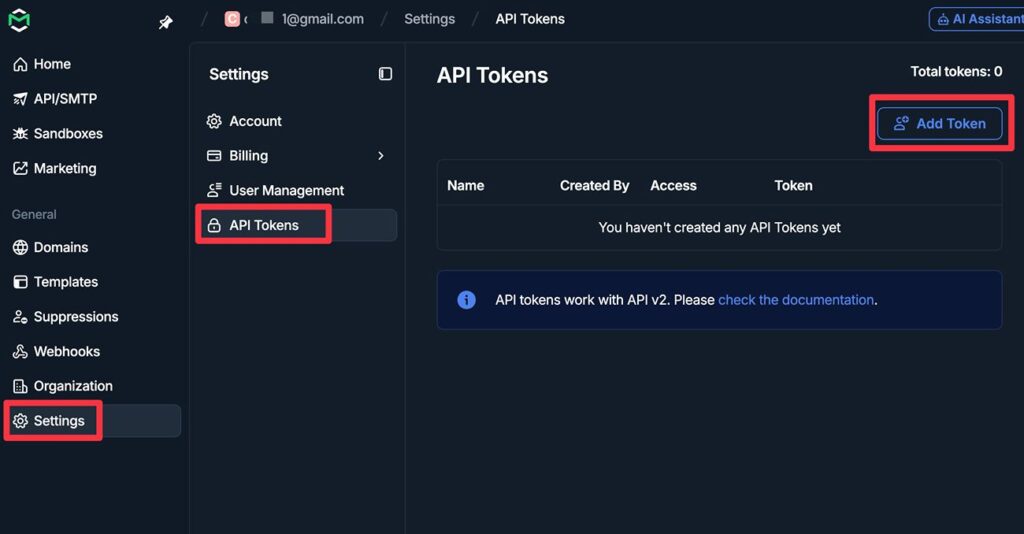
To get started, select the Settings menu in the sidebar of the Mailtrap dashboard. Then, select API Tokens from inside the settings submenu.
Finally, click Add Token to create your first API token.
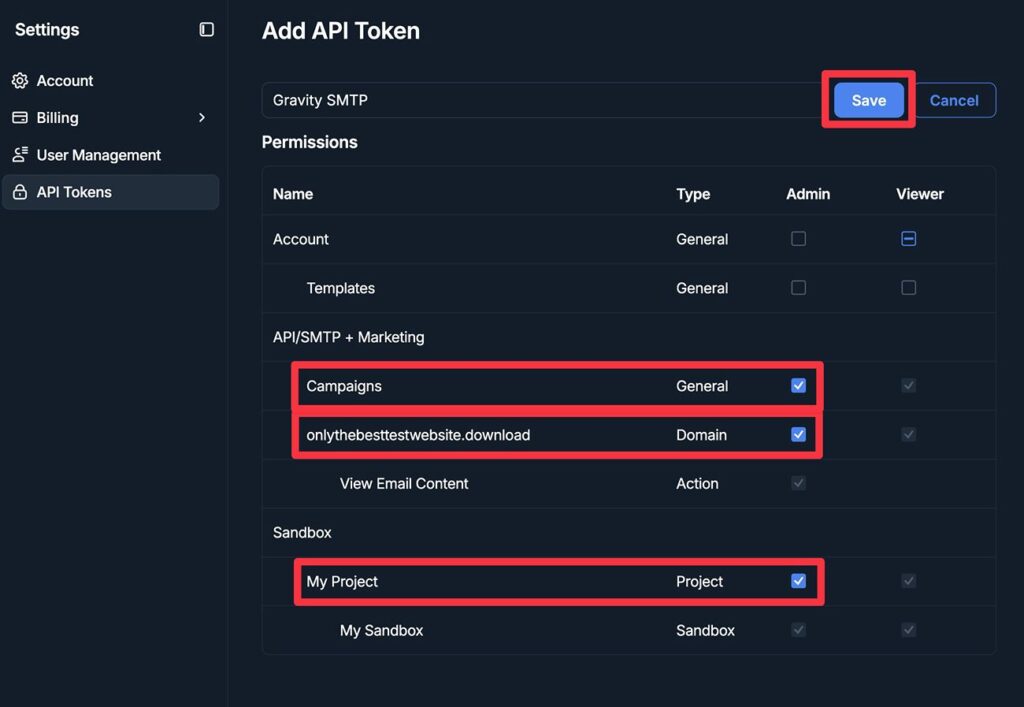
On the next screen, give your token an internal name to help you remember it.
Then, you need to assign it at least the following permissions under API/SMTP + Marketing:
- Campaigns – Admin
- [your WordPress site’s domain name] – Admin
If you want to use Mailtrap’s email sandbox feature for testing (which is an option in Gravity SMTP), you should also give Admin access to My Project under Sandbox.
Once you’ve added those permissions, click Save.
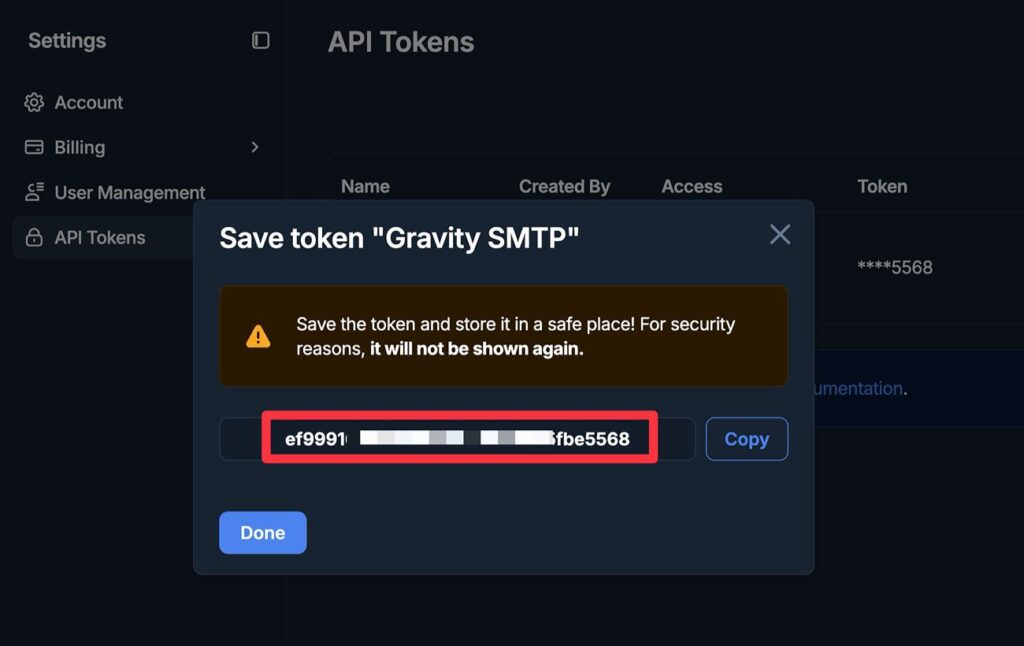
Mailtrap will now display your API token in a popup.
Make sure to copy this token to a safe place because you’ll need it in the next step and Mailtrap will only show the value one time.
Don’t worry, though – if you accidentally lose it, you can just repeat these steps to create another token from scratch.
5. Connect Gravity SMTP to Mailtrap
Once you have your Mailtrap API key, you’re ready to switch over to your WordPress dashboard and connect Gravity SMTP to Mailtrap:
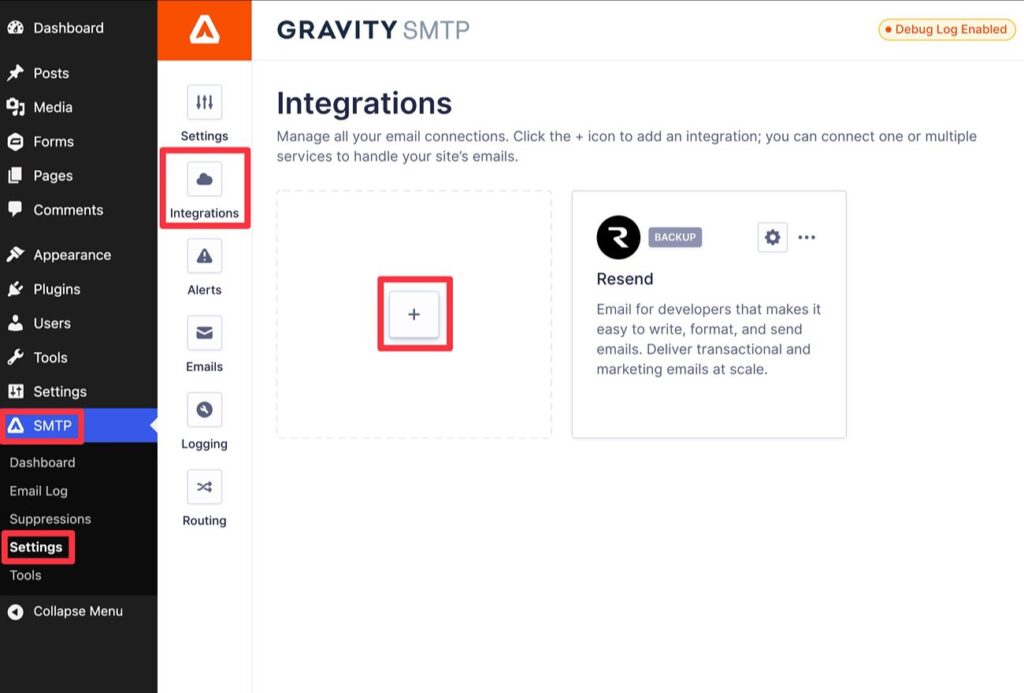
- Open your WordPress dashboard.
- Go to SMTP → Settings.
- Select the Integrations tab inside of the Gravity SMTP settings area.
- Click the Plus icon to add a new integration.
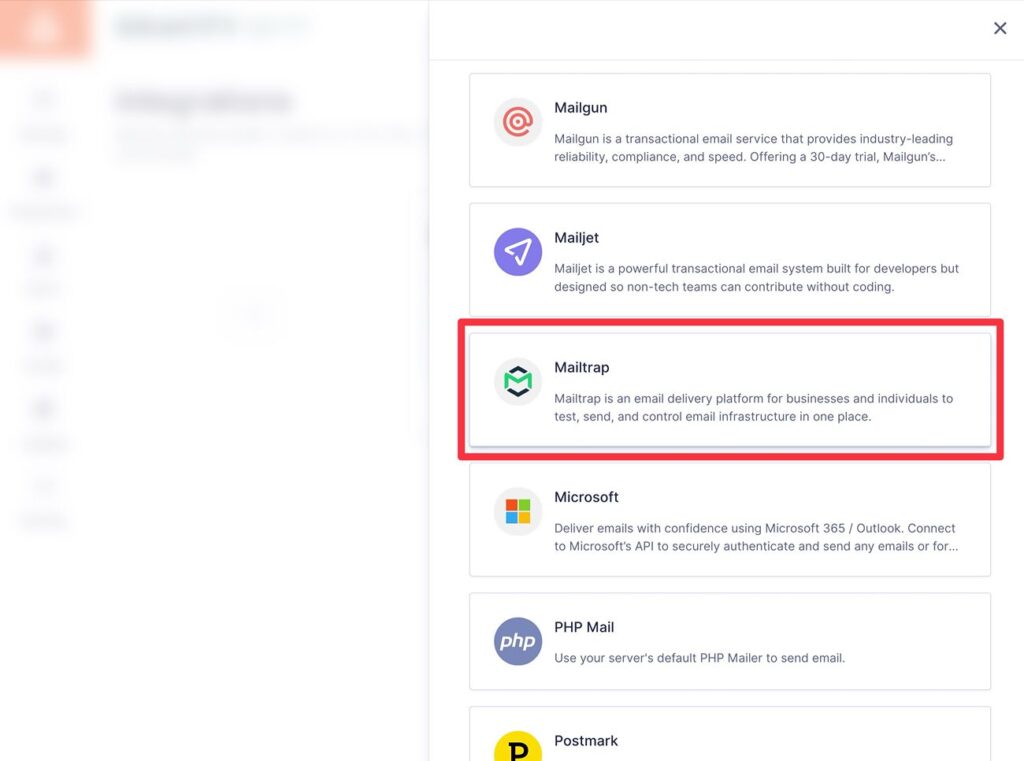
This will open a slide-out panel where you can browse through all of the integrations that Gravity SMTP supports. Find Mailtrap in the list and select it.
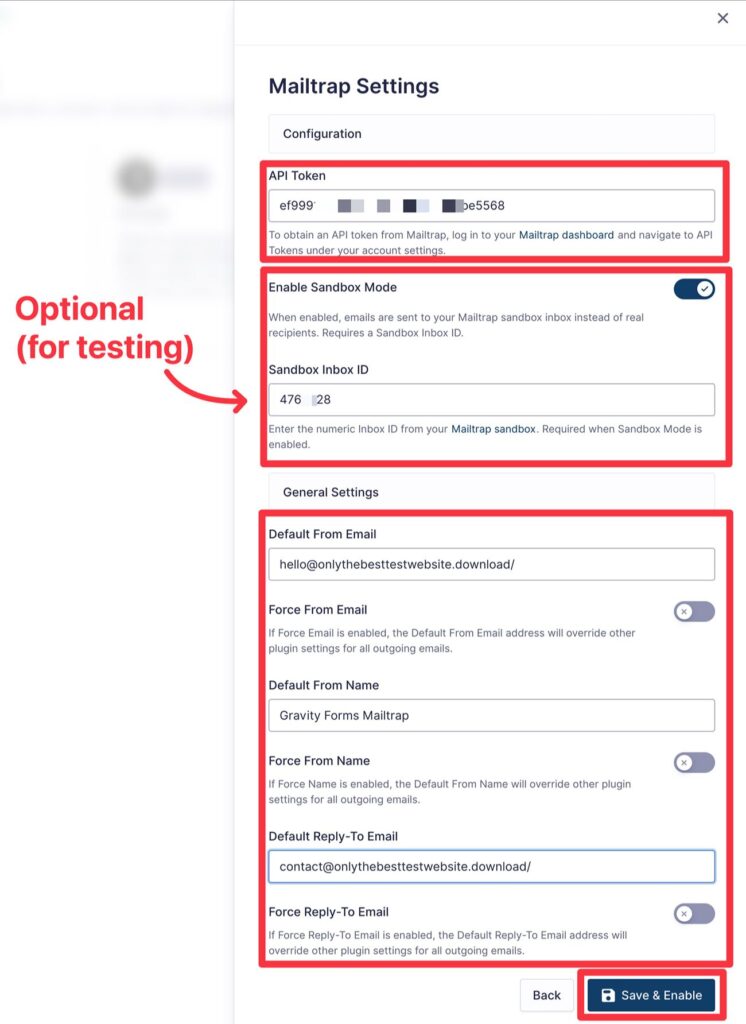
You’ll now see the options to connect to Mailtrap.
First, add your Mailtrap API token to the API Token field.
Below that, you have the option to Enable Sandbox Mode, which requires adding your Mailtrap Sandbox Inbox ID.
This is optional and not needed if you want to jump straight to sending real emails. However, if you want to test everything in a sandbox before enabling live sending, it can be a good option.
To find your Mailtrap sandbox ID, go to the Sandboxes tab in your Mailtrap dashboard. Then, select My Sandbox in the list of sandboxes. Once you’ve opened the sandbox, you can find the ID by looking at the URL of the sandbox interface.
For example, if the URL is https://mailtrap.io/sandboxes/4769928/settings, your sandbox ID would be 4769928.
Below that, you can configure a few general email settings:
- Default From Email – this should be an email address that uses the domain name you authenticated with Mailtrap.
- Default From Name
- Default Reply-To Email
- Whether to force all plugins on your site to use some/all of these details
Once you’ve added everything, click Save & Enable at the bottom.
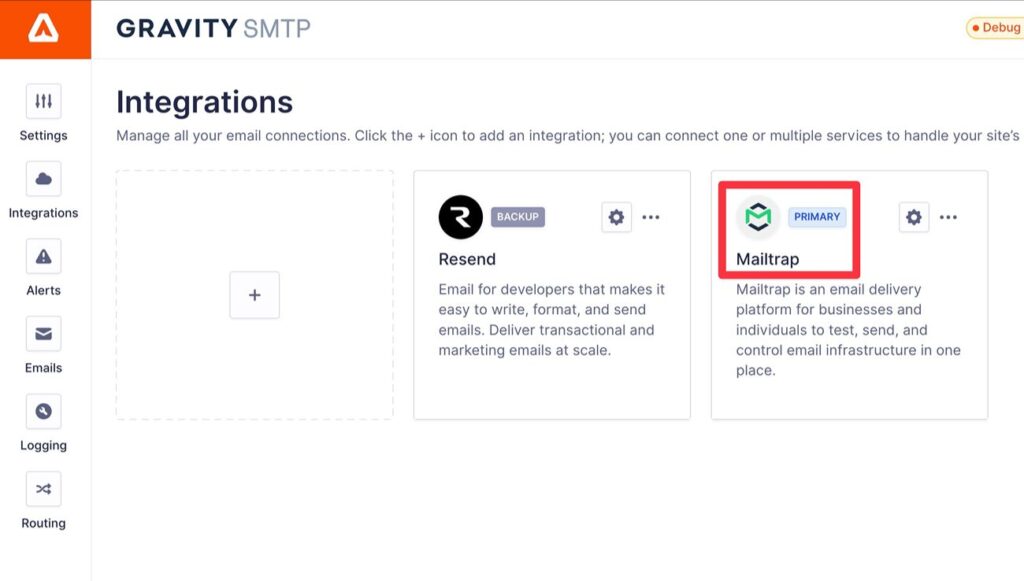
Gravity SMTP should then automatically enable Mailtrap as your primary email sending service. You can verify this by looking for the Primary label in the integrations list.
You can also manually enable it as your primary service by clicking the three dots icon and selecting Set As Primary.
6. Test your Mailtrap emails
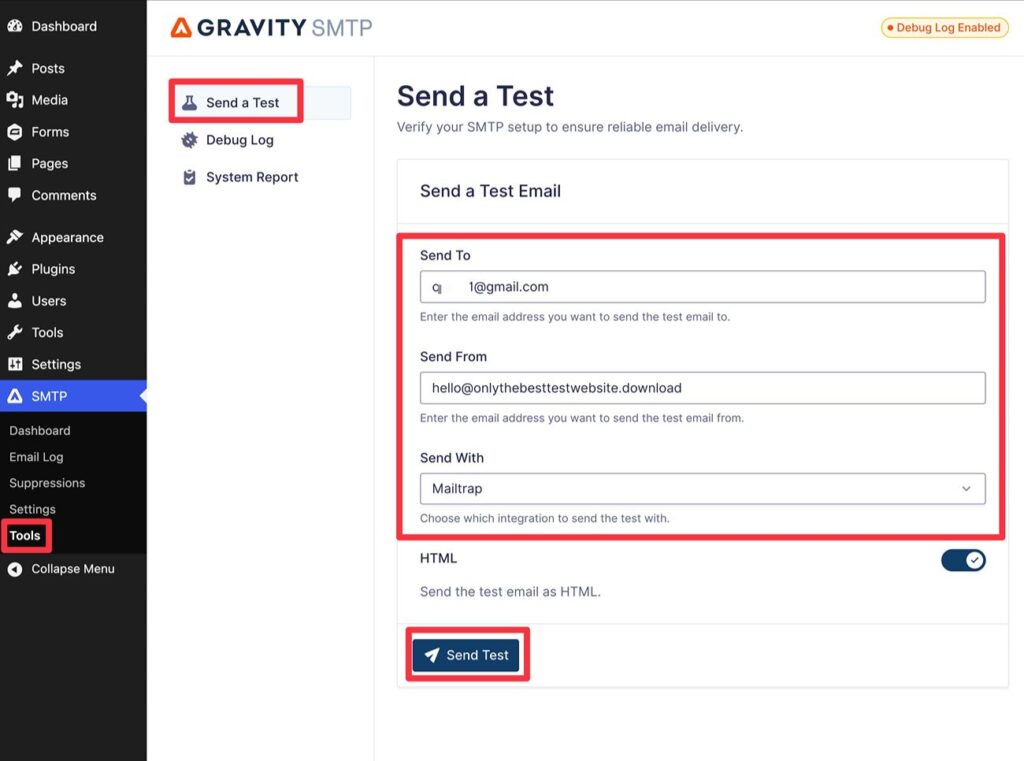
To make sure the Mailtrap integration is working, we recommend sending a test email. You can do this using the built-in email testing tool in Gravity SMTP.
To access it, go to SMTP → Tools → Send a Test in your WordPress dashboard.
Then, fill out the form and click Send Test:
- Send To – the email address to which you want to send the email. Note – if you’ve enabled Mailtrap’s sandbox mode when setting up the integration, the email will go to your Mailtrap sandbox regardless of what email address you enter. If you have sandbox mode disabled, the email will go to the actual email address.
- Send From – typically, you should enter the same From Email that you used when setting up the integration.
- Send With – make sure to choose Mailtrap from the drop-down.
After clicking Send Test, the email should appear in your inbox.
Because we have Mailtrap’s sandbox mode enabled on our test site, the email appeared in our Mailtrap sandbox.
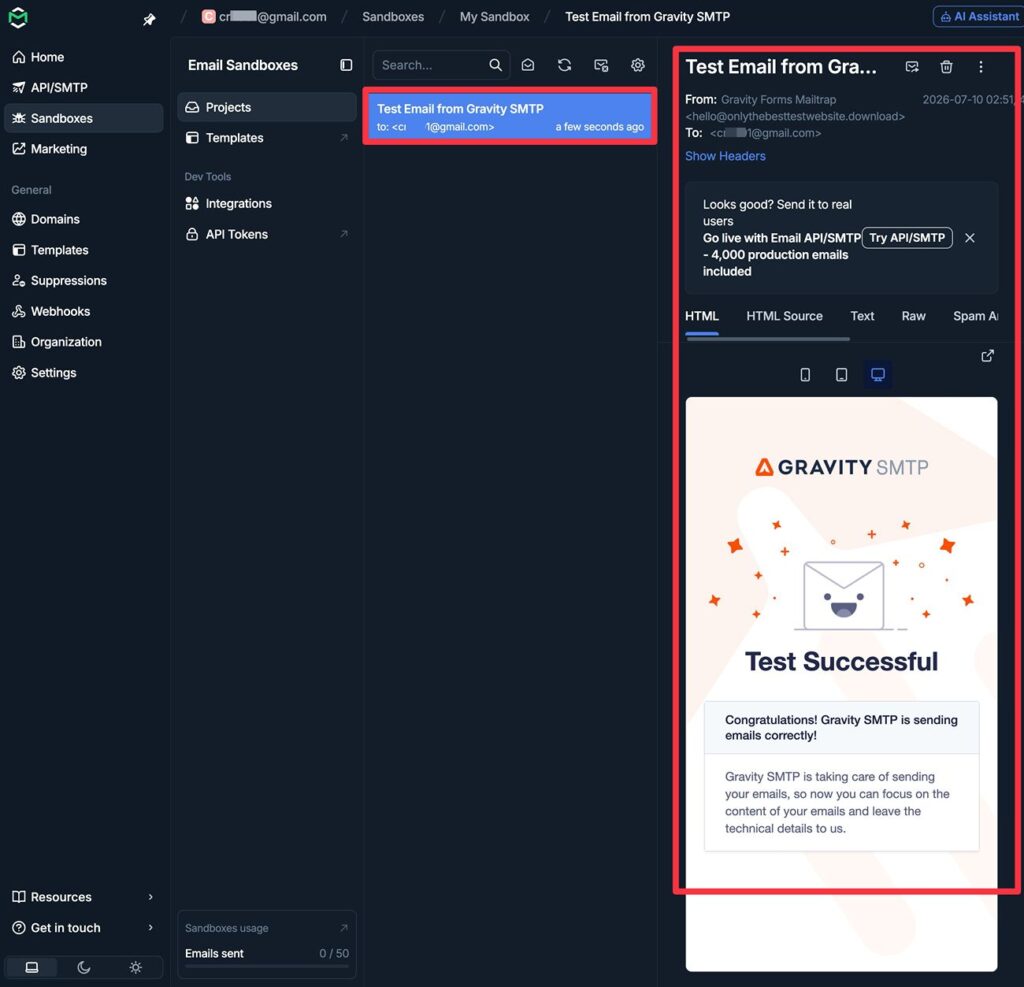
If you are using sandbox mode for now, make sure to go back to the integration settings in Gravity SMTP and disable sandbox mode when you want to start sending real emails to users.
7. Set up a backup email sending service
This step is 100% optional.
If any missed transactional emails could cause a problem for your business, Gravity SMTP allows you to configure a backup email sending service. So if an email ever fails to send via Mailtrap for any reason, Gravity SMTP can automatically resend that email using your chosen backup service.
To use a backup service, you’ll first need to connect Gravity SMTP to that service, similarly to how you connected to Mailtrap.
You can find dedicated guides for most of Gravity SMTP’s direct integrations below. Or, you can always use the Custom SMTP option:
- Amazon SES
- Brevo
- Cloudflare Email Service
- Elastic Email
- Emailit
- Gmail / Google Workspace
- Mailchimp
- Mailersend
- Mailjet
- Mailgun
- Outlook / Microsoft 365
- Postmark
- Resend
- SendGrid
- SMTP2Go
- SparkPost
- Zoho Mail
- Custom SMTP
You can also find the integration documentation here.
Then, here’s how to set that service as your site’s backup sending method:
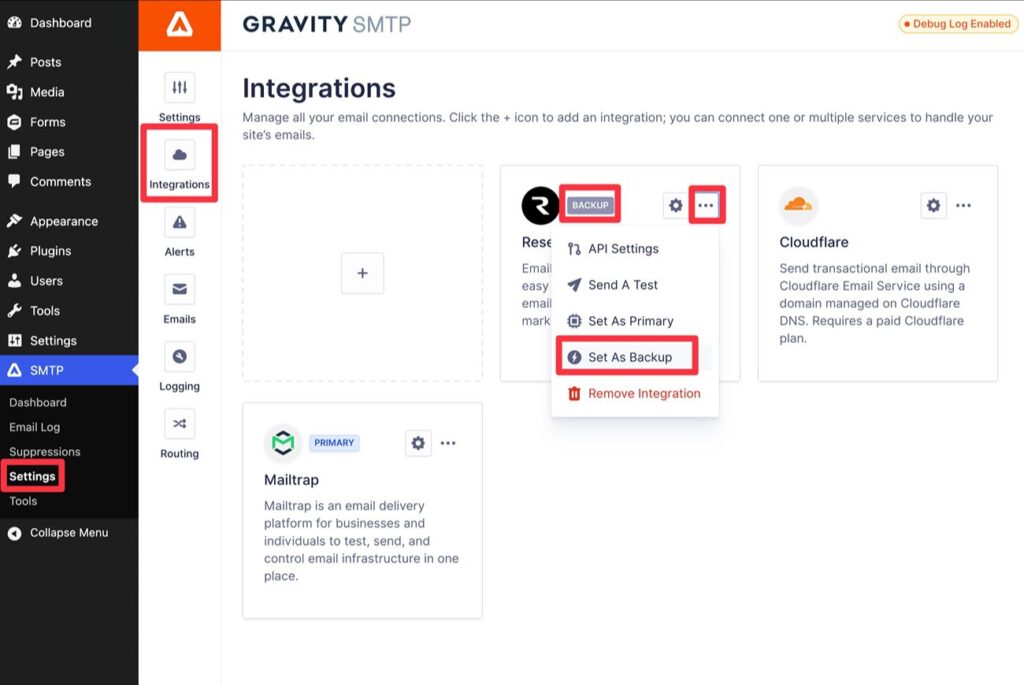
- Open the Gravity SMTP Integrations area (SMTP → Settings → Integrations).
- Click the three dots icon next to the service.
- Choose Set as Backup from the drop-down.
- Verify that the Backup label appears next to the service.
How to monitor your site’s email usage
Once your site starts sending emails via Mailtrap, Gravity SMTP gives you multiple options to monitor your site’s emails without leaving your WordPress dashboard.
First, you can go to SMTP → Dashboard to see high-level reports about your site’s email sending.

To view the full email log, you can go to SMTP → Email Log. The buttons in the Action column let you access more information and tools, including the following:
- View technical details about an email.
- See the content and design of each email (along with attachments, if attachment logging is enabled).
- Resend an email.

To change logging settings, you can go to SMTP → Settings → Logging.
Get started with WordPress Mailtrap sending today
If you want to use Mailtrap to send your WordPress site’s transactional emails, Gravity SMTP offers an easy solution to connect your site directly to Mailtrap’s API.
In addition to sending live emails, Gravity SMTP also lets you use Mailtrap’s email sandbox, which can also help you test and debug transactional emails on your WordPress staging site.
Gravity SMTP is available at no extra cost to anyone holding the Gravity Forms Elite, Nonprofit, or Developer licenses.
Get started today and follow this guide to set up Mailtrap on your site.

Newsletter
If you want to keep up-to-date with what’s happening on the blog sign up for the Gravity Forms newsletter!
"*" indicates required fields