Written by the editorial team at Siren Affiliates…
If you are looking for a way to scale your partner referral program, you are in the right place.
With Gravity Forms and Siren, you can turn an existing WordPress form into that referral touchpoint. Gravity Forms collects the information your team needs, while Siren tracks the partner responsible for the submission and creates the corresponding lead, sale, or reward record.
This tutorial shows how to set up a simple consultation-request program. The same structure also works for demo requests, applications, registrations, payment forms, and other valuable actions.
Note: Siren is a third-party solution. Gravity Forms does not offer support for this platform, nor is this article intended to be a Gravity Forms endorsement of this platform, its developers, or quality of support. As always, we recommend you extensively evaluate all solutions to ensure their suitability for your purpose.
Before you start
You will need a WordPress site with Gravity Forms and Siren installed and active. Siren detects Gravity Forms automatically, so there is no separate connector to configure before you begin.
You should also define three things before building the workflow:
- Qualified referral – the form submission or completed purchase that will earn a reward.
- Attribution rule – how Siren determines which partner receives credit.
- Reward rule – the fixed amount, percentage, or other incentive tied to the outcome.
For a first program, keep this simple. A good starting point is a fixed reward for an approved consultation request from a new, qualified prospect.
How to build your partner referral program with Gravity Forms and Siren
Now that you have defined the referral action, reward criteria, and tools you will use, you can begin configuring the complete workflow.
The following steps will show you how to create the form, connect it to Siren, add partners, generate tracking links, and test the full journey from referral click to partner reward.
Step 1: Create the referral form in Gravity Forms
Start with the form your referred visitors will complete. You can create a new form for the program or use an existing consultation, demo, quote, or registration form.
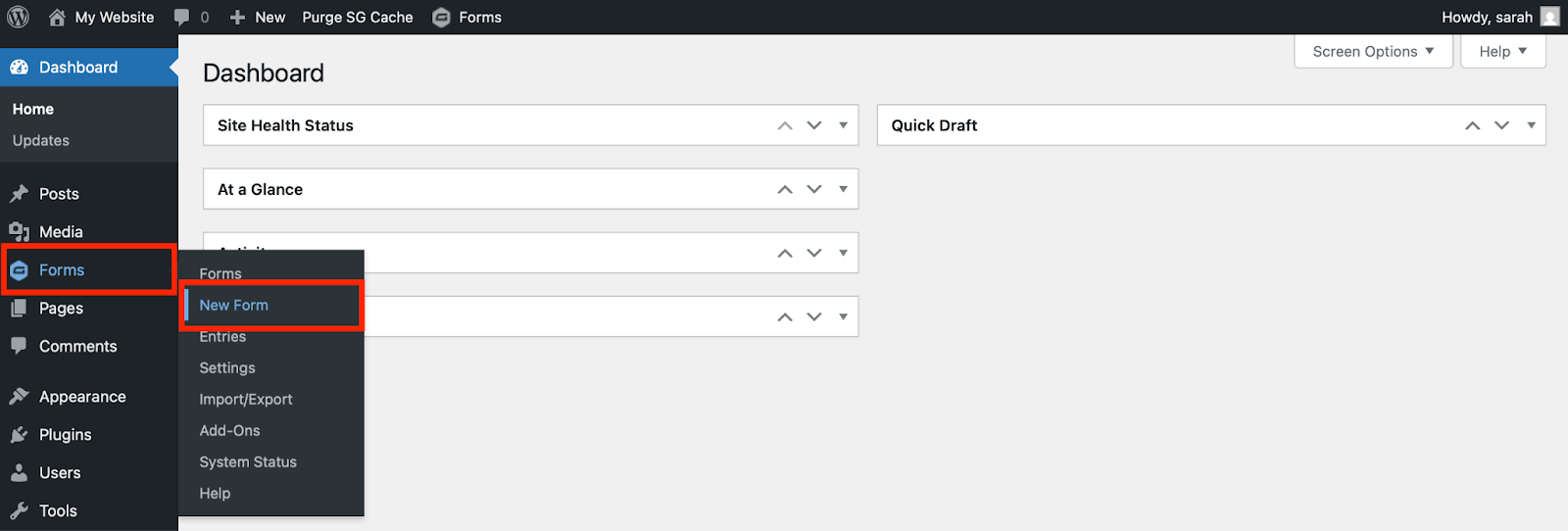
In WordPress, navigate to Forms > New Form. Choose a template or a blank form, then add only the information your team needs to follow up and decide whether the referral is qualified.
For a consultation-request form, that may include:
- Name and email address.
- Company name and website.
- Product or service interest.
- A short description of the prospect’s needs.
- Any questions your team uses to qualify the opportunity.
Configure the confirmation message and notification emails, then save the form. A focused form makes it easier for the referred visitor to complete the action and easier for your team to review the submission.
Step 2: Install and activate Siren
Install Siren from the WordPress Plugins screen, then complete its initial setup. Once both plugins are active, Siren automatically makes the Gravity Forms integration features available.
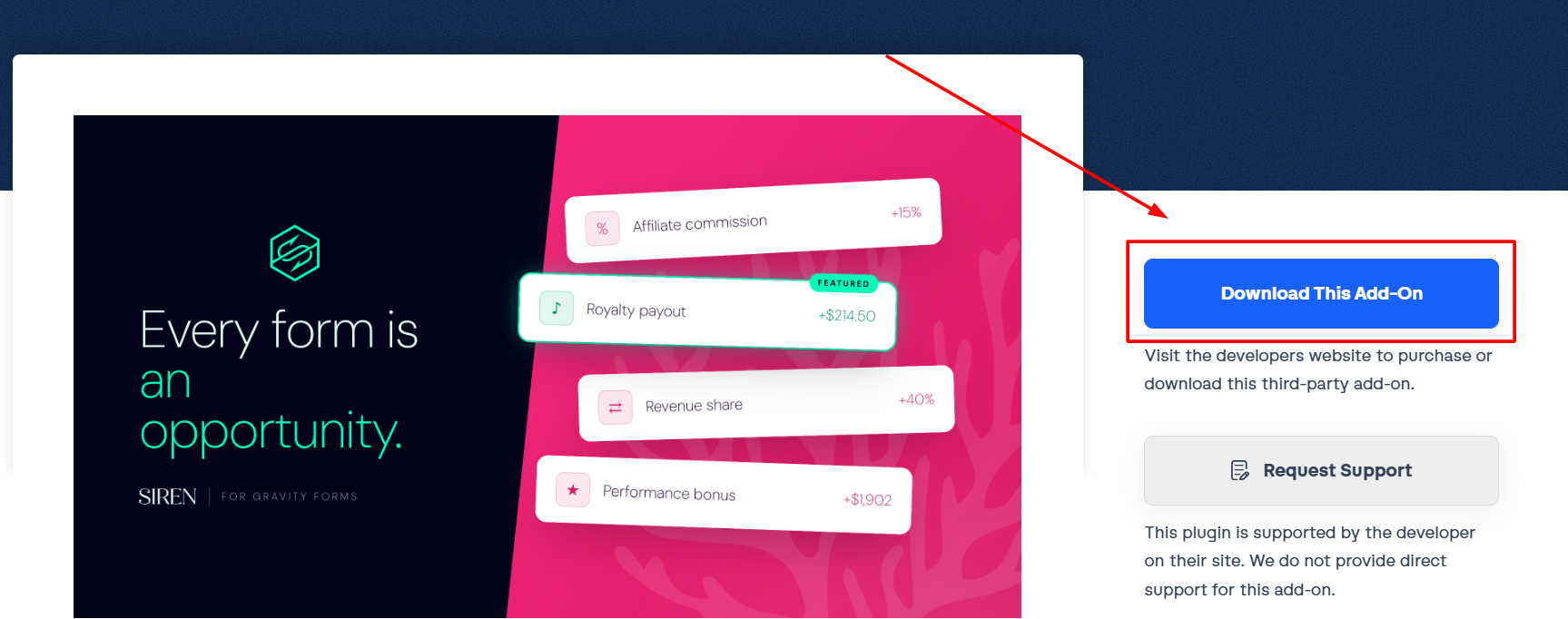
You can review the feature set on the Gravity Forms marketplace listing and find setup details on Siren’s Gravity Forms integration page.
At this point, decide whether the form represents a lead or a sale:
- A form without product fields records a lead when a referred visitor submits it.
- A form with product fields can record a sale event and calculate a commission from the configured products.
For this tutorial, use a form without product fields so the rewarded action is a submitted consultation request.
Step 3: Create the referral program in Siren
In Siren, create a program for the action you defined. Give it a clear internal name, and choose the reward your partners can earn.
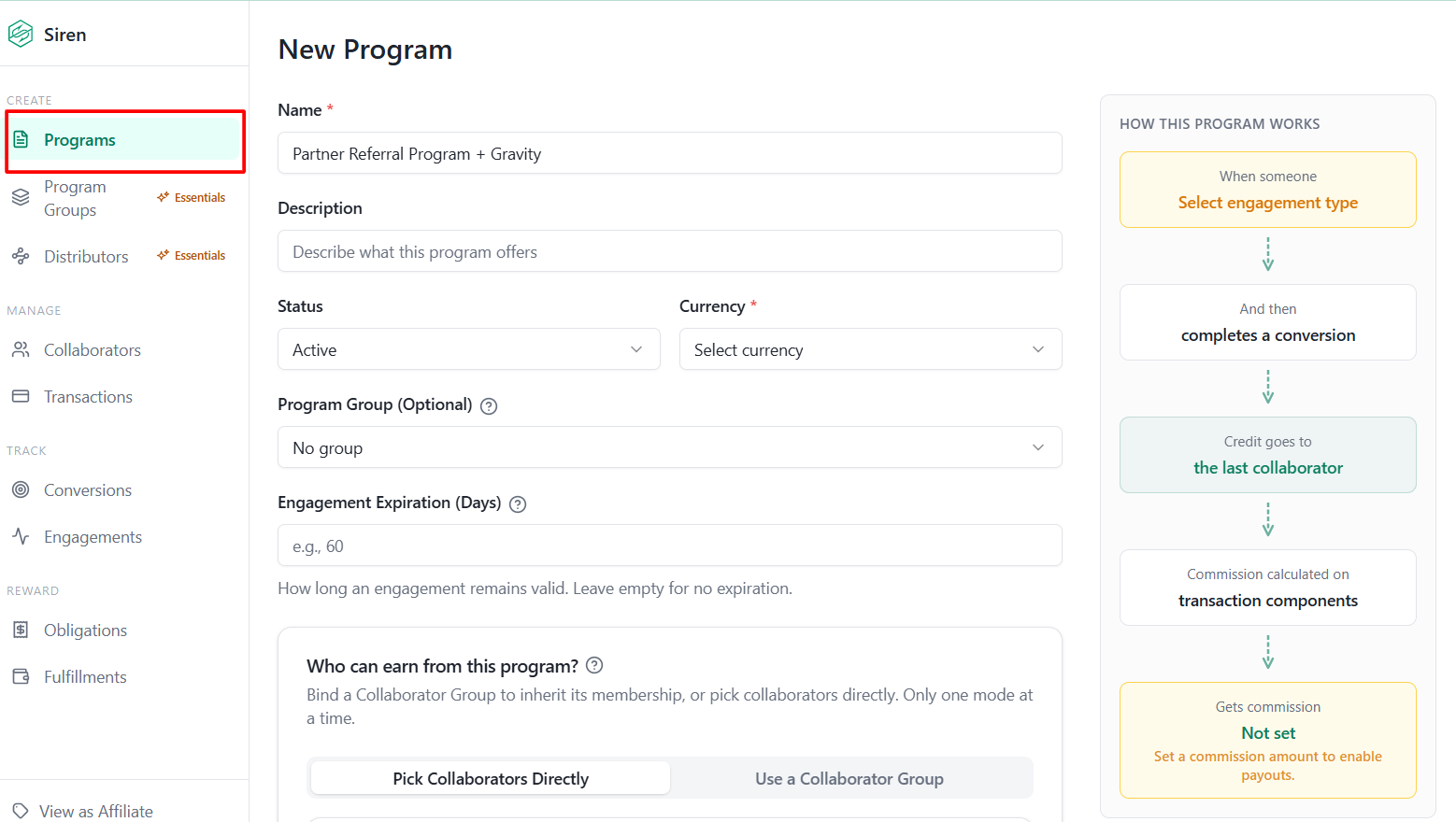
For a lead-generation program, set the conversion type to match the Gravity Forms submission. Then decide whether conversions should be approved automatically or reviewed by your team first.
Manual approval is usually the better choice when a form submission needs qualification. It lets your team check that the contact details are valid, the prospect is a good fit, and the submission is not a duplicate or self-referral before issuing a reward.
Next, add the collaborators who will take part in the program. Each collaborator can receive a personalized referral link that leads to the page containing your Gravity Forms form.
Step 4: Connect the form to the program
Open the relevant form in Gravity Forms and use the Siren integration settings to create the feed for your program. Select the program, then save the feed.
The feed tells Siren what should happen when someone submits this form. In this workflow, it records a partner-generated lead and connects it to the collaborator whose referral link brought the visitor to the page.
Before you publish the form, check the following:
- The correct Siren program is selected.
- The form is embedded on the intended landing page.
- Partners have links that point to that page.
- Your approval settings match the program rules you shared with partners.
Step 5: Test the full referral journey
Test the workflow before inviting partners. Open a private browser window, visit the page through a test collaborator’s referral link, and submit the form with clearly identifiable test data.
Then confirm that:
- Gravity Forms received the entry.
- Siren attributed the conversion to the test collaborator.
- The conversion was recorded as a lead or sale, as intended.
- The reward appears with the expected status and amount.
- Your team receives the right notification.
This small test catches the mistakes that are hardest to explain later, such as a form embedded on the wrong page, a missing feed, or approval rules that do not match your program terms.
Ways to adapt the workflow
Once the first program is working, you can use the same integration for more specific partner motions.
Qualified lead referrals
Use a consultation, demo, or quote form when your partners introduce prospects to a sales-led business. Review the submission, approve the valid leads, and reward the partner only after the lead meets your criteria.
Payment-form commissions
If you use Gravity Forms product fields to take payment, you can record sale events instead of leads. This can work for direct purchases, paid registrations, donations, or other transactions that are completed through the form.
Partner applications
You can also use a Gravity Forms feed to register new collaborators. A simple application form gives prospective partners a structured way to apply, while your team retains control over who joins the program.
Product-specific rewards
When different products or contributors need different reward rules, assign products to collaborators from the form editor. This can support creator royalties, instructor commissions, and product-specific revenue sharing.
Best practices for a reliable program
A referral program works best when partners know exactly what happens after they share a link.
- Publish clear eligibility rules, including what counts as a valid referral and what does not.
- Explain when referrals are reviewed and when rewards become payable.
- Send referred visitors to a page that matches the partner’s message and includes one clear next action.
- Use the same qualification criteria for every partner.
- Review both Gravity Forms entries and Siren conversion records before approving rewards.
- Start with one measurable action, then add more programs after the first workflow is reliable.
Build your partner referral program with Siren
The Siren integration for Gravity Forms is available now through the Gravity Forms Community Add-On directory.
You can use it to turn Gravity Forms submissions into attributed leads, sales, partner applications, commissions, and rewards without replacing the forms already running on your WordPress site.
Install Siren, create your first partner program, and follow the steps in this tutorial to test the complete referral workflow.
If you try the integration, we’d love to hear what kind of partner program you build with it.

Newsletter
If you want to keep up-to-date with what’s happening on the blog sign up for the Gravity Forms newsletter!
"*" indicates required fields