If you’re searching for a flexible way to create WordPress Notion forms, the Gravity Forms Notion Add-On is here to help.
With the add-on, you can connect any of the forms that you create with Gravity Forms to your Notion Workspace.
You can sync form submissions as formatted pages or child pages in Notion. Or, you can also add form data as a new row in a Notion database.
In this post, we’ll introduce you to the Gravity Forms Notion Add-On in more detail. Then, we’ll show you step-by-step how to set it up on your site, including connecting to Notion and creating your first Notion-connected form.
Note: The Gravity Forms Notion Add-On is part of Gravity Labs — our home for experimental add-ons. It’s free with your Gravity Forms license, but it’s experimental and outside our official support. Labs is also how we learn what our community wants to see in the product, so if you try it, let us know what you think.
Why use the Gravity Forms Notion Add-On?
With the Gravity Forms Notion Add-On, you can connect your WordPress forms to your Notion workspaces.
When someone submits a form, you have three ways to sync that data to Notion:
- Create a new workspace page
- Create a child page of an existing page in your workspace
- Add a new row to a Notion database
You can use merge tags and/or field mapping to control exactly what form data to sync and how to format it. You can also use conditional logic to sync data in different ways based on your rules.
Here’s a full list of some of the most useful features in the Gravity Forms Notion Add-On:
- Sync data to Notion pages or databases – You can add data as a new page and/or as a row in a database.
- Markdown support for page creation – If you’re creating pages, you can use Markdown and Gravity Forms merge tags to mix dynamic data, static content, and formatting.
- Field mapping for database creation – If you’re adding a row to a database, you can use field mapping to connect form fields/data to columns in your Notion database.
- OAuth setup powered by the Notion API – This allows for an easy, secure setup process that follows Notion best practices. It also lets you detect Notion pages and database properties from the feed creation interface in Gravity Forms.
- Conditional logic support – You can use conditional rules to sync data in different ways depending on how a user fills out the form.
How to set up WordPress Notion forms with Gravity Forms
Now, let’s get into the full step-by-step guide on how to connect your WordPress forms to Notion using Gravity Forms.
We’ll show you the entire process, including syncing data as both Notion pages or database rows.
1. Install the Gravity Forms Notion Add-On
To get started, you need to install the Gravity Forms Notion Add-On on your site.
As we mentioned above, the Notion Add-On is currently part of Gravity Labs. While these add-ons are free with any Gravity Forms license, they sit outside the normal suite of Gravity Forms add-ons.
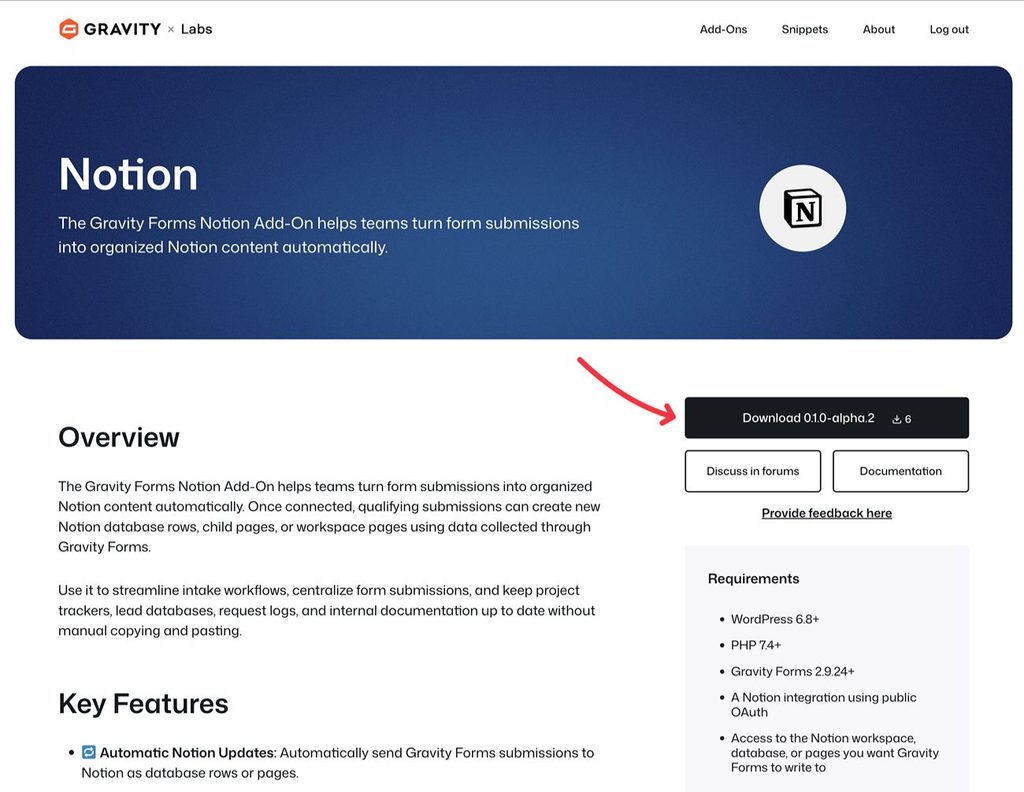
First, download the add-on from the Gravity Labs website:
- Go to the Notion Add-On page at Gravity Labs.
- Log in to your existing Gravity Forms account on Gravity Labs, if you haven’t done so already.
- Click Download.
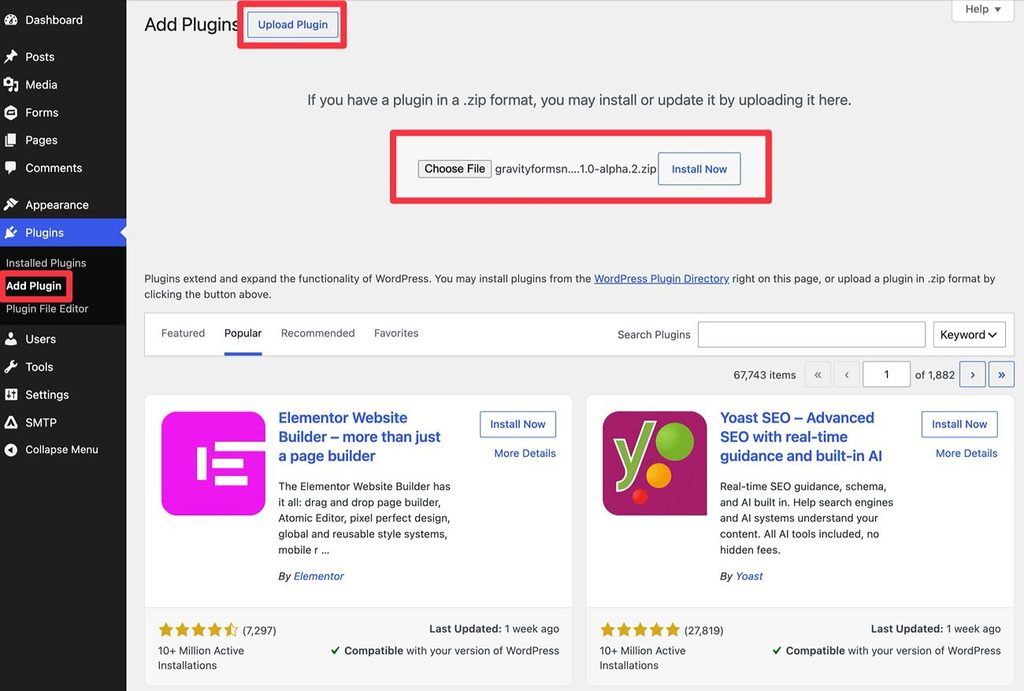
After you’ve downloaded the add-on’s ZIP file to your computer, you can upload and install it like any other WordPress plugin:
- Go to Plugins → Add Plugin in your WordPress dashboard.
- Click the Upload Plugin button.
- Select the ZIP file and click Install Now.
- On the next screen, make sure to activate the plugin.
2. Set up your Notion workspace (if needed)
If you’ve already set up a Notion workspace to which you want to connect your WordPress forms, you can skip ahead to the next step.
However, if you don’t have one yet, you’ll need to do that before advancing any further.
The Gravity Forms Notion Add-On works with both free Notion accounts and paid accounts, so you don’t need access to any special Notion functionality in order to follow this tutorial.
You can register for a free Notion account here.
Then, you can use the default workspace or create a separate workspace for your forms.
As we mentioned above, you can send form submissions to Notion as either new pages or as new rows in Notion databases.
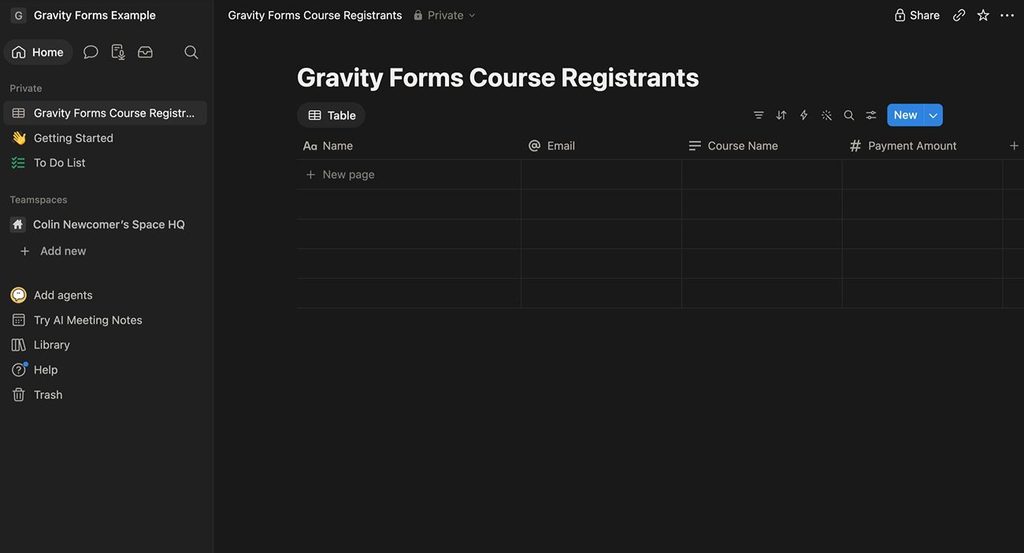
Before going further, we recommend creating the pages or databases that you want to connect your form to. When you connect Gravity Forms to Notion later in this tutorial, you’ll need to choose the specific pages and/or databases to which you want to grant Gravity Forms access.
Later, you’ll also be able to map your WordPress form fields to your Notion pages or databases when you create a Notion feed for your WordPress form.
3. Locate the redirect URI for the Gravity Forms Notion Add-On
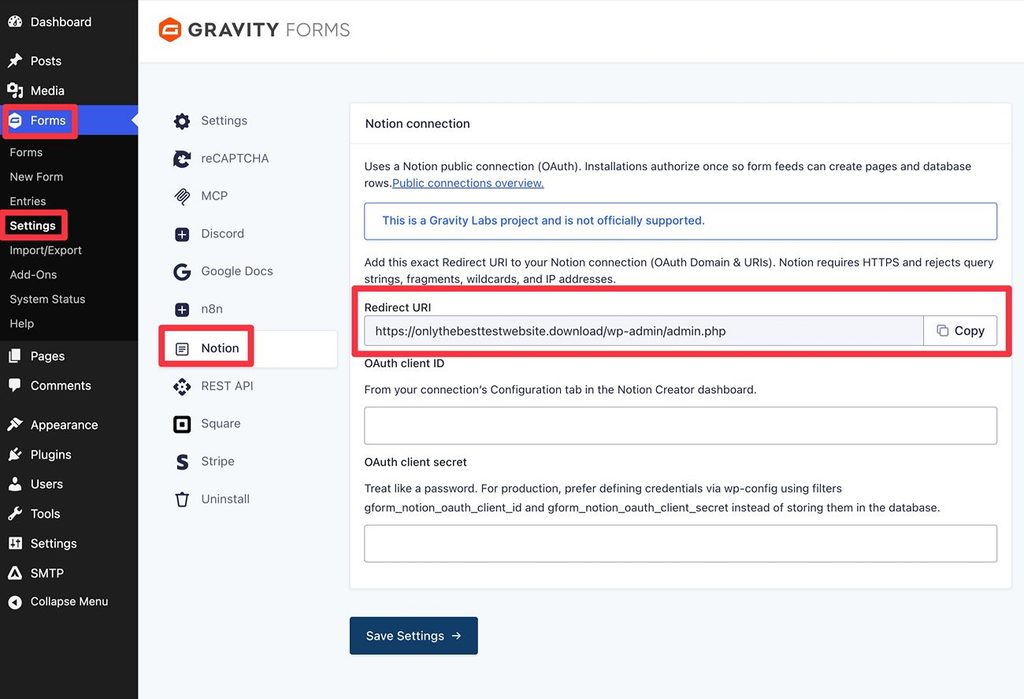
Next, locate the redirect URI for the Gravity Forms Notion Add-On, which you’ll need in the next step.
Here’s how to locate this information:
- Open your WordPress dashboard.
- Go to Forms → Settings in the sidebar.
- Select the Notion tab in the Gravity Forms settings area.
- Copy the value in the Redirect URI box to a safe place because you’ll need it in the next step.
4. Create your Notion integration (OAuth)
In order to use the Gravity Forms Notion Add-On, you need to create your own Notion integration. This is what allows Gravity Forms to connect to your Notion workspace.
While this might sound complex, the process just involves clicking some buttons in the Notion interface and doesn’t require any special technical knowledge.
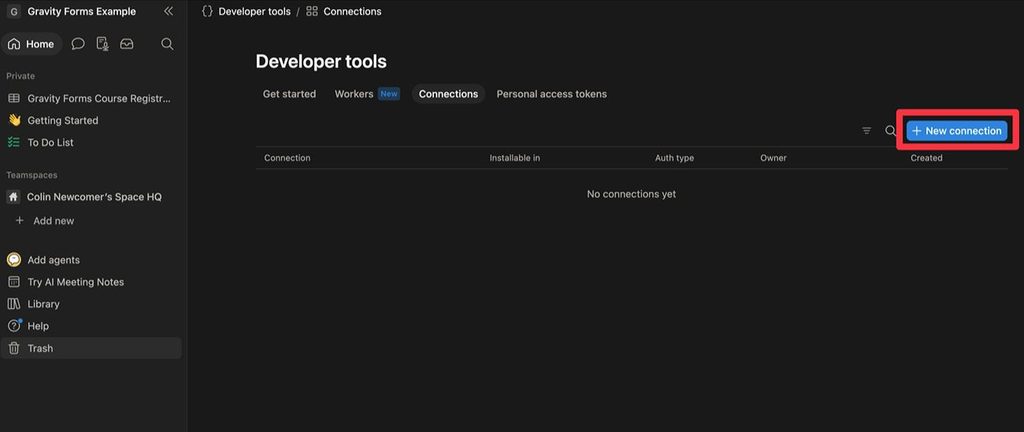
To get started, click this link to open the Connections dashboard in Notion developer tools. Make sure that the correct workspace is selected in the top left corner (if you have multiple workspaces).
Then, click New connection.
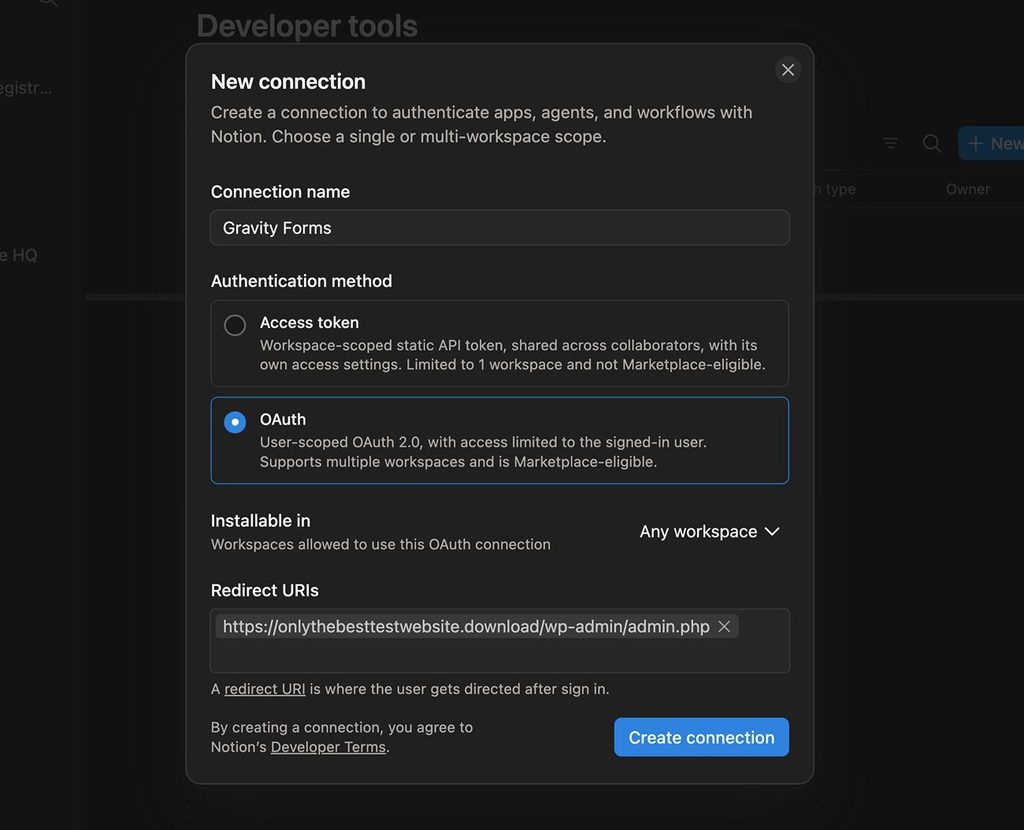
In the popup that appears, configure the connection:
- Give your connection a name (e.g. “Gravity Forms”).
- Choose the OAuth option under the Authentication method.
- Choose whether to make the connection installable in any Notion workspace or just a specific workspace.
- Paste in the Redirect URI for your WordPress website, which is the value that we had you locate in your WordPress dashboard in the previous step. It looks something like “https://youractualdomain.com/wp-admin/admin.php”
Then, click the Create connection button.
You should then be taken to the interface of your connection.
Find the values for Client ID and Client secret and copy both values to a safe place because you’ll need them in the next step.
Note: Notion will only display the client secret one time, so make sure you don’t misplace it.
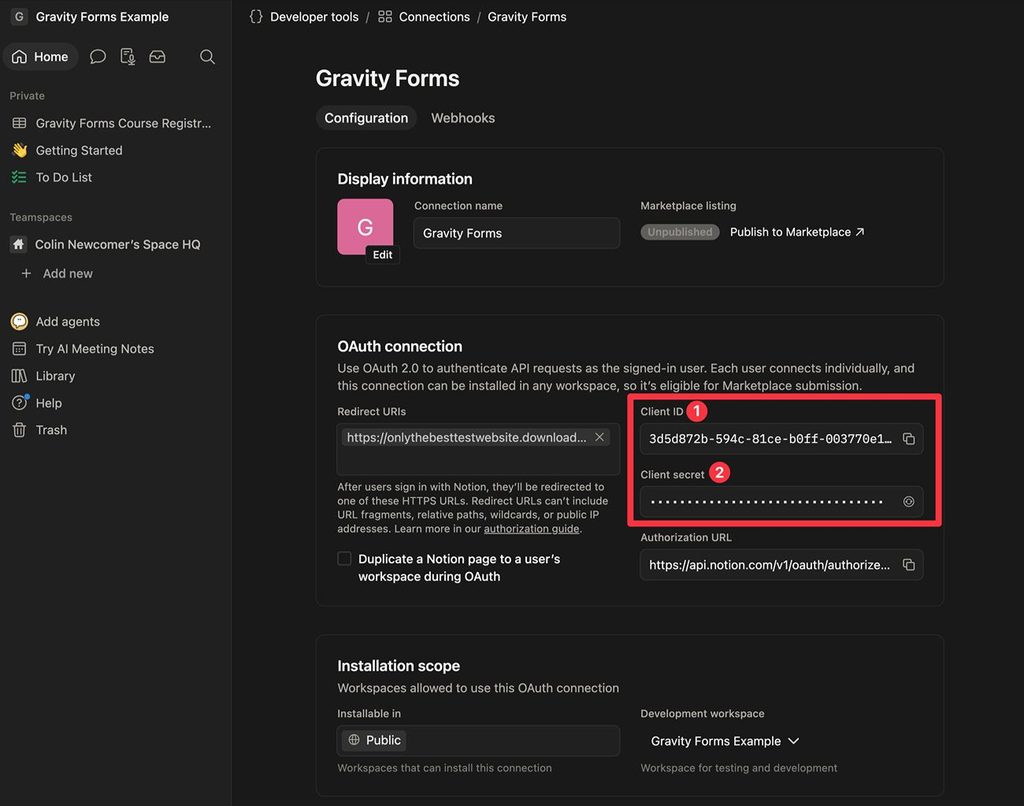
If you misplace the client secret, you’ll need to repeat these steps to create a new connection.
5. Connect Gravity Forms to your Notion workspace
Now, you’re ready to connect the Gravity Forms Notion Add-On to Notion.
To start, go back to the Notion Add-On settings in your WordPress dashboard (Forms → Settings → Notion).
Then, paste in the two values that you located in the previous step:
- The Notion Client ID goes in the OAuth client ID field.
- The Notion Client secret goes in the OAuth client secret field.
Then, click Save Settings.
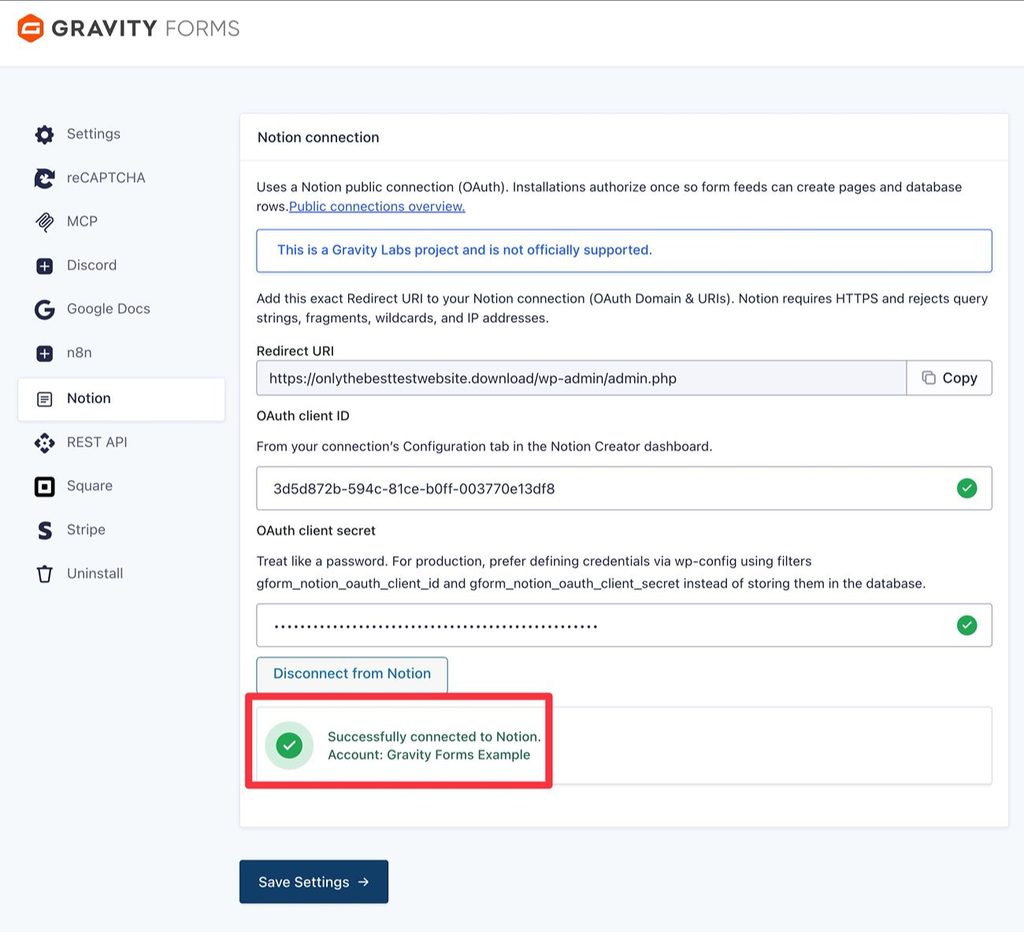
If everything is working properly, you should see green checkmarks appear next to both values.
Then, click the Connect with Notion button to connect your site using the OAuth process. Note: This button only appears after you save the settings.
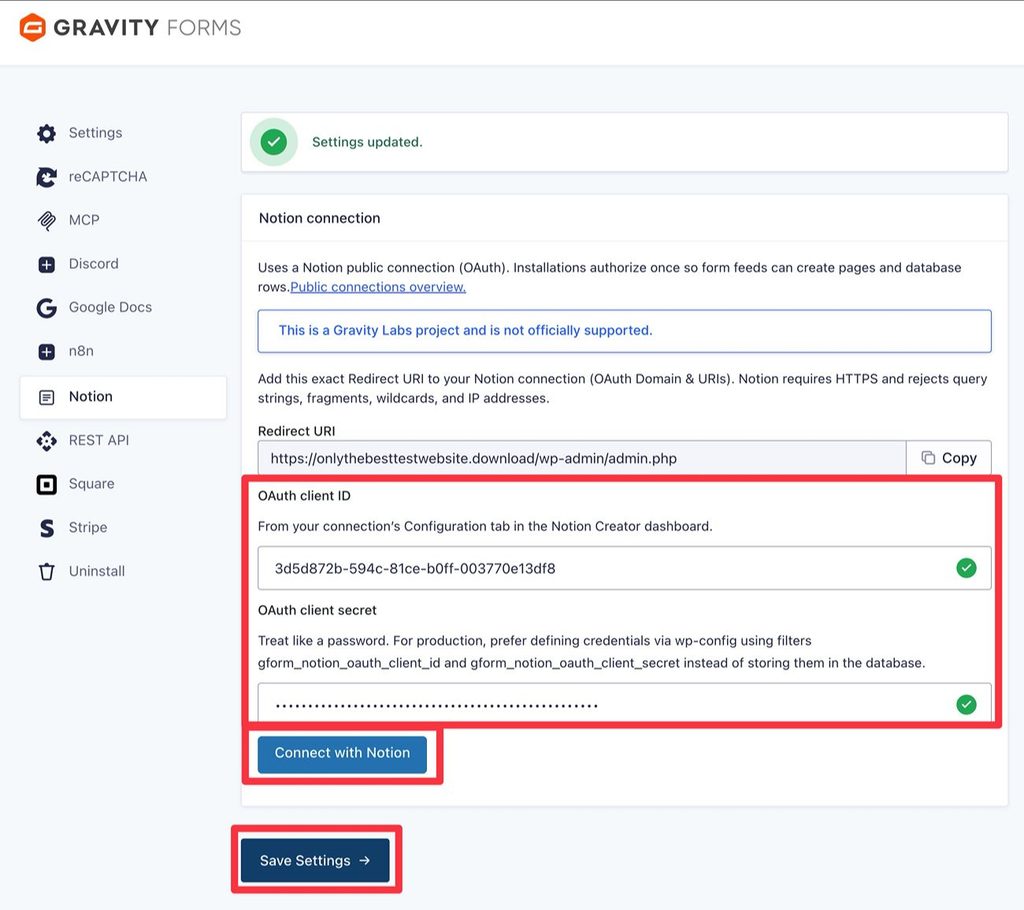
Follow the prompts in the Notion OAuth flow to connect your site to your Notion workspace.
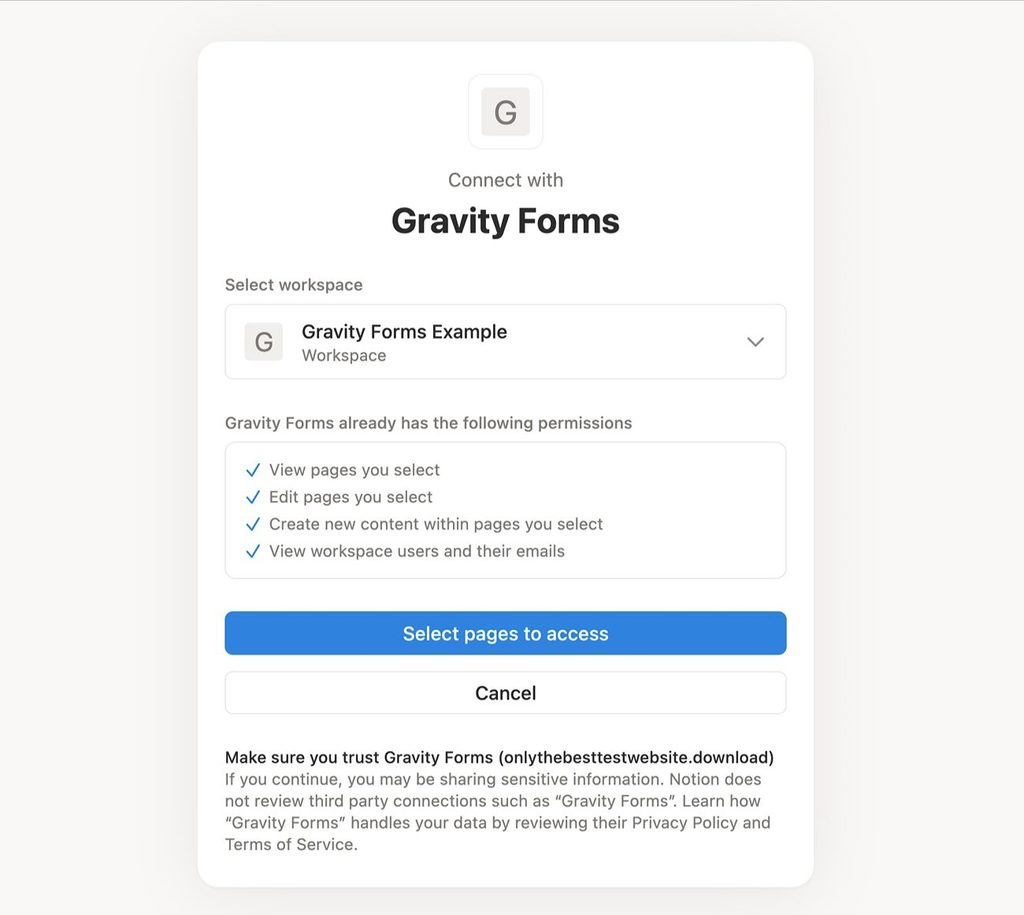
As part of the process, you’ll need to choose the specific pages and databases that you want to give Gravity Forms access to.
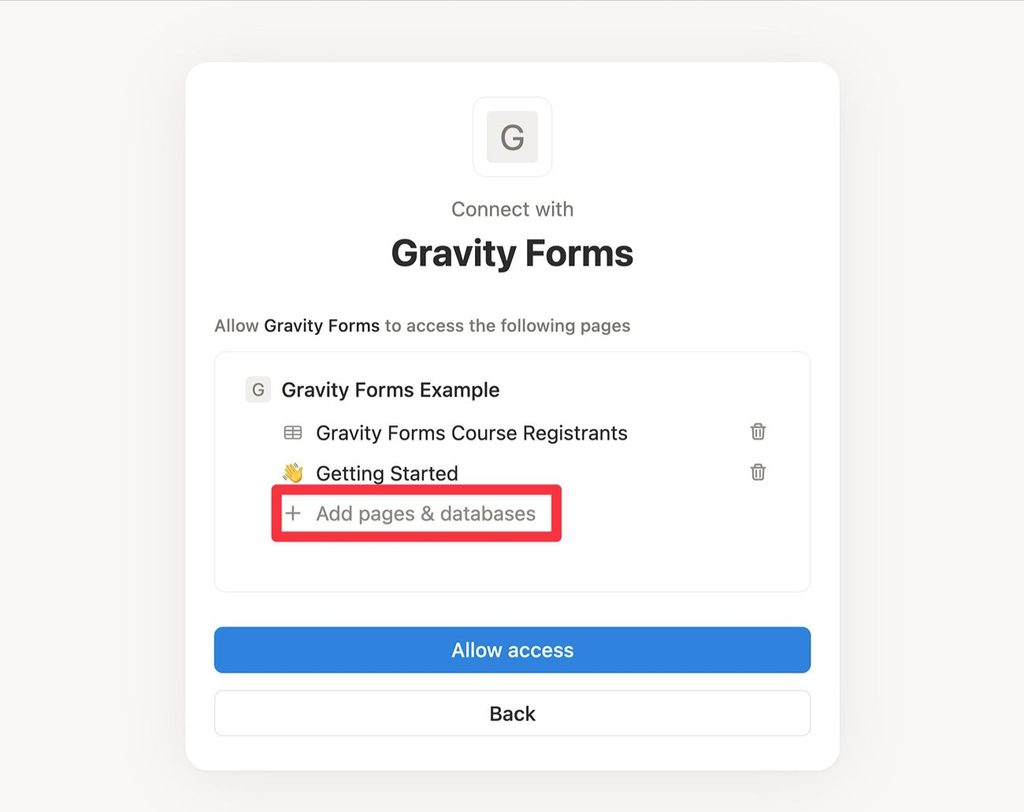
Then, you should see a message telling you that you’re successfully connected to Notion.
6. Create or edit the form that you want to connect to Notion
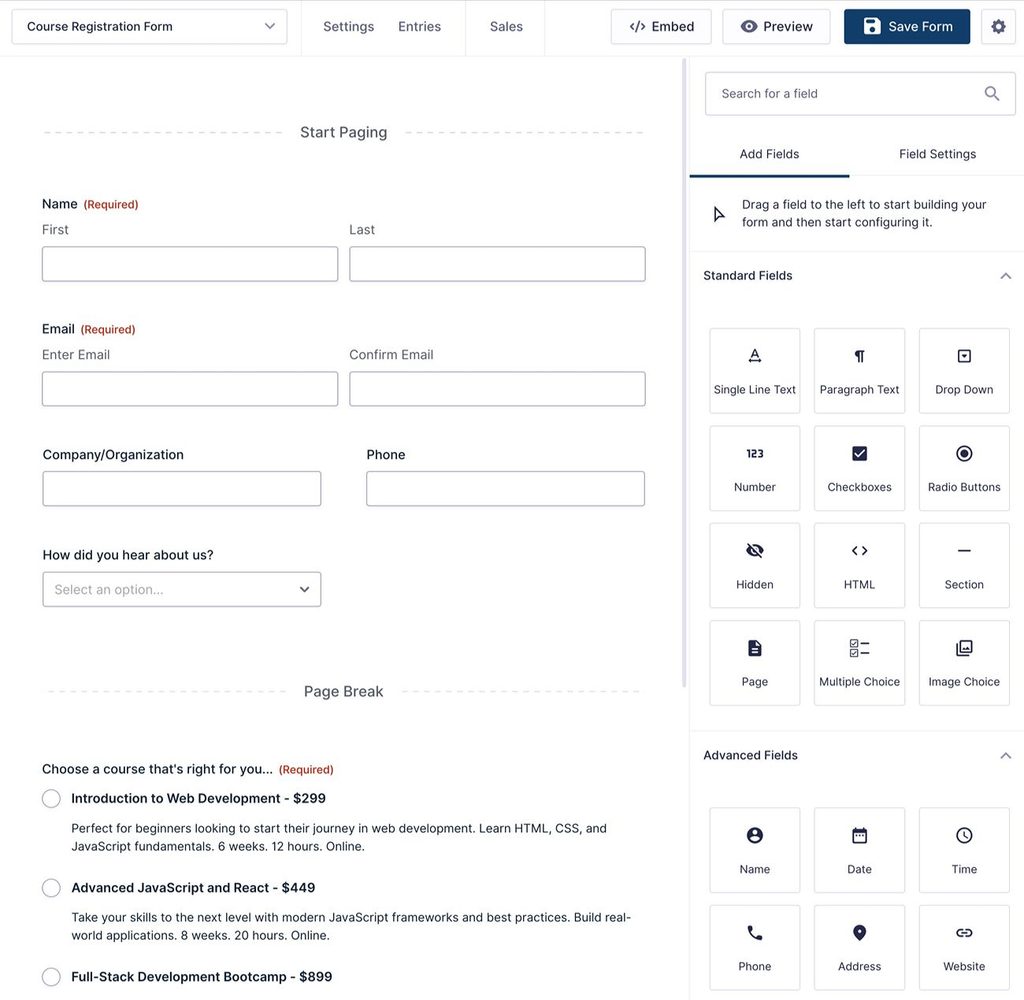
Now, you’re ready to start setting up the actual WordPress form that you want to connect to Notion.
If you already have an existing form, you can just edit that form.
Otherwise, you can create a new form by going to Forms → New Form. You can use one of the pre-made templates or start from a blank canvas.
You’re free to configure your form however you want. Just make sure to include form fields for all of the information that you want to sync to your Notion pages and/or databases.
7. Set up a Notion feed for your form
Once you set up your form, you can connect it to Notion by creating a Notion feed.
Go to Settings → Notion inside the form editor. Then, click Add New to create a Notion feed.
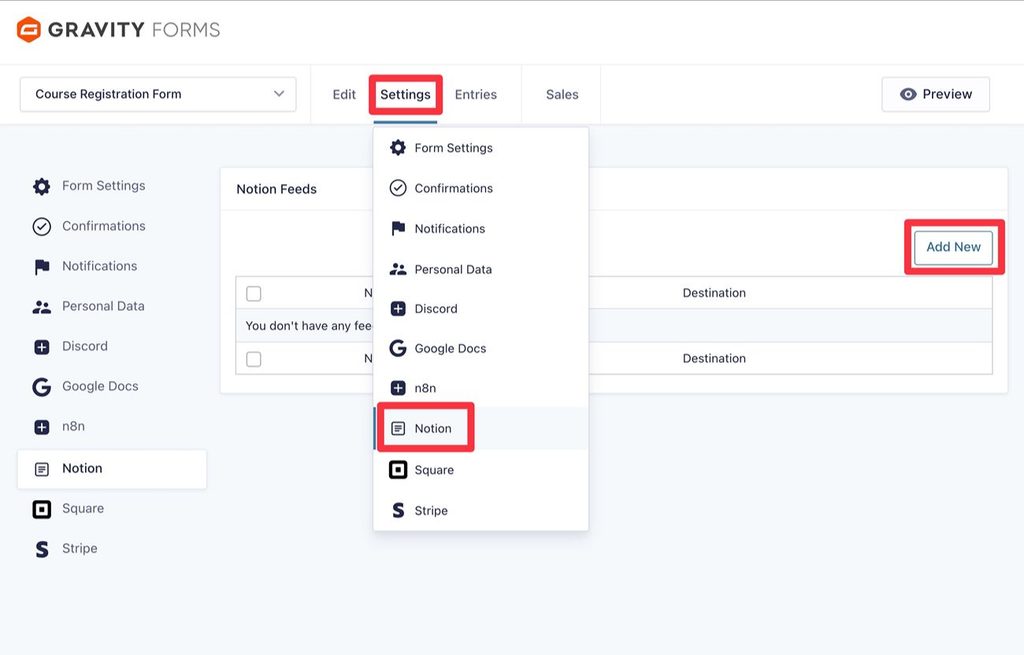
In the feed settings, your first option is to choose the destination. This could be adding form data to a page or child page in Notion. Or, it could be adding form data as a new row in a Notion database.
Let’s look at both options…
Adding form data to a Notion page
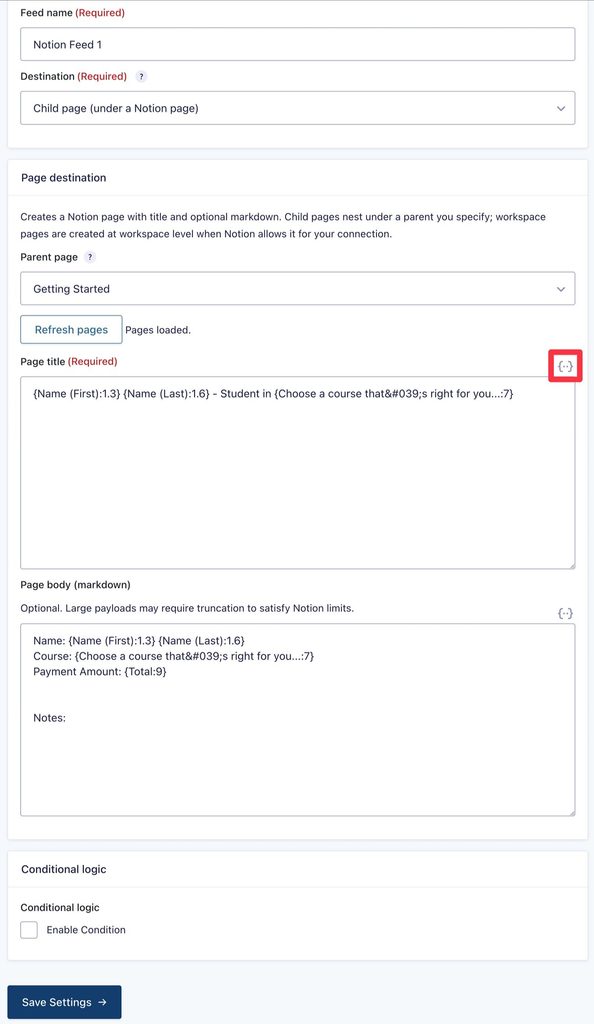
Adding data to a page requires the least setup. If you choose one of the page options (Child Page or Workspace Page), all you need to do is add the page title and page body text.
In both fields, you can use merge tags to dynamically insert details from a form submission, including data from form fields and other form data.
If you want to add formatting to this content, you can include Markdown and static text alongside your merge tags.
You also have the option to add conditional logic.
This lets you only send data to the Notion page if the form submission meets certain conditions. Or, you could send data to different Notion pages depending on form conditions by creating multiple Notion feeds and adding conditional rules to each.
Adding form data to a Notion database
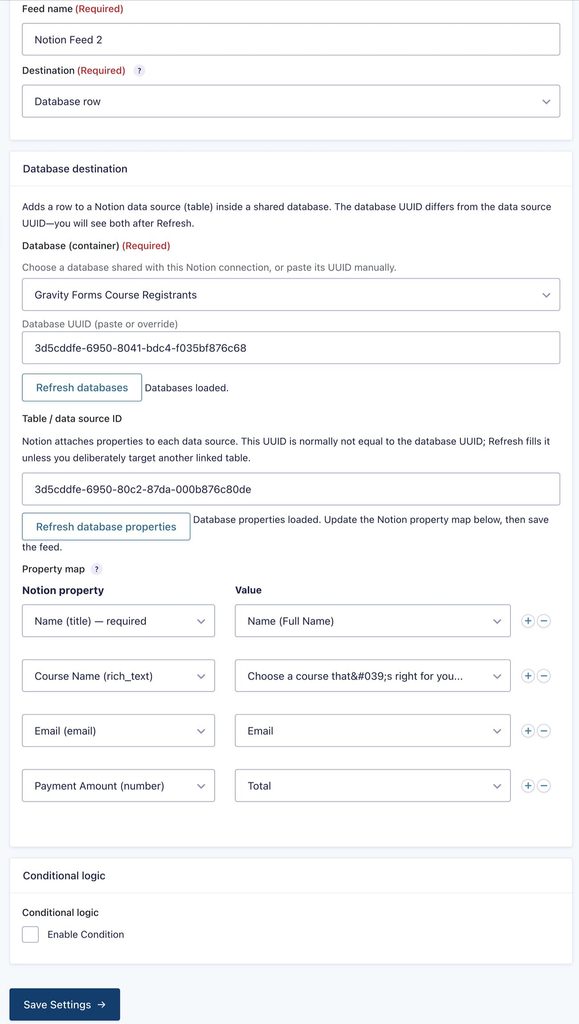
If you choose the option to add form data as a Database row, you first need to choose the database name from the drop-down.
Gravity Forms will then automatically detect and fill the Database UUID and Table / data source ID, though you can manually override these values if needed.
Below that, you can use field mapping to map values from your form fields to columns in your Notion database. Gravity Forms should automatically detect the columns in your database. If it doesn’t, click the Refresh database properties button to reload them.
Finally, just like adding data to a Notion page, you also have the option to add conditional logic rules to the feed.
8. Test the WordPress Notion integration
To finish things out, we recommend testing the form to make sure that the Notion integration is functioning as you want it to.
First, you can embed the form anywhere on your site using the Gravity Forms block, shortcode, or PHP function.
Once you’ve embedded the form, submit some sample information. If you added conditional logic rules, make sure you fill out the form in a way that meets your conditional rules.
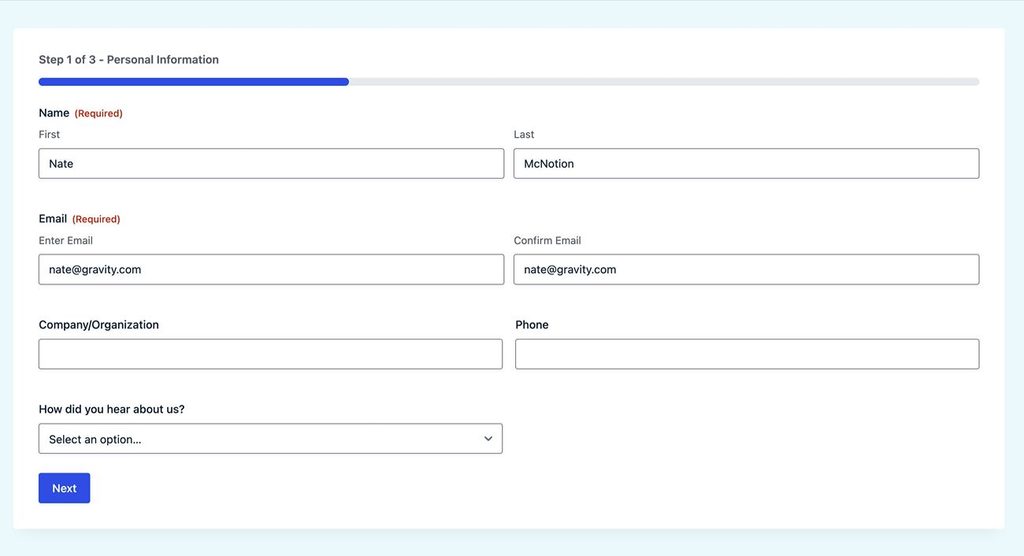
Once you submit the form, you should see the relevant data show up as a Notion page and/or as a row in your Notion database, depending on how you’ve configured things.
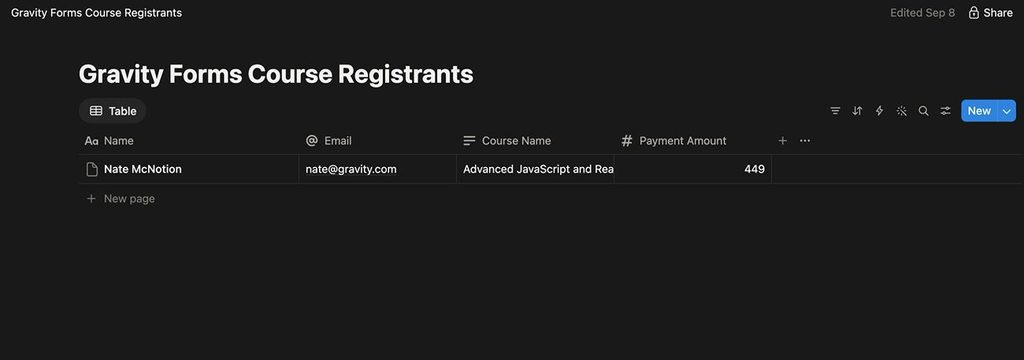
If everything looks good, you’re all finished.
Set up your WordPress Notion integration today
If you’re looking to integrate WordPress with Notion, the Gravity Forms Notion Add-On makes it easy to connect any of your forms to your Notion workspaces, either by creating new pages for form submissions or adding rows to your Notion databases.
The Gravity Forms Notion Add-On is available now in Gravity Labs. It’s free with any Gravity Forms license. As a Labs add-on, it’s experimental and sits outside our standard support — and your feedback helps shape what we build next. If you give it a try, we’d love to hear how it works for you.

Newsletter
If you want to keep up-to-date with what’s happening on the blog sign up for the Gravity Forms newsletter!
"*" indicates required fields