Your best campaign can still be held up by a form that takes all afternoon to build. Gravity Forms MCP cuts out that time-consuming manual work.
Connect an AI assistant like Claude or ChatGPT to your site and just ask for what you need: build me this form, add that field, show me how last month’s signups compare. It builds, edits, and reads your forms while you stay on the campaign.
Here’s what that looks like across a week of marketing work.
1. Launch a lead capture form for your next campaign
When a campaign goes live, the form behind it has to match: the right fields, the right follow-up question, the right people notified. Describe it once and your assistant builds the whole thing, conditional logic included, so it’s ready before the ads are.
“Create a Q3 campaign lead capture form. First and last name side by side, then work email, company name, and a company-size dropdown (1 to 10, 11 to 50, 51 to 200, 201 or more). When company size is 201 or more, show a field asking about their role in the buying decision. Notify the marketing team on submission and confirm with ‘Thanks, we’ll be in touch shortly.’”
2. Ask your entries a question
This is the one that changes how you work. Instead of exporting entries and building a spreadsheet to find an answer, just ask. Your assistant reads the entries and tells you.
“How many entries did the Summer Giveaway form get last month, and how does that compare to the month before?”
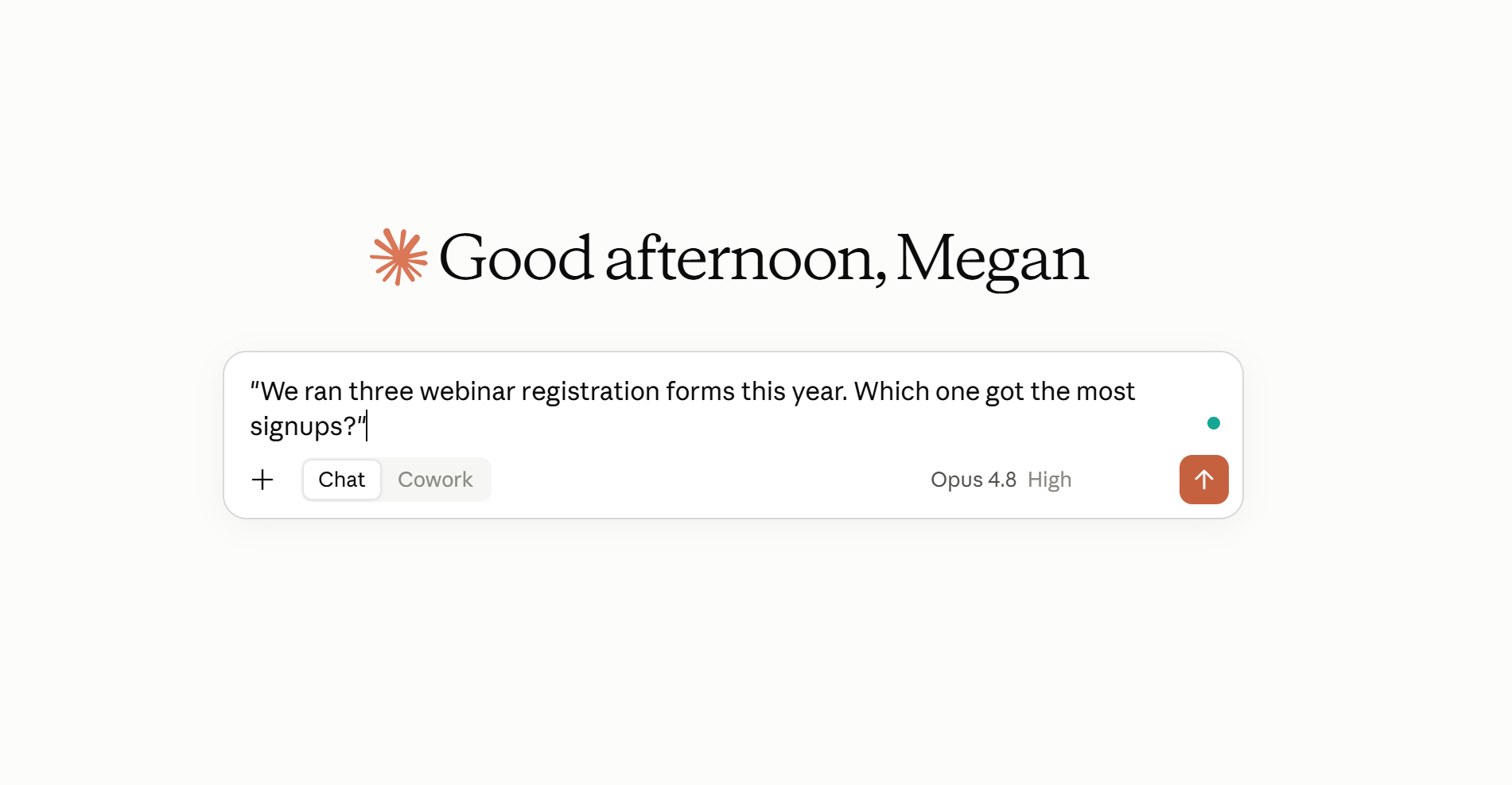
“We ran three webinar registration forms this year. Which one got the most signups?”
3. Test a few versions to see what works
Not sure whether a short form or a more detailed one will do better? Have your assistant build a couple of versions to compare, so you’re testing a real choice instead of guessing.
“Build two versions of our newsletter signup so I can compare them. One with just an email field, and one with name, email, and an interests dropdown. I’ll put them head to head.”
4. Get a weekly report of your leads
Rather than digging through entries every Monday, ask for the recap. Your assistant pulls the numbers and writes it up for you to send on.
“Summarize this week’s entries from the Contact and Demo Request forms: how many of each, the most common topics, and anything that looks like a hot lead. Write it up as a short email I can send to the team.”
5. Spin up a form for a promotion, then close it when it’s done
Flash sales, giveaways, and event signups need a form fast and rarely need it for long. Ask for it when the promo starts, and switch it off when it ends.
“Create a Black Friday giveaway entry form with name, email, and a consent checkbox to join our list.”
“The Black Friday giveaway is over. Stop the form from accepting new entries, but leave the page up.”
6. Turn a campaign brief into a form
When the form is already spelled out in a brief or a planning doc, you shouldn’t have to build it twice. Hand over the file and your assistant builds it from what’s there.
“Here’s our event brief as a PDF. Build the registration form described in section 3, with the same fields and options.”
7. Reuse a form for the next campaign
When something works, run it back. Duplicate it, rename it, and update the details that changed instead of starting over.
“Duplicate the Q2 Event Registration form, rename it for Q4, and update any fields that mention dates or the event name.”
Quick wins
Then there’s the small stuff you can clear in a single line:
“Fix the typo in the newsletter confirmation message across all our forms: recieve to receive.”
“Add a phone number field to the demo request form, right after the email field.”
“Is our contact form active and still sending notifications?”
“Update the notifications on all our forms to go to marketing@ instead of my personal inbox.”
Best practices for using Gravity Forms MCP
Gravity Forms MCP is built to be careful, and a few habits keep it that way.
- Start with read-only tools. They let your assistant read your forms and entries without changing anything, which is the right place to begin.
- Give it its own login. Your assistant connects as a user on your site, so set up a dedicated account for it with only the access it needs, rather than using your main admin login.
- Turn on changes only when you want them. Switch on the tools that create and edit forms when you have a job for them, and anything your assistant deletes asks you to confirm first.
- Keep a backup. As with any change to your site, a recent backup means you can undo anything you’re not happy with.
- Add the agent skills file. Download it from your MCP settings and hand it to your assistant so it understands how Gravity Forms works. It makes your assistant faster and less likely to make mistakes.
Ready to get started?
Gravity Forms MCP comes with every Gravity Forms license, from Basic to Developer, and it’s part of Gravity Forms 3.1. You’ll need WordPress 6.9 or higher on a self-hosted site, with Gravity Forms 3.1 installed and active. WordPress.com isn’t supported at this time.
For the full setup, check out the Gravity Forms MCP documentation. If you’d rather not set it up yourself, our Support team is happy to help.
New to Gravity Forms? Head over to our pricing page to get started, or sign up for a personalized demo to see it in action.

Newsletter
If you want to keep up-to-date with what’s happening on the blog sign up for the Gravity Forms newsletter!
"*" indicates required fields