Written by the editorial team at Gravity Wiz…
Dev Tools for Gravity Forms is a free Gravity Wiz plugin that helps any Gravity Forms user build, test, and debug forms faster. Today we’re looking at one piece of it – the Preview Tools feature. This feature provides a list of tools for previewing your form exactly as it would appear and behave on your live site.
Let’s take a look at what’s inside.
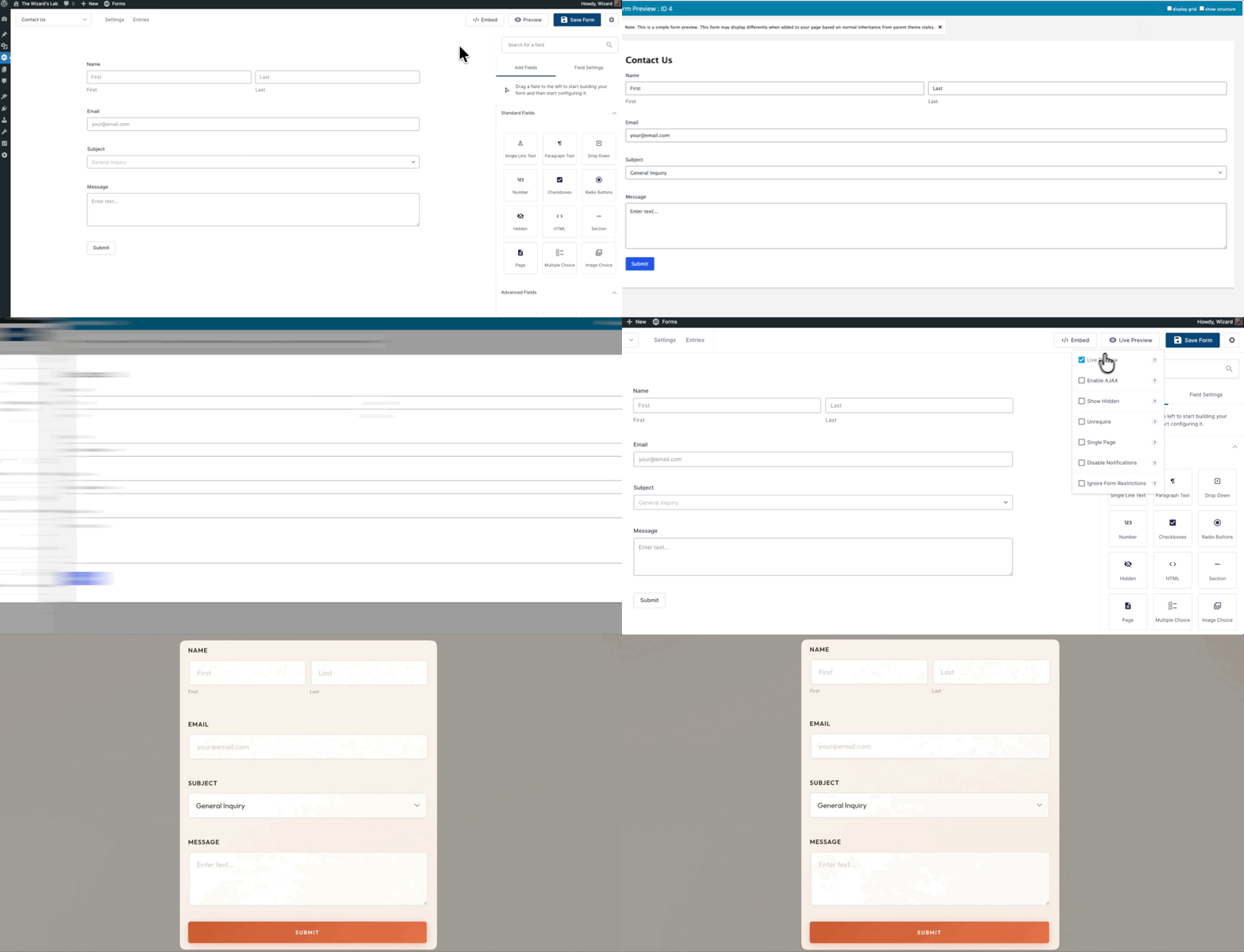
See how your form actually looks in your theme
Gravity Forms’ built-in preview doesn’t load your WordPress theme styles, so you won’t know how it looks until it’s already embedded.
Enable Live Preview and your form renders on your real site, exactly as your visitors see it.
Test your form without filling it out every single time
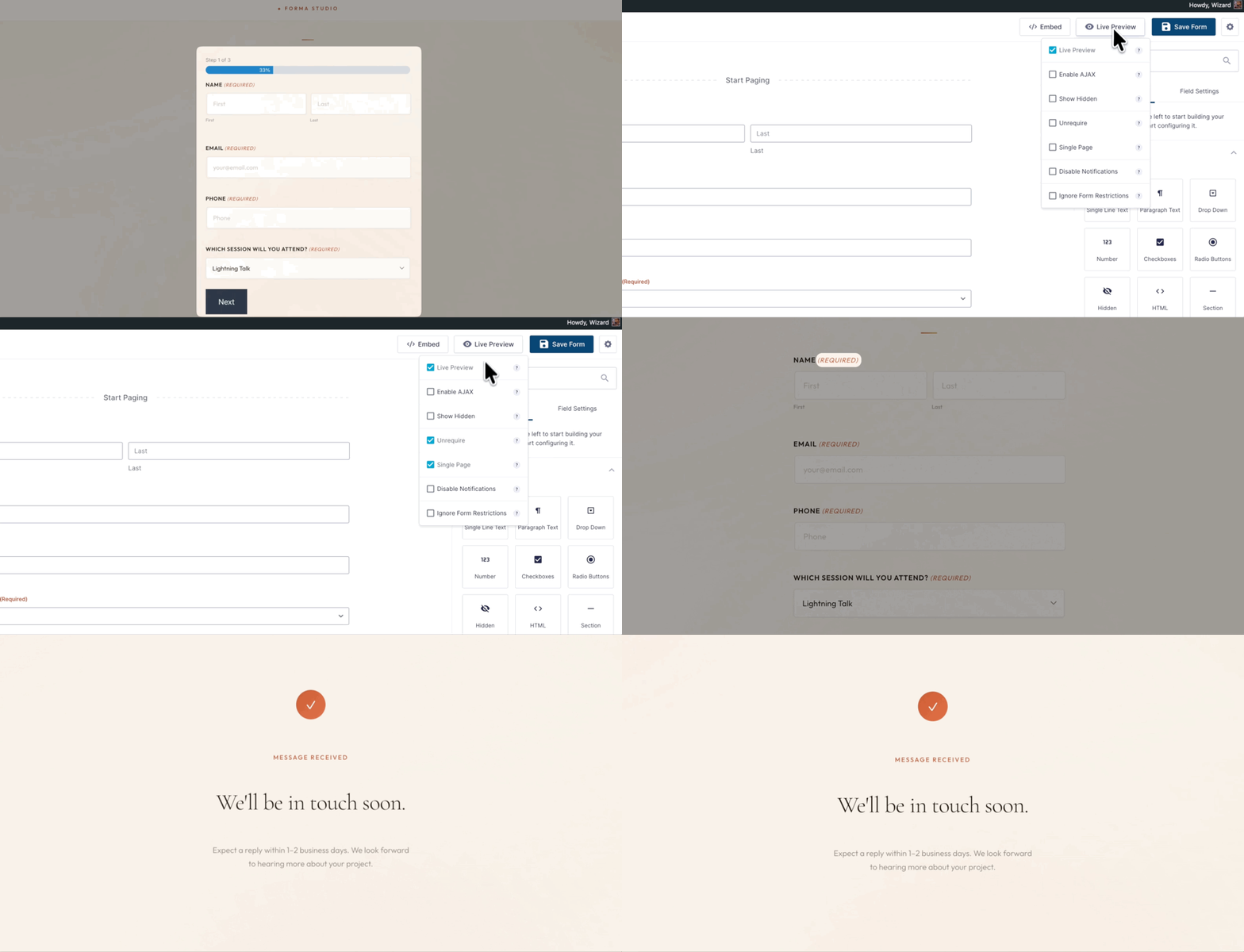
By default, previewing your form doesn’t turn off required fields. You still have to fill them out like any visitor would.
Enable Unrequire fields and skip required field validation. Pair it with the Single Page toggle and all your pages collapse into one – no more clicking Next to get to, say, page five.
Preview your hidden fields in action
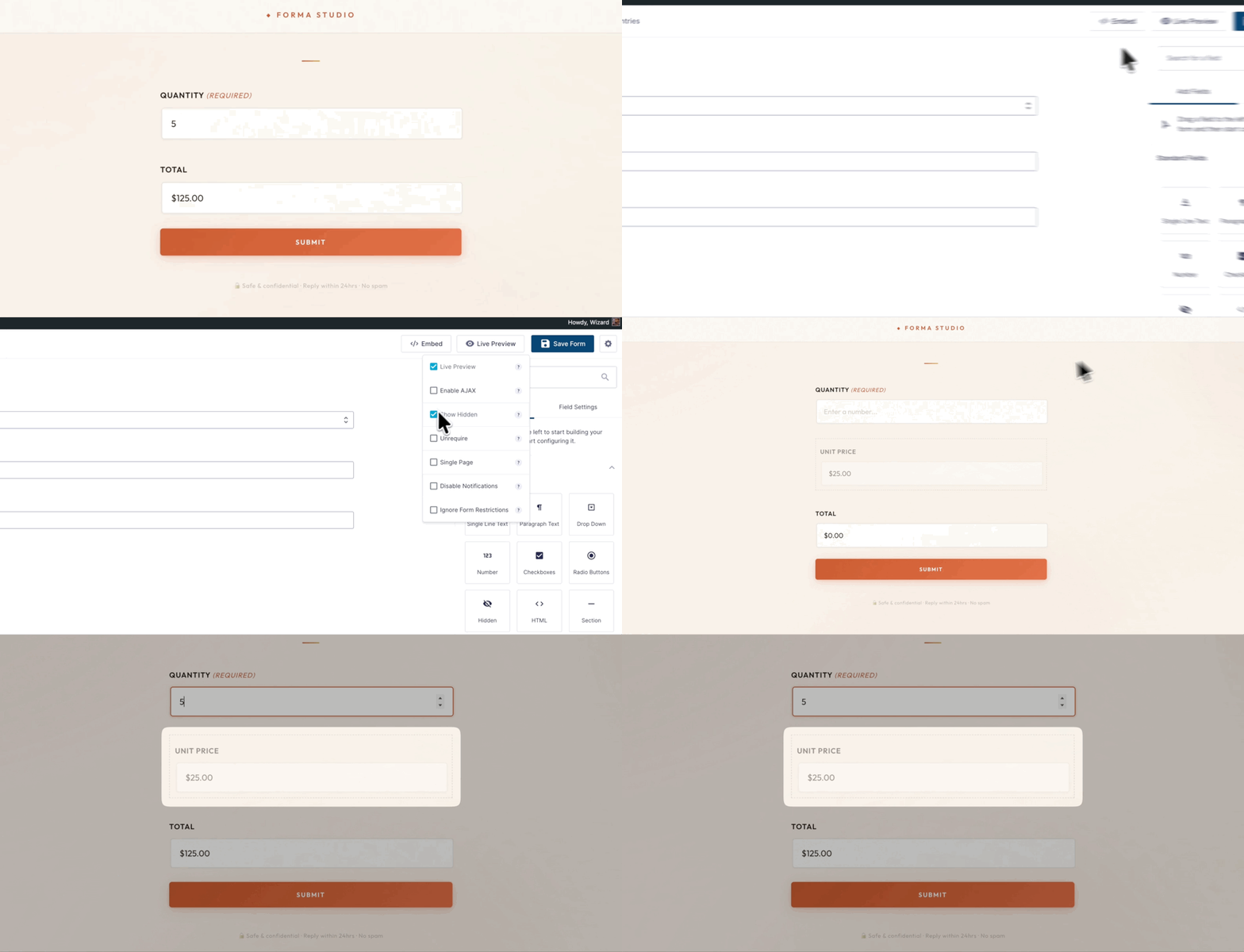
Hidden fields don’t show up in the default preview. That means debugging something like broken calculation logic or a wrongly pre-populated value is a round trip: back to the editor, toggle each field visible, check the preview, hide them all again.
Enable Show Hidden fields in the Preview Tools dropdown and those fields appear right in your preview.
Test repeatedly without flooding your inbox
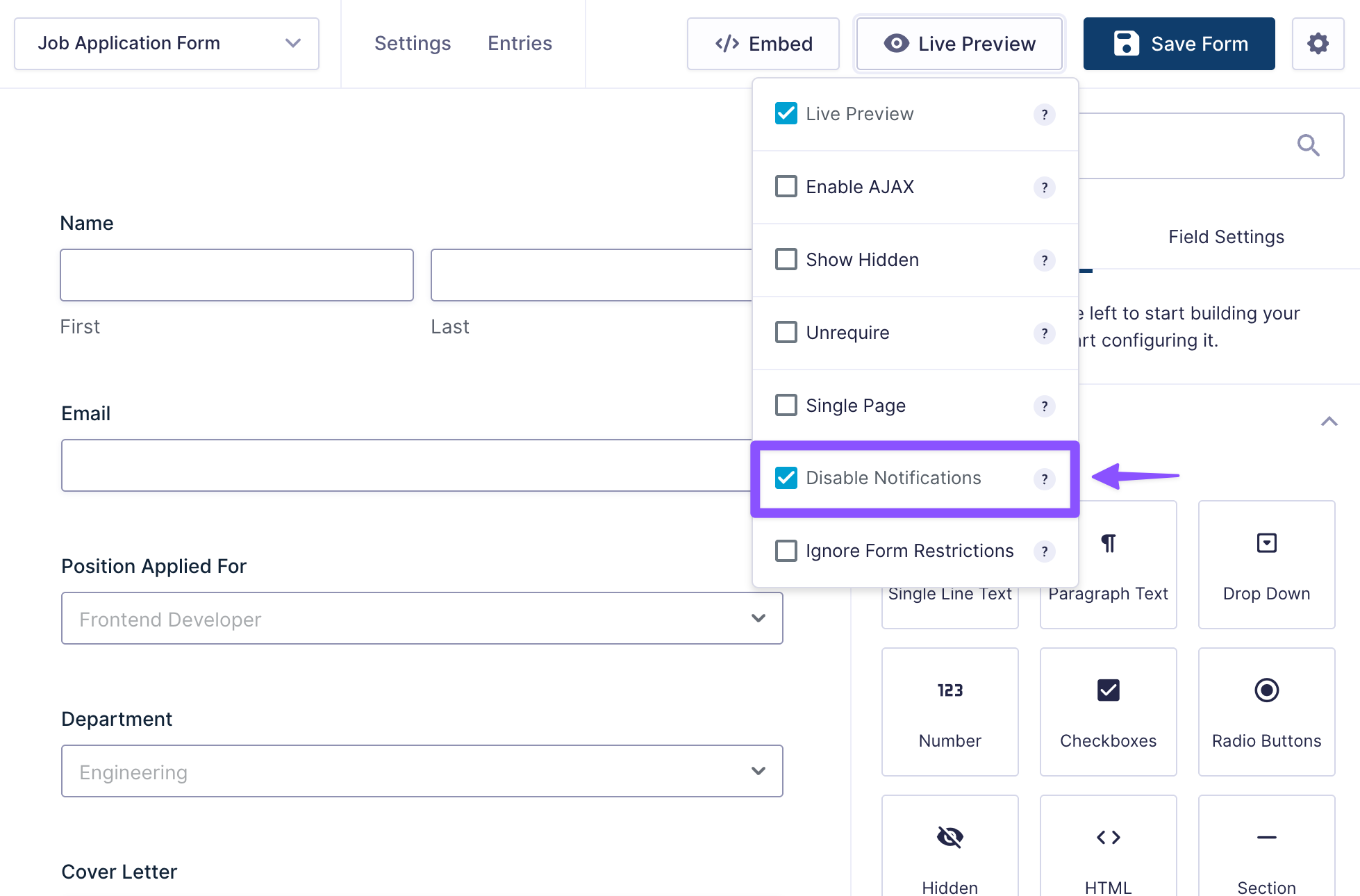
By default, when you’re testing submissions in Gravity Forms, every test submission fires a real email. To stop that, you’d have to disable each notification manually and remember to turn them back on when you’re done.
When you turn on Disable Notifications, your test submissions will stop hitting your inbox while your notification settings stay untouched.
Two more ways to preview your form
Here are two more controls for testing your form without leaving the editor:
- AJAX Controls lets you flip AJAX on or off without touching your form settings – useful if your form behaves differently with AJAX enabled.
- Ignore Form Restrictions lets you preview a form with an entry limit, a submission window, or a login requirement as if those restrictions weren’t there.
There’s more inside Gravity Wiz’s Dev Tools beyond Preview Tools. See everything it can do.