Need to let visitors know your team is away, a sale is running, or a deadline is coming up before they submit a form? Putting a notice above your form is a good way to catch their attention. But how do you actually add one in Gravity Forms?
Gravity Wiz Form Notices is a free, no-code plugin that adds that capability to Gravity Forms. Write a message, set a date range, and it appears above your form automatically for that window, then clears itself when it’s over.
It’s straightforward to configure, but more flexible than it looks. Here are a few examples of how to put it to use!
Gravity Wiz is a third-party certified developer and its add-ons are not supported by Gravity Forms. As always, we recommend you extensively evaluate all plugins to ensure their suitability for your purpose before installation on your website.
Sales and special offers
Running a flash sale or a limited-time offer? A notice placed above your signup or order form makes sure visitors catch it before it’s gone.
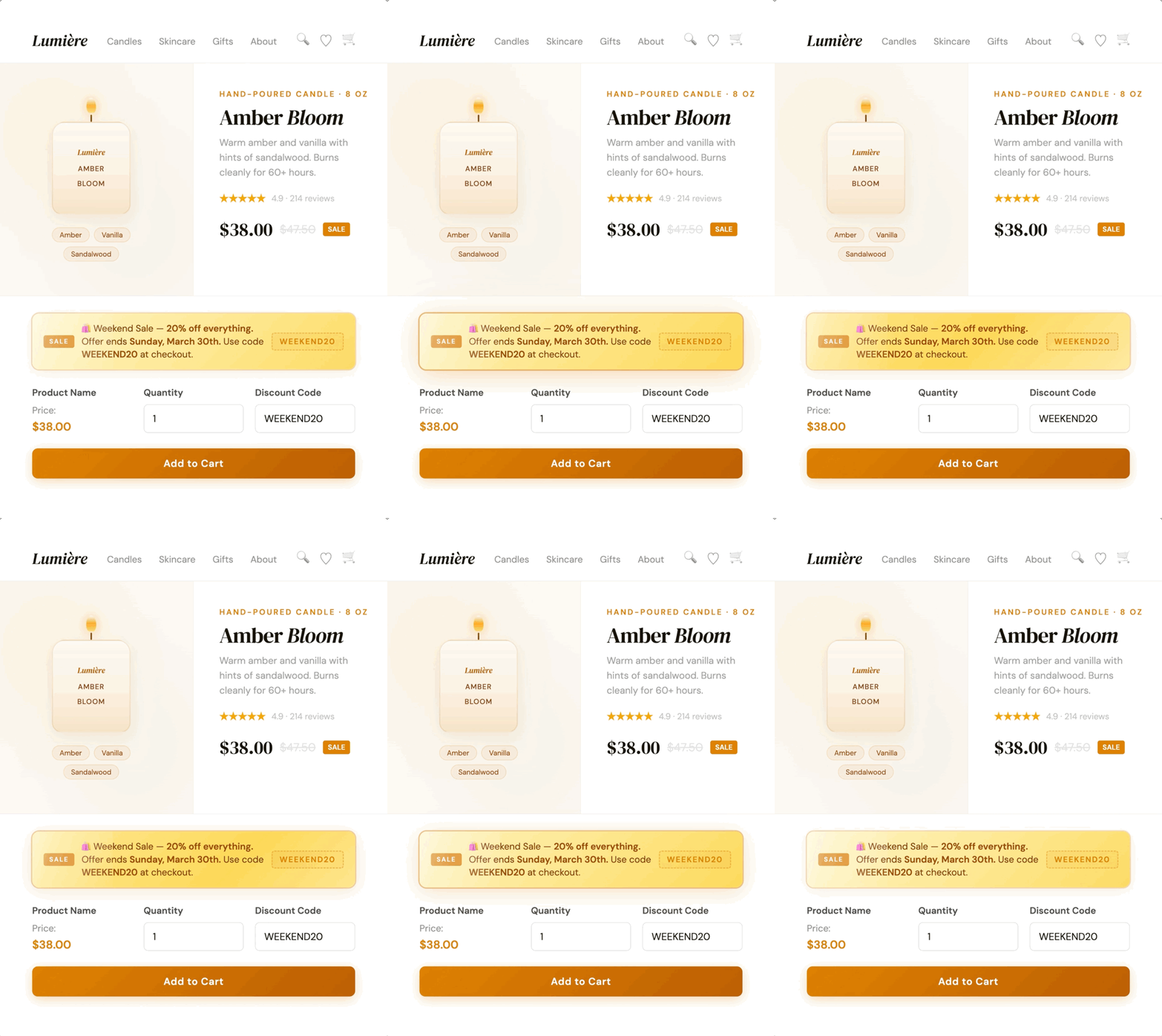
Form Notices supports date merge tags, so you can pull the exact offer end date into your message automatically. The notice stays accurate every time you reuse it for a new promotion.
Time-sensitive reminders
For forms with a cutoff (a registration window, an application deadline, or an upcoming event), you can surface a reminder above the form for a defined period leading up to it.
For example, a workshop registration form could display a notice starting a week before spots close.
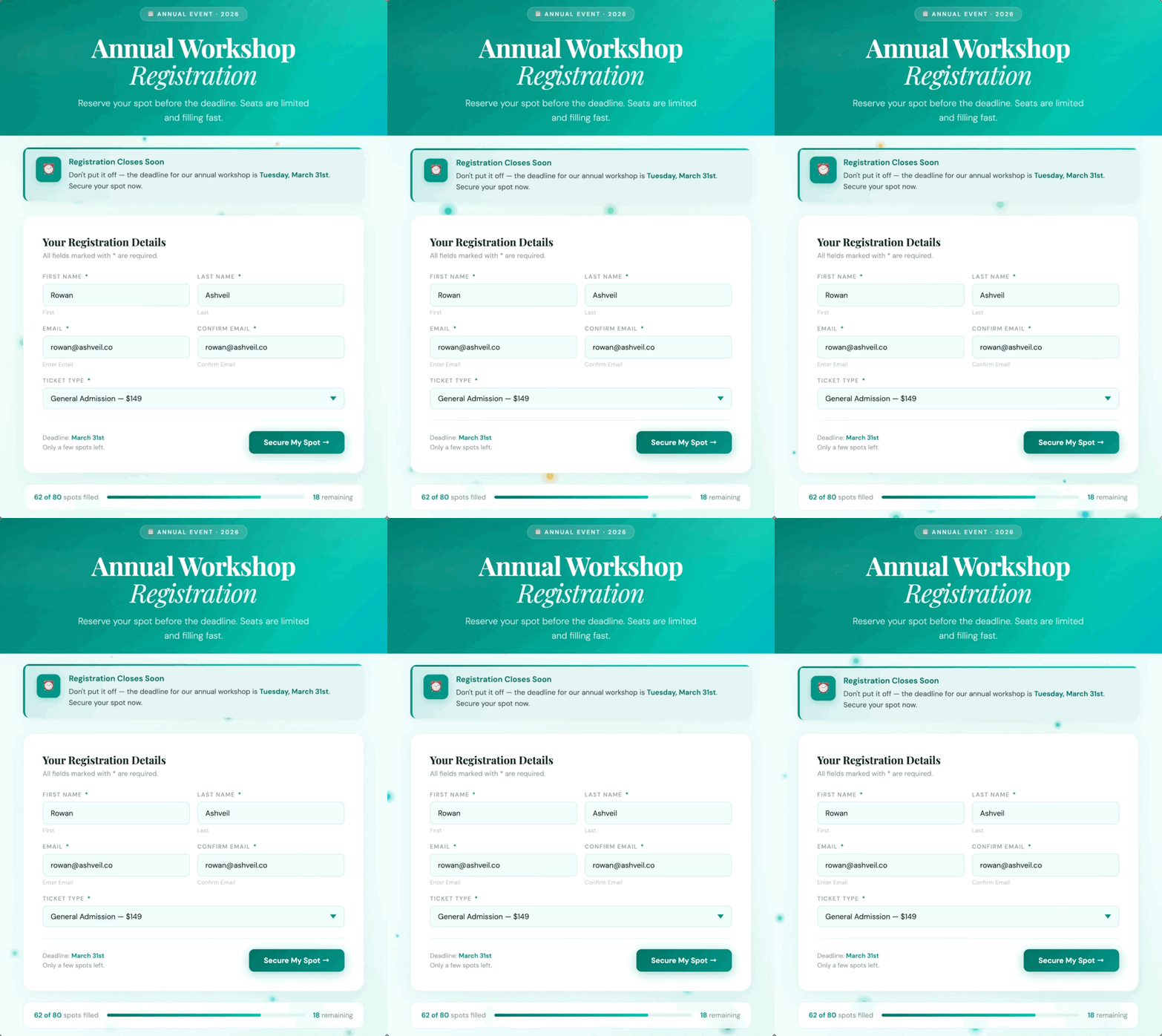
The Advance Notice setting lets you define exactly how many days before the deadline the notice starts appearing. Once the cutoff passes, it clears itself automatically.
Office closures
When the holidays arrive or your team steps away for a few days, your forms stay live and visitors keep landing on them. With Form Notices, you set a start and end date for the closure and the notice displays above the form for exactly that window.
For annual closures, you can use wildcard dates, which let you set a recurring date range without specifying a year, so the notice runs automatically every time.
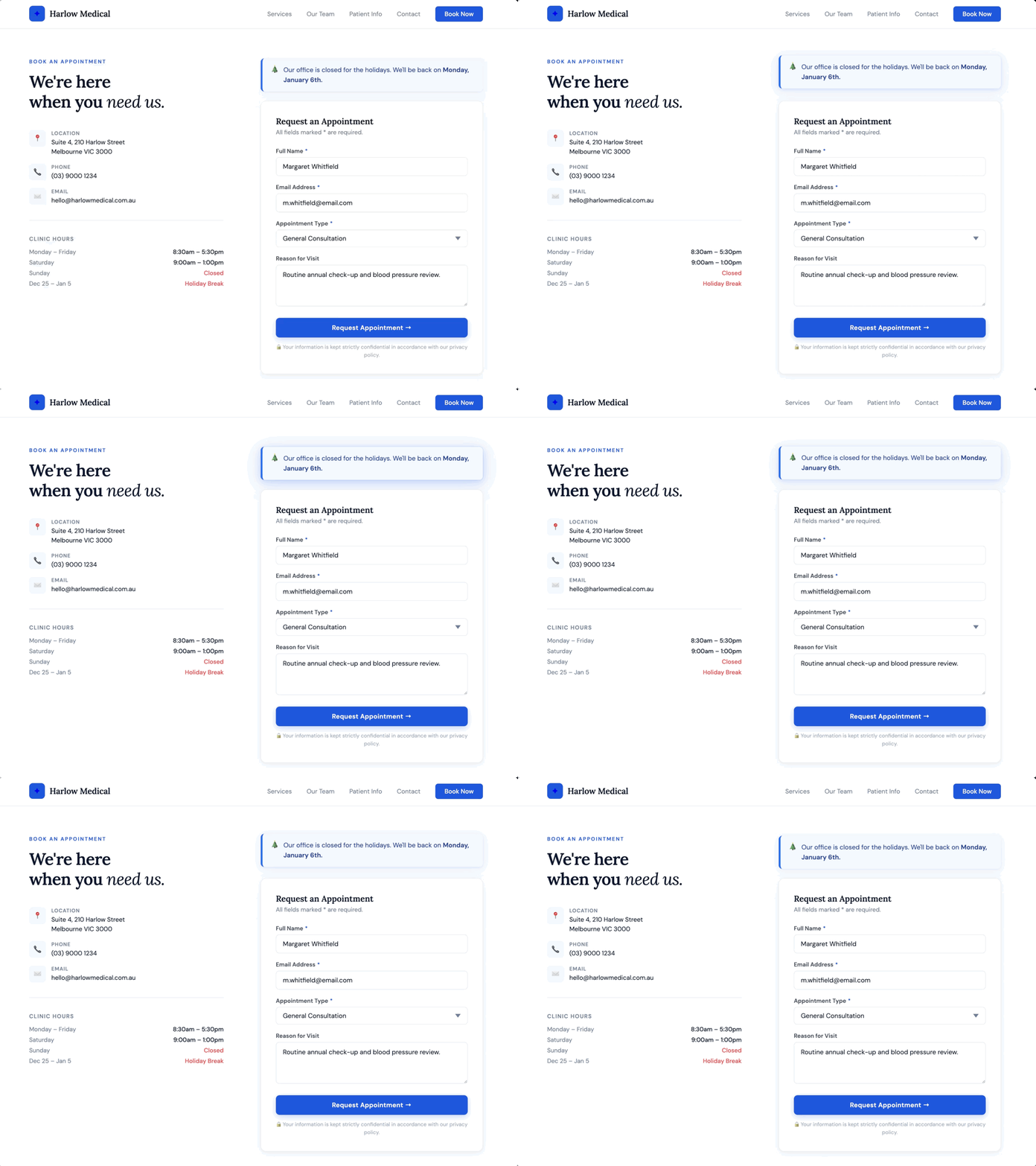
For example, setting December 25th as the start date and January 5th as the end date covers your full holiday break and shows visitors exactly when you’ll be back. Configure it once and it runs automatically each year.
Running multiple notices at once
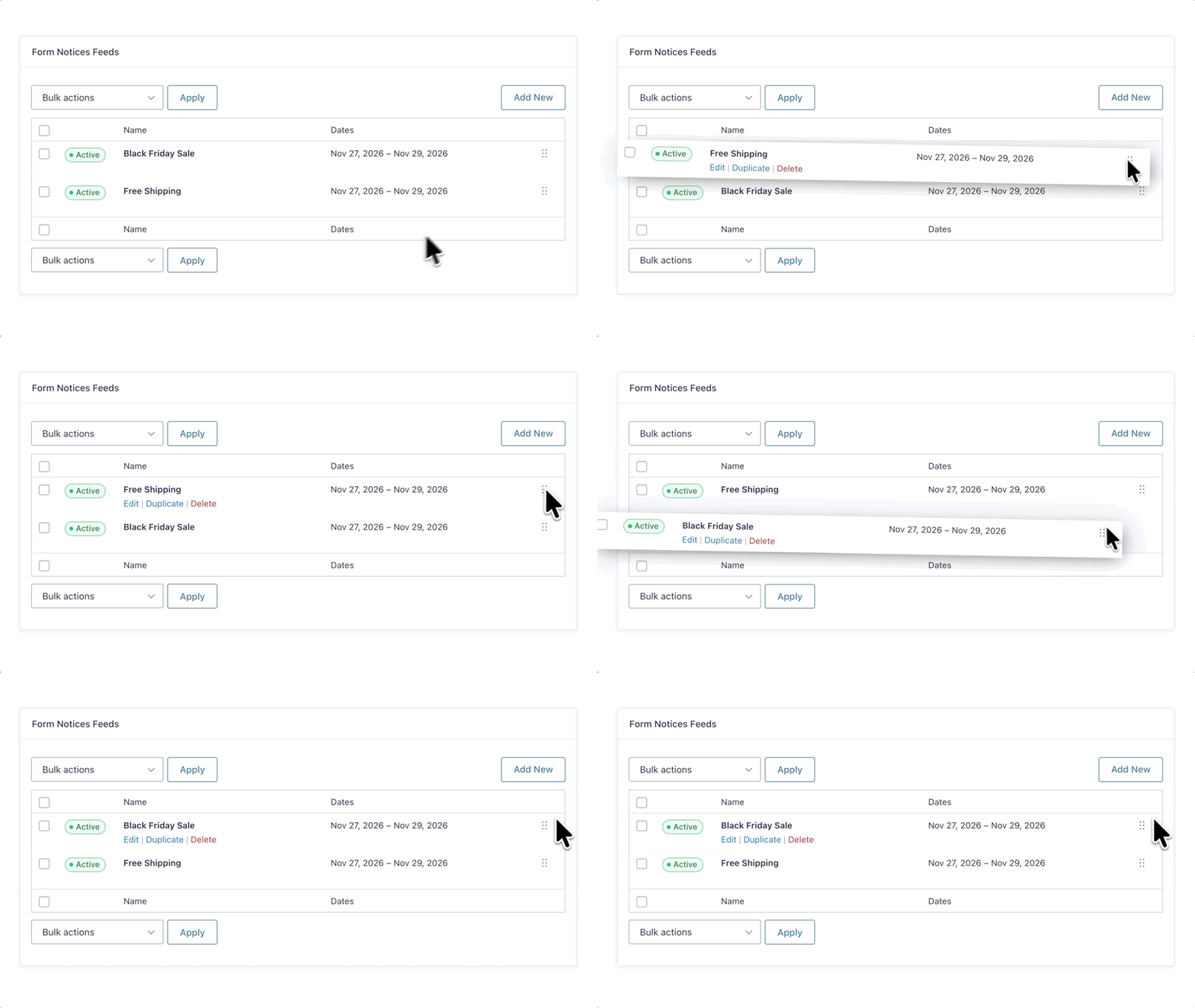
You can have more than one notice active on the same form at the same time. Each one lives in its own feed inside your form settings, and they stack above the form in whatever order you arrange them.
This comes in handy when two things are happening simultaneously, like a sitewide sale and a free shipping offer, and you want both visible before a visitor submits.

Just drag and drop in the feed list to set the display order.
Repeating notices
Some notices don’t follow a single fixed date—they follow a pattern. Maybe your support team is unavailable the last Friday of every month, you run a maintenance window on the first Sunday of each quarter, or an intake form reopens on a set schedule.
For these situations, Form Notices supports natural language dates, so you can describe the schedule in plain English rather than manually working out specific dates each time.
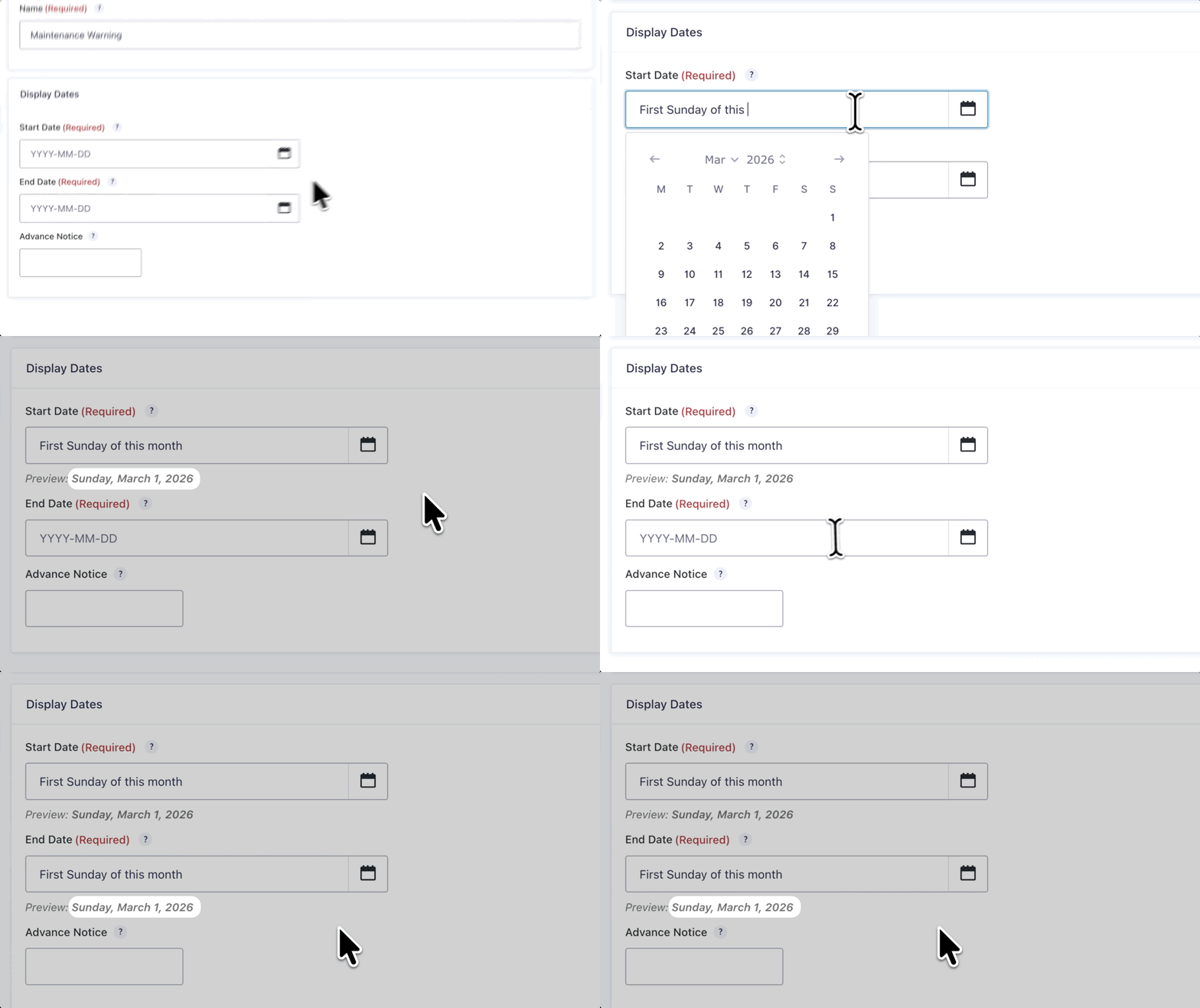
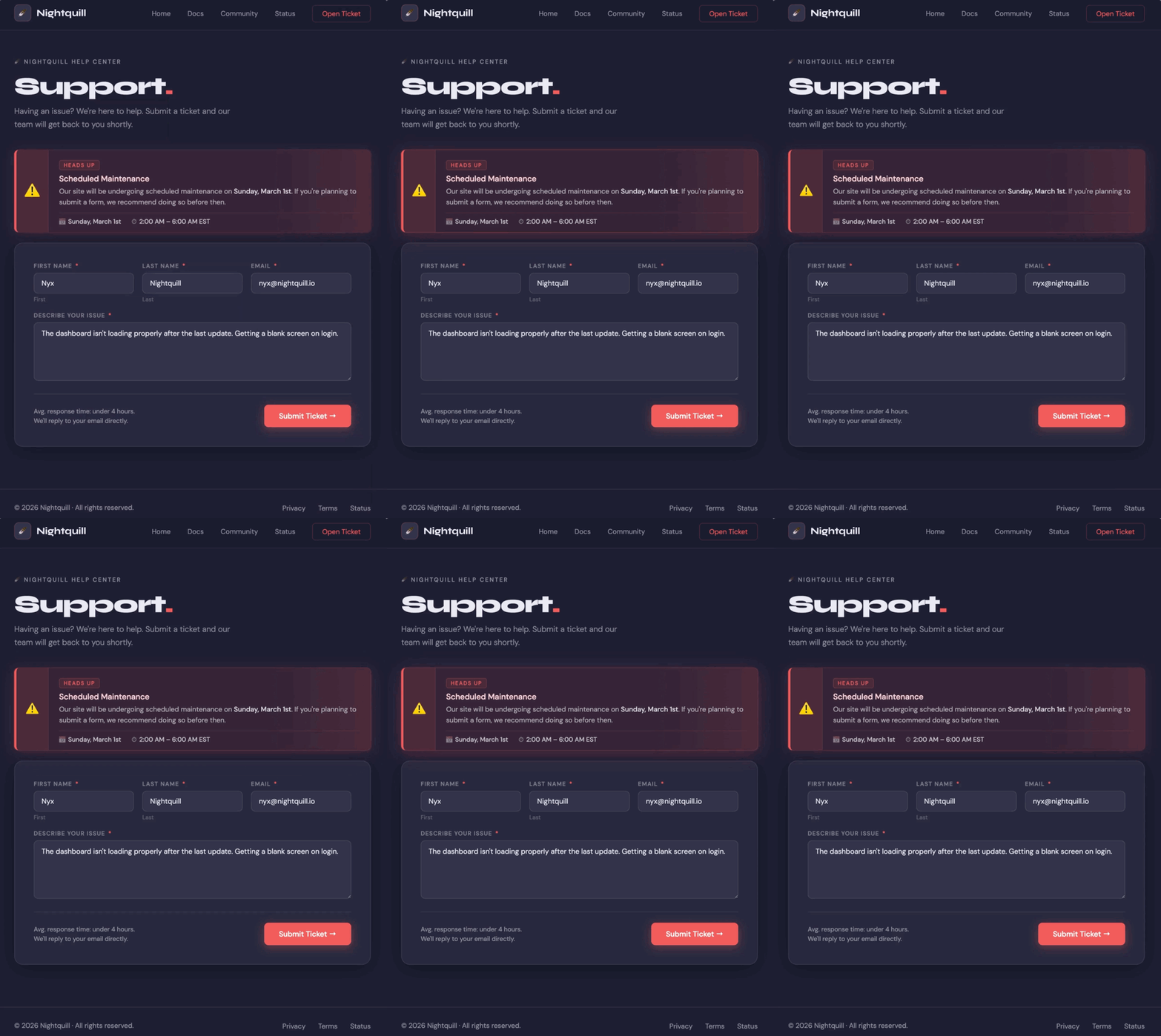
Type something like “First Sunday of this month” into the date field and Form Notices resolves the correct date on its own.
Ready to add notices to your forms?
GF Form Notices is available for free from Gravity Wiz. Head over to the Gravity Wiz Form Notices documentation to see everything it can do.