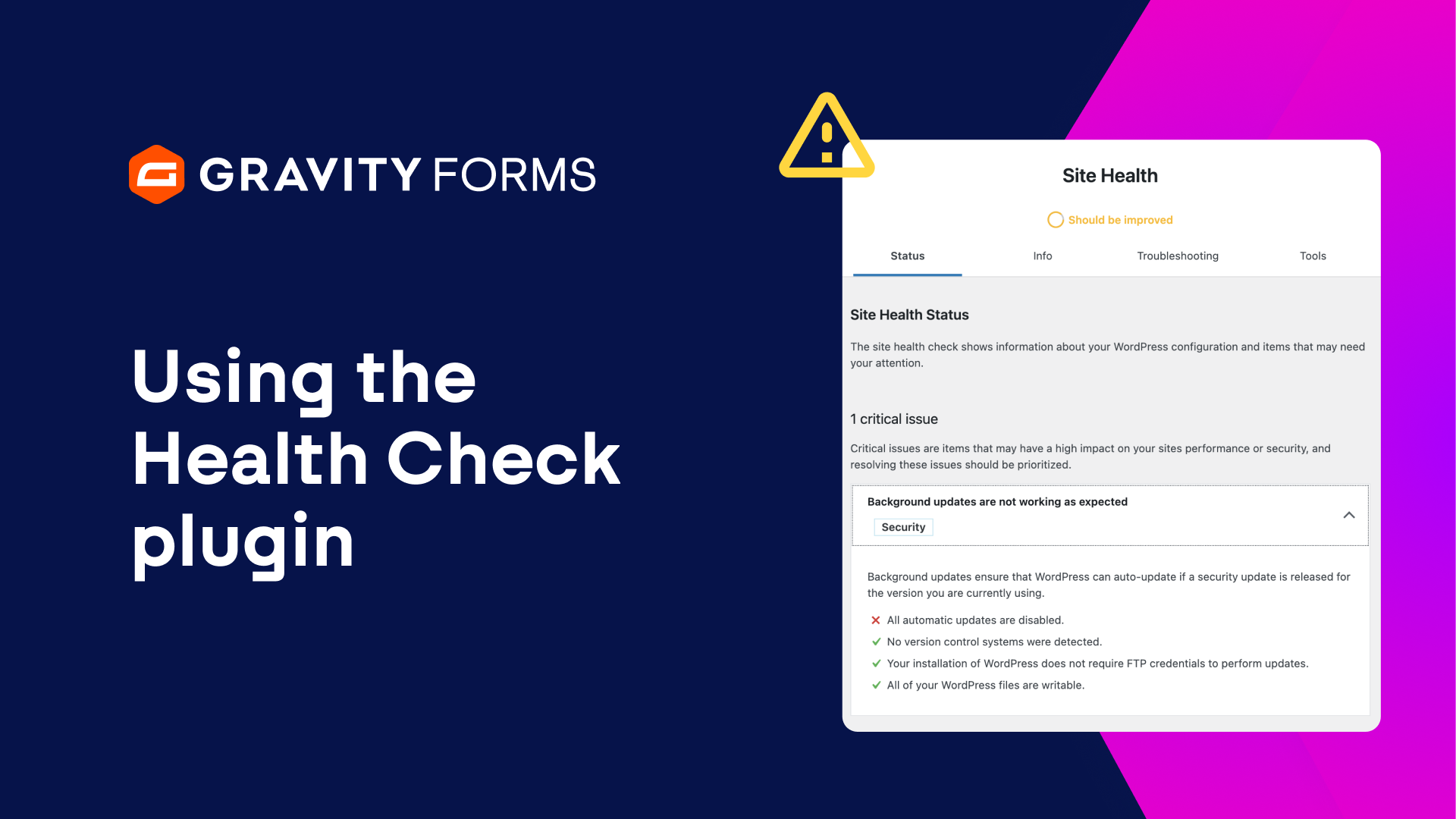
To learn more about using the Health Check & Troubleshooting plugin, check out our docs site.
If you are running into issues with your Gravity Forms installation, there are several steps you can take to troubleshoot problems.
In part one of this video series, we took a look at how to manually test for theme and plugin conflicts.
If you haven’t seen that video, be sure to watch it first before continuing with this one.
A link to it can be found in the video summary.
Before starting, be sure to follow the steps in the first video for backing up your WordPress site, creating a test page, and ensuring your page is not being cached or minified.
Like in the first video, I talked to our expert Support Team for their recommendations on what to do when you encounter issues with your WordPress site, and using the Health Check & Troubleshooting plugin was one of their top pieces of advice.
So let’s dive in and take a look at how to use this plugin to test for conflicts.
It’s worth noting that the Health Check & Troubleshooting plugin will not affect your visitors or other logged in users, as the changes done are not permanent but dynamically applied to the current logged in user.
Also note that you cannot use this plugin for issues where you need to be logged out, or an unauthenticated or admin-ajax.php request is done.
For these cases, you need to perform a manual conflict test instead, as covered in the first video in this series.
Please also be aware that a list of features and add-ons that this plugin is not suitable for troubleshooting can be found on our docs site, linked in the video summary.
If you are running into issues with any of these plugins, you will want to manually test for conflicts by following the guide in part one of this video series.
Also be aware that Must-Use and Drop-in plugins can’t be disabled using the WordPress admin interface, the only way to disable them is by deleting their files.
If your site is using this type of plugin, you will need to use an FTP client to download a copy and delete them for testing.
To get started, install the plugin by heading to the WordPress Plugins page and selecting ‘Add New Plugin’.
Then, you can simply search for the ‘Health Check & Troubleshooting’ plugin and install and activate it.
Once the plugin is installed, locate Gravity Forms and select ‘Troubleshoot’.
All plugins except for Gravity Forms will now be temporarily disabled and a default WordPress theme will be enabled.
If you don’t have a default theme installed, the plugin will warn you and give you the option to install one.
Be sure to install a default theme, such as the Twenty Twenty Four theme, before continuing.
At this point, Gravity Forms should be the only plugin active and you should be running a default WordPress theme.
If your form requires any of the official Gravity Forms add-ons, you can enable those as well, but be sure to only activate official Gravity Forms add-ons at this stage.
Next, while in troubleshooting mode, try to replicate the issue you are experiencing.
If you encounter the issue with only official Gravity Forms add-ons active, you will want to submit a support ticket so that our Support Team can get involved and help you resolve your issue.
You can submit a ticket by following the link in the video summary.
If you don’t experience any issues on the first test, you will want to expand the scope of your testing by enabling one additional plugin and trying to replicate the issue.
Continue enabling plugins, one at a time, until you encounter your issue and find the problematic plugin.
Once you’ve identified the plugin causing conflicts, be sure to check and ensure the plugin is up to date.
If the plugin is up to date and still causing issues, you may want to reach out to that plugin’s support team for help resolving the issue.
If you don’t experience any issues after enabling all your plugins, then the conflict is likely being caused by your theme.
Be sure your theme is up to date, and if the problem persists, try reaching out to your theme’s support team for help fixing the conflict.
Finally, when you are done with your testing, be sure to disable troubleshooting mode.
We hope this helps solve your issue.
For more guides and tutorials on all things Gravity, be sure to check out our video library.
From everyone on the Gravity team, thanks for watching!
Summary
In this video tutorial, we take a look at how to check for issues using the Health Check & Troubleshooting plugin.
Be sure to check out part one in this series, linked here.
For a list of features and add-ons that this plugin is not suitable for troubleshooting, check out our docs site.