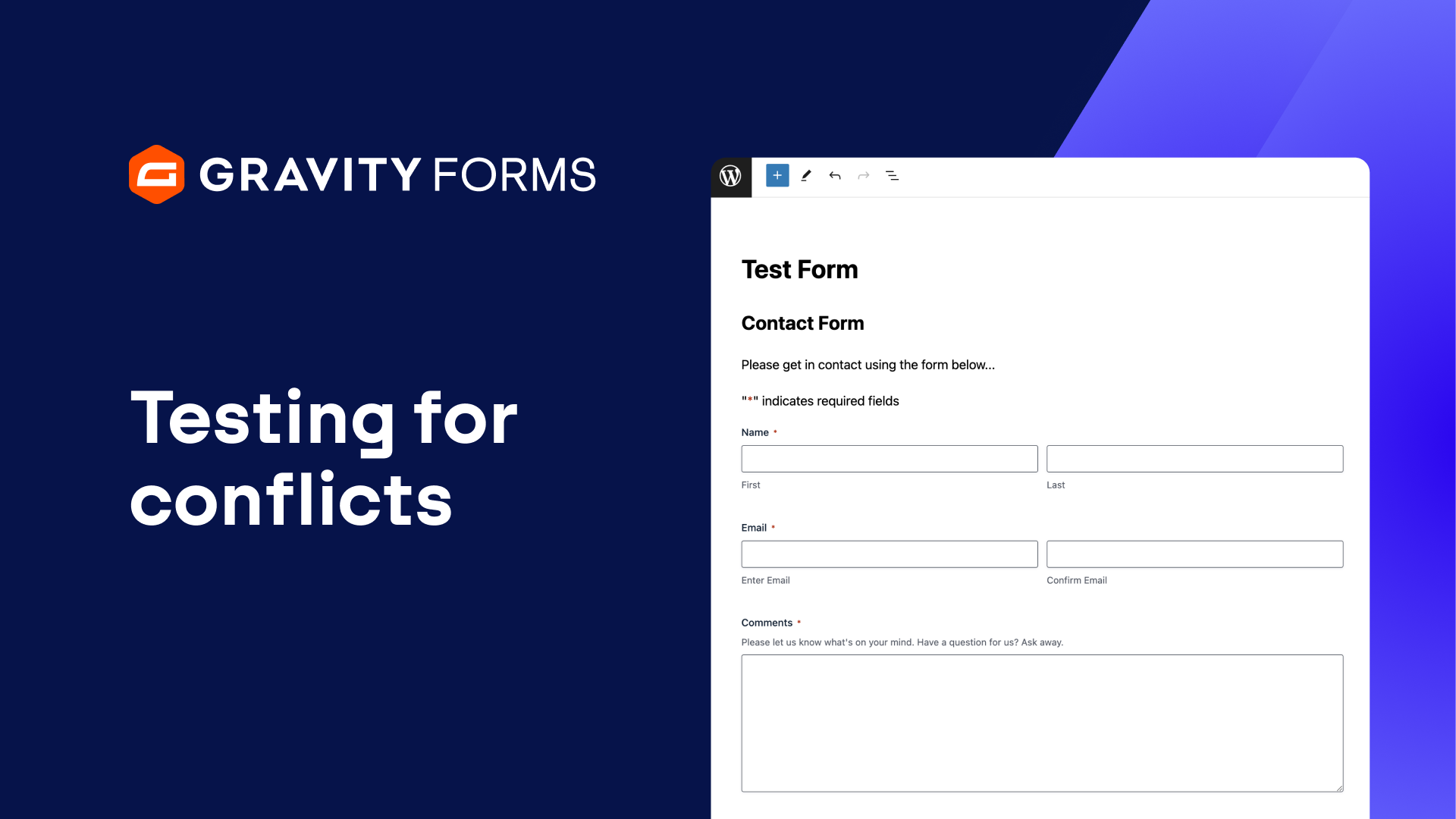
To learn more about testing for conflicts, check out our docs site.
The Gravity Support Team is an endless source of knowledge for all things WordPress and Gravity Forms.
For this video, I asked them for some of their Gravity Forms top tips and one of the first responses was on how to manually test for theme and plugin conflicts.
So let’s dive in and look at the steps you need to take to check for compatibility issues if you are running into problems with your forms.
Before you start, it’s a good idea to create a backup of your WordPress site.
A guide to creating a backup can be found in the video summary.
Next, when troubleshooting, you will want to create a test page to embed your form directly using the WordPress form editor, without using third-party builders or modal solutions.
You will also want to ensure your page is not being cached or minified by a plugin or hosting company.
More information on how to exclude your page from caching from the most used cached solutions can be found on our docs site, linked in the video summary.
Once you’ve completed these steps, you’ll be ready to start testing for theme and plugin conflicts.
It’s important to verify that any issues you are experiencing are not being caused by your current theme.
To rule out any theme conflicts, temporarily change your theme to one of the WordPress default ones.
For instance, I’ll change mine to the Twenty Twenty Four theme.
If your issue does not occur after activating a default theme, then your theme is the culprit.
Check for updates to your theme or child theme.
If everything is up to date and your issue still persists, you can try reaching out to the support team for your theme for assistance.
If your issue is not being caused by your theme, you’ll next want to test for plugin conflicts.
First, deactivate all plugins on your site.
Then, activate Gravity Forms.
If your form requires any of the official Gravity Forms add-ons, you can install those as well.
Next, with only official Gravity Forms add-ons active, try to replicate the issue you are experiencing.
If the issue persists, you may want to reach out to our Support Team so they can get involved and help you resolve it.
If you experience no-recurrence of the issue, you’ll next want to expand the scope of your testing by enabling one additional plugin at a time and testing for the issue.
Continue enabling plugins, one at a time, and test for your issue until you find the culprit.
Once you have found the conflicting plugin, first make sure that the plugin is updated to the latest available version.
If you are already up to date, or if updating does not resolve your conflict, please reach out to the conflicting plugin’s Support team.
If you need help at any point, our Support Team is only a ticket away.
You can submit a support ticket by following the link in the video summary.
We hope this helps resolve your issue.
For more guides and tutorials on all things Gravity Forms, check out our video library.
From everyone on the Gravity team, thank you for watching!
Summary
In this video tutorial, we checked in with the Gravity Support Team to learn how to manually test for theme and plugin conflicts.