Did you know that you can easily test out Gravity Forms with our free demo?
In this video, we’ll take a look at how to create your first form using the demo.
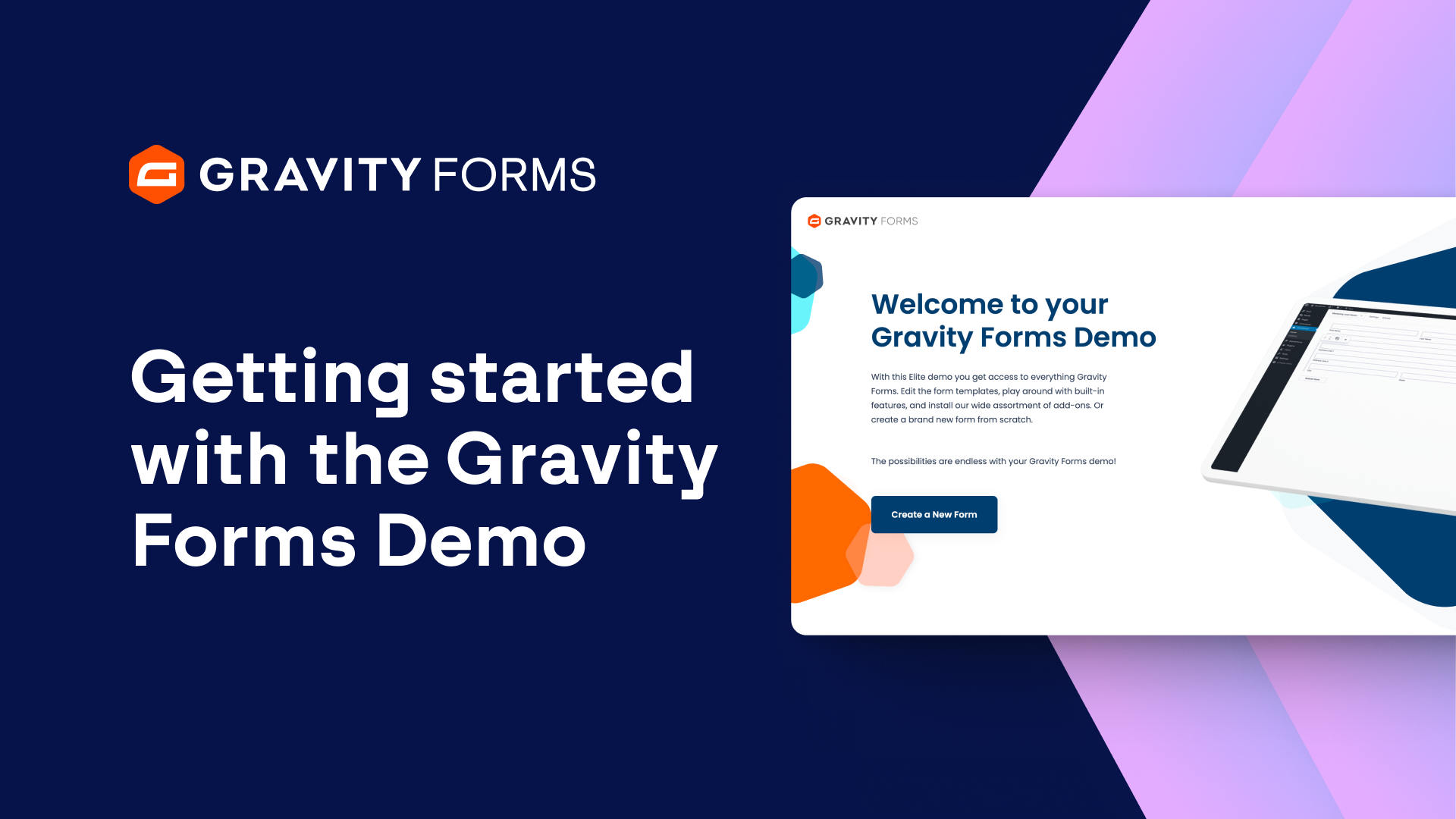
To get started, head to the Gravity Forms demo page, linked in the description of this video.
Enter your name and email address, then click the CAPTCHA checkbox and you’ll be ready to start building some forms.
A personal sandbox will be created that you can use to build as many forms as you like.
You can also view and customize the nine demo form templates, or select ‘Create New Form’ to get started building your first form.
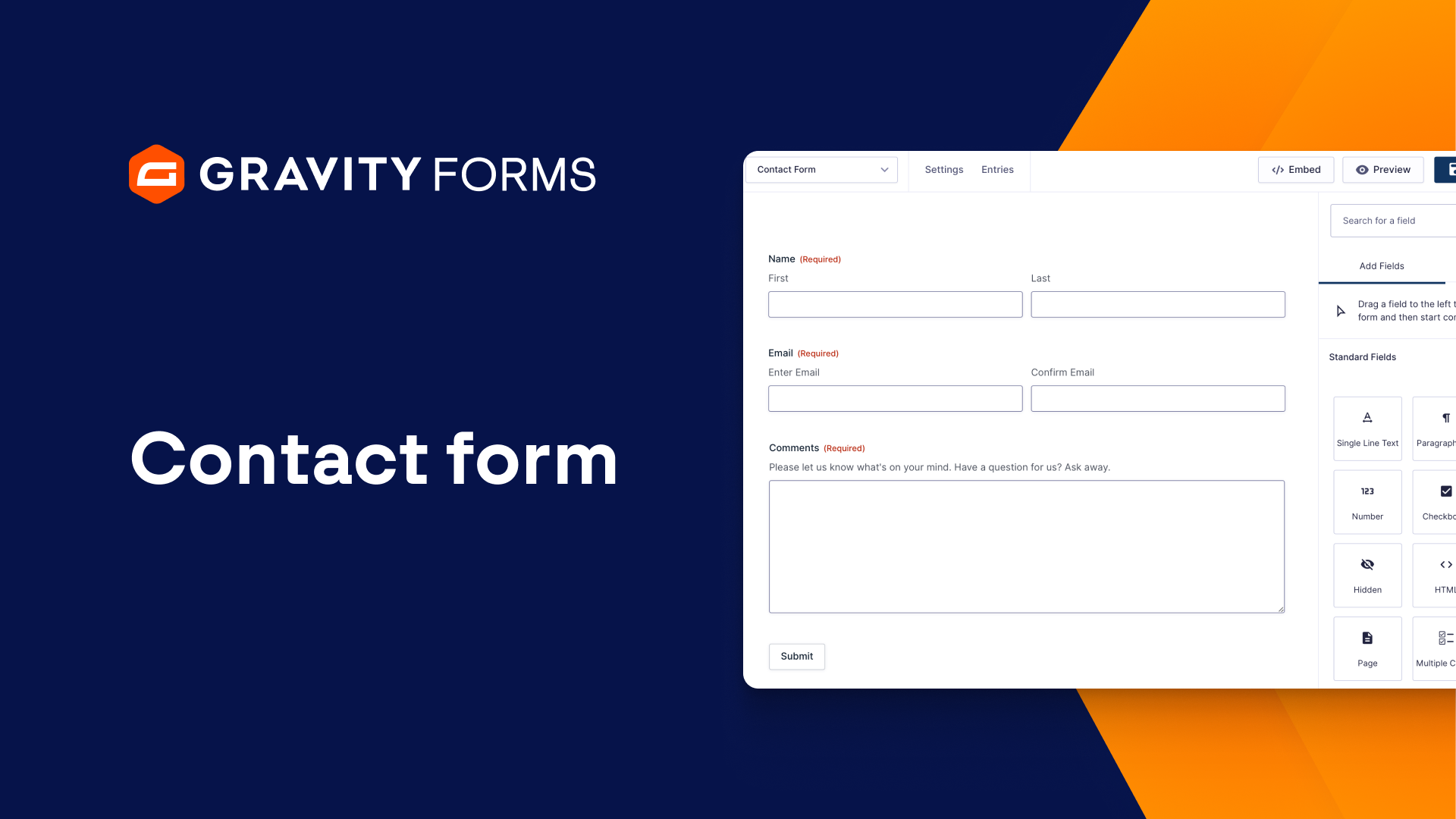
For this video, I’m going to create a simple contact form using the form editor.
I’ll start by adding a name field, email field, and paragraph text field for the user’s message.
Then, I’ll save my changes.
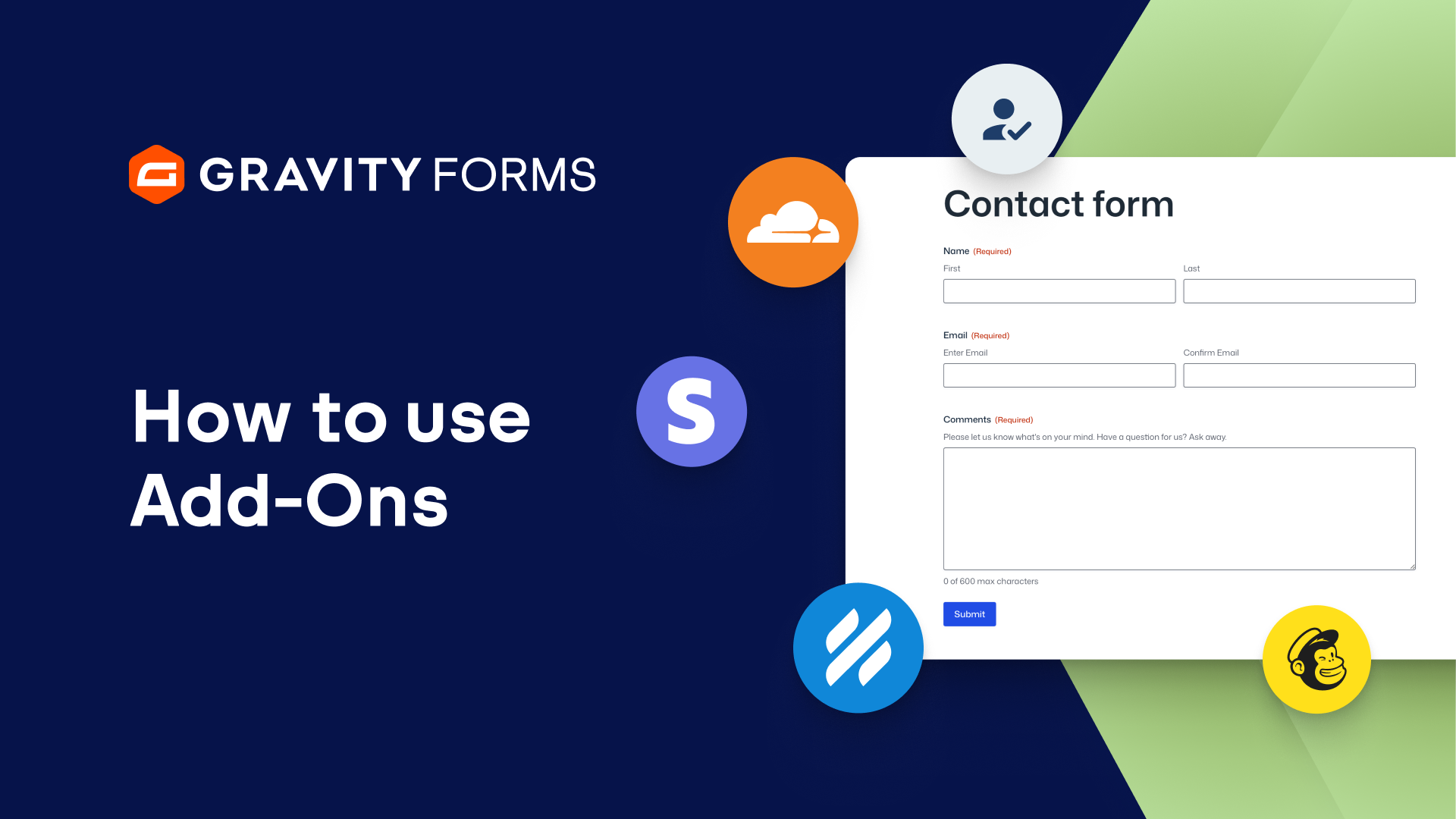
The Gravity Forms demo also lets you test drive all of our add-ons.
I am going to activate the reCAPTCHA Add-On, which will allow me to add a CAPTCHA checkbox to my form.
When you are happy with your form, you can use the embed button to embed your form on a new or existing page.
Next, I’m going to navigate to this form’s settings and customize the confirmation message the user will receive when they submit this form.
Finally, I’ll go to the WordPress page that I created moments ago to see this form in action.
It looks great!
I have a simple contact form that I can use to generate leads and boost my business.
For more Gravity Forms tutorials, check out our Video Library.
From everyone on the Gravity Forms team, thanks for watching.
Summary
Did you know that you can easily test out Gravity Forms with our free demo? In this video, we’ll take a look at how to use the demo to create your first form.