To learn more about using the Gravity Forms PayPal Checkout Add-On, check out our docs site.
Gravity Forms and PayPal integrate seamlessly to allow you to accept payments on your WordPress site from nearly any device.
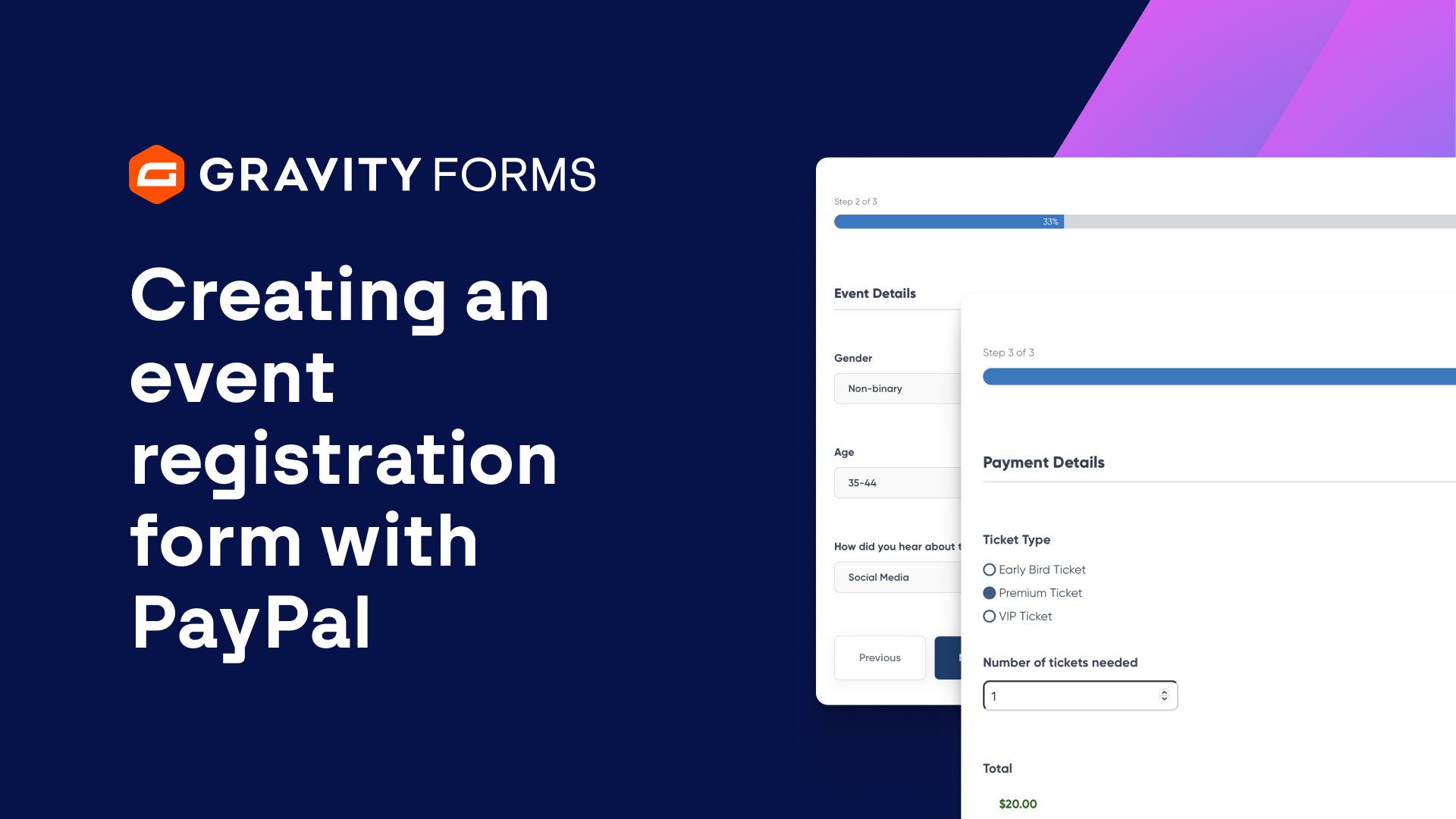
In this video, we’ll take a look at how to create an event registration form that accepts payments using PayPal.
If you’ve never used the PayPal Checkout Add-On, check out the video in the video summary for a full guide on getting set up with it.
Once the PayPal Checkout Add-On is installed and connected, create a new form from within your WordPress dashboard.
The Gravity Forms template library includes a built-in Event Registration Form template that we will use for this video.
Give your form a descriptive name, then select ‘Use template’.
The form can be customized and tailored to your liking, including customizing the event details.
For this example, I am simply going to add the PayPal field and opt to use other payment methods, including Venmo, as well as modify the appearance of the PayPal Smart Buttons.
Once I’m done, I’ll save my changes and then head to the PayPal Checkout settings for this form to edit the feed and configure the data that is sent from my form to PayPal.
Be sure to give the feed a descriptive name, then set the Transaction Type to ‘Products and Services’.
I’ll then map the Payment Amount to the Form Total field, as well as choose whether or not I want to use the ‘Authorize only’ option.
If this option is enabled, payments will only be authorized when an event attendee submits a form.
You will then be able to capture the payment by clicking the capture button from the entry details page.
Next, I’ll verify that the Billing Information fields are correctly mapped to their corresponding form fields.
If needed, I also have the option to not prompt the attendee to include a shipping address, as well as configure conditional logic and user registration options.
When I am done configuring the feed, I’ll save my changes and then embed the form on a page on my site.
In no time at all, I’ve built an easy-to-use event registration form that accepts payments via PayPal.
If you want the additional functionality of registering event attendees on your website, check out our video on user registration, linked in the video summary.
For more guides and tutorials on all things Gravity Forms, check out our video library.
From everyone on the Gravity team, thank you for watching!
Summary
Gravity Forms and PayPal integrate seamlessly to allow you to accept payments on your WordPress site from nearly any device. In this video tutorial, we’ll take a look at how to create an event registration form that accepts payments using PayPal.
If you’ve never used the PayPal Checkout Add-On, check out this video first.
If you want the additional functionality of registering event attendees on your website, be sure to watch this video.