For more information on using the Mailchimp Add-On, check out ourdocs site.
An email list is one of the most important assets in your marketing arsenal.
As you grow your list and accumulate email addresses, you will want to use an email marketing platform to help manage and nurture relationships with these potential new customers.
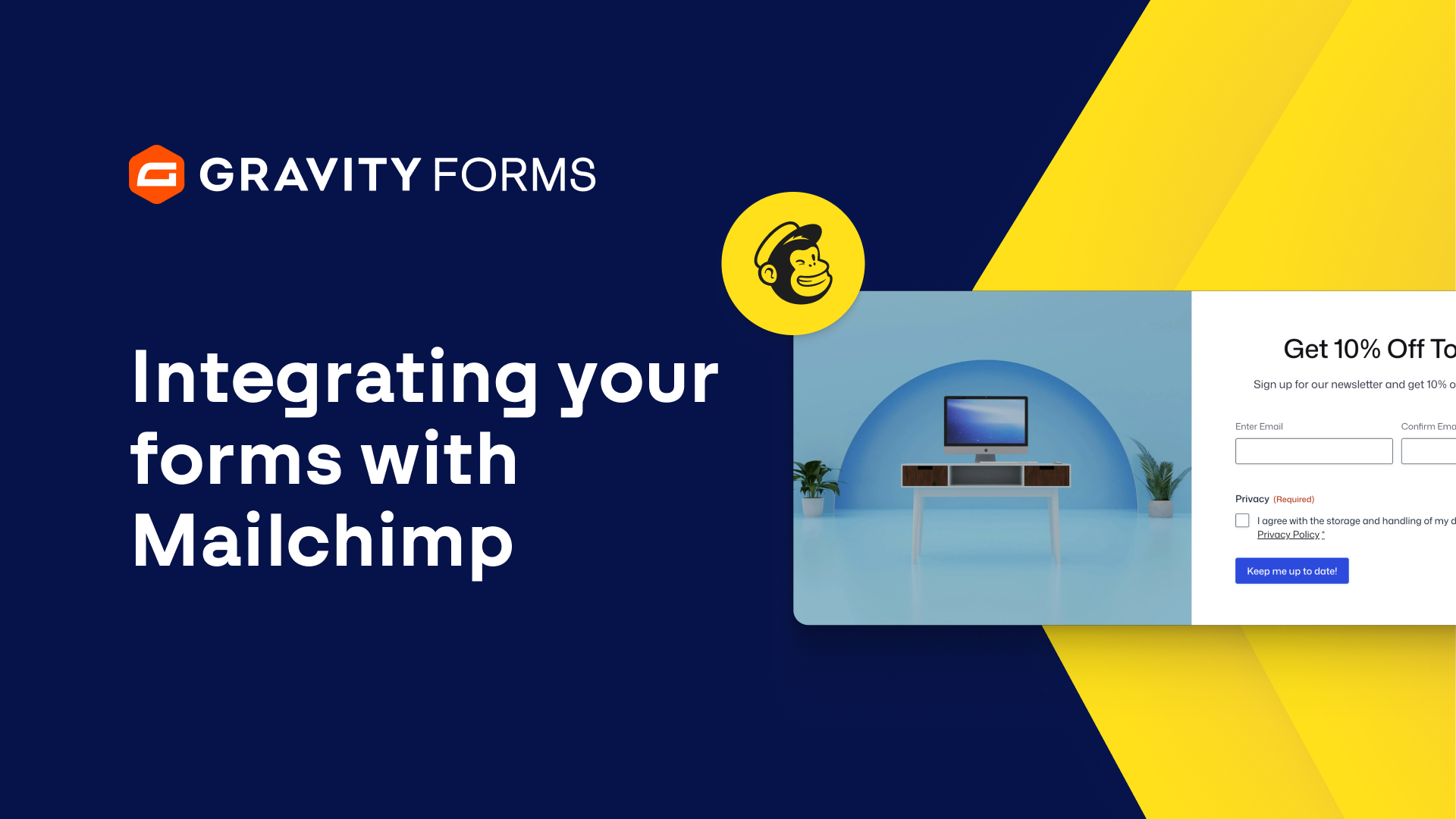
In this video, we’ll show you how to integrate your forms with Mailchimp, one of the most popular email marketing platforms available.
To get started, you’ll first need to install and activate the Mailchimp Add-On from your WordPress dashboard.
Next, go to the Gravity Forms Settings page and select Mailchimp.
The ‘Connect to Mailchimp’ button will let you sync Gravity Forms with your Mailchimp account.
The next step is to create a feed for the form you are going to use to collect email addresses.
A feed will allow you to specify the data that is sent from your form to Mailchimp.
To create a feed, go to your form’s settings and select Mailchimp.
Then, select ‘Add New’.
Give the feed a descriptive title and select the Mailchimp Audience you want to use to store and manage any contacts collected.
Next, use the dropdown boxes to map your form fields to the appropriate Mailchimp fields.
For instance, I’ll map the ‘Email’ field on my contact form to Mailchimp’s ‘Email Address’ field.
Now, whenever this form is submitted, a new contact, along with their email address, will be added to your selected Mailchimp Audience.
If needed, you can enable Double Opt-In, which will send a confirmation email to the user and only add them to your Mailchimp audience upon confirmation.
Additionally, you can choose to mark the subscriber as VIP.
You can also add tags and notes to your contacts.
I’ll add the tag “New Lead”, and then add a ‘Date’ merge tag as a note.
Any new contact will now be assigned the tag “New Lead”, and be given a note indicating the date they submitted the form.
You also have the option to enable conditional logic, which will allow you to set conditions to be met before this feed will be processed.
Once you’ve completed configuring the form feed, save your settings and embed the form on a page or post on your website.
Now, as a new user submits a contact form, they will automatically be added to your chosen Mailchimp Audience as a new contact.
For more guides and tutorials on all things Gravity Forms, be sure to check out our video library.
From everyone on the Gravity team, thank you for watching!
Summary
An email list is a powerful tool in your marketing arsenal. In this video, we’ll show you how to grow and nurture leads by integrating your forms with Mailchimp, one of the most popular email marketing platforms available.