Written by the editorial team at Password Protected…
Password-protecting a lead magnet, ebook, premium guide, or other digital resource in WordPress helps you control access. However, a simple password field fails to collect leads, verify users, or trigger automated actions.
That is where combining Gravity Forms with a dedicated content protection plugin like Password Protected makes a massive difference.
Instead of relying on a static password box, you can implement robust WordPress access control by presenting visitors with a customized form. This approach allows you to collect contact information, process payments, or verify user details before the system automatically grants access to your protected content.
This guide shows how to integrate Gravity Forms to unlock password-protected content after a successful form submission.
Note: Password Protected is a third-party solution. Gravity Forms does not offer support for this platform, nor is this article intended to be a Gravity Forms endorsement of this platform, its developers, or quality of support. As always, we recommend you extensively evaluate all solutions to ensure their suitability for your purpose.
What is password protected content and how does it work?
Password-protected content restricts access to a post, page, category, or entire site until a visitor enters the correct password. Instead of showing a 404 error, the system displays a plain login screen where visitors enter the password to unlock the content.
Users often confuse “private” and “password-protected” content, but they function differently:
- Private content: Only users with the correct role can view this content. No password is required.
- Password-protected content: Anyone can access this content by entering the correct password, whether or not they log in.
Common business use cases:
Client deliverables, premium downloads, internal documentation, early-access pages, course lessons, and event or campaign landing pages all commonly sit behind a password.
How does password protection work?
Password Protected lets you secure your entire WordPress site or specific content with one or more passwords. Visitors without the correct password see a password entry screen instead of the protected content. Once they enter a valid password, they’re granted access for the duration of their browsing session.
This approach is ideal for temporarily restricting access to websites, client projects, staging environments, premium resources, or internal documents without requiring users to create an account.
It’s simple to set up and works well when you want to share content with a specific audience using a shared password.
However, as your access requirements become more advanced, you’ll need a more flexible solution like pairing Password Protected with Gravity Forms.
Limitations of password-only access
A single password hides content from the public, but it doesn’t do much else.
This is what password-only access looks like.

Everyone with the password sees the same screen, so you can’t identify individual visitors, capture leads, or require payment. Furthermore, the password itself cannot stop users from sharing it with unauthorized people.
- No lead capture: Visitors gain access without giving up a name or email.
- No payment processing: You cannot tie content access to a purchase.
- No individual access management: Removing access for one user requires changing the shared password for everyone.
Content remains either fully visible or completely locked; the system shows the visitor nothing before they enter a password. Once a password leaks, you cannot revoke it unless you change or remove it entirely.
For a casually shared page, this matters little. For anything tied to leads, payments, or sensitive material, password-only access runs out of road fast.
How Gravity Forms enhances Password Protected
Password Protected secures content with passwords; meanwhile, Gravity Forms adds more flexible ways to validate visitors and grant that access. Combining the two creates a far more customized experience than either tool offers alone.
- Form based access control: Replace the standard password prompt with a branded Gravity Forms form, collect information before granting access, and shape the experience around your visitors.
- Custom validation: Validate passwords against custom rules, verify email addresses or approved domains, and require additional information before content unlocks.
- Conditional logic: Display different fields based on user input, show personalized messages, and build different access flows for different types of visitors.
- Redirects and confirmations: Send visitors to the right protected page after successful validation, display custom confirmation messages, and guide different users through different journeys.
- Integrations and automation: Send visitor data to CRMs or email marketing platforms, trigger notifications for admins, and connect to automation tools via webhooks or Zapier
- Improved user experience: A branded access form, clear validation messages, mobile-friendly design, and less friction than the default password screen
How to unlock password protected content with Gravity Forms
Want visitors to submit an email before they get in? Pay first? Get a link instead of a password? Password Protected Gravity Forms Integration allows you to do that. Here’s a look at the two primary ways to unlock password protected content with Gravity Forms.
To unlock protected content with Gravity Forms, first complete the following prerequisites:
Prerequisites: Install the required plugins
Note: You need the Password Protected premium version (Business Plan) because only premium users get access to the Password Protected Gravity Forms integration. Install and activate the free plugin before adding the Pro plugin.
Install the Password Protected plugin:
Here’s how to do it:
- Log in to your WordPress admin.
- Go to Plugins → Add Plugin.
- In the top-right search bar, enter “Password Protected”.
- For the correct plugin, click Install Now. In a few seconds, click Activate.
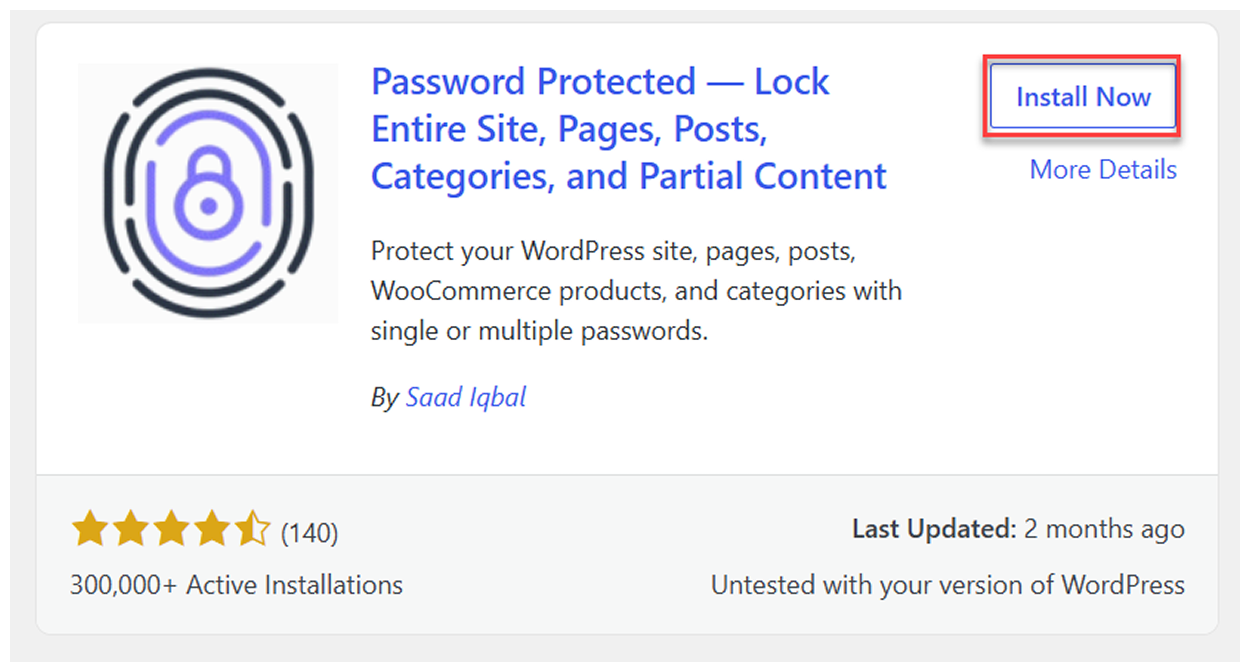
You have successfully installed and activated Password Protected (FREE).
To activate Password Protected Pro, first go to the pricing page and buy the Password Protected Business plan – you can save more with a Lifetime Purchase.
You will get an email consisting of:
- Password Protected Pro – ZIP File
- License Key
Follow the steps below to activate Password Protected Pro.
Now head back to Plugins → Add Plugin. Click Upload Plugin.
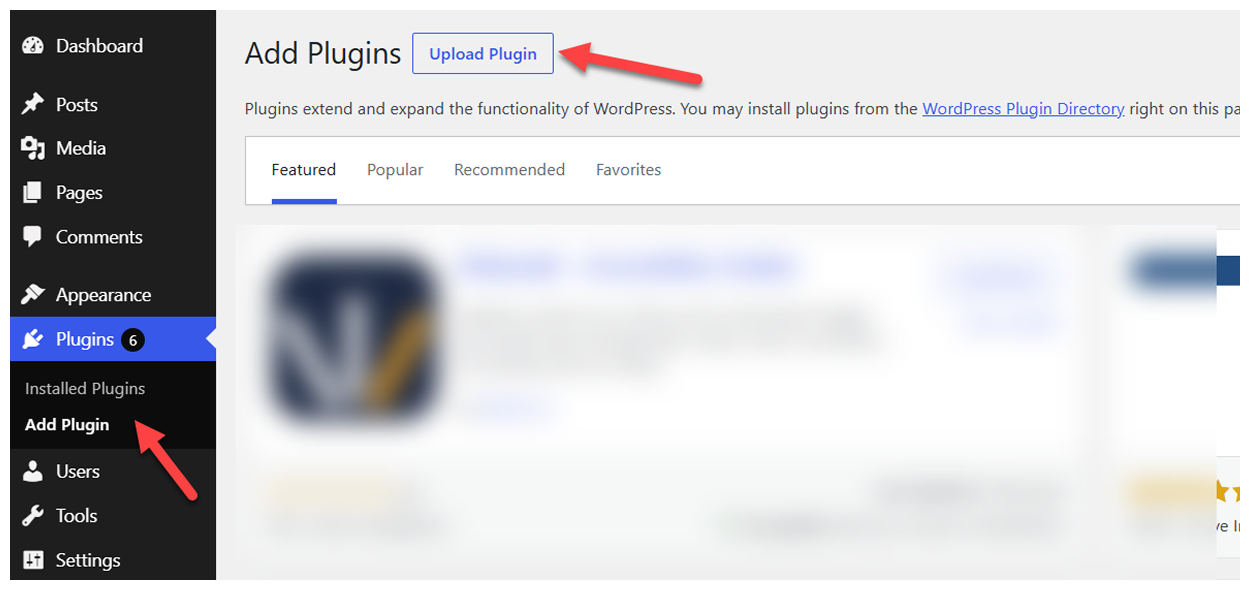
This will open a section below where you can upload your ZIP file.
Click Choose File, and select the ZIP file you just received in the email. Then click Install Now.
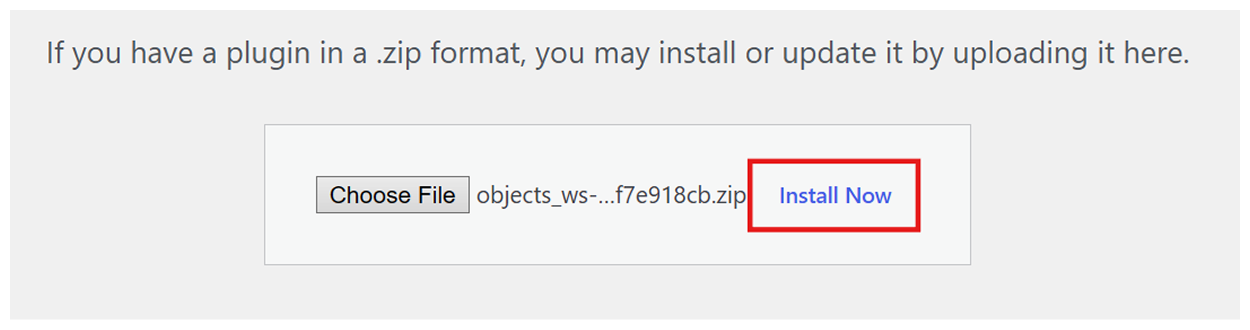
Once installed, you will be redirected to the activation page. Enter your License key and click Activate License.
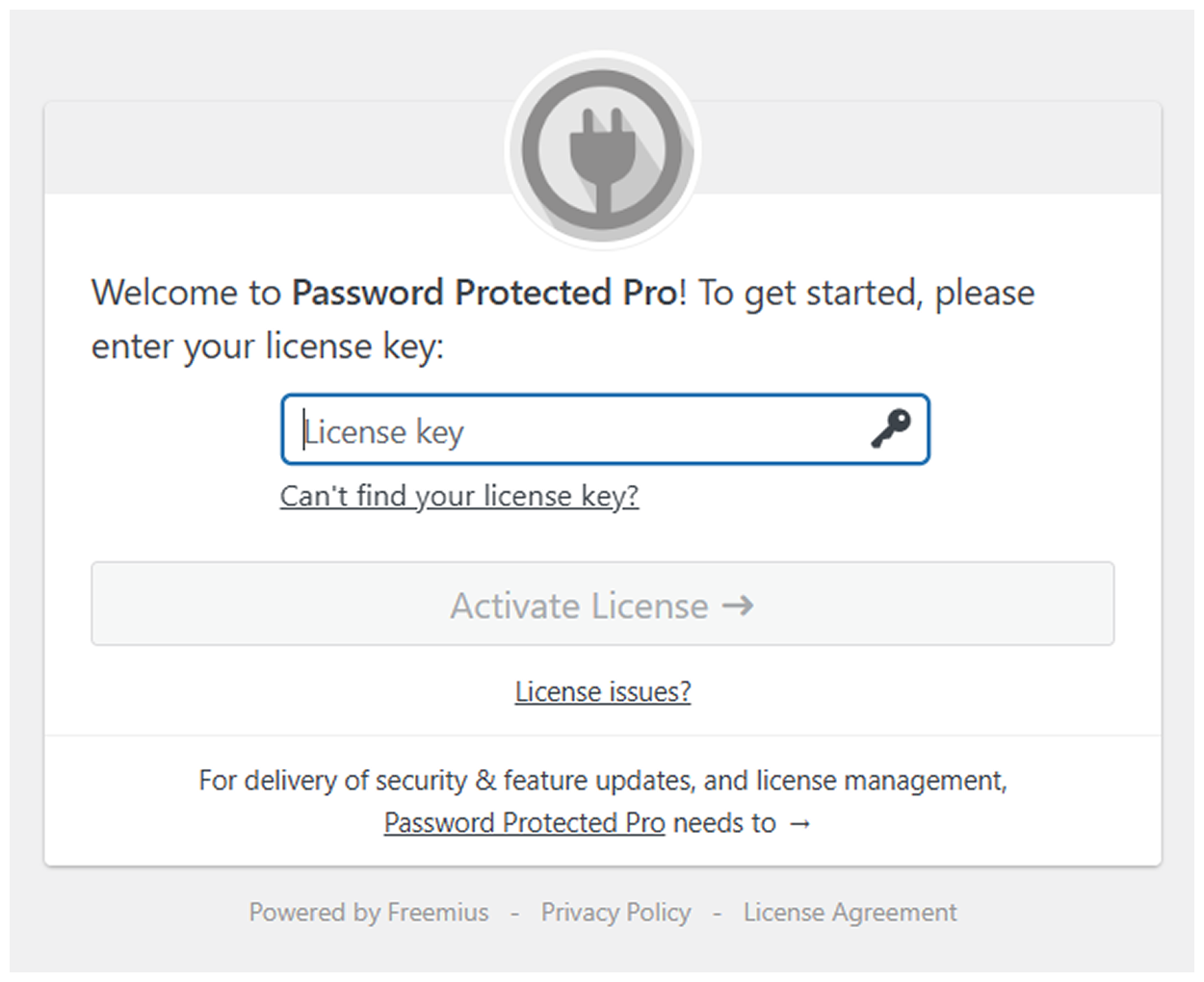
Congratulations on activating Password Protected Pro!
Install the Gravity Forms plugin:
Note: Gravity Forms is a premium plugin and isn’t available in a free version. If you’d like to explore its features before purchasing, you can try the live demo on the Gravity Forms website.
- Visit the official Gravity Forms website and purchase any plan of your choice.
- Download the Gravity Forms plugin ZIP file from your Gravity account.
- Visit Plugins → Add Plugin → Upload Plugin.
- Click Choose File, select the ZIP file you just downloaded from the Gravity Forms Downloads page, then click Install Now.
- Gravity Forms will now appear in your WordPress sidebar.
- Get your license key in your Gravity Forms account under Licenses and copy the key.
- Now go to WordPress → Gravity Forms settings and paste the key under Support License Key.
- Click Activate License.
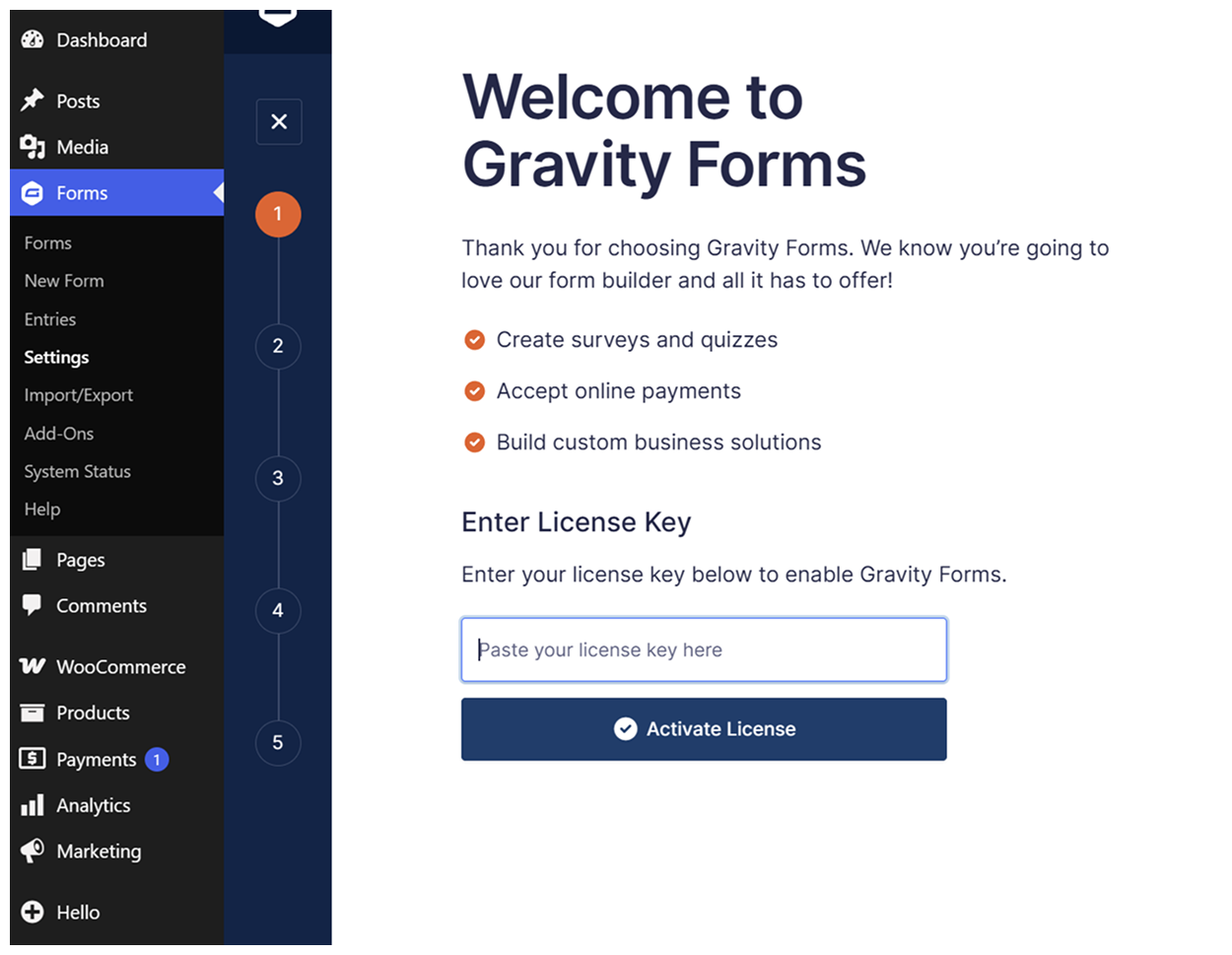
You have now successfully activated Gravity Forms!
Note: Before you continue, choose the password protection method you’ll use. The prerequisite steps below vary depending on whether you’re using a Central Password Form or a Bypass URL. A Central Password Form protects content through a password form, while a Bypass URL lets users access protected content through a unique URL.
Prerequisite #1: Password protect a page or post (for central password form):
Go to Password Protected → Content Protection.
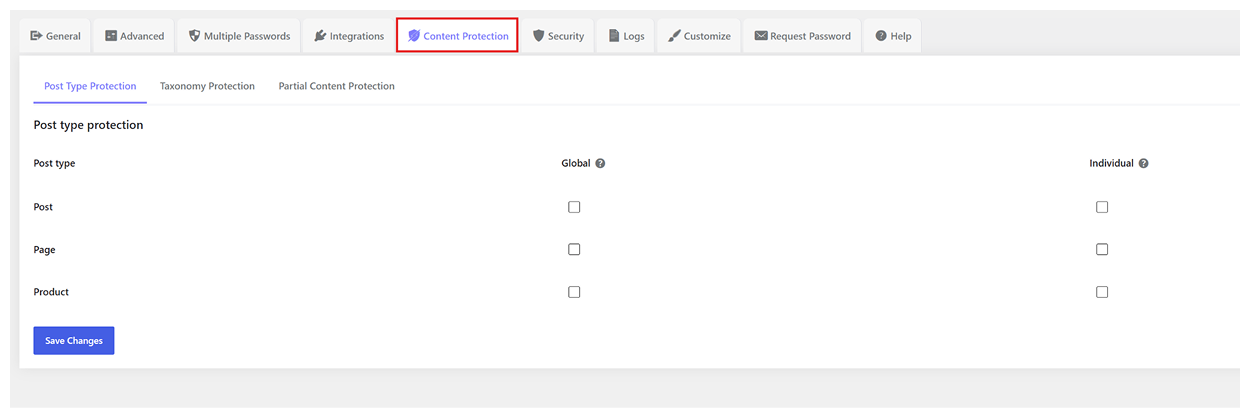
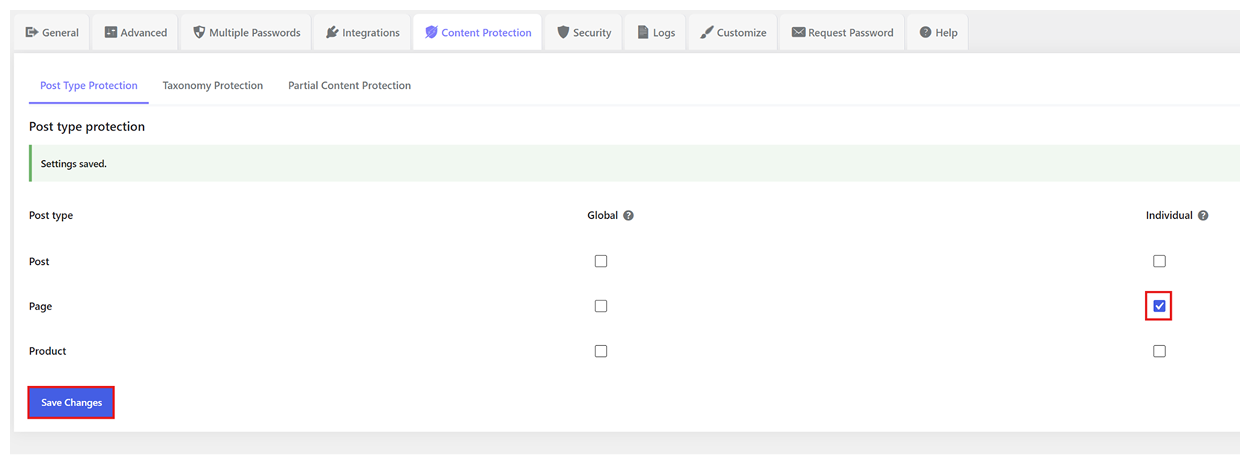
Select either Post or Page for individual protection. Let’s select Page (individual) – click the checkbox and Save Changes.
Now go to Page → All Pages. Either add a new page or edit an existing one. As you scroll down, you will see an option to enable Password Protection. Toggle it on and click Save Changes.

You can now set a password with a usage limit and expiry.
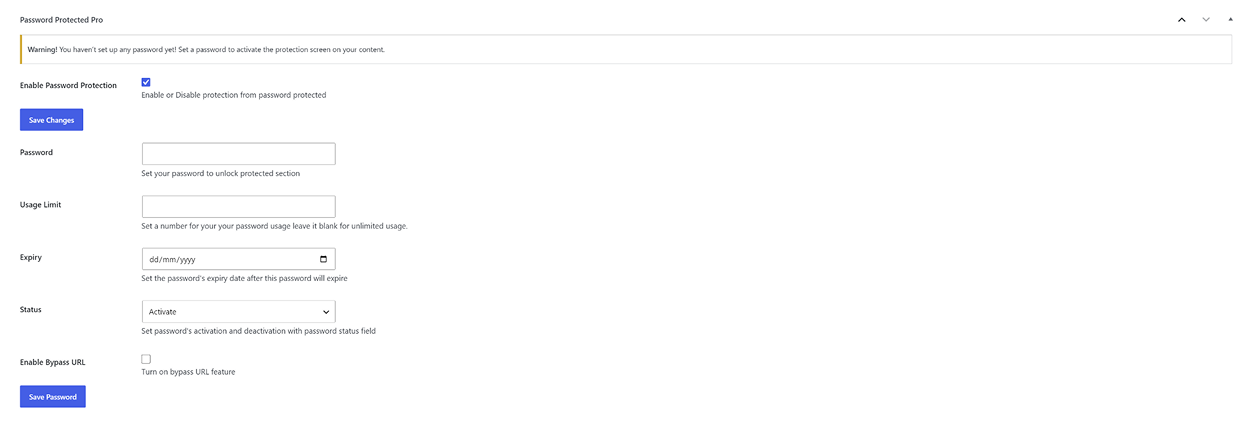
Once configured, click Save Password, and either Publish page (if new page) or Save page (if editing an existing one).
Prerequisite #2: Password protect a page or post (for bypass URL):
Follow the same steps as above till you enable password protection on the page/post.
Set a password of your choice, and remember that you must set criteria for usage limits and expiry for the Bypass URL. Then tick the Enable Bypass URL checkbox to allow users to access the protected content through the generated bypass URL without a password.
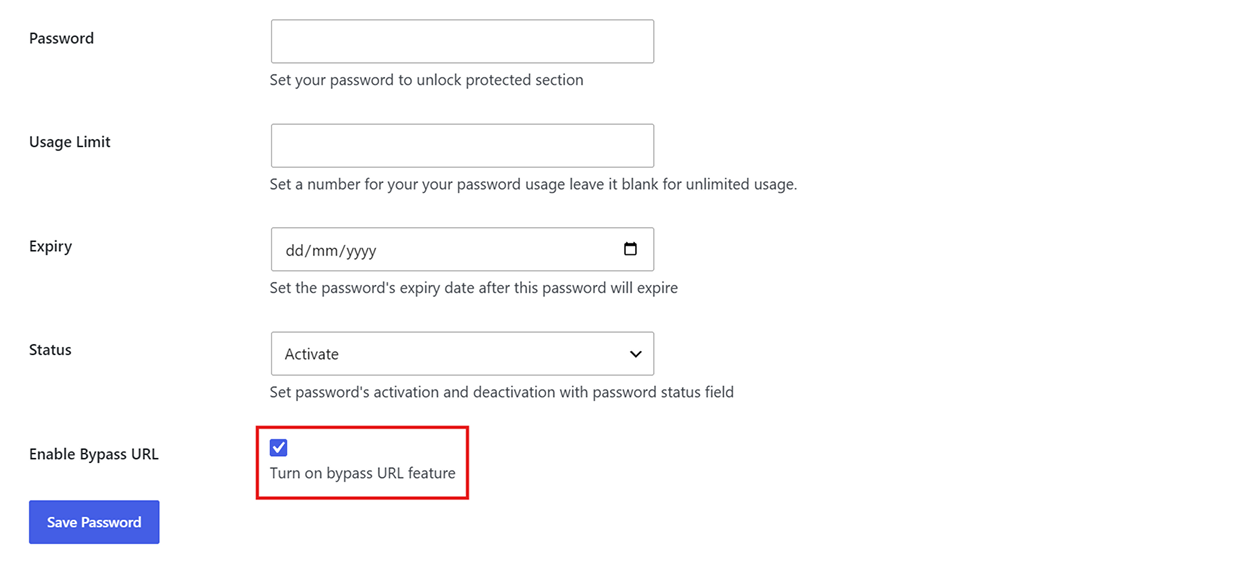
Once configured, click Save Password, then either Publish page (if it’s a new page) or Save page (if you’re editing an existing one).
Let’s now dive into how to unlock password protected content with Gravity Forms.
Method 1: Use Gravity Forms as a central password form
In WordPress, go to Password Protected → Integrations. Find the Gravity Forms card.
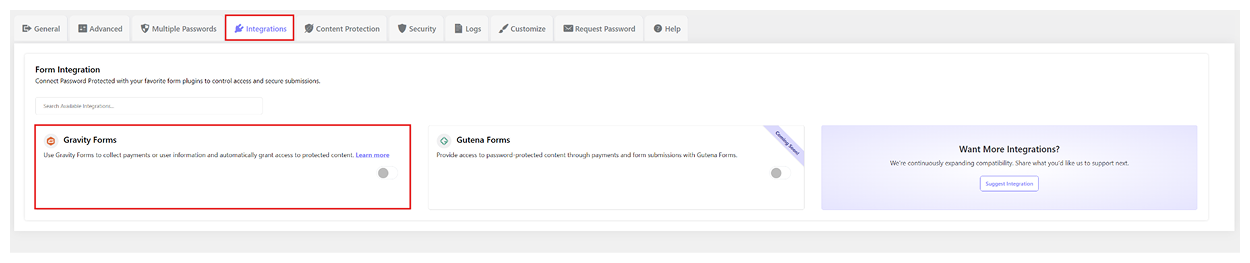
Toggle the Gravity Forms integration to On.
Now head to Gravity Forms. Create a new form, select a template, or open an existing Gravity Form.
Add a Single-Line Text field to use as the password field. Name the field Password, then go to Field Settings → Advanced and select Enable Password Input. (Remember the ID – in this case = 4).
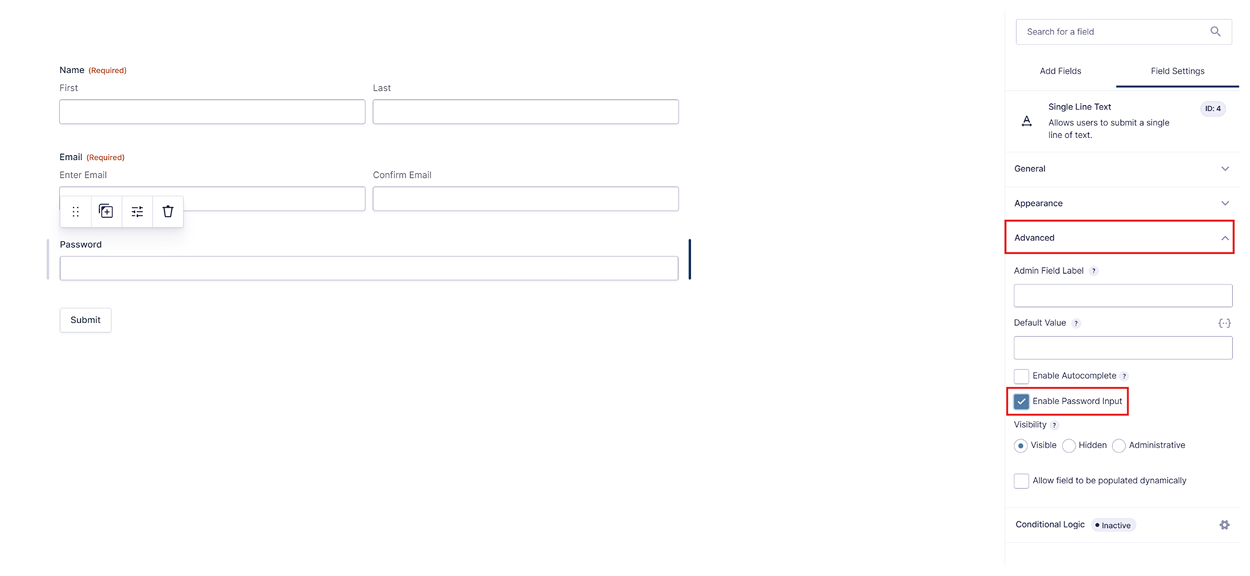
Click Save Form on the top right.
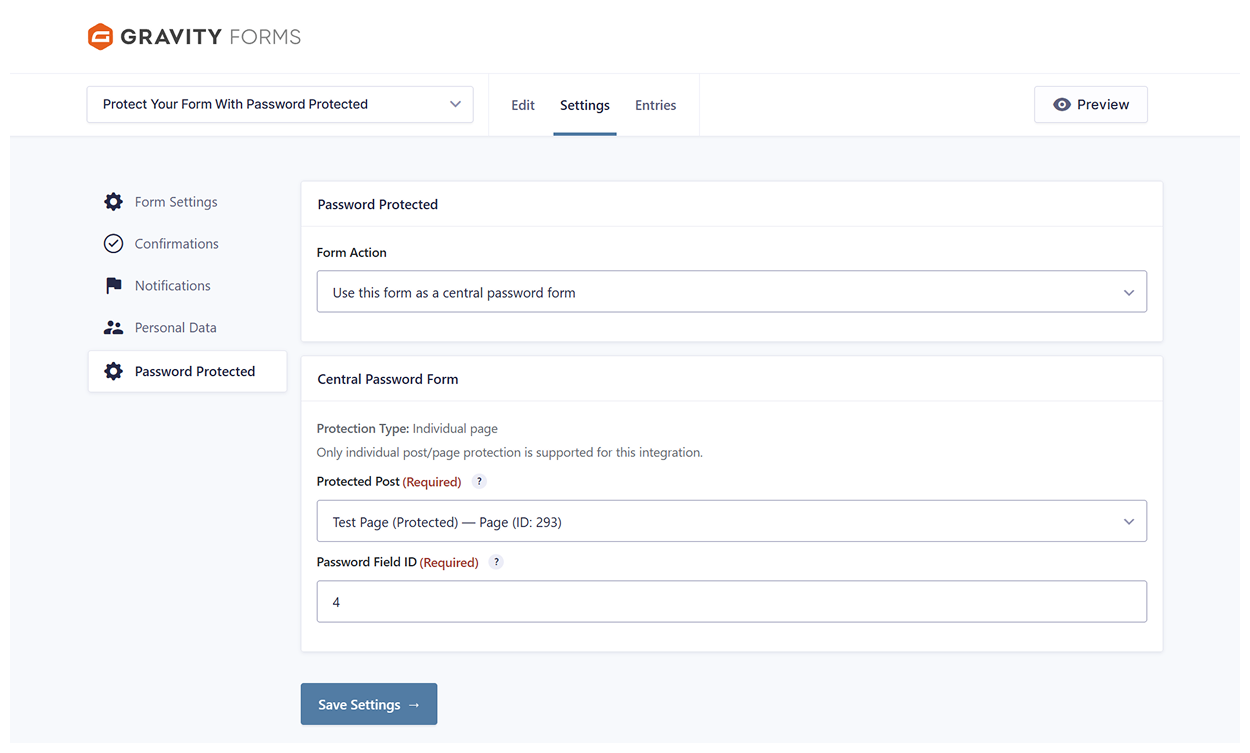
Now, navigate to Form Settings.
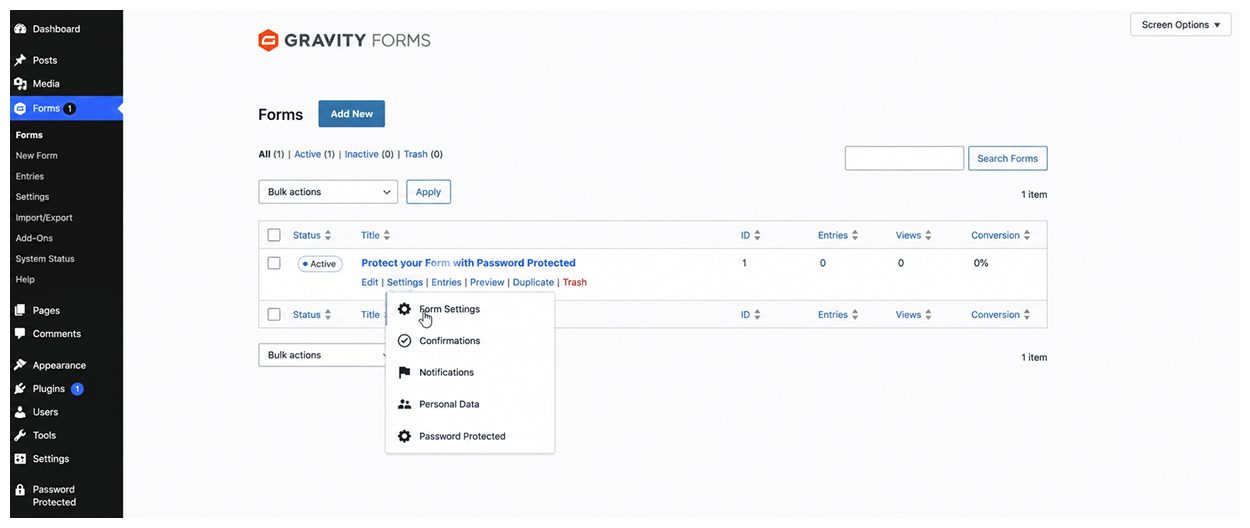
Go to Password Protected and click the Form Action drop-down.
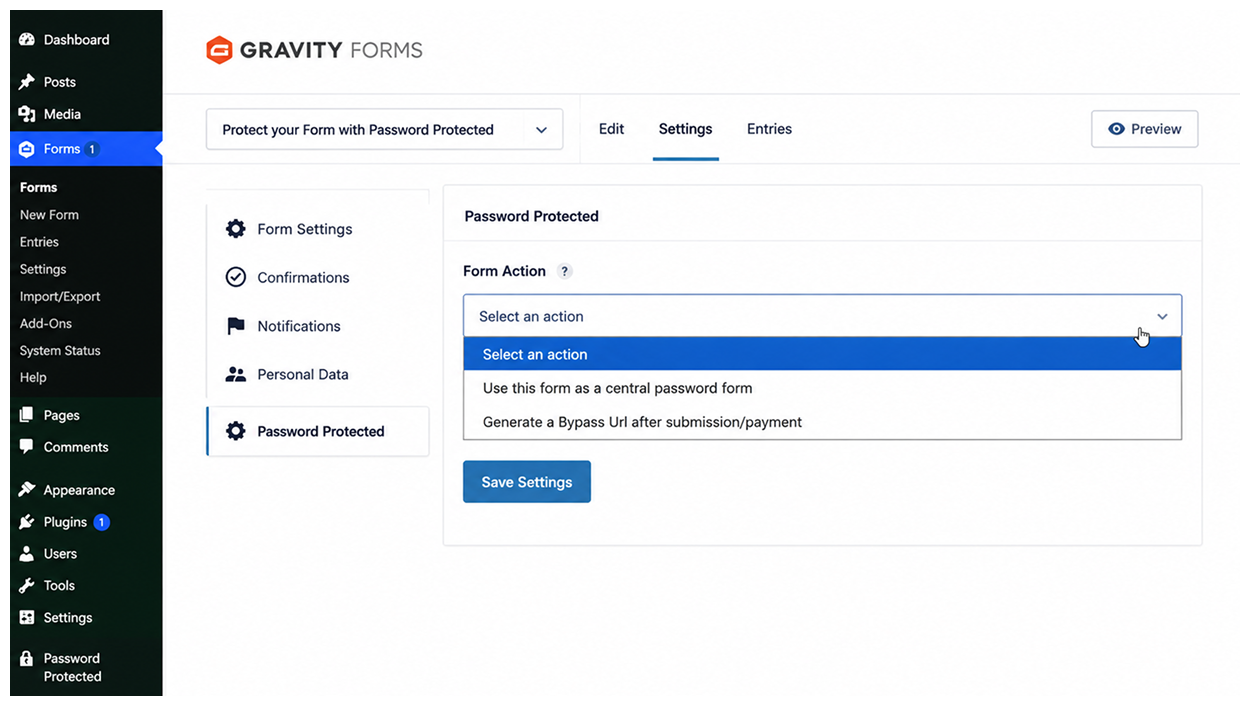
Choose “Use this form as a central password form” as the Form Action. You will notice another section appear under the drop-down.
Now select the Protected Page from the drop-down. Enter the Gravity Forms password Field ID in the Password Field ID and click Save Settings.
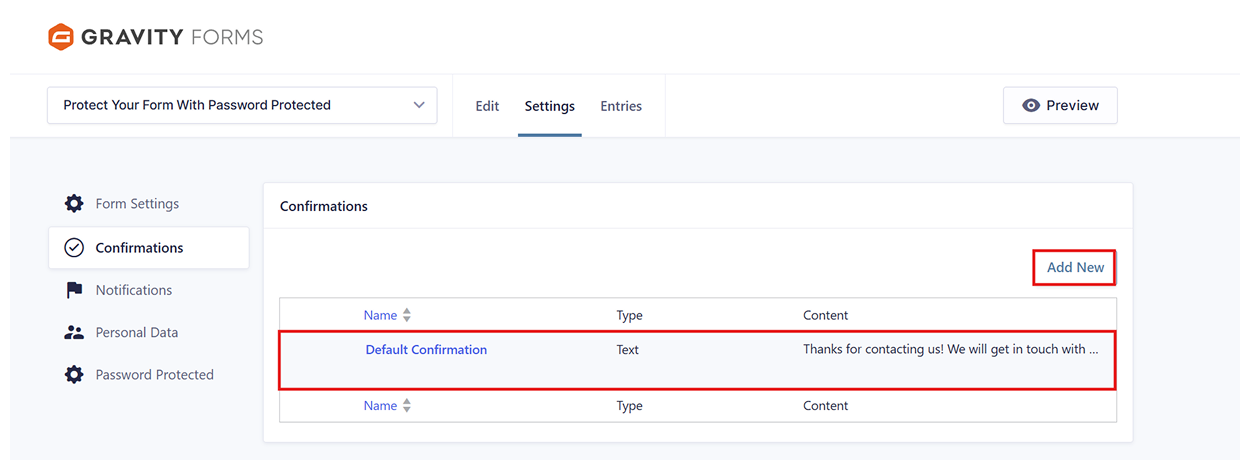
Go to Confirmations and click to either add a new one or edit the existing one.
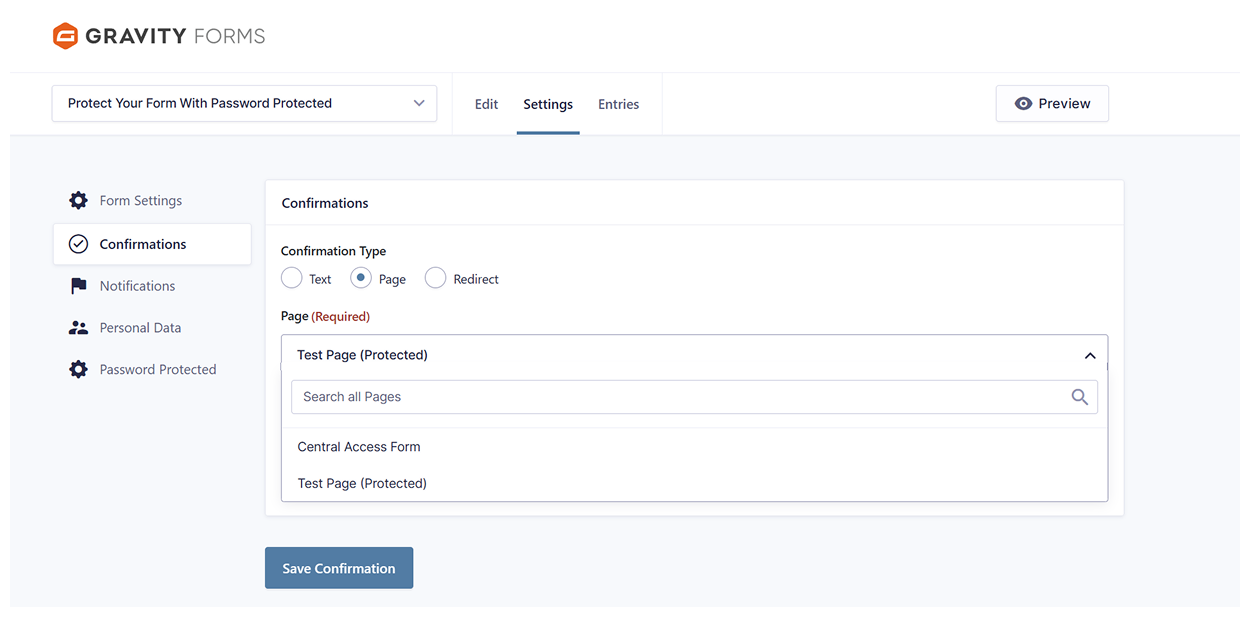
Click Page, and select the Password Protected Page you want to redirect to (Test Page in this case). Then click Save Confirmation.
Now create another page or edit an existing one where you would embed the Gravity Form. Type “/Gravity Form”, and select the Gravity Form option.

Once you click on it, you can now select the Central Password Gravity Form you created.
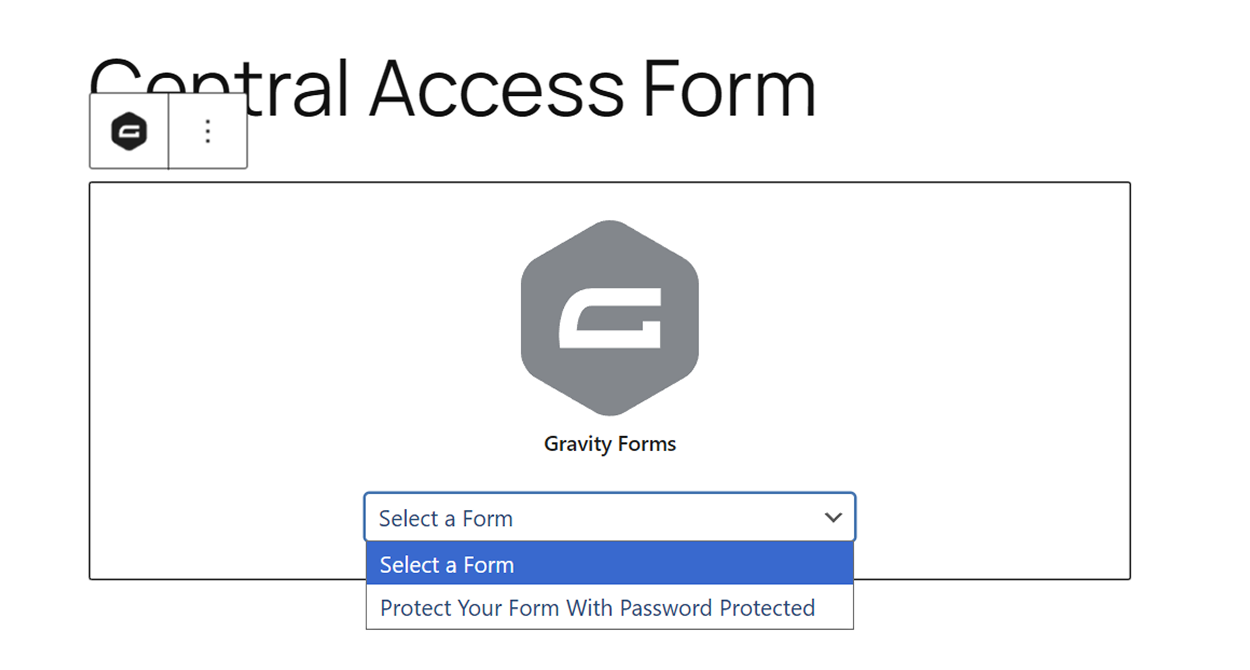
The page will now display the entire form as-is. Publish the page to make it live. You have successfully embedded the Central Password Form in the page.
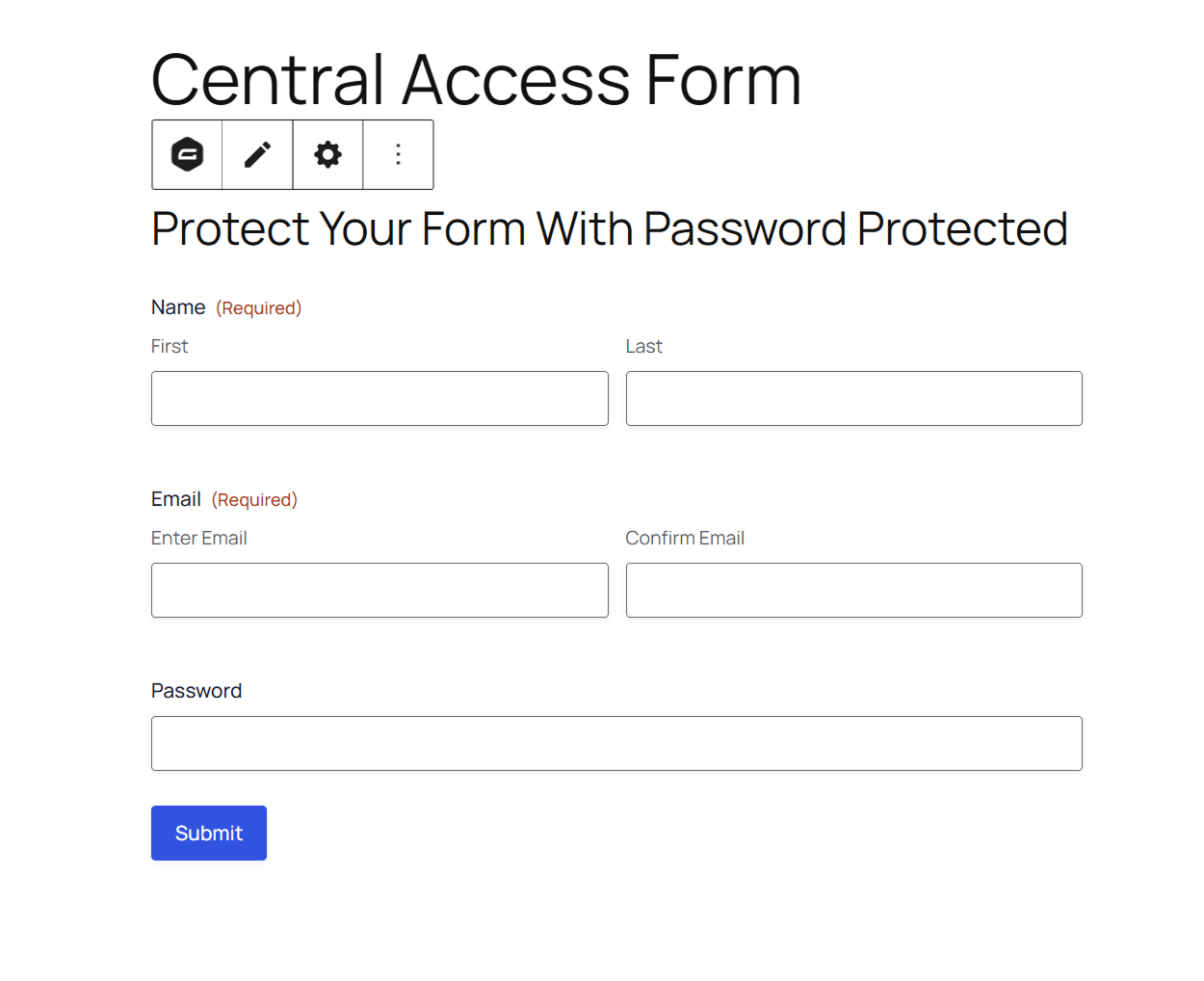
This setup lets visitors access the protected page through Gravity Forms as a central access form.
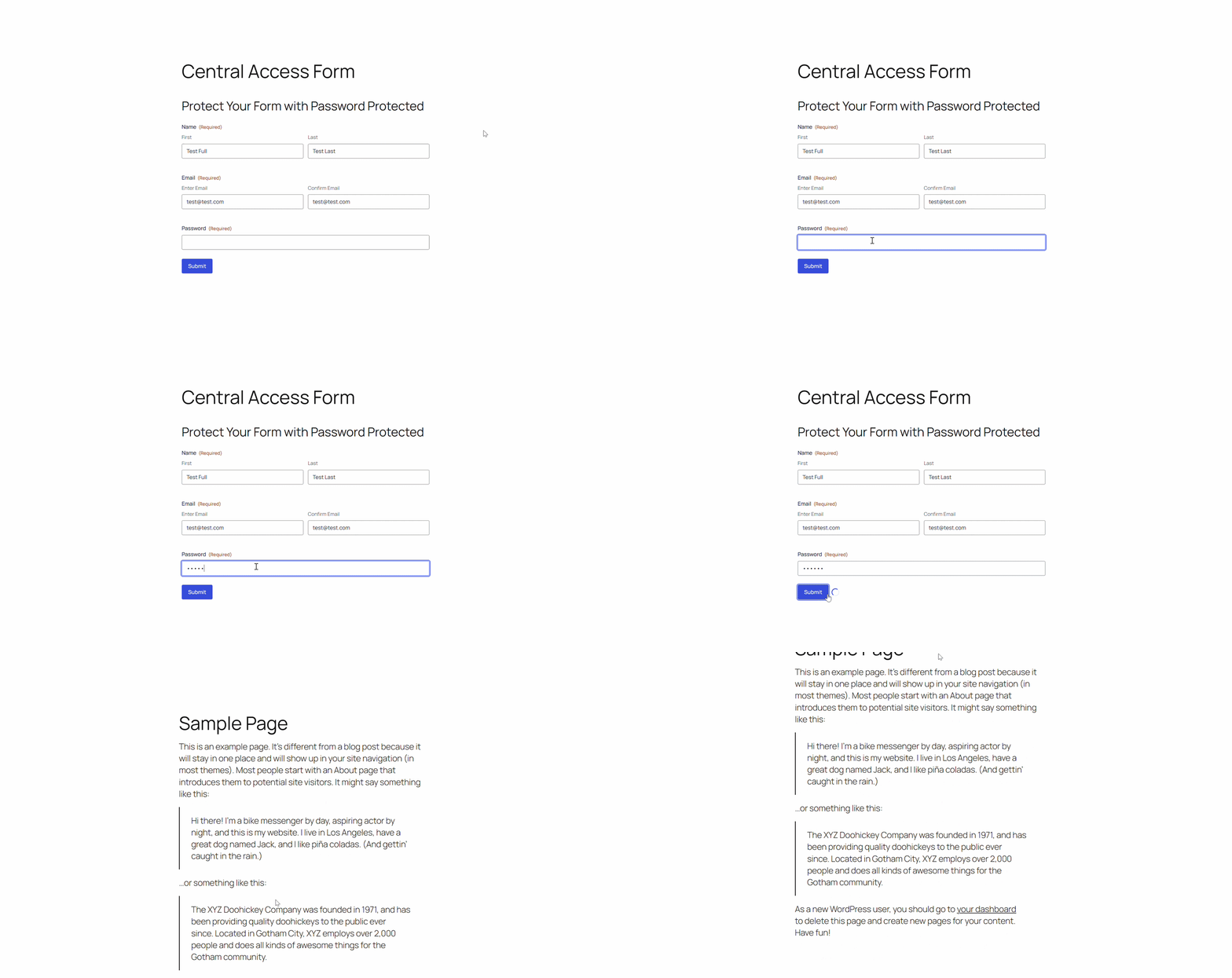
You have successfully used Gravity Forms as a Central Password Form.
Method 2: Send a secure bypass link via email
If you’ve already enabled the Gravity Forms integration in the Password Protected plugin, you don’t need to toggle it again.
Note: You don’t need a password field when accessing through the bypass link.
Go to Gravity Forms, create a new form, and publish it.
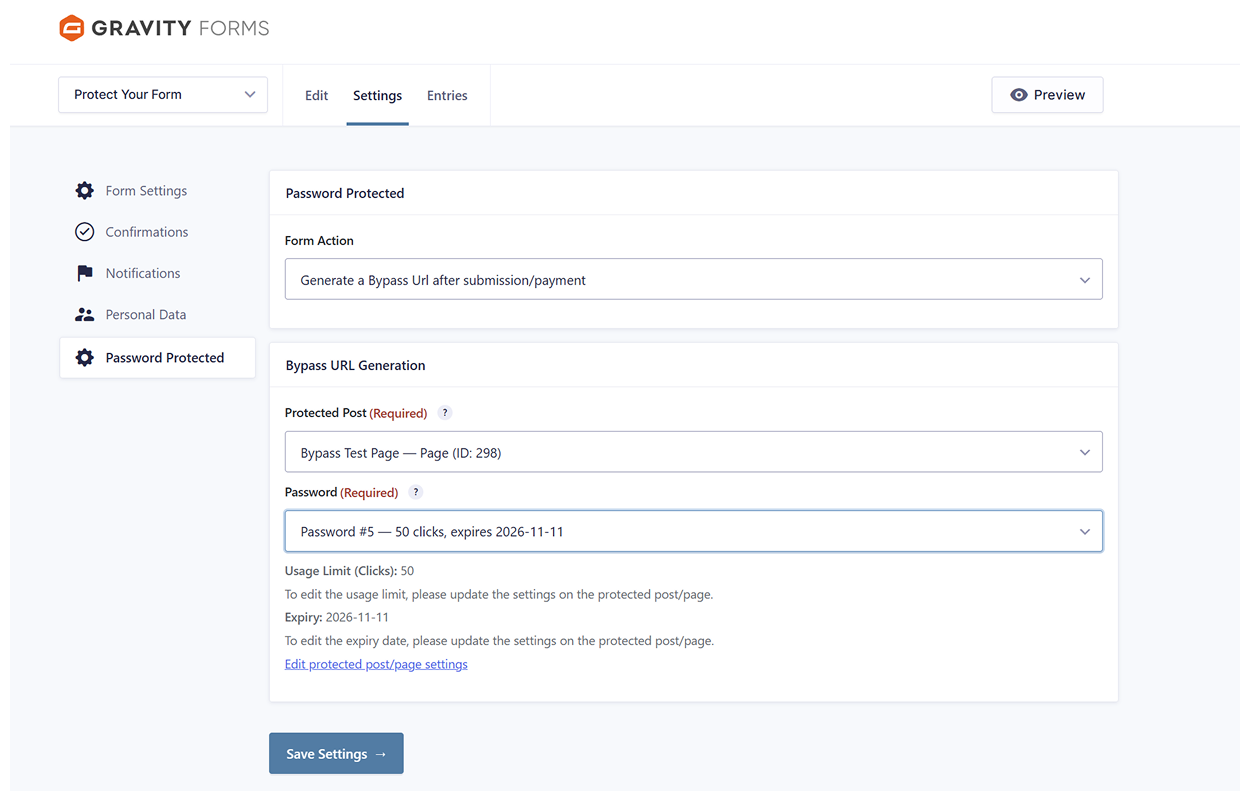
Go to Form Settings → Password Protected, or hover over Settings and click Password Protected.
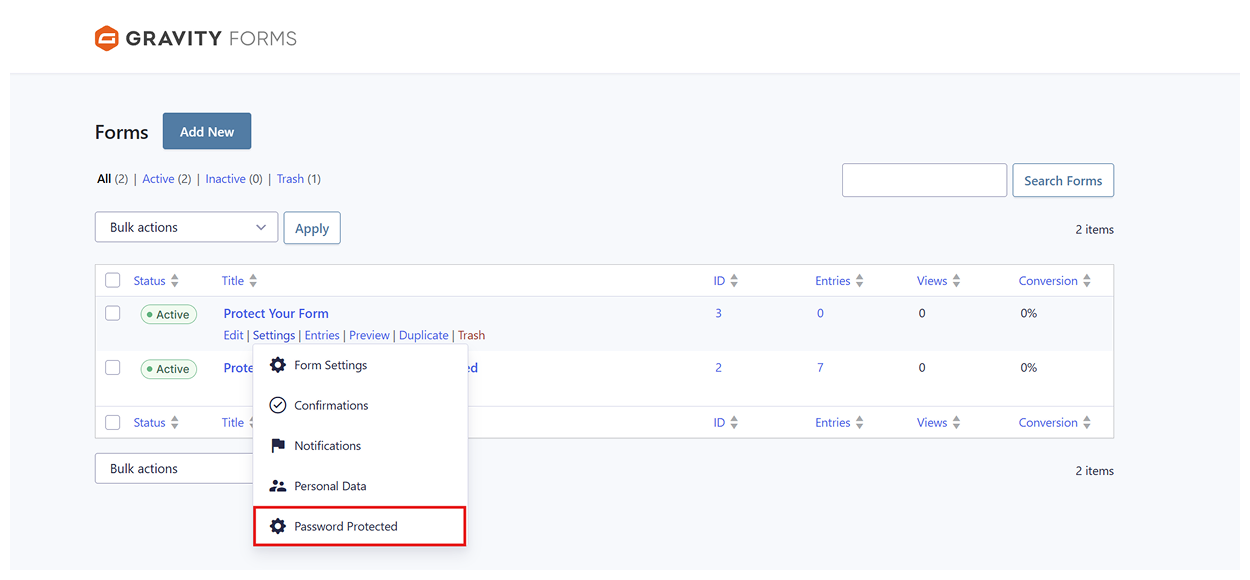
In the Form Action dropdown, select Generate a Bypass URL after submission/payment. You can generate a Bypass URL in two ways: after a form submission or after receiving a payment.
Use the form submission option to send users a Bypass URL after they submit a form, or require payment before sending the Bypass URL to give users access to premium content.
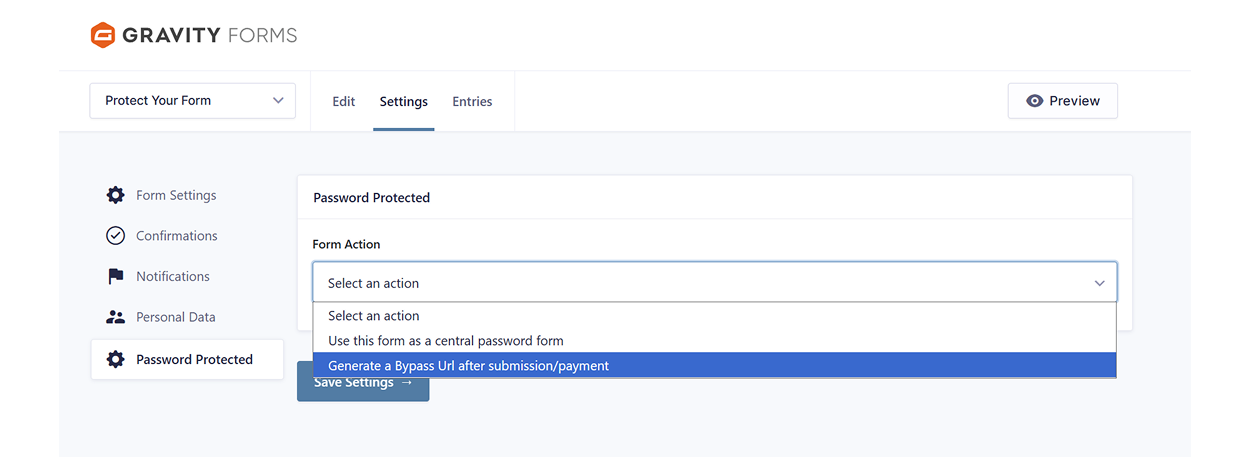
Select the correct Page and Password. Then click Save Settings.
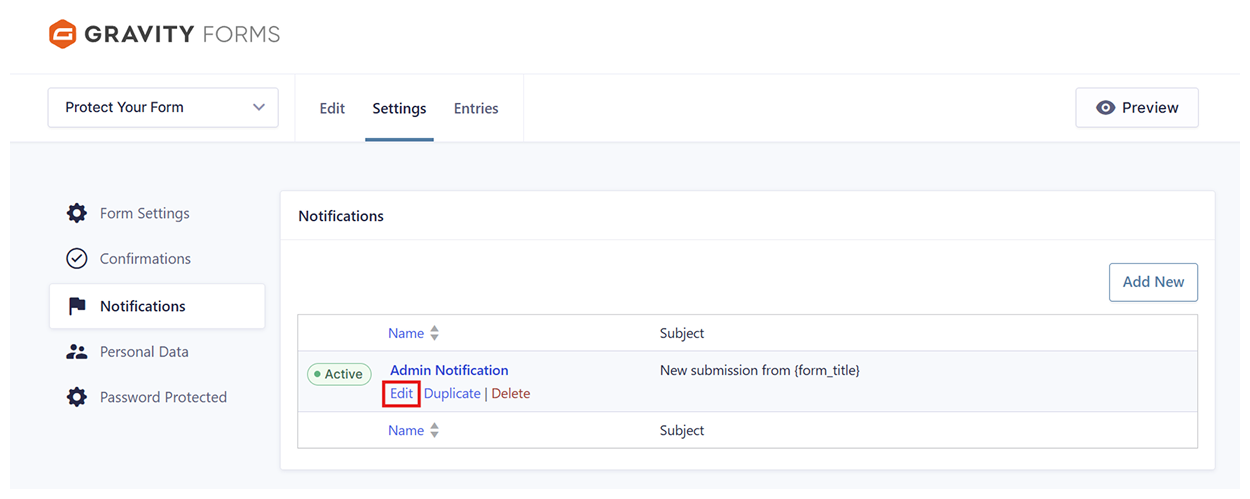
Go to Notifications and click to either add a new notification or edit an existing one.
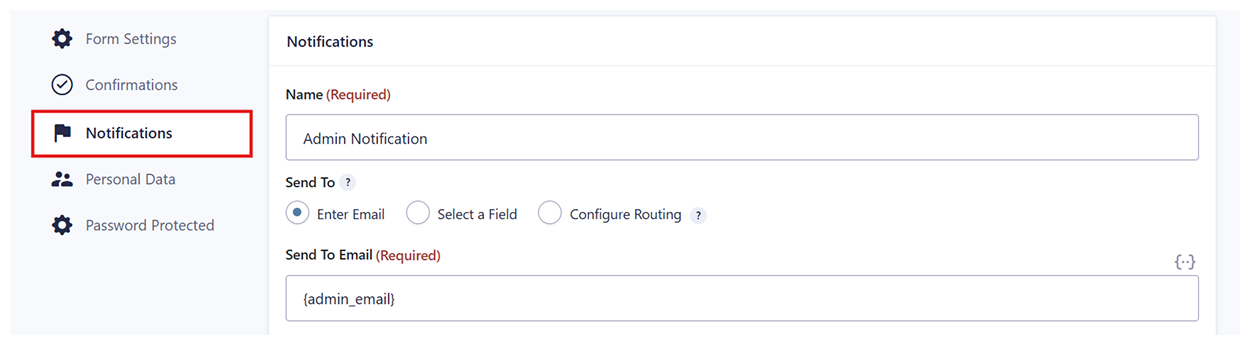
Edit the notification as needed. But make sure you don’t miss this step; the user won’t receive the bypass URL.
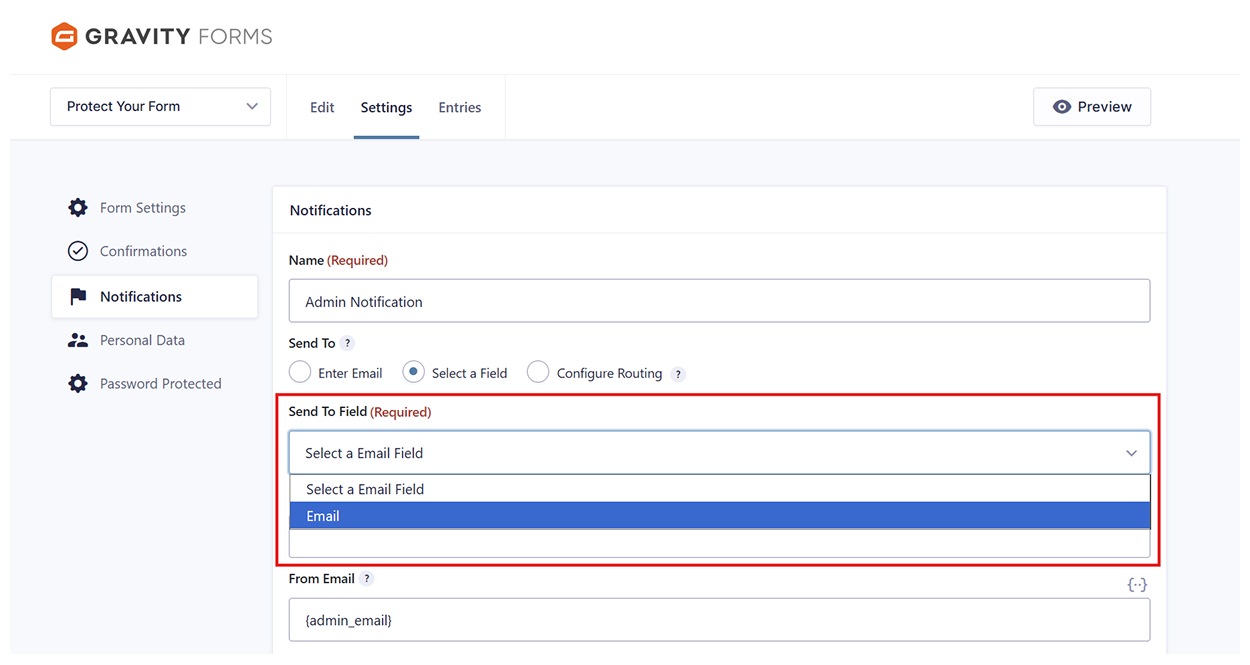
Change the “Send To” option from Enter Email to Select a Field, and in the drop-down, select Email (The plugin connects it to the Email field you previously added to the Gravity Form).
In the message, add the {pp_bypass_link} merge tag to the email body.
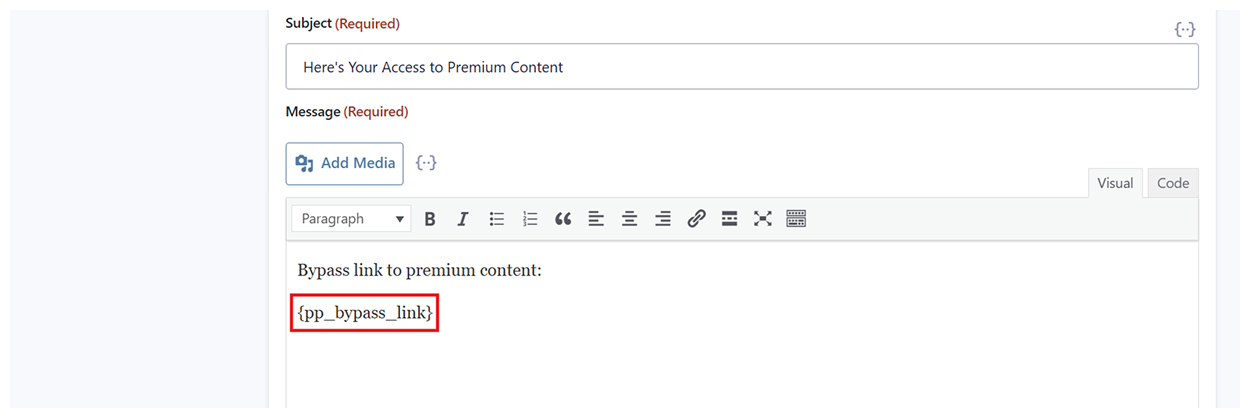
Click Save Notification.
Note: When Gravity Forms sends the notification, Password Protected automatically replaces the {pp_bypass_link} merge tag with the bypass link, allowing users to access the protected content without entering a password. The bypass link follows the usage limit and expiry settings you configured for the selected protected post or page. If the notification does not include {pp_bypass_link}, the user will not receive the bypass link.
When a user submits the form, they will receive an email containing the bypass link. Password Protected doesn’t generate a new bypass link with each submission. Instead, Password Protected adds the existing bypass link to the email each time a user successfully submits the form.
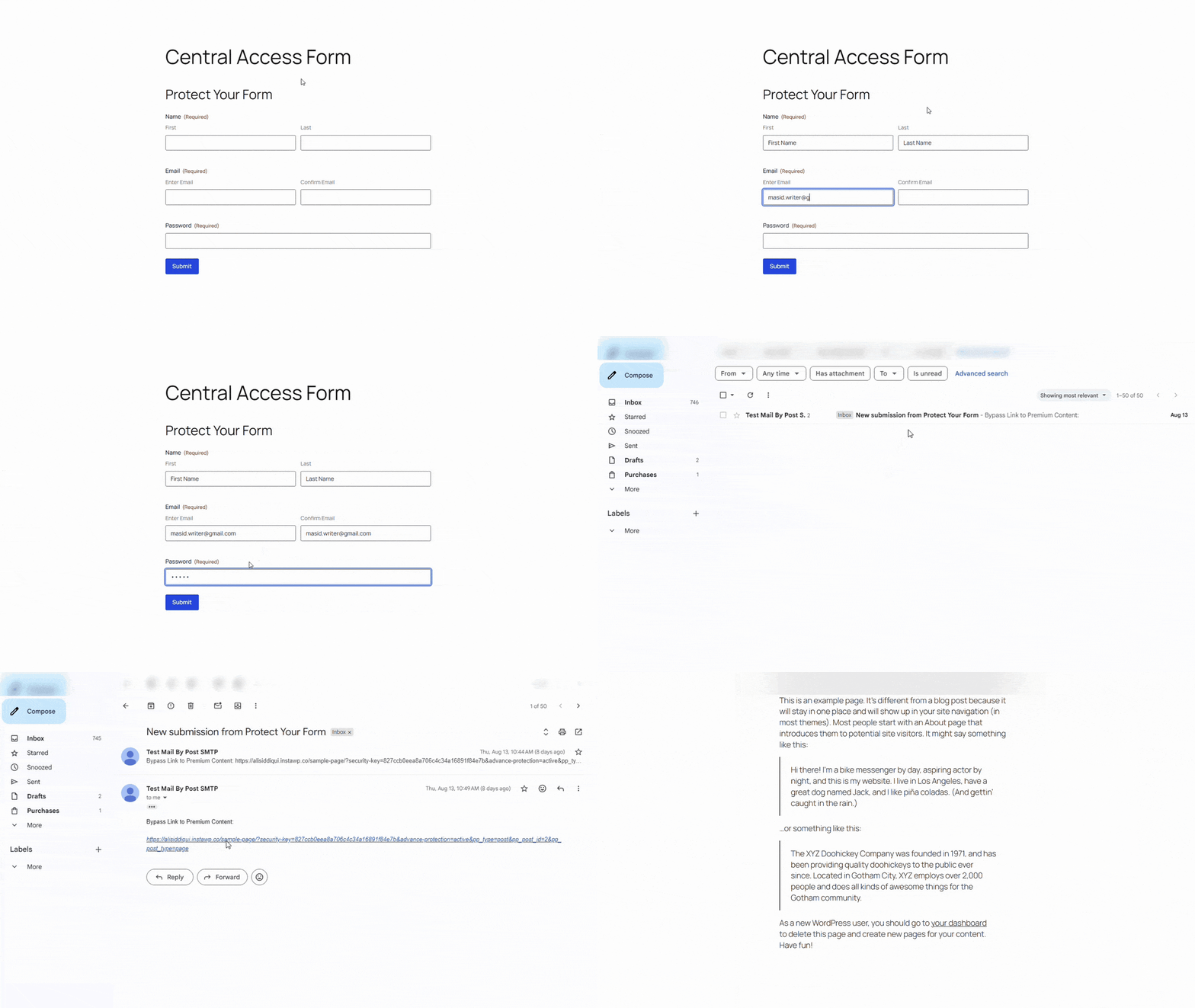
Congratulations on learning how to unlock password protected content with Gravity Forms using a bypass URL.
Best practices for securing protected content with Gravity Forms
Setting up the integration only takes a few minutes, but a few simple habits can help keep your protected content secure and make the experience smoother for your visitors.
- Use strong passwords – Choose passwords that are difficult to guess. A mix of letters, numbers, and special characters helps keep protected content out of the wrong hands.
- Secure your site with HTTPS – Always use HTTPS on your website. It encrypts the information visitors submit through your forms, including passwords and other sensitive data.
- Add CAPTCHA to your form – If your Gravity Form unlocks content, adding CAPTCHA can reduce spam submissions and automated password-guessing attempts.
- Change passwords when needed – If you’ve shared a password with several people or it’s no longer meant to be used, update it. This helps you keep access limited to the right audience.
- Share passwords with care – Send passwords only to people who should have access. The more widely a password is shared, the harder it becomes to control who can view your content.
- Test your setup regularly – Before sending visitors to protected content, test the entire flow. Check that the form validates correctly, redirects work as expected, and bypass links open the right content.
Avoid these common access control mistakes
Most protected content access problems come down to a handful of habits that are easy to fix once you know what to look for.
- Using the same password for every visitor, forever.
- Never updating or expiring passwords once they’re set.
- Skipping login attempt limits, which leaves the door open to guessing.
- Asking for too much information on the form before granting access.
- Sending visitors to a confusing or unrelated page after they unlock content.
- Ignoring activity logs, even when they’d show you something worth knowing.
Unlock protected content with greater flexibility
Password protection is a powerful content protection plugin, and integrating it with Gravity Forms unlocks even more possibilities. From lead collection to premium downloads, payments, and custom access processes, the integration helps you do this without adding unnecessary complexity.
By following the steps in this guide, you replace the basic password-only access screen with a customized Gravity Form, automatically unlock Password Protected content after successful validation, or generate secure bypass links for a seamless user experience.
Run a quick test before your visitors see it, and you will have a safe, professional, user-friendly content protection system that’s easy to manage as your website grows.
Frequently asked questions
Can I use multiple passwords to unlock protected content?
Yes. The Password Protected plugin lets you create multiple passwords for protected content. This is useful when you want to share different passwords with different groups without changing the main password.
Can I replace the default password screen with a Gravity Form?
Yes. You can use a Gravity Form as the password entry form. Visitors enter the password through the form, and the plugin unlocks the protected content after successful validation.
Can I generate a bypass link after a form submission?
Yes. The integration generates a secure bypass link after a user submits a form or completes a payment. Users can access the protected content directly through that link.
Can I protect downloads with Password Protected and Gravity Forms?
Yes. You can place download links behind password-protected pages and use Gravity Forms to control how visitors unlock access. This works well for premium files, reports, templates, and digital products.
Can I unlock videos or other premium resources?
Yes. Successful authentication unlocks any content inside the protected page. This includes videos, documents, downloads, and other premium resources.
Does this work with payment forms?
Yes. After a successful payment, you can automatically generate a bypass link for the customer. This creates a smooth experience for delivering paid content or resources.
Does this integration work with Elementor?
Yes. Gravity Forms embeds on Elementor pages just like any other supported WordPress page. The Password Protected integration works regardless of how you build the page.
Can I customize the password form?
Yes. Since Gravity Forms powers the password prompt, you can customize its fields, layout, styling, labels, and validation messages to match your website.
Do visitors need to create an account?
No. Visitors only need to complete the access method you configure, such as entering a valid password or submitting a form. Visitors do not need to create a WordPress account.
Can I track who accessed protected content?
Gravity Forms records form entries, so you can see who submitted the form. If you use bypass links, you can also identify which users received access through their form submissions.

Newsletter
If you want to keep up-to-date with what’s happening on the blog sign up for the Gravity Forms newsletter!
"*" indicates required fields