When you run a small business, your website is how customers find you, and your forms are how they book, order, and get in touch. Gravity Forms MCP lets you build and manage those forms just by asking.
Connect an AI assistant like Claude or ChatGPT and tell it what you need: build me a booking form, tell me how many orders came in this month, clear out the spam. It takes care of your forms while you take care of the business.
Here are seven use cases you can implement, each with a prompt you can copy straight into a chat.
1. Take bookings with a booking form
Bookings that come in by phone and email are easy to lose track of. Ask your assistant for a booking form and it builds the whole thing in one go: the fields, a notification for you, and a confirmation for the customer.
“Create a booking request form with name, email, phone, preferred date and time, and a message box. Send me a notification when one comes in, and confirm to the customer that we’ll reply within one working day.”
2. Send quotes that add themselves up
Whether you sell products or services, a proper request form beats a back-and-forth email thread. Ask for a quote form and your assistant sets up the priced options and a running total, so the figure adds up on its own as the customer chooses.
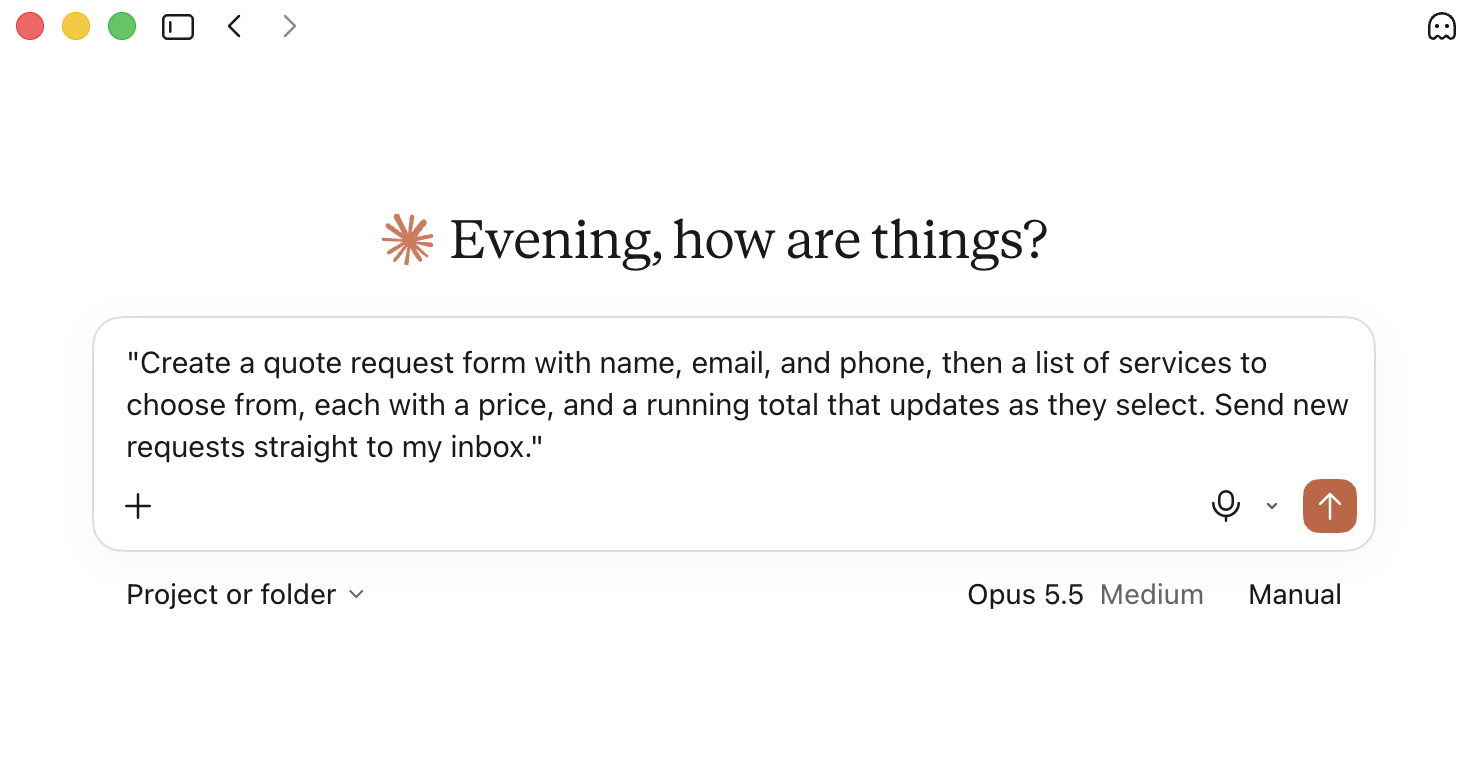
“Create a quote request form with name, email, and phone, then a list of services to choose from, each with a price, and a running total that updates as they select. Send new requests straight to my inbox.”
3. Hear what your customers think
Feedback tells you what’s working and what isn’t. Ask your assistant for a feedback form and it can add follow-up questions that change depending on the rating someone leaves.
“Create a simple feedback form with a star rating and a comments box. When someone leaves 3 stars or fewer, show a box asking what went wrong.”
4. Turn your paper forms into online ones
The order sheet by the till, the waiver customers sign, the printed booking slip. Hand your assistant a photo or PDF and ask it to rebuild the form online, with the same fields and options, so you’re not retyping any of it.
“Here’s a photo of the order sheet we keep by the till. Rebuild it as an online form with the same options, and email new orders to me.”
5. See how the business is doing
Every booking, order, and enquiry lands in your form entries, which makes them a record of how the business is going. Instead of scrolling through them, ask your assistant a question and it reads the entries and gives you the answer.
“How many booking requests came in this month, and how does that compare to last month?”
“Which service do people ask about most on the quote form?”
6. Clear out the spam
Junk entries clutter up the real enquiries. Ask your assistant to find them and it shows you what it found before anything goes. Anything it deletes asks you to confirm first.
“Find the entries on my contact form from the last week that look like spam, and show them to me before deleting them.”
7. Close a form when you’re away or fully booked
Holidays and busy periods happen. Ask your assistant to add a message to the top of the form so customers know ahead of time, and to schedule the form so it stops taking requests while you’re away and opens again on its own.
“We’re closed from December 22 to January 5. Add a message to the top of the booking form letting customers know, and schedule the form so it doesn’t take requests between those dates.”
Quick wins
Then there’s the small stuff you can clear in a single line:
“Add a phone number field to my booking form, right after the email field, and make it required.”
“Add a dropdown to my contact form so people can say what they’re getting in touch about: General, Bookings, Pricing, and Other.”
“Show me the last 10 people who filled in my contact form, just their name and email.”
“I’ve changed my email address. Update the notifications on all my forms to send to the new one.”
Best practices for using Gravity Forms MCP
Gravity Forms MCP is built to be careful, and a few simple habits keep it that way.
- Start with read-only tools. They let your assistant read your forms and entries without changing anything, which is the right place to begin.
- Give it its own login. Your assistant connects as a user on your site, so set up a separate account for it rather than using your main admin login. If you’re not sure how, your web person or our Support team can sort it in a few minutes.
- Turn on changes only when you want them. Switch on the tools that create and edit forms when you have a job for them, and anything your assistant deletes asks you to confirm first.
- Keep a backup. As with any change to your site, a recent backup means you can undo anything you’re not happy with.
- Add the agent skills file. Download it from your MCP settings and hand it to your assistant so it understands how Gravity Forms works. It makes your assistant faster and less likely to make mistakes.
Ready to get started?
Gravity Forms MCP comes with every Gravity Forms license, from Basic to Developer, and it’s part of Gravity Forms 3.1. You’ll need WordPress 6.9 or higher on a self-hosted site, with Gravity Forms 3.1 installed and active. WordPress.com isn’t supported at this time.
For the full setup, check out the Gravity Forms MCP documentation. If you’d rather not set it up yourself, your web person or our Support team can help.
New to Gravity Forms? Head over to our pricing page to get started, or sign up for a personalized demo to see it in action.

Newsletter
If you want to keep up-to-date with what’s happening on the blog sign up for the Gravity Forms newsletter!
"*" indicates required fields