Written by the editorial team at Gravity Wiz…
What if number-based questions in Gravity Forms gave people a handle they could slide to their answer – like rating something on a survey, picking a budget range, or calculating a quote in real time?
GP Sliders from Gravity Wiz brings that interaction to your forms, making those questions feel engaging and fun to use. Add a Slider field with one draggable handle, use two handles for a range, or turn an existing Number field into a slider.
Let’s look at three ways to put them to work.
1 – Answer survey questions with labeled choices
For survey and feedback forms, a labeled scale can make the question easier to read at a glance. Instead of showing only numbers, Custom Choices mode lets you define labels like Never, Occasionally, Regularly, and Daily.

Tick marks and labels help here too, since each option appears right on the track before anyone chooses.

Each label still has a numeric value behind it, which means the response can be used later in conditional logic, calculations, and merge tags while the person filling out the form sees the wording you choose.
For example, a product feedback survey could ask how often someone uses a feature. The slider shows the frequency labels, and the entry stores the matching value.
2 – Collect a budget range with two handles
A budget question can work nicely as a range, especially when you want a starting point and an upper limit in one field. With Range Support, the beginning and end of the slider become draggable handles.
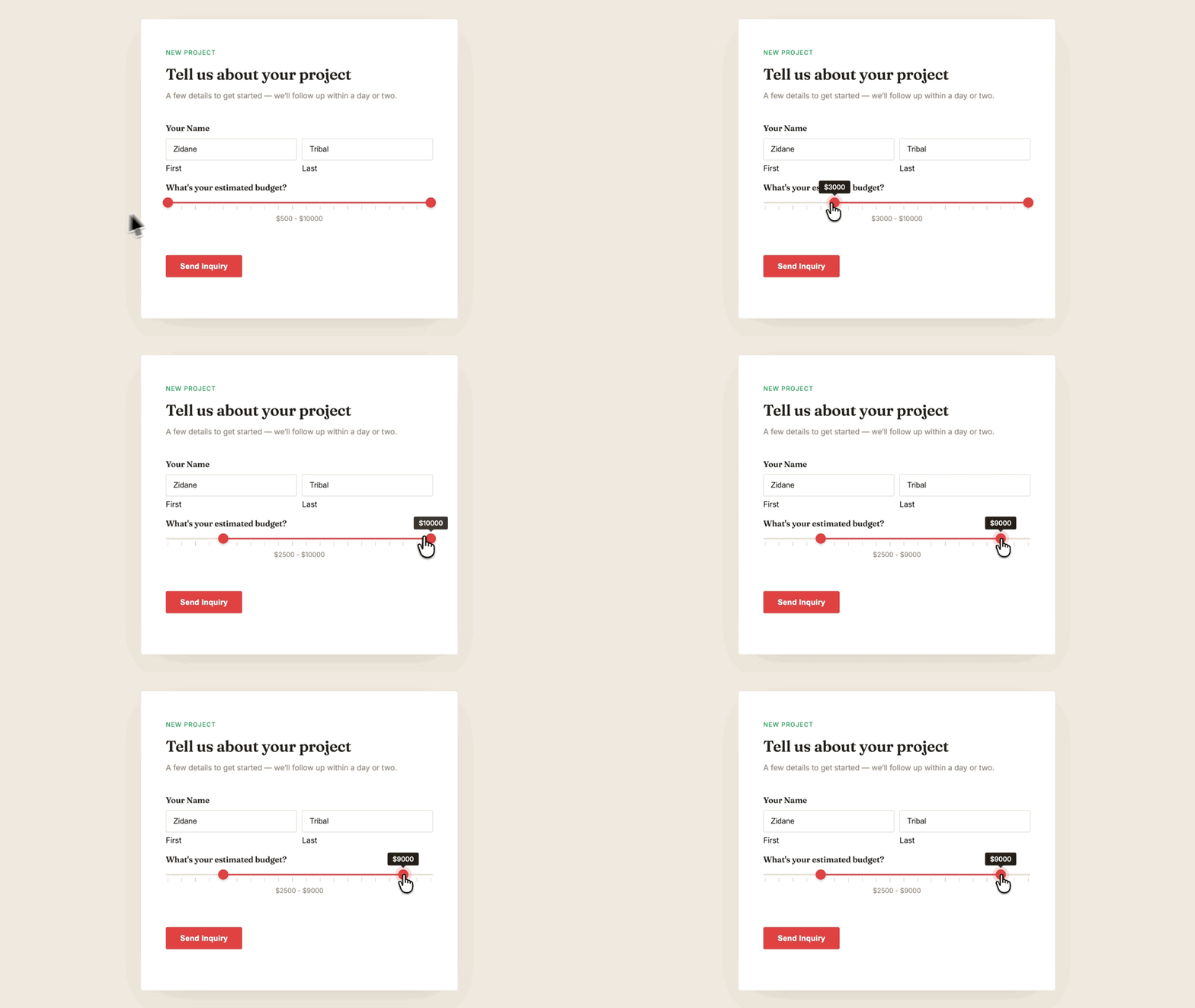
For example, a project intake form could ask for an estimated budget range, with someone selecting somewhere in a range up to $10,000 on the same track. It keeps the interaction compact while still giving you two values to reference in the entry.
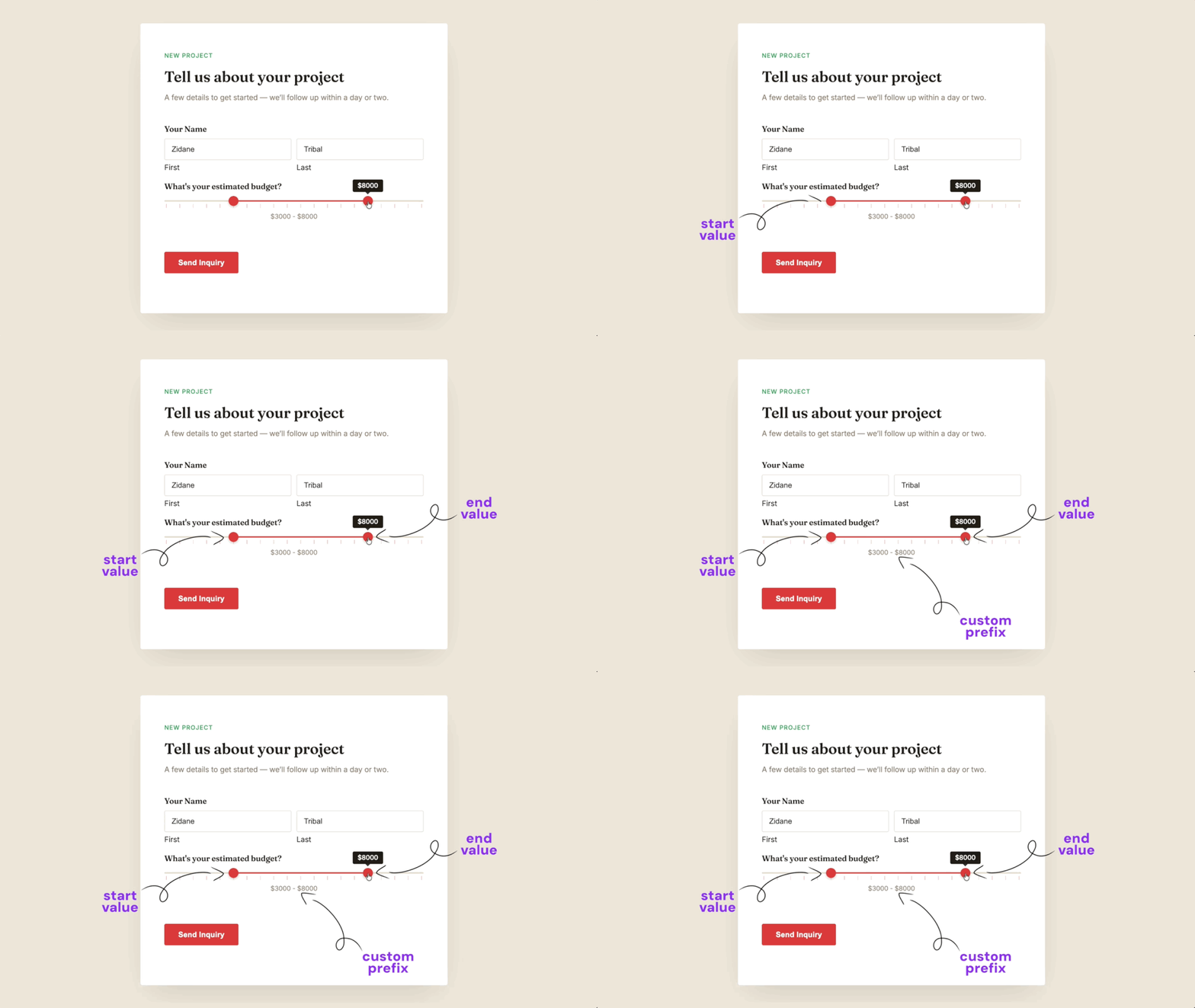
You can also display a prefix like `$` on the slider using custom display options. Take note, this only changes what people see on the form — the entry still saves clean numbers underneath.
3 – Calculate a quote with a draggable value
Slider values can feed into Gravity Forms calculations through merge tags. Add a Slider field for the value someone selects, then reference that value in a calculation-enabled field.
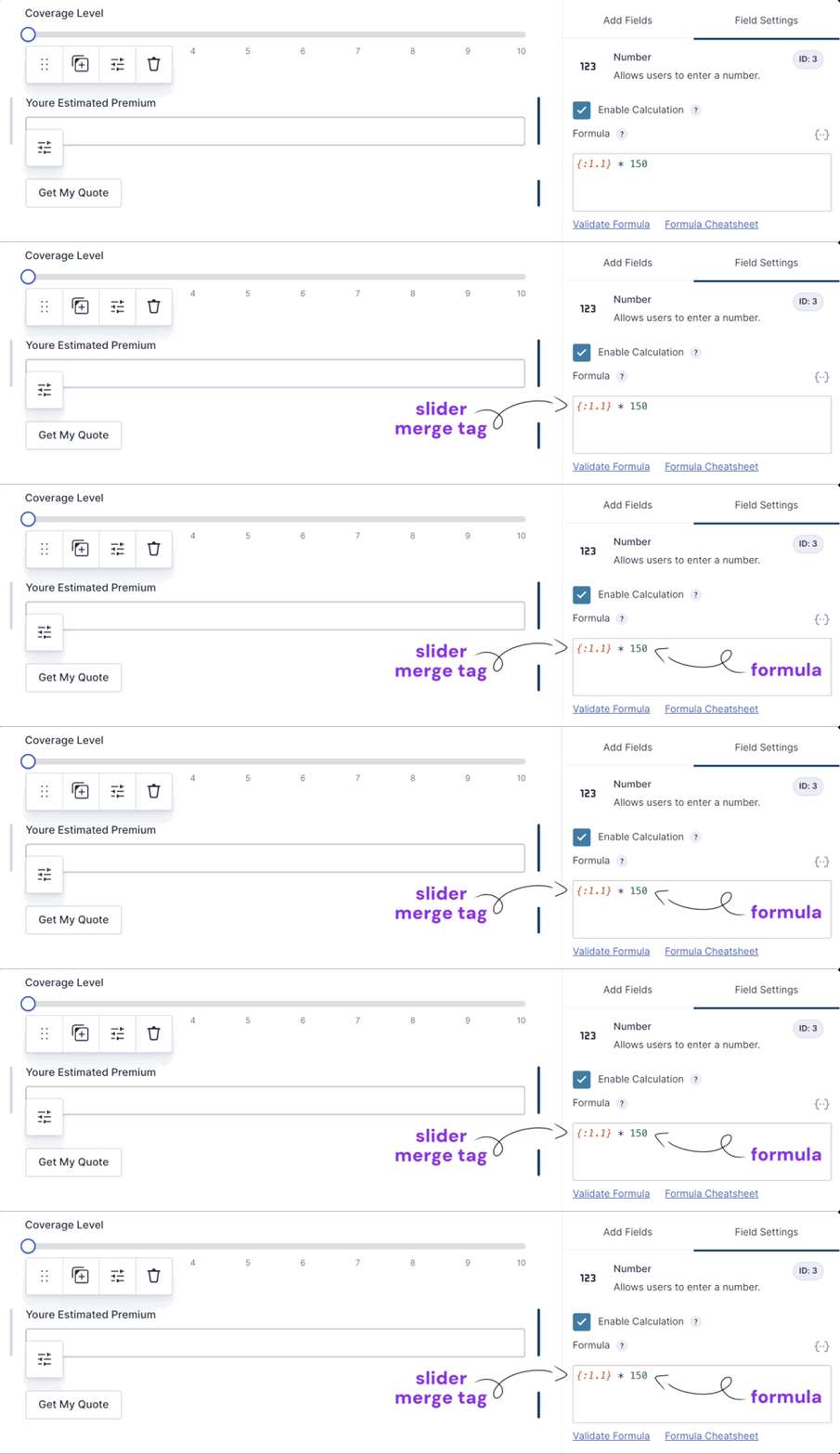
For example, an insurance form could use a price calculator with a slider field to let someone adjust a coverage amount and see the estimate update on the form. The slider handles the selection, and the calculation handles the total.

Range sliders get their own merge tags for the start and end values, too. That gives you both selected values to work with when the calculation needs more than one number.
Ready to start sliding?
Check out the Gravity Perks Sliders documentation to see what else is possible with sliders in Gravity Forms.

Newsletter
If you want to keep up-to-date with what’s happening on the blog sign up for the Gravity Forms newsletter!
"*" indicates required fields