Every term brings another round of forms: trip consents, registrations, club signups, and the inevitable chase for the ones that haven’t come back. Gravity Forms MCP takes the busywork out of it.
Connect an AI assistant like Claude or ChatGPT to your site and just ask: build the trip consent form, tell me which classes still haven’t replied, close the photo orders now the deadline’s passed. It builds, tracks, and tidies your forms while you get on with running the office.
Here’s what that looks like across a term.
1. Build a trip consent form
Consent forms carry a lot: medical notes, dietary needs, travel arrangements, and a different follow-up question depending on each answer. Describe the whole thing once and your assistant builds it, conditional logic included.
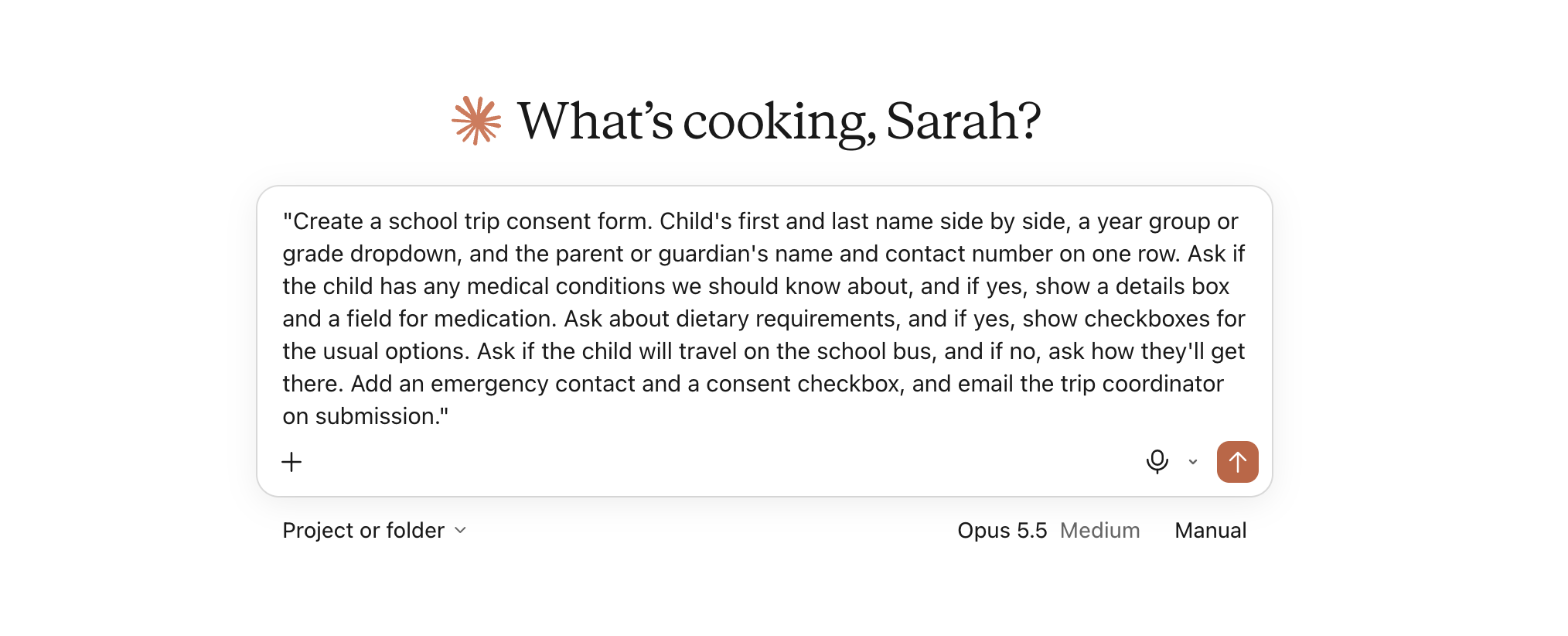
“Create a school trip consent form. Child’s first and last name side by side, a year group or grade dropdown, and the parent or guardian’s name and contact number on one row. Ask if the child has any medical conditions we should know about, and if yes, show a details box and a field for medication. Ask about dietary requirements, and if yes, show checkboxes for the usual options. Ask if the child will travel on the school bus, and if no, ask how they’ll get there. Add an emergency contact and a consent checkbox, and email the trip coordinator on submission.”
2. Set up a new registration form
New intake, admissions enquiries, and club signups all start with a registration form. Ask for the one you need and it’s ready to collect responses.
“Create a student registration form with the child’s details, year group or grade, parent or guardian details, home address, and a contact number. Send submissions to the school office.”
3. Turn your stack of paper forms into online ones
Schools run on paper: permission slips, medical forms, photo consent, and the club sheet that gets photocopied every September. Hand your assistant the document and it rebuilds the form online, matching the fields and wording.
“Here’s a PDF of our photo consent form. Rebuild it in Gravity Forms with the same fields and wording, and email completed forms to the office.”
4. Chase the forms that haven’t come back
The termly chase eats hours. Instead of counting replies by hand, ask your assistant where things stand so you know exactly who to nudge.
“How many students have submitted the options form, and which classes have the lowest response rate so far?”
5. Open and close forms around a deadline
Photo orders, trip signups, and event registrations only run for a window. Open them when you need to, and switch them off once the deadline passes.
“The school photo order deadline has passed. Close the form so no new orders come in, and tell me how many we received.”
6. Set up internal forms for staff
It isn’t only parent-facing forms. Staff absences, room bookings, and incident logs can all be forms too, routed straight to the right people.
“Create a staff absence form with name, date, reason, and expected return date, and notify the head teacher and HR whenever it’s submitted.”
7. Reuse a form every term
Your calendar repeats, so your forms can too. Duplicate last term’s version, rename it, and update the details that changed.
“Duplicate last term’s Parents’ Evening booking form, rename it for this term, and update the dates and available time slots.”
Quick wins
Then there’s the small stuff you can clear in a single line:
“A parent filled in the wrong trip form, the one for the younger year group. Find their entry and show me what they submitted.”
“Which of our registration forms are still open and accepting submissions?”
“Resend the confirmation email to the parent who filled in the uniform order form last Tuesday.”
“Update all our form notifications to go to the new office email address.”
Best practices for using Gravity Forms MCP
Gravity Forms MCP is built to be careful, which matters a lot with school data. A few habits keep it that way.
- Start with read-only tools. They let your assistant read forms and entries without changing anything, which is the right place to begin.
- Mind the sensitive information. School forms hold children’s details, medical notes, and emergency contacts. Keep the connecting user tightly scoped, and handle everything within your school’s data protection and safeguarding rules.
- Give it its own login. Your assistant connects as a user on your site, so set up a dedicated account for it with only the access it needs, rather than sharing an admin login.
- Turn on changes only when you want them. Switch on the tools that create and edit forms when you have a job for them, and anything your assistant deletes asks you to confirm first.
- Keep a backup, and add the agent skills file. A recent backup means you can undo anything you’re not happy with, and the skills file (from your MCP settings) helps your assistant understand how Gravity Forms works so it makes fewer mistakes.
Ready to get started?
Gravity Forms MCP comes with every Gravity Forms license and is part of Gravity Forms 3.1. You’ll need WordPress 6.9 or higher on a self-hosted site, with Gravity Forms 3.1 installed and active. WordPress.com isn’t supported at this time.
For the full setup, check out the Gravity Forms MCP documentation. If you’d rather not set it up yourself, your web person or our Support team can help.
New to Gravity Forms? Take a look at how schools use it on our education page, or sign up for a personalized demo to see it in action.

Newsletter
If you want to keep up-to-date with what’s happening on the blog sign up for the Gravity Forms newsletter!
"*" indicates required fields