
Gravity Forms keeps each form’s entries on its own page, so finding a submission means first remembering which form it came from. GravitySearch adds one screen that searches all of them. The fastest way to find and manage Gravity Forms entries. Search across every form, build precise filters on any field, preview submissions in place, and act on the results in bulk. No code required.
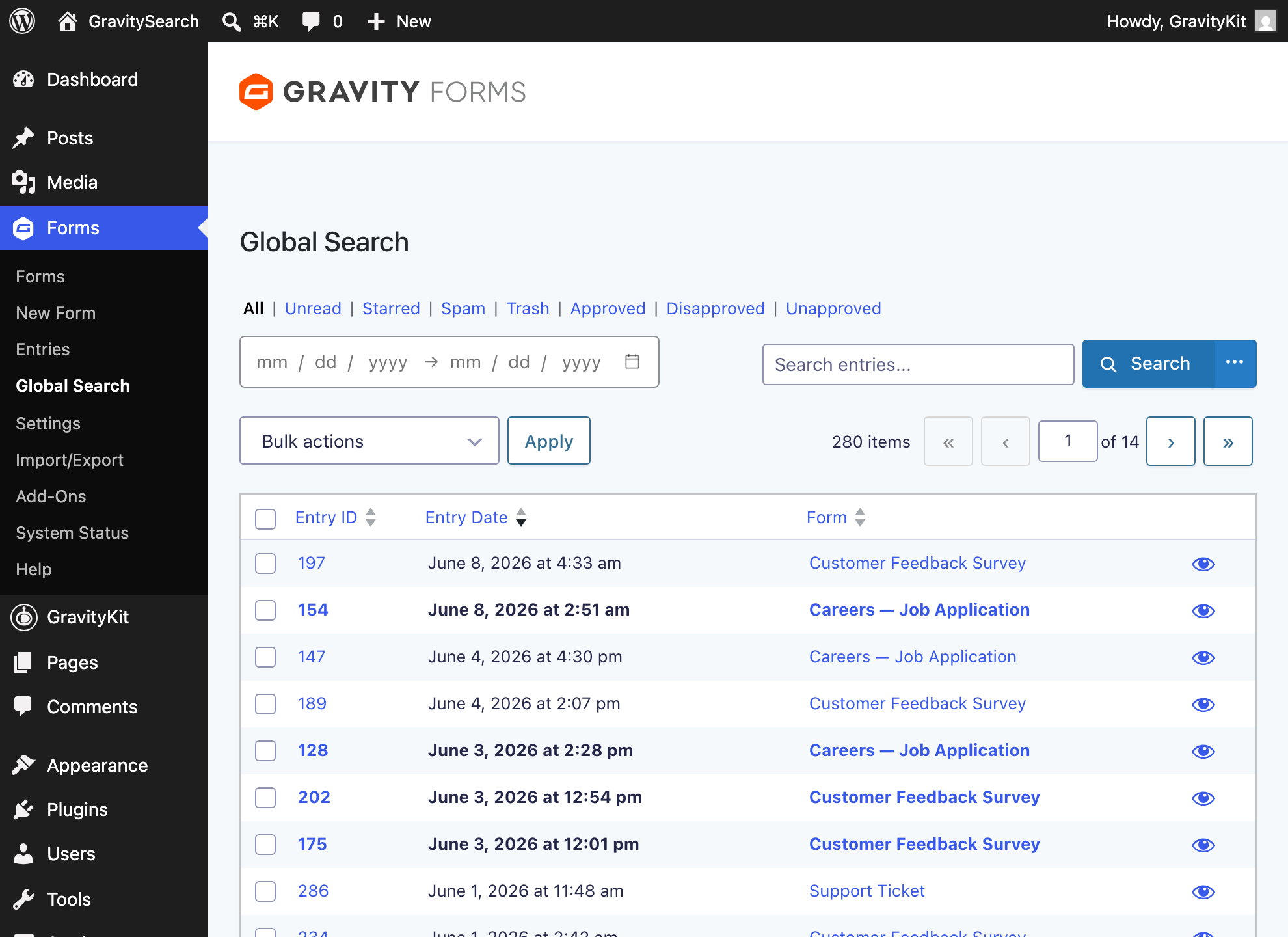
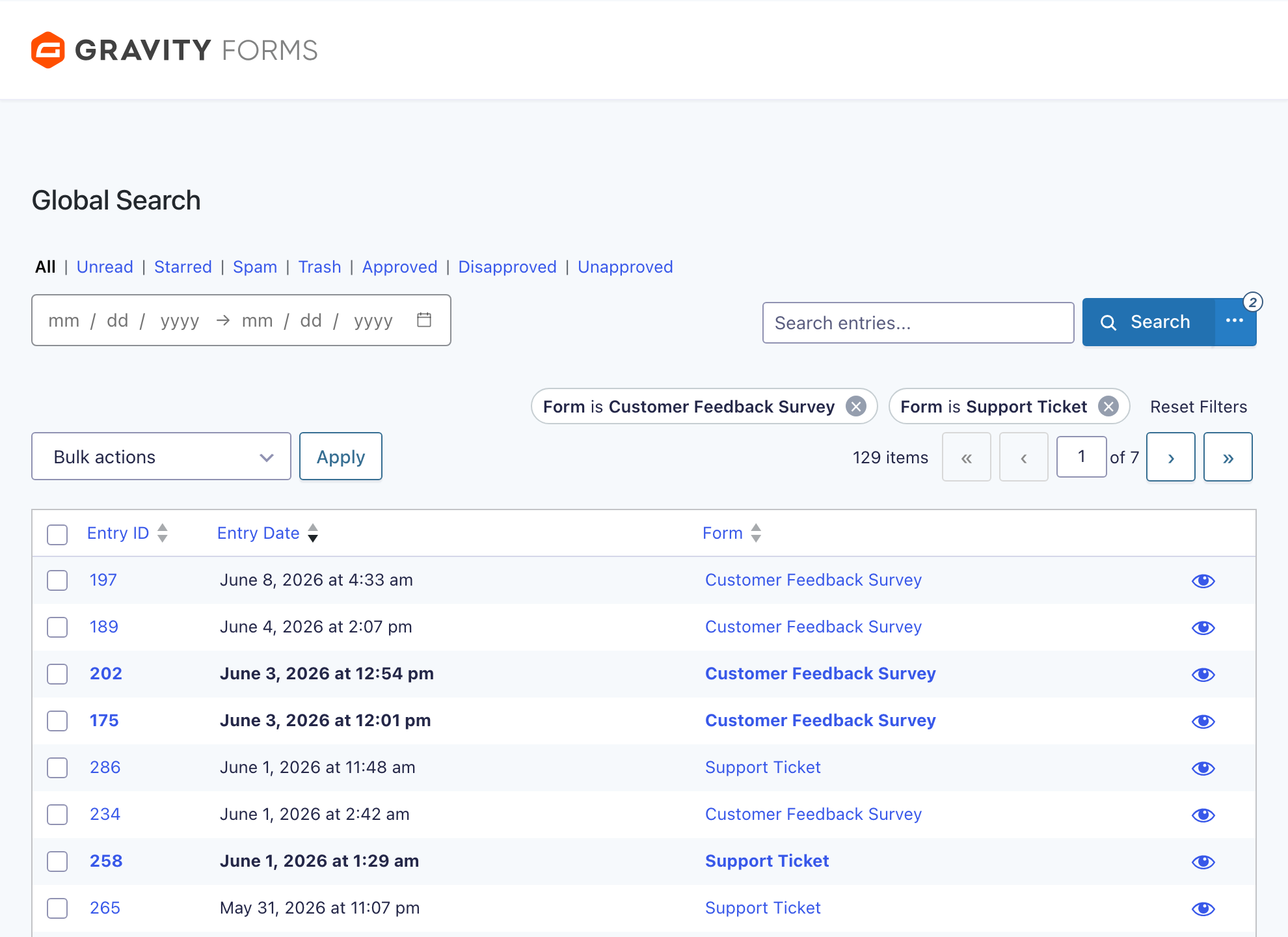
Search every form from one screen
➡️ Type one query and GravitySearch looks through every form at once
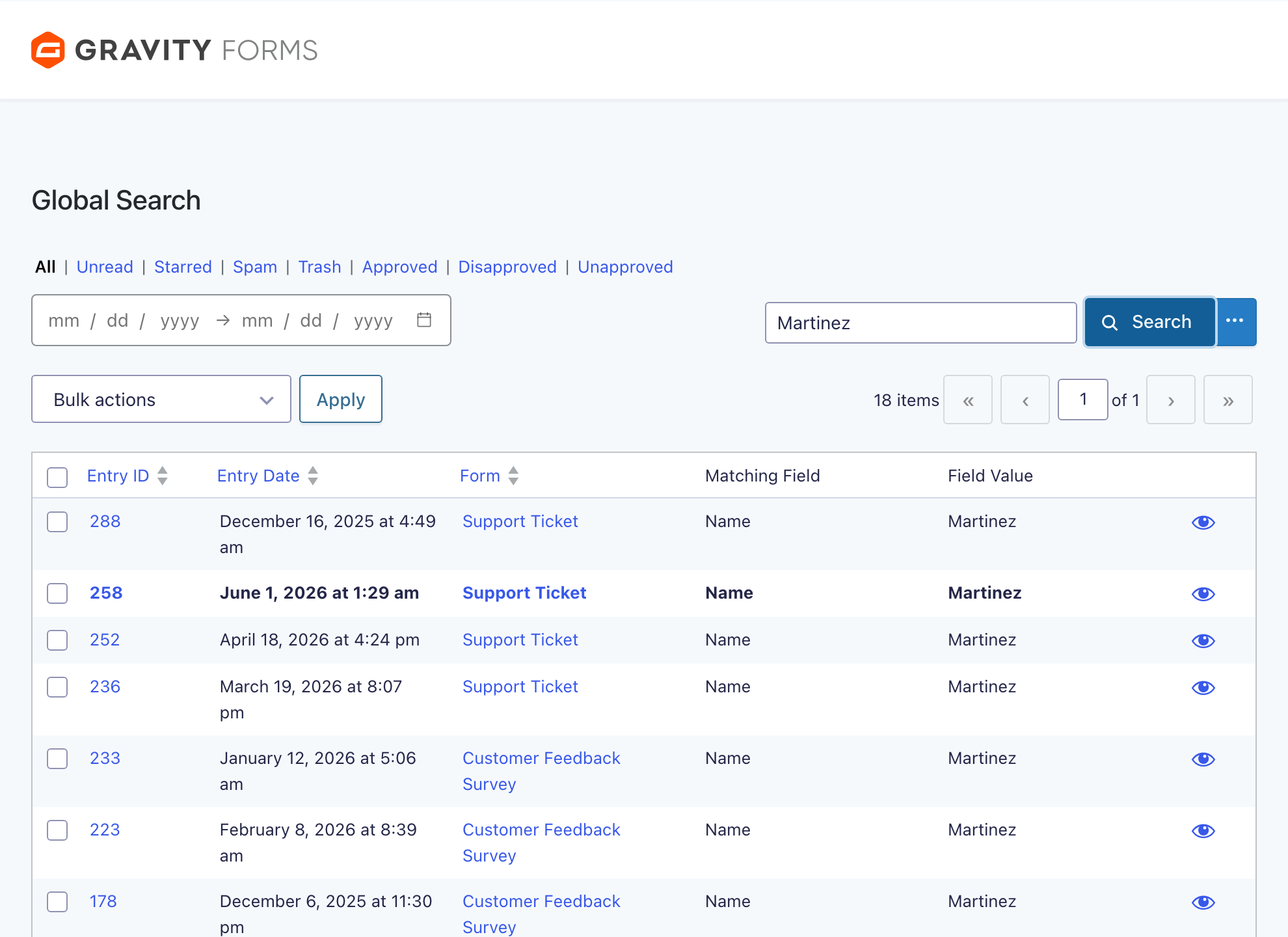
➡️ Each result shows which form it came from, which field matched, and the value found
➡️ Filter by status using tabs for unread, starred, spam, and trash
➡️ Narrow to a period with date presets, including the last 90, 180, and 365 days
Build precise filters on any field
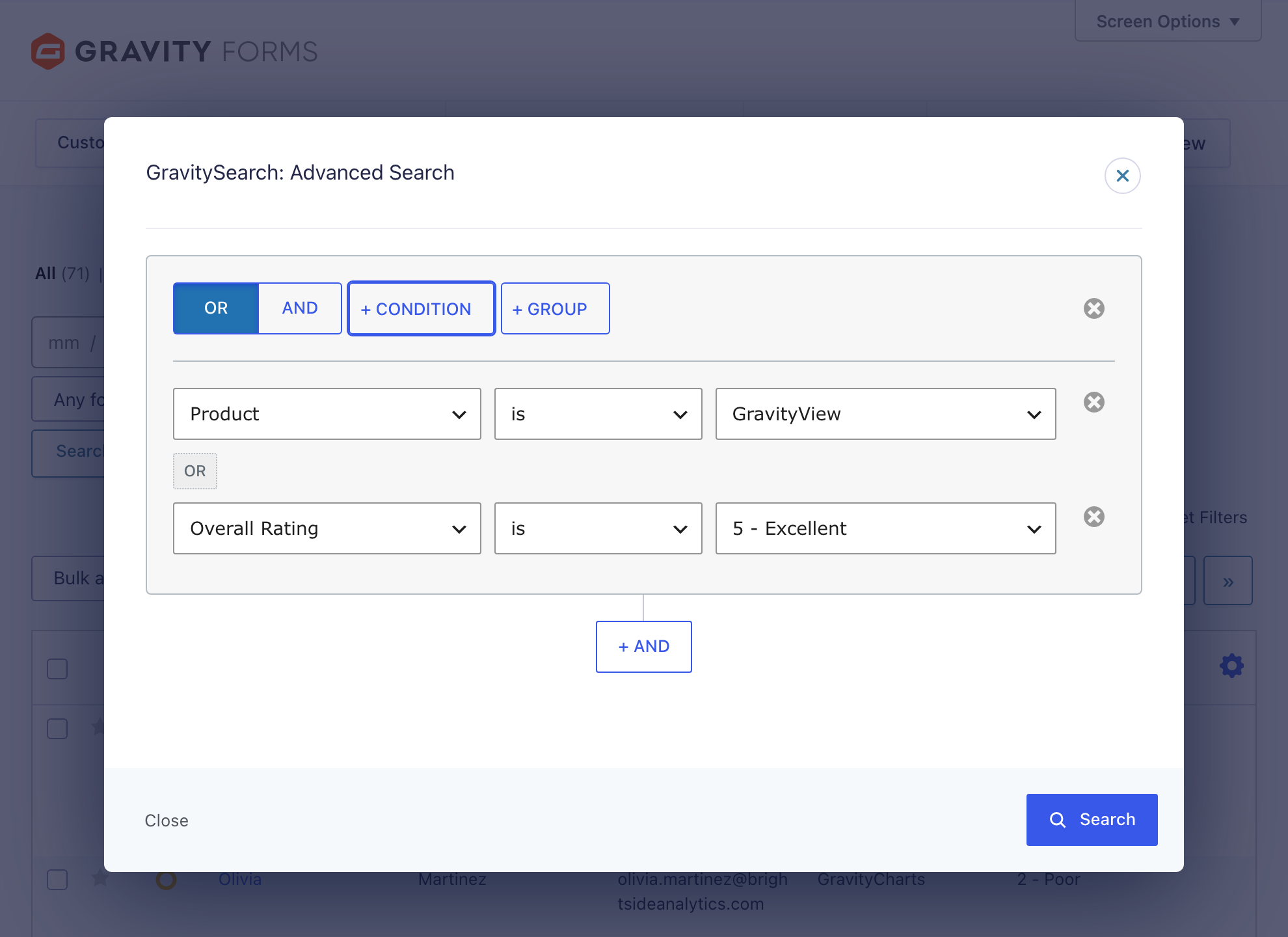
The visual filter builder lets you describe exactly the entries you want, without writing code. Pick a field, an operator, and a value, then stack conditions until the list is what you need.
✅ Combine conditions with AND and OR logic
✅ Nest groups inside other groups for multi-part queries
✅ Filter on any form field, or on entry properties like date, status, and payment
✅ Filter by who submitted an entry, or by their WordPress user role
✅ Drop any single condition with one click, or reset them all
Preview entries without losing your place
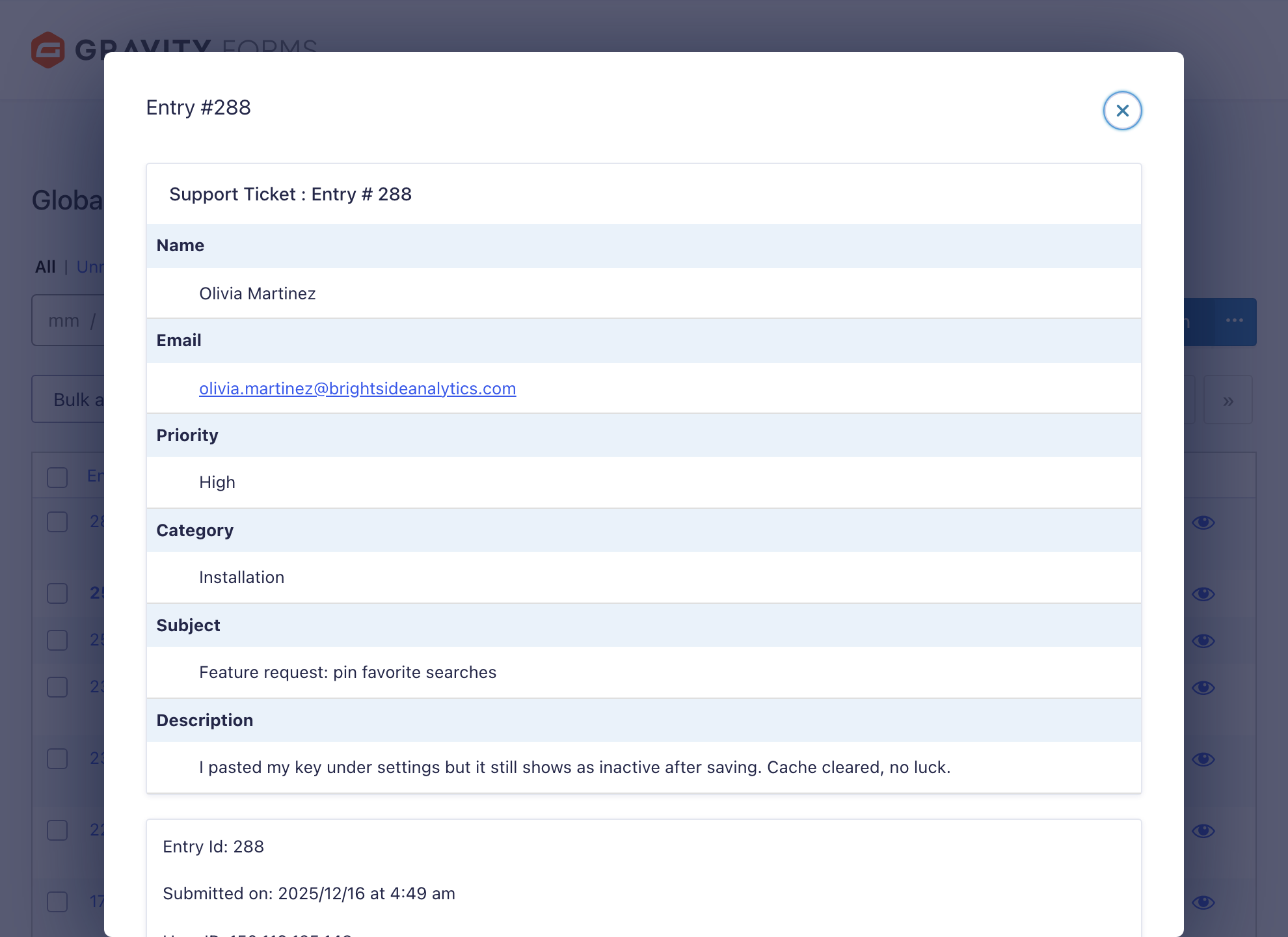
Click the eye icon on any result to open the full submission over your list. Read it, close it, and carry on scanning. No new tabs, and no losing your position.
✅ See every field of a submission in place
✅ Select the entries you want and act on them together
✅ Mark as read, add a star, flag as spam, or move to trash
✅ Approve entries in bulk when GravityView is active
Every search is a link you can bookmark or share
Each search and filter you build is encoded in the page URL, which means any view you assemble is also a link. Bookmark the searches you run every day, or paste the link to a teammate so they land on exactly the same results. Developers can build the same filters programmatically with the gk_search URL parameter, which accepts a filter as JSON or Base64.
Open search from any admin screen
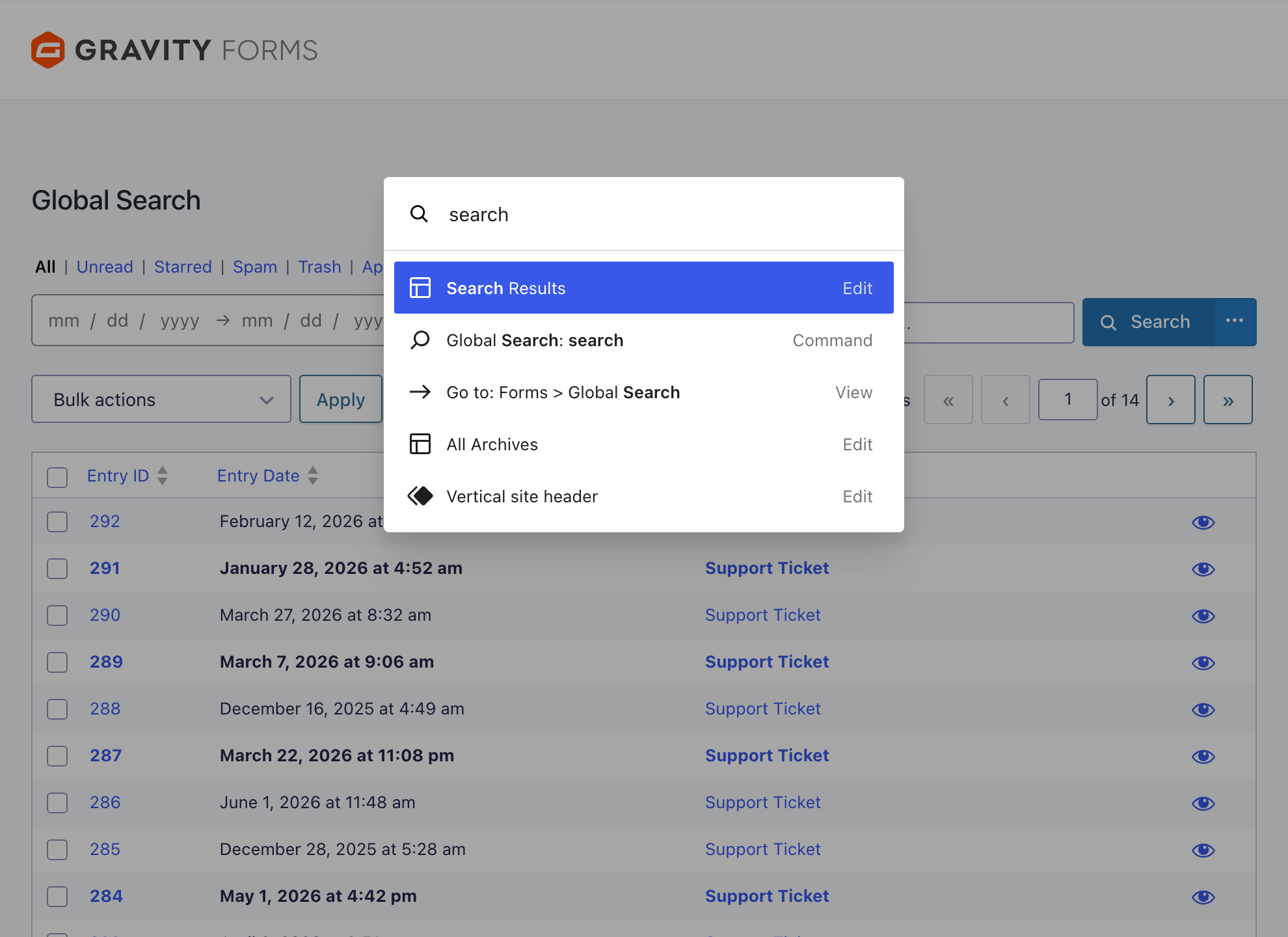
On WordPress 6.3 and later, press Cmd+K (or Ctrl+K on Windows) from anywhere in your admin to open the command palette, type a few letters, and jump straight into a global search, or to any form’s entries, editor, or settings.
Use cases
- Customer history at a glance: Search an email address and see every form that person has ever submitted, from their support requests to their orders, before you write back.
- Support triage: On your support form, filter to Priority is High combined with a group of Request Type is Bug Report or Feature Request, and work the queue that actually matters first.
- Approval review: Filter to unapproved entries, open each one in the preview to check it, then approve the ones that pass in bulk. Requires GravityView.
- Campaign and page tracing: Every entry records the page it was submitted from, so filtering Source URL by a landing page slug or campaign tag shows you which submissions came from where.
- Flagged for later: Star entries as you work through them, then pull every starred entry from every form into a single list when you are ready to deal with them.
- Bulk cleanup: Filter down to spam and stale entries, then clear them across your whole site in one pass instead of form by form.
Works with GravityView
Using GravityView? Its approval statuses appear in GravitySearch as status tabs, as filter conditions, and as bulk actions. Find the entries waiting on you, check them in the preview pane, and approve them without leaving your results.
FAQs
Does GravitySearch work in the WordPress admin or on the front end of my site?
GravitySearch works inside your WordPress admin, where you and your team manage submissions. It adds a Global Search page and enhances each form’s existing Entries page. If you need a search box for visitors on the front end of your site, that is a job for a display tool like GravityView.
Do I need GravityView or any other plugin to use GravitySearch?
No. GravitySearch works directly with Gravity Forms and requires Gravity Forms 2.5 or later, with nothing else needed. It runs entirely inside your own WordPress site, so your entry data stays self-hosted.
Can I search across all my forms at once?
Yes. GravitySearch adds a Global Search page under the Forms menu that searches entries across every form from a single screen, and tells you which form and which field each match came from.
Can I filter entries by more than one field or condition at a time?
Yes. GravitySearch adds a visual filter builder where you combine conditions with AND/OR logic on any form field or entry property. You can stack conditions and nest groups instead of filtering one value at a time.
Can I preview an entry and take action without opening each one?
Yes. Open any result in a preview pane to read the full submission in place, then close it and keep scanning. You can also run bulk actions such as marking as read, starring, approving, or trashing on the entries a search returns.
Can I save or share a search with my team?
Yes. Every search and filter is encoded in the page URL, so you can bookmark a view you use often or send the link to a teammate to open the same results. There is also a developer API for building filters programmatically.
How is this different from the built-in Gravity Forms entry search?
The built-in Entries page works one form at a time and centers on a single search box plus status filters. GravitySearch adds search across all your forms from one screen, a visual AND/OR filter builder on any field, in-place entry previews, and bulk actions on your results, so you spend less time clicking between forms to find and manage submissions.
Get started today!
- Live demo: Try GravitySearch for yourself! Explore a live demo to see exactly how the plugin works before you buy.
- 30-day money-back guarantee: Try GravitySearch risk-free with our 30-day money-back guarantee. If it is not the perfect fit, get a full refund, no questions asked.
- Expert support: Our dedicated support team are ready to help you should you have any questions or run into issues on your website.
- Certified Gravity Forms Developer: GravityKit is a Certified Gravity Forms Developer powering over 60,000 websites. Build with confidence knowing you are using a recognized solution.
Check out our other add-ons:
GravityView (display Gravity Forms entries), GravityImport (import entries from a CSV file), GravityExport (export form data to different formats), GravityCharts (turn entries into charts and graphs), GravityCalendar (display your form entries on a calendar).