To learn more about using the Quiz Add-On, head on over to our docs site.
Adding a quiz to your WordPress website is easy with Gravity Forms.
Quizzes are a great way to increase engagement, learn about your audience, and generate leads.
In this video, we’ll look at creating a simple Astronomy quiz using the Gravity Forms Quiz Add-On.
To get started, I’ll install and activate the Quiz Add-On.
Next, I am going to create a new form and add the Quiz field to my form.
Within the field settings, I can specify the Quiz Question that will be presented to the user.
I can also set the Quiz Field Type.
Radio Buttons and Drop Down quiz field types are ideal if your question only has one correct answer, whereas the Checkboxes quiz field type is ideal if there are multiple correct answers.
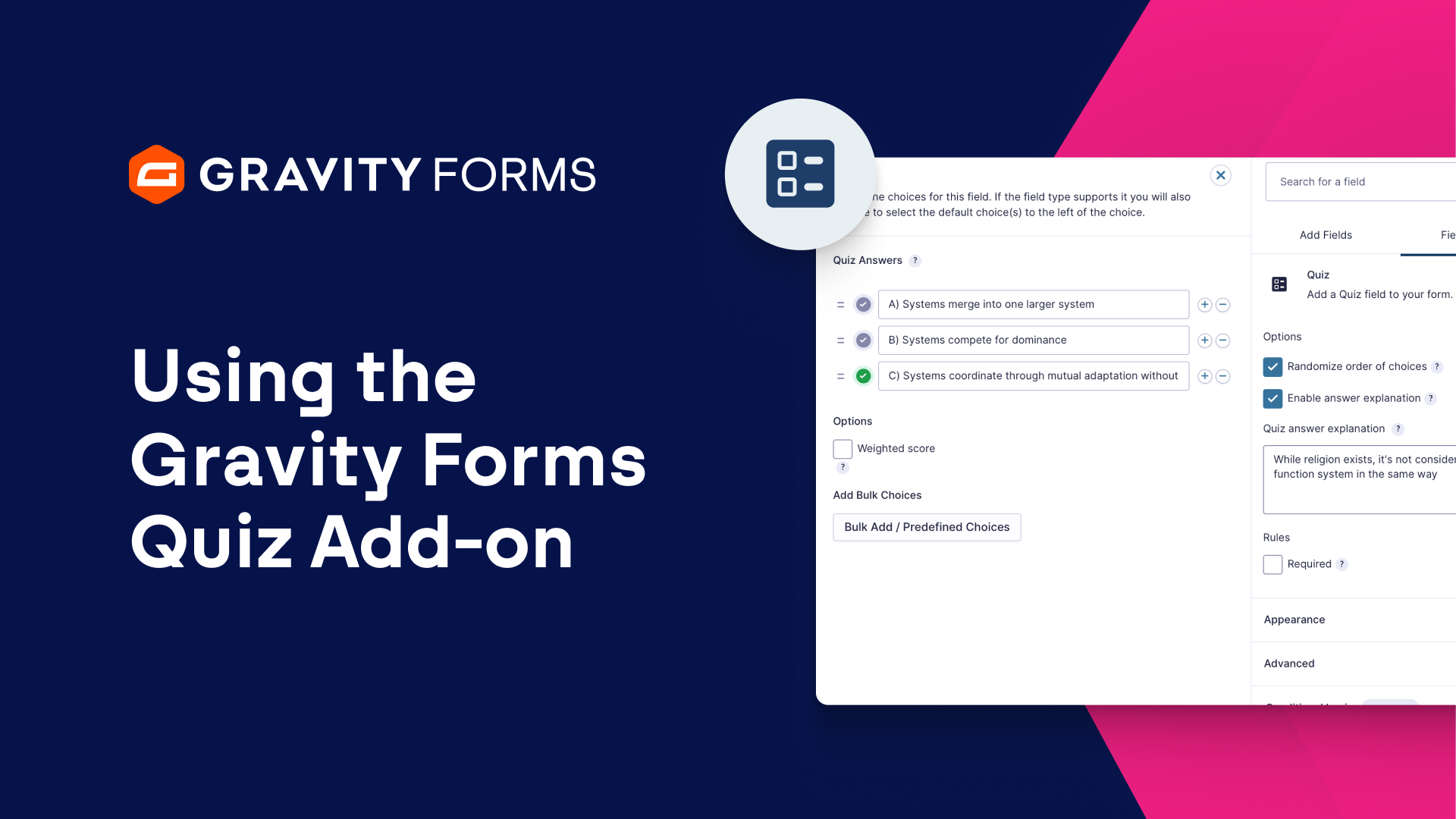
I’ll next open the Edit Choices flyout and enter the possible answers for this question.
If needed, I can use the “Bulk Add / Predefined Choices” option to bulk add all of the choices for this question.
I can then use the checkmark icon to specify the correct answer to my question.
When using the Checkboxes quiz field type, I’ll have the option to check multiple answers as correct.
I also have multiple options I can configure for each question, including the ability to use a weighted score, randomize the order of the choices, enable an answer explanation, and, if using the Checkboxes quiz field type, enable a ‘Select All’ choice.
I can repeat this process to add as many quiz questions to my form as needed.
When I am done, I’ll save everything and navigate to this form’s settings and select Quiz.
Here, I can configure some general quiz settings and the grading settings.
I can choose to shuffle the quiz fields, so that they are displayed in a random order, and choose to provide instant feedback to the user.
The Instant Feedback option can only be used with quiz fields using the radio buttons quiz field type, and will display the correct answer and explanation immediately after the user selects an answer.
This setting should not be considered a secure option for testing and is intended for training applications and trivial quizzes.
Within the Grading Settings, there are three options for grading: None, Pass/Fail, and Letter.
Pass/Fail grading will allow you to set a Pass Percentage that the user must achieve in order to pass the quiz.
You also have the option to present the user with a confirmation message if the user passes or fails.
You can use merge tags within these confirmations to show the user’s quiz score and percentage of questions they answered correctly.
The Letter Grading Options allow you to assign the user a letter grade based on how well they did on the quiz.
Like the Pass/Fail option, you can display a confirmation message and use merge tags to display the user’s quiz grade.
I am going to use Letter Grading for my quiz and save my settings.
Next, I’ll embed my quiz on a new page.
Now, whenever a user takes my quiz, they’ll be assigned a letter grade based on how many questions they answered correctly.
Furthermore, I can look at their form entry to see how they answered the quiz, as well as which answers were correct and incorrect.
I can also access the Quiz Results to see the total entries, average score, and average percentage.
The Quiz Results also show me a breakdown of how users are answering my quiz, including Score Frequencies, Grade Frequencies, and response frequencies for each question.
I can even filter these results based on specific criteria and date ranges.
As you can see, the Quiz Add-On gives you the power to interact with your audience in new ways and increase engagement on your site.
For more guides and tutorials on all things Gravity Forms, be sure to check out our video library.
From everyone on the Gravity team, thank you for watching!
Summary
Quizzes are a great way to increase engagement, learn about your audience, and generate leads. In this video tutorial, we’ll show you how to create a simple quiz using the Gravity Forms Quiz Add-On.