To learn more about creating multi-page forms, be sure to check out our docs site.
Welcome back to another video, Dustin here from the Gravity team.
When building your forms, it’s important to make them accessible and not overwhelming for your users.
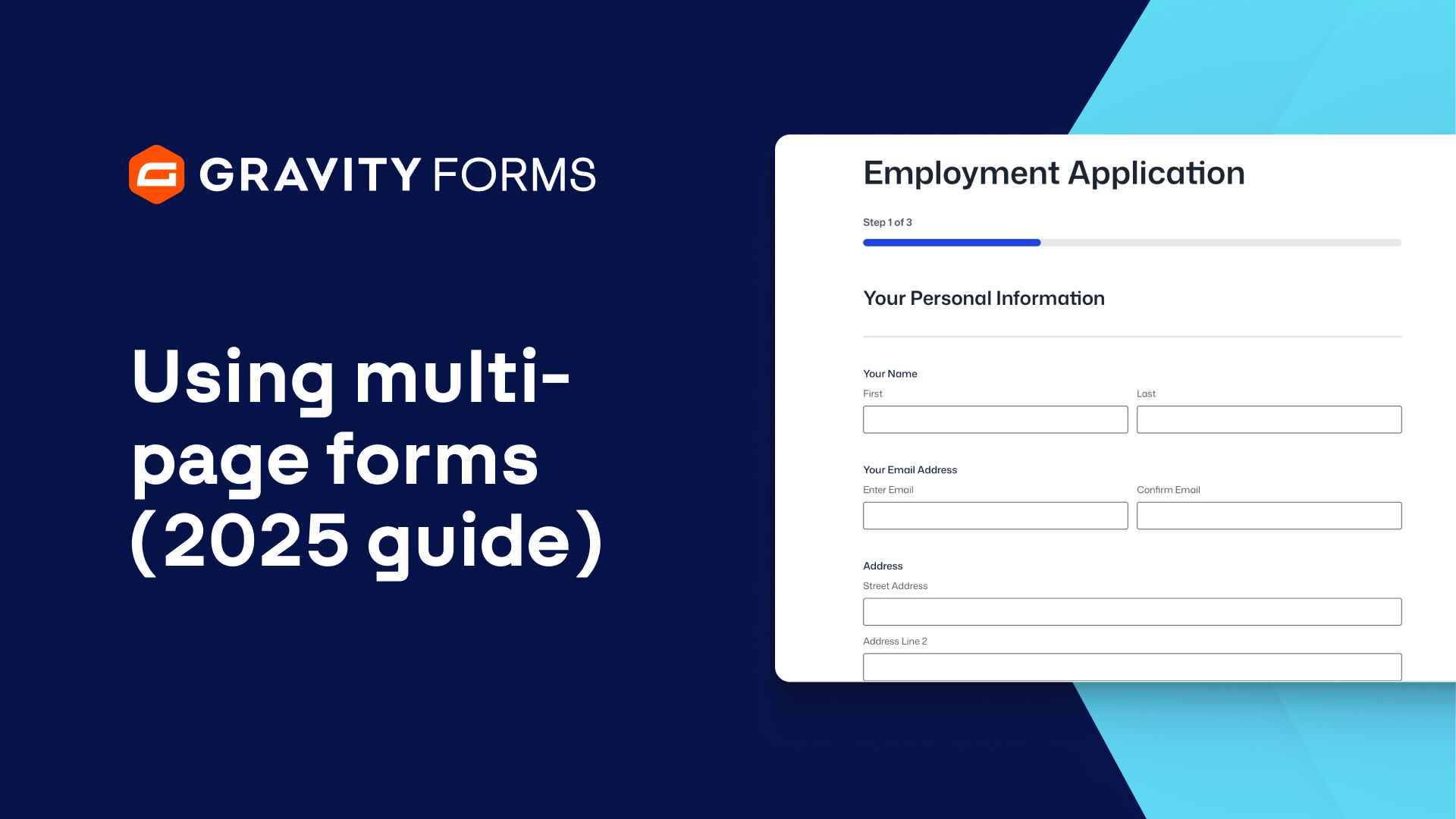
Breaking your forms down into multiple pages is a great way to accomplish both goals and Gravity Forms makes creating multi-page forms a breeze.
So let’s jump in and take a quick look at how to use multi-page forms on your WordPress site.
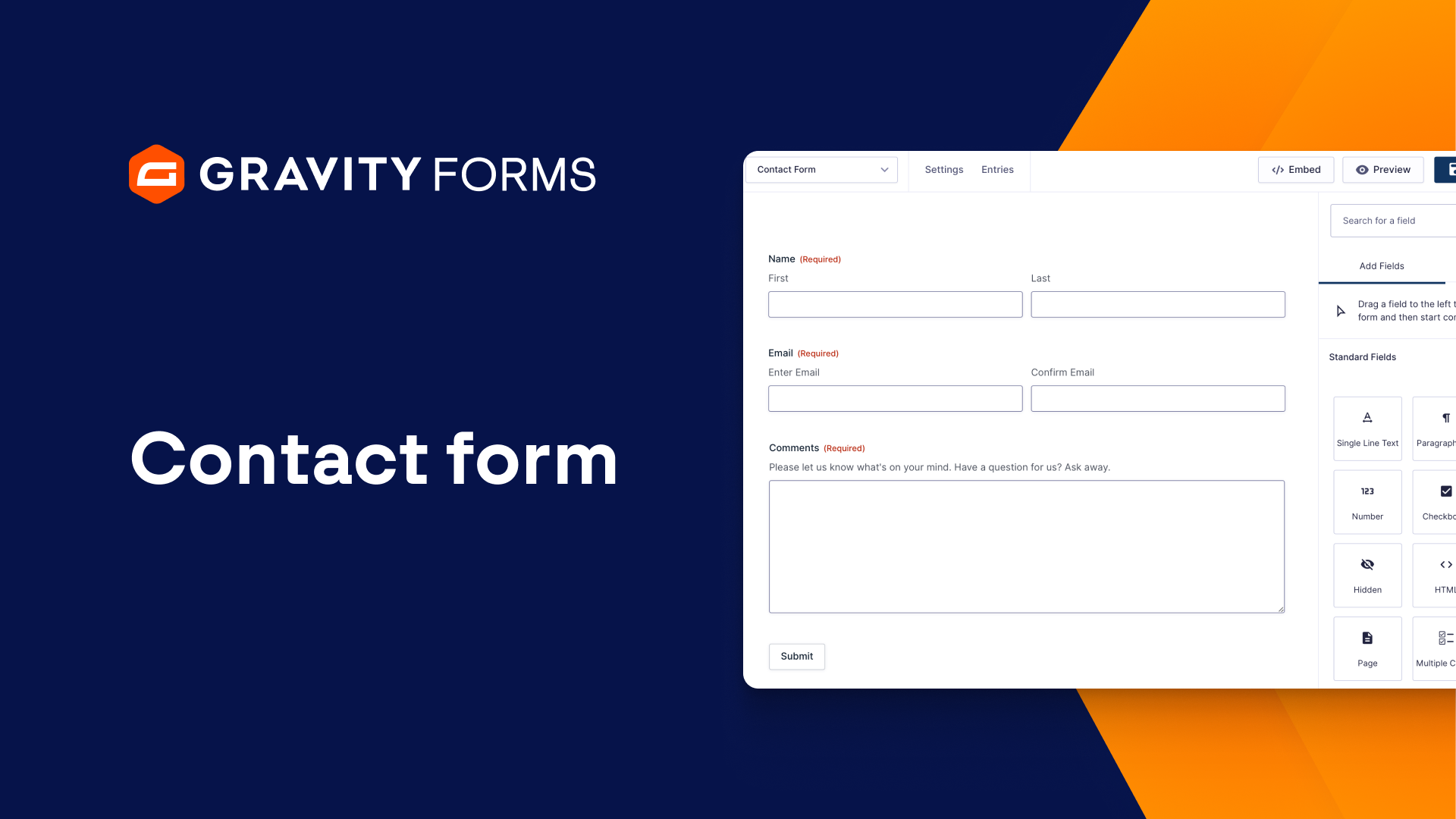
I’ll start by heading to my WordPress dashboard and creating a new form. I’m going to use the Advanced Contact Form template for this example since it’s already broken down into three sections – About You, How Can We Reach You, and What’s On Your Mind.
If I drag and drop the Page field above the ‘How Can We Reach You’ section, I can create a new page. Then, I can simply add another Page field above the ‘What’s On Your Mind’ section to create a third page.
And if I click on ‘Start Paging’ and open the Field Settings, I can choose whether or not I want the progress indicator to be a bar, steps, or disabled. If I’m using the progress bar, I can also customize the progress bar style and opt to display a completed progress bar on form confirmation.
Within the field settings, I can also give each page a name, which will be displayed with the progress indicator. If I select the page break, I’ll be able to customize the Next and Previous buttons, as well as enable Page Conditional Logic or Next Button Conditional Logic.
For example, I could use the Next Button Conditional Logic to hide the next button if the name field is empty. And I can even choose to hide or display entire pages via the Page Conditional Logic settings.
For instance, I’ve got the User Registration Add-On set up on my site, and am going to add a page to my form that lets users register for my site when submitting this form, if they’d like.
I only want this page to display if the user opts in to signing up for my site, so I am going to add a Multiple Choice field to the bottom of my ‘How Can We Reach You’ page that asks the user if they’d like to create an account for this site.
Then, I’ll set the Page Conditional Logic for my Site Registration page to only show this page if the user answers ‘Yes’ to ‘Would you like to create an account for this site?’
Now, if the user is not interested in creating an account, they won’t be presented with the sign-up page. If they indicate that they’d like to create one, however, they’ll be presented with an additional page that lets them create a username and password.
Finally, I’ll save my form and publish it on a new page to make sure everything is working correctly.
We hope you found this video helpful.
Thanks as always for watching, I’ll see you in the next video!
Summary
When building your forms, it’s important to make them accessible and not overwhelming for your users. Multi-page forms are a great way to achieve both goals. In this video tutorial, we’ll show you everything you need to know when using multi-page forms.