Moving entries through a workflow one at a time is nobody’s favorite job. With the release of Gravity Flow 3.1, it’s a job you can retire.
The new Send to Step bulk action lets you select a whole batch of entries and move them all to a specific step in one go. You’ll find it on the Workflow Status screen in the admin, as well as in the Gravity Flow Status block on the front end of your site. No more opening entries one by one, and no more repeating the same click twenty times over.
Read on to find out how it works, where to find it, and how to move your first batch…
The problem Send to Step solves
Gravity Flow has always let you move an individual entry to a different step from its detail page. That’s fine when you’re dealing with a handful of entries. Across a big batch, it gets old fast.
Maybe a group of entries is stuck waiting on an approval that’s already been handled elsewhere. Maybe a batch of submissions needs to go back to a User Input step for another look. Until now, that meant opening each entry, one at a time, and moving it by hand.
With Gravity Flow 3.1, you simply select the entries, choose the step, and Flow moves them all in one go.
What you’ll find in the Send to Step bulk action
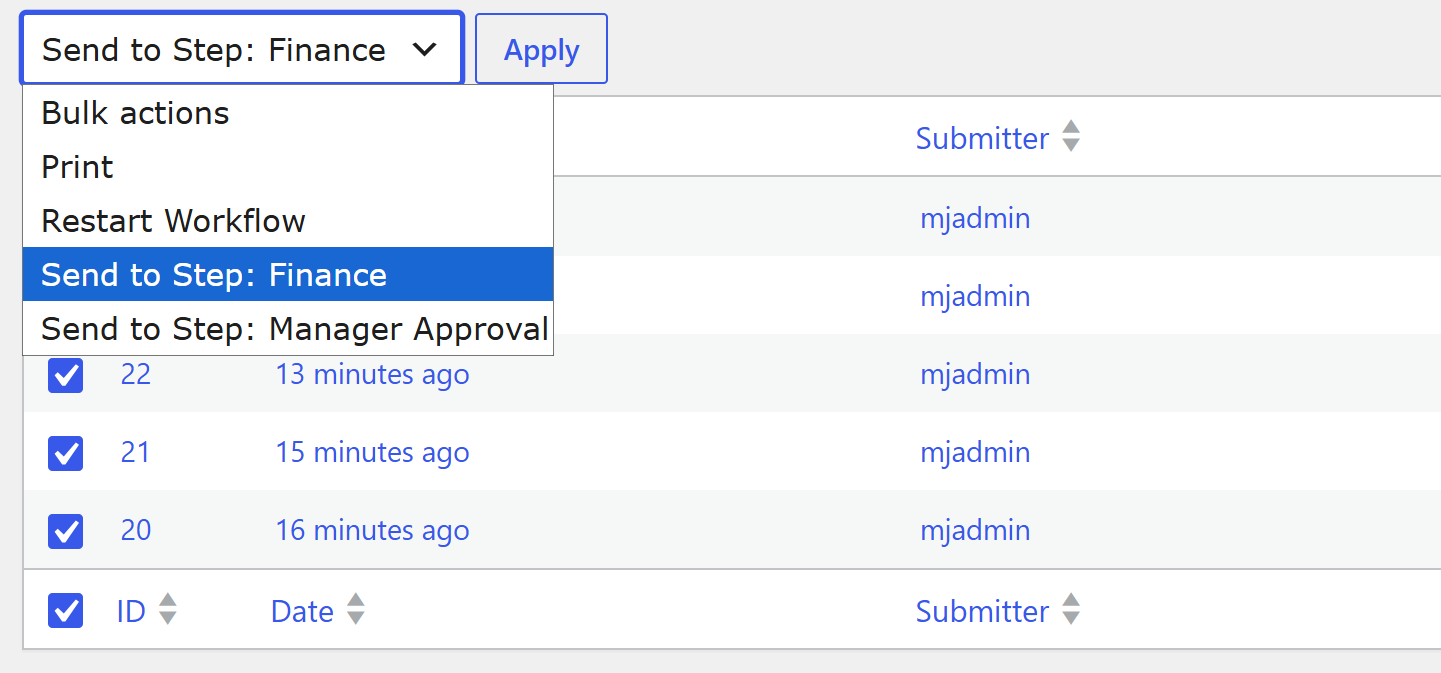
Head to the Workflow Status screen, and you’ll find Send to Step options in the Bulk Actions dropdown. A few things to know:
- It works per form – Every form has its own set of steps, so the Send to Step options appear when the Status screen is filtered to a single form. Once you’ve filtered, the dropdown lists that form’s steps as destinations.
- It works on the front end too – The same Send to Step action is available in the Gravity Flow Status block, so you can manage batches of entries from the front end of your site, not just the WordPress admin.
- Every move is logged – As with everything in Gravity Flow, each entry’s timeline records what happened, so there’s always a clear record of where an entry has been.
How to use the Send to Step bulk action
Let’s put it to work. Say your team processes expense claims through a Gravity Flow workflow, and a batch of claims is sitting at a Manager Approval step. The approvals were already handled in a meeting, so now you need to move the whole batch along to the Finance Processing step.
1. Open the Workflow Status screen – In your WordPress admin, head to Workflow > Status.
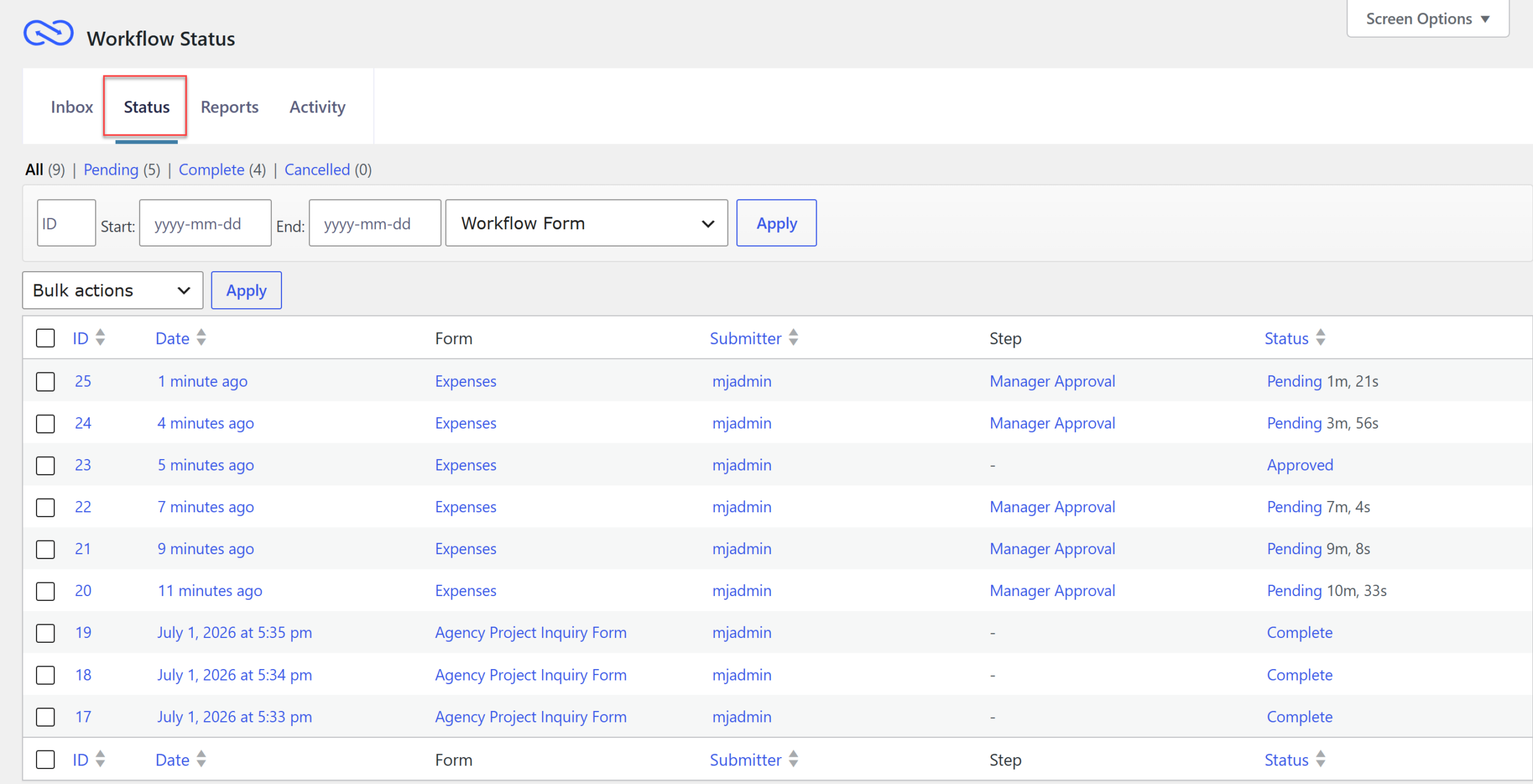
2. Filter to a single form – Select your expense claim form from the filter. The Send to Step options are available once the screen is filtered to one form, since every form has its own steps.
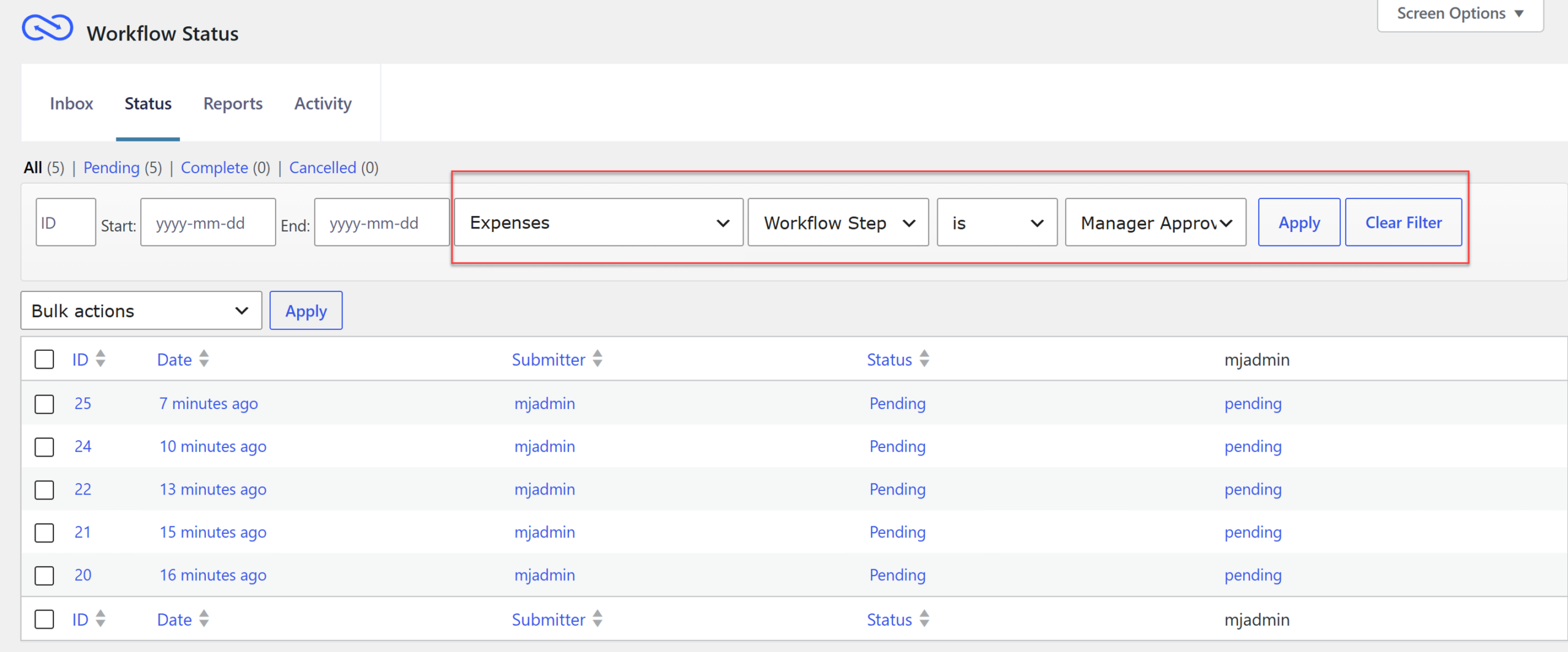
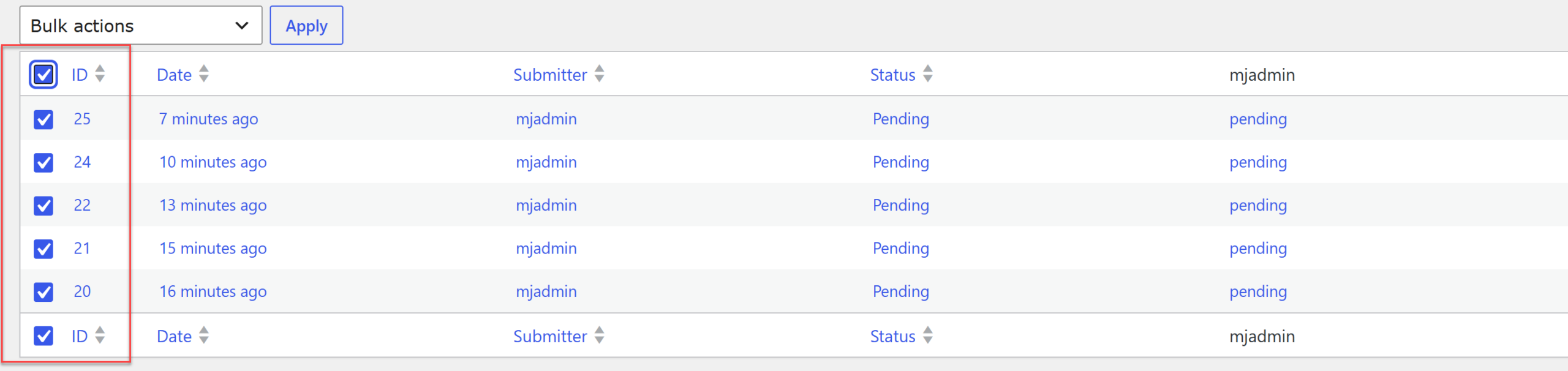
3. Select your entries – Tick the checkbox next to each claim you want to move, or use the select-all checkbox to grab the lot.
4. Choose the destination step – Open the Bulk Actions dropdown, pick Send to Step, and choose Finance Processing.
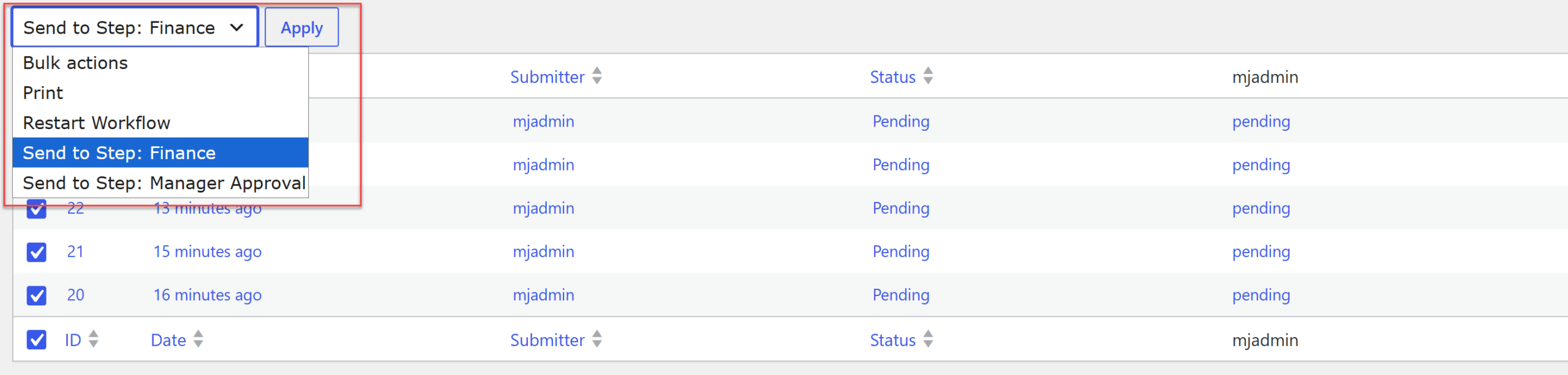
5. Apply and check – Apply the action, and Flow moves every selected entry in one go. Open an entry’s timeline if you want to confirm the move was logged.
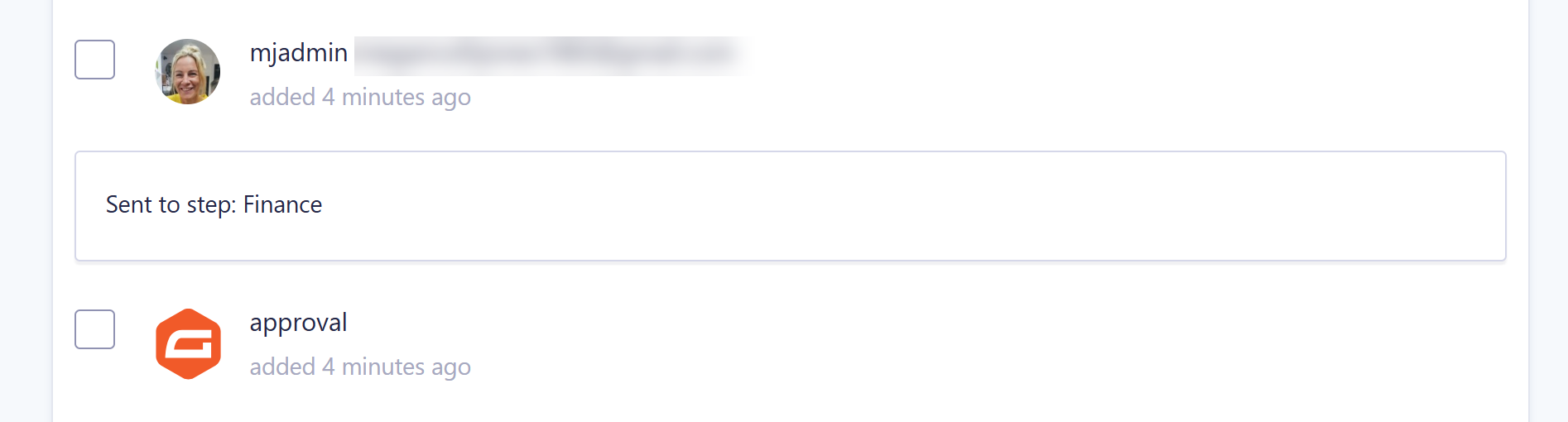
That’s the whole job. What used to be a repetitive, entry-by-entry task is now a ten-second one.
The same steps apply on the front end via the Gravity Flow Status block, which is handy if your finance team works outside the WordPress admin.
For more information on the new Send to Step bulk action, check out the Status page and the Blocks documentation.
Update to Gravity Flow 3.1
Gravity Flow 3.1 is available now to all customers with an active license.
If you have automatic updates enabled, you’re all set. If not, open your WordPress dashboard, head to your plugins page, and click to update to version 3.1. You can also download the latest version from within your Gravity Flow Account.
New to Gravity Flow? Head over to our pricing page to get started, or sign up for a personalized Gravity Flow 3.1 demo to see it all in action.
Further Flow 3.1 resources
For more information on Gravity Flow 3.1, check out these articles:
- Status page documentation
- Blocks documentation
- Gravity Flow 3.1 release article
- Introducing Gravity Flow 3.1: The new Choice Routing step
Any questions about the new Choice Routing Step or how to update to 3.1? Reach out to our Support team, they are always happy to help.

Newsletter
If you want to keep up-to-date with what’s happening on the blog sign up for the Gravity Forms newsletter!
"*" indicates required fields