If you’ve ever copy-pasted the same data from an email into a spreadsheet, forwarded a form submission to three people “just to be safe,” or reminded a teammate for the fifth time that an invoice is overdue, you’ve already felt the problem that workflow automation solves.
You don’t need a computer science degree or an enterprise software budget to use it. If you’ve used a website contact form, an email autoresponder, or a calendar app that sends reminders, you’ve already used a simple version of workflow automation without calling it that.
This guide explains what workflow automation actually is, how it works, where it shows up across departments, and how to tell “workflow automation” the concept apart from the software you’d use to do it. By the end, you’ll be able to spot the repetitive tasks in your own work that are ready to be handed off to a machine.
Workflow automation, defined simply
Workflow automation is the practice of using software to complete repetitive, rule-based tasks automatically, without a person having to manually kick them off or carry them through each step.
Strip away the buzzwords and it comes down to one idea: something happens, and then something else happens automatically as a result, following rules you set up in advance.
A workflow, in this context, is just a sequence of steps needed to get from a starting point to a finished outcome – a new hire gets onboarded, a support ticket gets resolved, an invoice gets approved and paid. Every business runs on dozens of these workflows, most of which were originally designed around a person doing each step by hand: checking email, updating a spreadsheet, sending a follow-up, notifying a manager.
Automating a workflow means replacing some or all of those manual handoffs with software that does them for you, consistently and immediately, every time the workflow is triggered. It doesn’t mean removing people from the process entirely. Most automated workflows still have humans making judgment calls at key points – approving a budget, reviewing an application, making a final decision.
What automation removes is the tedious plumbing in between those decisions: the data entry, the status updates, the “just checking in” emails, the manual routing of information from one person or system to the next.
If a task in your business follows the same steps every time, has clear rules for what happens next, and doesn’t require creative judgment to execute, it’s a strong candidate for automation.
How workflow automation works: Trigger → Steps → Action
Nearly every workflow automation tool, no matter how simple or sophisticated, is built around the same basic structure: a trigger, one or more conditional steps, and an action (or a series of actions).
Trigger
The trigger is the event that starts everything. It’s the “when” of your automation. A trigger might be a form submission on your website, a new row added to a spreadsheet, an email landing in a specific inbox, a date arriving on a calendar, or a status changing in a piece of software. Nothing happens until the trigger fires.
Steps
The steps (sometimes called conditions, logic, or branches) are the rules that determine what happens next, and they’re what separates true automation from a simple notification.
This is where “if this, then that” logic lives. For example: if the form submission includes a budget over $10,000, route it to a senior manager for approval; if it’s under $10,000, approve it automatically. Steps can also include actions like formatting data, calculating a value, waiting a set period of time, or checking a condition against another system before moving forward.
Action
The action is the outcome – what actually gets done as a result of the trigger and the logic that evaluated it. Actions might include sending an email or Slack notification, creating a record in a database or CRM, generating a document, assigning a task to a team member, updating a spreadsheet, or kicking off an entirely separate workflow.
Put together, a real example might look like this: a customer submits a support request through a web form (trigger) → the workflow checks which product category they selected and whether they’re a paying customer (steps) → the request is automatically routed to the right support queue, a confirmation email goes out, and a ticket is created in the helpdesk system (actions).
None of that requires a person to read the form, decide who should handle it, and manually forward it along. The workflow does it instantly, the same way, every single time – which is exactly the point.
Real examples of workflow automation across departments
Workflow automation isn’t one thing that happens in one corner of a business. It shows up almost everywhere repetitive processes exist. Here’s what it looks like in practice across a few common departments.
- Human Resources: When a candidate applies for a job, a workflow can route the application to the right hiring manager, send an automatic confirmation, and remind someone to follow up if it sits untouched. Once a candidate is hired, onboarding workflows can send new-hire paperwork, create system accounts, notify IT to provision equipment, and schedule 30/60/90-day check-ins – all triggered by a start date.
- Sales: A lead fills out a “request a demo” form. A workflow can score the lead, assign it to the right rep by territory or industry, add it to a CRM, and send a personalized follow-up – within seconds, instead of hours later when someone finally checks the inbox.
- Customer support: Tickets can be automatically categorized by urgency, routed to the right team, and escalated if they go unanswered too long, with customers getting an instant acknowledgment that reduces “did you get my email?” follow-ups.
- Finance and operations: Invoice approvals are a classic example: a workflow can route an invoice to the right approver based on dollar amount, send reminders if it stalls, and log the approval automatically. Expense reports, purchase orders, and vendor onboarding follow the same pattern.
- Marketing: When someone downloads a gated resource, a workflow can add them to the right email list, kick off a welcome sequence, and notify sales if they take a high-intent action like revisiting the pricing page.
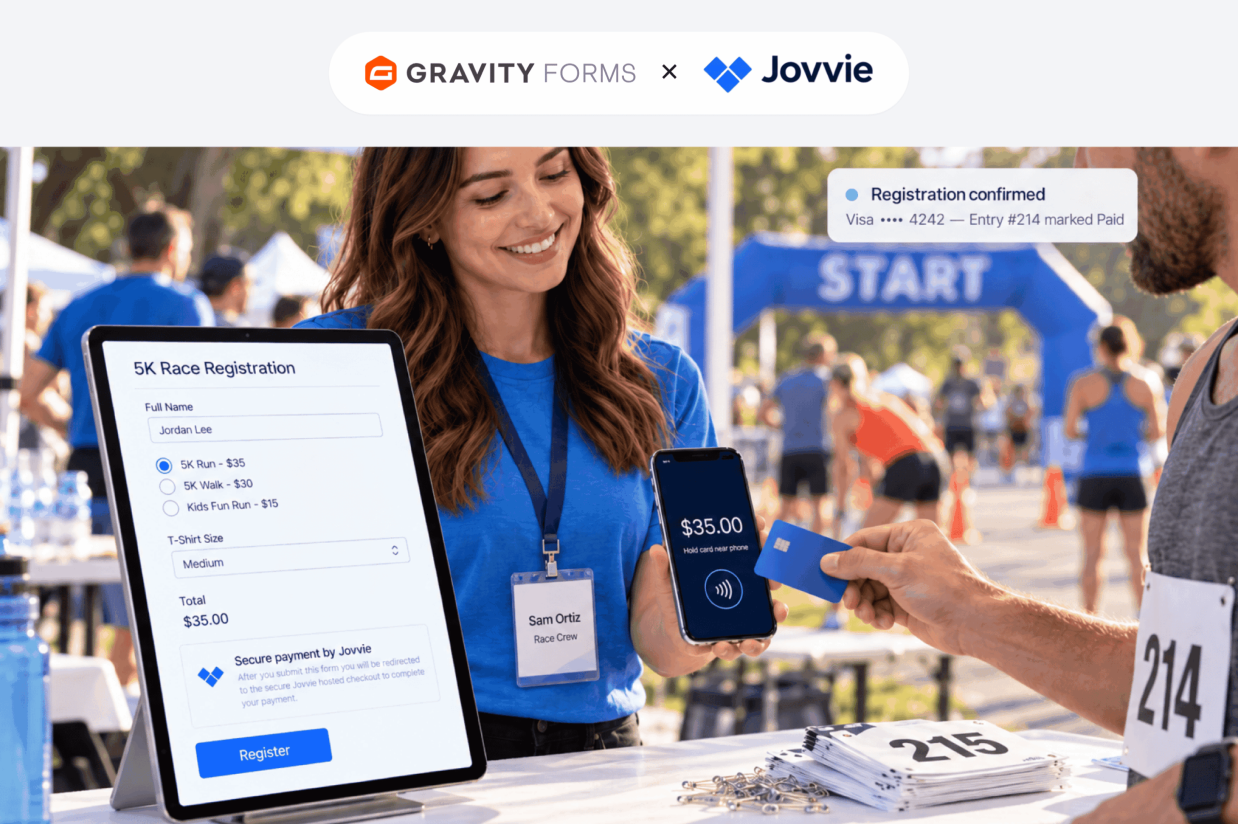
- Event registration: Signup forms can confirm a registration, send calendar invites, trigger reminders as the event approaches, and route accessibility or dietary requests to whoever needs to see them.
The common thread across these workflow automation examples: a predictable, repeatable process that used to need someone manually checking, forwarding, or updating something now happens on its own, the instant the trigger fires.
Benefits of automating your workflows
The appeal of workflow automation isn’t abstract efficiency for its own sake – the workflow automation benefits show up in a handful of very concrete ways.
- Time savings: Every manual step you remove – data entry, forwarding an email, updating a spreadsheet – is time your team gets back for work that actually requires their judgment.
- Fewer errors: People make mistakes, especially on repetitive tasks done on autopilot. A correctly configured workflow applies the same rules the same way every time, eliminating the typos, missed steps, and forgotten follow-ups that come with manual handling.
- Faster turnaround: Automated workflows don’t wait for someone to have a free moment to check their inbox. A trigger fires and the next step happens immediately – which matters for lead follow-up, support response times, and approval cycles where speed affects outcomes.
- Better visibility: Most workflow automation software logs what happened, when, and who (or what) took each action – an audit trail that’s valuable for troubleshooting and spotting where a process tends to slow down.
- Consistency and compliance: When a process has to follow specific rules – an approval routed to certain people, a disclosure sent every time – automation makes sure that happens without relying on someone remembering to do it correctly.
- Scalability: A manual process that works fine at ten requests a week can break down at a hundred. Automated workflows scale with your business without requiring extra headcount just to keep up with routine tasks.
None of this replaces the people doing the work. It means they spend less time on the repetitive parts of the job and more time on the parts that actually need a human.
Getting started with workflow automation in WordPress with Gravity Forms + Gravity Flow
If your website runs on WordPress, you already have a natural starting point for workflow automation: your forms.
Gravity Forms is where data enters your workflow – job applications, support requests, budget approvals, event registrations, and anything else that starts with someone filling out a form.
On its own, Gravity Forms already automates plenty: conditional logic that shows or hides fields based on previous answers, notifications that fire the moment a form is submitted, and feeds that connect to email platforms, CRMs, payment processors, and hundreds of other tools via Zapier and similar integrations.
Gravity Flow takes that further by turning form submissions into full, multi-step workflows. Instead of a submission simply landing in an inbox, Gravity Flow lets you build an entire approval and routing process around it: assign it to a specific person or role, require sign-off before it moves forward, route it conditionally based on the answers submitted, send automated reminders if a step stalls, and track exactly where every entry stands – all without writing a line of code.
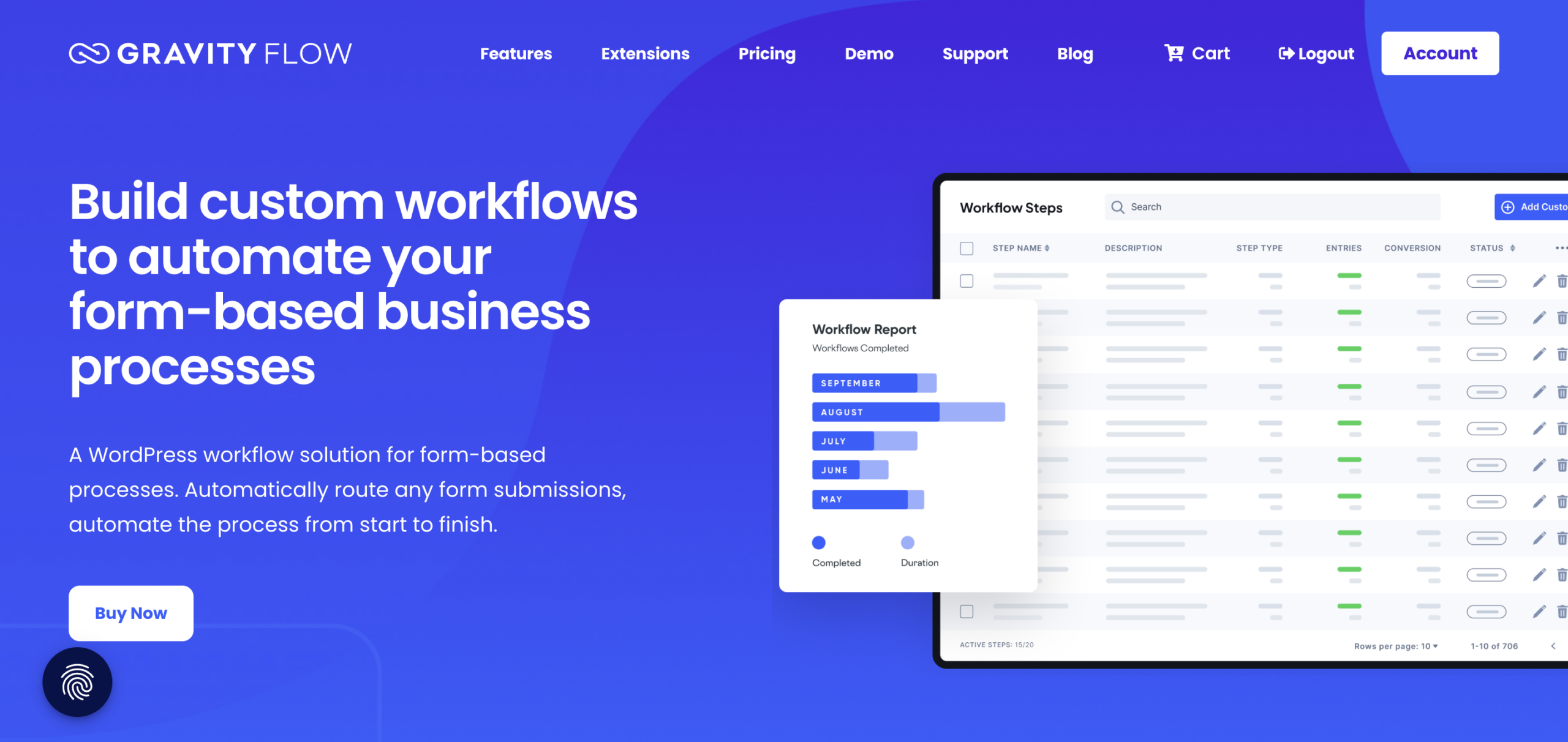
Together, the two cover the whole trigger-to-action structure described in this guide. Gravity Forms captures the trigger (the data that kicks off the workflow). Gravity Flow manages the steps (the logic, approvals, and routing) and the actions (the notifications, assignments, and status updates) that carry it through to completion.
If you’re new to workflow automation, a form-based process you already run manually – like expense approvals, content review, or employee onboarding requests – is usually the easiest place to start. Map out the steps you currently do by hand, then look at how a form and a connected workflow could handle the routing and notifications for you automatically.
But reading about it only gets you so far. Spin up a free Gravity Flow demo environment and watch a real approval workflow – trigger, routing, sign-off, notification – run start to finish in your own browser.
Frequently asked questions about workflow automation
What is the difference between workflow automation and business process automation?
Workflow automation focuses on automating individual sequences of tasks, such as approvals, notifications, assignments, and follow-ups. Business process automation can connect several workflows into a larger process. With Gravity Forms and Gravity Flow, businesses can build both directly in WordPress, using form submissions to trigger automated workflows and multi-step business processes.
Can I automate workflows in WordPress without coding?
Yes. Gravity Forms and Gravity Flow let you build automated workflows in WordPress without custom code. Gravity Forms collects the information that starts the process, while Gravity Flow adds workflow steps for approvals, user input, notifications, routing, assignments, and other actions. This makes it possible to automate business processes while keeping the workflow inside WordPress.
What is the difference between workflow automation and an integration?
An integration connects systems so they can exchange data, while workflow automation controls the complete sequence of actions around that data. With Gravity Forms and Gravity Flow, a form submission can trigger conditional routing, approvals, notifications, user input, and integrations with other business tools as part of one automated WordPress workflow.
What business processes can I automate with Gravity Forms and Gravity Flow?
Gravity Forms and Gravity Flow can automate many form-based business processes in WordPress, including purchase approvals, employee onboarding, membership applications, time-off requests, client onboarding, document reviews, and other approval workflows. Conditional routing, notifications, assignments, reminders, and workflow status tracking help move each submission through the appropriate process automatically.
Do I need separate workflow automation software if I already use WordPress?
Not necessarily. If WordPress is already central to your website or business operations, Gravity Forms and Gravity Flow can turn it into a workflow automation platform. Instead of sending form submissions into a separate system for processing, you can collect information with Gravity Forms and manage approvals, routing, notifications, and other workflow steps directly in WordPress.