At an agency, client form work never really stops: the tweak requests, the pre-launch checks, the monthly reports. Gravity Forms MCP lets more of your team handle it, faster.
Connect an AI assistant like Claude or ChatGPT to a client’s site and just ask: audit these forms, bring them up to our standard, pull last month’s numbers for the client update. It works while your developers stay on the build.
Here’s where it earns its keep across your client work.
1. Onboard a new client without the archaeology
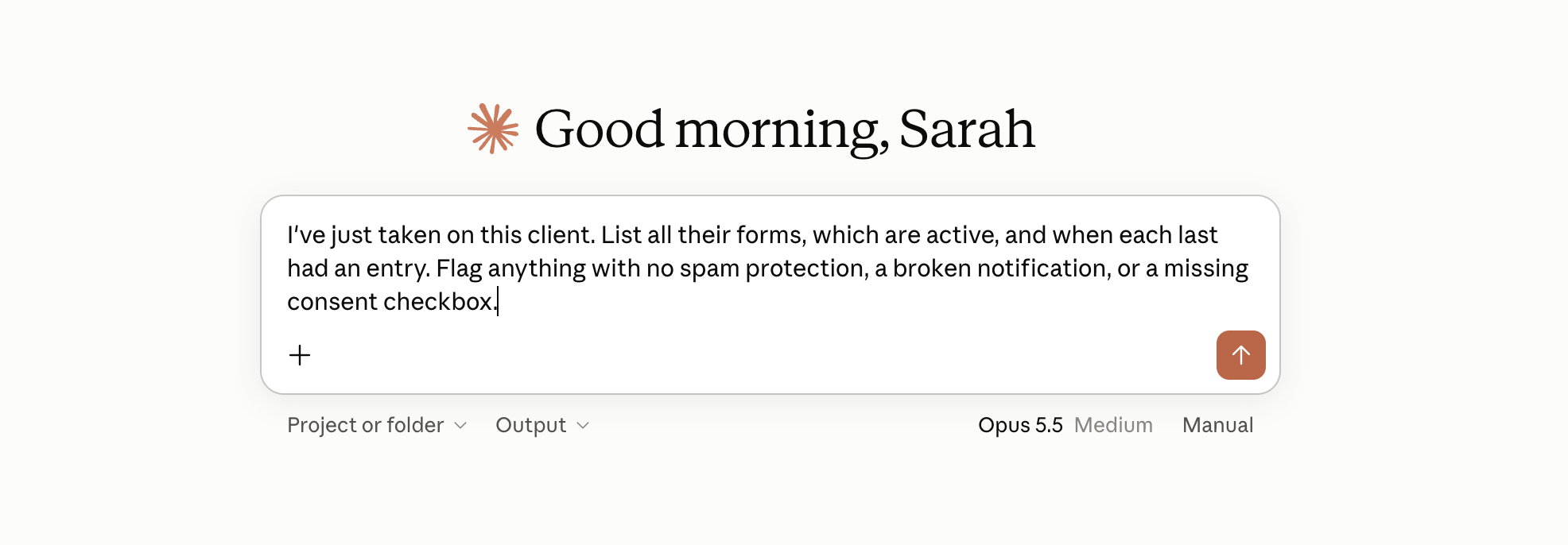
Taking on a client means inheriting forms you’ve never seen. Instead of clicking through every one to work out what’s there, have your assistant lay it out and flag the problems.
“I’ve just taken on this client. List all their forms, which are active, and when each last had an entry. Flag anything with no spam protection, a broken notification, or a missing consent checkbox.”
2. Bring every form up to your house standard
Consistency is part of what clients pay you for. Rather than setting the same things by hand on every site, describe your standard once and have your assistant apply it.
“Apply our standard setup to every form on this site: turn on spam protection, add a consent checkbox linked to the privacy policy, and set notifications to go to the client’s shared inbox and our project address.”
3. Let your account managers handle the small stuff
Not every request needs a developer. With read-only access to start, the non-technical people on your team can answer client questions and make simple changes themselves, without opening a ticket or the form editor.
“The client wants a ‘preferred contact time’ dropdown added after the phone field on their booking form, and a copy of last week’s enquiries with name, email, and message.”
4. Send clients a report that shows your value
The monthly update is easy to put off and easy to undervalue. Have your assistant turn the raw entries into something client-ready, so the work you’re doing is visible.
“Summarize this month’s form activity for this client: totals per form, the most common enquiry types, and anything that needs their attention. Write it as a short branded update I can send them.”
5. Prep every site before it goes live
Launch day has the same checklist every time. Run it as one request instead of clicking through each form.
“Before this site goes live tomorrow, delete all test entries from every form, confirm each active form has a working notification, and list any form still set to inactive.”
6. Work across the client sites you’ve connected
You can connect your assistant to more than one client site. Each site is its own connection, and once they’re set up, your assistant can work across them in the same conversation.
“Across the client sites I’ve connected, list every active form and when each last received a submission, and flag any that have gone quiet this month.”
7. Roll out a change to the clients that need it
When a rule changes or you spot a gap, you can push the fix to every connected site at once. Ask to see the plan first so you stay in control of what changes where.
“For each client site I’ve connected, add a required consent checkbox to any contact form that’s missing one, linked to that client’s privacy policy. Show me the list of changes before you make them.”
Quick wins
Then there’s the small stuff you can clear in a single line:
“Duplicate this client’s contact form for their new landing page, and point its notifications to the same inbox.”
“Which of this client’s forms haven’t had a submission in the last 30 days?”
“Pause the competition form on this client’s site, but leave the page up.”
“Update the notification address on all this client’s forms to their new shared inbox.”
Best practices for using Gravity Forms MCP
Gravity Forms MCP is built to be careful, which matters even more when the sites belong to your clients. A few habits keep it safe.
- Start with read-only tools. They let your team read forms and entries without changing anything, which is the right place to begin on someone else’s site.
- Give each client site its own dedicated user. Your assistant connects as a WordPress user through an application password, and the tool allowlist is set per site, so scope what it can do on each client’s site through that user’s capabilities. Use a least-privilege account, never the client’s admin login.
- Turn on write access only when you need it. Leave write and destructive tools off until a job calls for them. Destructive actions ask you to confirm first, and it’s worth reviewing changes before you rely on them.
- Keep backups. Before you push a change across a live client site, make sure there’s a recent backup to fall back on.
- Add the agent skills file. Download it from your MCP settings and hand it to your assistant so it understands how Gravity Forms works. It makes your assistant faster and less likely to make mistakes.
Ready to get started?
Gravity Forms MCP comes with every Gravity Forms license, from Basic to Developer, and it’s part of Gravity Forms 3.1. Each client site needs WordPress 6.9 or higher, self-hosted, with Gravity Forms 3.1 installed and active. WordPress.com isn’t supported at this time.
For the full setup, check out the Gravity Forms MCP documentation, or point the developers on your team at it. Our Support team is happy to help if you hit a snag getting connected.
Not using Gravity Forms across your client sites yet? Take a look at our pricing, or get in touch to talk through what your agency needs.

Newsletter
If you want to keep up-to-date with what’s happening on the blog sign up for the Gravity Forms newsletter!
"*" indicates required fields