
Somewhere in your inbox right now, there’s a contract, an expense report, or a piece of copy waiting on someone’s sign-off. You’ve already forwarded it once. Maybe you’ve pinged them on Slack – “any update on this?” – and got a thumbs-up emoji instead of an answer.
Nobody’s being difficult; the document just doesn’t have a clear path to “done.”
Here’s the reassuring part: fixing that doesn’t require expensive software or a full process overhaul. A document approval workflow is really just a repeatable path a document follows from first draft to final sign-off – and most teams already run an informal version of one, whether that’s a paper routing slip or a “reply-all once approved” email thread.
This guide covers what a document approval workflow actually is, the bottlenecks that show up when it’s handled manually, the four steps every approval process needs, what to look for in software, and how to set one up in WordPress without adding a separate platform.
What a document approval workflow is
A document approval workflow is the defined sequence a document moves through – from being drafted, to being reviewed by the right people, to being formally approved (or sent back for changes), to being filed away as the record of what was agreed.
Strip away the terminology and it’s just this: who needs to see this, in what order, before it’s considered approved. Instead of a document bouncing between inboxes based on whoever remembers to forward it next, a workflow spells out the reviewers, what happens if someone rejects it, and where the finished version ends up living.
A straightforward example: an invoice that needs a department head’s sign-off before finance will pay it, or a blog post that needs legal review before it is published. The litmus test is simple – if a document needs more than one person’s sign-off, and that same review pattern repeats every time, it’s a strong candidate for a defined workflow rather than an ad hoc email chain.
Common bottlenecks in manual document approval
Nobody sets out to run their document approval process over email and hallway conversations – it just accumulates that way, one exception at a time.
A few friction points commonly show up almost everywhere that manual approval is the norm:
- Version confusion – Contract_v2_FINAL_reallyfinal.docx. Multiple people editing different copies, nobody certain which one is current.
- No visibility into where things are stuck – There’s no way to tell if a document is sitting unread in someone’s inbox or actively being reviewed.
- A single point of failure – The whole process stalls the moment the one designated approver is out sick or on vacation.
- Inconsistent routing – The process depends on the submitter remembering who needs to review what, so a required reviewer occasionally gets skipped entirely.
- No audit trail – When a question comes up later – who approved this, and when? – there’s no clean record, just a scavenger hunt through old email threads.
These aren’t people problems. They’re the predictable result of running a repeatable process without a defined structure behind it.
The 4-step approval process: draft → review → approve → archive
However specialized the document or however many people are involved, most document approval processes reduce to four stages.
- Draft – Someone creates the initial version – ideally from a consistent template or intake form rather than a blank document each time, so reviewers aren’t also correcting formatting.
- Review – One or more people check the document against a set of criteria – accuracy, compliance, budget, brand – and either flag changes or pass it forward.
- Approve – A designated approver (or group of approvers) makes the final call. If more than one person is involved, the process needs to specify whether a single approval is enough or everyone has to sign off.
- Archive – The finished, approved document gets filed somewhere findable, along with a record of who approved it and when – so it can be referenced later without digging through email.
Walk a real example through all four: a new vendor contract gets drafted by procurement from a standard template, reviewed by legal for terms, approved by the department head who owns the budget, and archived in a shared contract library with the approval trail attached.
Choosing document approval workflow software
Once you’ve mapped your own draft → review → approve → archive process, the right document approval workflow software should enforce it automatically rather than asking your team to remember it. A few things worth prioritizing:
- Flexible routing giving you the ability to assign a step to a specific person, a role, or route it dynamically based on the document’s contents (a purchase request over $5,000 goes to a director; smaller ones don’t).
- Clear approve/reject actions, with the option to send a document back for revision instead of forcing a restart from scratch.
- Automatic notifications, so reviewers are alerted when something needs them without anyone having to chase it down.
- Status visibility anyone involved can check without having to ask.
- A built-in audit trail with every decision timestamped and attributed, so “who approved this and when” is never a mystery.
- No new platform to learn, ideally. Document approval is one process among many that a team runs; the fewer standalone tools required, the more likely it actually gets used consistently.
If your team already runs on WordPress, that last point matters more than it might seem – a document approval workflow can live in the same place your forms, intake requests, and other internal tools already do, instead of becoming yet another login.
Building a document approval workflow in WordPress with Gravity Flow
If your team already uses WordPress, you can build the entire document approval workflow there with Gravity Forms and Gravity Flow.
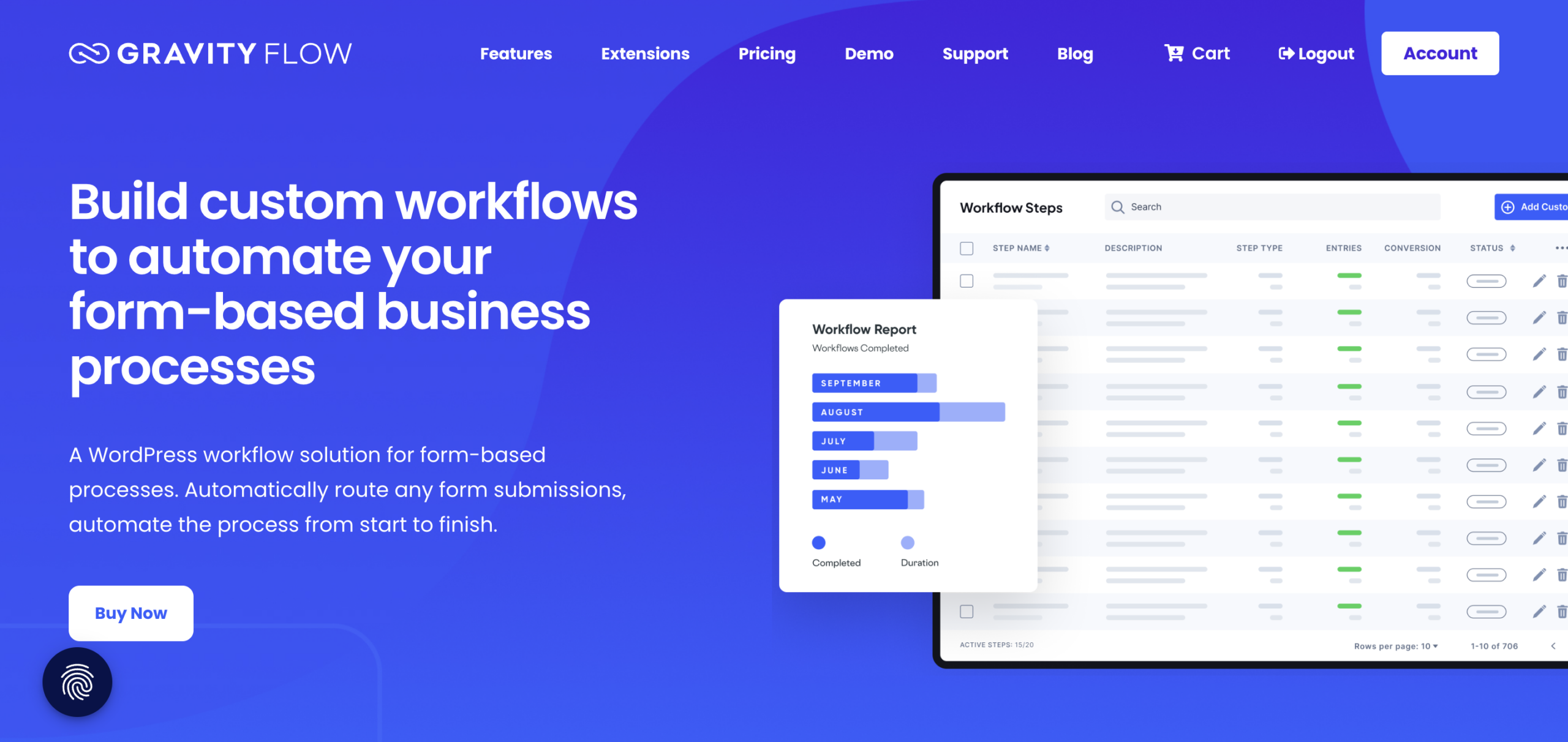
Gravity Forms handles the form and information that starts the workflow. Gravity Flow adds workflow automation on top, moving each submission through the right people and steps until it is approved.
Here’s how that fits into the four stages we covered above:
- Draft – Start with a Gravity Form that collects the information or file that needs approval. This could be a contract request, expense report, content brief, or another document your team regularly reviews.
- Review – Gravity Flow routes the submission to the right reviewer. You can assign reviews to specific users or roles, or use form data to determine who should receive them. For example, a purchase request over $5,000 could automatically go to a director.
- Approve – Add an Approval step where assigned users can approve or reject the submission. You can require one person or everyone assigned to sign off. If changes are needed, route the submission to a User Input step so the original submitter can make revisions and send it back through the workflow.
- Archive – Gravity Flow keeps a record of the workflow after a decision is made. The Status page and Activity log make it easy to see the steps an entry completed and who interacted with it, giving you an audit trail inside WordPress. If you need a finished PDF, the Gravity Flow PDF Generator Extension can also generate one using the approved information.
Gravity Flow can also send email notifications as the document moves through the workflow, so reviewers know when something needs their attention. Approvers can even take action using a one-click link in the notification email without logging into WordPress.
**[IMAGE: Example Gravity Flow document approval workflow showing Draft → Review → Approve → Archive]**
A good place to start is with a document your team already approves the same way every time, such as an expense report, PTO request, or piece of content.
Map out who submits it, who reviews it, who gives final approval, and what happens once it’s approved. Then recreate that path with your form and Gravity Flow workflow steps.
If you want to see approval steps, routing, and status tracking in action first, explore the Gravity Flow demo.
See it in action
Document approval isn’t complicated in theory. Draft, review, approve, archive – four steps, in order.
Handled manually, those same four steps create the bottlenecks this guide started with: buried inboxes, no visibility, no record of who signed off on what.
Gravity Forms captures the request. Gravity Flow routes it, tracks it, and archives it — without ever leaving WordPress.
Start with a single approval step. Add routing, revisions, and reminders as the process grows.The goal isn’t more complexities. It’s fewer places a document can get stuck.
See it running in the Gravity Flow demo.
Frequently asked questions about document approval workflows
How do I create a document approval workflow in WordPress?
You can create a document approval workflow in WordPress using Gravity Forms and Gravity Flow. Gravity Forms collects the document, file, or request details, while Gravity Flow automates the approval process with assigned reviewers, approval and rejection steps, notifications, conditional routing, and status tracking.
Can Gravity Forms be used for document approval workflows?
Yes. Gravity Forms can collect documents, files, and other information that needs approval, while Gravity Flow adds workflow automation to the Gravity Forms entry. Together, they let you build a complete document approval workflow in WordPress without relying on email chains or a separate approval platform.
What kinds of documents can I run through a document approval workflow?
Anything that needs sign-off before it’s considered final: contracts, invoices and expense reports, marketing or legal copy, PTO requests, vendor onboarding paperwork, internal policy documents. If it follows a repeatable draft → review → approve → archive pattern, it’s a good candidate.
Can I automate document approvals in WordPress without custom code?
Yes. Gravity Flow lets you automate document approvals through the WordPress admin without custom code. You can assign approvals to specific users or roles, route submissions based on form data, send automatic notifications, and track each entry as it moves through the workflow.
What happens when a document is rejected in a Gravity Flow approval workflow?
A rejected document can be routed to a Gravity Flow User Input step, allowing the original submitter to revise specific fields and resubmit the entry. This keeps revisions within the same document approval workflow instead of requiring the submitter to start again.
Does Gravity Flow provide an audit trail for document approvals?
Yes. Gravity Flow tracks workflow activity so teams can see the current status of an entry, the steps it has completed, and who has interacted with it. This creates a record of the approval process inside WordPress and makes it easier to track document approvals without maintaining a separate spreadsheet or email trail.
How many approval steps is too many?
There’s no universal number, but every additional required approver adds a potential bottleneck. A reasonable rule of thumb: only add a step if that person’s sign-off would actually change the outcome. Otherwise it’s a notification, not an approval.

Newsletter
If you want to keep up-to-date with what’s happening on the blog sign up for the Gravity Forms newsletter!
"*" indicates required fields