When you’re running a nonprofit on a small team, the admin around your forms is time you’d rather spend on the cause. Gravity Forms MCP hands a lot of that back.
Connect an AI assistant like Claude or ChatGPT to your site and just ask for what you need: build a volunteer signup, pull last month’s donation numbers, find everyone who offered to help. It builds, reads, and tidies your forms while you get on with the work that matters.
Here’s what that looks like across the jobs you juggle.
1. Build a donation form
Donations keep the lights on, and setting up a good donation form shouldn’t need a developer. Describe the one you want and your assistant builds it, ready to take gifts.
“Create a donation form with suggested amounts of $10, $25, and $50 plus a custom amount, a checkbox to make it a monthly gift, and name and email fields. Set it up to take donations through our Stripe account.”
2. Recruit volunteers with a signup form
Volunteer forms carry a lot of detail: availability, skills, emergency contacts, and different questions for under-18s. Your assistant handles all of it, conditional logic included.
“Create a volunteer registration form with name, email, phone, availability checkboxes for weekdays and weekends, the skills someone can offer, and an emergency contact. If they say they’re under 18, ask for a parent or guardian’s name and contact number.”
3. Turn your paper forms into online ones
Nonprofits run on paper: pledge cards, membership forms, event waivers, grant applications photocopied a hundred times over. Hand your assistant the document and it rebuilds the form online, matching the fields and sections, so you’re not retyping any of it.
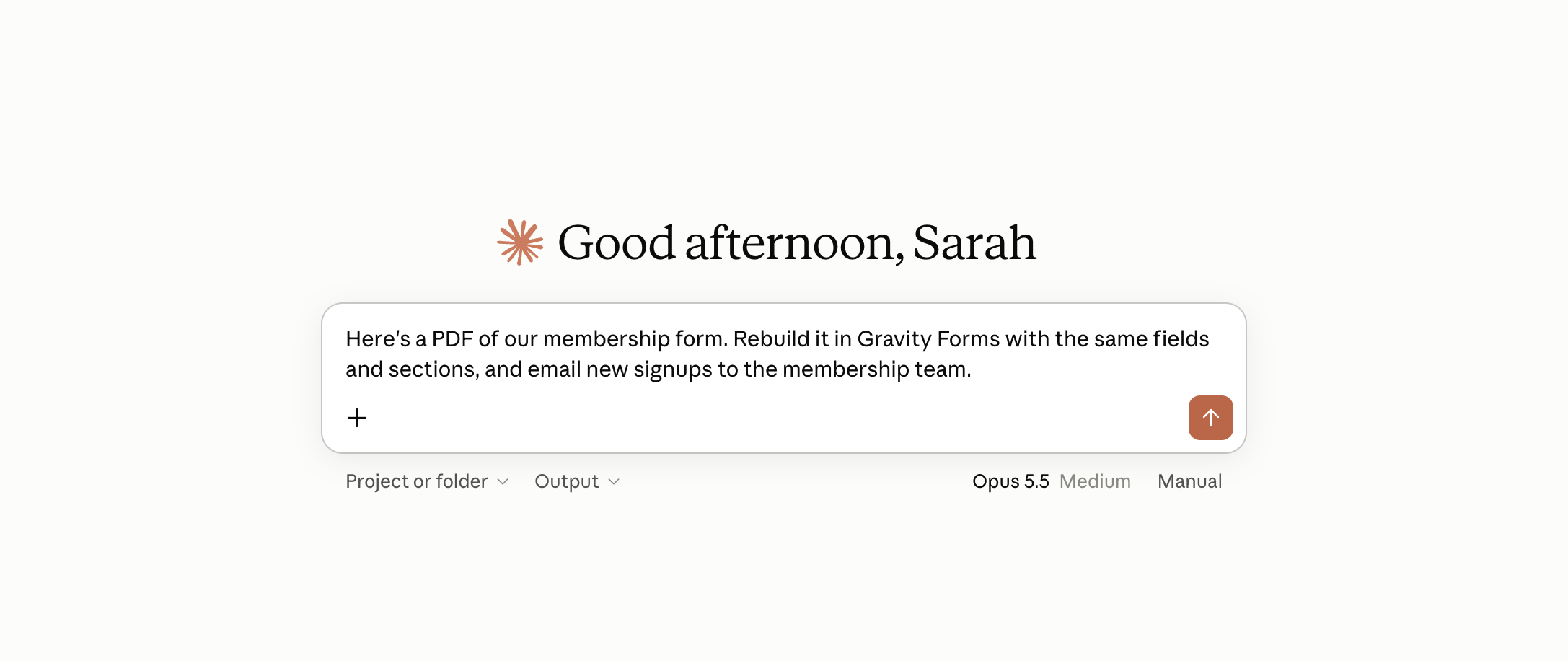
“Here’s a PDF of our membership form. Rebuild it in Gravity Forms with the same fields and sections, and email new signups to the membership team.”
4. Set up everything for your next event
A fundraiser rarely needs just one form. There’s attendee registration, maybe a sponsorship form, and a volunteer signup to run the day. Describe the whole set and your assistant builds them together, with each one’s notifications going to the right person.
“Set up the forms for our spring gala. A ticket registration form with name, email, number of guests, and dietary requirements. A sponsorship form for businesses with company name, contact, and a sponsorship level dropdown (Bronze, Silver, Gold). A volunteer signup for the night with name, phone, and availability. Send registrations to events@, sponsorships to fundraising@, and volunteer signups to the volunteer coordinator.”
“The gala’s over. Stop all three forms from taking new entries, but leave the pages up.”
5. Answer the questions your board asks
Trustees want numbers, and you’d rather not build a spreadsheet every time they ask. Put the question to your assistant instead, and it reads the entries and answers.
“How many people signed up to volunteer this month, compared to the same time last year?”
“Give me everyone who registered for last month’s fundraising dinner: name, email, and number of guests.”
6. Find the supporters who want to do more
Some of your most willing helpers are already sitting in your entries, having ticked a box or left a comment. Ask your assistant to surface them so you can follow up.
“Show me every entry from the event feedback form where someone said they’d like to volunteer or get more involved.”
7. Reuse last year’s form for this year
Your calendar repeats, so your forms can too. Duplicate last year’s version, rename it, and change the details that moved on.
“Duplicate last year’s Gala Registration form, rename it for this year, and update the date and ticket-price fields.”
8. Tidy up your entry data
Small teams end up with messy data: a form filled in twice, or a pile of old entries you’ve already exported. Your assistant can clear it out, and anything it deletes asks you to confirm first.
“A volunteer filled in the availability form twice by mistake. Find both entries and delete the duplicate.”
“We’ve exported what we need from last year’s appeal. Delete those old entries.”
Quick wins
Then there’s the small stuff you can clear in a single line:
“Add a checkbox to every donation form inviting people to join our mailing list.”
“Is the grant application form still open, and how many entries have come in?”
“Add a phone number field to the volunteer form, right after the email field.”
“Update the notifications on all our forms to go to the coordinator’s inbox.”
Best practices for using Gravity Forms MCP
Gravity Forms MCP is built to be careful, and a few habits keep it that way.
- Start with read-only tools. They let your assistant read your forms and entries without changing anything, which is the right place to begin.
- Give it its own login. Your assistant connects as a user on your site, so set up a dedicated account for it with only the access it needs, rather than sharing a main admin login.
- Turn on changes only when you want them. Switch on the tools that create and edit forms when you have a job for them, and anything your assistant deletes asks you to confirm first.
- Keep a backup. As with any change to your site, a recent backup means you can undo anything you’re not happy with.
- Add the agent skills file. Download it from your MCP settings and hand it to your assistant so it understands how Gravity Forms works. It makes your assistant faster and less likely to make mistakes.
Ready to get started?
Gravity Forms MCP comes with every Gravity Forms license, including our Nonprofit License, and it’s part of Gravity Forms 3.1. You’ll need WordPress 6.9 or higher on a self-hosted site, with Gravity Forms 3.1 installed and active. WordPress.com isn’t supported at this time.
For the full setup, check out the Gravity Forms MCP documentation. If you’d rather not set it up yourself, our Support team is happy to help.
New to Gravity Forms? Take a look at our Nonprofit License to get started, or sign up for a personalized demo to see it in action.

Newsletter
If you want to keep up-to-date with what’s happening on the blog sign up for the Gravity Forms newsletter!
"*" indicates required fields