For more information on using the Embed Form flyout, check out our documentation.
Embedding a form on a WordPress page or post takes seconds with Gravity Forms.
In this video, we’ll look at the different ways you can embed your forms.
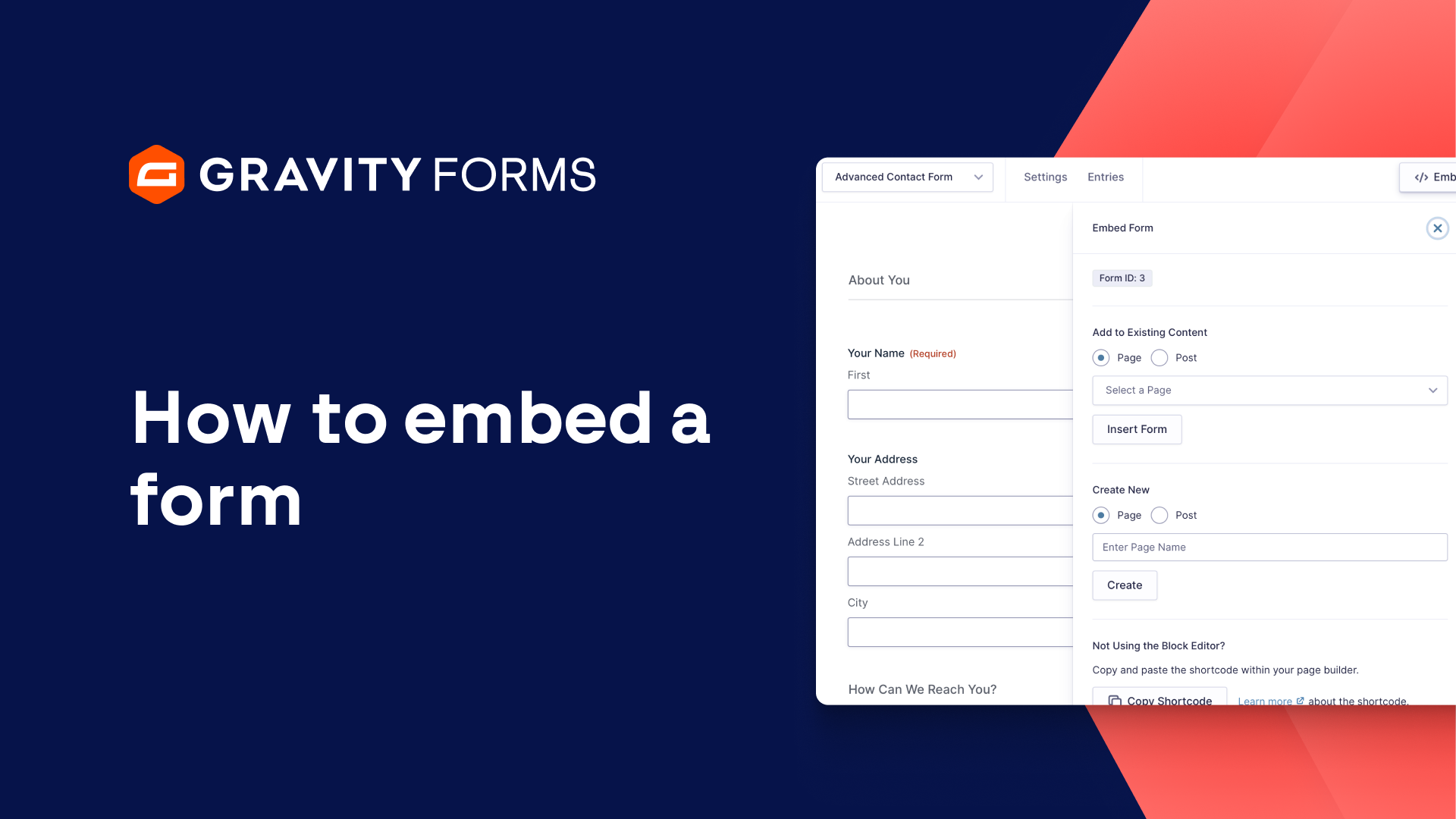
Gravity Forms gives you the option to embed a form directly from within the form editor using the Embed Form flyout.
With the form editor open, select ‘Embed’ to open the flyout.
If you want to add your form to an existing page or post, select the appropriate choice from the dropdown box and then select ‘Insert Form’.
The WordPress editor will automatically open and you’ll be able to select where you want to place the Gravity Forms block.
You can use the block settings sidebar to further customize your form.
The Form Settings tab allows you to select a different form and disable the form title or description.
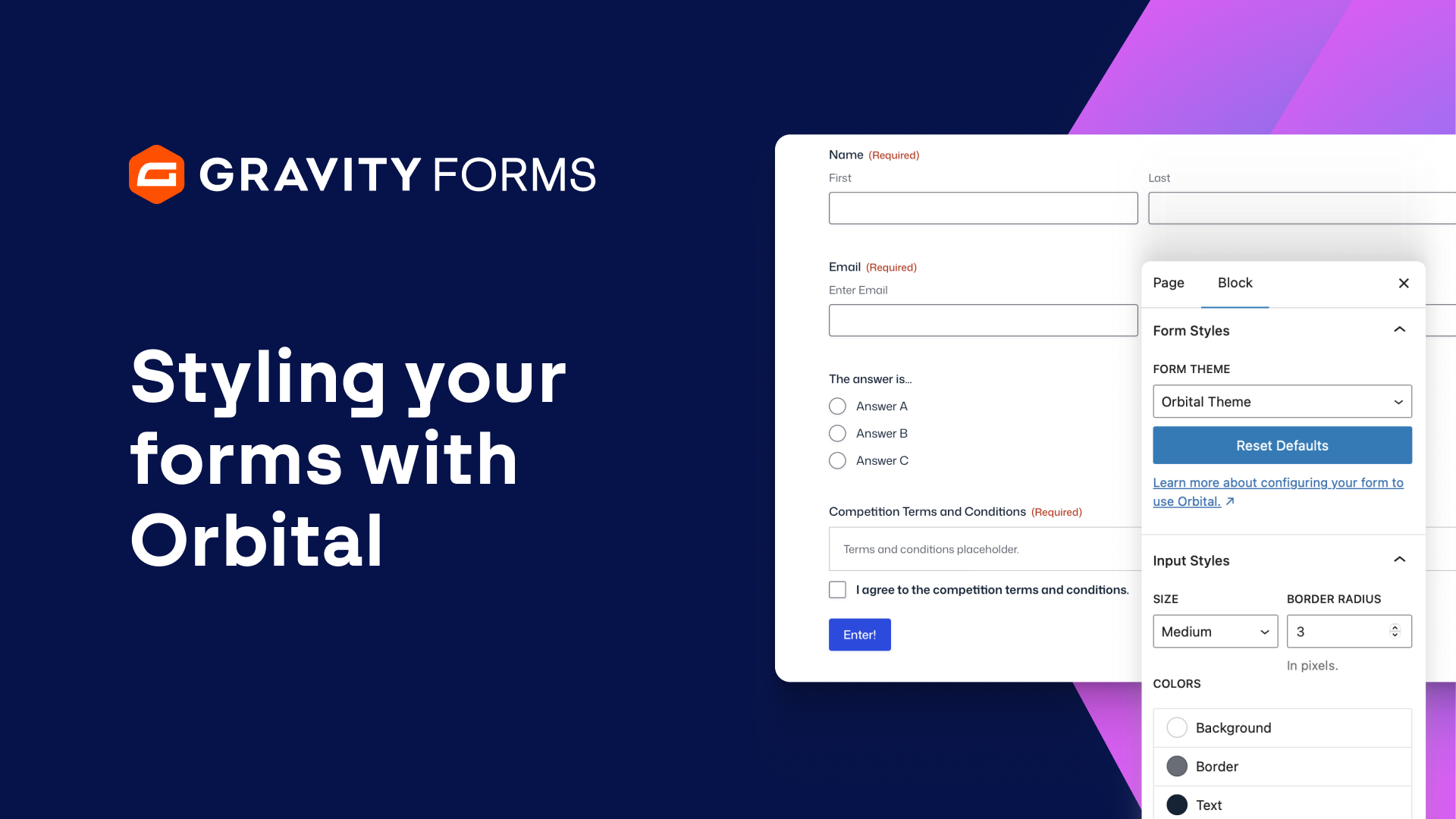
Within the Form Styles tab, you can select the Orbital Theme.
The Orbital Theme gives you the power to customize the look and feel of your form directly from the block editor.
Next, under the advanced settings, you can disable the preview of the form in the WordPress editor and simply display the Gravity Forms block.
You can also enable AJAX, which allows form changes and submissions to be displayed without the page having to reload.
When you are happy with everything, select ‘Update’ and you will be good to go.
To create a new page or post, enter an appropriate name and select “Create”.
Like before, the WordPress editor will open and this time your form will automatically be embedded within the page or post.
You can again customize your form via the block settings, then select ‘Publish’ to save your changes and create the page or post.
If you are not using the block editor, you have the option to copy the form’s shortcode and paste it within your page builder.
Finally, if needed, you can also embed a form directly into the WordPress editor by adding the Gravity Forms block.
To find and select the Gravity Forms block, click the plus icon to add a new block and search for “Gravity”.
Then, use the drop down box to choose the form you would like to add to your page or post.
It’s that easy!
#FormAnything with Gravity Forms
Summary
Embedding a form on a WordPress page or post takes seconds with Gravity Forms. In this video, we’ll look at the different ways you can embed your forms, including directly from within the form editor using the Embed Form flyout.