For a written guide on setting up Amazon SES with Gravity SMTP, check out our blog.
If you need to reliably send emails from your WordPress site, Gravity SMTP has you covered. Gravity SMTP integrates with Amazon SES to help make sure your emails reach more inboxes. Let’s dive in.
Hey, this is Sarah from the Gravity team, and in this video we’re going to look at how to send your WordPress emails with Amazon SES and Gravity SMTP.
Before getting started, you’ll need to have Gravity SMTP installed on your WordPress website and have an active AWS account.
The first step is to create an IAM user so that you can generate your Amazon SES Access Key ID and Secret Access Key.
Log into your AWS console. Then, search for “IAM” in the top search bar and select ‘Users’.
Click ‘Create User’, enter ‘GravitySMTP’ as the user name, and then click ‘Next’.
Under ‘Permissions options’, select ‘Attach policies directly’ and search for ‘AmazonSESFullAccess’. Check the box next to this policy, then search for ‘AmazonSNSFullAccess’ and do the same.
Then, click ‘Next’ and then click ‘Create user’.
Next, click on the user name, and then select ‘Create access key’. For the ‘Use case’ option, select ‘Application running outside AWS’ and then click ‘Next’.
Enter an appropriate description tag, then select ‘Create access key’. Copy your access key and secret access key and store them in a secure location. The secret access key cannot be viewed again once you leave this screen, so it’s important that you save it in a location you’ll remember. Then, click ‘Done’.
Next, you’ll need to enable the Amazon SES Service in AWS so that you can successfully send emails. Search for “Amazon Simple Email Service” using the search bar at the top of your AWS Console Dashboard.
You’ll then want to launch the Amazon SES Setup Wizard by clicking the ‘Get started’ button. Add your email address, and then select ‘Next’. On the next screen, add your sending domain, and again select ‘Next’.
Choose whether you want to enable Amazon’s Virtual Deliverability Manager, and then select ‘Next’. Then, on the “Review and get started with SES” screen, make sure that everything looks accurate, and click ‘Get started’.
On the next screen, you’ll first verify your email by clicking on the verification link in the email that Amazon sent to the address you entered.
You’ll then want to verify your sending domain. First, click ‘Get DNS Records’ under ‘Verify sending domain’. You’ll then see four different records that you will need to add wherever you manage your domain name’s DNS settings.
Once your domain has been verified, you’ll want to request production access with Amazon, otherwise you will be limited to only sending 200 emails per day.
Next you’ll need to identify the AWS Console Region you are using, which is located next to your username. Take note of your region, we’ll be using this information in just a minute.
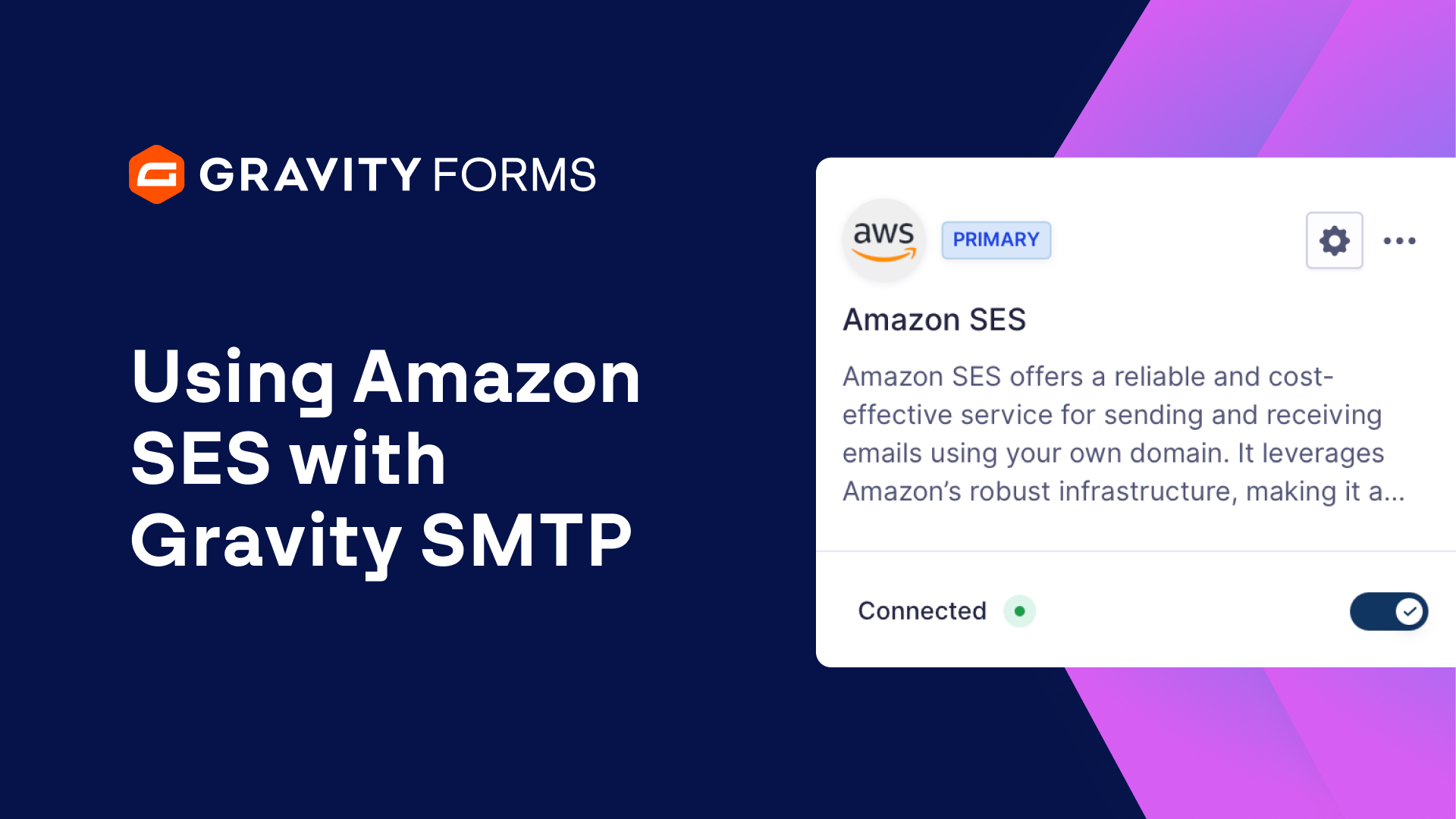
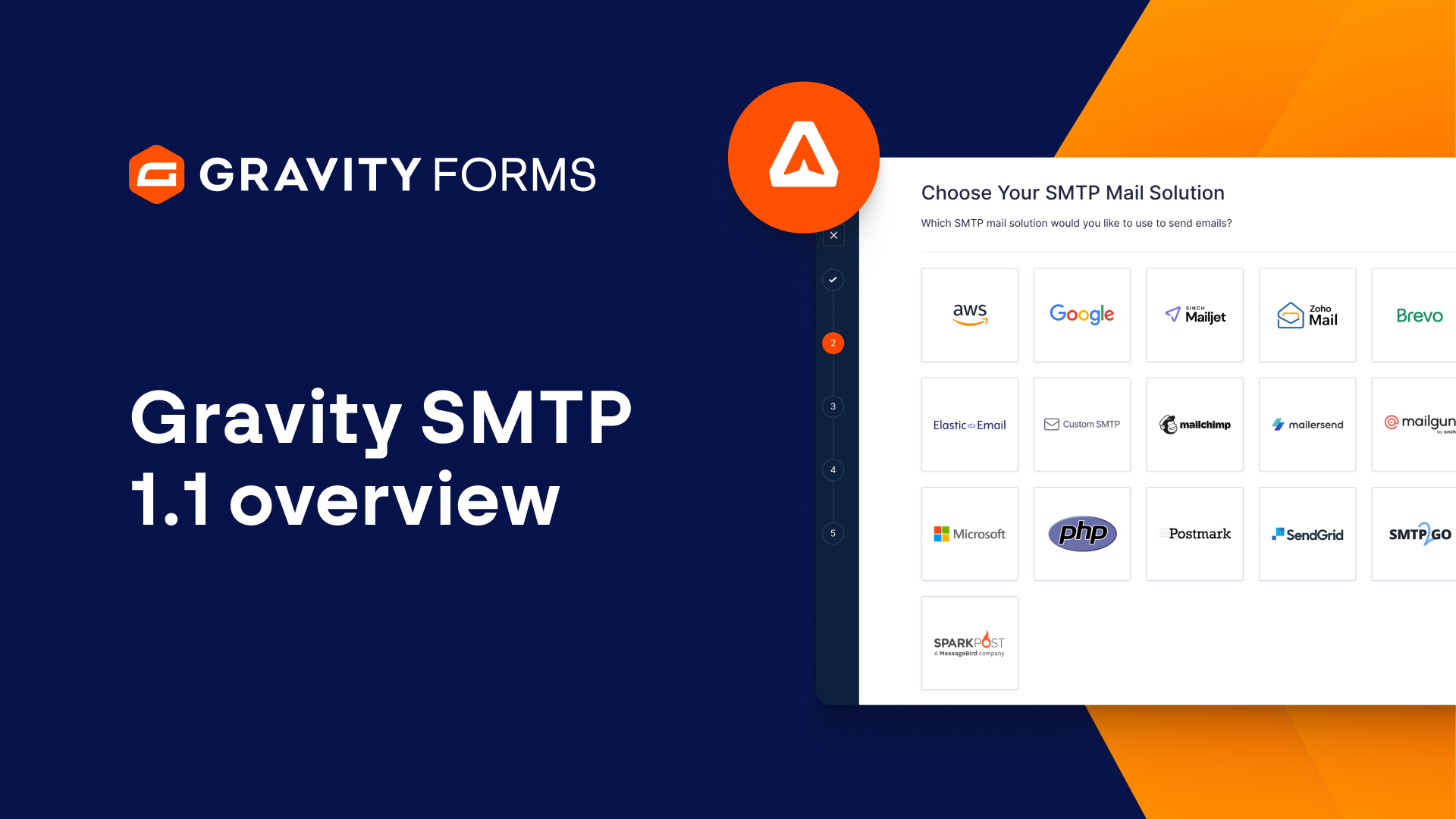
For the last step, you’ll need to connect Amazon SES with Gravity SMTP. Head over to your WordPress dashboard and go to the Gravity SMTP integrations page. From here, select Amazon SES and enter your Access Key ID and Secret Access Key. Then, select your region and save your changes.
Next, use the toggle to connect Gravity SMTP to Amazon SES. Finally, you can use the ‘Send a Test’ tool to verify that everything is working correctly.
For more guides and tutorials on all things Gravity SMTP, check out our video library. From everyone on the Gravity team, thank you for watching!
Summary
Gravity SMTP integrates with Amazon SES to help make sure your emails reach more inboxes. In this video tutorial, we’ll walk you through how to connect Gravity SMTP with Amazon SES so you can reliably send WordPress emails.