Video Tutorial
Supercharge Your Donation Forms Part 3

We’re back with another Gravity Forms video.
It’s part three of supercharging your donation forms with Gravity Forms, this time taking a look at what happens in the backend after these forms are complete and sent to us from the donors.
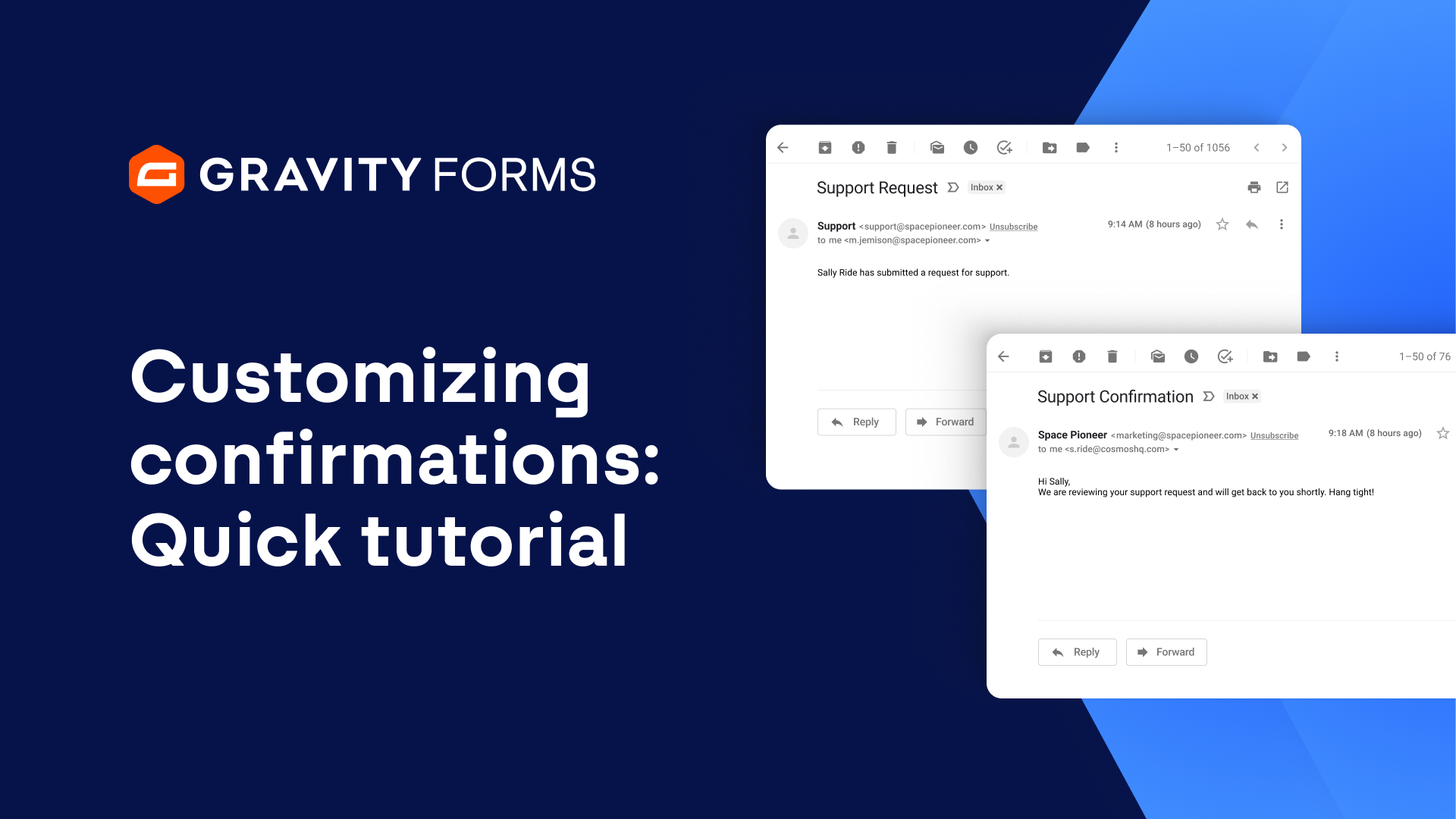
First things first, we change the confirmation.
This is often overlooked with Gravity Forms, especially in the e-commerce side of things.
This is another chance to keep that momentum going, get that person with another call to action.
In this case, it’s very simple for us.
We’re just saying thank you for your contribution.
We appreciate your support.
Oh, by the way, join the Nick Strong Facebook group.
This really helps just another step, get them into our social media so that they can see how their money and their donations are getting used within the organization.
So a little call to action here.
You can make this go to another page on your WordPress website and really design a page with better call to actions or redirect to another URL altogether.
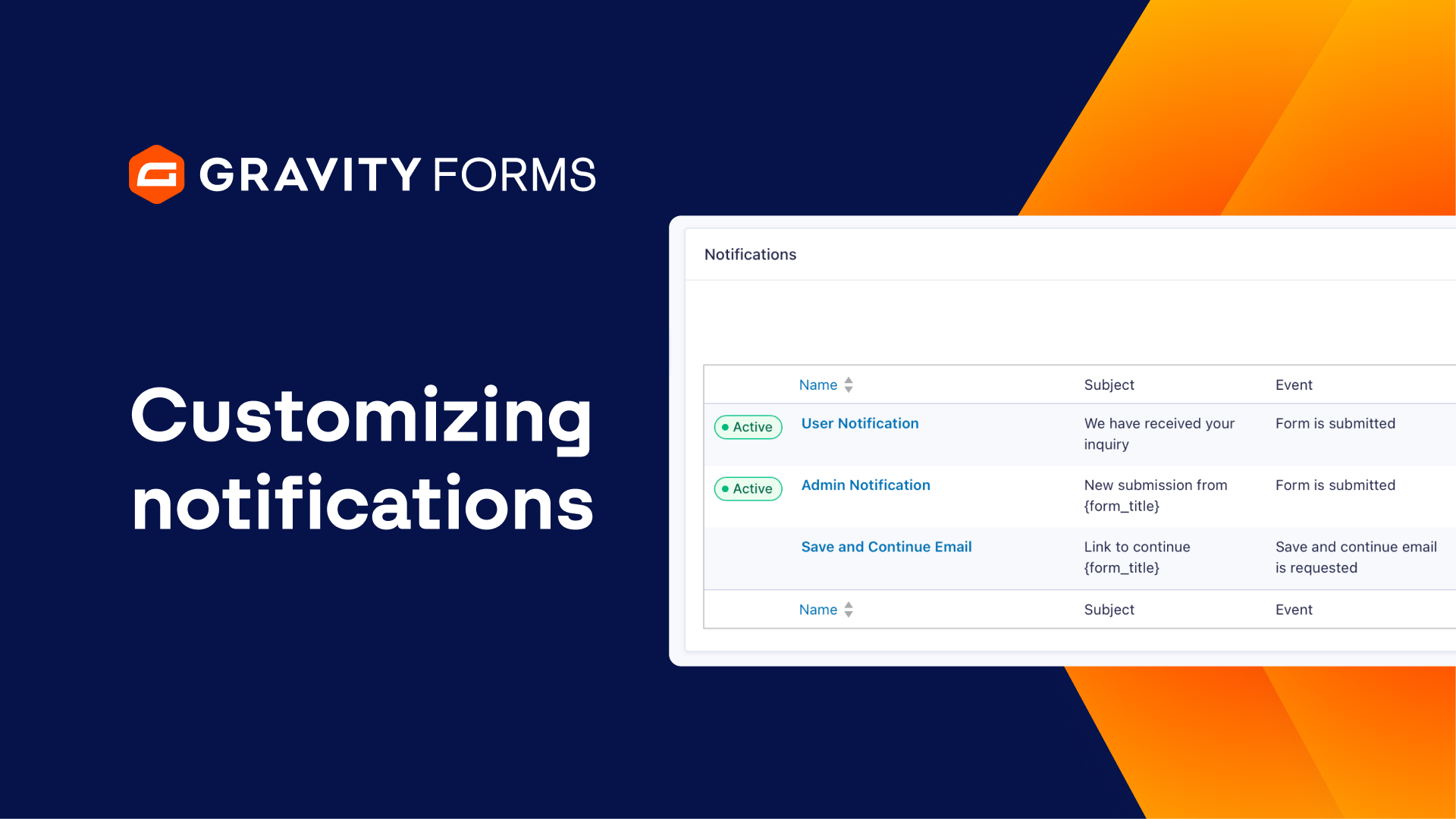
Notifications.
What’s the difference between confirmations and notifications?
Notifications is that display message that we just looked at or that redirect.
Notifications is the email that goes out.
These are the messages that land in your inbox as the website owner or as the donor.
So we have an admin notification that goes out and that says, “Hey, there’s a new donation.
Let’s check that out.”
And then we have a thank you message that goes out.
That goes to the donor.
Thanks for submitting your donation.
We use merge tags in here so we can pull in their first name and their donation amount to kind of customize the message a little bit more.
You’ll see, “Hey, first name, merge tag and donation amount, merge tag.”
Other things that happen after the fact, which are important, maybe unique, is we send some of this data, like the logo, the company name, the address, the URL that our sponsors are using to a Google Sheet so that folks in our organization, they don’t even have to log into the WordPress website to get this information.
They can populate the sponsorship pages by pulling that data right out of the Google Sheet and they don’t have to fish for it in their email.
Lastly, we’re connecting this all up through the new Gravity SMTP plugin where we integrate to SendGrid so that we know these emails are getting delivered to our team and to our customers.
It’s amazing.
It’s powerful.
Gravityforms.com for your nonprofit donation forms.
Summary
Powerful donation forms don’t stop at accepting the donation. With Gravity Forms Confirmations, Notifications, and Add-Ons like Zapier — you can do supercharge your forms to do a lot more. Great for signing up donors to an email list or encouraging social sharing.