To learn more about routing your notification emails, check out our docs site.
When a user submits a form on your site, you have the option to configure where the notification email is sent, based on how they answered your form. Let’s take a look at how.
Hey, this is Dustin from the Gravity team, and in this video we’re going to go over how to route your notification emails.
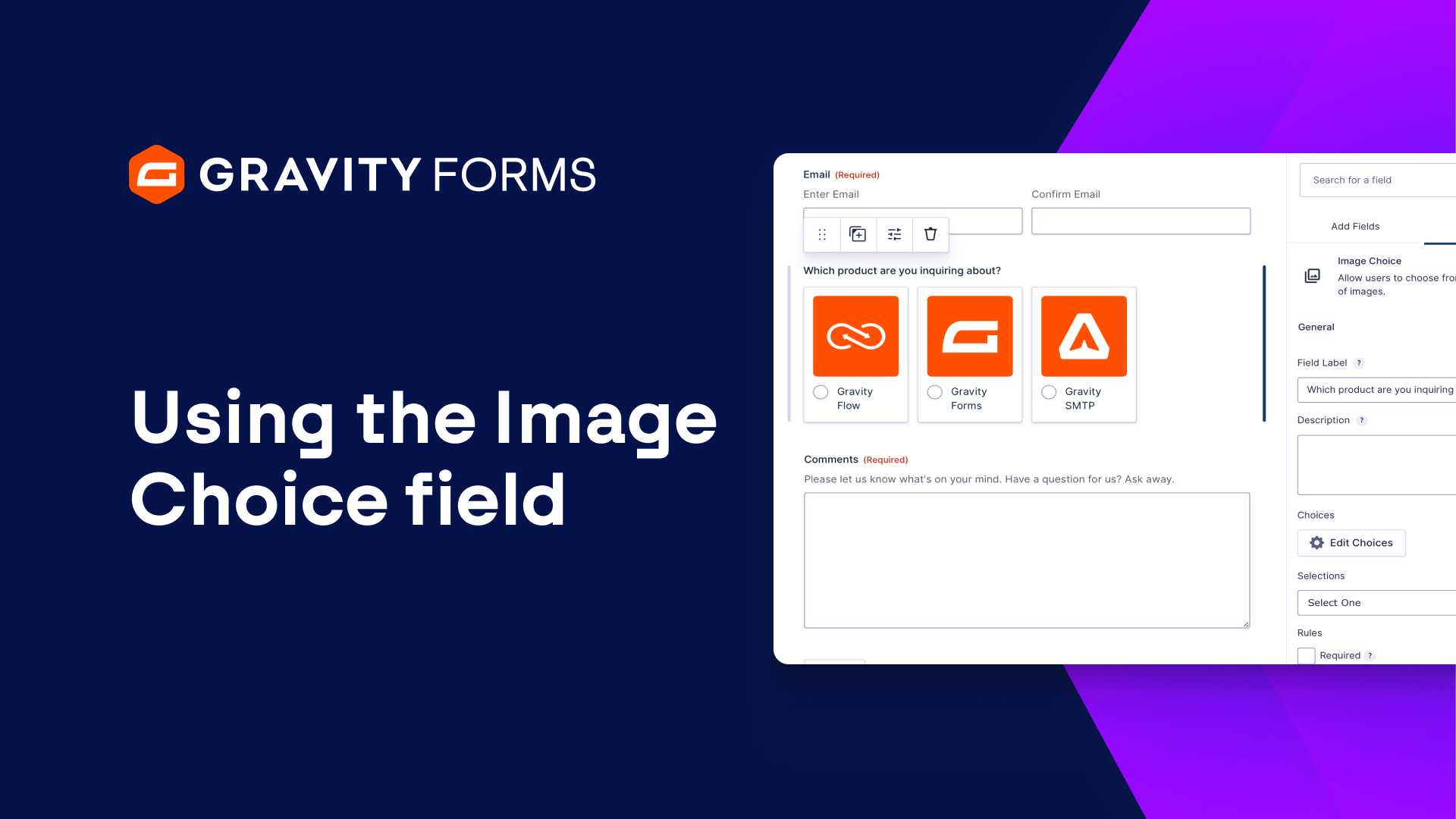
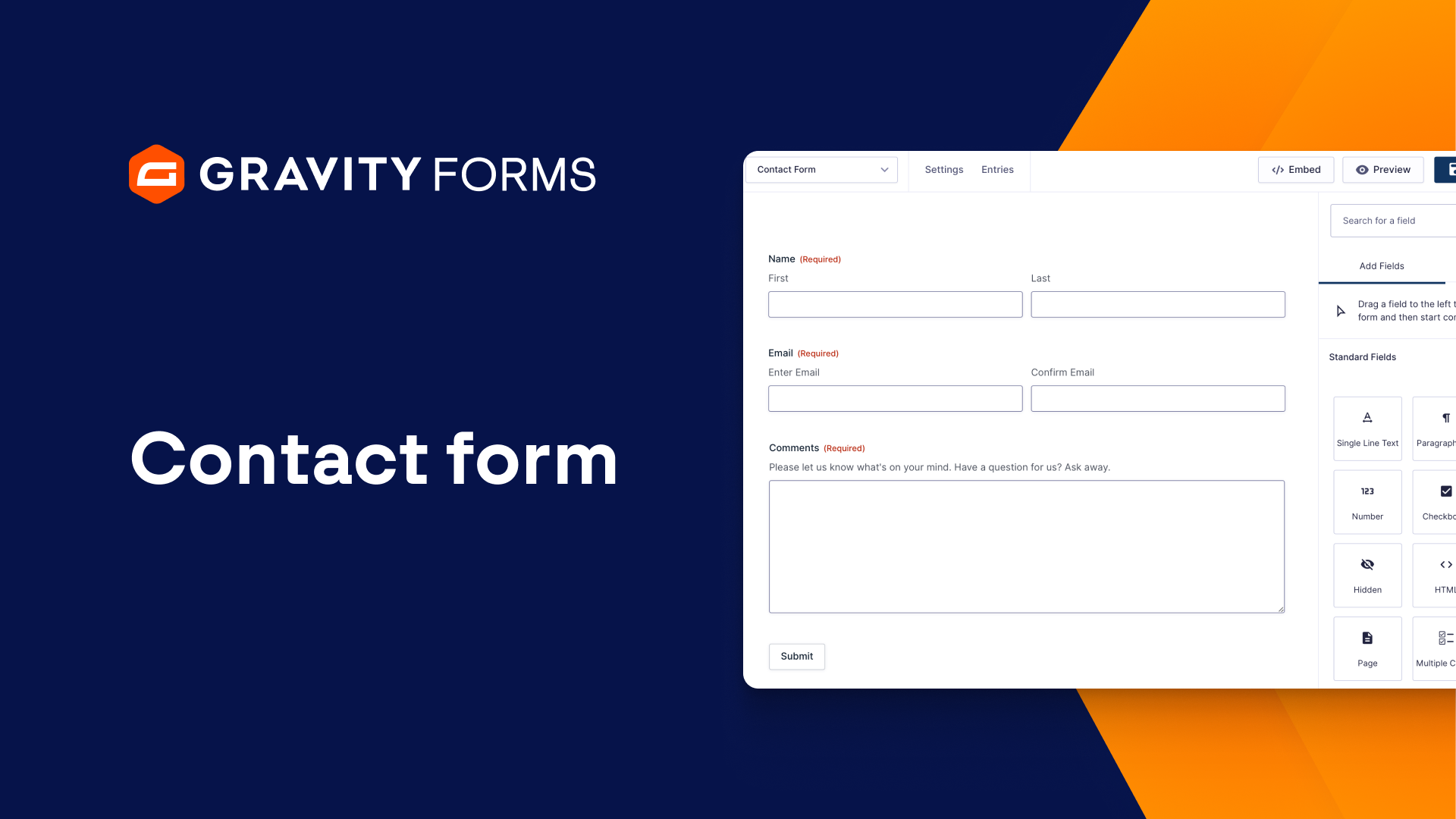
In a previous video, linked below, I created a contact form that asked the user which Gravity product they had an inquiry about.
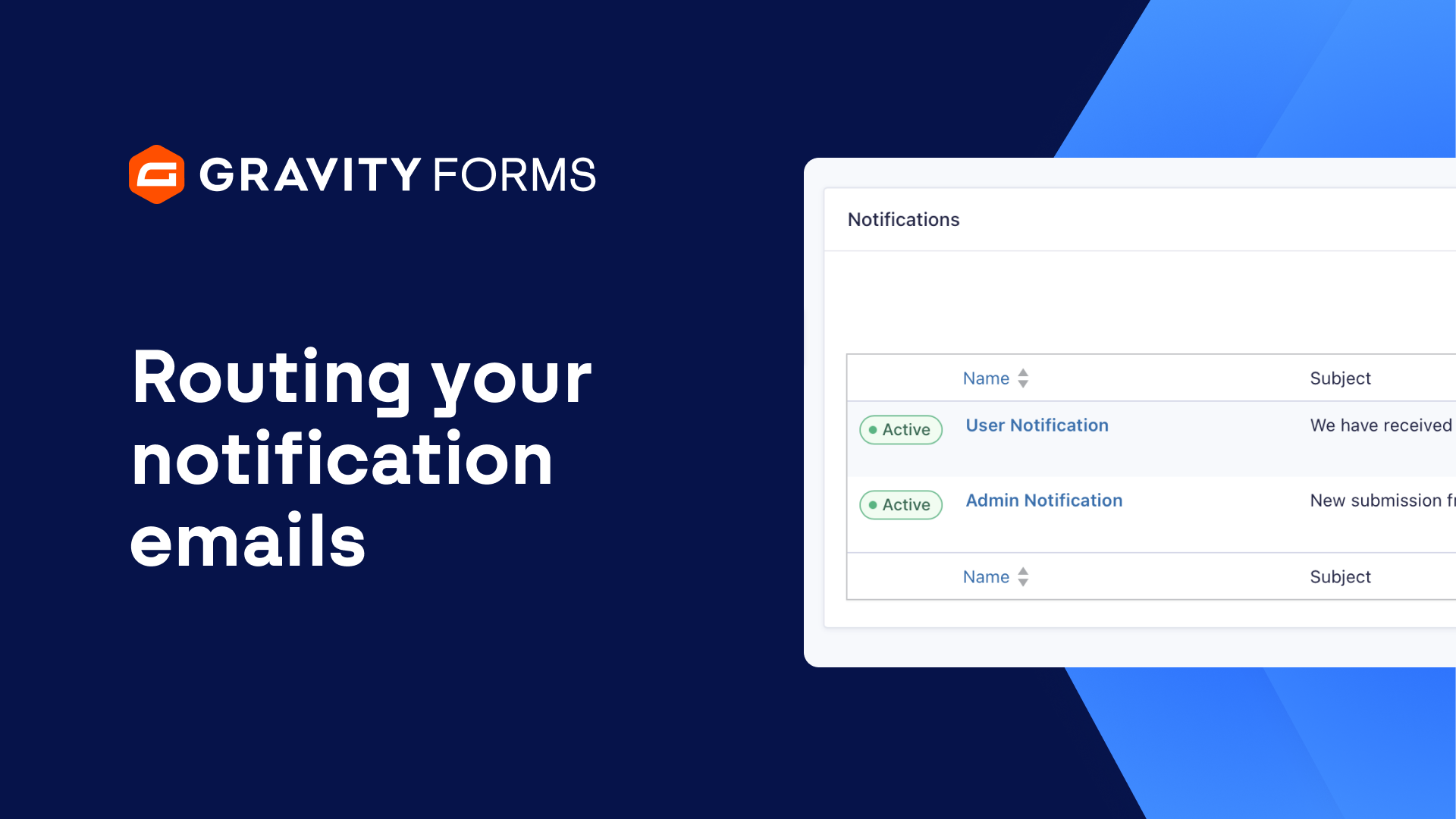
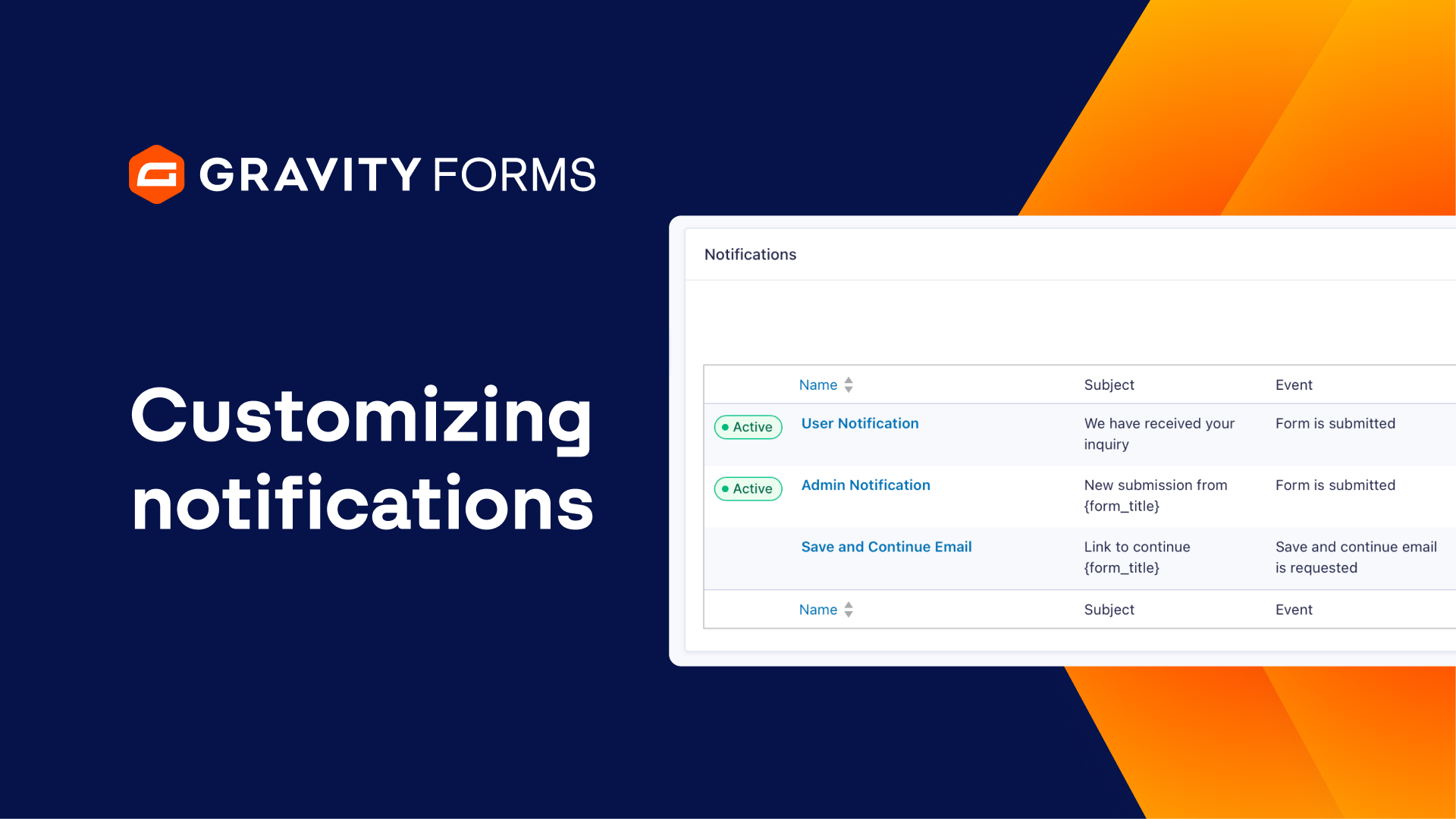
I’d like the notification emails for this form to be sent to different addresses, based on the product the user selects. To set this functionality up, I’m going to head to the notifications settings for this form and edit my admin notification.
Under the ‘Send To’ setting, I’m going to select ‘Configure Routing’. From here, I have three people I’d like to receive notification emails based on the product the user selects: me, Megan, and Travis.
I am going to configure the routing options to send an email to my email address if the user indicates that they have an inquiry about Gravity Forms.
Then, I’ll use the plus icon to add two additional routing options, and set my routing parameters to email Megan if the user has a question about Gravity Flow and Travis if they have a question about Gravity SMTP.
Please note that your routing rules need to cover all possible user selections for your field, otherwise the notification will fail to send.
Additionally, if you add or modify your field values at a later date, you’ll need to update the routing options accordingly or the notification will not send.
I’ll update the notification and everything will be ready to use. Now, this notification will be sent to three different email addresses, based on the product the user has an inquiry about on my contact form.
If you find you’re having trouble with your notification delivery, check out Gravity SMTP, a WordPress SMTP plugin from the team behind Gravity Forms that helps ensure your emails and notifications reach the inboxes they are intended for.
For more Gravity guides and tutorials, head on over to our video library. From everyone on the Gravity team, thank you for watching!
Summary
When a user submits a form on your site, you have the option to configure where the notification email is sent, based on how they answered your form. In this video tutorial, we’ll show you how to route your notification emails.
To check out the video where the contact form was created, click here.