
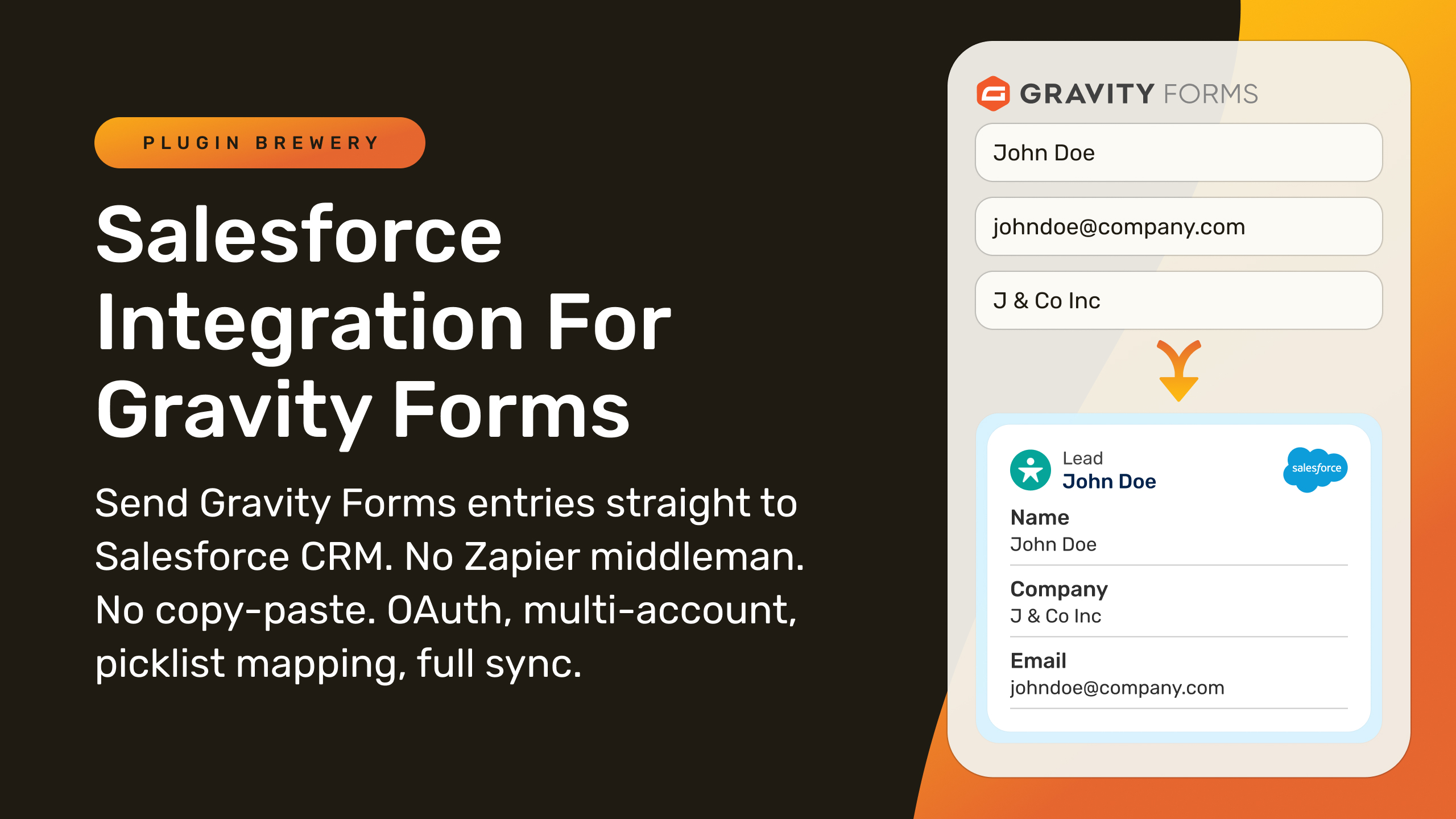
Send Gravity Forms entries straight into Salesforce, with the files, picklists, and related records your org expects.
Salesforce Integration for Gravity Forms creates or updates a Salesforce record from every submission: a Lead, Contact, Account, Opportunity, Case, or any custom object your org defines. Connect with OAuth, map fields once, pull picklist values directly from Salesforce, attach uploaded files to the record, and see the result of every sync from inside the Gravity Forms entry. Nothing to export, and no Zapier sitting in the middle.
What can you do with Salesforce Integration for Gravity Forms?
- ✅ Create or update records on any Salesforce object, standard or custom, from any form
- ✅ Create related records from one submission, such as an Account, then a Contact and an Opportunity linked to it
- ✅ Route submissions with per-feed conditional logic to different objects or orgs, or skip Salesforce entirely
- ✅ Pull picklist values and Record Types straight from Salesforce into your dropdowns, kept in sync automatically
- ✅ Match existing records by Email, External ID, or any unique field so nothing gets duplicated
- ✅ Attach file uploads to the Salesforce record so they appear in its Files list
- ✅ Add Leads and Contacts to a Campaign, assign an owner, and hold the sync until a payment succeeds
- ✅ Prefill forms with existing Salesforce data using signed, expiring links
- ✅ Connect sandbox and production, or several client orgs, to one site, with a Web-to-Lead fallback for orgs without API access
- ✅ See sync status, record links, and logs on every entry, retry with one click, and drop the record ID into confirmations and notifications with merge tags
Connect with OAuth, to one org or many
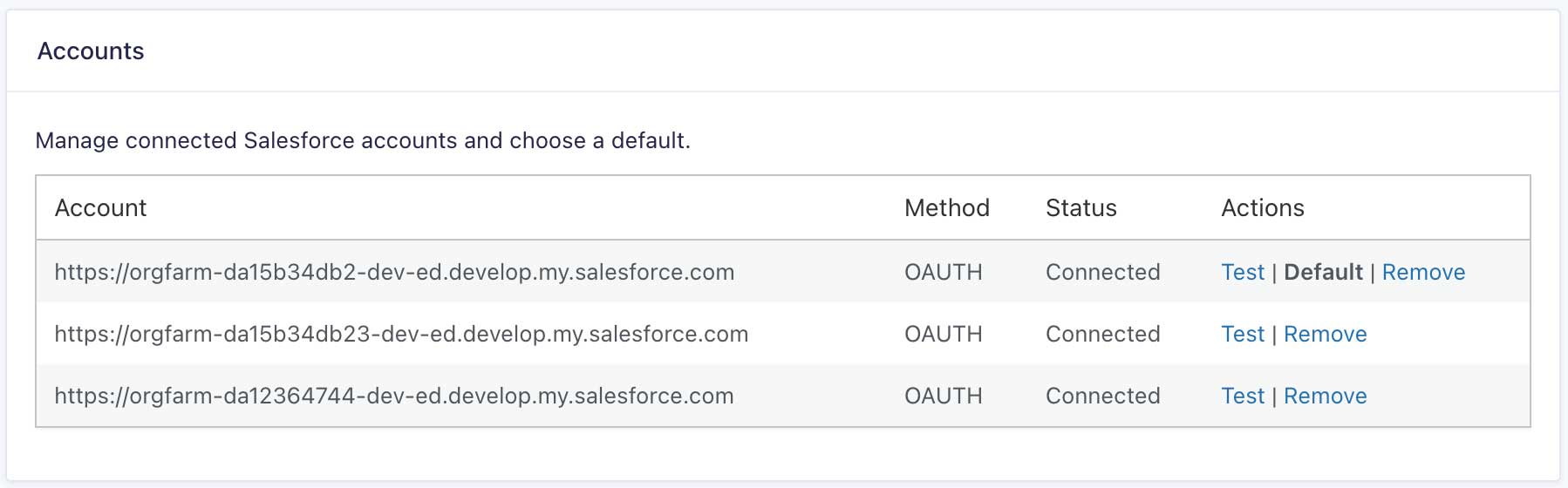
Connect through OAuth 2.0 with PKCE using an External Client App or a Connected App. Paste the Consumer Key and Secret, click Connect Account, authorize in Salesforce, and the plugin refreshes access tokens on its own from then on. Refresh Token Rotation is supported, so stricter Salesforce security policies don’t break the connection.
Connect as many Salesforce accounts as you need to one WordPress site: sandbox and production, each agency client’s org, or a parent and its subsidiaries. Every feed picks the account it syncs to, and the Accounts list shows the real state of each connection: Connected with a last-verified time, Needs attention, or Reconnect required. Orgs without API access can use the Web-to-Lead / Web-to-Case Org ID method for Lead and Case records instead.
Send any form to any Salesforce object
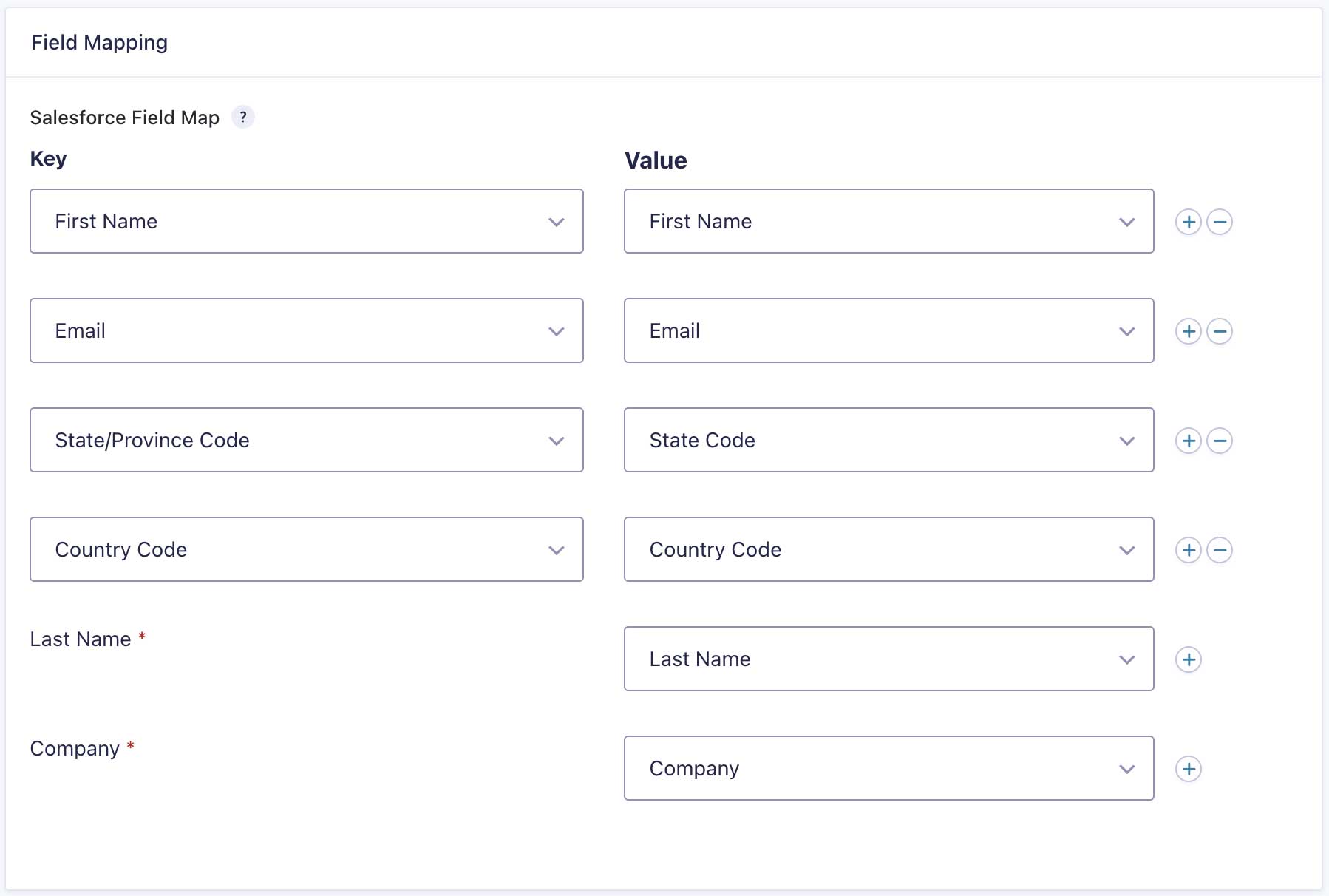
Each feed targets one Salesforce object. Pick it from a list built from your org’s real schema, or type the API name of a custom object such as My_Object__c. Map Gravity Forms fields to Salesforce fields, with required Salesforce fields flagged with an asterisk so you can’t miss them. A Custom Value can hold static text or merge tags for anything the form doesn’t collect directly.
Per feed you also choose the sync mode (Create or Update, Create only, or Update only), set conditional logic with the native Gravity Forms builder, assign a specific owner with a custom OwnerId, and toggle the Sforce-Auto-Assign: FALSE header to bypass assignment rules when you need to.
Create related records from one submission
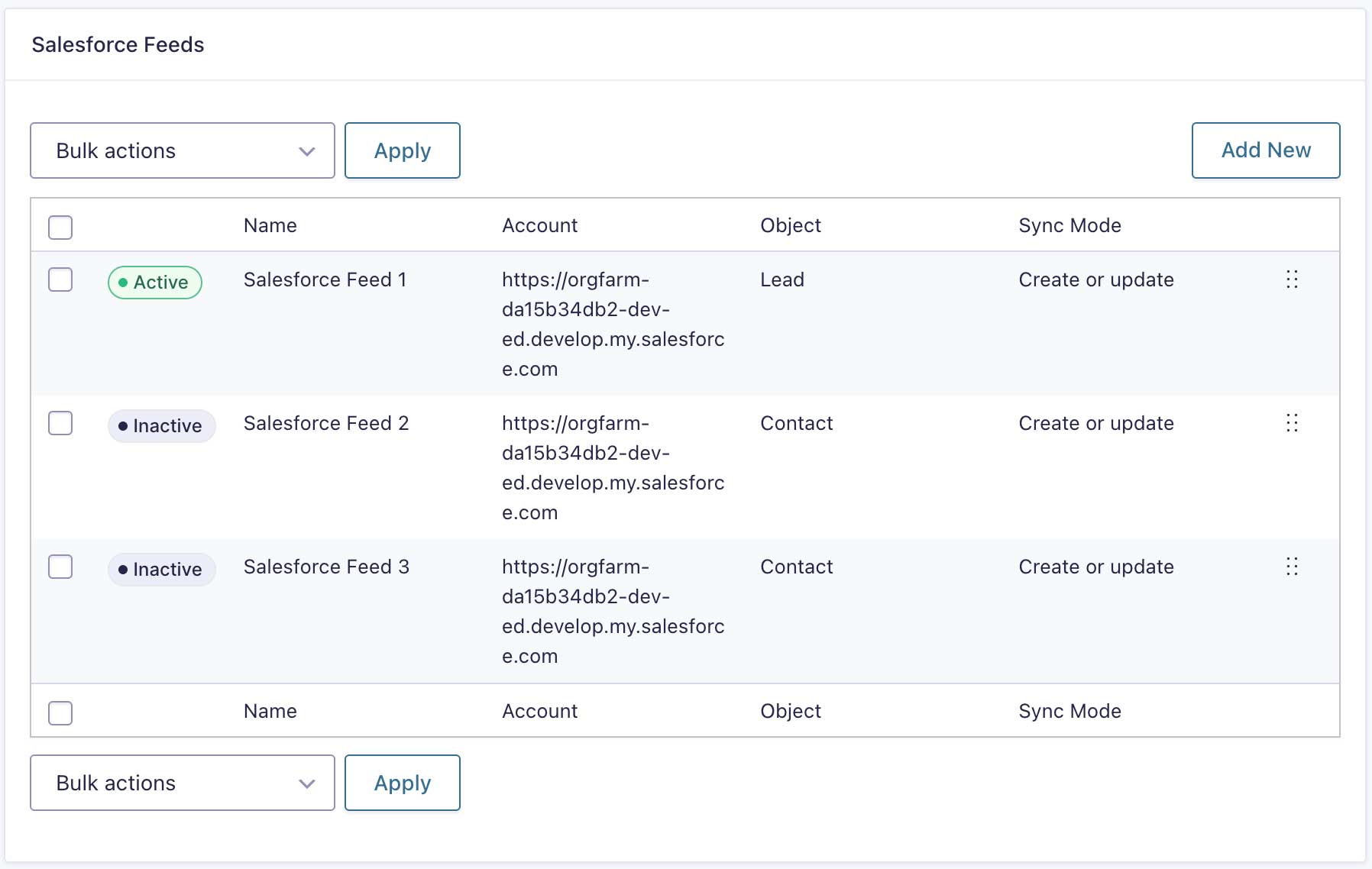
Run any number of feeds on a single form, one per object, and they process in the order you set on the feed list. In a later feed, map a lookup field, such as AccountId on a Contact or AccountId and ContactId on an Opportunity, to the Custom Value {salesforce_id:FEED_ID} and it fills with the record an earlier feed created. One submission can create an Account, then a Contact related to it, then an Opportunity related to both, with no Apex, Flow, or staging object. Each feed keeps its own account, sync mode, duplicate matching, and conditional logic.
Picklists that stay in sync with Salesforce
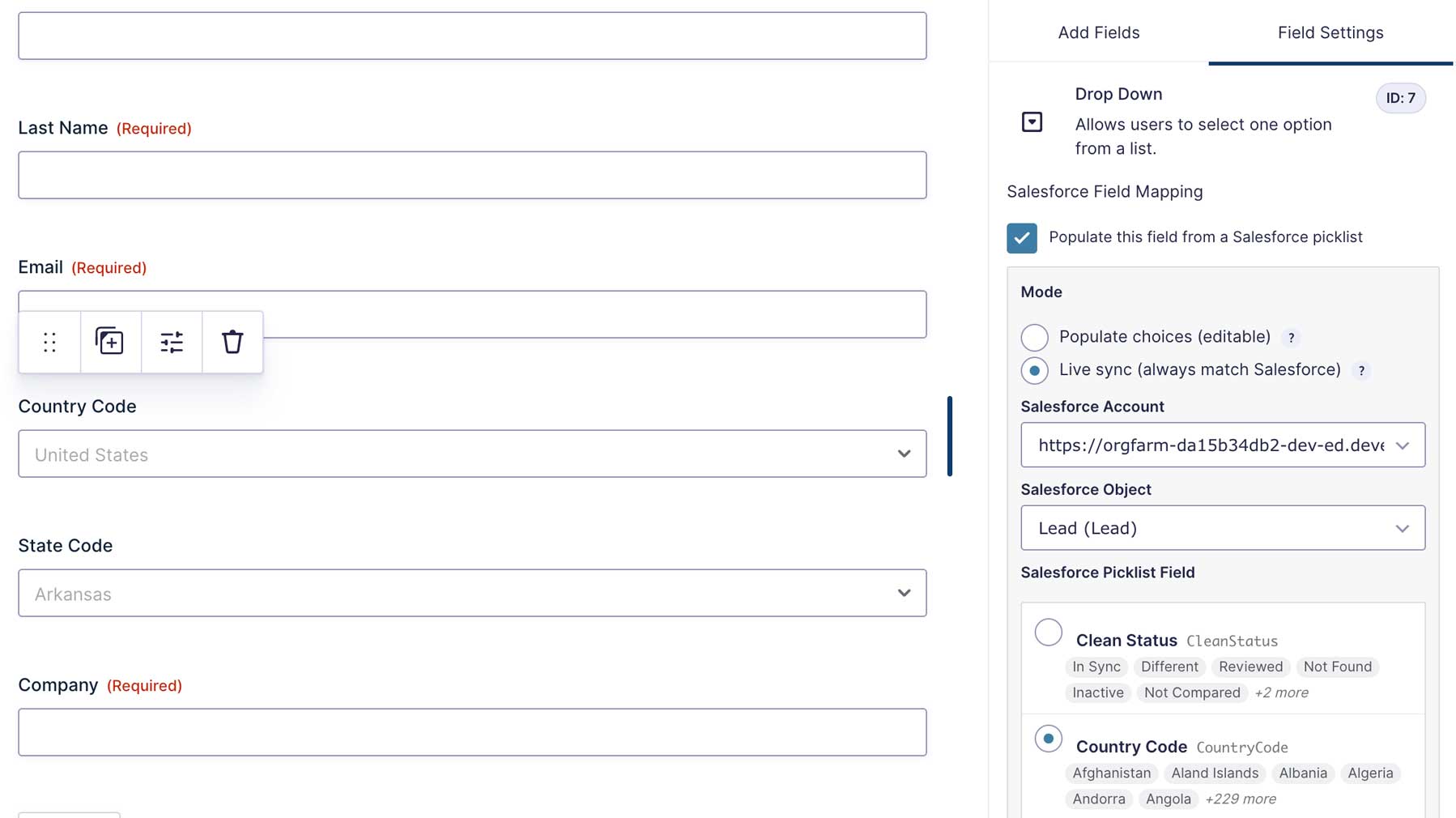
For Drop Down, Multi Select, Radio Button, and Checkbox fields, pull the choices straight from a Salesforce picklist instead of typing them. Populate mode copies the values once so you can edit them. Live sync mode re-applies the choices on every form render and locks them in the editor, so the form follows Salesforce without anyone editing it. Form users see the Salesforce label, such as California, while the entry submits the picklist value, such as CA, which is exactly what State and Country picklists expect. Record Type works the same way: users pick it by name and Salesforce receives the ID.
No duplicate records
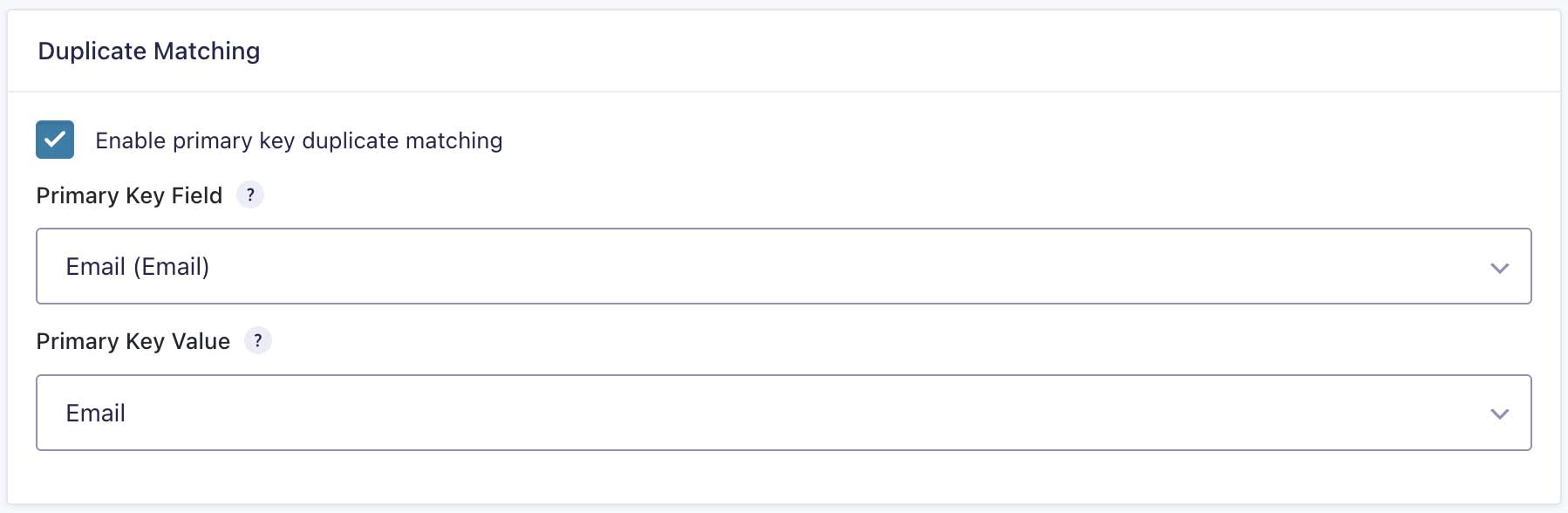
Enable Primary Key matching on a feed and pick the field to match on: Email, an External ID, or any filterable or unique field. A match updates the existing record, and no match creates a new one. If a record the entry previously synced to was deleted in Salesforce, a feed in the default Create or update mode creates a fresh one instead of failing.
When a repeat submission should be stopped rather than create a second record, the conflict check combines several fields into one lookup, so matching on First Name and Last Name together catches the same person submitting under a different email address. The feed halts and logs your conflict message against the entry.
Files, notes, and campaigns
- File uploads. Map a File Upload field, single or multi-file, to the Files row and the plugin creates a ContentVersion for each upload and links it to the record, so it appears in the record’s Files related list. You can set the per-file limit anywhere from 1 to 25 MB, with 10 as the default.
- Notes. Send form data into a Salesforce Note attached to the record, with a title and body that accept merge tags, and optionally mirror the notes admins add to the entry. Delete the note in Gravity Forms and the Salesforce copy goes too.
- Campaigns. Add the new Lead or Contact to a Salesforce Campaign as a CampaignMember, with the Campaign ID and member status set directly or from a merge tag.
Prefill forms from Salesforce
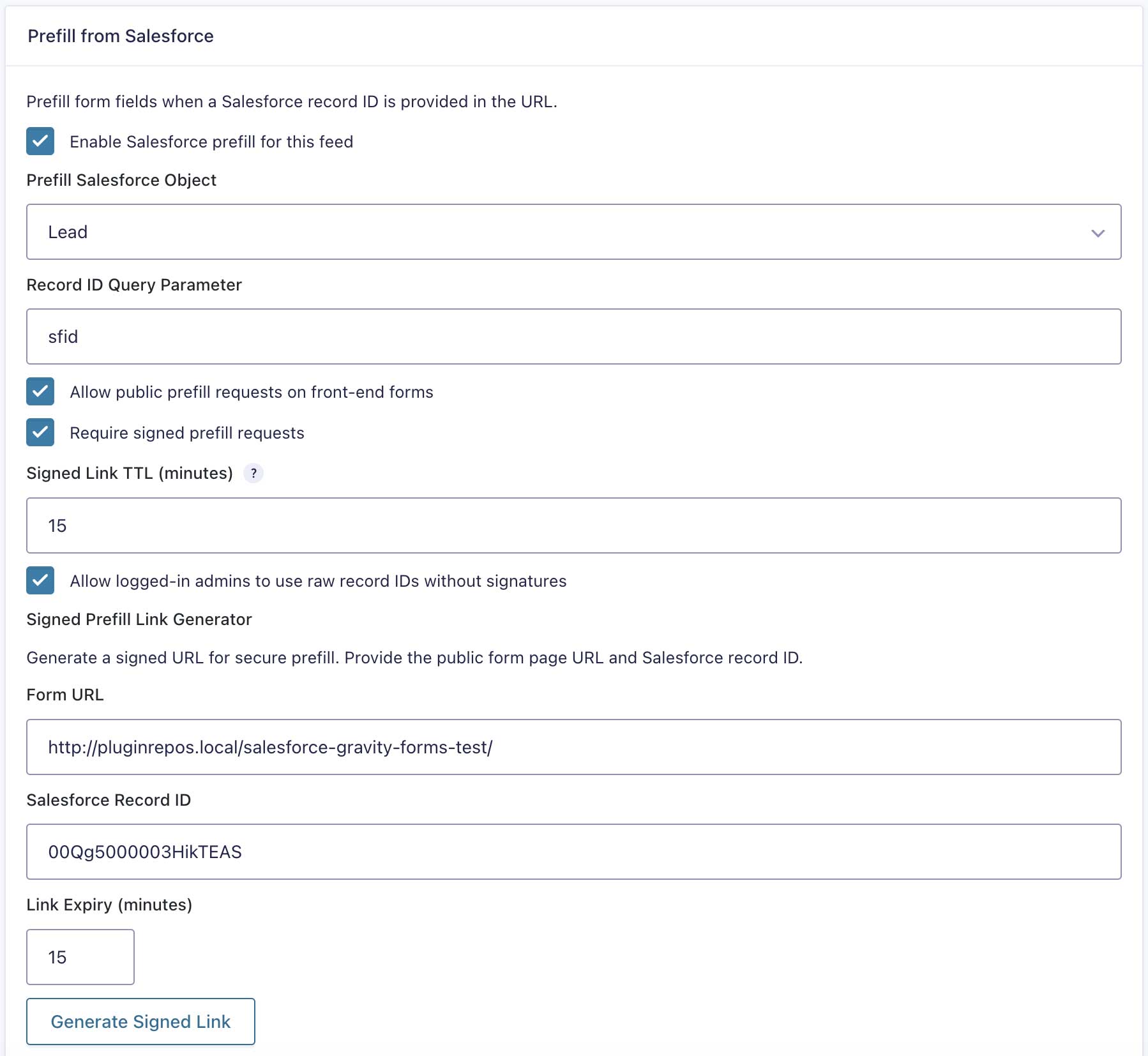
Send returning customers a form with their Salesforce data already filled in, for renewals, account updates, and self-service portals. Map any Salesforce field to any form field for prefill. Public links carry an HMAC signature and an expiry, 15 minutes by default, so nobody can enumerate record IDs, and the signed-link generator is built into the feed settings.
Full lifecycle sync, on your terms
Creating records works as soon as a feed is saved. Writing back to existing records is opt-in, each with its own checkbox in the plugin settings: sync entry edits to the record, delete the record when an entry is permanently deleted, resync when an entry is restored from trash, and send entry notes to Salesforce. Trashing an entry never touches Salesforce, because trash is reversible.
See every sync from inside Gravity Forms
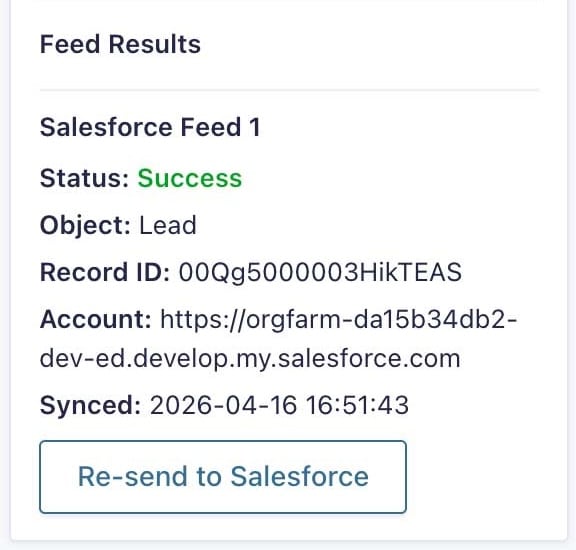
Every entry shows a Salesforce box with a color-coded status, the object created, the record ID as a link that opens in Salesforce, the account that handled it, the sync time, the exact error Salesforce returned if it failed, and a per-feed breakdown when several feeds ran. The Re-send to Salesforce button retries the whole sync, including files, notes, and campaign membership.
The Salesforce Logs page lists every entry a feed has processed with its latest status and message, filters by form, and exports the filtered list as a CSV. Turn on email notifications and a failed sync lands in your inbox with the entry ID and the Salesforce error. Merge tags such as {salesforce_id} and {salesforce_link}, plus per-feed variants, put the record ID or a direct link into notifications, later feeds’ lookup fields, and anything else evaluated once the background sync has finished. Tick Process this feed during submission on a feed and they resolve on the confirmation page too.
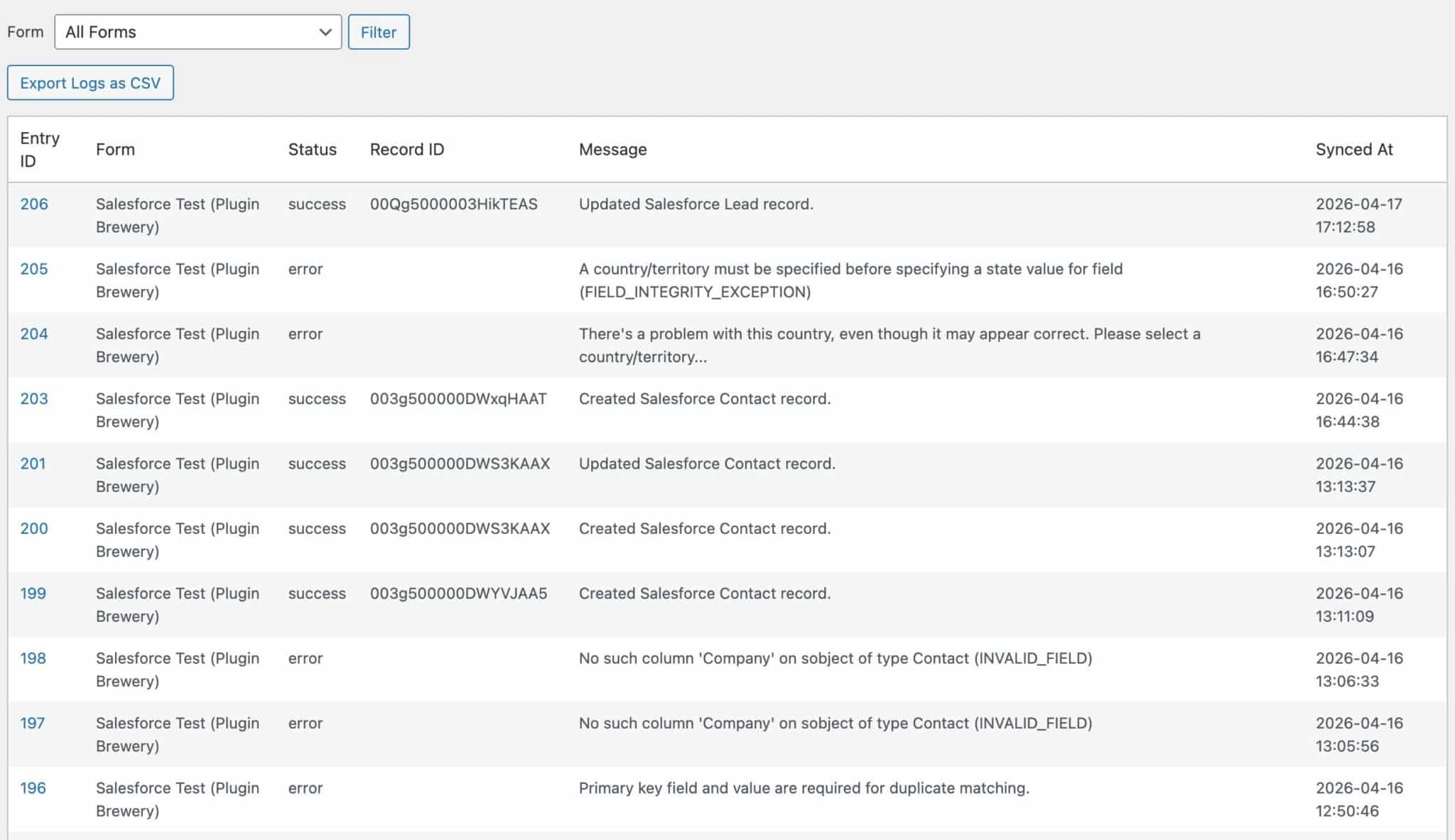
Built for production sites
- Background processing. Feeds run after the submission completes using Gravity Forms’ own background feed processing, so a slow Salesforce response never slows the thank-you page.
- Payment add-on aware. On a Stripe, PayPal, or other payment feed, tick Process Salesforce feed only when payment is received and the Salesforce sync waits for a successful payment.
- Clear failures. The plugin reports Salesforce API limits as rate limiting and names connection problems on the Accounts screen instead of showing a generic session error.
- Developer hooks. Four filters cover the outgoing payload, the multi-value delimiter, allowed Salesforce domains, and the HTTP timeout, each with full feed and entry context where it applies.
Works everywhere Gravity Forms does
- Requirements. Gravity Forms 2.7, WordPress 6.5, and PHP 8.0 or later.
- Caching and CDN friendly. Syncing runs server-side at submission, so page caching doesn’t interfere.
- Every form type. Standard, AJAX, multi-page, and conversational forms all sync the same way, because everything happens after the entry is saved.
- WordPress Multisite compatible. Network Mode on the Unlimited license manages every subsite from one key.
- Translation-ready. Translate it with Loco Translate or any WordPress translation tool.
Brewed by Plugin Brewery
We build focused, well-supported add-ons for Gravity Forms.
- Purpose-built for Gravity Forms.
Every plugin uses the Gravity Forms Add-On Framework, so it fits right into the admin you already know. - Actively maintained.
Updates keep pace with Salesforce changes such as External Client Apps and Refresh Token Rotation. - Support from the people who build it.
We answer questions and help with minor customizations ourselves. - Backed by a 15-day money-back guarantee.
Connect your own org and see the records land for yourself.
Looking for more from your forms?
Here’s some of what our other Plugin Brewery add-ons can do.
| Plugin | TLDR; |
|---|---|
| Referral Tracking for Gravity Forms | Capture the referrer, UTMs, and ad click IDs behind each entry, and send the lead source into Salesforce with the rest of the submission. |
| Ad Click Tracking for Gravity Forms | Capture ad click IDs and tie Gravity Forms submissions back to your campaigns. |
| Address Autocomplete for Gravity Forms | Add Google-powered address autocomplete to your Gravity Forms address fields. |
| Multi-Form Anti-Spam Image CAPTCHA | Block spam submissions with a lightweight image CAPTCHA across all your forms. |
Questions? Reach out to us. We’re glad to help with Gravity Forms and anything else WordPress.