




Payment methods customers know.
Help maximize your conversion by offering PayPal, Pay Later, Venmo (US), card processing, and country-specific payment methods.

A trusted experience
PayPal is one of the most recognised payment platforms in the world – give customers a checkout experience they already trust.

Global reach for payments
Accept payments across multiple currencies and markets – PayPal makes it easy to sell to customers wherever they are.

Included with Pro, Elite, and Nonprofit
The PayPal Checkout Add-On is available with a Gravity Forms Pro, Elite, or Nonprofit license.

Payment options for every customer
Let customers pay the way they want – no PayPal account required.
PayPal or credit card: Customers can pay via PayPal or enter their card details directly.
Venmo: Accept Venmo payments on your WordPress website alongside PayPal.
Pay Later: Offer Buy Now, Pay Later options to boost conversions.

Full control over payments
One-time transactions, subscriptions, refunds, and authorisations – manage everything from WordPress.
One-time and recurring: Accept single payments or set up automated subscriptions.
Authorize and capture: Secure funds at checkout and charge later when you’re ready.
Refunds from WordPress: Issue refunds directly from your dashboard – no need to log into PayPal.


Transparent pricing?
That’s affirmative.
The PayPal Checkout Add-On is included with both a Gravity Forms Pro and Elite license. Get the details and always know what you’ll pay.
Best Value

Elite License
$259
/per year
 Buy Now
Unlimited Sites

Priority Support

WordPress Multisite
Elite License includes…

User Registration Add-On
Conversational Forms
Partial Entries Add-On
Polls Add-On
Signature Add-On
Survey Add-On
All of our Add-Ons are included with Elite!

Pro License
$159
/per year
3 Sites
Standard Support
Pro License includes…
Stripe Add-On
Dropbox Add-On
Square Add-On
Zapier Add-On
Slack Add-On
Trello Add-On

See why creators, teams, and businesses trust Gravity Forms to power their workflows
“
As a web designer, I have not found any other WordPress form application that is as easy to update and has as many features as Gravity Forms.

Kristin Pruis
“
Your customer service is very personal. Receiving quick email replies from your staff is gratifying and extremely helpful. I transferred licenses from me to two separate webmasters–it was seamless.

Claudia Siegal
“
I often have to create complex forms with conditional logic, and Gravity Forms is the only plugin I have found that is robust enough to do what I need.

Michele M.
Need more info?
Our extensive documentation, blog, and Learn site have all the resources you need to get started.
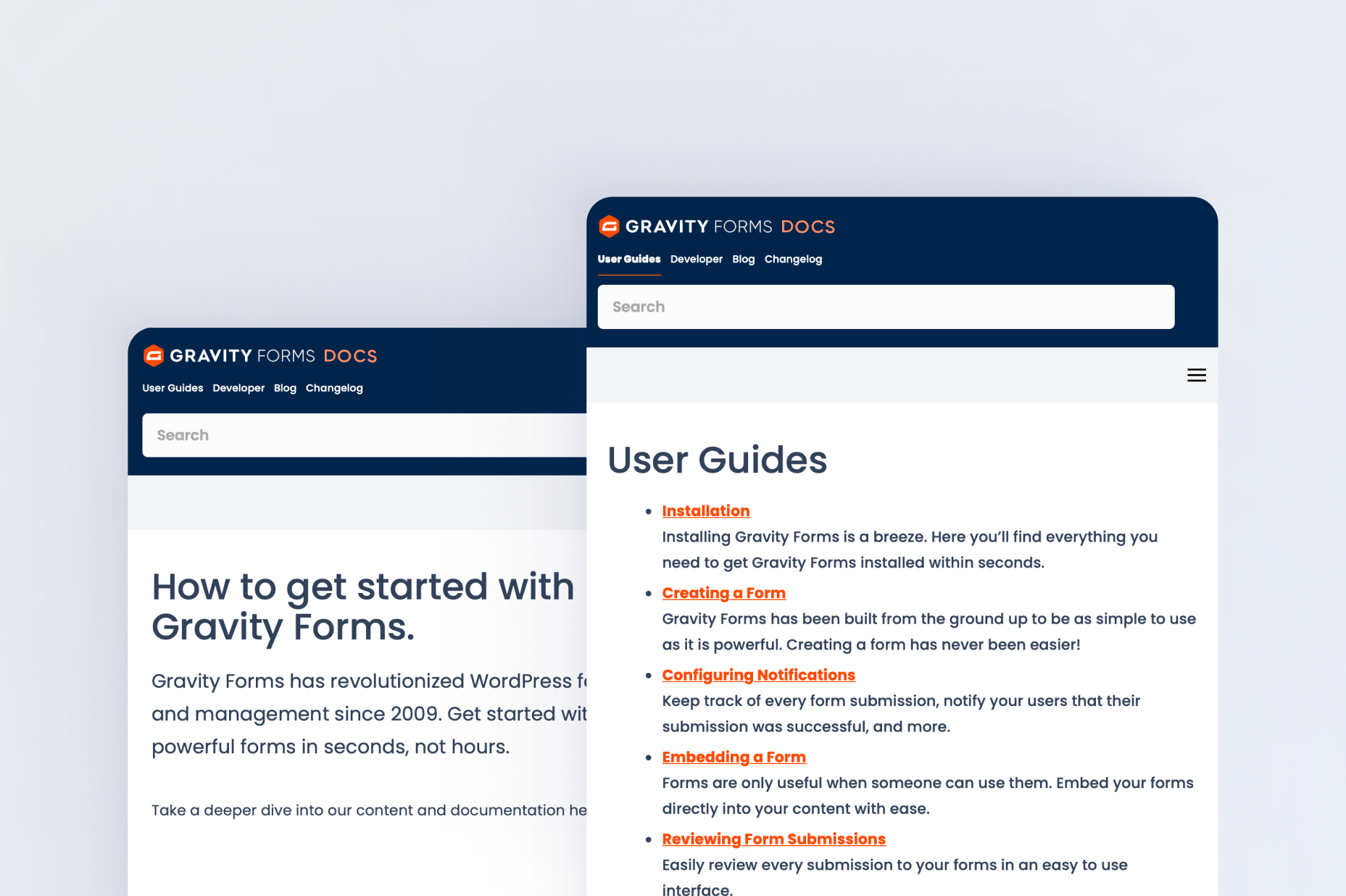
Documentation
Explore step-by-step documentation covering all things PayPal.
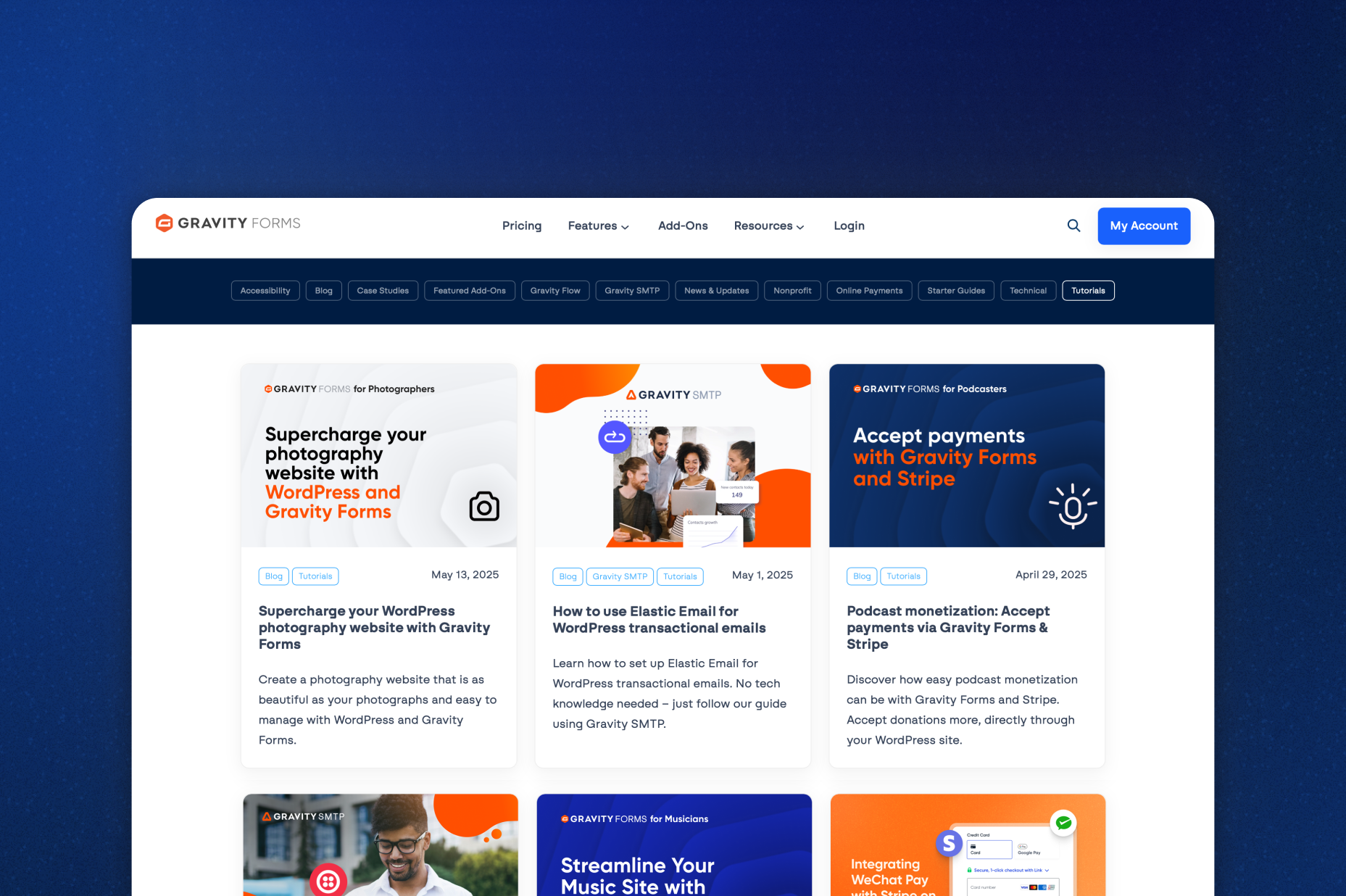
Gravity Forms blog
Tips, tutorials, and advanced use cases for better forms, all on the blog.

Gravity Learn site
Follow along with short practical videos, courses, and webinars.
Frequently Asked Questions.
What does the Gravity Forms PayPal Checkout Add-On do?

The Gravity Forms PayPal Checkout Add-On allows you to accept secure payments through PayPal directly on your WordPress forms, including one-time payments and recurring subscriptions.
What payment methods does PayPal support?
Once connected, you can accept payments on your WordPress website via PayPal, all major credit cards, Buy Now Pay Later, Venmo, and numerous regional payment methods.
Does the PayPal Checkout Add-On support subscriptions and recurring payments?
Yes, you can create recurring subscriptions using Gravity Forms, allowing customers to pay automatically on a recurring basis through PayPal Checkout.
Can I issue refunds from WordPress when using PayPal Checkout?
Yes, the PayPal Checkout Add-On supports refunds directly from your WordPress dashboard, making customer service fast and convenient.
Can I authorize and capture PayPal payments later?
Yes, the add-on supports payment authorization and delayed capture, giving you flexibility for orders that require manual review or fulfillment.
Does PayPal Checkout work with other Gravity Forms add-ons?
Yes, PayPal Checkout integrates with other Gravity Forms add-ons such as Advanced Post Creation and User Registration, allowing actions to occur only after successful payment.
Which Gravity Forms licenses include the PayPal Checkout Add-On?
The PayPal Add-On is included with Gravity Forms Pro, Elite, and Nonprofit licenses.
Can I try Gravity Forms before purchasing?
Yes. Gravity Forms offers a free Elite demo that lets you test it as a full-featured WordPress form builder before committing to a paid license.
If I love the demo and decide to purchase Gravity Forms, do you offer a money back guarantee?
We want you to feel confident about purchasing Gravity Forms which is why we offer a 30-day money back guarantee. If you find Gravity Forms isn’t the best fit, simply send us a message! We’ll happily refund 100% of your money, no questions asked.