To learn more about using the Image Choice field, check out our docs site.
Gravity Forms 2.9 introduces the Image Choice field, giving you the power to easily add images directly from the Media Library to your choices. Let’s dive in and take a look at how to use this awesome new feature.
Hey, this is Dustin from the Gravity team, and in this video we’re going to take a look at everything you need to know about using the new Image Choice field.
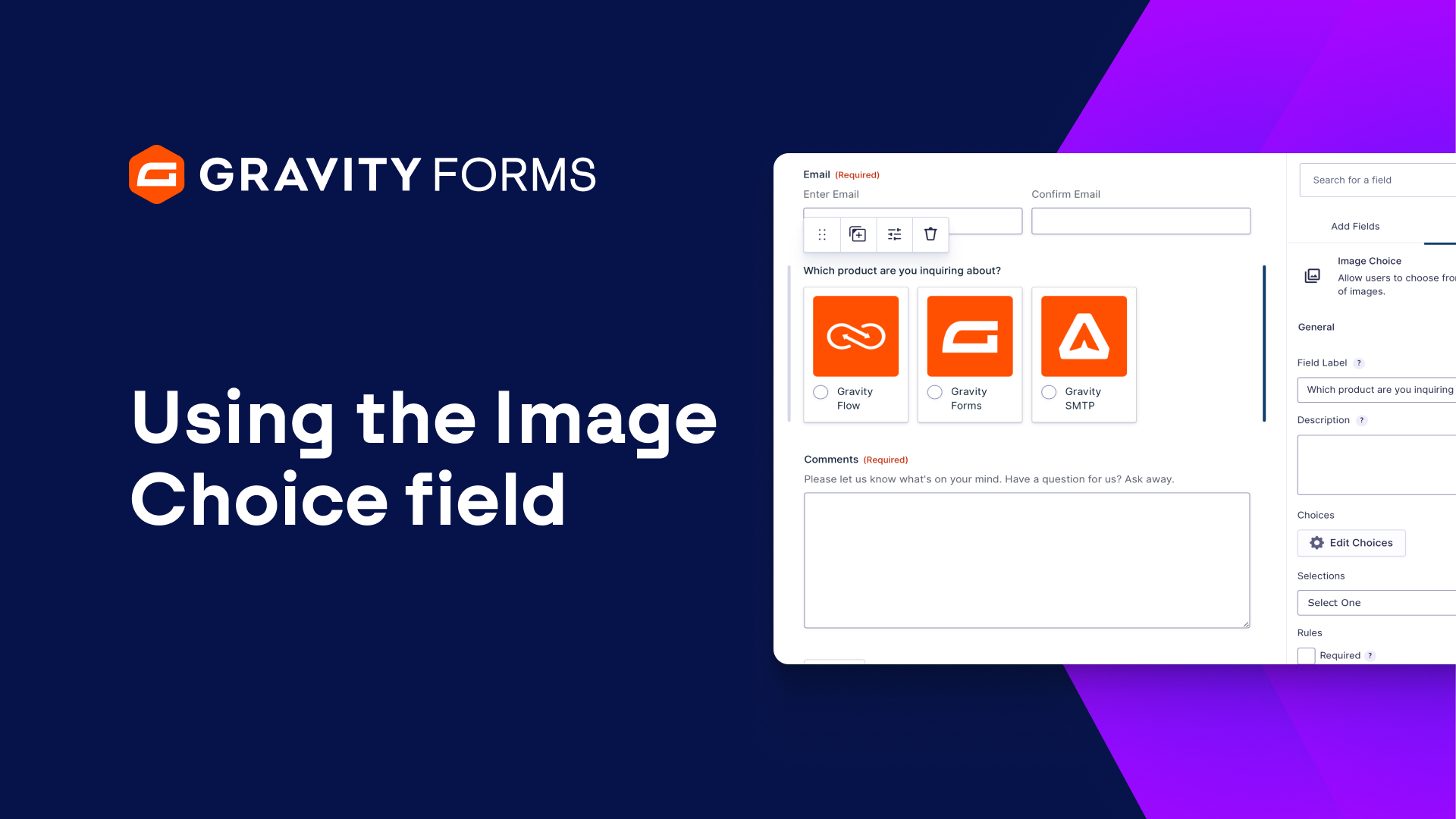
Here I have a simple contact form and I want to give the user the option to select which Gravity product they have an inquiry about. This will give my form an extra visual aspect, helping to engage users and improve their on-form experience.
I’ll start by adding the Image Choice field to my form and opening the choices flyout. I’ll first enter my choices, then use the file upload icons to select the appropriate images from my Media Library.
Next, I can use the Selections option to specify the number of images the user can select. The ‘Select One’ option will display the choices as radio buttons, whereas the ‘Select Multiple’ option will instead give the user checkboxes.
I’m going to use the ‘Select One’ option for this example, but you can read more about each option on our docs site, linked below.
Now I’m going to embed my form on a new page. From here, I can use the built-in orbital styling options to customize the look and feel of the image choice field. For instance, I can change the appearance, style, and size of the image choices.
When I’m done, I’ll publish my page and be good to go.
Thanks to the Image Choice field, my users will have a friendly, visual way of selecting the product they have a question about.
For more guides and tutorials on all things Gravity, be sure to check out our video library. From everyone on the Gravity team, thank you for watching!
Summary
Gravity Forms 2.9 introduces the Image Choice field, giving you the power to easily add images directly from the Media Library to your choices. In this video tutorial, we’ll show you how to get up and running with the Image Choice field.
Read more about the Image Choice field on our blog.