For more information on using the Polls Add-On, check out our docs site.
The Gravity Forms Polls Add-On lets you easily add polls to your WordPress website.
And better yet, the Polls Add-On is quick to set up and has all the functionality you need to gather the information you’re looking for.
With the Polls Add-On, you can add fields to your form that ask your visitors questions, capture their responses, and display the results of the poll after they submit the form.
You can add simple “Yes/No” questions, have users select multiple options, or ask users to select from a list of choices.
You can also add as many Poll questions to your form as you want to help you get a better idea of what your audience wants.
So let’s take a look at how to add a simple poll to your WordPress site.
We’ll get started by installing and activating the Polls Add-On.
Next, create a new form using the ‘Blank Form’ template.
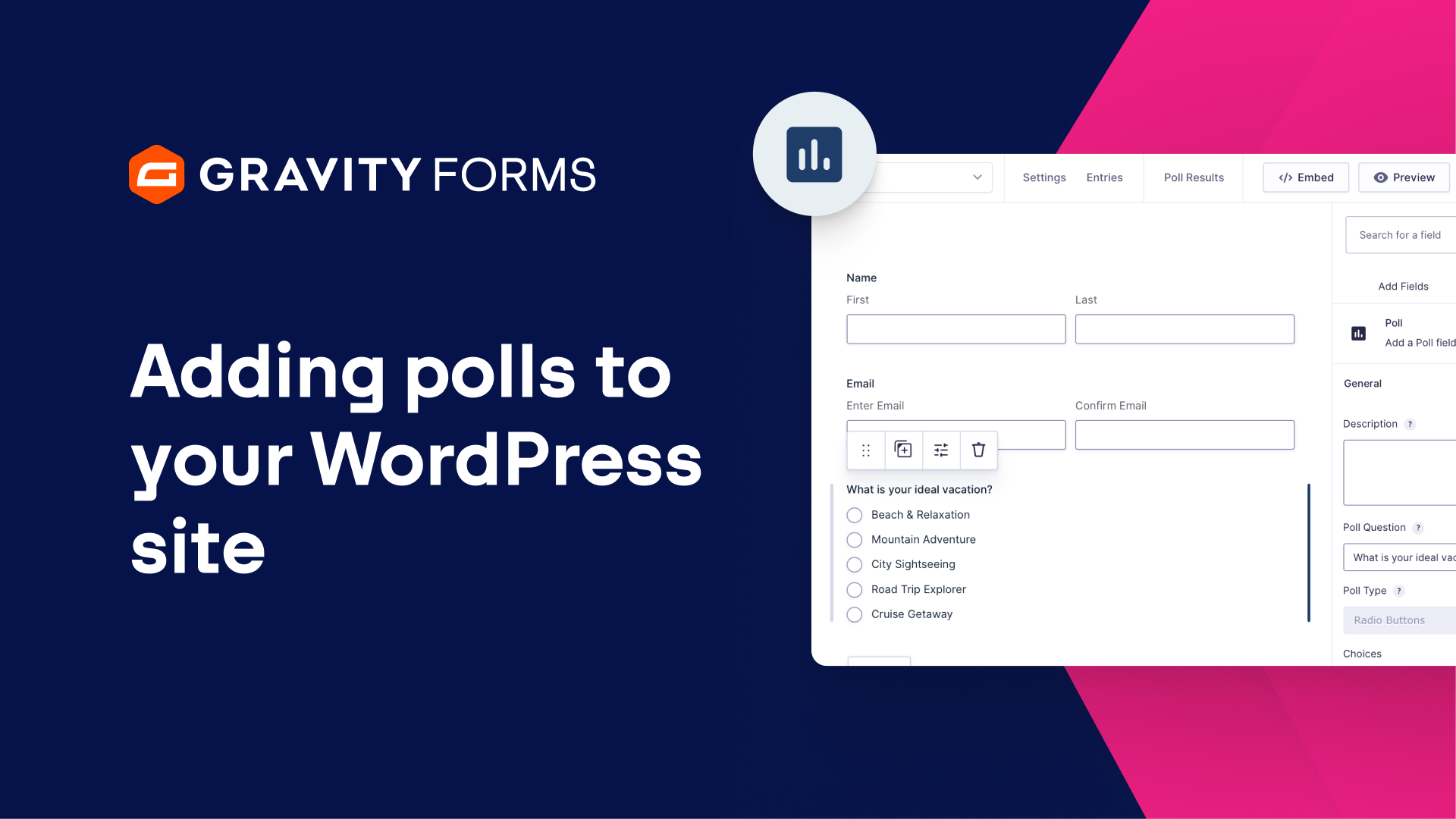
Under the ‘Advanced Fields’ tab, add the Poll field to your form.
Then, use the Field Settings to set the Poll Type, customize the Poll Question, and edit the choices.
Poll types include Radio Buttons, Drop Down, and Checkboxes.
Once you’re done, save your form and then head to the Polls settings for this form.
Here, you can choose to display the results of a poll after a user votes, add a poll results link to the form, display percentages, and display counts.
You can also customize the poll style and choose whether or not you want to block repeat voters.
When you are finished customizing everything, save your settings and navigate to the WordPress Page Builder for the Page or Post with which you’d like to add a poll.
Select the ‘Plus’ icon to add a new block, then search for ‘Poll’ to add the Gravity Forms Poll Block.
Use the dropdown to select the form you just created, and the poll from that form will automatically be loaded.
You can then configure extra appearance options for the Poll block.
Select the style of the poll, choose whether you want to display results percentages, and more.
Please note that these settings will override the poll settings that you established earlier.
Additionally, if your poll has concluded and you wish to instead display only the results of the poll, you can change the Poll Mode to ‘Results’.
Finally, you can go back to the settings page for your form to easily view and filter the poll results.
For more Gravity Forms guides and tutorials, be sure to check out our video library.
From everyone on the Gravity team, thank you for watching!
Summary
With the Polls Add-On, you can add fields to your form that ask your visitors questions, capture their responses, and display the results of the poll after they submit the form. In this video tutorial, we walk you through using the Gravity Forms Polls Add-On to add polls to your WordPress site.