For more information on using the User Registration Add-On, check out our docs site.
With the Gravity Forms User Registration Add-On, you have the option to create a new user or update an existing user on your WordPress site.
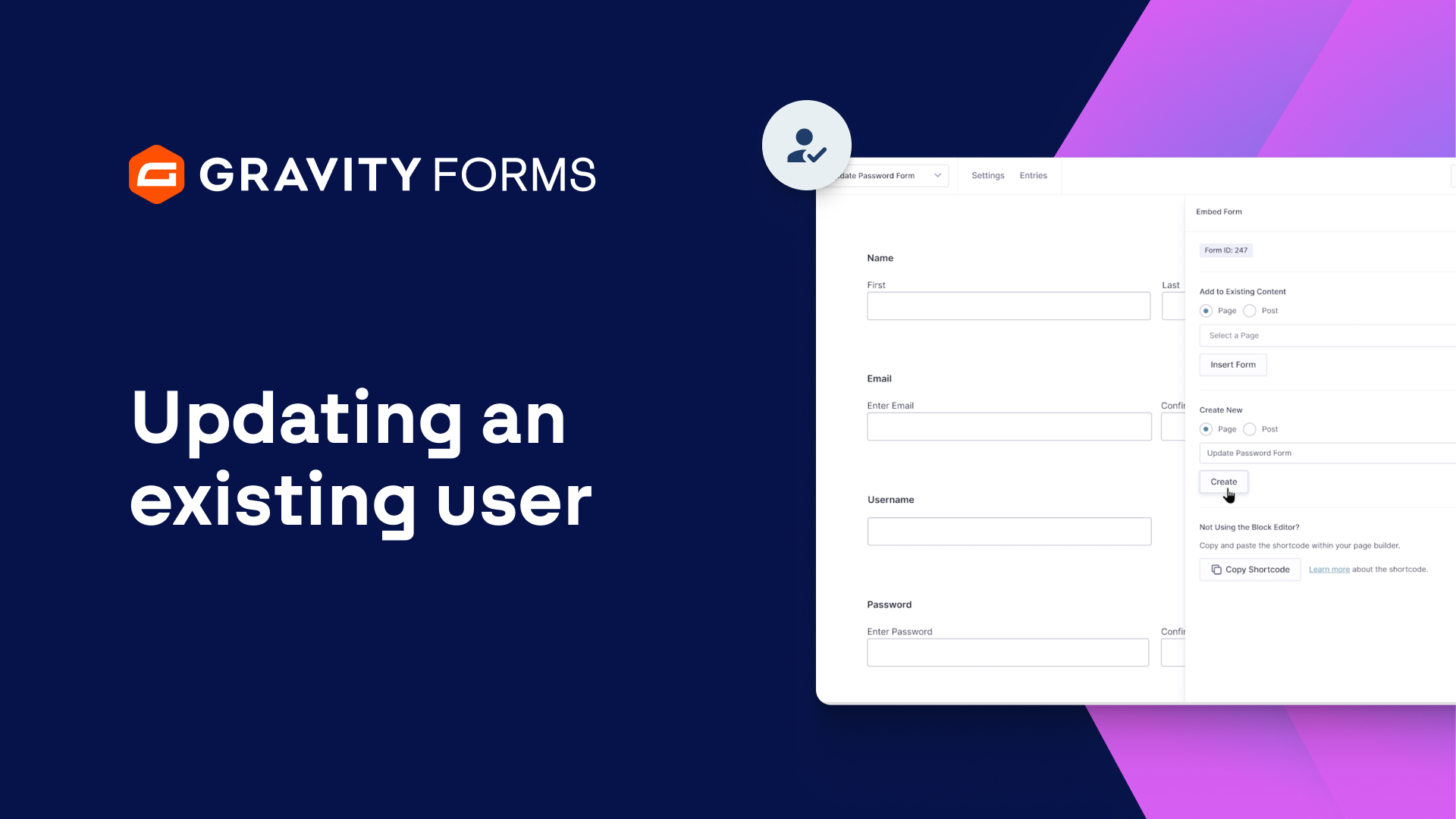
In this video, we’ll take a look at how to update an existing user and enable users to update their passwords via a simple form submission.
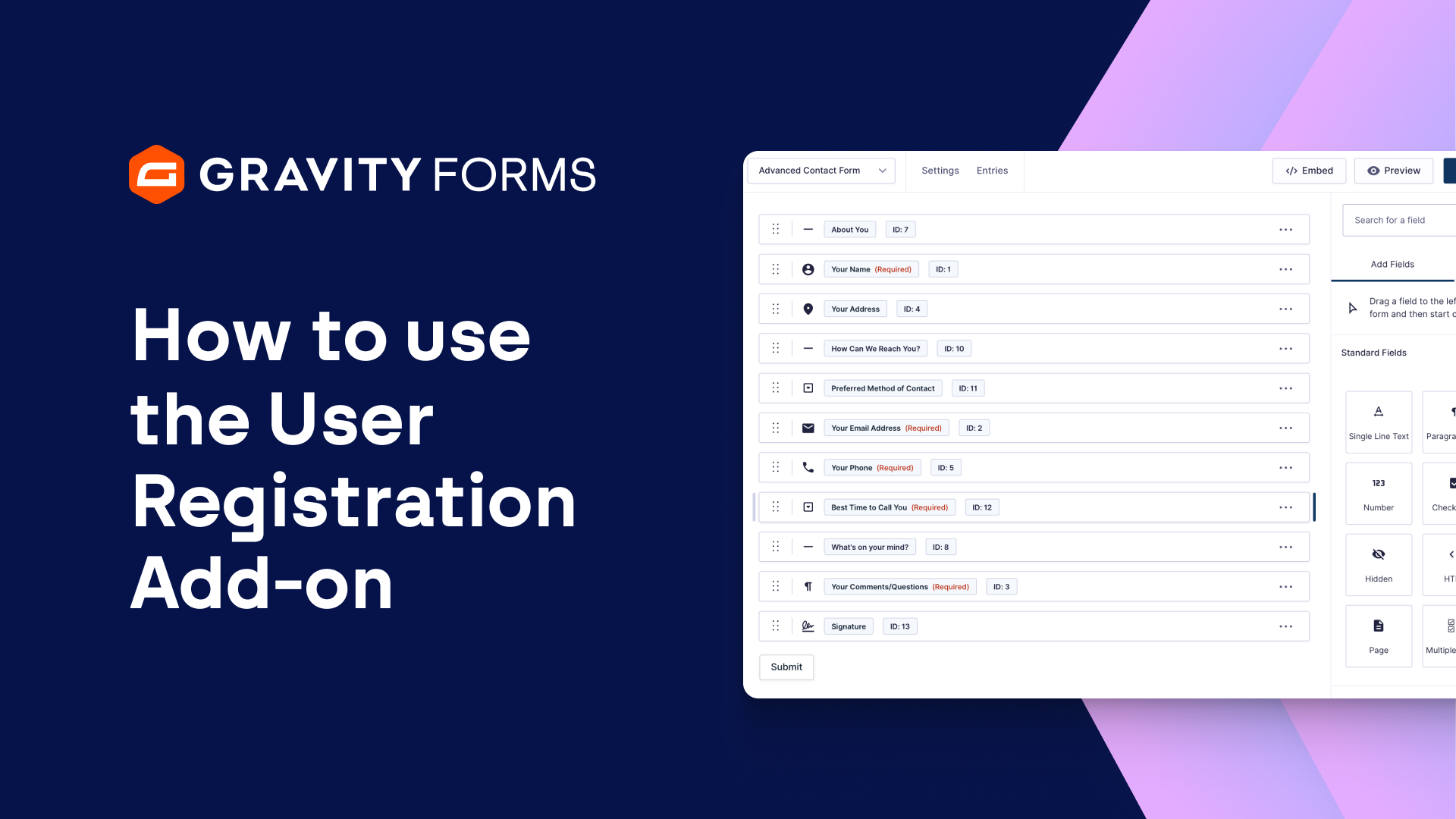
If you’ve never used the User Registration Add-On, be sure to check out our video on setting up a new user first, linked in the video summary:
From your WordPress dashboard, create a new form using the built in User Registration template.
You’ll need to create a different form than the one used to register users on your site, so be sure to give this form a descriptive, easily identifiable name.
Save your form, then head to the User Registration settings page for this form to create a new feed.
Give the feed a descriptive name, then set the action to ‘Update User’.
Next, map the User Registration fields to their corresponding form fields.
You have the option to let users update their Display Name, Email Address, Password, and Role.
For this example, I only want the user to be able to update their password, so I am going to choose to preserve the user’s current Display Name, Email Address, and Role.
I’ll then set the Password field to its corresponding form field.
I also have the option to add User Meta key/value pairs, as well as enable conditional logic, if needed.
Once I’m done configuring the feed, I’ll save my settings and then update the confirmation message for this form.
Finally, I’ll embed my form on a new page.
With everything set up, I now have two User Registration forms in action.
The first form allows me to register new users to my site, while the one I just created can be used to update the password of an existing account.
For more guides and tutorials on everything Gravity Forms, check out our video library.
From everyone on the Gravity team, thanks for watching!
Summary
With the Gravity Forms User Registration Add-On, you have the option to create a new user or update an existing user on your WordPress site. In this tutorial, we’ll take a look at how to update an existing user and enable users to update their passwords via a simple form submission.
If you haven’t seen our video on the User Registration Add-On, check out this video first.