For a written guide on using the Signature Add-On, check out our blog.
Collecting a user’s signature via a form on your WordPress website can save time, reduce paperwork, and provide an impressive user experience for your clients and customers.
From contracts and consent forms, to applications and online petitions, the Gravity Forms Signature Add-On allows you to easily capture signatures on any new or existing form.
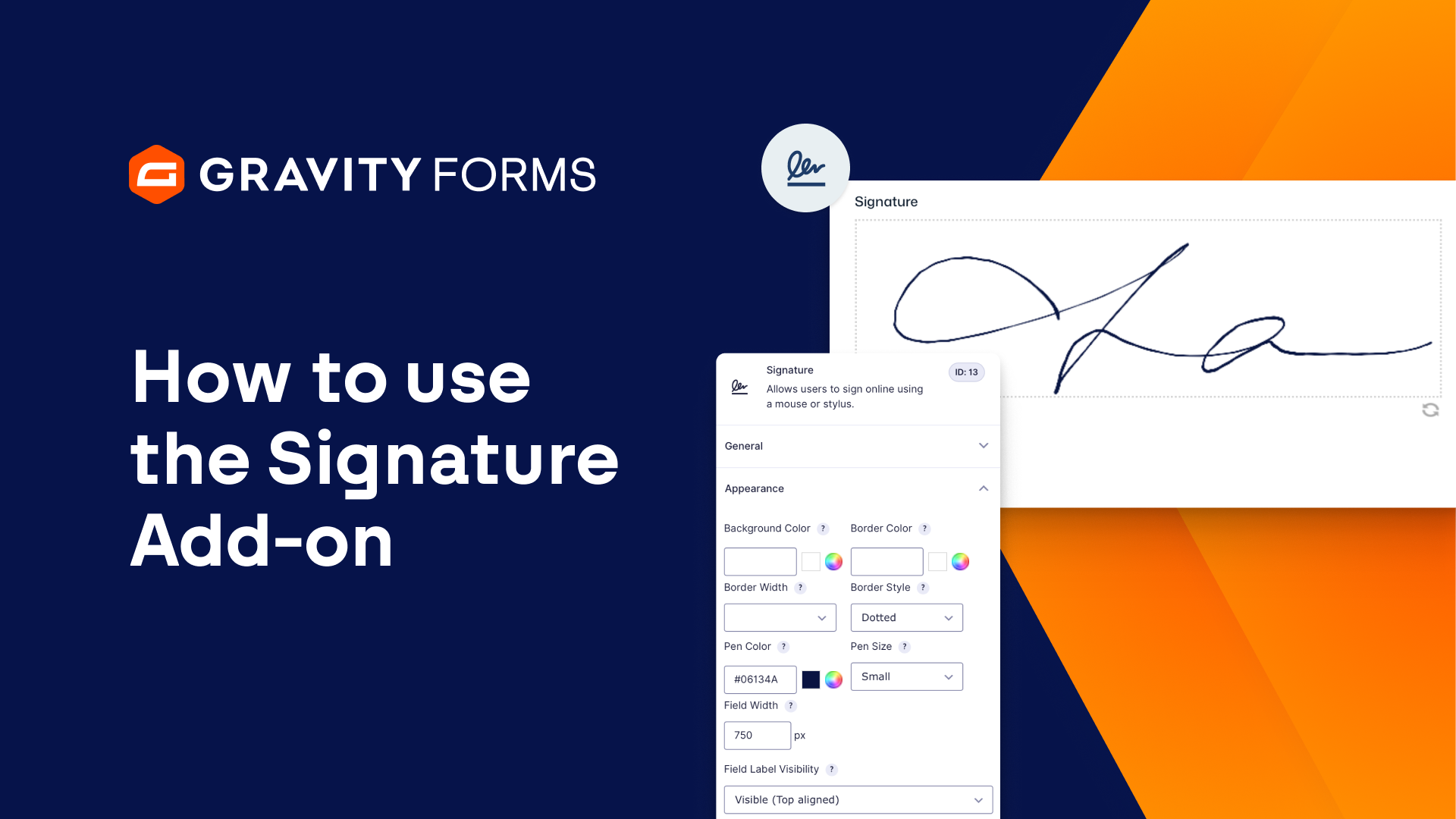
The Signature Add-On displays an online signature pad on your form, where users can sign their name using a touchscreen device, any device that has a built-in touchpad, or just a mouse.
To get started capturing signatures, you’ll first need to install and activate the add-on.
Then, navigate to any form you would like to use to collect signatures.
For this example, I’ll be using an employment application form.
Under the advanced fields tab, drag and drop the signature field to where you would like it to appear on your form.
If you navigate to the field settings and select the appearance tab, you have the option of altering the appearance of the signature pad that will be displayed on the form.
Here you can change the color of the pad background and border, alter the border width and style, and select a color and size for the pen, to name a few options.
Once you save your changes, simply publish your form to start collecting signatures.
When a user submits a form that has the signature field added to it, their signature will be captured and viewable from within the Entries page for that form.
Want to create legally binding documents? Check out the Legal Signing for Gravity Forms Add-On by certified developers CosmicGiant.
Thanks for watching!
Summary
Collecting a user’s signature via a form on your WordPress website can save time, reduce paperwork, and provide an impressive user experience for your clients and customers. From contracts and consent forms, to applications and online petitions, the Gravity Forms Signature Add-On allows you to easily capture signatures on any new or existing form.