Webflow vs WordPress: Honest comparison to help you choose
 By Colin Newcomer
Published December 23, 2025 · Updated December 22, 2025
By Colin Newcomer
Published December 23, 2025 · Updated December 22, 2025

Deciding between Webflow vs WordPress to build your website?
Webflow and WordPress can both help you build a unique website, regardless of your technical knowledge.
However, there are also some important differences between the two, especially when it comes to ease of use, flexibility, and pricing. Based on your unique situation, these differences could push you in one direction or the other.
In our comparison, we help you understand those differences and make the right choice for your business by comparing Webflow and WordPress in the following categories:
- What you can build with each tool
- Ease of use
- Extensibility
- Design options
- Pricing and costs
If you’re still on the fence at the end of this post, we’ll also share some tips on how to make WordPress more like Webflow, which can help you get the best of both worlds.
What can you build with Webflow and WordPress?
Let’s start things off by talking about the types of websites that you can build with both platforms. After all, if the tool can’t build what you need it to, that’s a pretty big issue.
Webflow
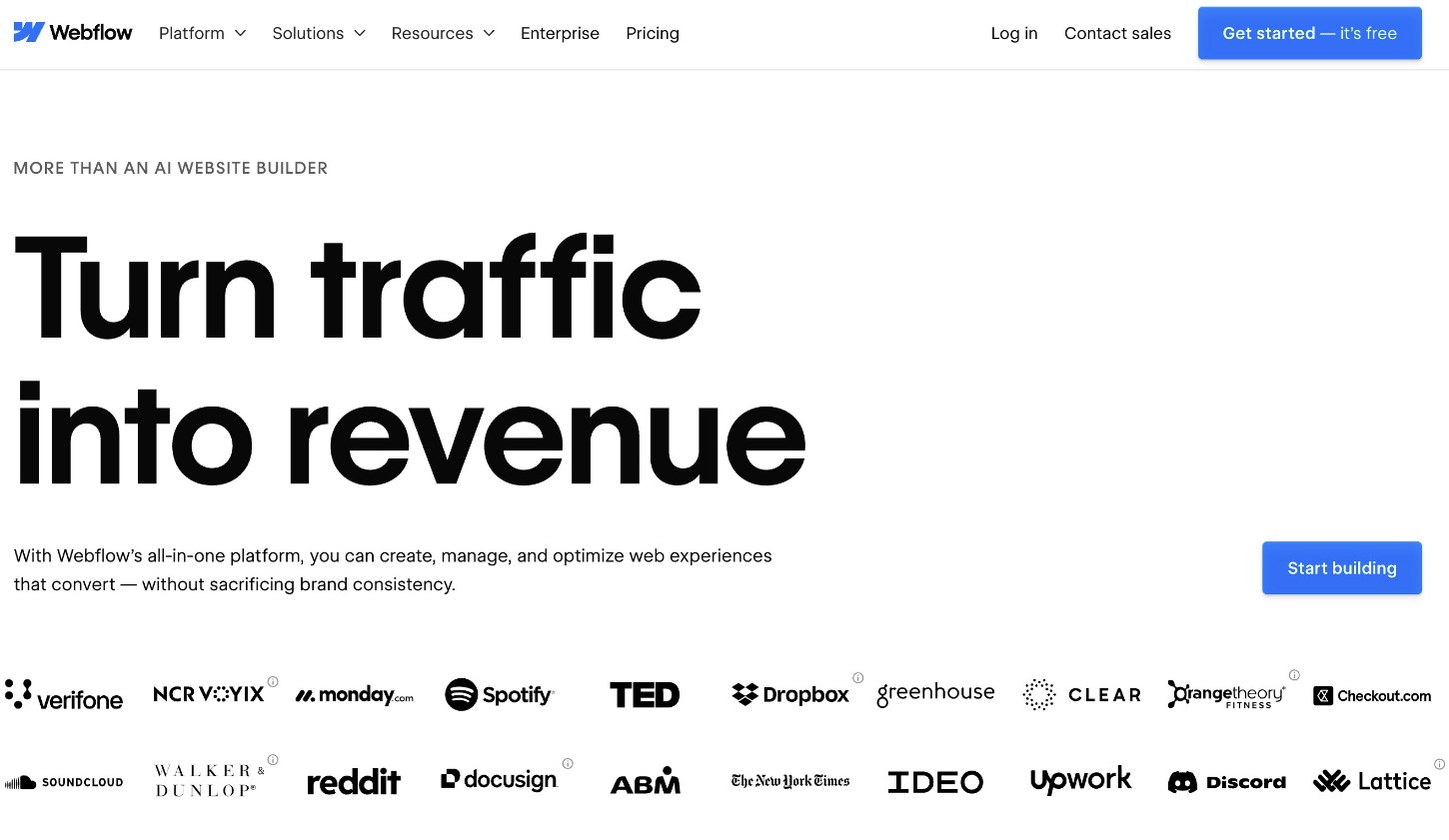
While Webflow gives you a lot of flexibility for building static content websites, it does have some limitations when it comes to sites that require user accounts.
To start, it can work well for any type of content site that doesn’t require user accounts, such as business brochure websites, portfolios, blogs, etc. The fact that you can set up custom content structures and schema gives you a lot of flexibility.
It also has dedicated ecommerce plans that you can use to sell products and services online.
However, Webflow might not be the best option if your website requires a user account system.
While Webflow introduced user account functionality in 2022, it has chosen to sunset this feature and will remove it starting January 29, 2026. After this date, there will no longer be any type of built-in user account feature in Webflow, which is obviously suboptimal for any type of membership site, including online courses.
There are ways to still add this functionality using third-party tools like Memberstack, but this adds complexity and can get pretty expensive. For example, if you wanted to use Memberstack without paying any transaction fees, you’d need to pay $499 per month at a minimum if your site has more than 200 members.
For those reasons, WordPress is probably the better option for any type of membership-based site.
WordPress
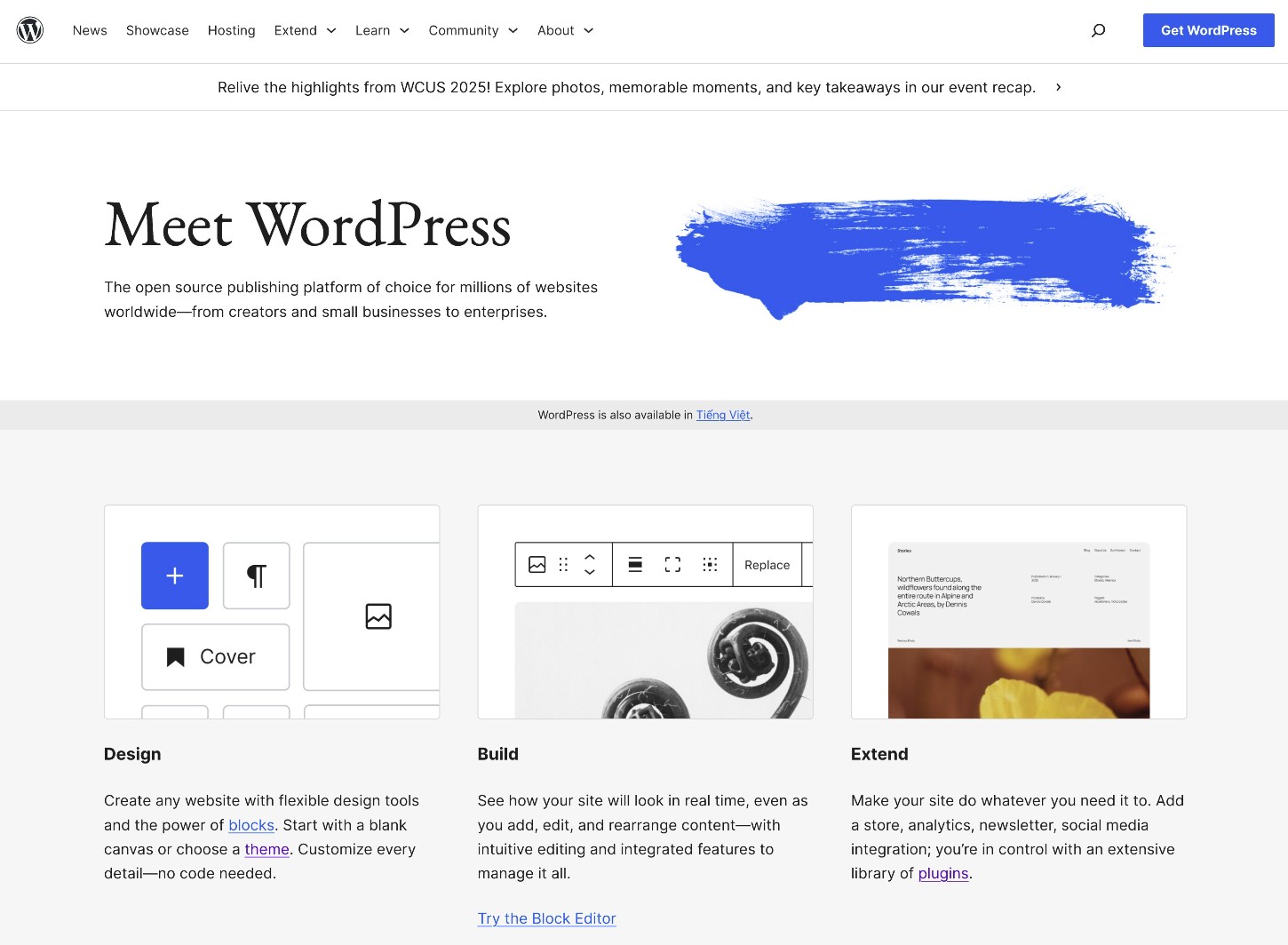
Whereas Webflow has some limitations on the types of sites that you can easily build, you can build pretty much any type of website with WordPress.
Like Webflow, it can work well for all kinds of content sites, including blogs, business brochure websites, portfolios, etc. Also like Webflow, you’re free to set up your own custom content structures that go beyond pages and blog posts, which gives you a lot of flexibility for custom content sites.
WordPress is also one of the most popular ecommerce platforms, powering ~11% of all the ecommerce stores in BuiltWith’s top one million sites (second behind only Shopify).
Where WordPress can really have an advantage is when it comes to sites that require user accounts. Via the built-in WordPress user account system and the many plugins that are available, you can easily create all kinds of membership websites, including the following:
- Online courses
- Any type of restricted content site
- Social communities
- Discussion boards
- Corporate intranets
- Wikis
- Etc.
Ease of use
While there’s always a bit of subjectivity when it comes to comparing ease of use, most people will probably find WordPress to be easier to use.
WordPress has a simpler interface, uses clearer terminology, offers multiple design experiences, and makes it much easier to figure out how much everything will cost.
Let’s look at ease of use in a bit more detail…
Webflow
Because Webflow is a bit more focused toward advanced users than other website builders like Wix or Squarespace, it’s not as easy to use as those tools, or WordPress.
You certainly don’t need to be a developer to use Webflow, but having some basic understanding of web design and how websites work is essential to getting the most from Webflow.
For example, the visual website builder that Webflow offers is packed with options and sticks very closely to “real” CSS and HTML principles.
While this is great if you already know the basics of HTML and CSS (and explains why it’s popular with designers), it might feel a bit overwhelming if you don’t.
Similarly, Webflow uses more abstract content management system terminology and assumes that you’ll be comfortable setting up basic database/information architecture systems for your site. While this is great in terms of giving you flexibility for working with custom content types, it’s another thing that can make the tool feel more complex for non-technical users.
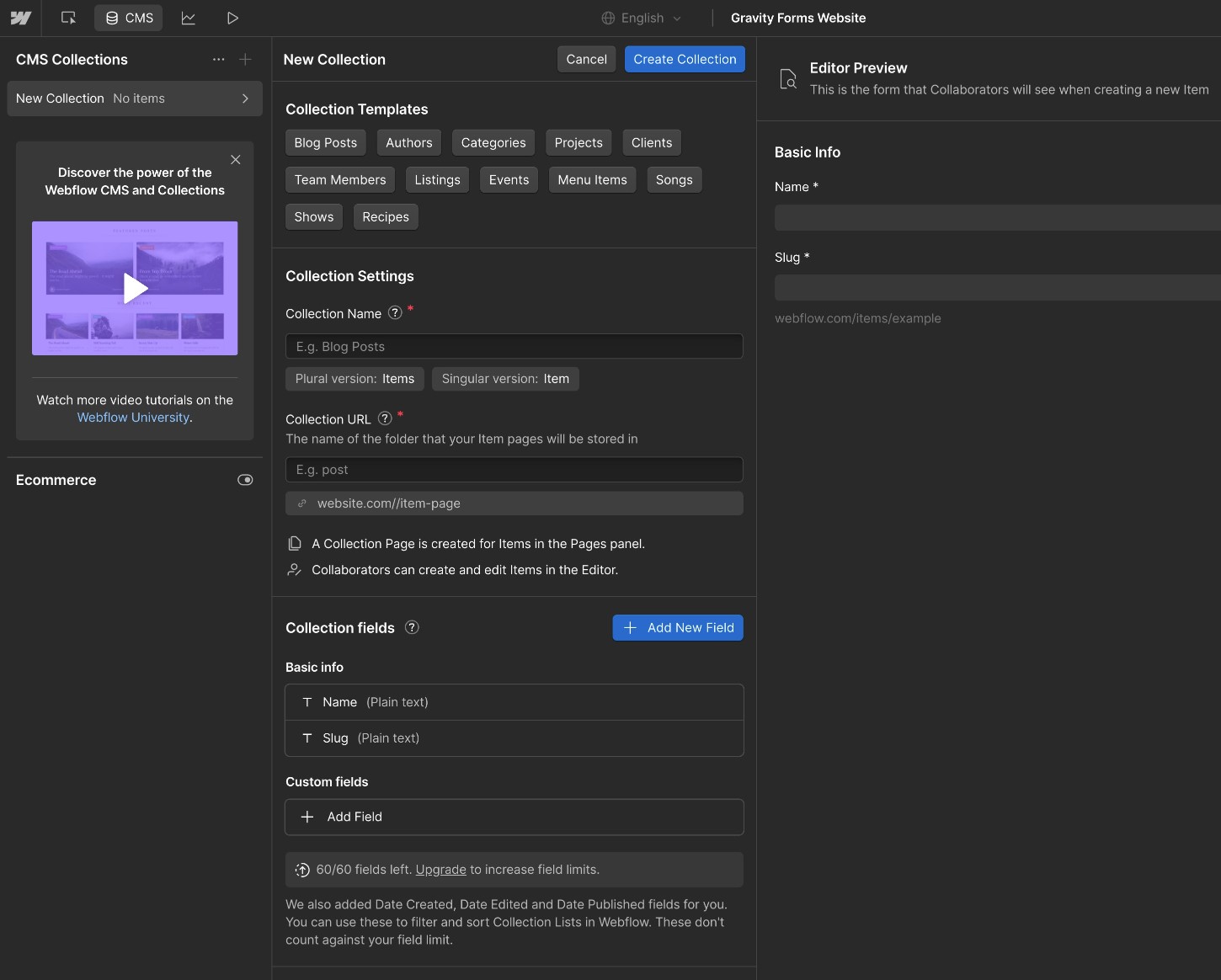
One advantage of Webflow, though, is that it’s a hosted tool. This means that creating a website is as simple as signing up for an account. Similarly, you won’t need to deal with basic maintenance such as applying updates and managing security, as Webflow handles all of that for you.
WordPress
While the WordPress setup process requires a few more steps than Webflow, the overall experience is simpler than Webflow.
One area where WordPress does require a few extra steps is the basic process of setting up your site. Instead of registering for an account, you’ll need to purchase your own web hosting and install the WordPress software.
While this might sound a bit complex, most WordPress hosts make the process quite simple. Typically, you just need to click a few buttons – we detail the entire process in our guide to choosing WordPress hosting.
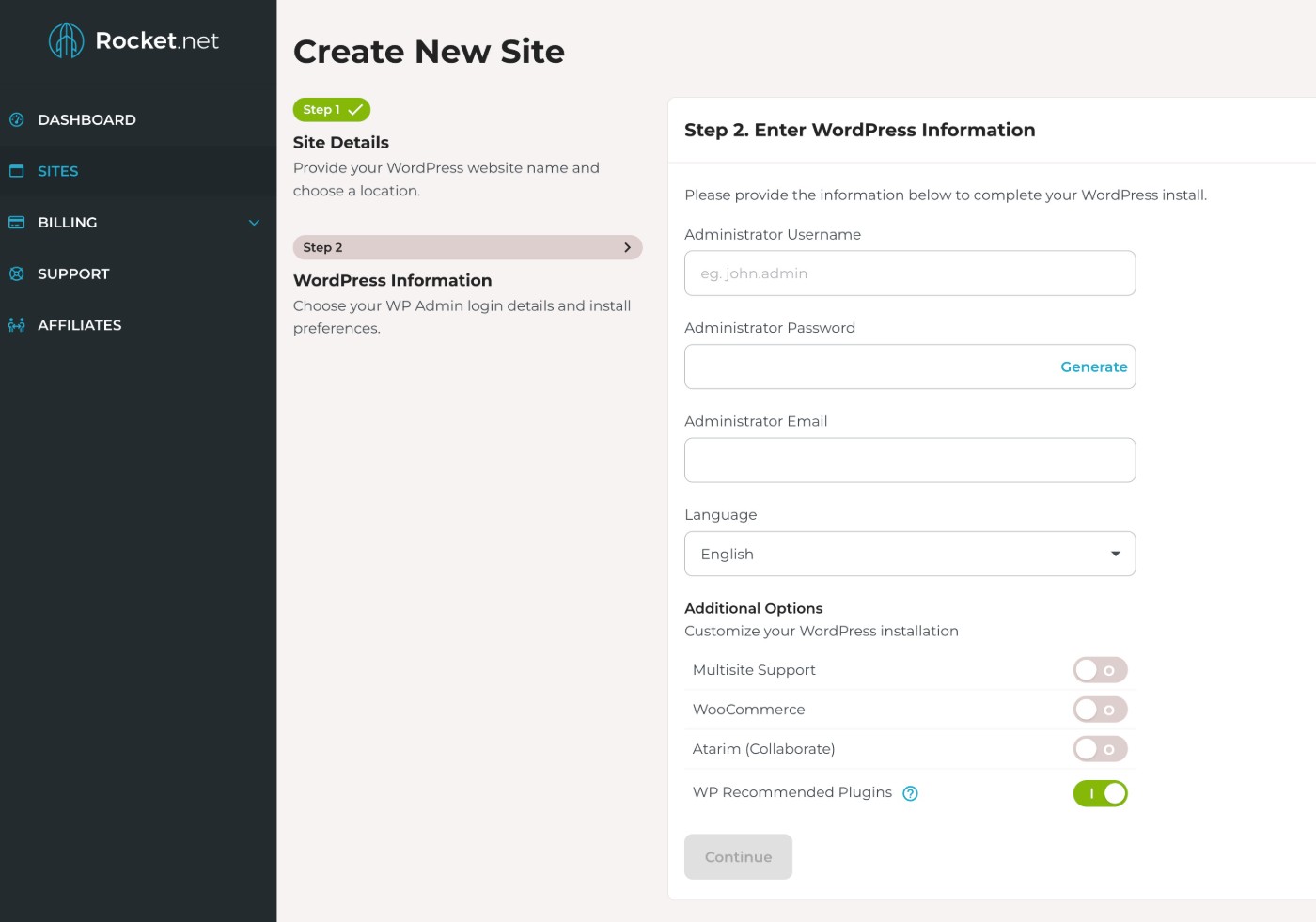
Once you’ve installed the software, you can manage everything about your site from a non-technical dashboard.
There are a few reasons why we think that most people will find WordPress to be easier to use:
- You can choose the design experience that best matches your technical level, which we’ll detail in a later section. You can keep things simple and straightforward or access the same level of design flexibility that Webflow offers.
- Because WordPress is so popular, there are tons of learning resources, whether those are blog posts, YouTube videos, communities, etc.
- WordPress has more extensions, so it’s easier to find off-the-shelf solutions for adding features and integrations.
Webflow’s one big advantage here is that it’s a hosted tool. If you want this type of hosted experience on WordPress, you could consider using something like WordPress.com.
Extensibility
To customize your website to meet your business’s unique needs, you might want to extend your site with additional features and integrations that go beyond the core offerings in Webflow and WordPress:
- Webflow offers more features “built in”, but you can still extend your site with Webflow apps.
- WordPress is specifically built so that you can install additional extensions to add the specific features and integrations that you need. These are called plugins.
In terms of extensibility, WordPress is the clear winner, both in terms of the number of extensions that are available and what those extensions let you do.
Webflow
Webflow didn’t launch its app marketplace until 2022 and it still remains fairly small when compared to WordPress and other tools.
Currently, Webflow only offers around 300 apps, which doesn’t give you a ton of flexibility for adding features and integrations.
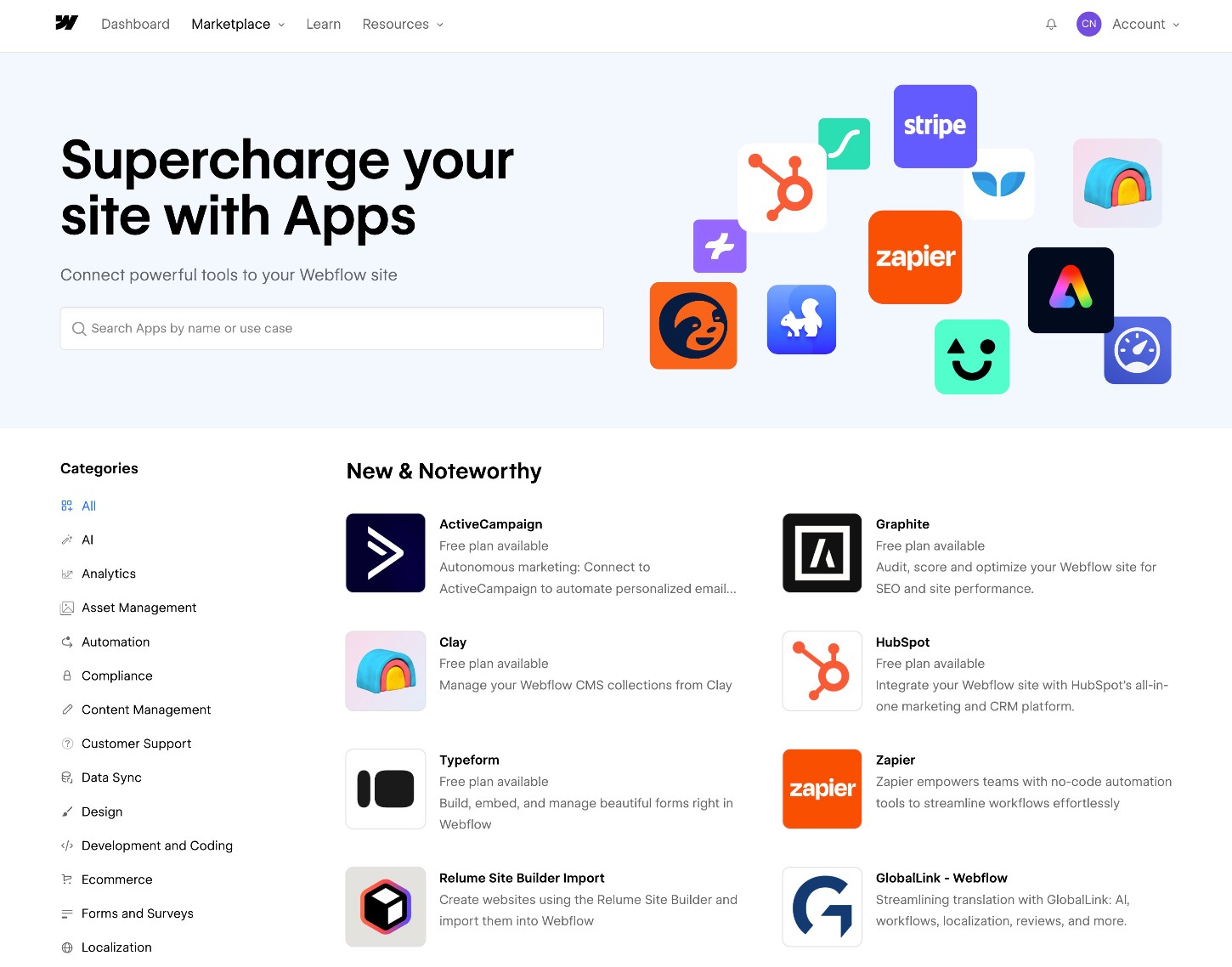
Because Webflow lets you add custom code to your site, you could access additional integrations via that method (which WordPress also allows you to do). But in terms of pre-built extensions, the marketplace is quite small.
WordPress
WordPress offers significantly more extensions than Webflow, and is just generally one of the most extensible platforms in existence.
Currently, the WordPress.org plugin directory has over 60,000 free plugins alone, and you can find thousands of additional plugins in other marketplaces or direct from developers.
These plugins offer pre-made solutions for adding pretty much any feature or integration imaginable.
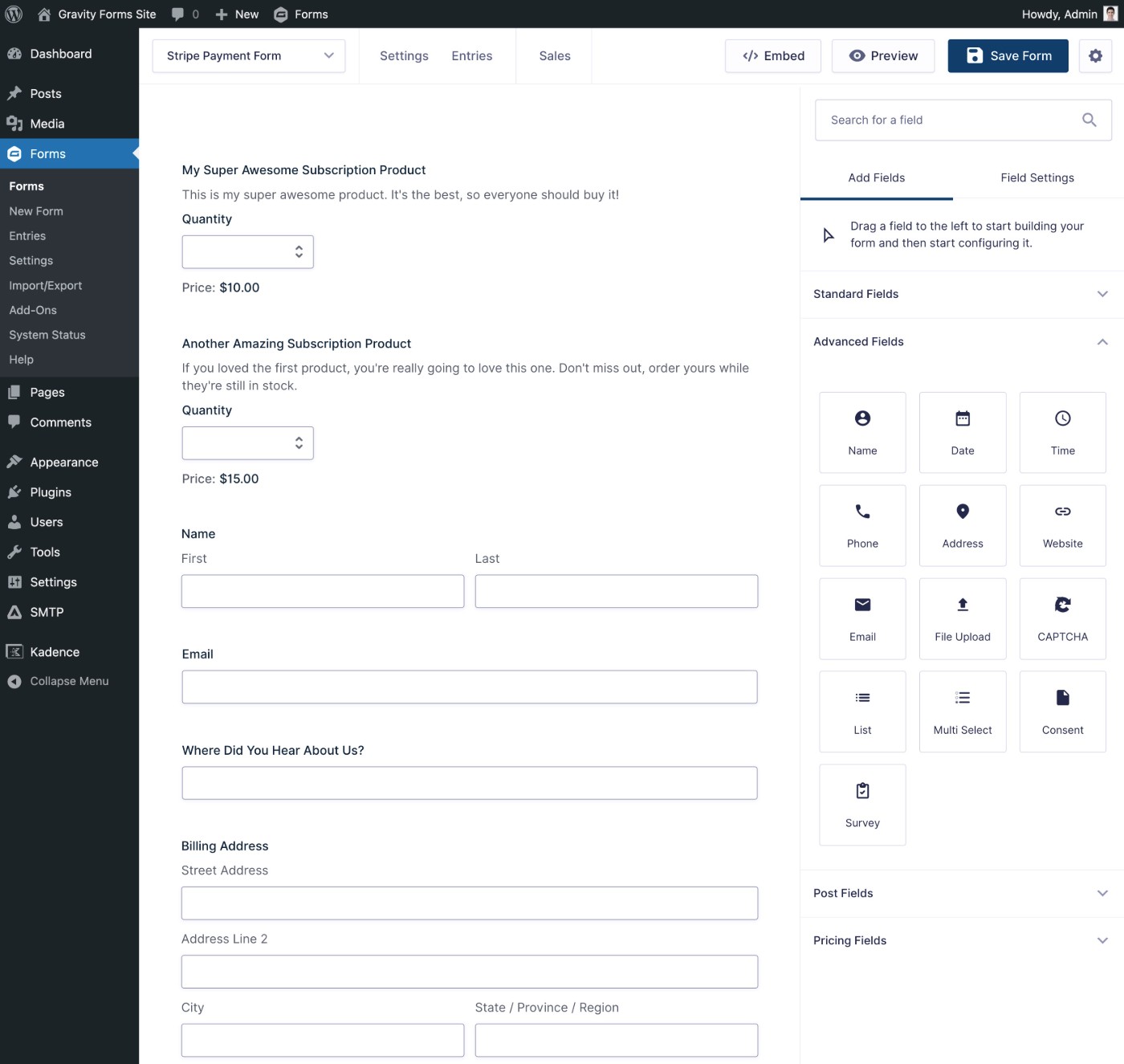
For example, the Gravity Forms plugin gives you a drag-and-drop form builder interface that lets you create any type of form, from basic contact forms to payment forms, user registration forms, business process forms, and lots more.
You can also integrate your forms with other services that your business relies on, such as your CRM, email marketing service, payment processor, etc.
Design options
Next, let’s look at the options that you have for designing your website in Webflow and WordPress.
Webflow
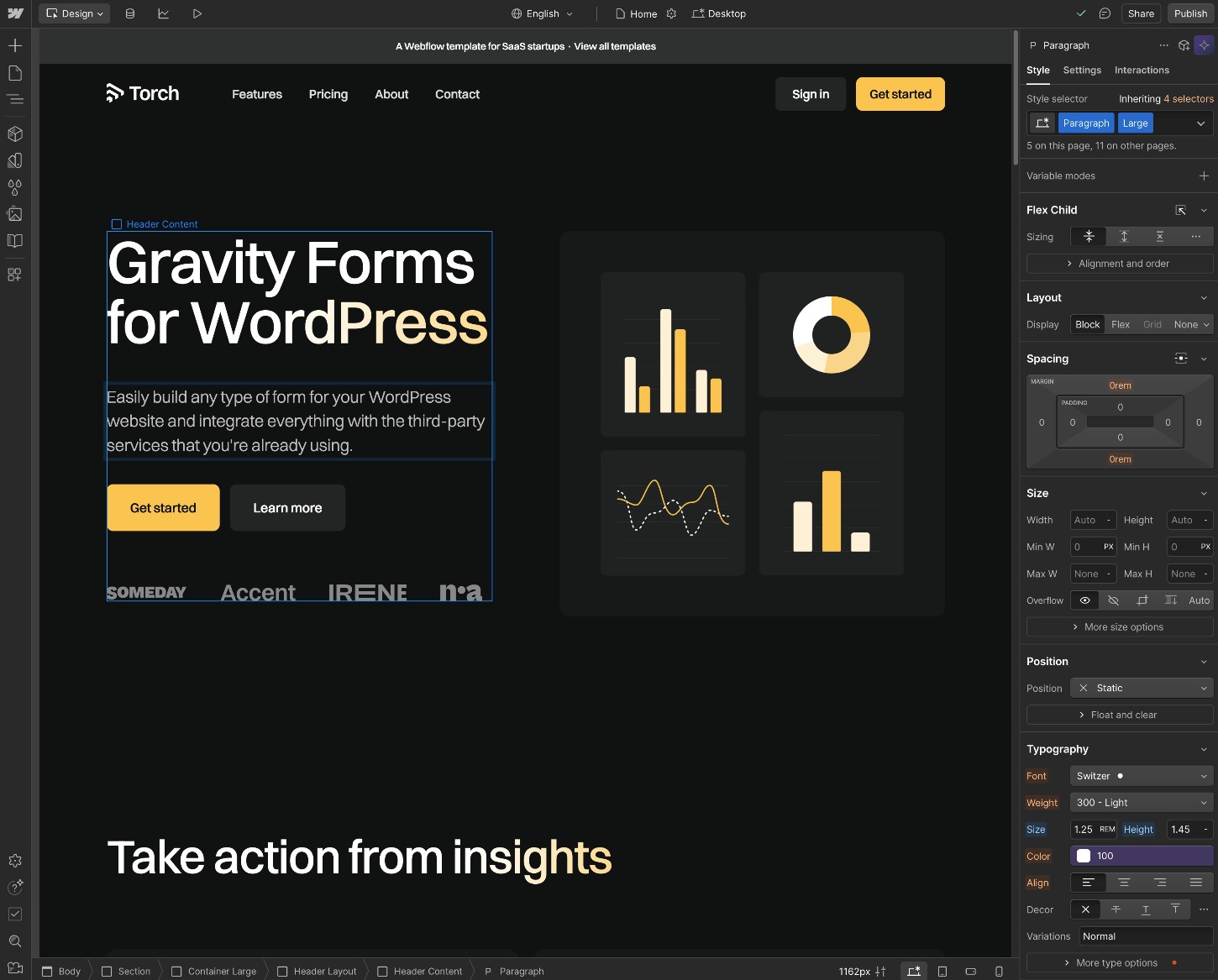
Webflow only offers one design experience, so you kind of have to take it or leave it.
When you create a site, you can choose from three starting points:
- AI site builder to generate a custom site
- Pre-made templates
- Blank slate
From there, you’ll be launched immediately into the Webflow editor to customize your site.
As we mentioned above, Webflow’s editor sticks very closely to “real” HTML and CSS. Experienced designers will probably like this approach, but non-technical users might find it a bit overwhelming.
WordPress
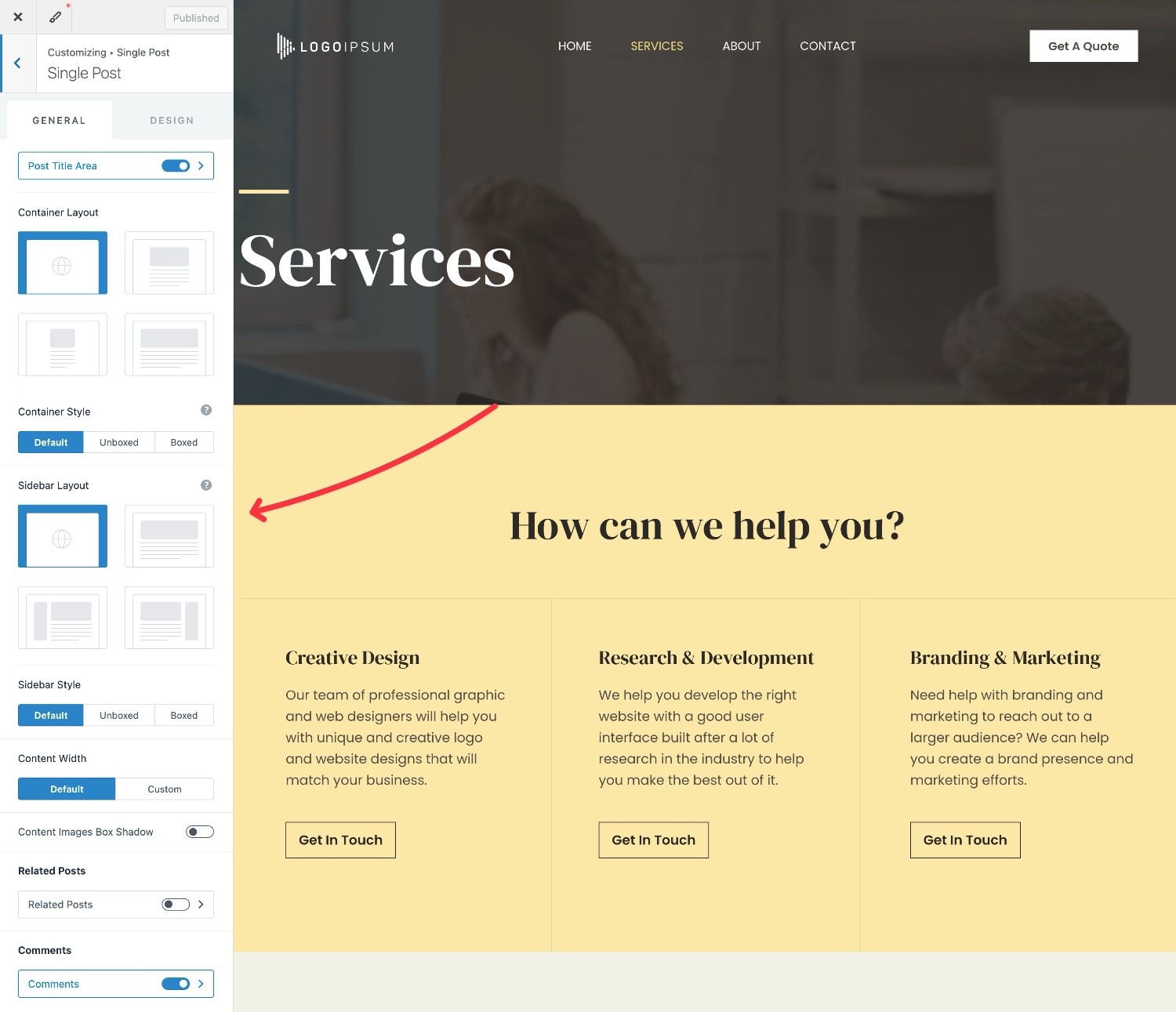
To control the baseline design of your WordPress site, you can use one of the thousands of pre-made themes that are available.
You can then fully customize your theme using a real-time, visual editor:
To control the design of individual pieces of content, you have a lot of different options.
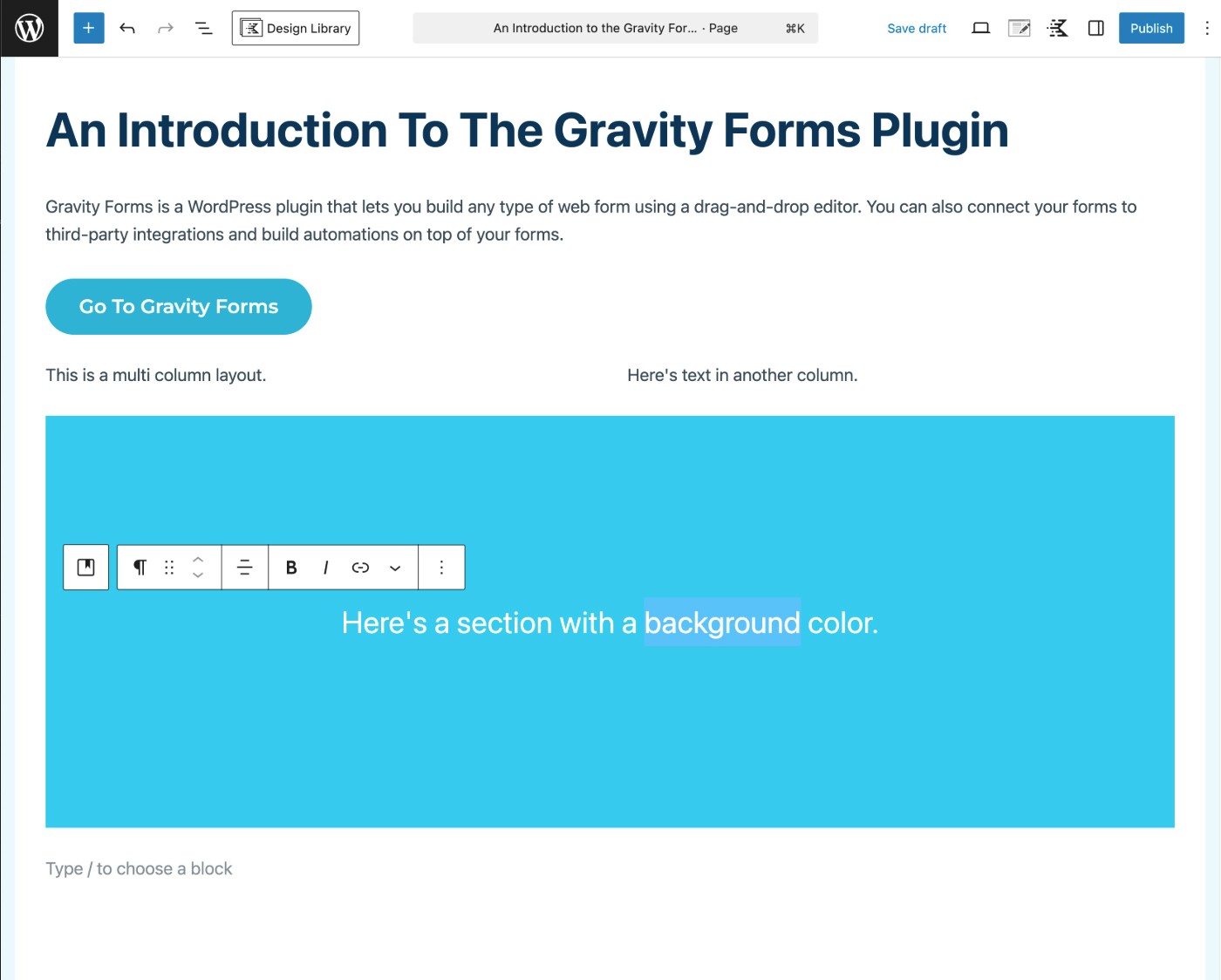
The default experience is to use the WordPress block editor, which gives you a somewhat visual and somewhat drag-and-drop design experience. It’s not 100% visual like Webflow’s editor, but it can work fine for basic layouts.
If you want a 100% visual, drag-and-drop design experience, you have lots of options for adding one using plugins.
There are some plugins that offer a very Webflow-like experience that feels like “real” HTML and CSS, such as Bricks or Oxygen.
If you find those a little overwhelming, you can also find less complex, but still powerful, plugins such as Elementor and many others.
For example, here’s what the Elementor editor looks like:
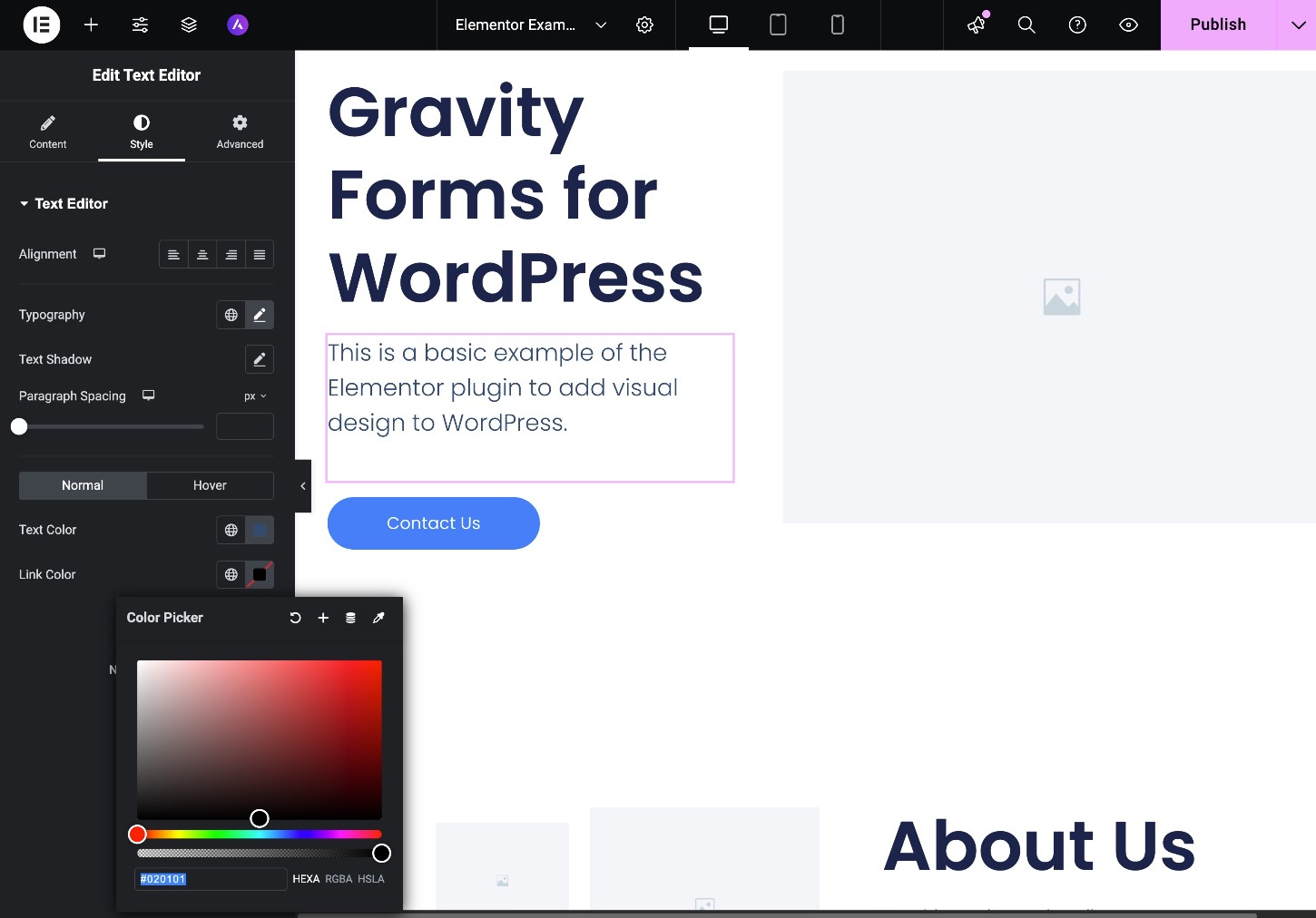
Being able to choose your preferred design experience is an advantage of using WordPress.
While it might take a little trial and error to find the experience that you like the best, you can end up with something that’s tailored to your unique situation and needs.
Pricing and costs
There are some very big differences in WordPress vs Webflow pricing, especially for certain types of websites (such as multilingual websites and/or websites with a lot of content).
In general, WordPress will be more affordable than Webflow. Depending on your use case, this could vary from “a little bit cheaper” to “significantly cheaper”.
One big difference in pricing philosophy is in what type of limits are applied to your site:
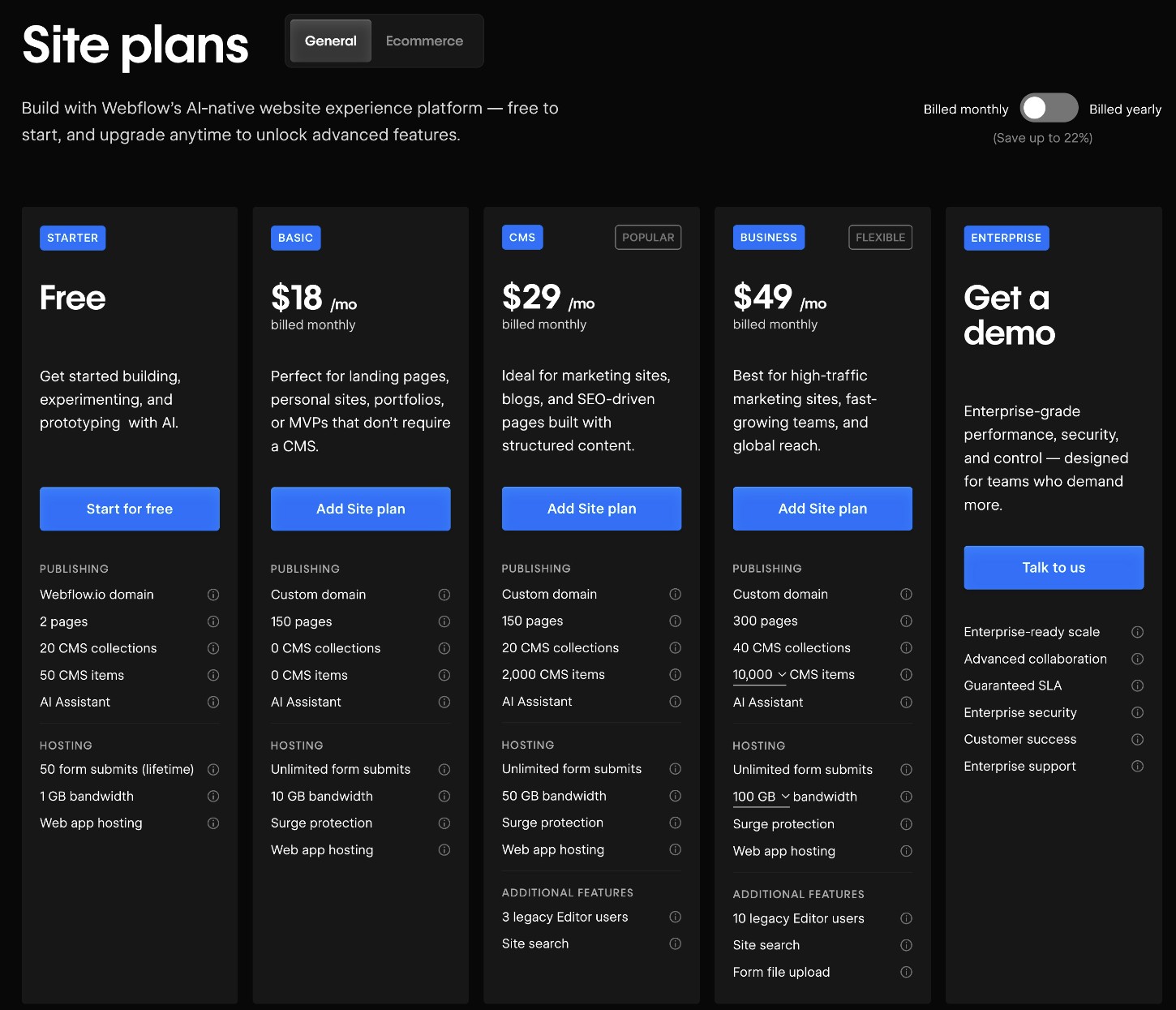
- Webflow – Webflow puts limits on the number of pages and content items (e.g. a “blog post” or “ecommerce product”) you can have on each plan. If you want to publish more content, you need to pay more.
- WordPress – WordPress has no arbitrary limits. You can publish unlimited content items and you’ll never need to pay more.
Let’s dig into things in more detail…
Webflow
Webflow offers two high-level types of plans:
- Site plans – This is for individuals looking to build a single website.
- Workspace plans – This is for teams or freelancers/agencies looking to build multiple sites and/or access multiple staging environments.
Within the Site plans, there are also two options:
- General – for “regular” websites, such as personal sites, portfolios, blogs, etc.
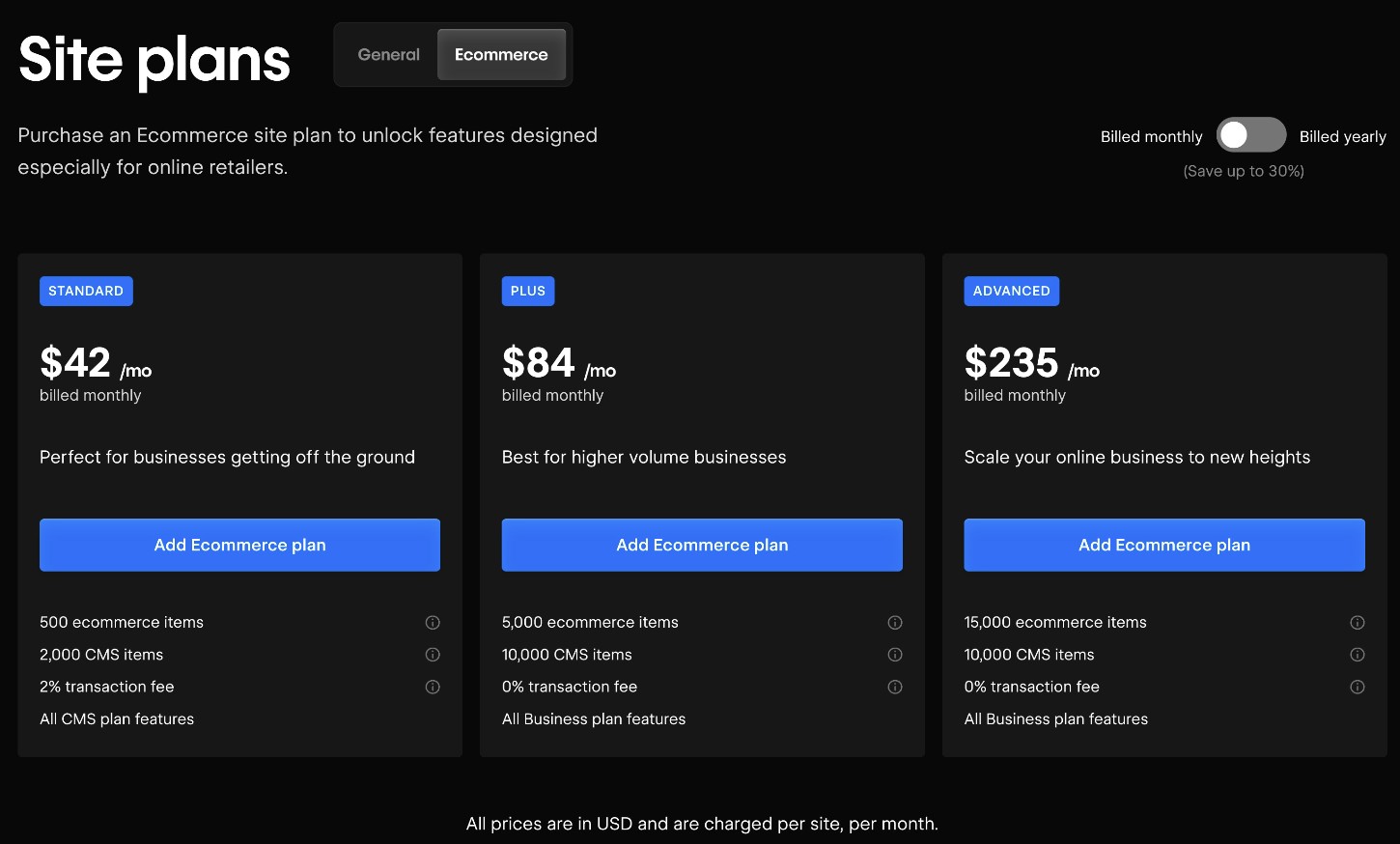
- Ecommerce – for ecommerce stores or other types of online retailers.
As we mentioned above, each plan will have limits on how much content you can create, with these being the most common limits:
- Pages – The number of static pages you can have. E.g. “About”, “Contact”, etc.
- CMS collections – The number of templates or lists you can have. For example, a page that lists your most recent blog posts would count as one CMS collection. A page that lists all of the blog posts in a certain category would be another collection (one for each category).
- CMS items – The number of individual pieces of content. For a blog, each blog post would be one item. For a restaurant, each menu item would be one item.
- Ecommerce items – For the Ecommerce plans, there are also separate limits on the number of products, categories, and variants that you can have.
There are also other limits, such as the monthly bandwidth your site can consume.
General plans:
Ecommerce plans:
Webflow add-ons
In addition to the core Webflow plans, Webflow also sells add-ons that stack on top of whatever you’re already paying.
For example, if you want to create a multilingual site that’s available in multiple languages/locales, you’ll need to pay for the Localization add-on. This starts at $12 per month per locale or $35 per month per locale for more features.
If you wanted to add three new languages/locales, it would cost you $36 per month at a minimum, which is significantly more expensive than what it would cost to create a multilingual WordPress website. For a comparison on WordPress, you could pay just €99 per year for the TranslatePress plugin to access the ability to add unlimited languages/locales.
Beyond localization, Webflow offers two other add-ons:
- Optimize – Conversion optimization features such as A/B testing, from $299 per month for up to 25,000 pageviews.
- Analyze – Web analytics from $9 per month for just 2,000 sessions.
Depending on your use case, you also might need to pay for third-party services or Webflow apps to further extend your site. For example, if you need to add user account functionality, something like Memberstack could easily cost you hundreds per month.
WordPress
The core WordPress software is 100% free, which is already a pretty big difference between WordPress and Webflow.
However, that doesn’t mean that creating a WordPress website is 100% free, as there are some other costs that will go into your site.
The only absolutely unavoidable costs are for web hosting and your site’s domain name:
- On the low end, WordPress hosting could cost as little as $5 per month, which might be ok for a basic website.
- For a more serious business website, you might want to invest in managed WordPress hosting, which usually costs at least $20 per month.
Then, there are two variable costs that will depend on your specific situation:
- WordPress theme – You can find lots of great free WordPress themes. If you want a premium theme, it will usually cost you around $60.
- WordPress plugins – There are 60,000+ free plugins at WordPress.org, but you also might want some paid options. These are highly variable and can be anywhere from $10 to hundreds of dollars. For example, the Gravity Forms plugin starts at $59 for one year of support and updates.
One important difference is that, no matter what you pay, you’ll never encounter any arbitrary limits on the amount of content that you can publish on your site. Whether you have 10 pieces of content or 10 million pieces of content, the core WordPress software is always free.
How to make WordPress like Webflow
If you want to get the best of both worlds, there are some WordPress plugins that can help you access a more Webflow-like experience with WordPress:
- Visual design – If you want to access a visual, drag-and-drop design experience that still connects closely with underlying code principles, you can consider WordPress website builder plugins like Bricks or Oxygen. Elementor can be another good option.
- Forms – Webflow’s Form block lets you easily create basic forms. To access even more powerful form functionality in WordPress, you can use the Gravity Forms plugin.
- Ecommerce – WooCommerce is the most popular solution to add ecommerce functionality to WordPress.
- Multilingual/localization – If you want to create a multilingual website, you can use plugins such as TranslatePress or WPML.
- Custom content types – If you want to set up custom content types that go beyond pages and blog posts, you can use plugins like Pods, Meta Box, or Advanced Custom Fields.
Final thoughts
In the end, choosing between WordPress vs Webflow really comes down to your unique situation.
Webflow can be a good option for more experienced designers and marketers who want the ability to create completely custom web experiences and are willing to pay a premium for the hosted experience that Webflow offers.
Outside of those scenarios, WordPress will likely be the better option for most individuals and businesses for a few key reasons:
- Most people will find WordPress to be easier to use than Webflow.
- WordPress is significantly more popular than Webflow, which means that it’s easier to find learning resources and communities.
- WordPress has a much larger library of extensions, which means that it’s easier to customize your site to your unique needs with new features and/or integrations.
- For many use cases, WordPress will be more affordable than Webflow. This is especially true if you’re building something beyond a small 5-10 page website, as Webflow’s billing limits on the number of content items can add up. There are also other areas where Webflow can get expensive, such as creating a multilingual website.
If you want the best of both worlds, there are also WordPress plugins that you can install to access a more Webflow-like experience on WordPress, such as using a visual builder plugin for design and the Gravity Forms plugin to create your site’s forms and integrate with other services that you’re using.

If you want to keep up-to-date with what’s happening on the blog sign up for the Gravity Forms newsletter!