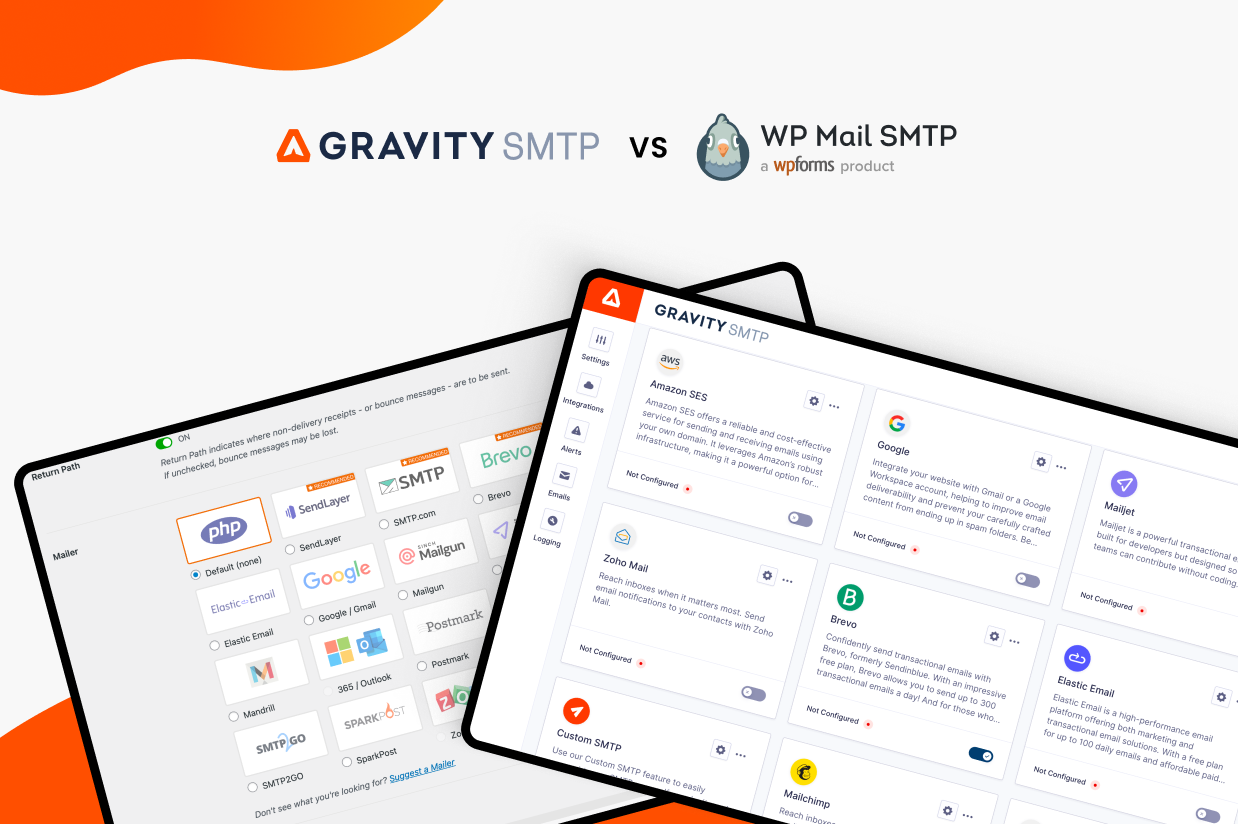
Trying to decide between using Gravity SMTP vs WP Mail SMTP for your WordPress site(s)?
Both Gravity SMTP and WP Mail SMTP give you tools to improve the reliability of your WordPress site’s transactional emails by connecting your site to a dedicated email sending service.
Both are also standalone plugins that come from the teams behind popular form plugins – Gravity SMTP from the Gravity Forms team and WP Mail SMTP from the WPForms team.
But while both plugins have the same basic function, there are still some differences between them that might make one better than the other for your specific situation.
In our in-depth Gravity SMTP vs WP Mail SMTP comparison, we’re going to try to highlight those differences so that you can make the right choice for your WordPress site(s).
We’re not going to pick a single “winner”. Rather, we’re just going to highlight what’s similar and what’s different so that you can make the best decision for you.
Here are the five categories that we’ll look at:
- Email sending service integrations
- Pricing
- Email logging features
- Email testing features
- Email routing features
Email Sending Service Integrations
To start, let’s take a look at the email sending services that both plugins let you connect to.
Before we get to the list, we want to make it clear that both plugins support custom SMTP connections, which means you can use them with essentially any service that gives you SMTP credentials.
That is – just because you don’t see a certain integration on the list below, that does not automatically mean you can’t use that service. As long as that service gives you SMTP credentials, you can use it with either plugin.
With that being said, using a dedicated API integration is generally the preferred method when it’s available. While the differences aren’t that big, the APIs can be a tiny bit faster and more reliable for some services. Using an API can also let you add a separate layer of security, as some transactional email services will use your account username and password for the SMTP credentials.
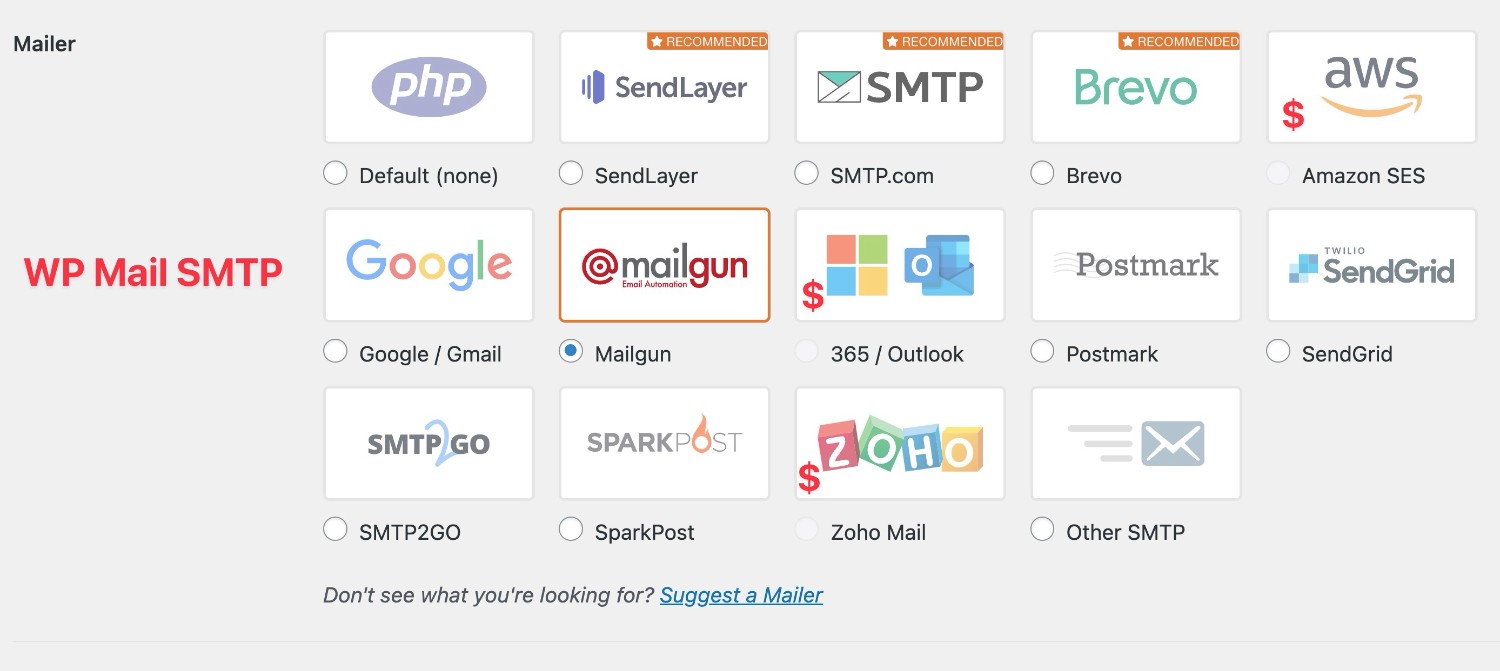
Both Gravity SMTP and WP Mail SMTP offer dedicated integrations for the following services:
- SendGrid
- Mailgun
- Postmark
- Brevo
- Gmail/Google Workspace
- Outlook/Microsoft 365
- Amazon SES
- Elastic Email
- SMTP2Go
- SparkPost
- Zoho Mail
- MailerSend
- Mailjet
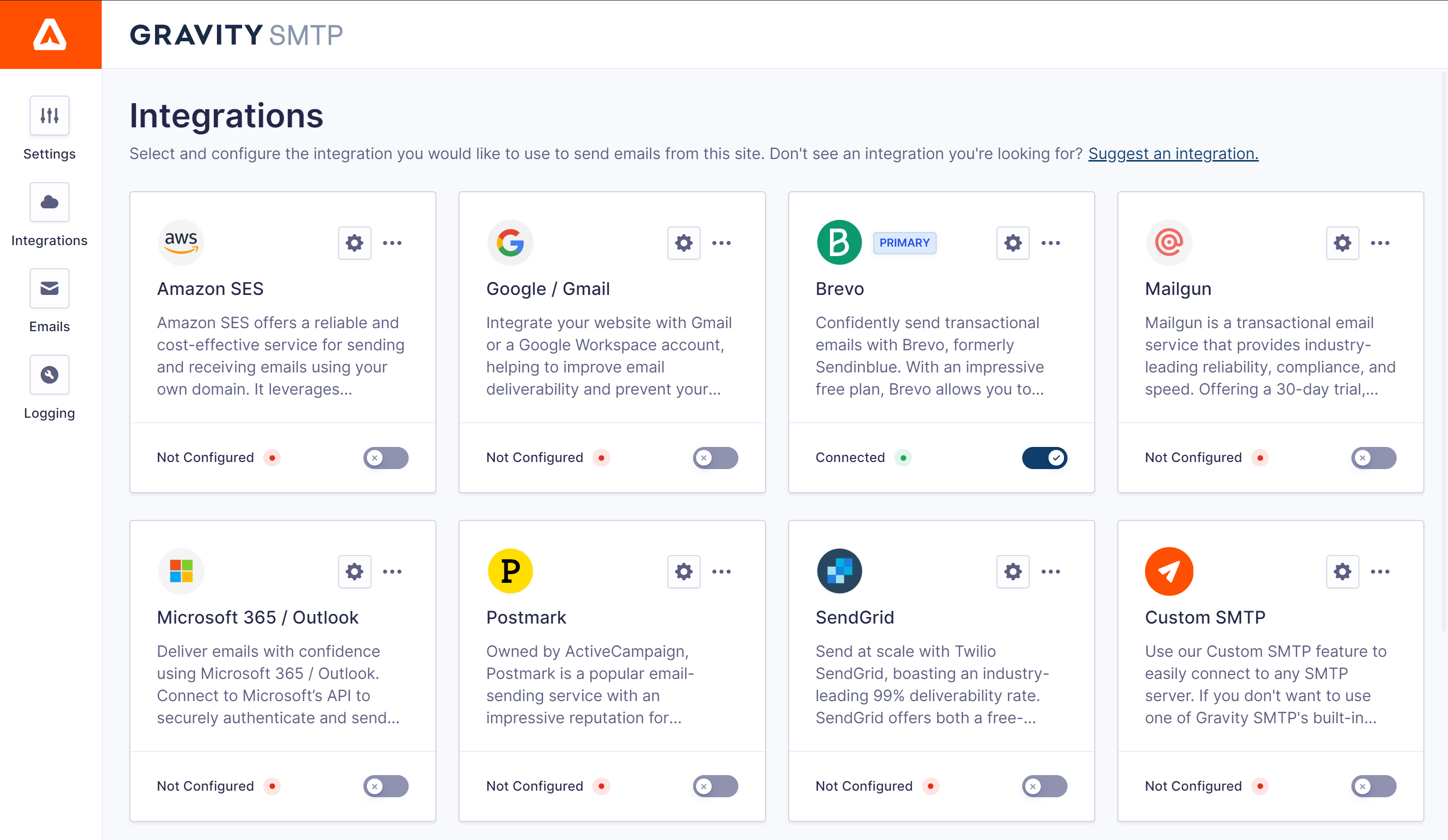
All of those services can be great options in various situations, so we have a post digging into the best WordPress transactional email services to help you choose. Our ultimate guide to Gravity SMTP also covers some of the pros and cons of the different services.
In addition to those services, Gravity SMTP supports Mailchimp Transactional, and WP Mail SMTP supports SendLayer and SMTP.com.
If there’s a specific integration that you’d like to see in Gravity SMTP, head on over to our feature request page to have your say.
WP Mail SMTP vs Gravity SMTP Pricing
When it comes to pricing differences between WP Mail SMTP and Gravity SMTP, there are a few different variables to consider.
First off, WP Mail SMTP has a free version at WordPress.org that anyone can download, while Gravity SMTP doesn’t have a free version at WordPress.org.
While the free version of WP Mail SMTP might work for some people, it has some notable limitations. For example, the free version lacks important features like email logging and the ability to set up a backup sending method.
When it comes to the premium versions, your exact situation will determine which plugin is more affordable.
WP Mail SMTP Pricing
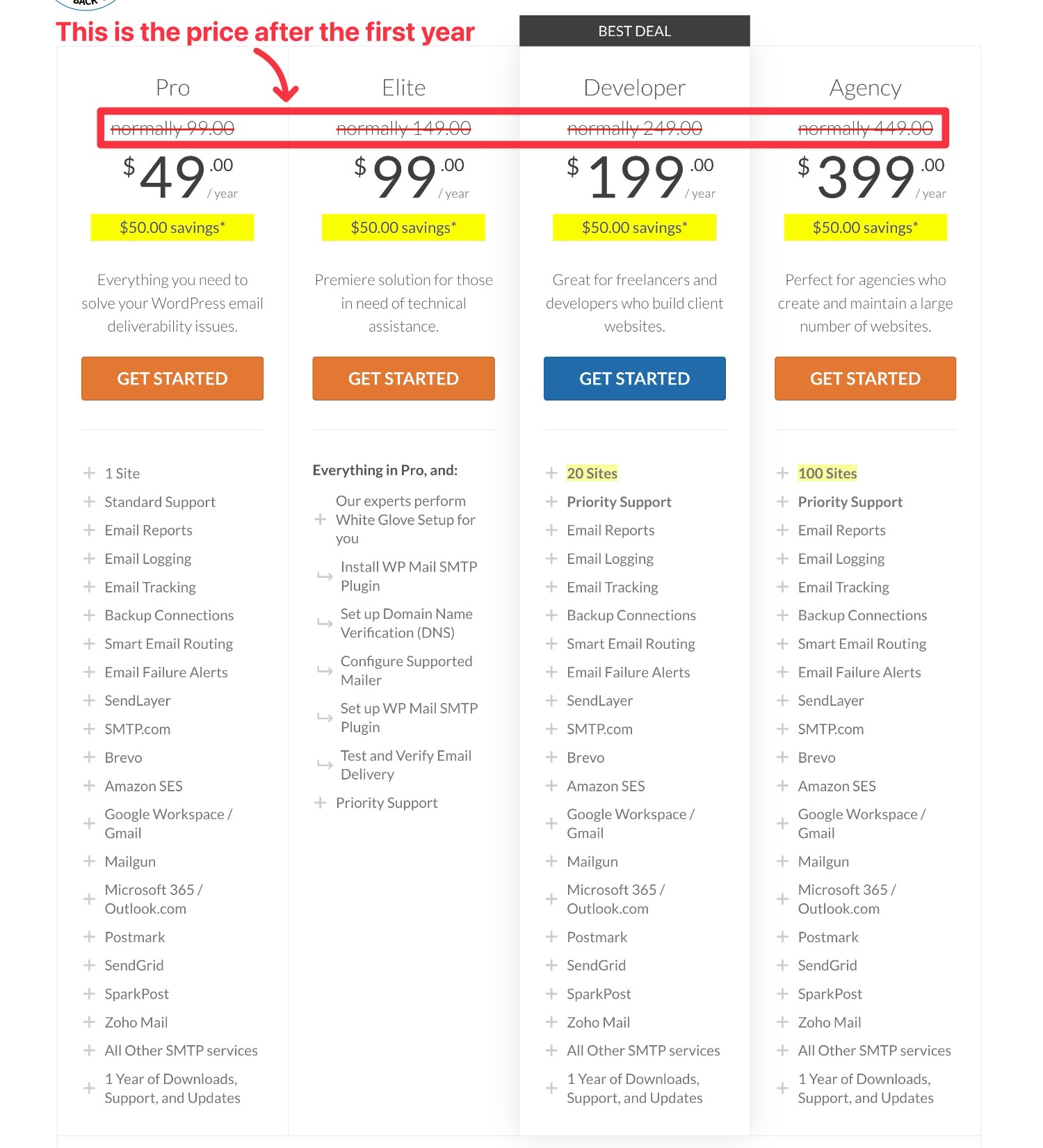
If you want to access all the integrations, email logging, backup connections, and other useful features, you’ll need to go with one of the paid WP Mail SMTP plans.
These plans start at $99 and range up to $449, depending on the features that you need and the number of sites that you plan to use WP Mail SMTP on.
You can usually get a discount on the first-year price. However, your license will still renew at the regular price after the first year, so it’s important to factor the full price into your decisions.
For example, if you want to use WP Mail SMTP on more than a single site, you’d need at least the $249 Developer license, which supports up to 20 sites. There’s also no unlimited site license – the highest option is the $449 Agency license, which supports up to 100 sites.
Gravity SMTP Pricing
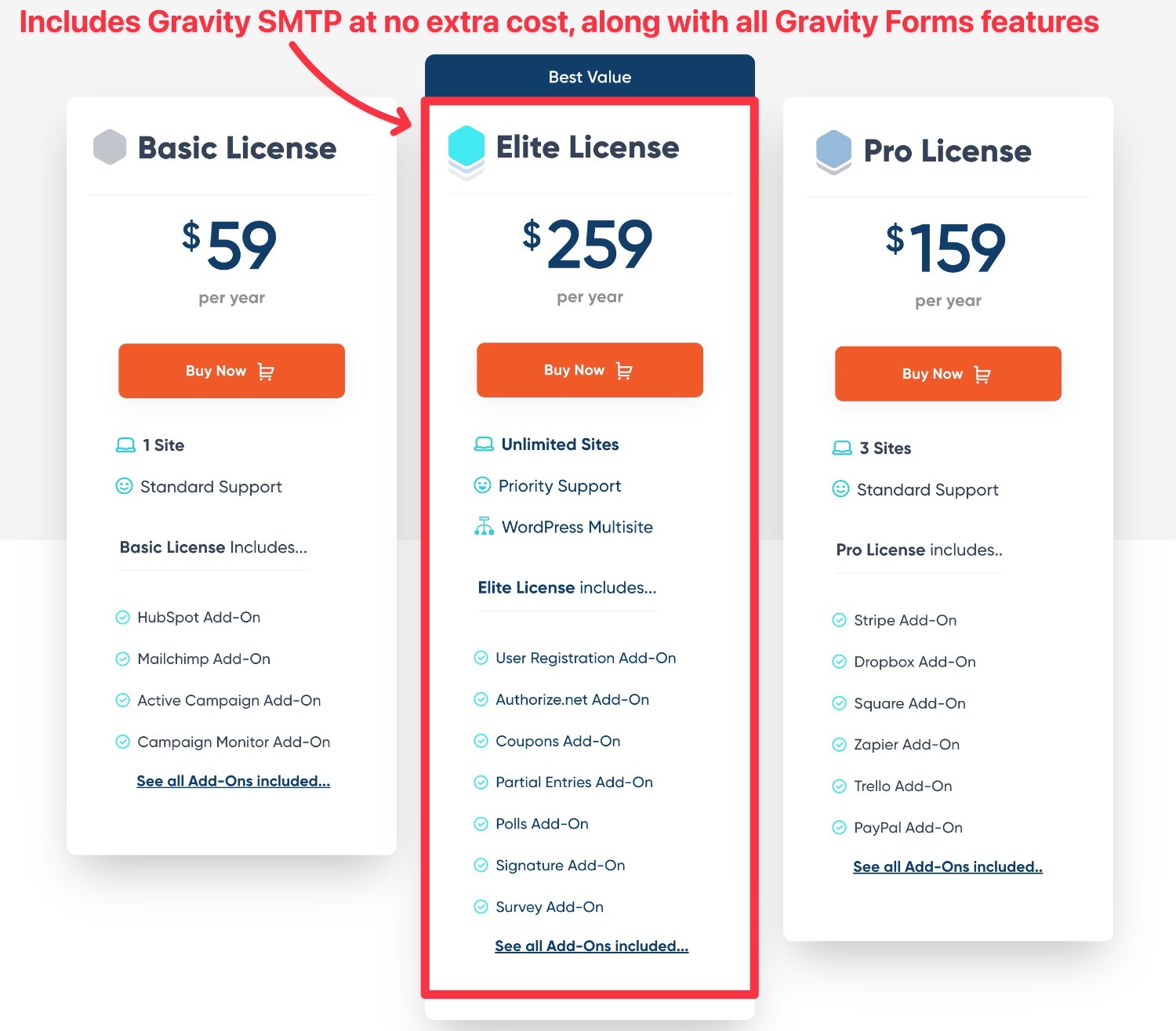
Gravity SMTP’s pricing is a bit unique because it’s not currently a standalone purchase. Instead, you can access Gravity SMTP at no extra cost via the Gravity Forms Elite license or the Nonprofit license. (It’s also available if you hold a grandfathered Developer license).
If you’re already holding the Elite license, that essentially means that you can use Gravity SMTP for free on unlimited sites, which obviously makes it a lot more cost-effective than WP Mail SMTP’s premium version.
If you’re not holding that license yet, the Gravity Forms Elite license costs $259. That lets you not just use Gravity SMTP on unlimited sites, but it also gives you access to all the premium Gravity Forms functionality on unlimited sites.
Pricing Comparison Table
To finish out this section, here’s a pricing comparison table of what it would cost you to access all of the premium features and use them on varying numbers of sites (at full price).
For Gravity SMTP, we’ll divide it into two scenarios:
- Someone who’s already holding the Gravity Forms Elite license.
- Someone who doesn’t have any Gravity Forms license yet. If you’re already holding the Gravity Forms Basic or Pro licenses, you could save some money by upgrading your license to Elite and only paying the prorated difference.
| Sites | Gravity SMTP (No Gravity Forms license) | Gravity SMTP (Existing Gravity Forms Elite license holder) | WP Mail SMTP |
| 1 site | $259 | Free | $99 |
| 2 sites | $259 | Free | $249 |
| 5 sites | $259 | Free | $249 |
| 10 sites | $259 | Free | $249 |
| 20 sites | $259 | Free | $249 |
| 30 sites | $259 | Free | $449 |
| 50 sites | $259 | Free | $449 |
| 100 sites | $259 | Free | $449 |
| 200 sites | $259 | Free | $898 (two Agency licenses) |
The pricing table might be a bit repetitive, but we’re trying to make it very clear how the pricing differences work out for different numbers of sites.
If you’re already holding the Gravity Forms Elite license, Gravity SMTP is clearly the winner when it comes to value because you’re getting it at no extra cost.
If you’re not holding any Gravity Forms license yet, the decision depends on how many sites you plan to use the plugin on.
WP Mail SMTP will be cheaper for use on a single site, but Gravity SMTP can still make financial sense if you’re looking for an SMTP plugin to use on more than one site. Plus, your purchase doesn’t just get your Gravity SMTP – you’re also getting access to Gravity Forms and every single official add-on, all of which you can use on unlimited sites.
Email Logging and Alert Features
Once you’ve set up your site’s emails, it’s important to keep an eye on things to detect any potential issues.
To help you do that, both plugins include various email logging and alerts features.
WP Mail SMTP Email Logging and Alerts
With WP Mail SMTP, it’s important to note that the email logging features are only available in the premium version of the plugin.
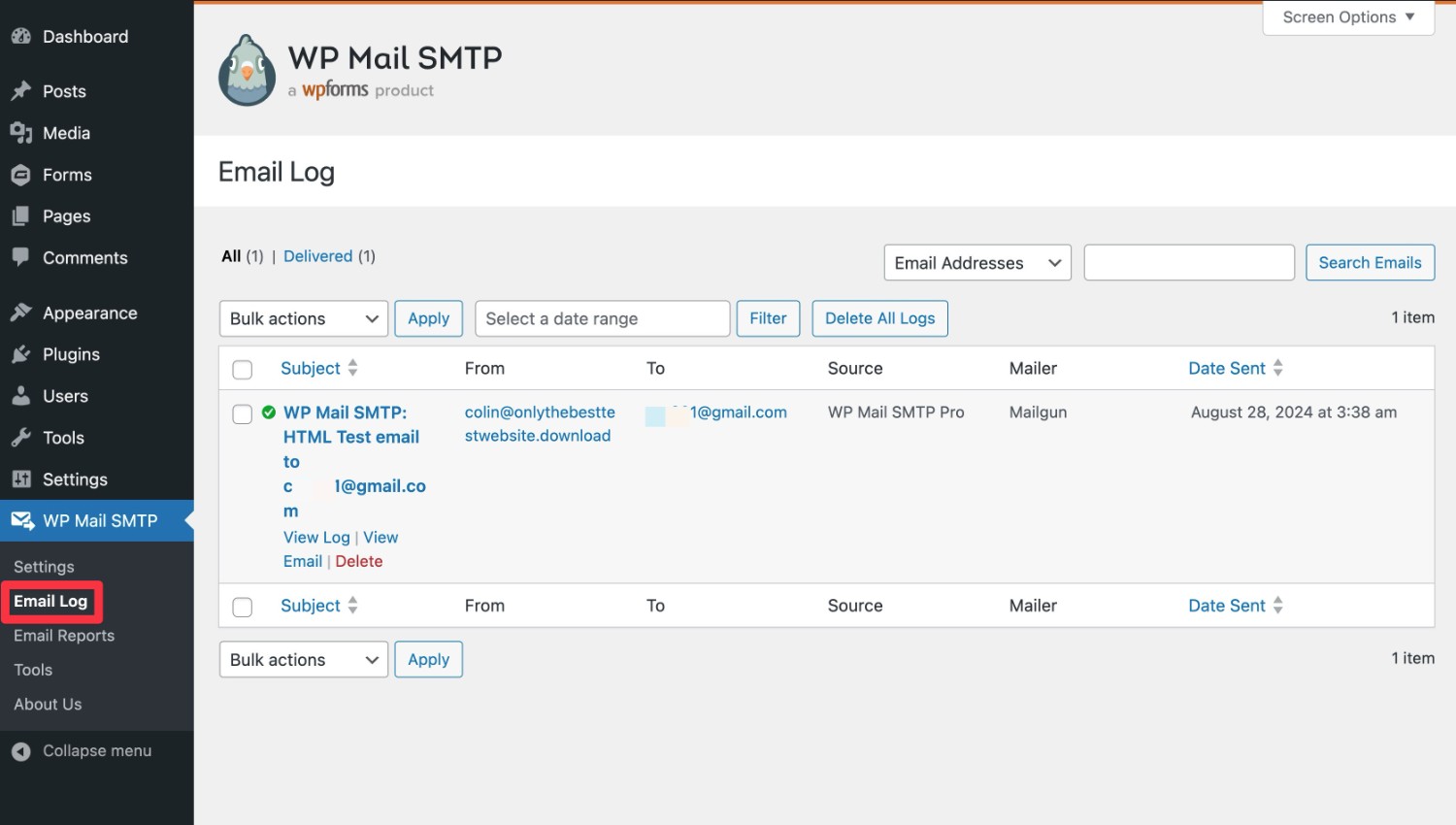
If you do have the premium version, you’ll be able to view a log of all of your site’s emails by going to WP Mail SMTP → Email Log.
In the overall list, you can see the basic details for each email:
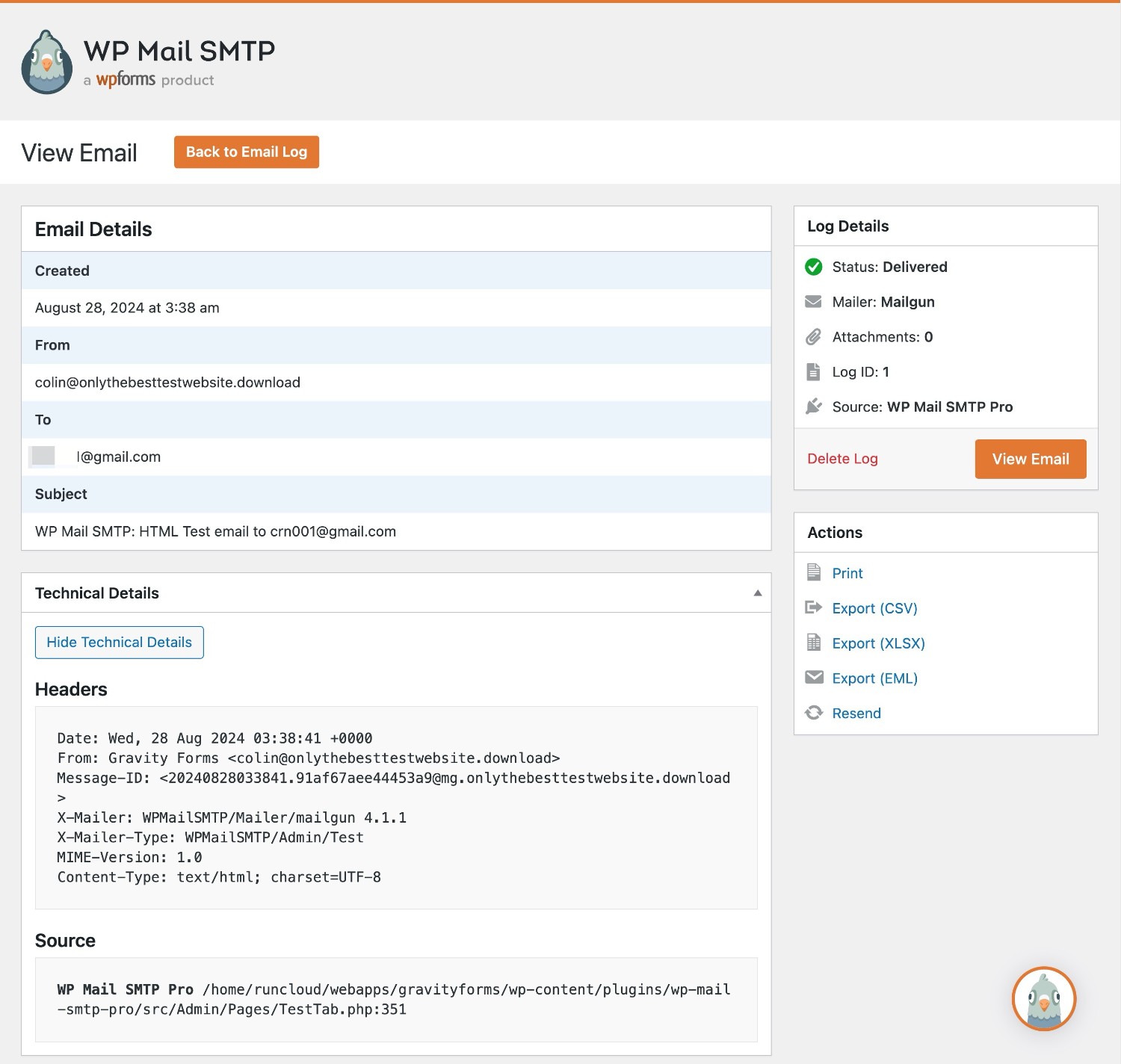
If you click on a specific email, you can view more detailed technical information for that email.
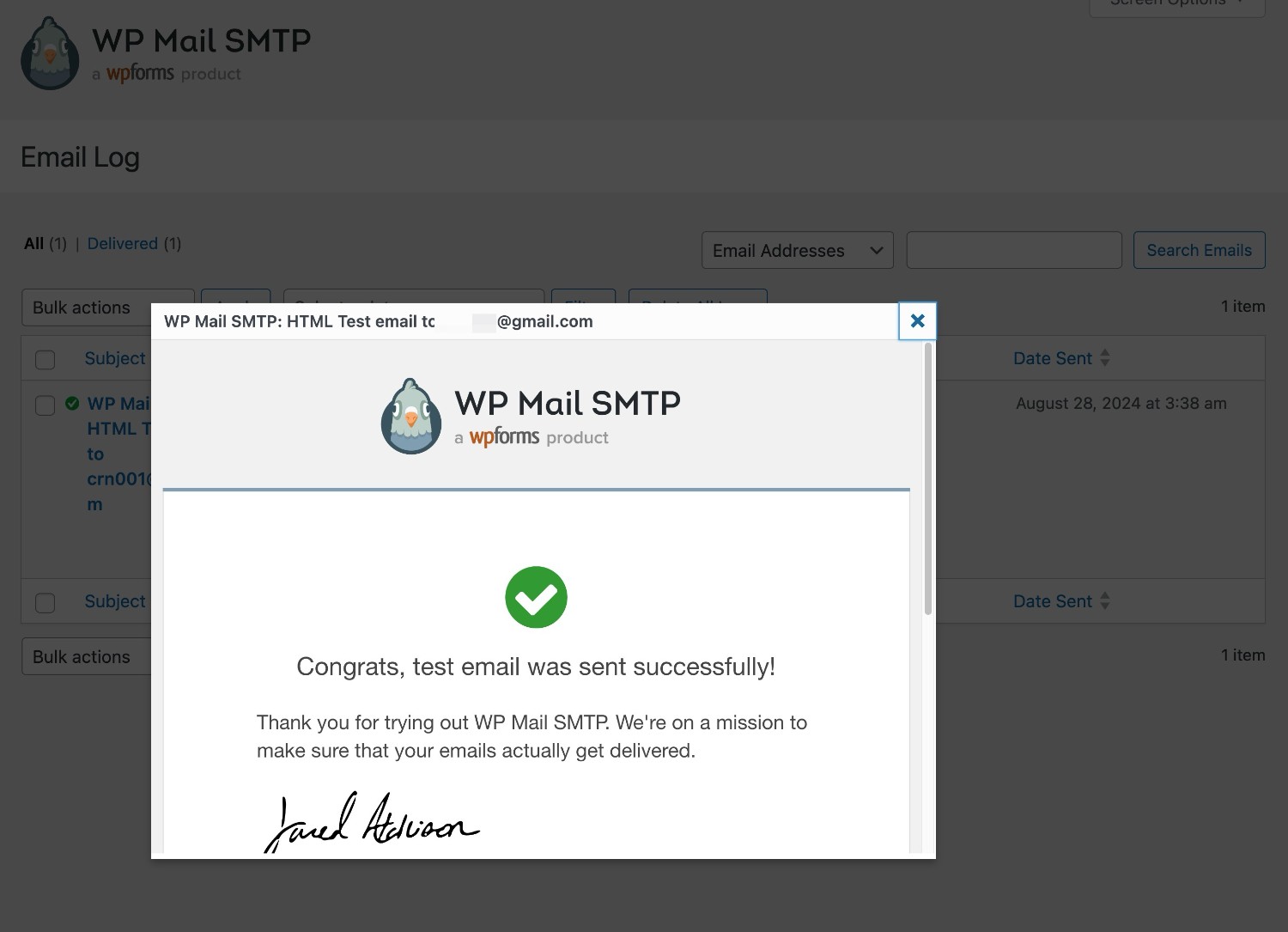
You can also click the View Email link to see the actual content and design of the email in a popup (as long as you’ve enabled the option to log email content).
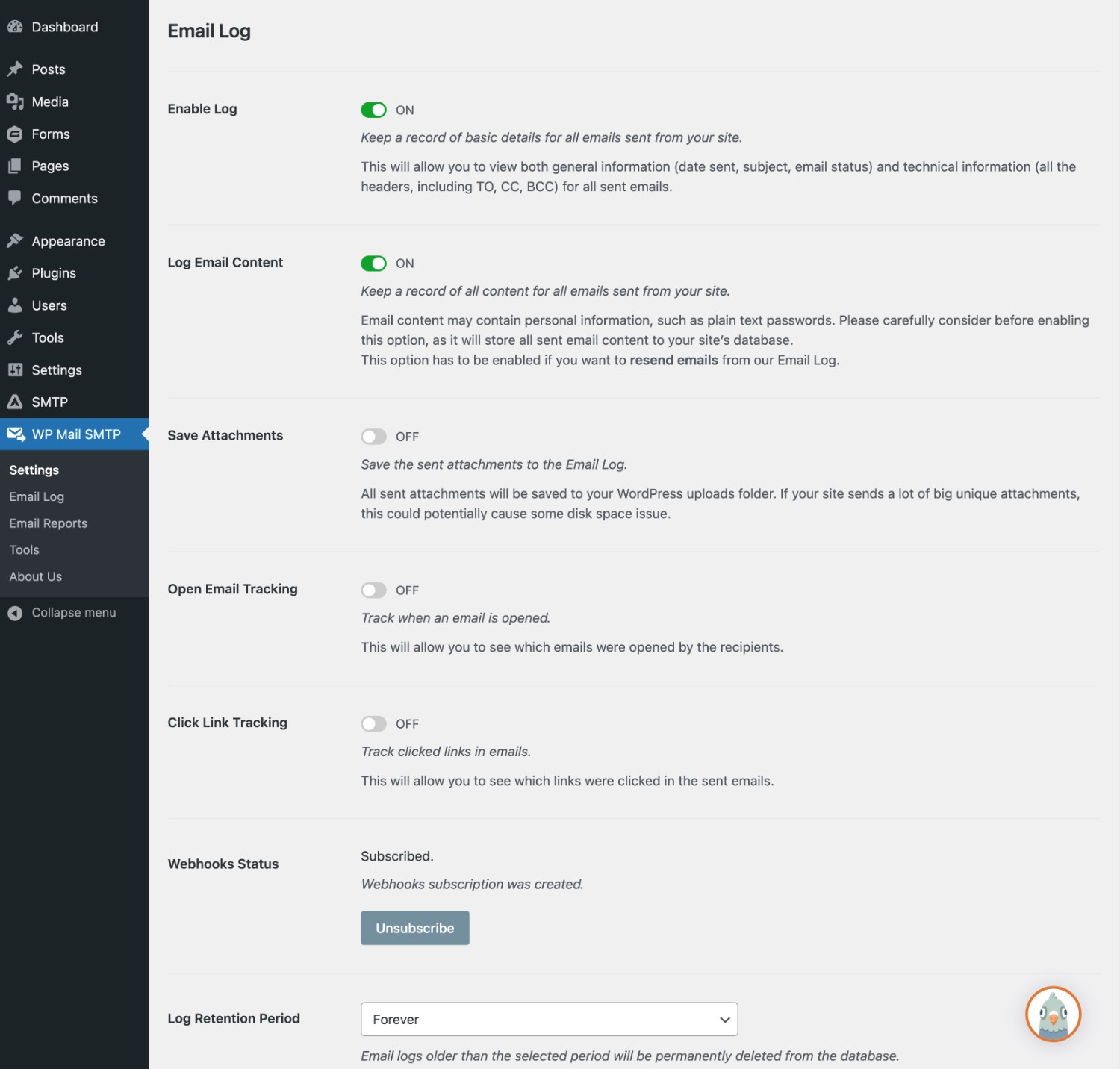
You also get options to control the log storage period, as well as what information to log.
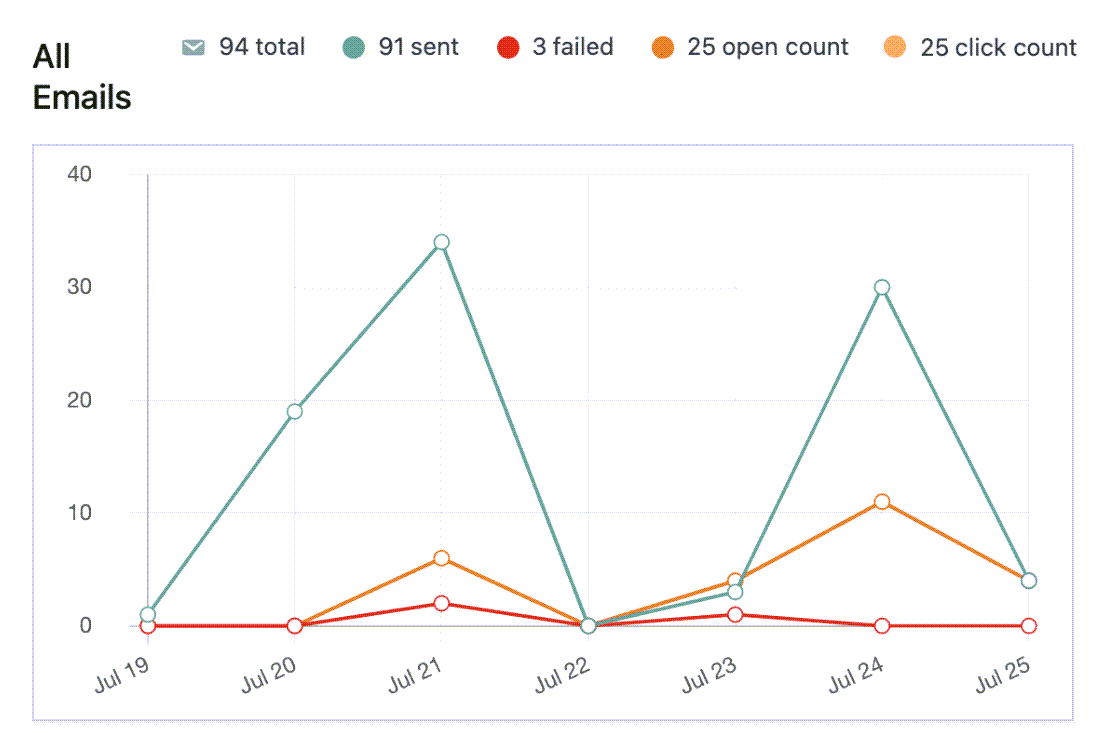
WP Mail SMTP also includes a reports dashboard that lets you see email send rates, opens and clicks, if you enable those logging options.
Additionally, WP Mail SMTP includes an email alerts feature, which ensures you receive immediate alerts when an email fails to send. Email failure alerts can be sent via SMS, email, Slack, Discord, WhatsApp, Microsoft Teams or Push Notifications.
Gravity SMTP Email Logging and Alerts
To help you track your site’s emails, Gravity SMTP includes a detailed logging feature.
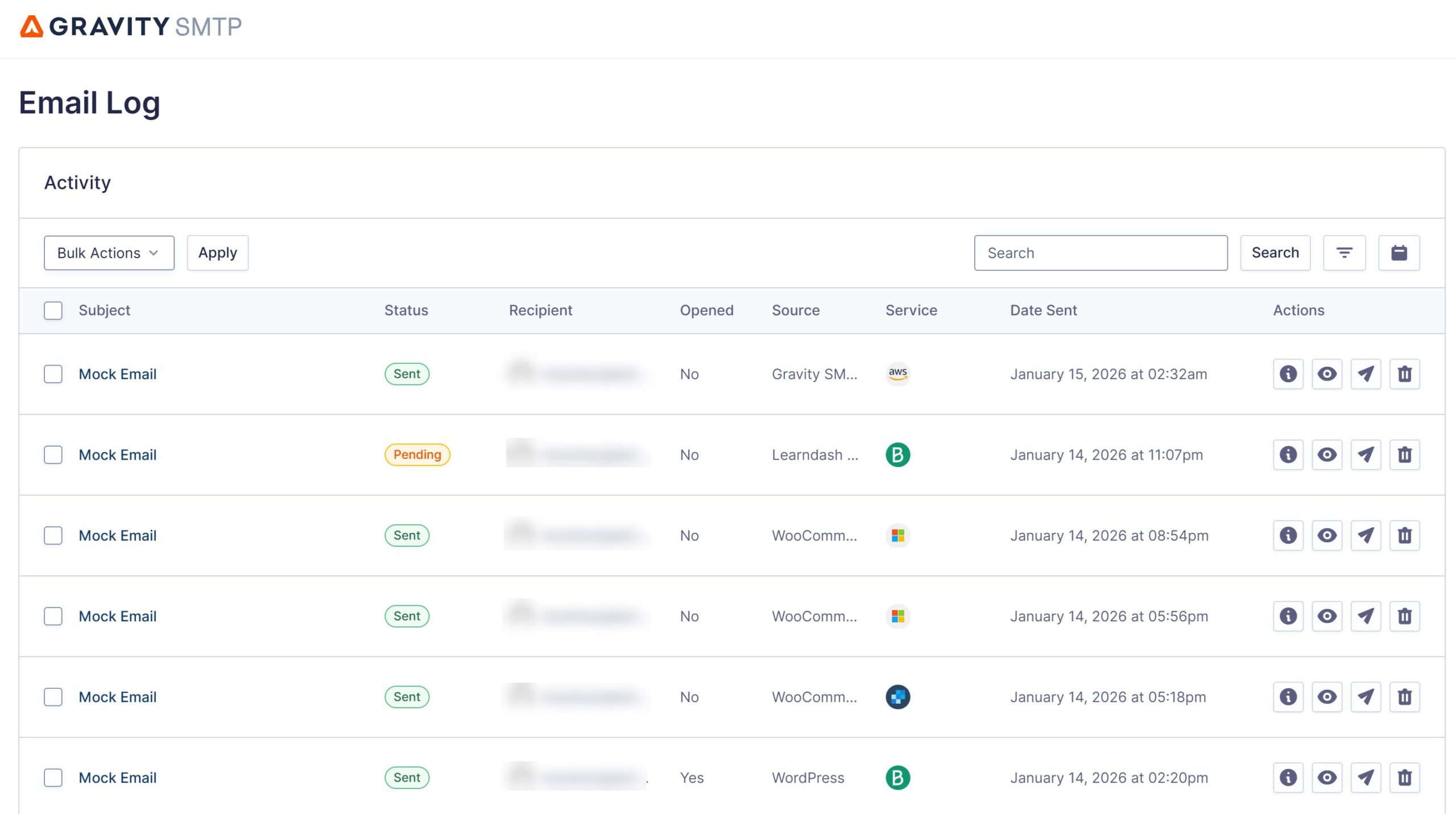
If you go to SMTP → Email Log, you can see a list of all the emails that your site has sent along with details on each email, including the following:
- Subject
- Status
- Recipient email address
- Opened state
- Source (e.g. a core WordPress email or an email from a plugin)
- The service that the email was sent with
- Date sent
You also have the option to view or manually resend any emails, as well as view each individual email record.
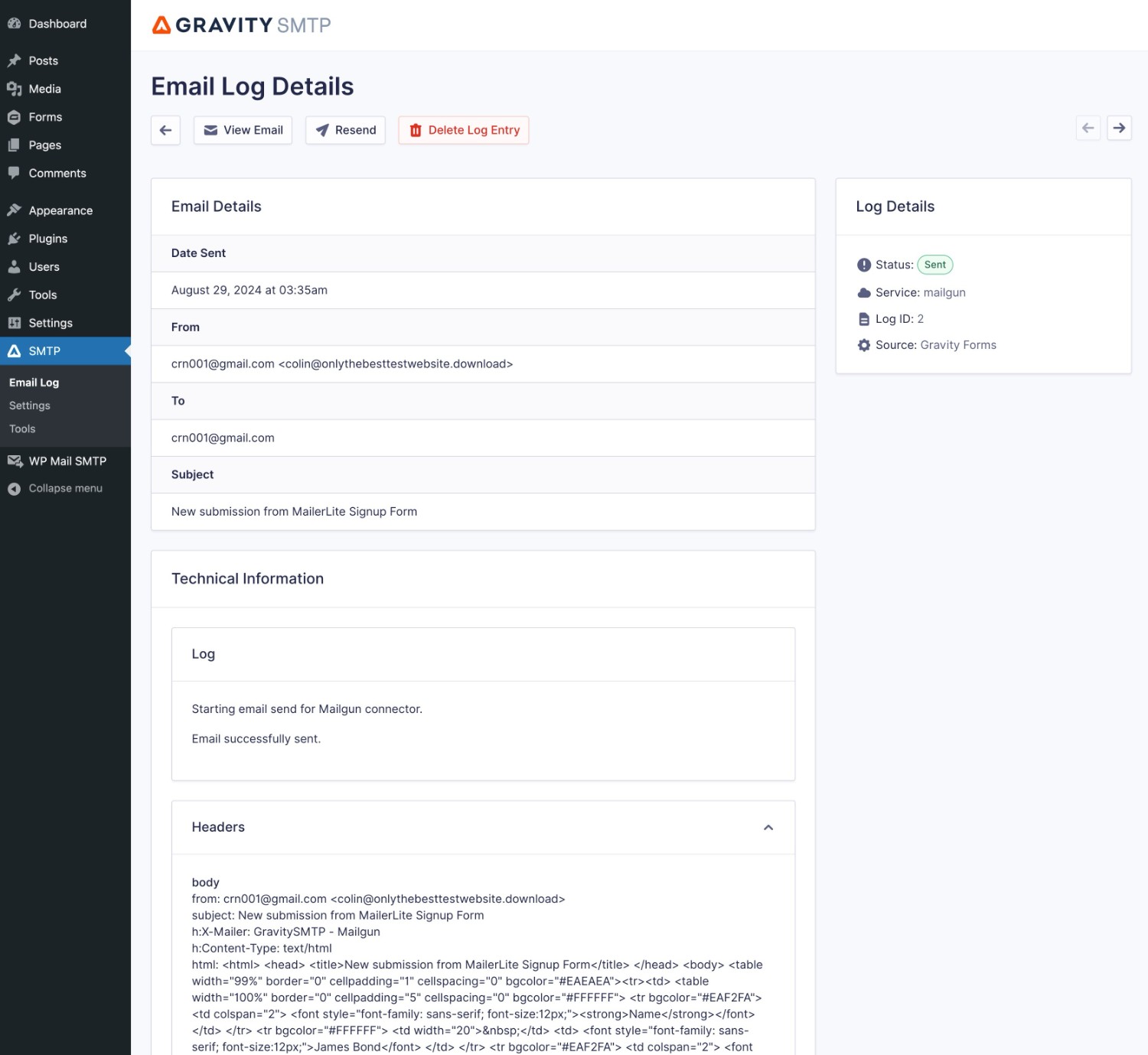
In a specific email log, you can view more technical information, including the email headers.
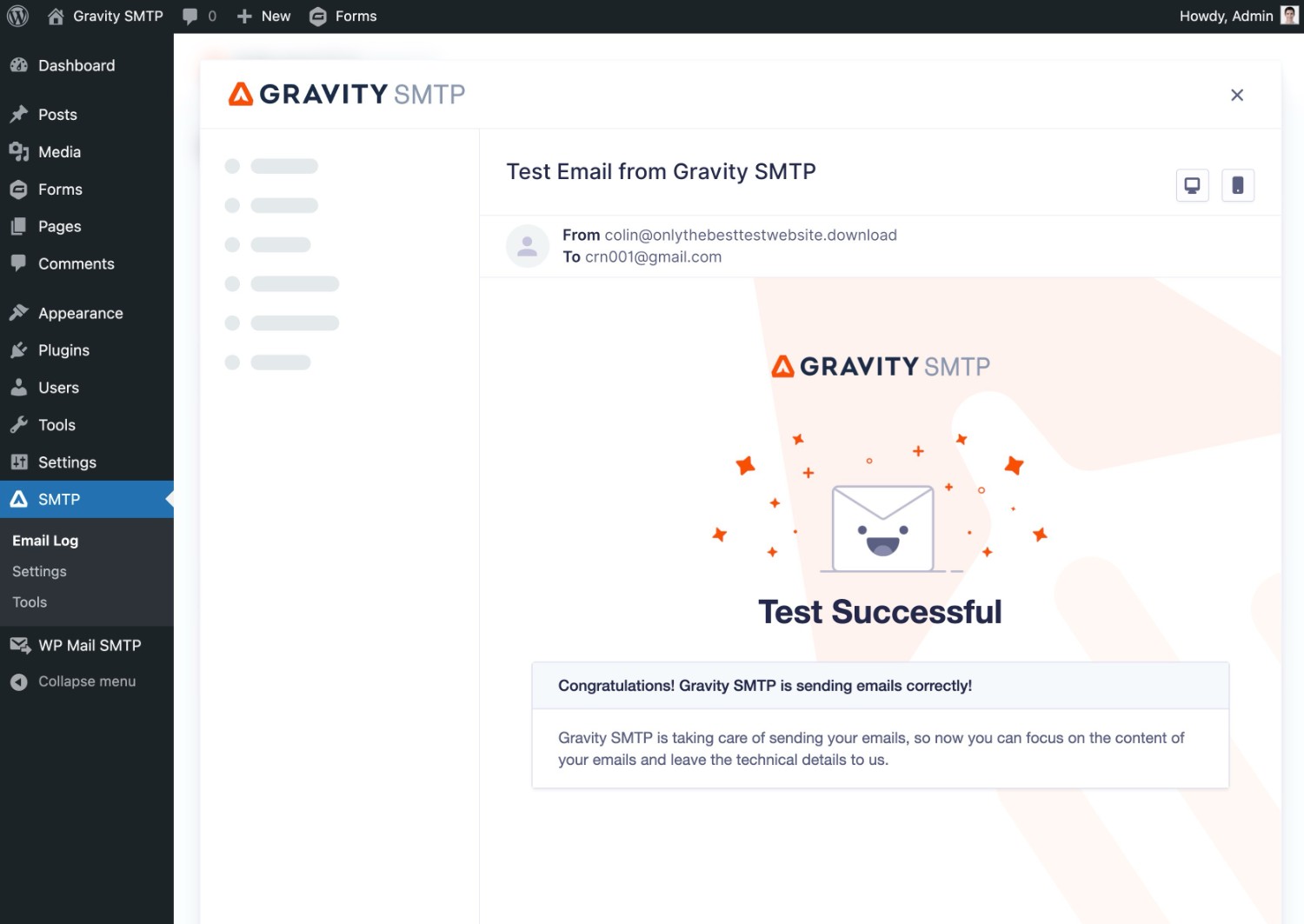
If you click the View email icon, you can see both the content and design of the email.
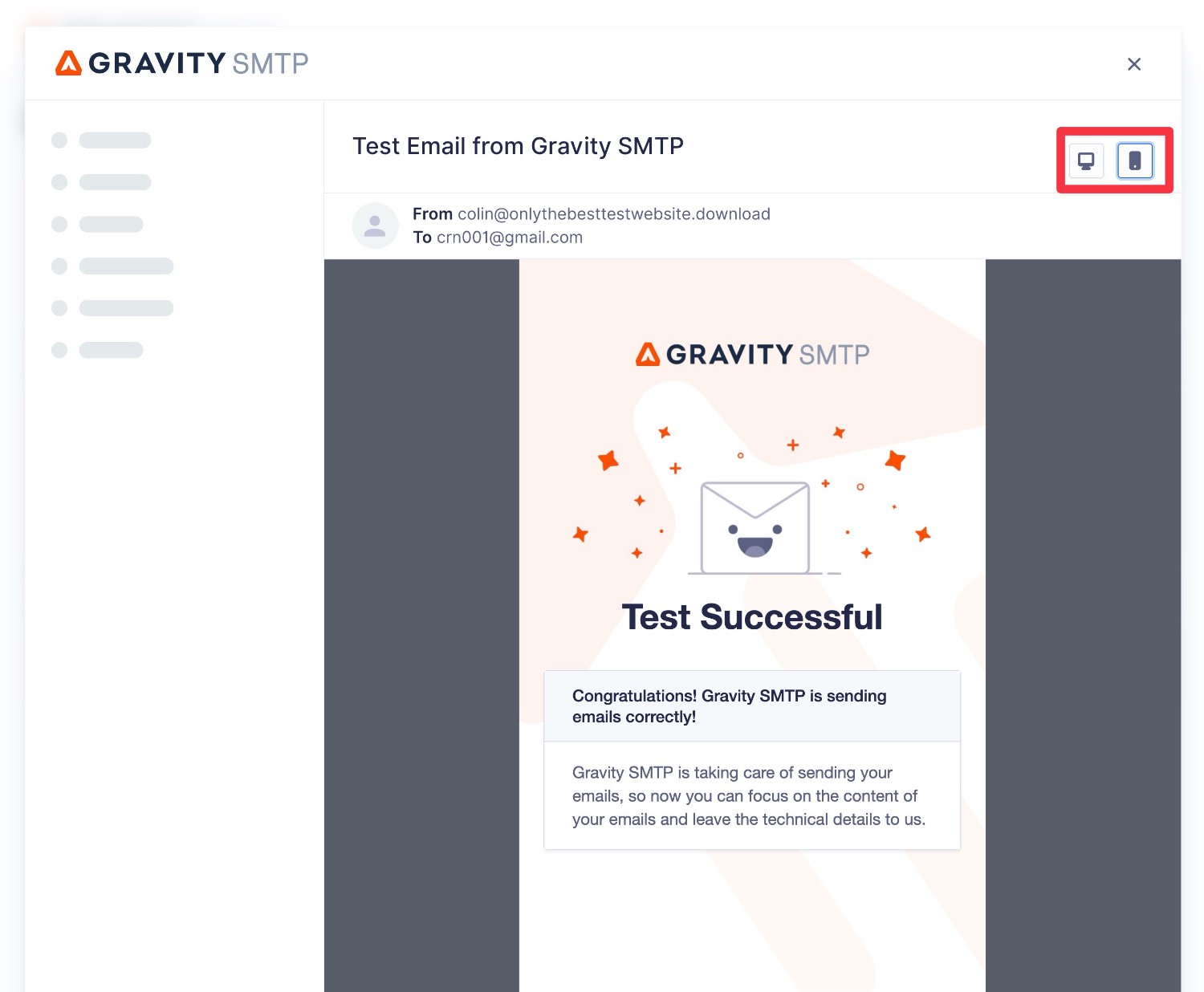
You can also see how your email looks on both desktop and mobile devices, which isn’t something that WP Mail SMTP currently offers.
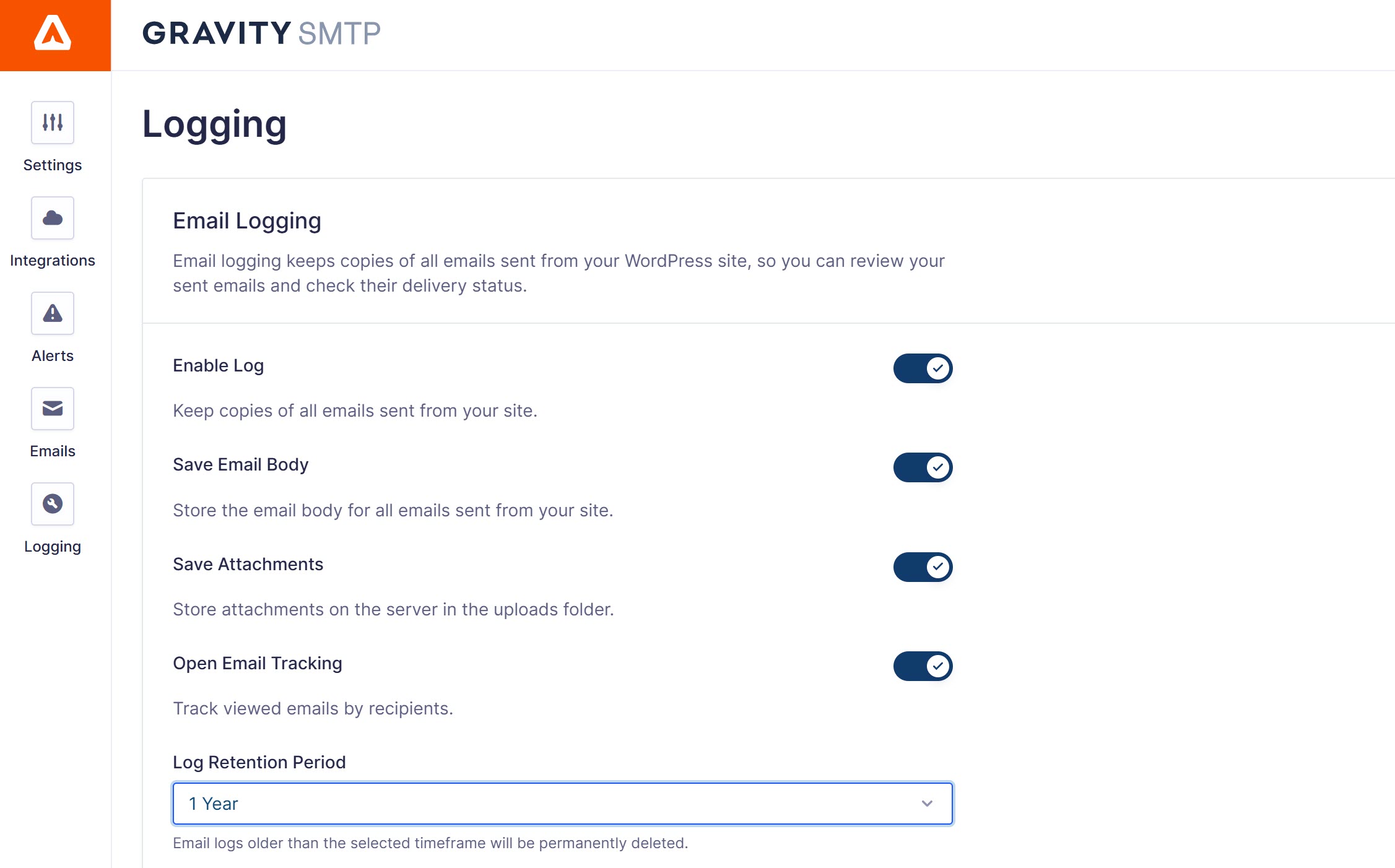
By default, Gravity SMTP will keep a permanent log, but you can easily adjust the log storage period as needed (or even disable the logging functionality).
You can also configure other important details, such as whether or not to log email attachments.
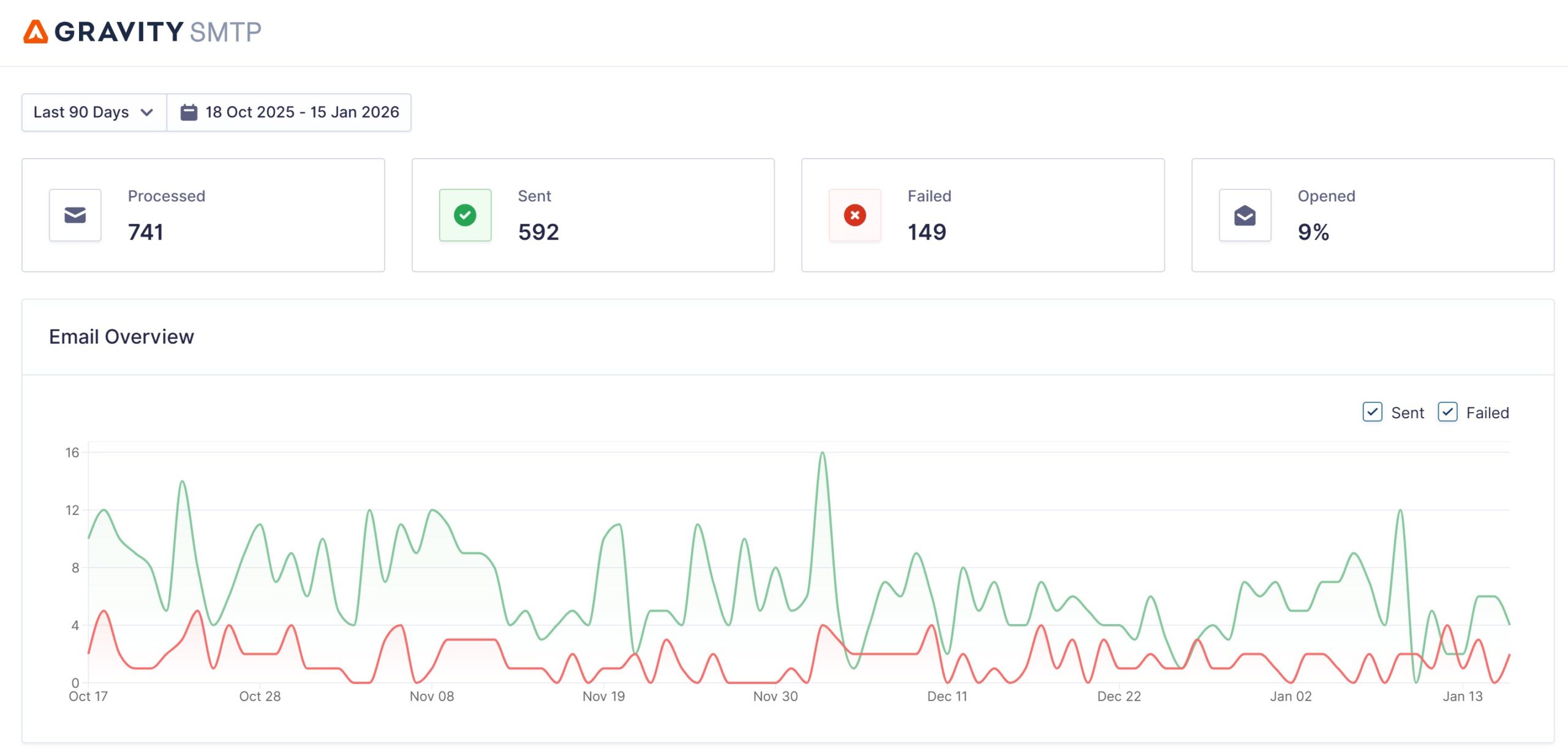
Gravity SMTP also offers a reporting dashboard so you can quickly check email delivery performance at a glance. With our reporting dashboard, you’ll be able to view and filter email metrics, including email send and open rates, top sending sources, and top recipients.
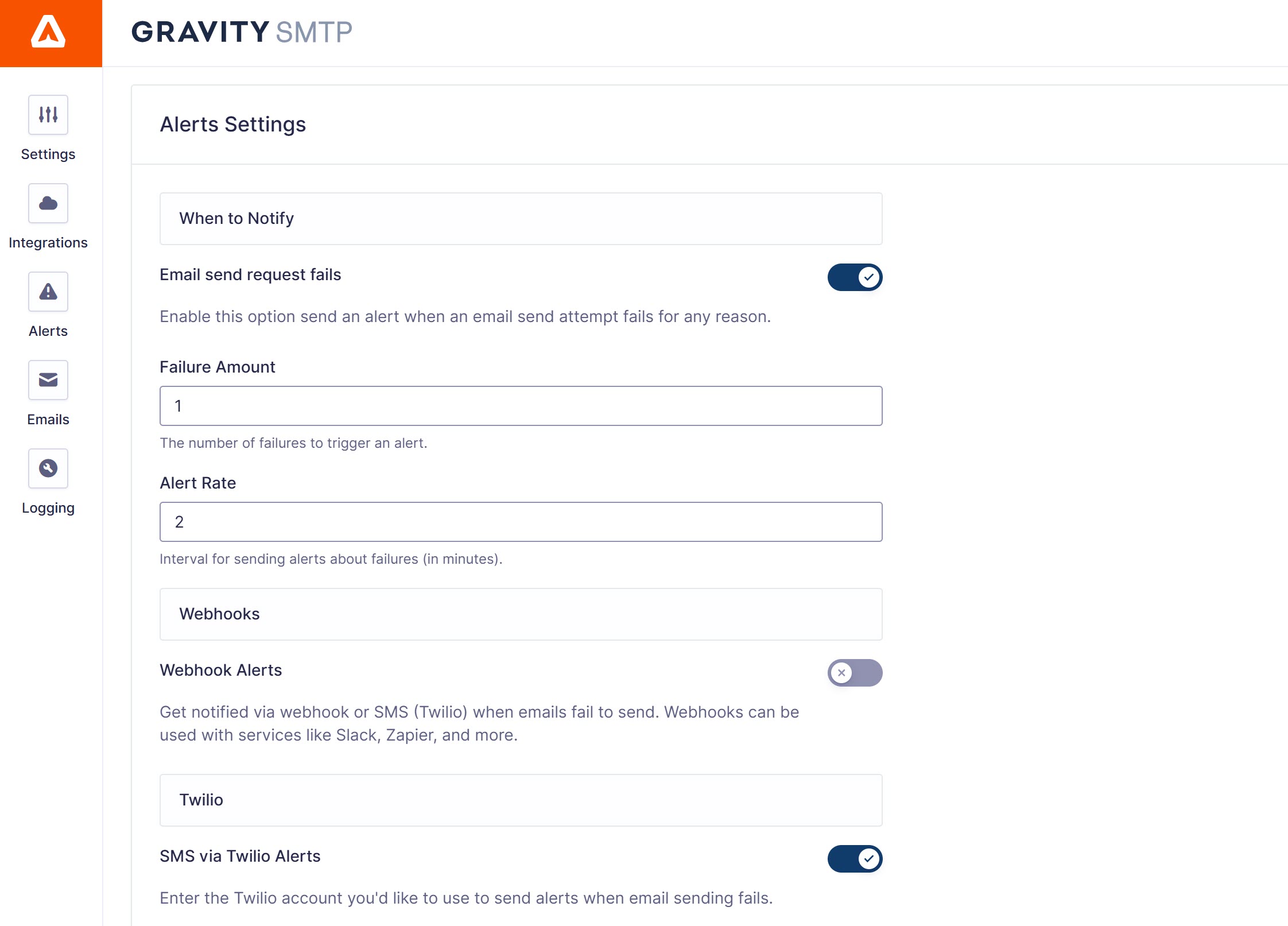
Gravity SMTP also includes an Alerts UI, where you can set up Slack and Twilio integrations. Once configured, you’ll receive instant notifications if email sending failure occurs, allowing you to quickly address and resolve any issues.
Email Testing Features
To help you make sure that you’ve successfully connected to your chosen transactional email service, both plugins include features to help you test your site’s emails.
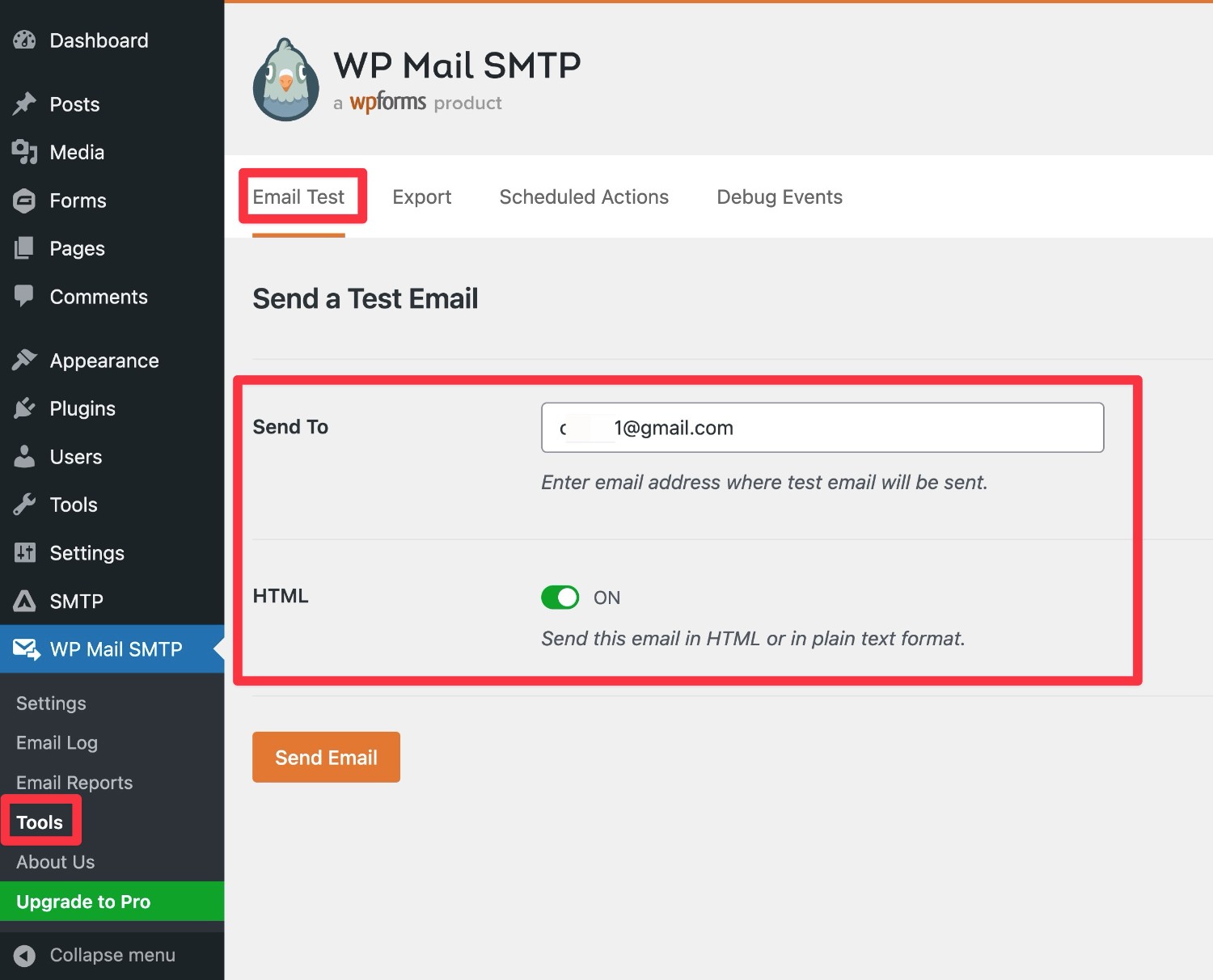
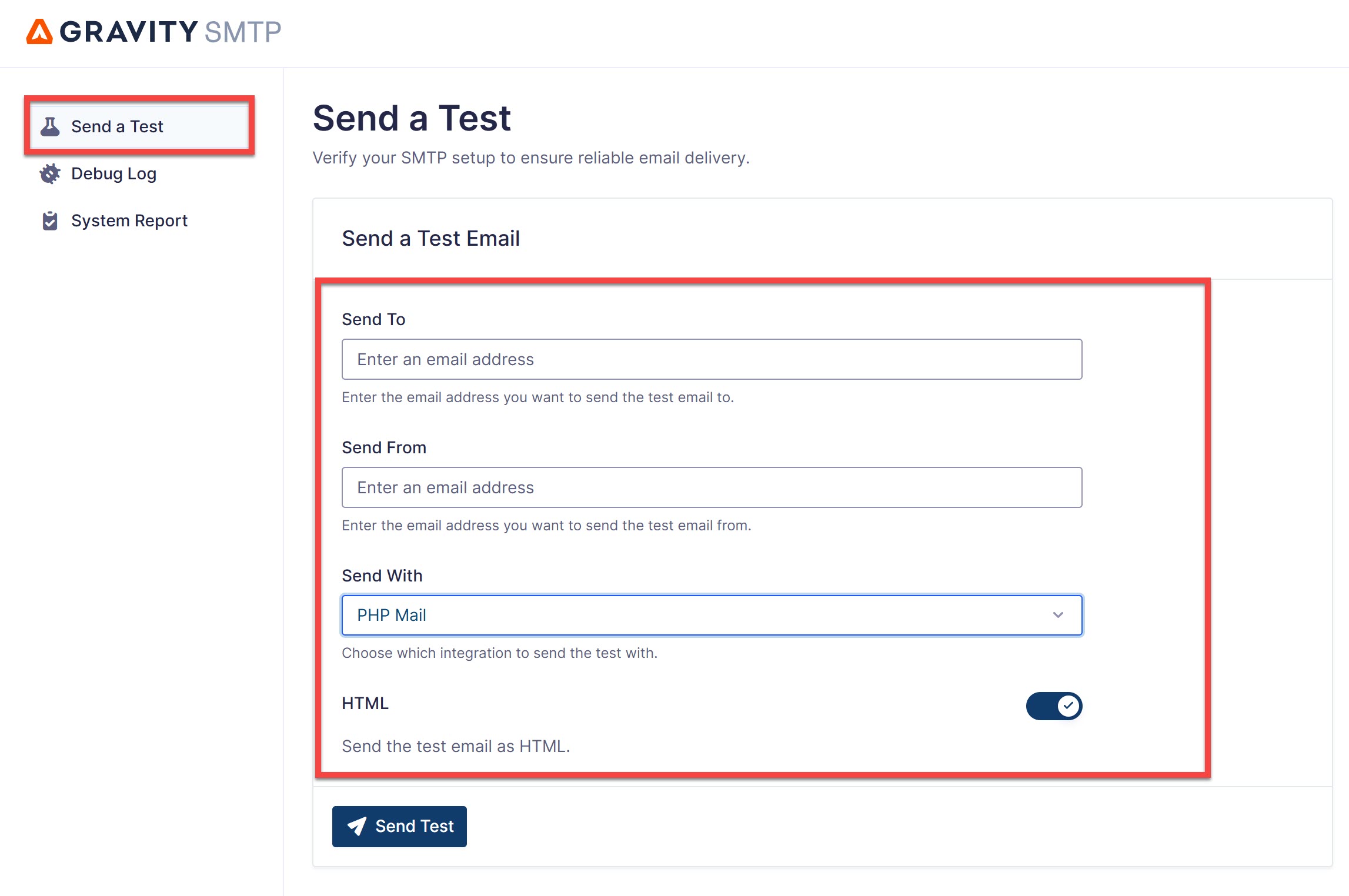
First off, both plugins make it easy to send a test email to any email address.
Here’s how it looks in WP Mail SMTP:
And then here’s how it looks in Gravity SMTP:
Gravity SMTP also goes beyond that with its email test mode, which is something that WP Mail SMTP currently does not offer.
When you enable Test Mode in Gravity SMTP, Gravity SMTP will disable live email sending but still store all of the emails that your site would have sent in the email log.
This can be really handy when you’re working on a site because it lets you test email behavior without needing to send real emails using your transactional email service. For example, if you’re developing a site in a local development environment, you would still be able to test all of your site’s emails even though the site isn’t live yet.
Email Routing Features
For most WordPress sites, you probably just want to send all of your site’s emails using a single transactional email sending service.
However, for some sites, you might want the ability to connect to multiple email sending services. There are two common ways that you might implement this:
- Backup email sending service – you might want to connect to a secondary service that you can use if your primary email sending service temporarily fails for some reason. This helps you ensure reliable email delivery even if something goes wrong with your preferred service.
- Conditional routing – you might want to use different transactional services for different types of emails. For example, you could use one service for user-facing emails and a different service for emails that you send to yourself.
WP Mail SMTP Email Routing
If you want to access the email routing controls in WP Mail SMTP, you’ll need the premium version, as the free version at WordPress.org doesn’t include any features for it.
With the premium version, however, you gain the ability to set a secondary email sending service as your backup connection. If your primary service fails to send an email for some reason, WP Mail SMTP will automatically resend that email using your backup service.
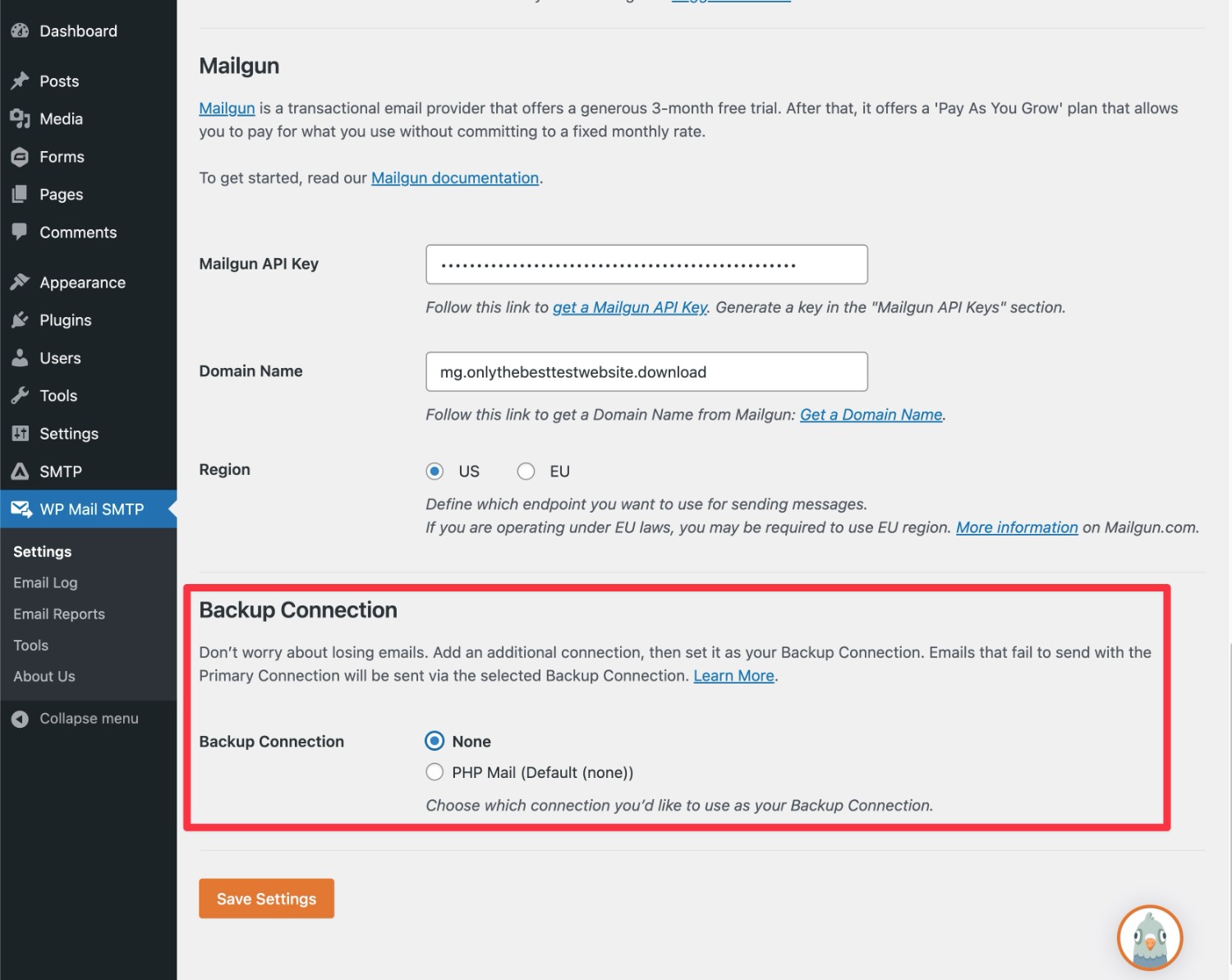
The premium version also offers a smart email routing feature that lets you send different types of emails via different email sending services. To set up these routing rules, you can use various conditions such as the email’s subject, message, from email, initiator, and more.
Gravity SMTP Email Routing
To help you make your emails more reliable, Gravity SMTP includes a built-in feature that lets you assign a different email sending service as your site’s backup email sending service.
If an email fails to send via your primary email sending service for any reason, Gravity SMTP will automatically resend that email using your backup service.
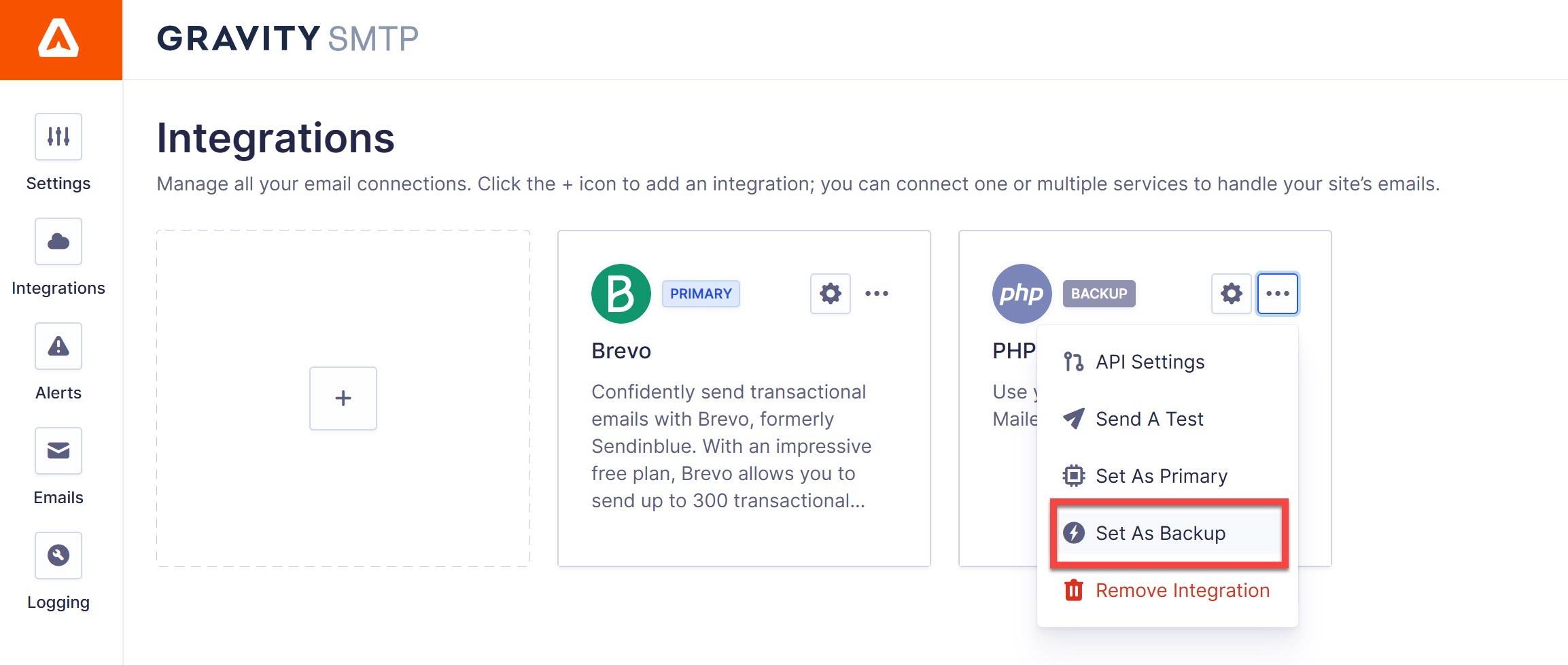
Currently, Gravity SMTP does not offer a feature to conditionally route different types of emails via different sending services. If this feature is important to you, head on over to our feature request page to have your say.
Additional Features
Both plugins offer additional features, although WP Mail SMTP includes some of these features only in its Pro version.
Email Management
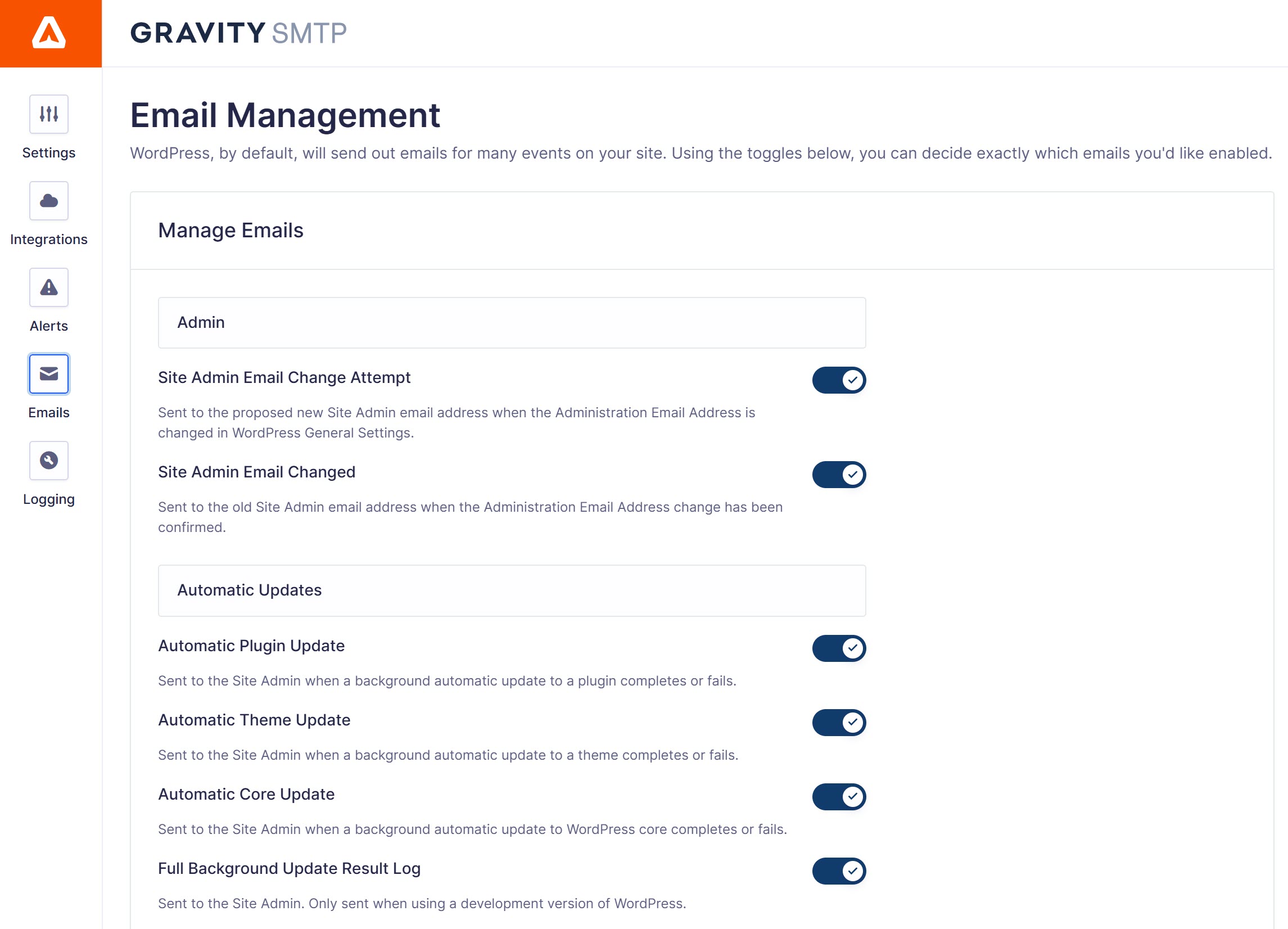
First is Email Management, which allows you to easily manage the email notifications sent from your WordPress site.
As a website owner or administrator, you want to be able to turn off certain default email notifications sent by WordPress, enabling you to select the types of emails your users receive and avoid overwhelming them with irrelevant information.
With Email Management, you can simply enable or disable default email notifications sent by WordPress. For Gravity SMTP, this includes notifications for automatic updates, data requests, password resets, and much more.
Email Summaries
Again, both Gravity SMTP and WP Mail SMTP offer an Email Summaries feature, allowing site admins to opt to receive regular emails that provide an overview of email activity and performance.

With Gravity SMTP you can get a summary of your site’s recent email sends, and stay on top of email performance without having to log in. Key metrics include:
- Send volume
- Email failures
- Top email recipients
- Top sending sources
You can also select whether you want to receive an email on a daily, weekly, or monthly schedule.
Email Suppression List
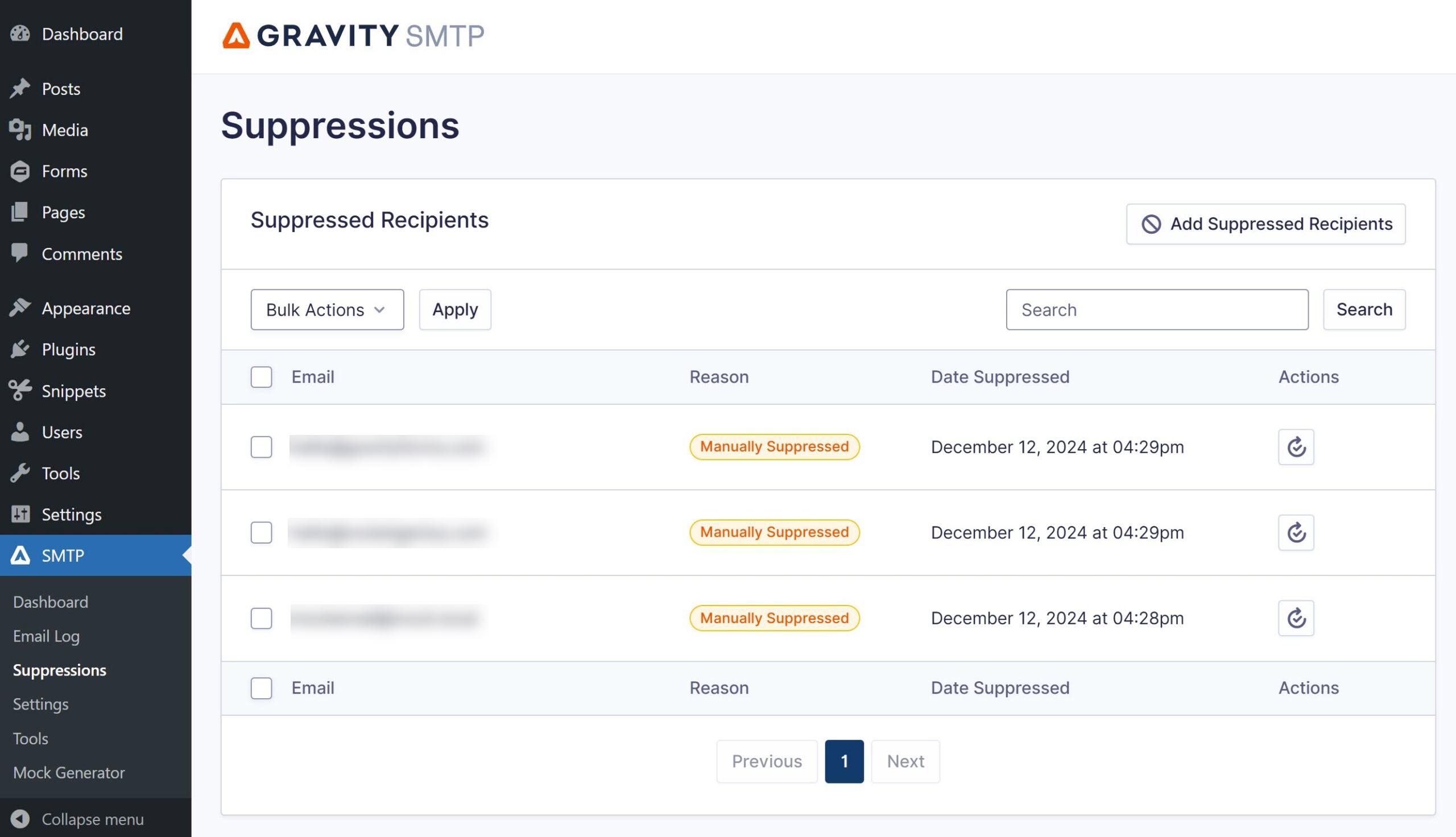
Gravity SMTP also offers an extra feature that WP Mail SMTP does not – a Suppression Management System. This allows site admins to view and add to a suppression list, helping to manage email delivery by blocking specific addresses from receiving messages.
Already Using WP Mail SMTP? Gravity SMTP Makes It Easy to Migrate
If you’re already using WP Mail SMTP on your site but you think Gravity SMTP might be a better fit after reading this post, we have great news for you!
Gravity SMTP now offers built-in functionality to help you migrate from WP Mail SMTP to Gravity SMTP.
When you install and activate the Gravity SMTP plugin on your site, it will launch a setup wizard to help you set up everything.
During that setup wizard, you can choose to import your existing settings from WP Mail SMTP:
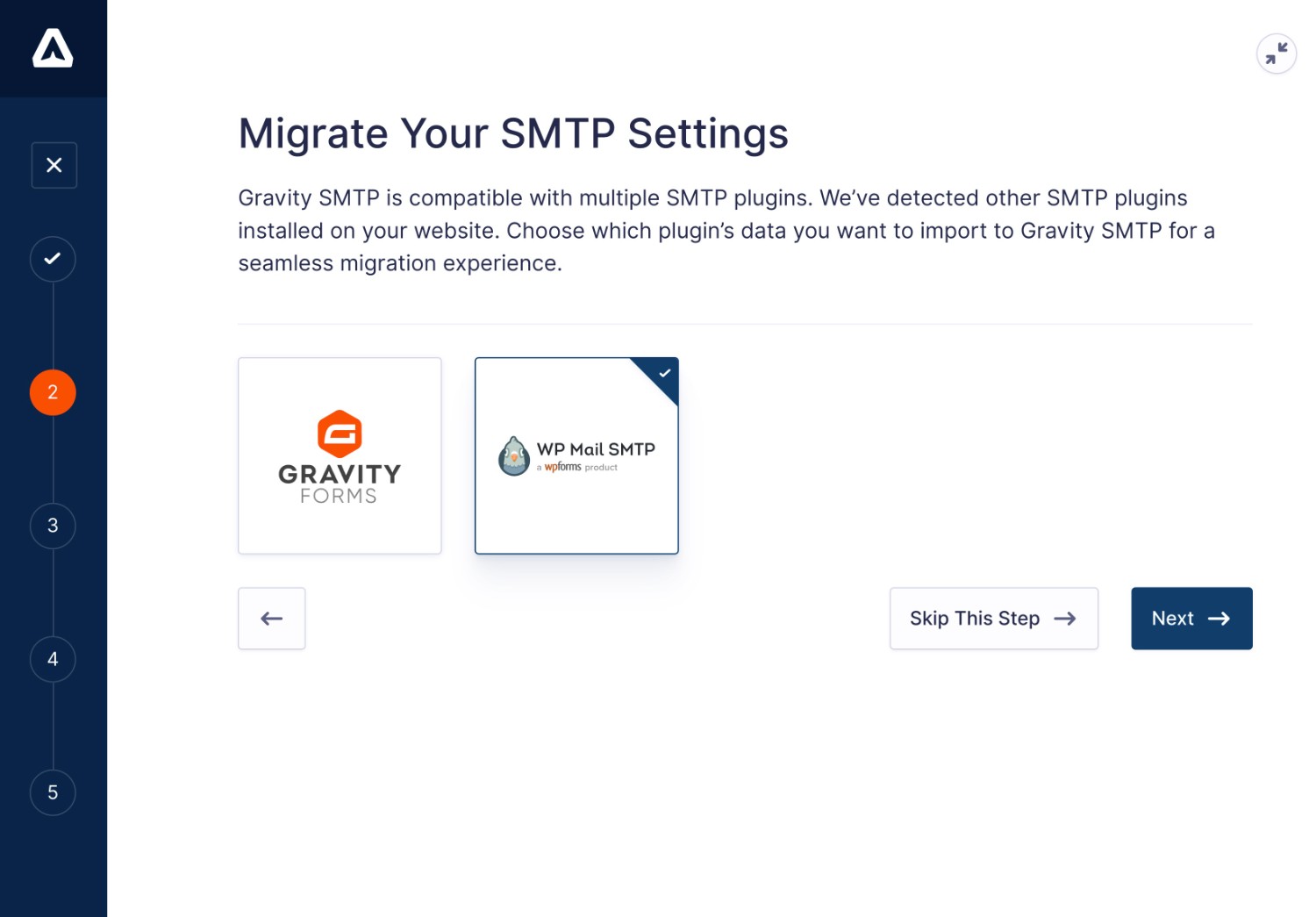
Gravity SMTP will then import the settings for all of the services that you’ve connected (even if a service isn’t set as your primary sending service).
For more information, read this article – How to Migrate from WP Mail SMTP to Gravity SMTP.
Pick the Best SMTP Plugin for Your Needs
And with that, we’ve come to the end of our comparison between these two WordPress SMTP plugins.
In the end, making the right choice really comes down to your budget, the specific email sending service(s) that you want to use, and any specific features that you need on your site.
If you’re already holding the Gravity Forms Elite license (or considering it), you should definitely consider Gravity SMTP because you get it at no extra cost. Download it from your Gravity Forms My Account area and get started today.
If you’re not holding the Elite license yet, Gravity SMTP could still be the best option, especially if you’re also interested in using Gravity Forms on your site(s).
If you want to learn more, you can check out our ultimate guide to Gravity SMTP to discover everything that it can do.

If you want to keep up-to-date with what’s happening on the blog sign up for the Gravity Forms newsletter!
"*" indicates required fields