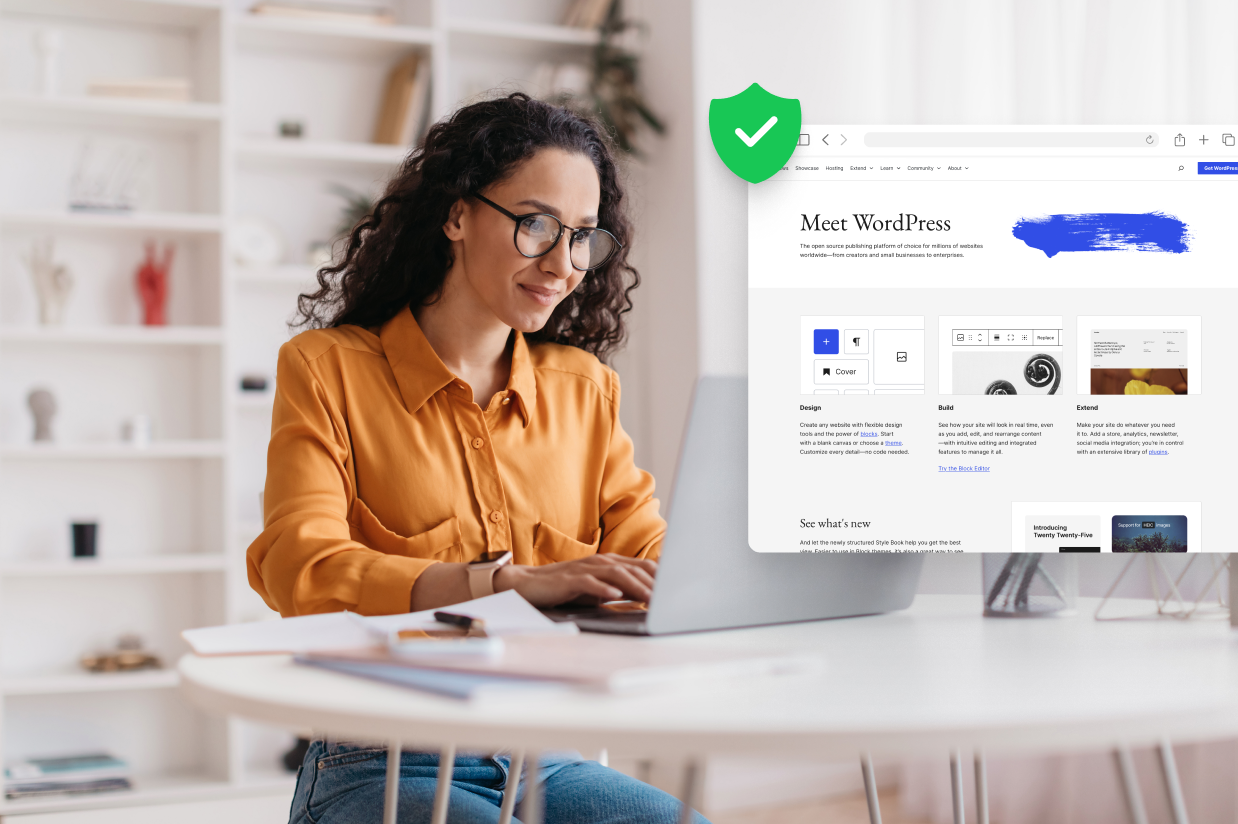
After you’ve put in the time to build your WordPress website, the last thing you want to experience is an issue with your site’s security.
Thankfully, if you follow some basic WordPress security best practices, you can protect your site from malicious actors and be confident that your site will avoid issues.
In previous parts of our getting started with WordPress guide, we covered all the steps of setting up your WordPress website, including purchasing a domain name, choosing hosting, setting up your theme, installing plugins, and adding some content.
Now, we’re going to cover WordPress security, including some essential WordPress security best practices that you can implement on your own site – all without needing any special technical knowledge.
Let’s get into it…
Why some WordPress sites get hacked
WordPress security can be a bit of a conundrum because two opposing statements are both true:
- The core WordPress software is secure, and WordPress can help you build secure, resilient websites. This is why the WordPress software is used and trusted by huge governmental organizations and for-profit businesses.
- Millions of WordPress sites get hacked every year and, because WordPress powers over 43% of all the websites on the internet, WordPress sites are the most common target for malicious actors.
So – if the core WordPress software is secure, how are millions of WordPress sites getting hacked?
The answer is basically this:
Some WordPress webmasters don’t follow best practices and open up attack vectors that wouldn’t be there if the webmaster just followed those basic best practices. In most cases, it’s really that simple.
While there are always edge cases and unique situations, most hacked WordPress sites boil down to three factors – sometimes multiple of these factors at the same time:
- Vulnerable or malicious plugins – If you install a plugin with a vulnerability (or malicious code, such as a nulled plugin), a malicious actor can use the plugin to gain access to your site.
- Out-of-date software – If you aren’t promptly updating the core software, plugins, and themes, malicious actors might be able to exploit an old vulnerability that has already been patched. Basically, you won’t benefit from the updated protections if you aren’t updating the software on your site.
- User account access – The malicious actor might get access to a privileged user account (such as your Administrator account). They could accomplish this with stolen login credentials (e.g. maybe you reuse the same username/password on multiple sites), brute force attacks, phishing, etc.
If you can protect yourself from these common vectors, while also hardening against other less common methods, you can feel confident in your site’s security.
WordPress security essentials to secure your site
While WordPress security certainly can be complex, it really doesn’t have to be for regular WordPress users.
Following just a few non-technical best practices can protect your WordPress site from the vast majority of security issues.
Here’s what you need to do…
Keep everything updated (and apply security updates promptly)
One of the absolute best things you can do to keep your WordPress site secure is to promptly apply updates for the core WordPress software, the plugins that you’re using, and your theme.
New vulnerabilities are discovered all the time, especially in plugins that your site might be using. It’s just a fact of life – even a plugin from the absolute best developer could still have a newly discovered vulnerability.
Quality developers will quickly fix these issues, usually before malicious actors have a chance to exploit them.
However, you will only benefit from these patches and added protections if you promptly apply updates on your site.
If you don’t promptly apply security/maintenance updates, you might give a malicious actor a chance to actually start exploiting the vulnerability, which is why out-of-date software is one of the most common attack vectors for WordPress sites.
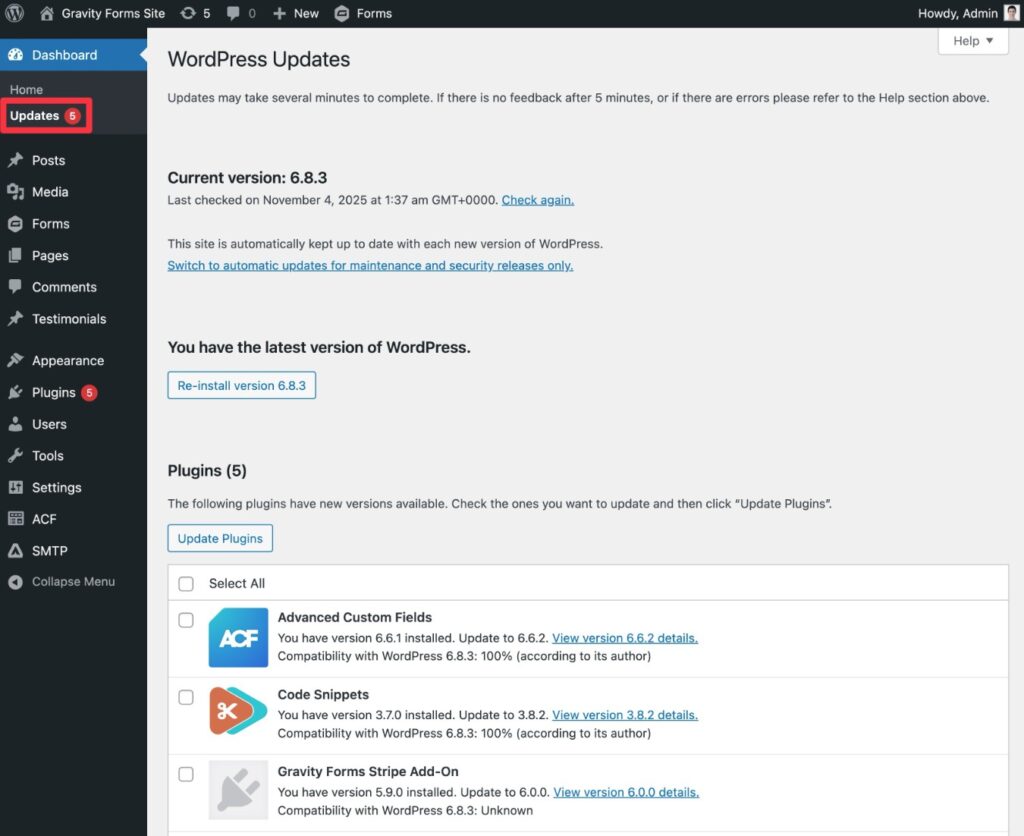
You can find all of the updates that are available to your site by going to Dashboard → Updates in your WordPress dashboard:
Here are some other tips to ensure that you’re able to promptly install updates:
- Set up email alerts if you don’t check your WordPress dashboard very often – You can enable these using a free plugin like Email Notifications for Updates or Easy Updates Manager.
- Consider enabling the core WordPress automatic updates feature – WordPress offers a built-in feature to enable automatic updates for the core software, plugins, and themes. Some people don’t like using this feature because they might not notice if an update causes a problem, but it can be something to consider.
- Use a WordPress host with smart automatic updates – If you don’t feel comfortable using the core automatic update feature “as is”, some WordPress hosts like Kinsta and WP Engine offer smarter automatic updates that can automatically roll back your site to a recent backup if there’s a problem with an update.
There is one situation where you don’t need to promptly apply updates. For major WordPress updates, you can wait a bit before applying the update. This is because major WordPress updates are about adding new features, rather than applying security and maintenance fixes.
Here’s how to tell between major feature updates and minor security/maintenance updates for the core WordPress software:
- Major updates (features) – You can wait to update – these have one decimal place in the version number. E.g. WordPress 6.7 and WordPress 6.8.
- Minor updates (security/maintenance) – You should update right away – these have two decimal places in the version number. E.g. WordPress 6.7.2 or WordPress 6.8.1.
Only install plugins from trustworthy developers
Every time you install a new plugin, you’re adding third-party code to your site. If you install a plugin with malicious code in it, you’re essentially doing the malicious actor’s work for them.
Given that, it’s essential to only install plugins from trustworthy developers. Look at factors such as reviews, active installation count or purchases, the developer’s reputation, other extensions from the developer, etc.
For example, the Gravity Forms plugin has been around for more than 15 years at this point, so you can be confident that you have a trustworthy company behind your form plugin, both now and in the future.
Finally, you should avoid installing nulled versions of premium plugins, as you can never know whether the distributor of the nulled plugins has added their own malicious code. While the prospect of getting a premium plugin for free might be attractive, it’s not worth the risk to your site’s security.
Protect WordPress user accounts
The best alarm system in the world won’t protect your house if you give a burglar the key to your front door and the code to your alarm system.
The same thing holds true for your WordPress site – none of the other protections matter if a malicious actor has access to your WordPress Administrator account, or another high-privilege account on your site.
There are a few different tactics that you can use to secure your site’s user accounts:
- Use strong passwords -Never reuse account credentials from another site. A password manager like Bitwarden or LastPass can be a great solution for generating strong and unique passwords.
- Consider enabling two-factor authentication (2FA) – 2FA requires users to authenticate with a second method in addition to username/password, such as a code from a smartphone app. You can set up 2FA using free plugins like Two Factor Authentication or WP 2FA.
- Be aware of phishing – While not common, targeted phishing attempts can occur. Only log in directly through your site’s login page.
- Protect your entire WordPress dashboard – If you want to go even further, you can lock down your WordPress admin area using server-level rules or a service like Cloudflare.
If you need to create user accounts for other people on your site, you should learn and follow the principle of least privilege. Essentially, this means that you should only give users the absolute minimum level of access that they need to perform their tasks, which you can accomplish using the built-in WordPress user role system.
For example, if you’re hiring a writer to write for your blog, you should absolutely not give them an Administrator account. Instead, you should create an Author account for them, which gives them the ability to create content on your site (but not to publish it), or maybe an Editor account if you want them to be able to publish content.
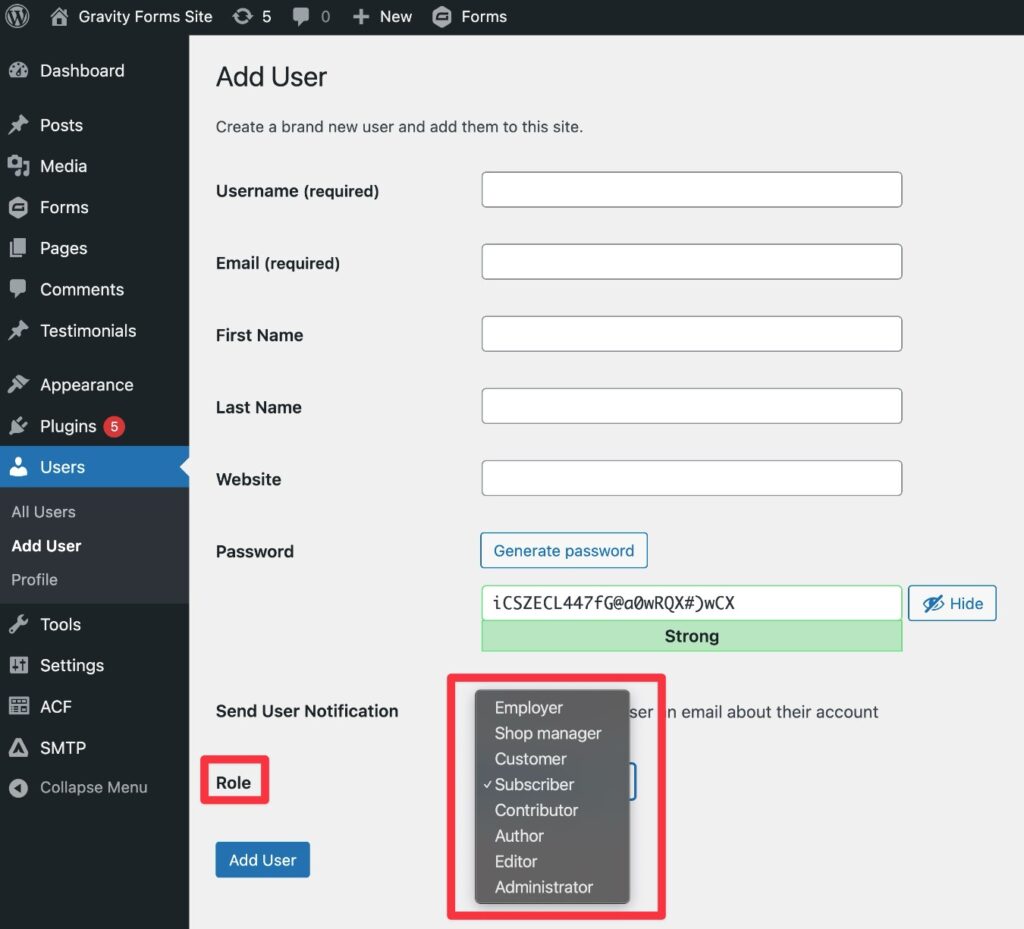
In general, you should always be extremely careful about creating an Administrator account for someone, and only do it for people that you trust completely.
You can learn more about WordPress user roles here and you can choose which role to assign when you create an account. Or, if you create a custom user registration form with the Gravity Forms plugin, Gravity Forms lets you control which role(s) to assign to people who use your registration form.
Finally, make sure that you delete user accounts that are no longer needed (or at least downgrade them to a lower user role, if you don’t want to delete them completely). For example, if you needed to create an Administrator account for a developer that you hired to perform some work, you should delete that account once you’re finished working with the developer.
Install a WordPress security plugin
While a security plugin isn’t an absolutely must-have part of creating a secure WordPress website, it can be a great way to further harden your site and ensure you don’t have any blind spots.
One of the most popular options is Wordfence, which comes in both a free and a premium version.
It adds a number of proactive security protections, including a web application firewall (WAF), malware scanner, login security (including 2FA), and more.
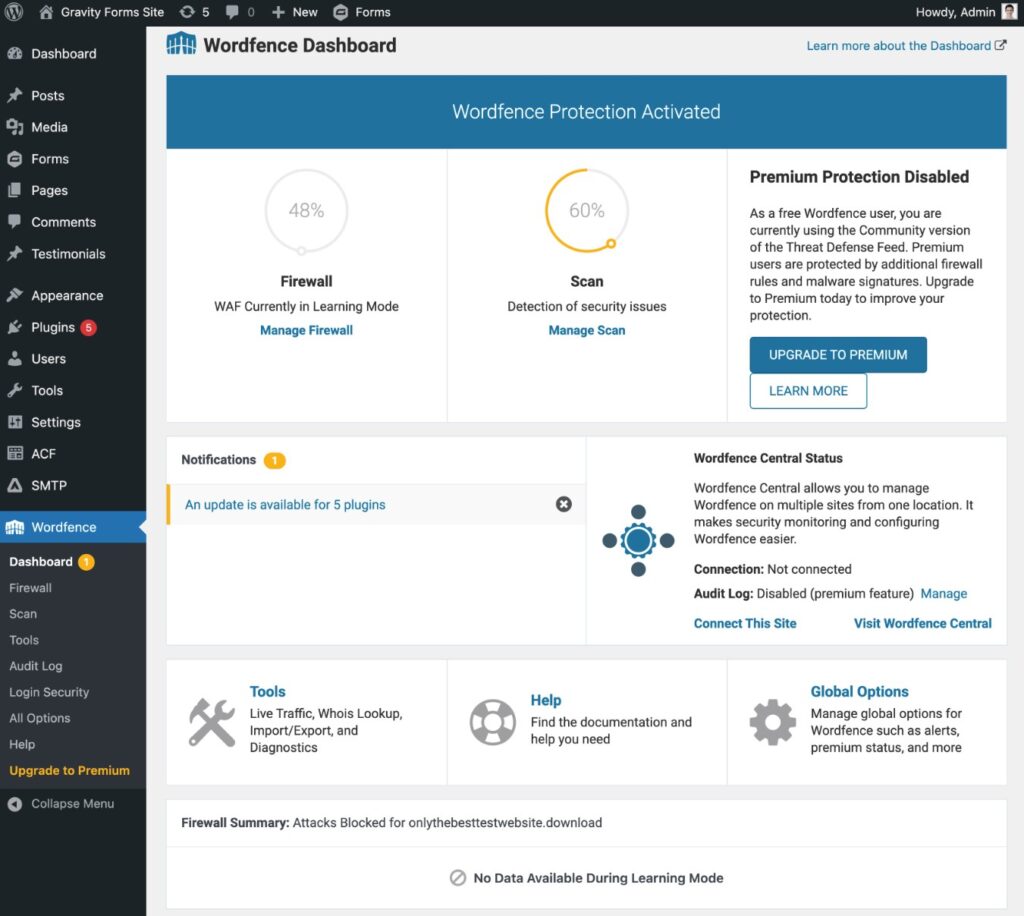
For most sites, the free version is fine, though the premium version does add some extra protection, such as real-time rule updates for the firewall and malware scanning tool (rule updates are delayed by 30 days in the free version).
Use an SSL certificate
An SSL/TLS certificate, often just called an SSL certificate, lets you encrypt data that passes between your website and visitors’ web browsers, including your own.
For example, let’s say you want to log in to your site’s administrator account while you’re working at a cafe.
Without an SSL certificate and HTTPS, a malicious actor could view the data that passes between your web browser and your WordPress site, which could give them an opportunity to steal your account credentials or perform other malicious actions.
With an SSL certificate and HTTPS, that data would be encrypted. So, while a malicious actor might be able to see that there’s a connection between your web browser and your WordPress site, they wouldn’t be able to view any of the data that’s passing between them.
Nowadays, pretty much every quality WordPress hosting service offers free SSL certificates, including all of the hosts that we recommended in our guide to choosing WordPress hosting.
There’s no need to purchase a premium SSL certificate – the free SSL certificate from your host is all you need to encrypt the data. Just make sure that you’ve enabled the SSL certificate in your hosting panel (it should be enabled by default at most hosts) and that you’ve configured your WordPress site to use HTTPS instead of HTTP.
Once you’ve set up HTTPS, you should see a green padlock appear in your browser address bar when you visit your WordPress site.
Back up your site regularly
Backing up your site won’t do anything to protect your live website from malicious actors, but it will do a lot to protect your website’s data from catastrophic situations.
It’s the difference between “oh no, my site got hacked and now all my data is gone forever” and “oh no, my site got hacked – I guess I’ll need to roll back to yesterday’s backup”.
Nowadays, many quality WordPress hosts offer daily backups as part of their services. This is fine to use as long as the host is storing those backups in a secure environment that’s completely separate from your live website’s hosting environment.
However, you’ll ideally be able to store the backups on your own cloud storage and download them to your own local computer. The UpdraftPlus plugin lets you do this on an automatic schedule – all for free (though there are also premium plans that add useful features).
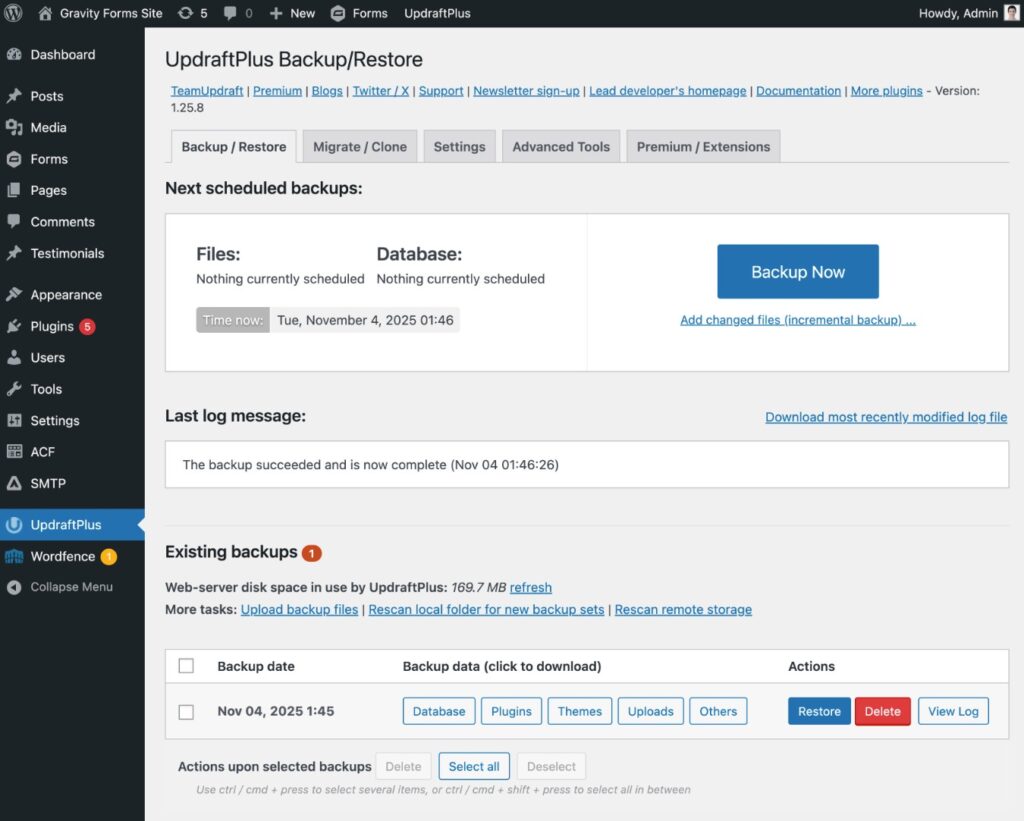
To guarantee that you have recent backups of your site in a secure area, you can do something like the following:
- Install the free version of UpdraftPlus.
- Connect UpdraftPlus to your favorite cloud storage service. Using a service like Google Drive or Dropbox is the simplest option, but you can also connect to object storage services like Amazon S3.
- Enable automatic daily backups in UpdraftPlus and configure it to send the backups to your cloud storage service.
Secure your WordPress website today
While the WordPress software itself is secure, it’s essential to follow some general WordPress security best practices if you want to keep your site safe.
If you keep everything updated, only install plugins from reputable developers like Gravity Forms, use an SSL certificate, and protect your user accounts, you’ll eliminate most of the reasons why WordPress sites get hacked.
To go further, you can install a dedicated WordPress security plugin, such as the popular Wordfence plugin. Wordfence can protect your site with firewalls and malware scans, while also adding lots of other basic hardening strategies.
Finally, to make sure that a security incident, as unlikely as one may be, isn’t catastrophic, you should make sure that you’re regularly backing up your WordPress site. That way, you always have a recent clean copy of your site, no matter what happens.

If you want to keep up-to-date with what’s happening on the blog sign up for the Gravity Forms newsletter!
"*" indicates required fields